

Internal Hard Drives in Computer Accessories










About Internal Hard Drives in Computer Accessories - Walmart.com
Internal hard drives help you expand internal storage for desktops, NAS setups, gaming builds, and surveillance recorders. You can compare capacity, form factor, and workload design to match your system with less guesswork.
When you choose the right drive class, you get room for games, project files, camera footage, or shared backups. You also avoid fit problems when you check 3.5-inch or 2.5-inch sizing and SATA compatibility first.
How to choose internal hard drives
You should start with your system type and your daily workload. Your desktop, NAS enclosure, or recorder usually points you toward a specific drive category.
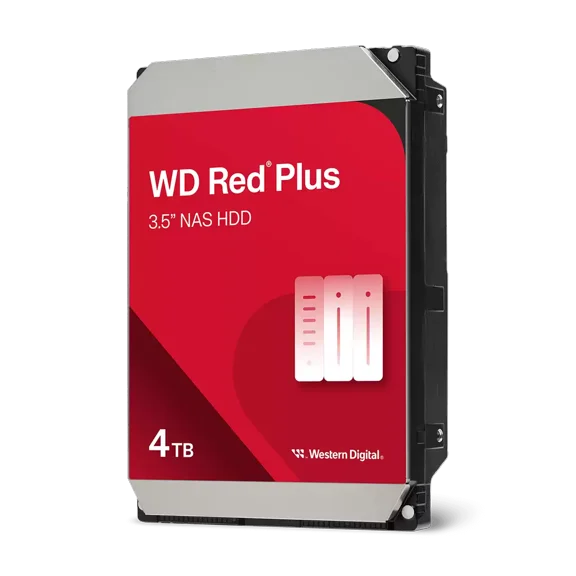
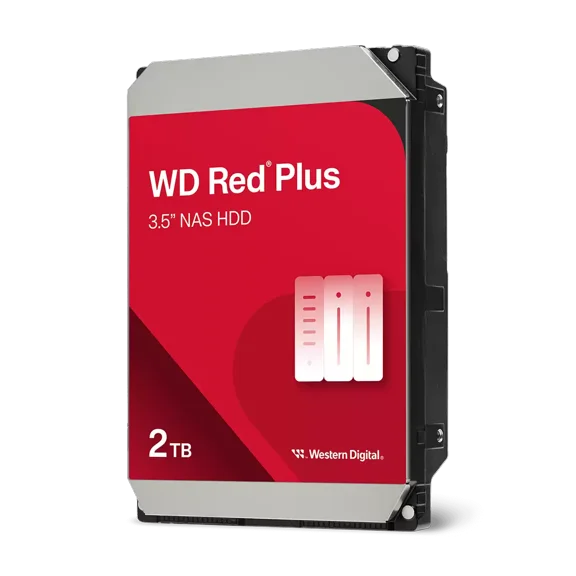
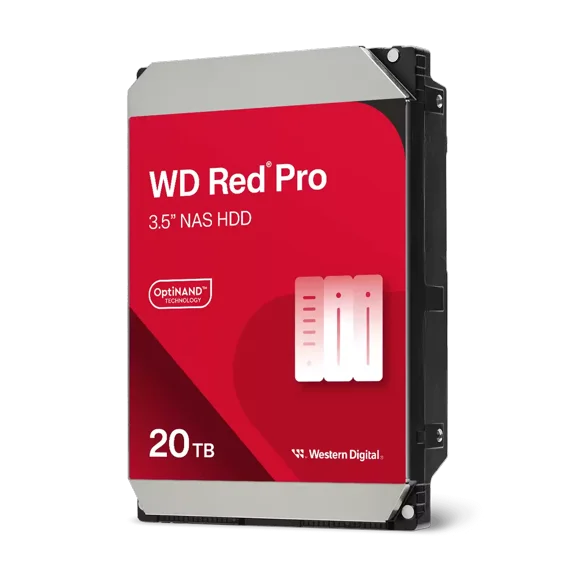
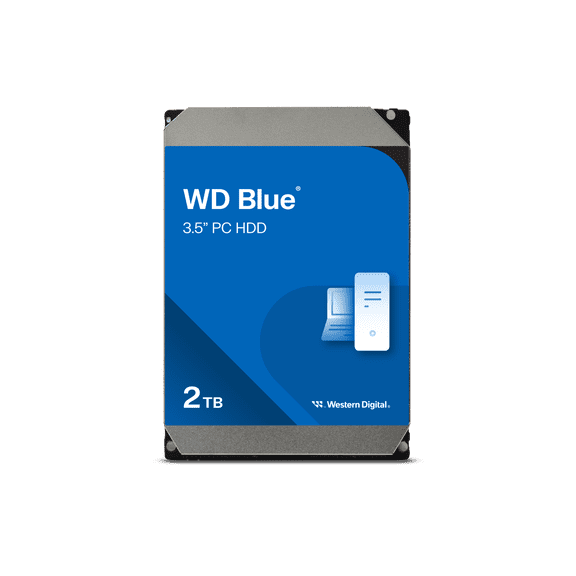
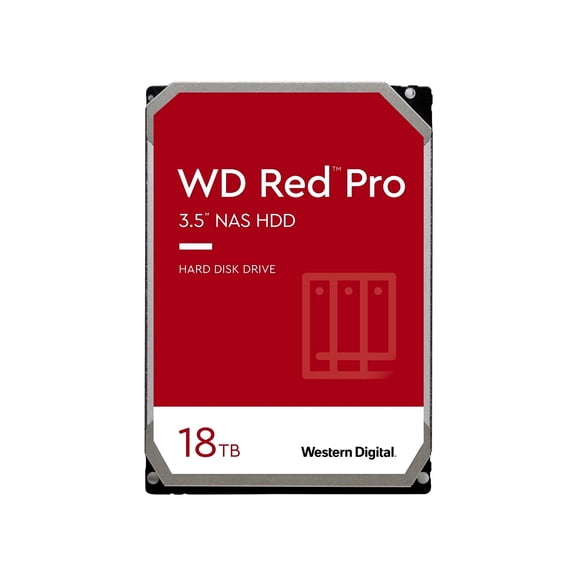
If you need a hard drive for pc use, you can focus on everyday storage, game libraries, and media files. If you need a hard drive for nas use, you should compare drives built for shared access and steady operation.
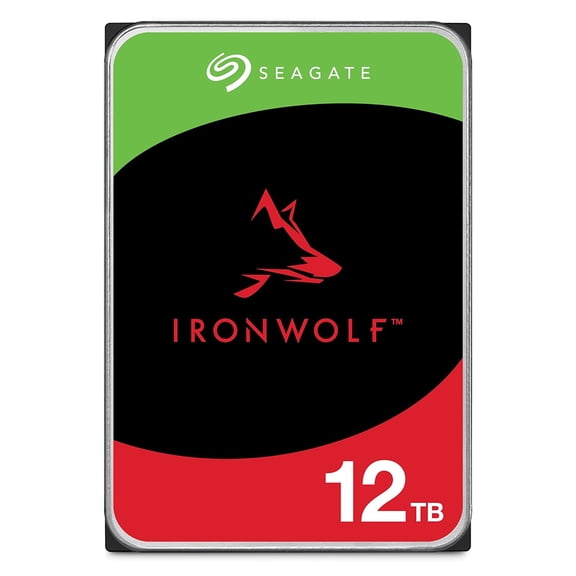
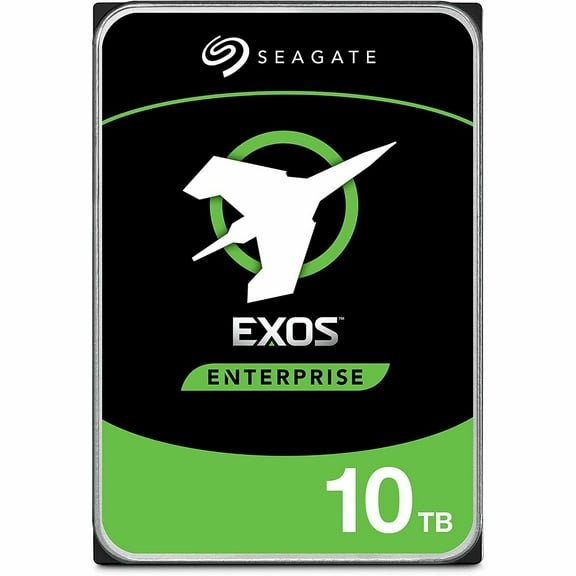
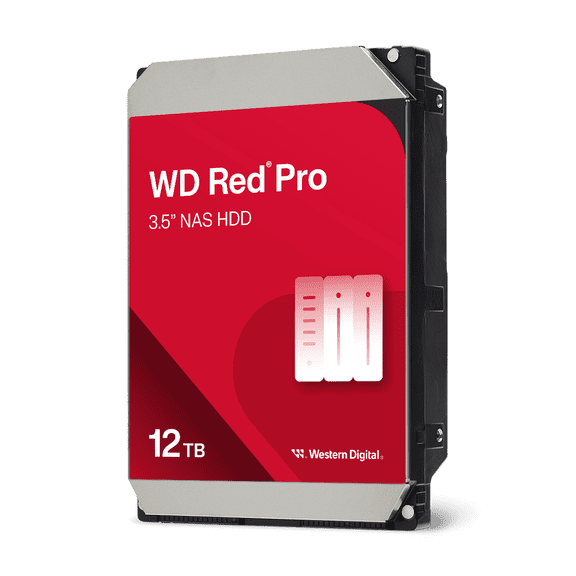
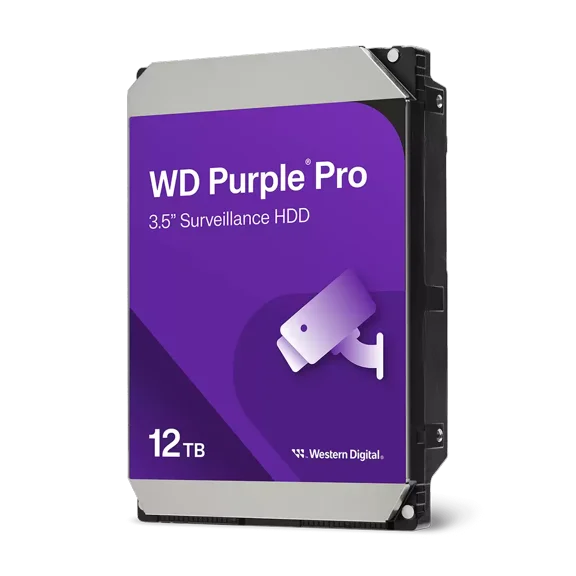
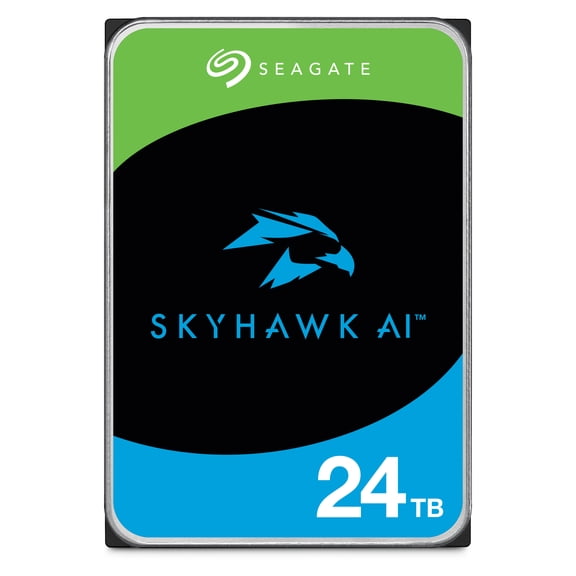
For surveillance recording, you should look for models designed for continuous writing. You can also compare capacities like 12TB when your system stores longer footage histories.
- You can add large internal storage without replacing your whole computer.
- You can match drive types to desktop, NAS, gaming, or surveillance workloads.
- You can choose capacities that fit photos, videos, games, and archived files.
- You can narrow options quickly by checking form factor, SATA support, and speed.
Choosing capacity for your files and footage
You should think about what fills your drive fastest. Your video libraries, game installs, and camera recordings usually need much more room than documents.
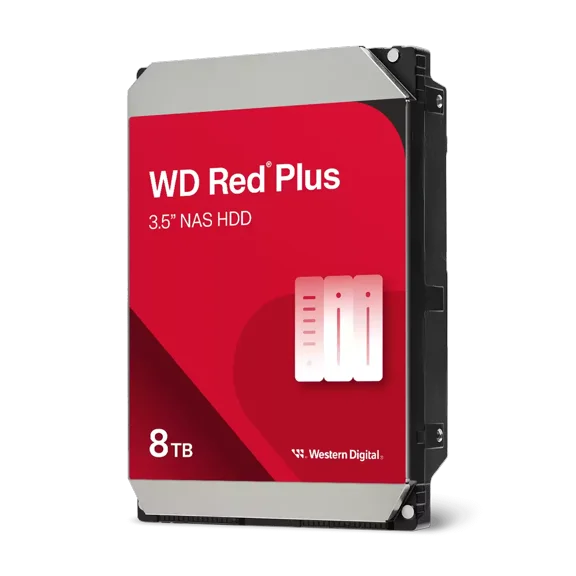
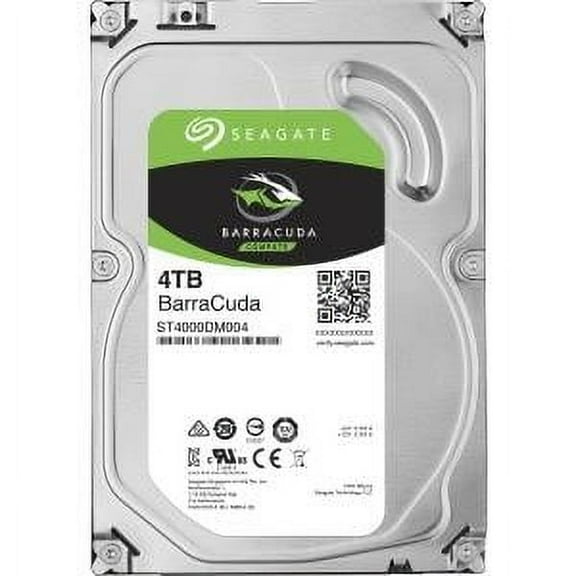
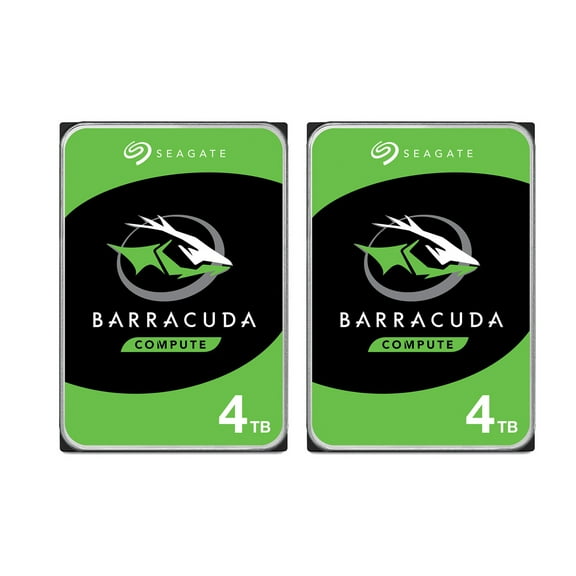
A 2TB or 4TB drive can suit lighter desktop storage and secondary backups. An 8TB or 12TB option gives you more room for larger media collections.
If you manage many cameras, a 12tb surveillance hdd can make planning easier. You can keep more recorded footage on one drive before you need to rotate files.
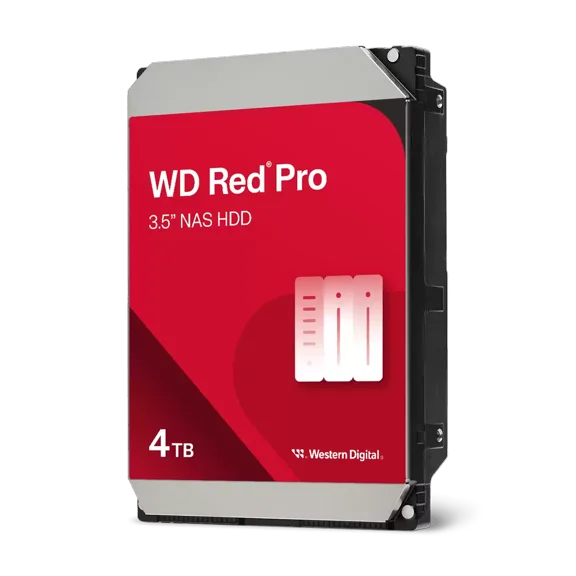
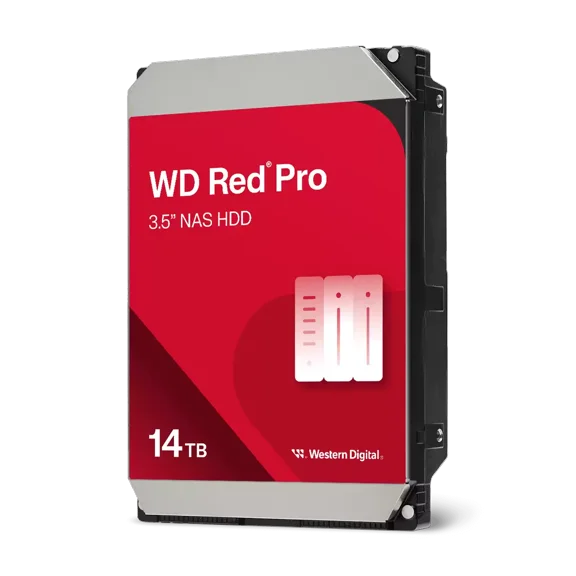
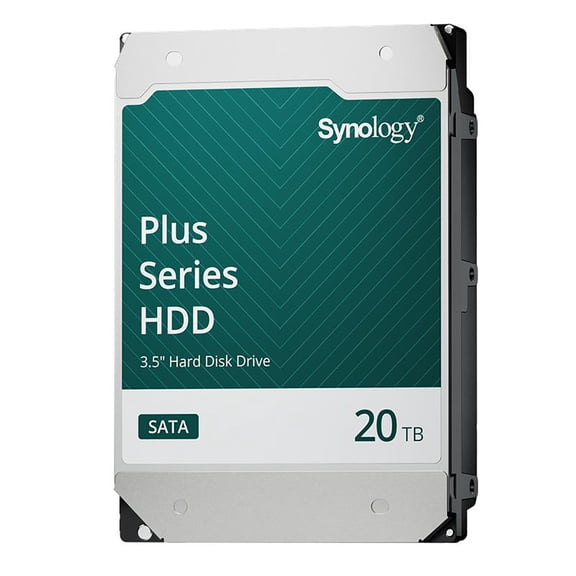
For shared storage, you may compare 8TB, 12TB, or 16TB capacities across multiple bays. You can scale your NAS setup as your household files or creative projects grow.
Choosing form factor and SATA compatibility
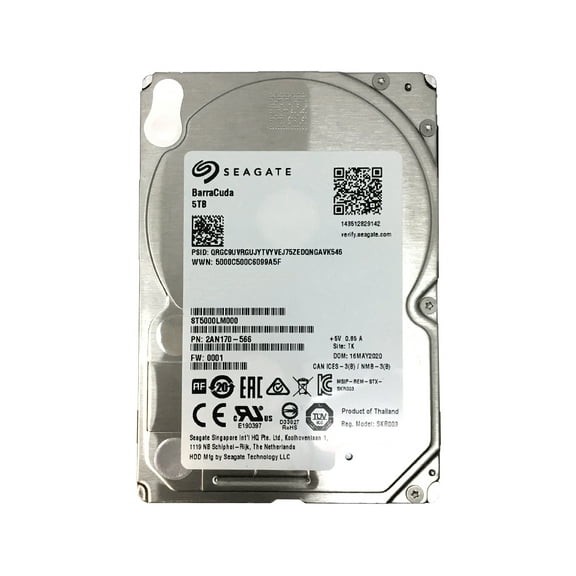
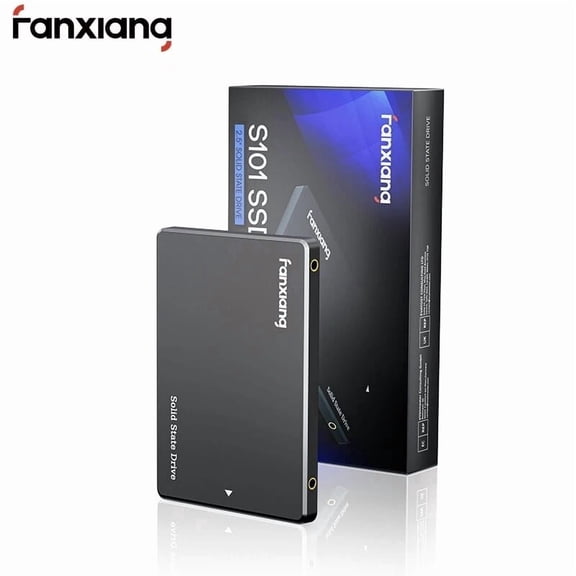
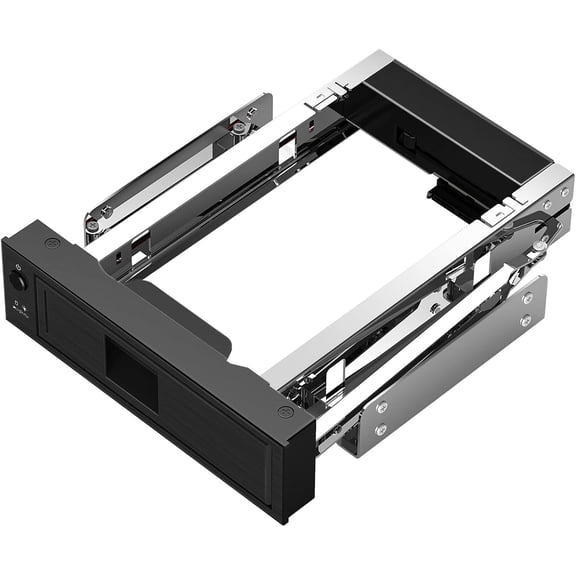
You should measure your device before you choose a drive. Your case or enclosure usually supports either 3.5-inch internal hard drives or compact 2.5-inch options.
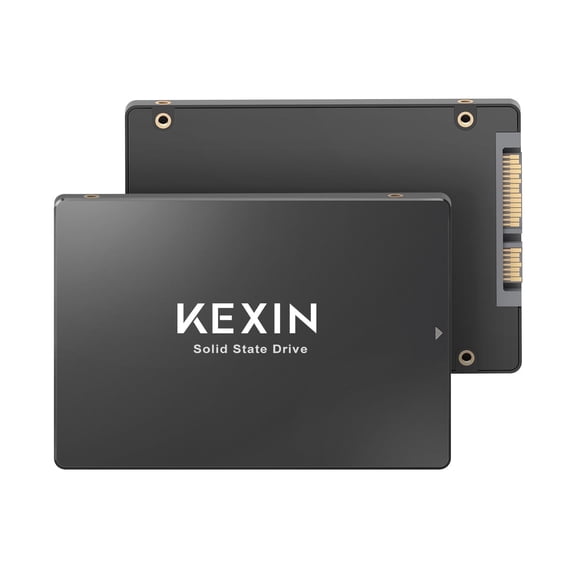
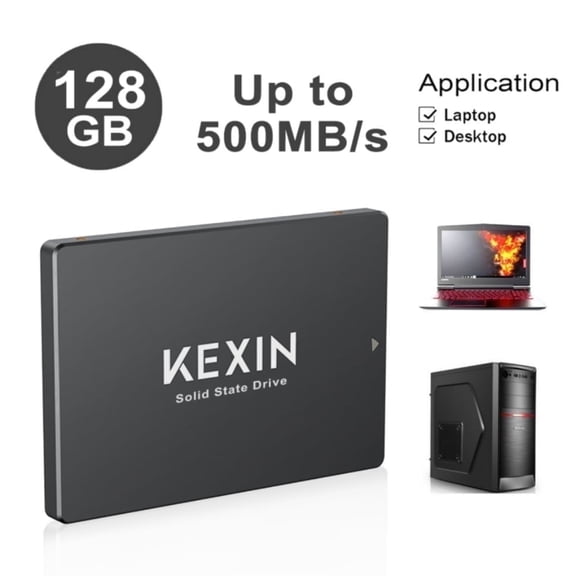
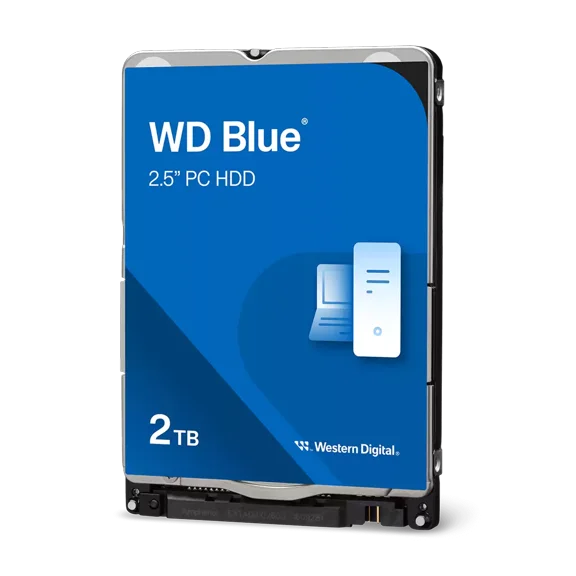
A 3.5-inch drive often fits desktop towers, many NAS units, and some surveillance recorders. A 2.5-inch drive usually suits tighter spaces where your mounting room is limited.
You should also check whether your motherboard or enclosure uses a SATA connection. Your internal hdd needs matching data and power connections to install cleanly.
If you're replacing an older drive, you can confirm bay size, cable clearance, and drive thickness first. You avoid ordering a size that doesn't align with your hardware layout.
Comparing speed, cache, and workload design
You can use RPM and cache as quick performance clues. A 7200 RPM drive often feels faster for transfers, while 5400 RPM options may fit quieter storage roles.
Cache helps your drive handle repeated reads and writes more smoothly. You may notice this during file transfers, game installs, or large backup jobs.
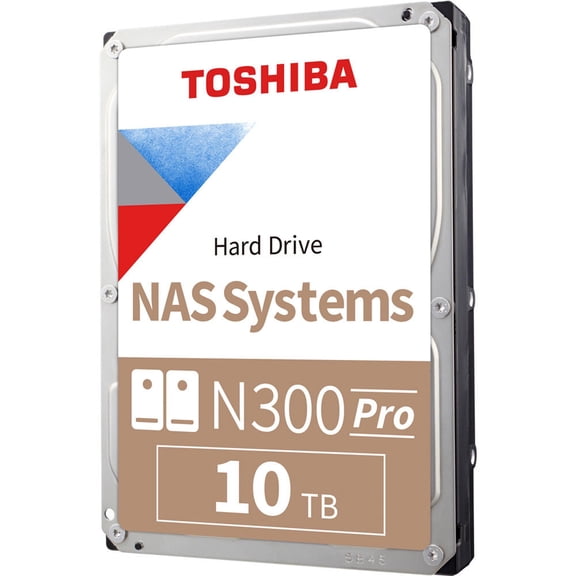
For a hard drive for nas setup, you should also check workload rate and MTBF guidance. Those specs help you compare models meant for steady multi-user access.
For surveillance use, you should focus on drives tuned for continuous recording workloads. Your recorder benefits from a drive built for ongoing write activity across long periods.
Matching brand series to your application
You may see series names that signal intended use rather than style alone. Your comparison gets easier when you connect those series to desktop, NAS, or surveillance needs.
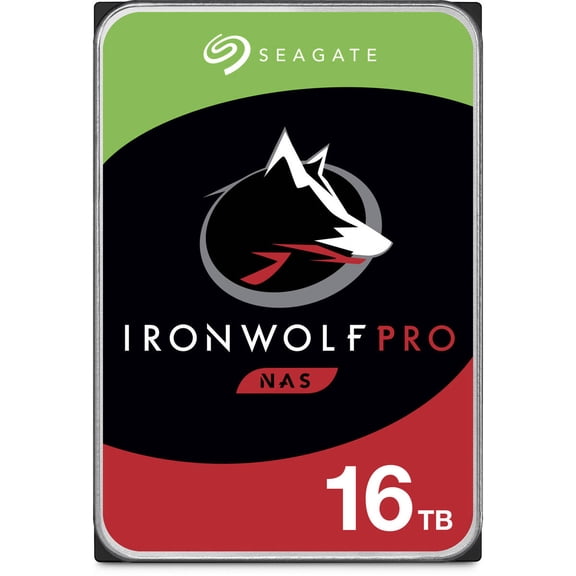
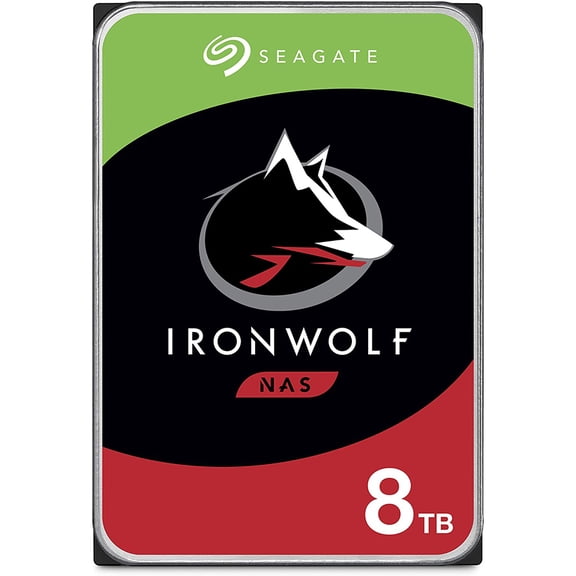
If you compare Seagate IronWolf options, you’re usually looking at drives aimed at NAS environments. A seagate ironwolf 8tb model can suit shared libraries, backups, and multi-bay storage plans.
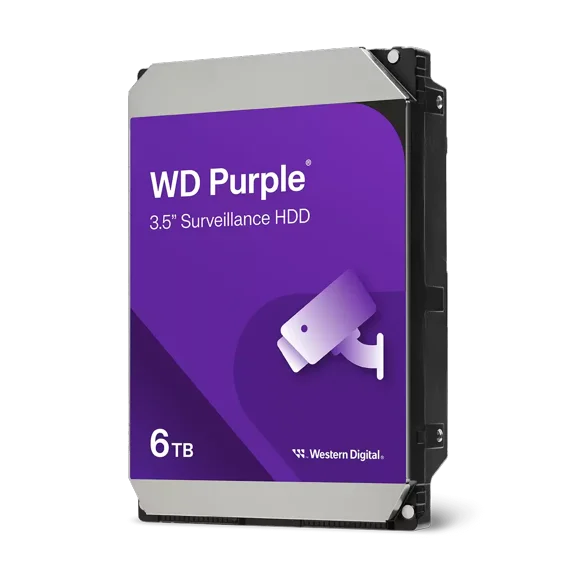
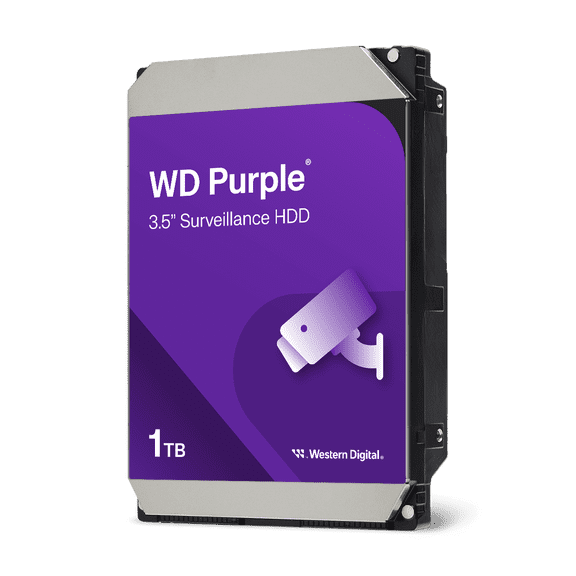
If you compare WD Purple options, you’re usually focusing on surveillance recording. You can choose a wd purple surveillance hard drive when your system records video for long stretches.
You may also see desktop-focused series for general computing and media storage. Your everyday PC build can often use those models for documents, photos, and large software libraries.
Using internal hard drives for pc, NAS, and surveillance
You can use internal hard drives in a desktop PC when your files outgrow your current setup. Your build gains extra room for games, downloads, creative apps, and local backups.
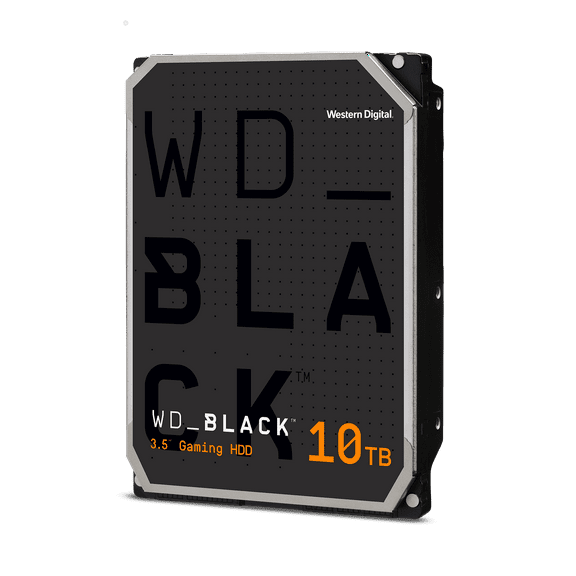
In a gaming setup, you might keep a smaller boot drive and add an HDD for bulk storage. You can separate large game files from your everyday system tasks.
In a NAS enclosure, you can organize family photos, shared documents, and media libraries in one place. You should look for drives designed for multi-bay vibration and sustained workloads.
In a camera system, you can prioritize recording capacity and steady write performance over burst speed. Your surveillance setup benefits when the drive matches continuous capture demands.
You can also compare internal hard drives with related storage upgrades before you commit. Your decision may become clearer when you consider external hard drives, SSDs, or other computer components.
When you use these decision points, you can narrow internal hard drives by fit, capacity, workload, and speed. Your final choice supports smoother installs and storage that matches how you actually use your system.