

Xs2000(2)
Kingston XS2000 2TB Pocket-sized High Performance Portable SSD with USB-C SX2000/2000G From $165.00
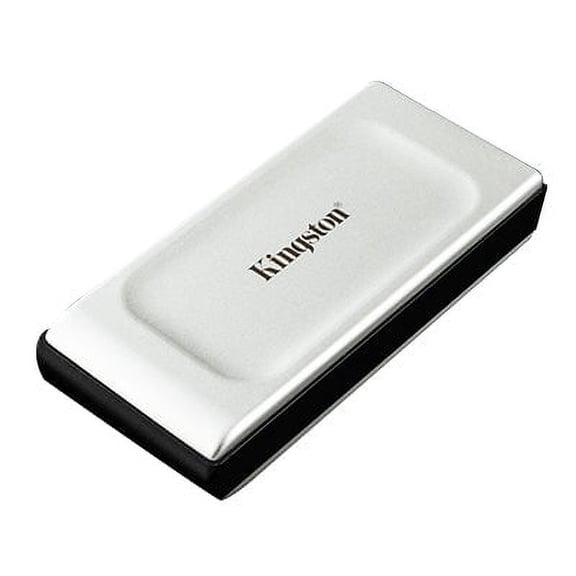
Kingston XS2000 2TB Pocket-sized High Performance Portable SSD with USB-C SX2000/2000G
New, NDIUG-USB-C to USB-C Data Cable, 1.6FT USBC 3.2 Gen 2 20Gbps SSD& HDD Data Cable $25.89
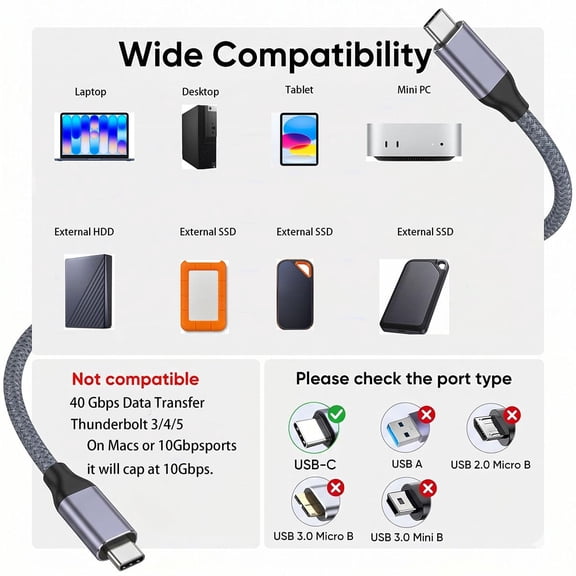
NDIUG-USB-C to USB-C Data Cable, 1.6FT USBC 3.2 Gen 2 20Gbps SSD& HDD Data Cable
FAQ
How do I connect a portable SSD to my laptop?
Connecting a portable SSD to your laptop is usually simple. First, make sure your laptop has a compatible port, like USB-C or USB-A. Then, use the data cable that came with the SSD to plug it in. If your laptop supports USB 3.2 Gen 2, you'll get faster transfer speeds. After plugging it in, your device may automatically recognize the SSD, or you might need to open your file explorer and look for it under 'Devices.'
- Check port compatibility (USB-C or USB-A).
- Use the proper cable for best performance.
- Access the SSD from your laptop's file explorer.
Following these steps can help you start using your portable SSD right away.
What can I store on a portable SSD?
A portable SSD is great for storing a wide variety of files. You can keep documents, photos, music, videos, and even backups of important data. Because SSDs offer high-speed transfers, they're ideal for large files like HD videos or databases. You might also use one to expand your device's storage or to carry files between computers.
- Documents and spreadsheets.
- Photos and media files.
- Software backups and installations.
Portable SSDs can help manage your digital life more efficiently.
How do I safely remove an SSD from my computer?
To safely remove an SSD, it's best to eject it using your computer's operating system. On Windows, right-click the drive and select 'Eject.' On Mac, drag its icon to the trash or click 'Eject.' This helps ensure that all files are saved and prevents data corruption. Wait until your computer says it's safe, then unplug the SSD.
- Eject the device through your OS interface.
- Wait for confirmation before unplugging.
- Unplug the SSD gently.
These steps can help protect your data and the SSD itself.
Can I use a USB-C cable with different devices?
USB-C cables are designed to be versatile, so you can often use them with a range of devices, such as laptops, tablets, smartphones, and storage drives. However, compatibility depends on the device's port and the cable's specs. For high-speed data transfer, look for USB 3.2 Gen 2 cables. Always check your device manual to confirm compatibility.
- Works with many USB-C enabled devices.
- Check specs for optimal speed.
- Refer to manuals for specific compatibility.
Using the right cable can make connecting devices easier.
How do I keep my portable SSD in good condition?
Taking care of your portable SSD can help it last longer. Store it in a safe place, away from extreme temperatures and moisture. Avoid dropping or shaking it. Use a protective case if you travel often. When not in use, unplug it properly and keep the cable tidy. Regularly back up important files to avoid data loss.
- Store in a cool, dry place.
- Use a case for protection.
- Handle gently and unplug safely.
These habits can help maintain your SSD's performance over time.
Popular in Shop XS2000 Electronics Portable SSDs and Accessories
Related Products
VANTEC NexStar DX2 USB 3.0 External Enclosure for SATA Blu-Ray/CD/DVD Drive
 VANTEC NexStar DX2 USB 3.0 External Enclosure for SATA Blu-Ray/CD/DVD Drive$96.15current price $96.15
External DVD drive, compatible with laptops, USB 3.0 and Type-C portable players
 External DVD drive, compatible with laptops, USB 3.0 and Type-C portable players$17.99current price $17.99
Guy-Tech AC / DC Adapter Compatible for Western Digital WD WD5000F032 WD10000F032 WDG1S5000 TiVo My DVR Expander External Hard Disk Drive HDD HD 12V DC Power Supply Cord Cable PS Wall Home Charger
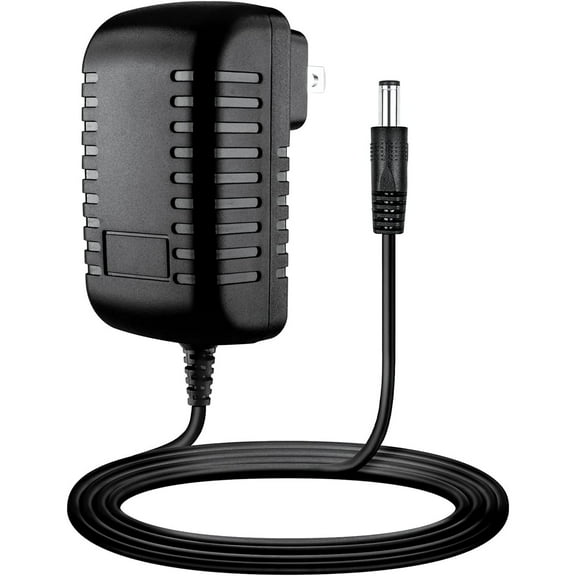 Guy-Tech AC / DC Adapter Compatible for Western Digital WD WD5000F032 WD10000F032 WDG1S5000 TiVo My DVR Expander External Hard Disk Drive HDD HD 12V DC Power Supply Cord Cable PS Wall Home Charger$11.00current price $11.00
Buffalo MediaStation BRXL-PUS6U3B-TAA Portable Blu-ray Writer - External - TAA Compliant - BD-R/RE Support - 24x CD Write/16x CD Rewrite/24x CD Read - 6x BD Write/2x BD Rewrite/6x BD Read - 8x DVD ...
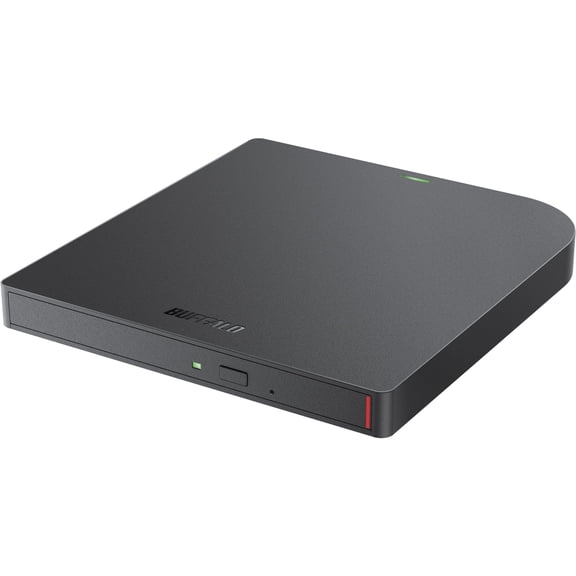 Buffalo MediaStation BRXL-PUS6U3B-TAA Portable Blu-ray Writer - External - TAA Compliant - BD-R/RE Support - 24x CD Write/16x CD Rewrite/24x CD Read - 6x BD Write/2x BD Rewrite/6x BD Read - 8x DVD ...$210.31current price $210.31
Guy-Tech AC/DC Adapter for Western Digital WD WD5000F032 WD10000F032 WDG1S5000 TiVo My DVR Expander External Hard Disk Drive HDD HD 12V DC Power Supply Cord
 Guy-Tech AC/DC Adapter for Western Digital WD WD5000F032 WD10000F032 WDG1S5000 TiVo My DVR Expander External Hard Disk Drive HDD HD 12V DC Power Supply Cord$19.88current price $19.88
Western Digital WD10EZEX-08RKKA0 DCM: EHRNHT2CHB 1TB
Western Digital WD10EZEX-08RKKA0 DCM: EHRNHT2CHB 1TB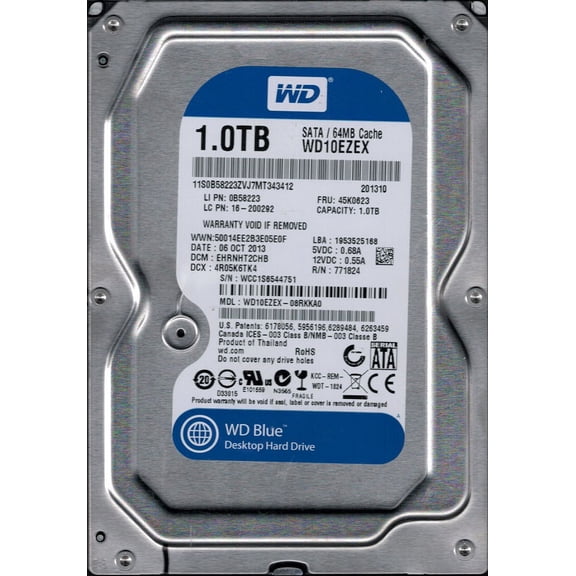
Guy-Tech AC / DC Adapter Compatible with LaCie 301484UR D2 22X DVD±RW External Hard Drive w/ Lightscribe 301484U HDD HD Power Supply Cord
 Guy-Tech AC / DC Adapter Compatible with LaCie 301484UR D2 22X DVD±RW External Hard Drive w/ Lightscribe 301484U HDD HD Power Supply Cord$11.00current price $11.00
Western Digital WD10EZEX-08RKKA0 DCM: DARNKT2CHB 1TB
Western Digital WD10EZEX-08RKKA0 DCM: DARNKT2CHB 1TB