

Hp Hard Disk Caddy(17)
HP 500 GB Hard Drive Internal $594.39

HP 500 GB Hard Drive Internal
HP Removable Hard Drive Enclosure - Storage drive carrier (caddy) - for Color LaserJet Enterprise MFP 6800, MFP M578; LaserJet Enterprise Flow MFP M578 $689.00

HP Removable Hard Drive Enclosure - Storage drive carrier (caddy) - for Color LaserJet Enterprise MFP 6800, MFP M578; LaserJet Enterprise Flow MFP M578
ZYHARUKO 3.5" Hard Drive Tray Caddy for HP Apollo 4200 4510 StoreEasy 1650 G9 Gen9 ML30 ML110 ML350 G10 GEN10 SAS SATA 774026-001 $12.09
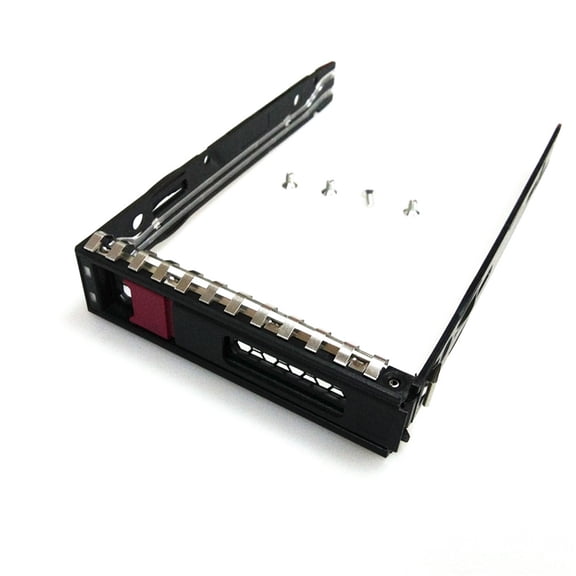
ZYHARUKO 3.5" Hard Drive Tray Caddy for HP Apollo 4200 4510 StoreEasy 1650 G9 Gen9 ML30 ML110 ML350 G10 GEN10 SAS SATA 774026-001
New HP 250 255 G5 Hard Drive Caddy and Connector 859515-001 $59.95

New HP 250 255 G5 Hard Drive Caddy and Connector 859515-001
HDD Tray Caddy, Lightweight Heat Dissipation 3.5inch Hard Drive Tray For 9020 For 3020 $9.29
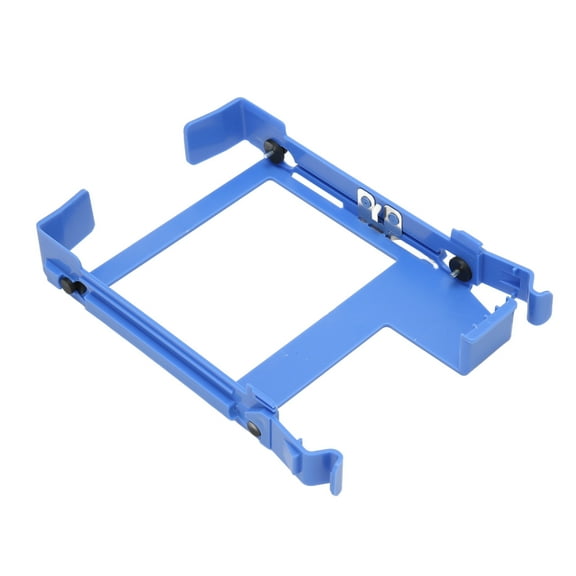
HDD Tray Caddy, Lightweight Heat Dissipation 3.5inch Hard Drive Tray For 9020 For 3020
Explore related products(1000+)
FAQ
How do I know if a hard drive caddy fits my laptop?
To check if a hard drive caddy will fit your laptop, start by finding your laptop's model number—usually on a sticker under the device or in its system information. Then, look for caddies that mention compatibility with your exact model, or review the product description for a match. If you’re unsure, you can compare the shape, connector type, and mounting points of your current caddy with the replacement. When buying online, look for detailed item listings that specify compatible models to feel confident about your choice.
What's the easiest way to install a hard drive caddy?
Installing a hard drive caddy can be pretty straightforward if you follow these general steps:
- Power off your laptop and disconnect all cables.
- Open the access panel using a compatible screwdriver.
- Remove the old caddy (if present) and disconnect the hard drive carefully.
- Slide your new hard drive into the new caddy and secure it with screws if needed.
- Reconnect the hard drive to the laptop and secure the caddy in place.
- Replace the access panel and reconnect everything before powering on.
Refer to your laptop's user manual for specific instructions since designs can vary.
Can I use any hard drive with a hard disk caddy?
Most hard drive caddies are designed to fit specific sizes and types of drives, such as 2.5-inch or 3.5-inch HDDs or SSDs. Always check if the caddy matches your hard drive’s dimensions and connector type (like SATA). Some caddies also support multiple drive sizes with adjustable mounts, but it’s best to double-check the product listing for supported configurations. Using a compatible caddy helps keep your drive secure and ensures proper connection.
How should I clean my hard drive caddy?
Keeping your hard drive caddy clean can help ensure a solid connection and preserve your hardware. Simply use a dry, lint-free cloth to gently wipe away dust and debris from the surfaces and connectors. Avoid using liquids or cleaning sprays, as moisture can damage electronic parts. If there’s stubborn buildup, compressed air can help clear it out without the risk of moisture. Regular cleaning every few months can keep your caddy and drive in good working order.
What do I do if my laptop doesn’t recognize the hard drive in the caddy?
If your laptop isn't recognizing a hard drive installed in a caddy, try these troubleshooting steps:
- Ensure the connections are firm and the drive is properly mounted in the caddy.
- Check if the drive is detected in your system’s BIOS or device manager.
- Try connecting the drive to another computer to see if it's recognized there.
- Inspect the caddy and connectors for damage or loose pins.
If the issue continues, it might help to consult your laptop or caddy’s user manual or reach out to the manufacturer for more support.
Popular in HP Hard Disk Caddy for HDD and SSD Storage Solutions
Related Products
Adata LEGEND 710 ALEG-710-512GCS 512 GB Solid State Drive, M.2 2280 Internal, PCI Express NVMe (PCI Express NVMe 3.0 x4)
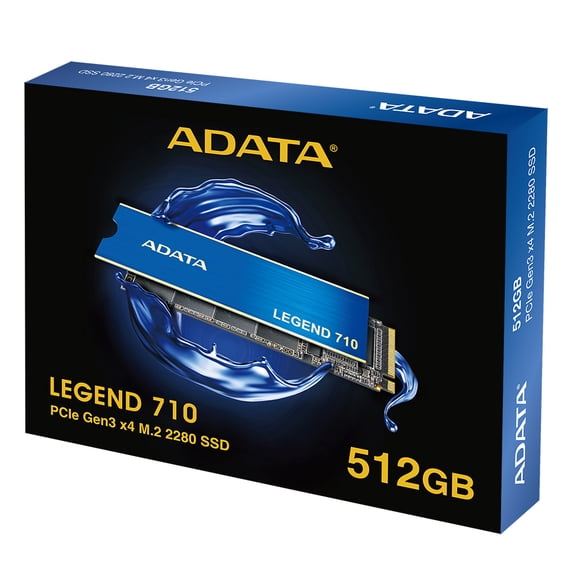 Adata LEGEND 710 ALEG-710-512GCS 512 GB Solid State Drive, M.2 2280 Internal, PCI Express NVMe (PCI Express NVMe 3.0 x4)$164.10current price $164.10
Dell 1 TB Solid State Drive - M.2 2230 Internal - PCI Express NVMe (PCI Express NVMe 4.0 x4) - Notebook, All-in-One PC, Desktop PC, Workstation Device Supported
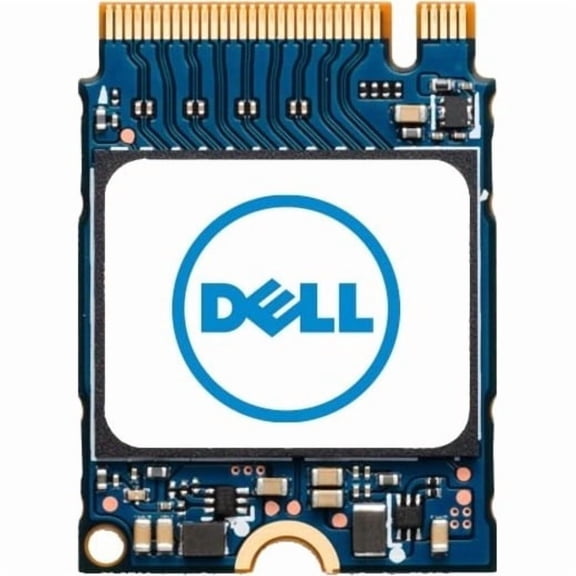 Dell 1 TB Solid State Drive - M.2 2230 Internal - PCI Express NVMe (PCI Express NVMe 4.0 x4) - Notebook, All-in-One PC, Desktop PC, Workstation Device Supported$650.92current price $650.92
KIOXIA Former Toshiba 512GB KBG5AZNS512G M.2 NVMe PCIe Gen4 x4 2230 30mm Genuine Solid State Drive
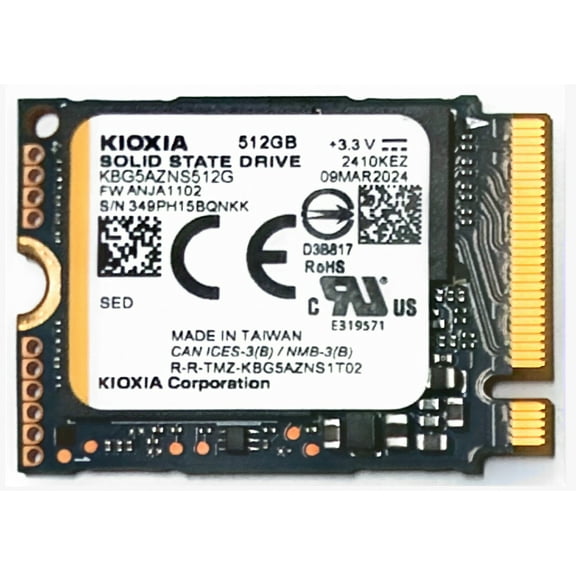 KIOXIA Former Toshiba 512GB KBG5AZNS512G M.2 NVMe PCIe Gen4 x4 2230 30mm Genuine Solid State Drive$76.46current price $76.46
IOCrest 2.5" to 3.5" SSD SATA Hard Drive Aluminum Mounting Adapter Converter Kit with SATA Port
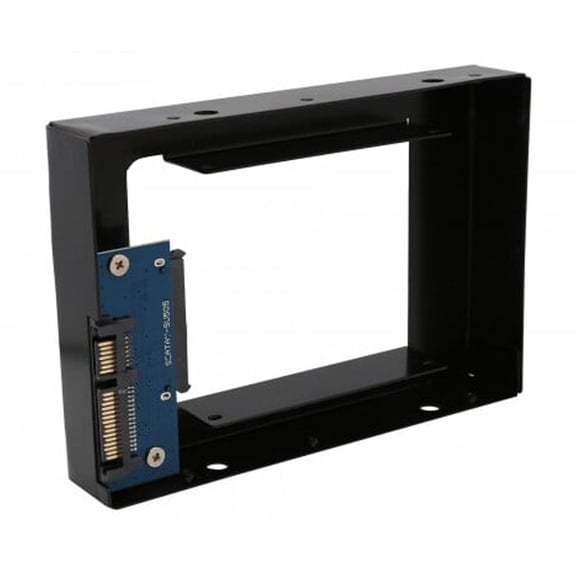 IOCrest 2.5" to 3.5" SSD SATA Hard Drive Aluminum Mounting Adapter Converter Kit with SATA Port$9.99current price $9.99
Patriot P410 NVMe PCIe Gen 4.0 x4 M.2 2280 Internal SSD - 1TB
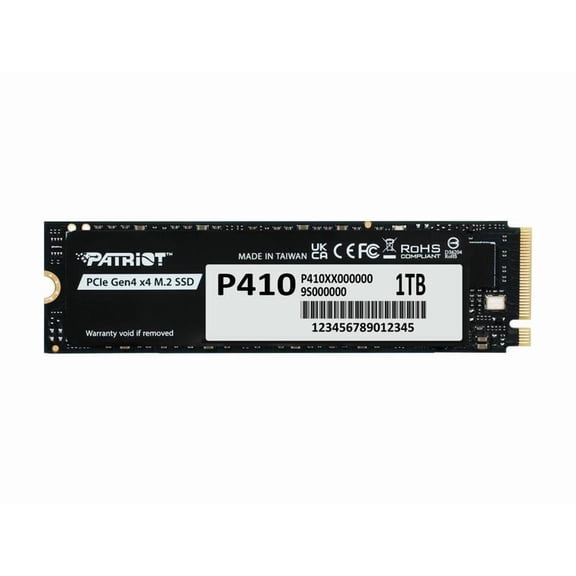 Patriot P410 NVMe PCIe Gen 4.0 x4 M.2 2280 Internal SSD - 1TB$159.99current price $159.99
MDD 14TB 7200 RPM 256MB Cache SATA 6.0Gb/s 3.5" Internal Hard Drive for NAS Network Storage (MD14TSATA25672NAS)
 MDD 14TB 7200 RPM 256MB Cache SATA 6.0Gb/s 3.5" Internal Hard Drive for NAS Network Storage (MD14TSATA25672NAS)$348.50current price $348.50
TERRAMASTER D5 Hybrid HDD NVMe Enclosure - USB 3.2 Gen 2 10Gbps Type C 5Bay USB Storage Supports RAID 0/1/Single/JBOD Exclusive 2+3 RAID Hybrid Disk Array (Diskless)
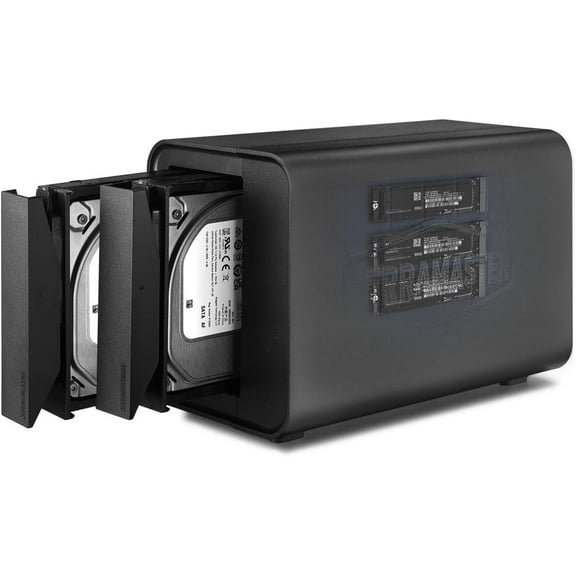 TERRAMASTER D5 Hybrid HDD NVMe Enclosure - USB 3.2 Gen 2 10Gbps Type C 5Bay USB Storage Supports RAID 0/1/Single/JBOD Exclusive 2+3 RAID Hybrid Disk Array (Diskless)$219.99current price $219.99
M.2 NGFF MSATA SSD to SATA 3.0 Adapter Card 2 in 1 Converter Card M.2 SSD Adapter Card External Hard Drive Enclosure
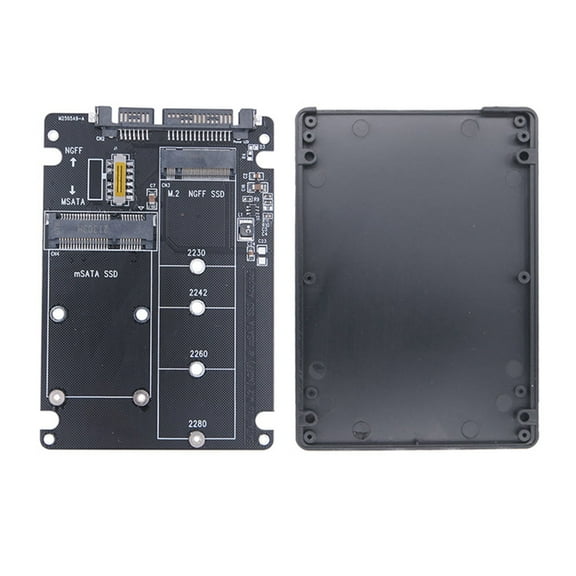 M.2 NGFF MSATA SSD to SATA 3.0 Adapter Card 2 in 1 Converter Card M.2 SSD Adapter Card External Hard Drive Enclosure$9.82current price $9.82
Adata LEGEND 710 ALEG-710-2TCS 2 TB Solid State Drive, M.2 2280 Internal, PCI Express NVMe (PCI Express NVMe 3.0 x4)
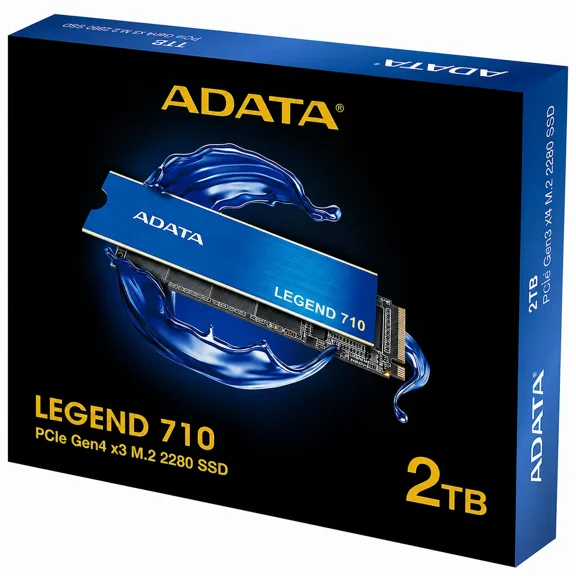 Adata LEGEND 710 ALEG-710-2TCS 2 TB Solid State Drive, M.2 2280 Internal, PCI Express NVMe (PCI Express NVMe 3.0 x4)$356.84current price $356.84
Adata LEGEND 960 ALEG-960-1TCS 1 TB Solid State Drive, M.2 2280 Internal, PCI Express NVMe (PCI Express NVMe 4.0 x4)
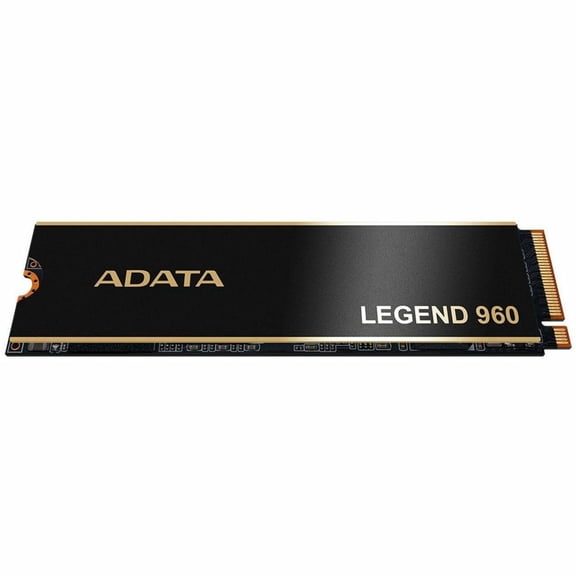 Adata LEGEND 960 ALEG-960-1TCS 1 TB Solid State Drive, M.2 2280 Internal, PCI Express NVMe (PCI Express NVMe 4.0 x4)$174.99current price $174.99