

Wiresmith(5)
Wiresmith Ac Power Adapter Charger for Nintendo Wii U Console $11.99
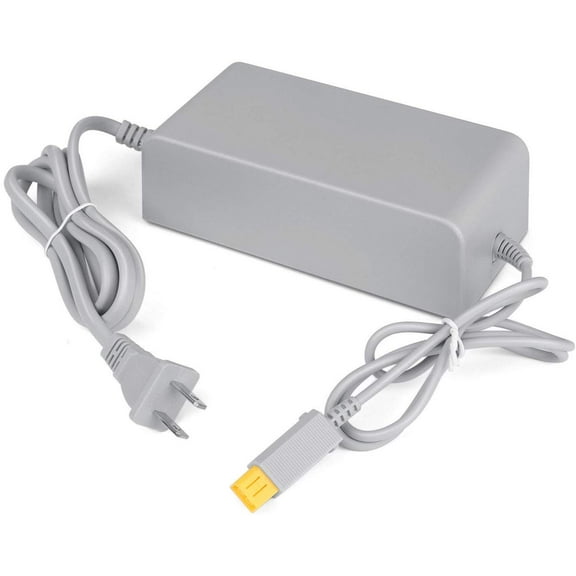
Wiresmith Ac Power Adapter Charger for Nintendo Wii U Console
Wiresmith Power Charger Adapter for Nintendo Ds Lite Ndsl $8.59
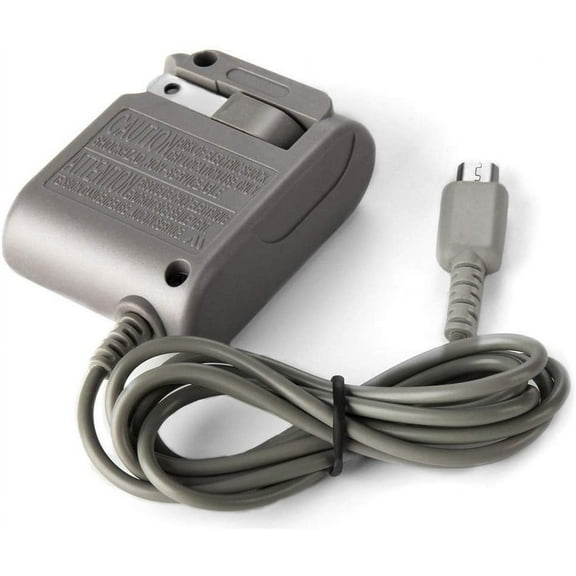
Wiresmith Power Charger Adapter for Nintendo Ds Lite Ndsl
WireSmith Wired Infrared Sensor Bar for Nintendo Wii U Game Console $8.59
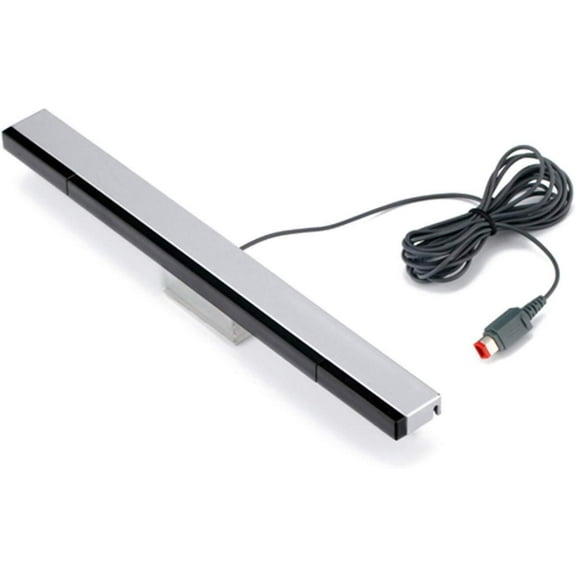
WireSmith Wired Infrared Sensor Bar for Nintendo Wii U Game Console
Wiresmith 3-in-1 Ac Power Adapter for Nintendo Nes Snes Sega Genesis $10.88
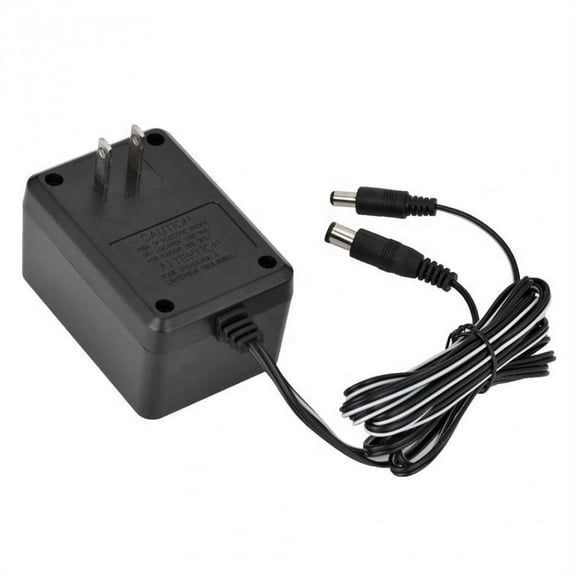
Wiresmith 3-in-1 Ac Power Adapter for Nintendo Nes Snes Sega Genesis
Wiresmith Standard RCA Av Composite Cable for Sega Genesis Model 2 3 $25.96

Wiresmith Standard RCA Av Composite Cable for Sega Genesis Model 2 3
FAQ
How do I connect the sensor bar to my console?
Setting up the sensor bar for your gaming console is usually simple. First, locate the sensor bar port on your console, which is typically on the front or back. Plug the sensor bar cable into this port. Then, place the sensor bar either above or below your TV, making sure it's centered for optimal detection.
- Plug the sensor bar into the console's port.
- Position it above or below your TV screen.
- Ensure it's facing the play area.
Once connected, you can start using your remote for gameplay.
Can I use the power adapter with different consoles?
Some power adapters offer compatibility with multiple console types, while others are designed for a specific system. Always check the product description and input/output specifications to see which consoles the adapter supports.
- Look for multi-system adapters if you have several consoles.
- Compare voltage and connector types before use.
- Don't force incompatible connectors, as this may cause damage.
This helps ensure your gaming devices get the right power supply safely.
What should I do if my charger stops working?
If your charger isn't working, try troubleshooting the issue. Start by checking the cable and connector for visible damage. Make sure the outlet you're using is functional. If the charger still doesn't work, consider testing it with another compatible device.
- Inspect for wear or damage.
- Test with a different outlet.
- Try on another device if possible.
For continued issues, contacting the retailer for support or warranty information may be helpful.
How do I store my gaming accessories safely?
To keep your gaming accessories in good shape, store them in a dry, cool place away from direct sunlight. Use organizers or cases to prevent tangling or damage, and avoid leaving cords plugged in when not in use.
- Keep accessories away from moisture.
- Use storage boxes or cable ties.
- Unplug power adapters when not in use.
Organizing your accessories can help extend their lifespan and make them easier to find.
Are there tips for extending the life of my adapter?
Taking care of your power adapter can help it last longer. Avoid bending the cable sharply, unplug it by gripping the connector instead of the cable, and keep it away from heat sources. It's also good practice to store it neatly when not in use.
- Handle cables gently.
- Keep adapters cool and dry.
- Store in a safe spot when unused.
These habits can help reduce wear and keep your adapter working reliably.
Popular in Wiresmith Power Adapters and Cables for Nintendo and Sega
Related Products
HEORLD AC Power Supply and AV Cable for Gamecube, AC Power Supply Adapter for Gamecube NGC System,Power Cord Compatible Nintendo Gamecube Console
 HEORLD AC Power Supply and AV Cable for Gamecube, AC Power Supply Adapter for Gamecube NGC System,Power Cord Compatible Nintendo Gamecube Console$11.99current price $11.99
NES Original NES Hookup Kit AC Adapter Power Cord AV Cable for Nintendo
 NES Original NES Hookup Kit AC Adapter Power Cord AV Cable for Nintendo$17.99current price $17.99
Power Supply and AV Cable for Gamecube, NGC AC Power Adapter & AV Cable Set, Power Cord Compatible with Gamecube Console
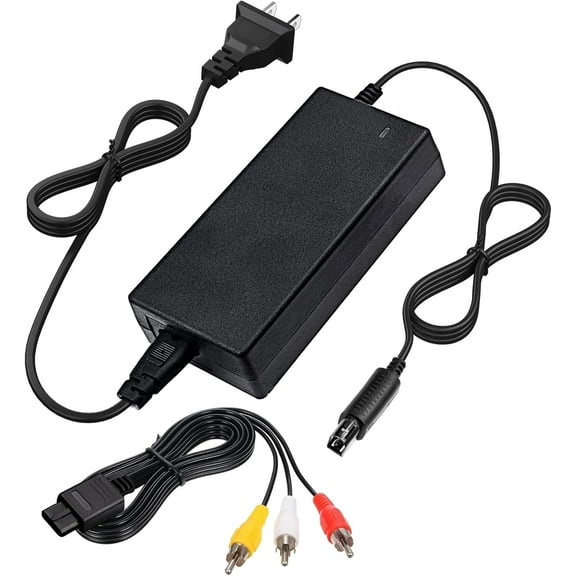 Power Supply and AV Cable for Gamecube, NGC AC Power Adapter & AV Cable Set, Power Cord Compatible with Gamecube Console$18.99current price $18.99
Power Supply AV Cable Sony Playstation 2 Slim PS2 Slim Charger TV Cable Adapter
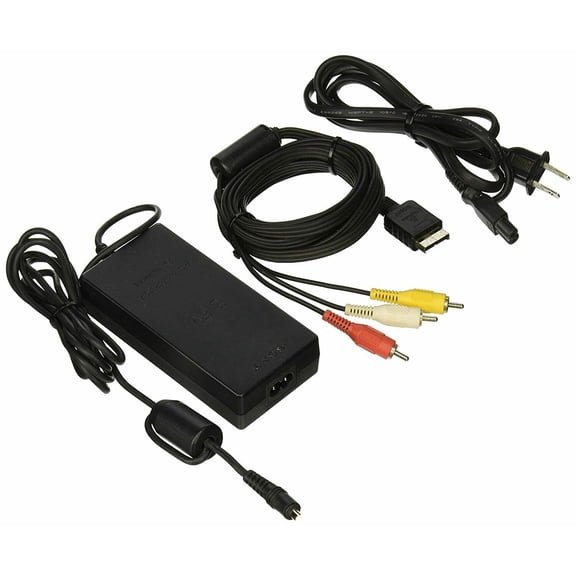 Power Supply AV Cable Sony Playstation 2 Slim PS2 Slim Charger TV Cable Adapter$11.79current price $11.79
TekDeals Audio AV RCA AC Cable Power Supply Adapter Cord for Super Nintendo SNES Game Set
 TekDeals Audio AV RCA AC Cable Power Supply Adapter Cord for Super Nintendo SNES Game Set$10.99current price $10.99
Replacement AC Adapter Power Cable Cord With A/V Audio Video Cable For Sega Genesis Gen 1 Model MK-1601
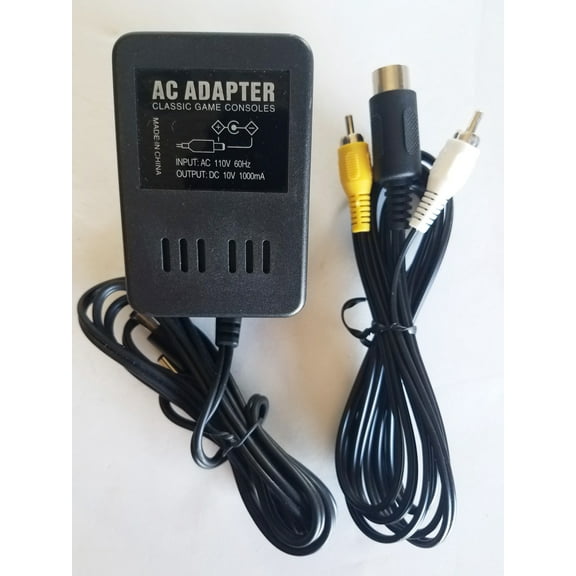 Replacement AC Adapter Power Cable Cord With A/V Audio Video Cable For Sega Genesis Gen 1 Model MK-1601$24.95current price $24.95
The Perfect Part | AC Adapter Power Supply & Audio Video A/V Cable for Nintendo GameCube Bundle USA
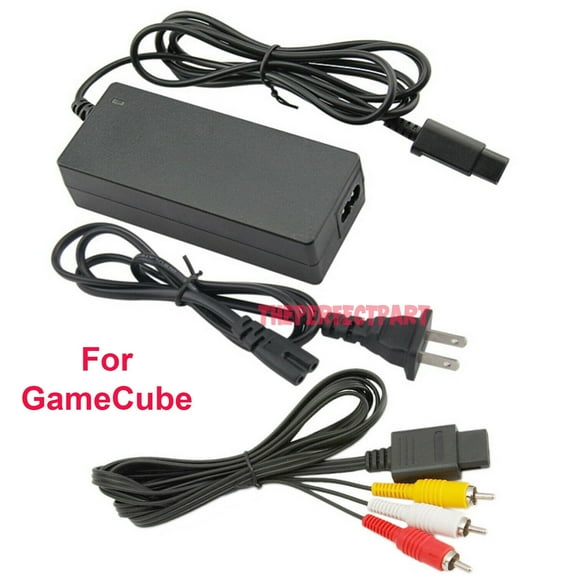 The Perfect Part | AC Adapter Power Supply & Audio Video A/V Cable for Nintendo GameCube Bundle USA$12.55current price $12.55
RUITROLIKER Power Supply with AV Cable for PS2 Slim 70000, AC Power Adapter Charger US Plug Charger with Composite Audio Video AV Cable for PS2 Slim 70000 Console
 RUITROLIKER Power Supply with AV Cable for PS2 Slim 70000, AC Power Adapter Charger US Plug Charger with Composite Audio Video AV Cable for PS2 Slim 70000 Console$11.78current price $11.78
Genuine OEM Wii U AC Adapter Power Supply Replacement Set With Wall Charger Cable Cord By Nintendo,USA
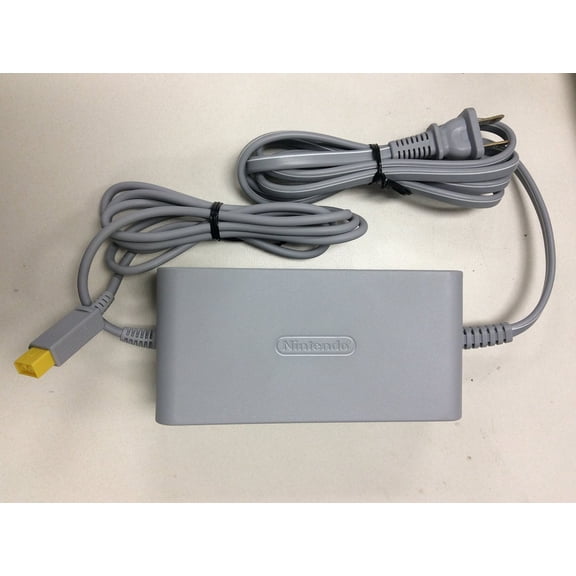 Genuine OEM Wii U AC Adapter Power Supply Replacement Set With Wall Charger Cable Cord By Nintendo,USA$24.98current price $24.98
PEGLY 2-1 Power Supply and AV Cable for Gamecube, NGC AC Power Adapter & AV Cable Set, Power Cord and AV Cable Compatible with Nintendo Gamecube Console
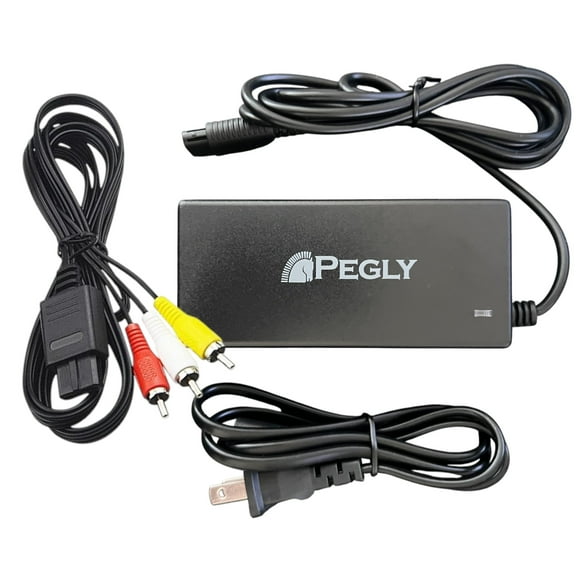 PEGLY 2-1 Power Supply and AV Cable for Gamecube, NGC AC Power Adapter & AV Cable Set, Power Cord and AV Cable Compatible with Nintendo Gamecube Console$12.59current price $12.59
Nintendo DS Lite NDSL charging cable USB charging cable data cable DSL cable power F9H3
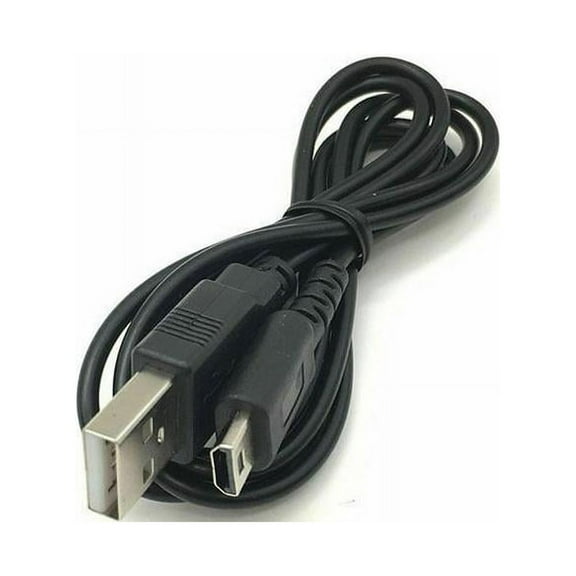 Nintendo DS Lite NDSL charging cable USB charging cable data cable DSL cable power F9H3$4.23current price $4.23
SNES Power Supply and AV Cable, NES Power Cord, AC Power Supply Compatible with Super Nintendo/SNES/NES/Genesis1
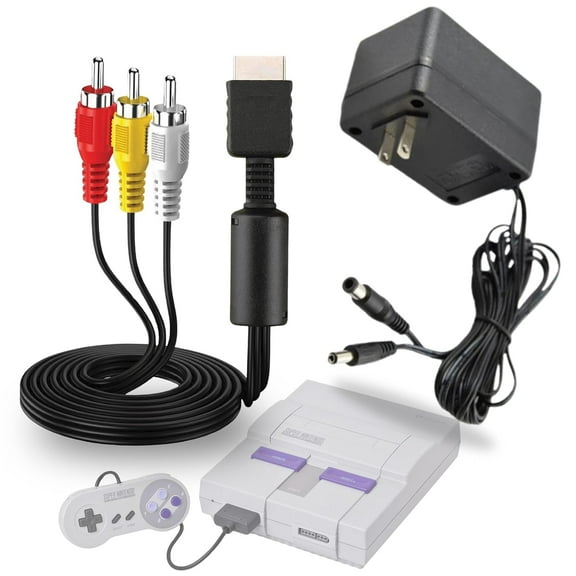 SNES Power Supply and AV Cable, NES Power Cord, AC Power Supply Compatible with Super Nintendo/SNES/NES/Genesis1$12.99current price $12.99
for GameBoy Advance for GBA SP USB Charging Line Cord Charger Cable
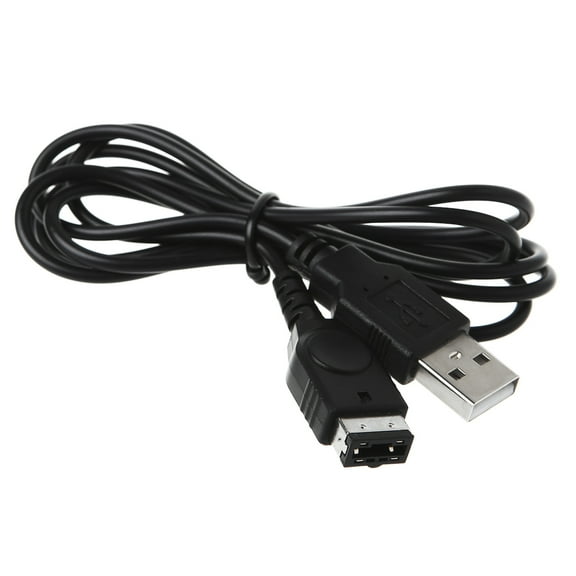 for GameBoy Advance for GBA SP USB Charging Line Cord Charger Cable$7.58current price $7.58
NES Original NES Hookup Connection Kit AC Adapter Power Cord + AV Cable
 NES Original NES Hookup Connection Kit AC Adapter Power Cord + AV Cable$13.99current price $13.99
NEW POWER CORD AC ADAPTER FOR SUPER NINTENDO NES SNES GENESIS 1
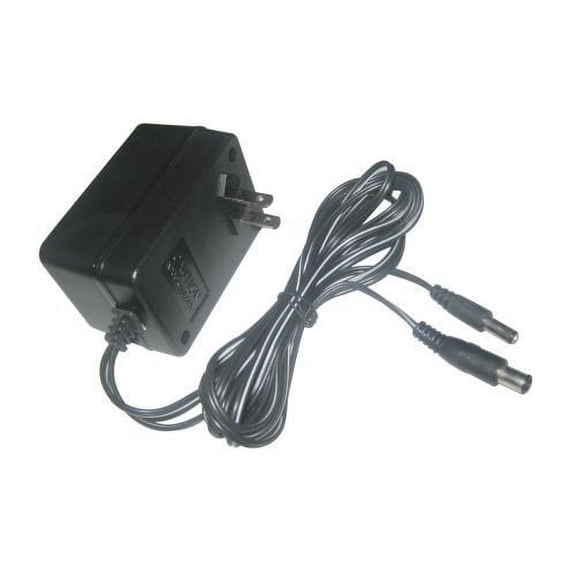 NEW POWER CORD AC ADAPTER FOR SUPER NINTENDO NES SNES GENESIS 1$10.88current price $10.88
NEW RF TV Adapter for Nintendo/Sega/Super NES (SNES)
 NEW RF TV Adapter for Nintendo/Sega/Super NES (SNES)$11.99current price $11.99
Wii U Gamepad Charger Power Charging Adapter Power Supply Cord AC Adapter And Cable For Wii U Gamepad
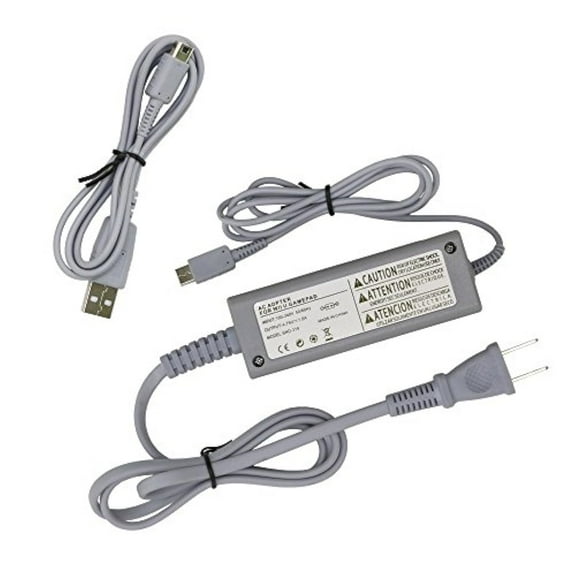 Wii U Gamepad Charger Power Charging Adapter Power Supply Cord AC Adapter And Cable For Wii U Gamepad$13.98current price $13.98
TekDeals Home Console AC Power Supply Wall Plug Charger Charging Cord Cable for Nintendo Wii
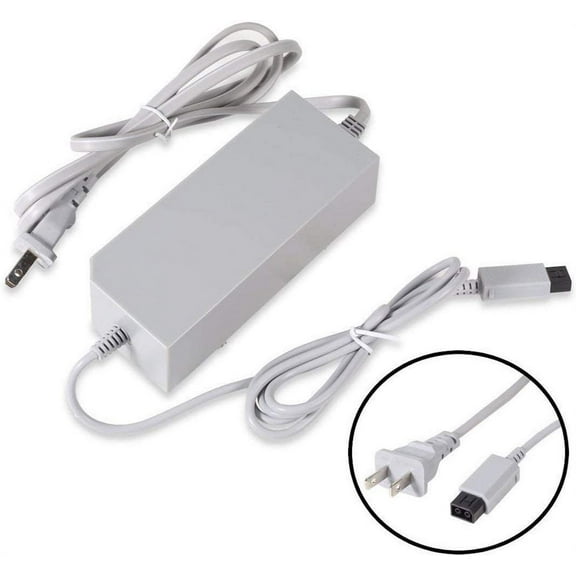 TekDeals Home Console AC Power Supply Wall Plug Charger Charging Cord Cable for Nintendo Wii$9.95current price $9.95