

Brand: Opticon(4)
Opticon OPN-2006-00 Bluetooth Wireless Barcode 1D Laser Scanner $159.99
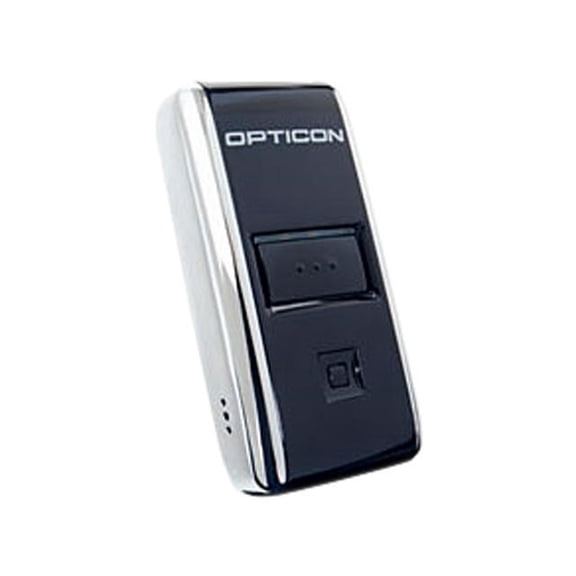
Opticon OPN-2006-00 Bluetooth Wireless Barcode 1D Laser Scanner
Opticon H-15 Terminal Scanner -New-in-Box- CN: H15AE00A541 $99.95
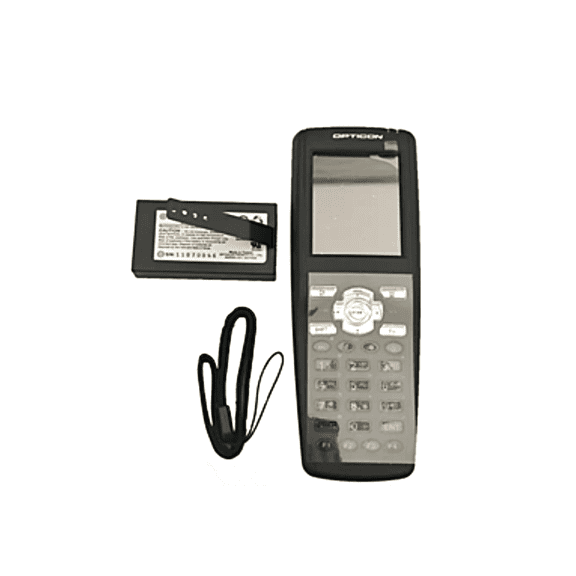
Opticon H-15 Terminal Scanner -New-in-Box- CN: H15AE00A541
Opticon OPR-2001 - Barcode scanner - handheld - 100 scan / sec - decoded - USB $112.99
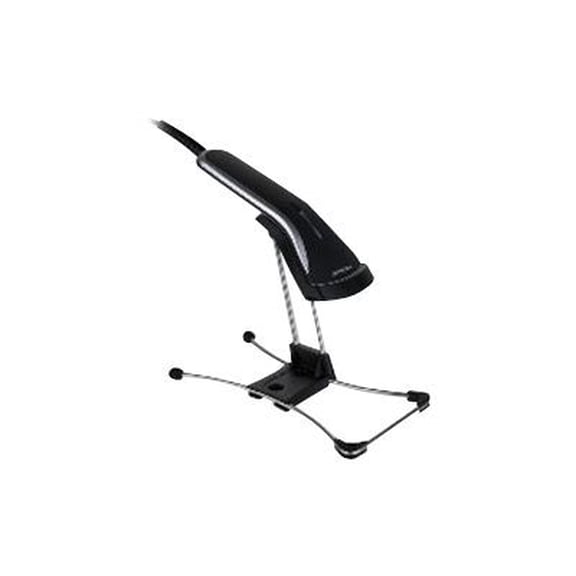
Opticon OPR-2001 - Barcode scanner - handheld - 100 scan / sec - decoded - USB
NEW Opticon H15 Scanner Kit- Scanner, Cradle, Power Supply, and Cable! PN: H15AE00A541 $139.99

NEW Opticon H15 Scanner Kit- Scanner, Cradle, Power Supply, and Cable! PN: H15AE00A541
FAQ
How do I set up a barcode scanner for the first time?
Getting your barcode scanner up and running is usually straightforward. Start by unpacking all included items, such as the scanner, cradle, power supply, and cable. Then:
- Connect the cradle to the power source using the supplied adapter.
- Attach the cable to both the cradle and your computer or POS system if required.
- Place the scanner in the cradle to ensure it's charging or syncing, following any included instructions.
For more detailed steps, refer to the user guide provided in the box or visit the manufacturer's support site if you need additional help.
What devices can a wireless barcode scanner connect to?
A wireless barcode scanner is designed to pair with a variety of devices to fit different work environments. Depending on the model, you can usually connect to:
- Laptops and desktop computers through Bluetooth or USB dongle.
- Tablets and smartphones that support Bluetooth connections.
- Point-of-sale (POS) terminals with compatible ports or wireless capabilities.
Always check your device's compatibility and follow the pairing instructions in the scanner's manual for the best results.
How do I clean and maintain a barcode scanner?
Keeping your barcode scanner clean helps it work reliably. Here are some maintenance tips:
- Wipe the exterior with a soft, dry or slightly damp cloth. Avoid harsh chemicals.
- For the scanning window, use a lens-safe cleaning wipe to gently remove dust or smudges.
- Avoid getting moisture inside the device or around electrical contacts.
Regular cleaning can help maintain accurate scanning, but always consult the manual for specific care instructions for your model.
Can I use a barcode scanner with different software?
Most barcode scanners are designed to work with a variety of software platforms, as long as the software recognizes input from a keyboard or USB device. You can typically:
- Use the scanner with inventory management or POS software that accepts barcode inputs.
- Test compatibility by scanning into a basic text program like Notepad before using specialized software.
If you have unique software needs, check the scanner's documentation or reach out to your software provider for compatibility guidance.
What should I do if my scanner isn't reading barcodes?
If your scanner isn't picking up barcodes, try these troubleshooting steps:
- Check the power supply and connection cables.
- Clean the scanner's window to remove dust or smudges.
- Ensure the barcode is undamaged and printed clearly.
- Restart the scanner and reconnect it to your device.
If issues persist, consult the product manual or contact the manufacturer's support for further assistance.
Popular in Brand: Opticon
Related Products
LEUPOLD Tracer Matte Black/Daylight Max Sunglasses (186744)
 LEUPOLD Tracer Matte Black/Daylight Max Sunglasses (186744)$179.97current price $179.97
Holosun ARO Combo Red Dot Sight Red 2 MOA Dot with Picatinny Mount and HM3X Magnifier Matte Black
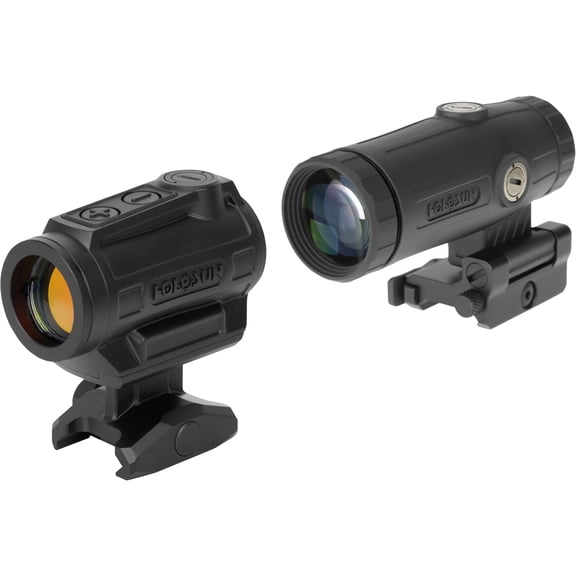 Holosun ARO Combo Red Dot Sight Red 2 MOA Dot with Picatinny Mount and HM3X Magnifier Matte Black$286.74current price $286.74
Holosun ARO Red Dot Sight Gold Selectable Reticle with Picatinny Mount Solar/Battery Powered Matte Black
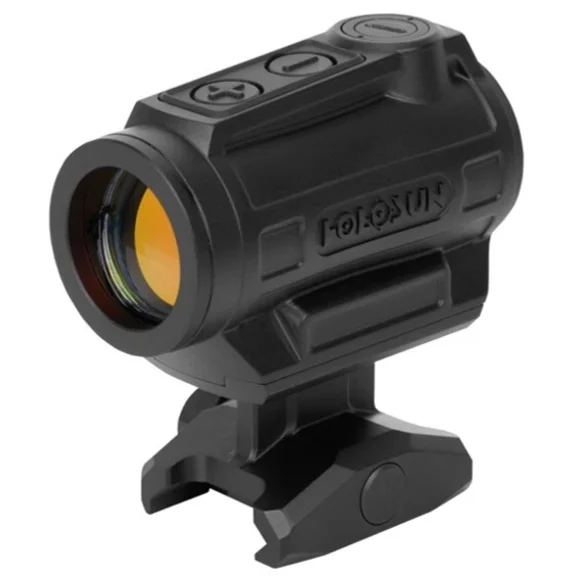 Holosun ARO Red Dot Sight Gold Selectable Reticle with Picatinny Mount Solar/Battery Powered Matte Black$184.99current price $184.99
LEUPOLD VX-3HD 4.5-14x40 1in CDS-ZL Duplex Riflescope (180619)
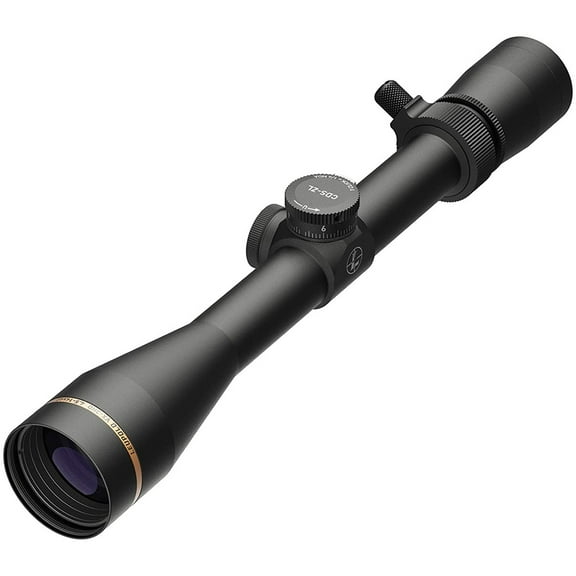 LEUPOLD VX-3HD 4.5-14x40 1in CDS-ZL Duplex Riflescope (180619)$699.99current price $699.99
LEUPOLD Mark 4 35mm High (Aluminum) Matte (120180)
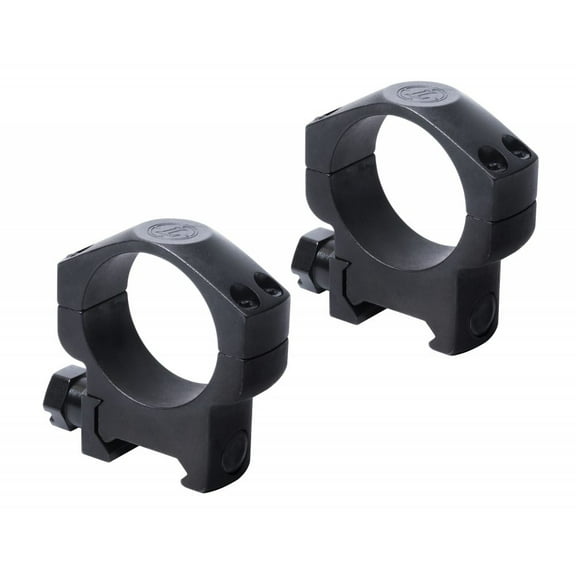 LEUPOLD Mark 4 35mm High (Aluminum) Matte (120180)$129.99current price $129.99
LEUPOLD VX-3HD 3.5-10x50 30mm CDS-ZL Illuminated FireDot Twilight Hunter Riflescope (180628)
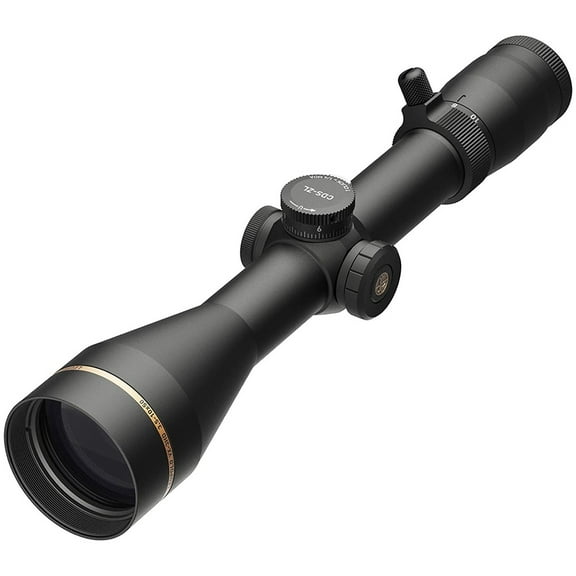 LEUPOLD VX-3HD 3.5-10x50 30mm CDS-ZL Illuminated FireDot Twilight Hunter Riflescope (180628)$899.99current price $899.99
Burris Fullfield Riflescope 3-12x56 with Illuminated 3P No. 4 Reticle Rear Focal Plane (Matte Black)
 Burris Fullfield Riflescope 3-12x56 with Illuminated 3P No. 4 Reticle Rear Focal Plane (Matte Black)$349.99current price $349.99
Leupold VX-Freedom Rimfire 3-9x40 - Rimfire MOA Reticle - 1"
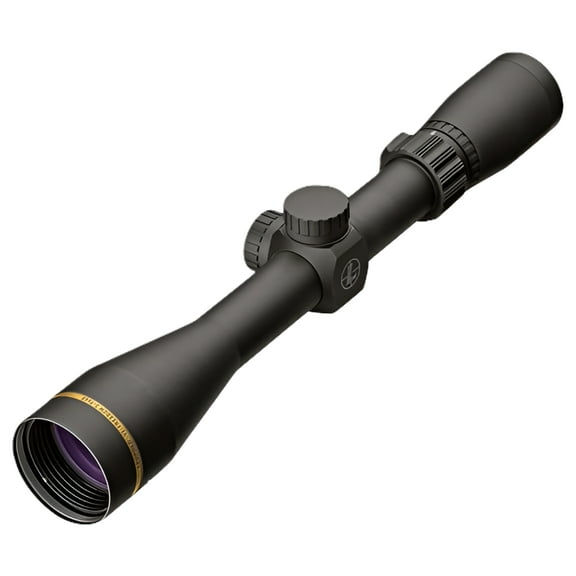 Leupold VX-Freedom Rimfire 3-9x40 - Rimfire MOA Reticle - 1"$319.99current price $319.99
Burris Fullfield 3-12x42mm Wind MOA Illuminated Riflescope, Matte Black, 3-12x Magnification, 42mm Objective, 1/4 MOA Click, Side Focus, Rear Focal Plane (201533)
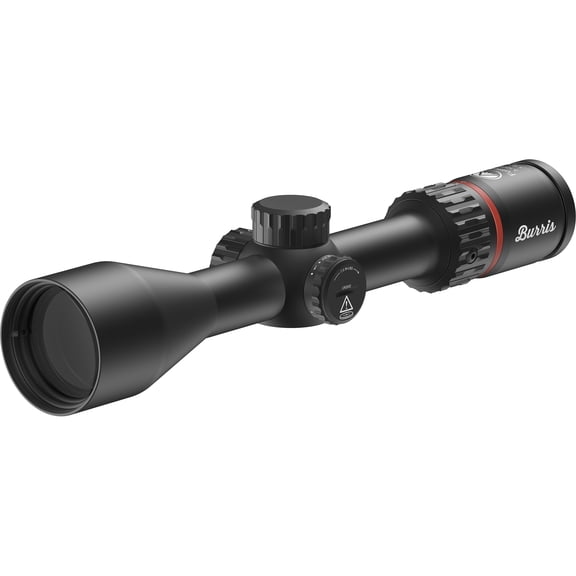 Burris Fullfield 3-12x42mm Wind MOA Illuminated Riflescope, Matte Black, 3-12x Magnification, 42mm Objective, 1/4 MOA Click, Side Focus, Rear Focal Plane (201533)$346.49current price $346.49
LEUPOLD Cheyenne Perfomance Matte Black/Shadow Gray Flash Eyewear (181280)
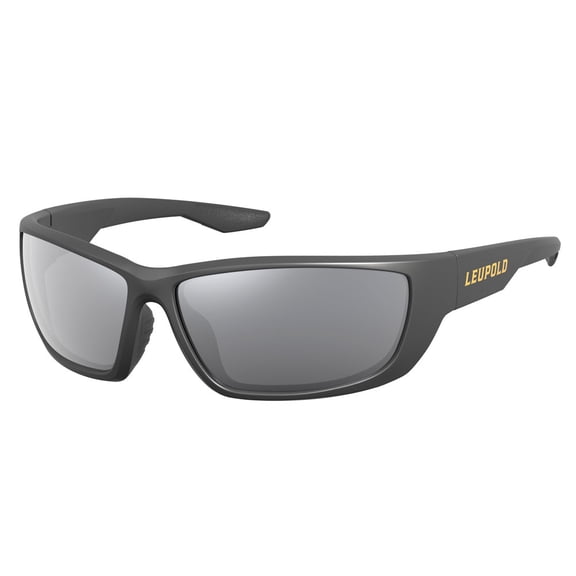 LEUPOLD Cheyenne Perfomance Matte Black/Shadow Gray Flash Eyewear (181280)$129.99current price $129.99
LEUPOLD Tracer Shadow Tan Frame/Bronze Mirror Lens Shooting Glasses (179090)
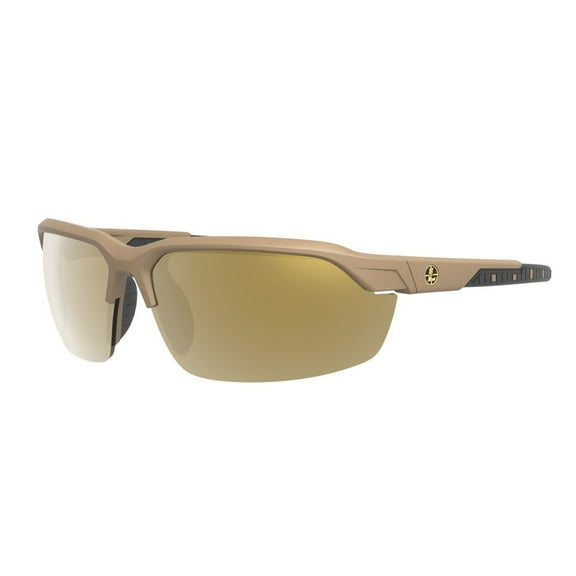 LEUPOLD Tracer Shadow Tan Frame/Bronze Mirror Lens Shooting Glasses (179090)$129.99current price $129.99
Zeiss Conquest V4 6-24x50 Rifle Scope with ZMOAi-1 Illuminated Reticle (#93) - External Elevation Turret - Ballistic Stop - Adjustable Parallax - .25 MOA
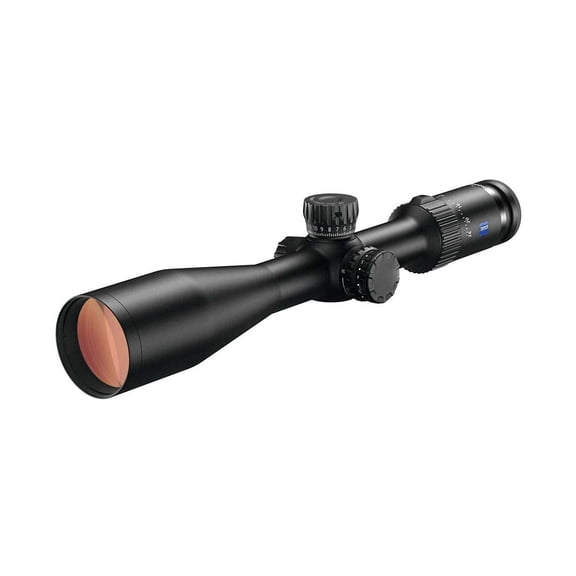 Zeiss Conquest V4 6-24x50 Rifle Scope with ZMOAi-1 Illuminated Reticle (#93) - External Elevation Turret - Ballistic Stop - Adjustable Parallax - .25 MOA$1374.99current price $1374.99
Holosun ARO-EVO Combo Red Dot Sight Red Special Purpose Reticle with Picatinny Mount and HM3X Magnifier Matte Black
 Holosun ARO-EVO Combo Red Dot Sight Red Special Purpose Reticle with Picatinny Mount and HM3X Magnifier Matte Black$422.98current price $422.98
Zeiss Conquest V4 Ballistic Stop Rifle Scope 6-24x 50mm Illuminated Plex Reticle Matte Black
 Zeiss Conquest V4 Ballistic Stop Rifle Scope 6-24x 50mm Illuminated Plex Reticle Matte Black$1374.99current price $1374.99
Zeiss Flip-Up Scope Cover V4 44mm Objective
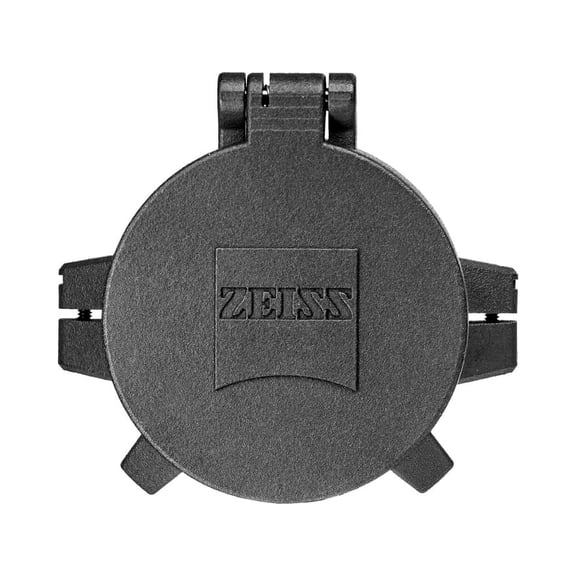 Zeiss Flip-Up Scope Cover V4 44mm Objective$54.99current price $54.99