

Ocz Collection(3)
OCZ Vertex 450 512 GB Solid State Drive, 2.5" Internal, SATA (SATA/600) $299.99
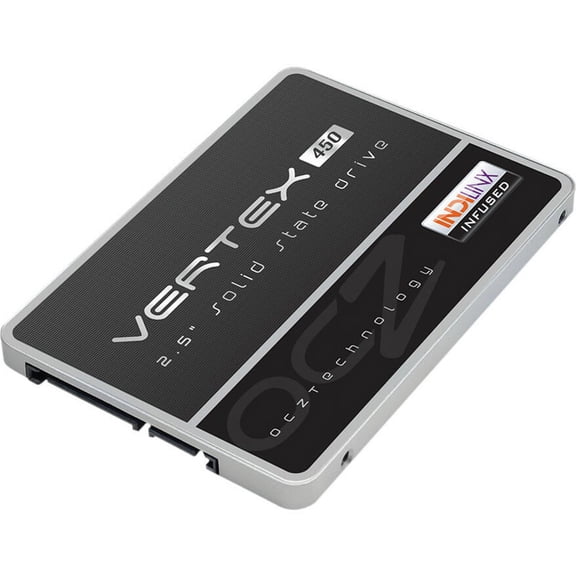
OCZ Vertex 450 512 GB Solid State Drive, 2.5" Internal, SATA (SATA/600)
OCZ Agility 3 60 GB Solid State Drive, 2.5" Internal (SATA/600) $79.99
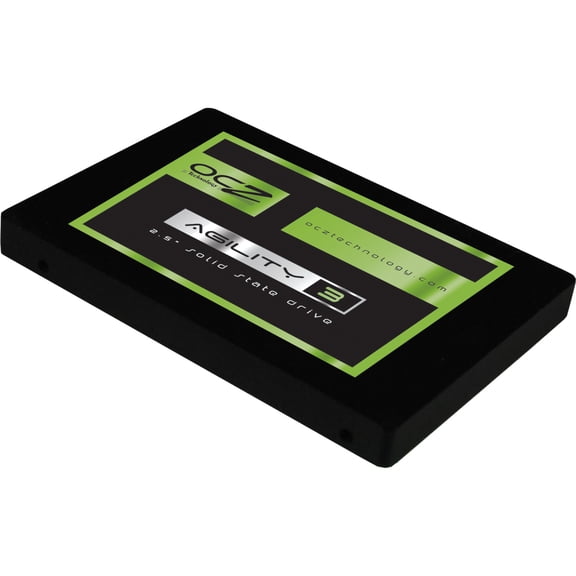
OCZ Agility 3 60 GB Solid State Drive, 2.5" Internal (SATA/600)
OCZ Vertex 2 100 GB Solid State Drive, 2.5" Internal, SATA (SATA/300) $52.96
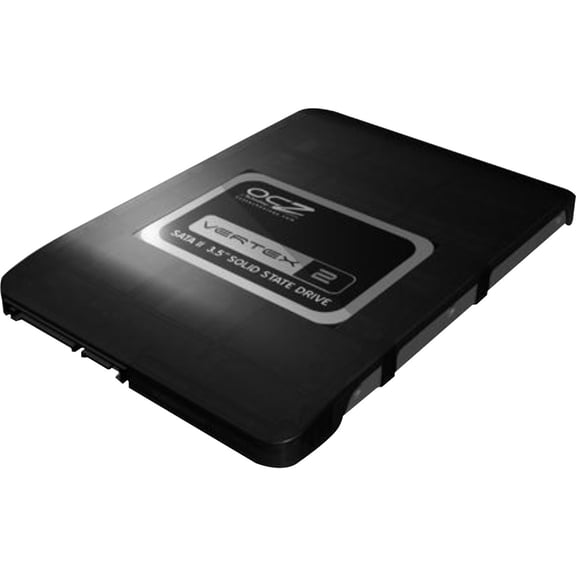
OCZ Vertex 2 100 GB Solid State Drive, 2.5" Internal, SATA (SATA/300)
FAQ
How do I know if an SSD fits my laptop?
To check if a solid state drive (SSD) is compatible with your laptop, start by identifying your laptop's drive bay size (usually 2.5") and connector type (such as SATA). Most laptops use 2.5" SATA drives, but it's wise to confirm by checking your device manual or the manufacturer's website. Also, look out for the maximum supported drive thickness—some laptops only support 7mm high SSDs. If you're unsure, many laptops have user-replaceable drive bays that make installation easier. Double-checking these details helps ensure a smoother upgrade experience.
What makes SSDs faster than regular hard drives?
Solid state drives (SSDs) don't have moving parts, which is a big reason they're typically faster than traditional hard disk drives (HDDs). SSDs store and access data electronically, so they can read and write information much quicker. This means faster boot times and quicker file transfers. HDDs, on the other hand, rely on spinning disks and mechanical arms, which take more time to find and fetch your data. Upgrading to an SSD can provide noticeable speed improvements in everyday tasks.
Is it hard to install an internal SSD?
Installing a 2.5" internal SSD can be a straightforward process for many desktops and laptops. Most systems with accessible drive bays allow for a simple swap: you'll remove the old drive, slide in the new SSD, and reconnect the cables. Some laptops might require removing a bottom panel, while desktops often have easily accessible drive cages. It's helpful to back up important data first, and keep your device powered off and unplugged during installation. Instructions and tools may vary, so check your device manual for any model-specific guidance.
Can I use an SSD to upgrade an older computer?
Adding a solid state drive is a popular way to breathe new life into older computers. If your device uses a 2.5" SATA hard drive, swapping it for a compatible SSD can significantly improve everyday performance, including faster boot times and quicker program launches. Make sure your system supports SATA connections and check for available physical space. After installation, you may need to reinstall or clone your operating system. You'll often see a big difference in responsiveness and overall user experience with an SSD upgrade.
How should I care for my SSD for long life?
While SSDs require less maintenance than traditional drives, a few habits can help extend their lifespan. Keep your device software updated, avoid running the drive completely full, and use built-in operating system tools to check drive health occasionally. SSDs don't need defragmentation—this can actually reduce their life. Backing up important data regularly is always a smart practice, just in case. With basic care, SSDs can deliver reliable performance for years of everyday use.
Popular in Shop Brand Solid State Drives and Storage
Related Products
SanDisk 2TB Extreme PRO Dual Drive, USB Type-C, and USB Type-A - SDDDE1-2T00-G46
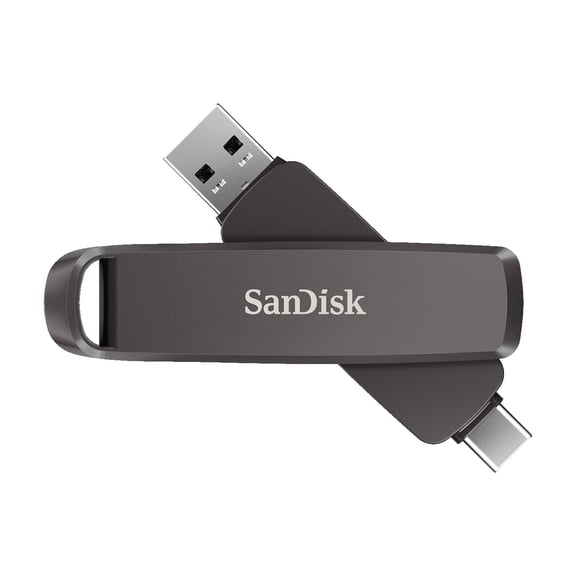 SanDisk 2TB Extreme PRO Dual Drive, USB Type-C, and USB Type-A - SDDDE1-2T00-G46$429.99current price $429.99
1T USB Flash Drive 1000GB Rotatable Memory Stick External Storage Drive for Laptop PC-MAOLAI
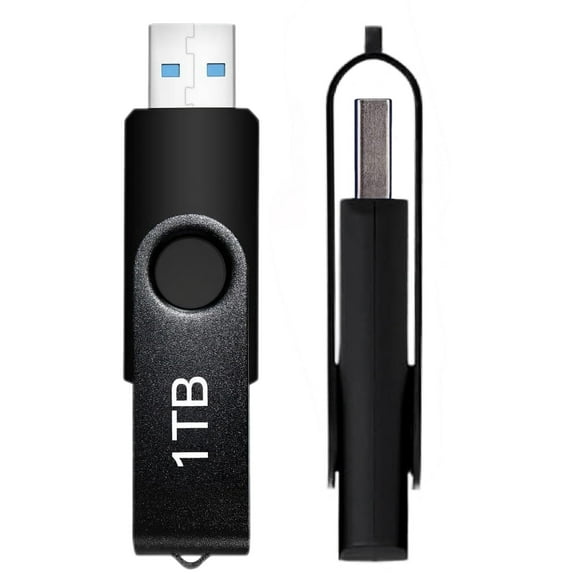 1T USB Flash Drive 1000GB Rotatable Memory Stick External Storage Drive for Laptop PC-MAOLAI$29.99current price $29.99
SanDisk 4TB Extreme PRO Portable SSD with USB4 - SDSSDE82-4T00-G25
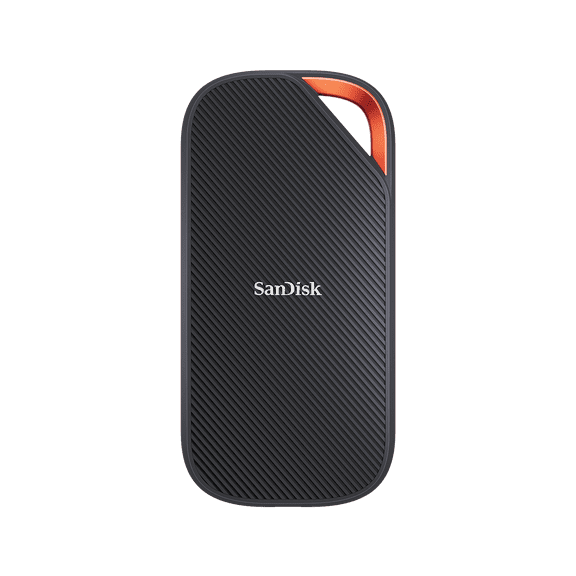 SanDisk 4TB Extreme PRO Portable SSD with USB4 - SDSSDE82-4T00-G25$999.99current price $999.99
Tersanhong Flash Drive USB 2TThumb Drive Memory Storage for Data Transfer,Jump Drive for PC/Laptop
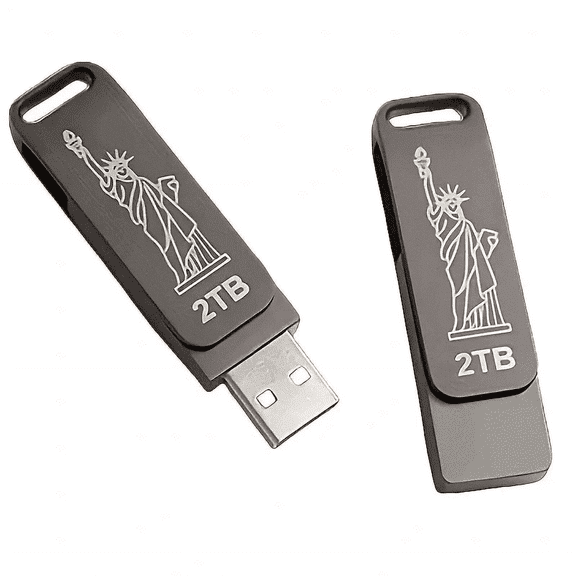 Tersanhong Flash Drive USB 2TThumb Drive Memory Storage for Data Transfer,Jump Drive for PC/Laptop$21.86current price $21.86
TEAM X1 MAX DRIVE 512GB BLACK USB 3.2 Gen2 External Solid State Flash Drive, Dual Interface Type-C and Type-A, Compatible with Smartphone/ Tablet/ PC/ Chromebook, Speed Up to 1000MB/s (TX1MAX3512GB01)
 TEAM X1 MAX DRIVE 512GB BLACK USB 3.2 Gen2 External Solid State Flash Drive, Dual Interface Type-C and Type-A, Compatible with Smartphone/ Tablet/ PC/ Chromebook, Speed Up to 1000MB/s (TX1MAX3512GB01)$96.99current price $96.99
2T(2000GB) USB Flash Drive, Portable Flash Memory Stick for PC/Laptop -MAOLAI
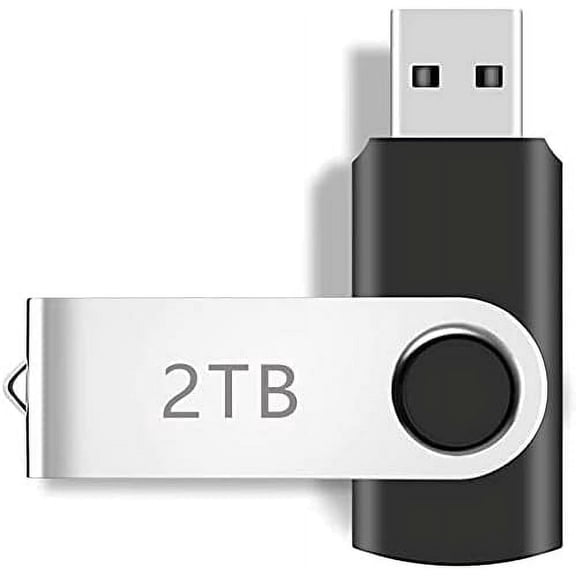 2T(2000GB) USB Flash Drive, Portable Flash Memory Stick for PC/Laptop -MAOLAI$29.99current price $29.99
KEXIN 512GB USB C Solid State Flash Drive up to 1000MB/s Dual USB 3.2 Gen 2 Type C Portable SSD External Hard Drives for Smartphone Tablets Laptops Game Consol
 KEXIN 512GB USB C Solid State Flash Drive up to 1000MB/s Dual USB 3.2 Gen 2 Type C Portable SSD External Hard Drives for Smartphone Tablets Laptops Game Consol$78.99current price $78.99
Patriot Memory Supersonic Rage Prime 1TB USB 3.2 Flash Drive
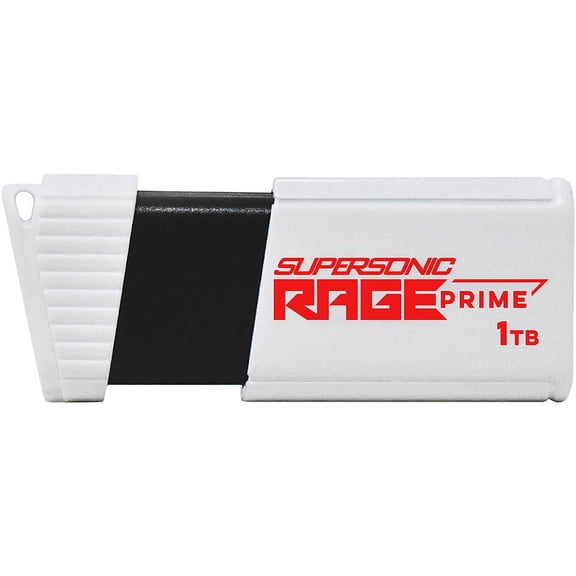 Patriot Memory Supersonic Rage Prime 1TB USB 3.2 Flash Drive$119.99current price $119.99
2-Terabyte USB Flash Drive, 1 Pack Portable Thumb Drive for PC, Laptop & More – MAOLAI
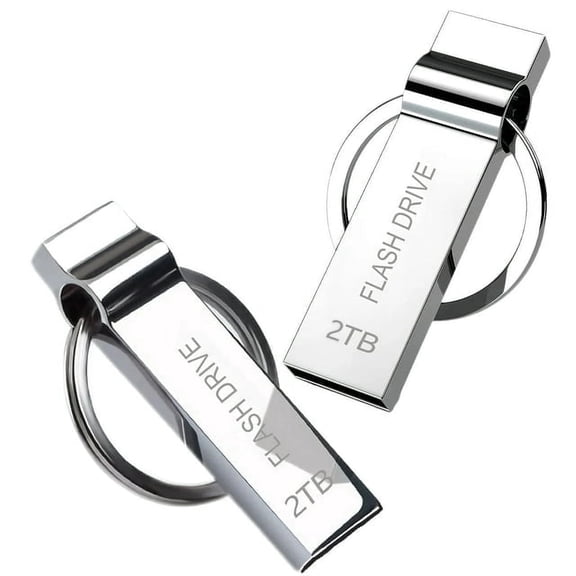 2-Terabyte USB Flash Drive, 1 Pack Portable Thumb Drive for PC, Laptop & More – MAOLAI$29.99current price $29.99
Lexar SL500 2TB USB 3.2 Gen 2 Type-C Portable External SSD
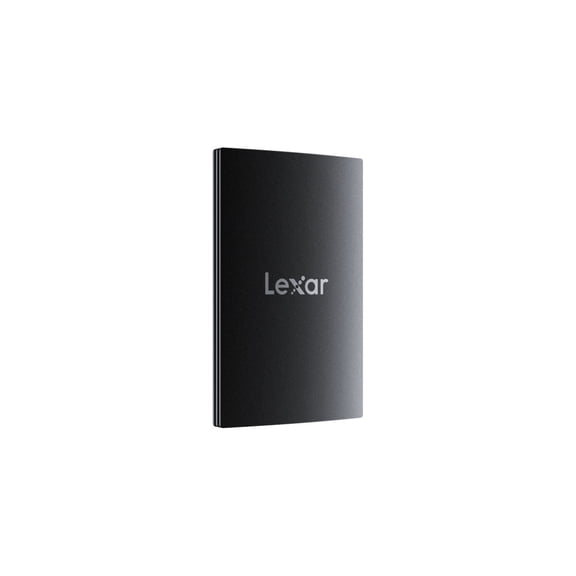 Lexar SL500 2TB USB 3.2 Gen 2 Type-C Portable External SSD$419.99current price $419.99
256GB Flash Drive for Android-USB A+USB C Thumb Drive Memory Stick Drive for Smartphone/PC/Laptop/Computer/Mac
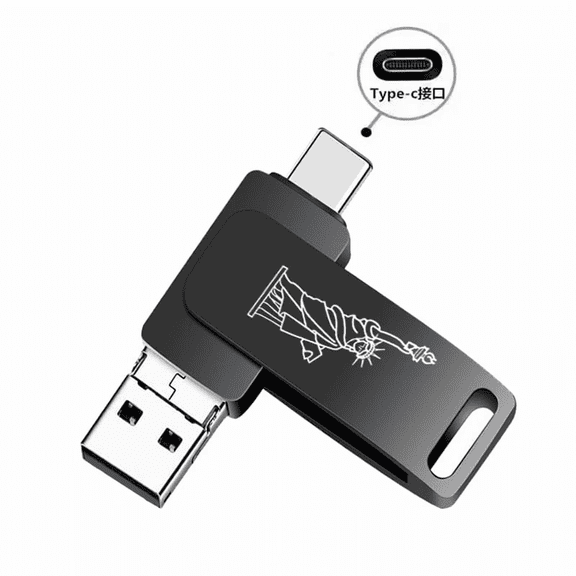 256GB Flash Drive for Android-USB A+USB C Thumb Drive Memory Stick Drive for Smartphone/PC/Laptop/Computer/Mac$21.83current price $21.83
Lexar Professional Go Portable USB 3.2 SSD (1 TB) LSL400X001T-RNBNU
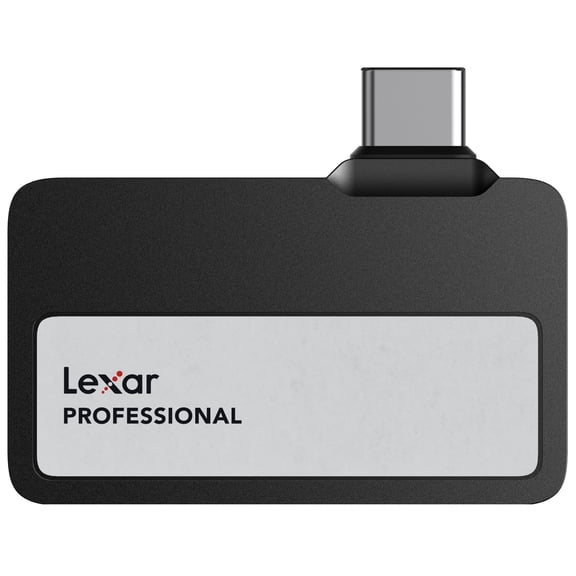 Lexar Professional Go Portable USB 3.2 SSD (1 TB) LSL400X001T-RNBNU$299.99current price $299.99
iDiskk 256G 3in1 Flash Drive Auto-Secure-Backup Thumb Drive, Memory Stick Storage to Transfer & Backup Photos Videos for iPhone/iPad/Android/Mac/PC
 iDiskk 256G 3in1 Flash Drive Auto-Secure-Backup Thumb Drive, Memory Stick Storage to Transfer & Backup Photos Videos for iPhone/iPad/Android/Mac/PC$79.11current price $79.11
ThePhotoStick Omni 512GB – Photo and Video Backup, Memory Stick, Flash Drive
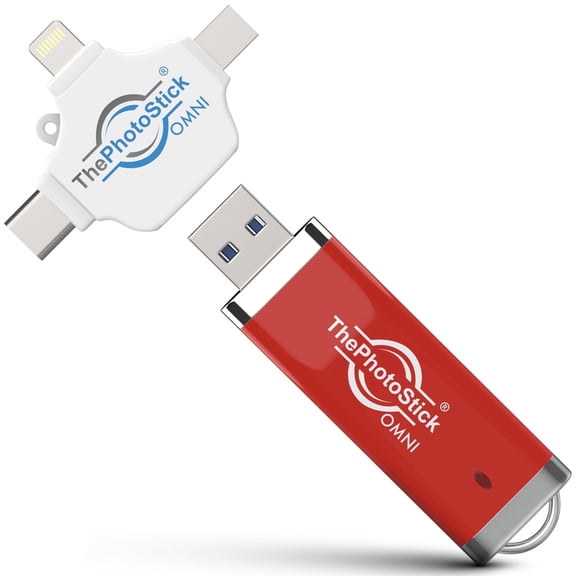 ThePhotoStick Omni 512GB – Photo and Video Backup, Memory Stick, Flash Drive$159.99current price $159.99
SanDisk Professional 6TB G-DRIVE ArmorATD USB-C with Thunderbolt 3 and USB 3.2 Gen 1, 2.5" Portable External Hard Drive HDD - SDPHE1G-006T-GBAND
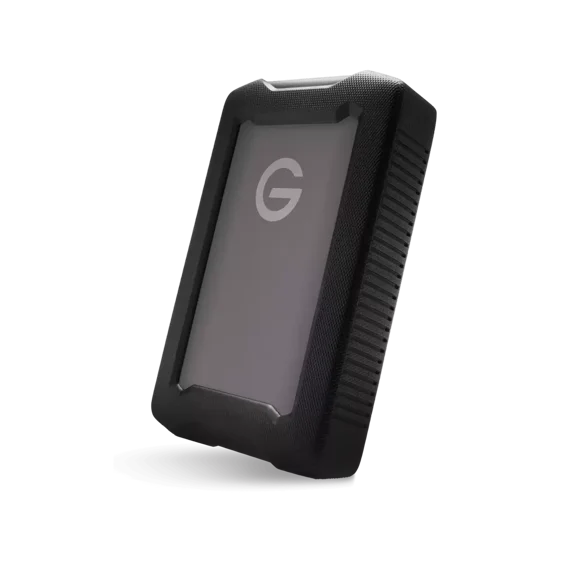 SanDisk Professional 6TB G-DRIVE ArmorATD USB-C with Thunderbolt 3 and USB 3.2 Gen 1, 2.5" Portable External Hard Drive HDD - SDPHE1G-006T-GBAND$399.99current price $399.99
SanDisk 4TB Desk Drive SSD USB Type-C, Desktop External Solid State Drive (Up to 1000MB/s) - SDSSDT40-4T00-NA25
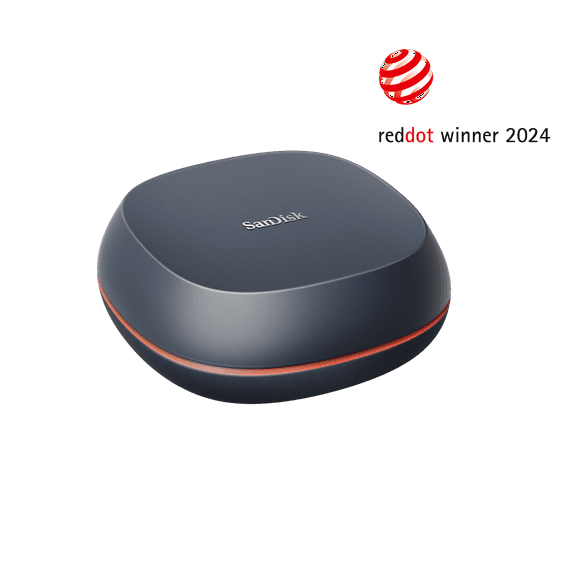 SanDisk 4TB Desk Drive SSD USB Type-C, Desktop External Solid State Drive (Up to 1000MB/s) - SDSSDT40-4T00-NA25$799.99current price $799.99
Kingston Technology DataTraveler SE9 G3 Metal USB 3.2 Gen 1 Type-A Flash Drive, 256GB
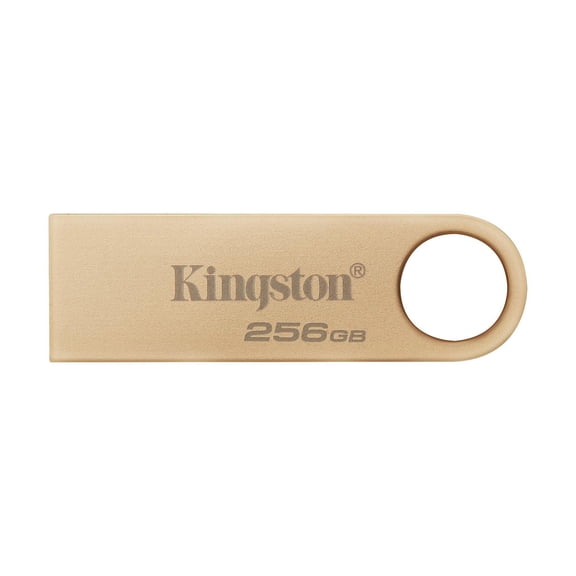 Kingston Technology DataTraveler SE9 G3 Metal USB 3.2 Gen 1 Type-A Flash Drive, 256GB$51.90current price $51.90