How to Get Cash from PayPal & More | Walmart MoneyCenter
Load & Unload money right in store

Ways to load & unload money


Use a barcode from your digital account
FAQ
Related financial services
About How to Get Cash from PayPal & More | Walmart MoneyCenter - Walmart.com
You can learn how to get cash from PayPal at Walmart MoneyCenter and handle other cash services in one stop. You can also manage deposits, withdrawals, and card loading for supported apps and debit cards.
Before you visit, you can compare your transaction type, partner network, access point, and account limits. That quick check helps you choose the right service path with minimal delays.
How to get cash from PayPal
You can start your PayPal withdrawal in your app and follow the steps shown there. You may complete eligible transactions at participating Walmart locations through the access method your app provides.
Depending on your setup, you might use a barcode, linked debit card, or another approved method. That difference matters because your withdrawal steps can change at a register, MoneyCenter, or ATM.
With this service hub, you can turn a digital balance into cash during a regular store trip. You can also handle supported deposits and card loading in the same visit.
How to choose your transaction type
You should first decide whether you need a deposit, withdrawal, or card loading transaction. That choice shapes what you bring, what steps you follow, and where you complete the transaction.
- You can use withdrawal services when you need cash from an eligible app balance.
- You can use deposit services when you want to add paper cash to a supported account.
- You can use card loading when you want cash to debit card access for future purchases.
- You can review app instructions first so your visit matches your account setup.
For a withdrawal, you may need app prompts, a barcode, or a linked card. For a deposit, you usually need your card or account details and the cash amount.
Card loading works well when you need to put cash onto a supported debit card in person. You should check card compatibility first because not every card uses the same network rules.
How to put cash on a debit card
You should confirm that your debit card accepts in-store cash loads before you leave home. You can then bring your card and cash to a participating register or Walmart MoneyCenter desk.
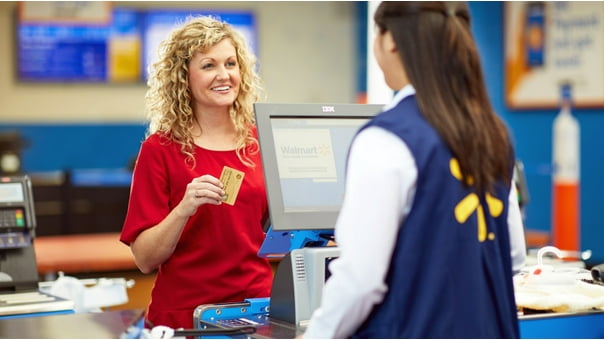
At the counter, you present your card, provide the cash, and follow the cashier instructions. You should also check issuer details because posting speed, limits, and fees can vary.
Many shoppers want a simple place to put cash on a card during errands. Walmart gives you an in-store option for common cash out debit card and cash to debit card needs.
You may also want to know how to get cash from your debit card after loading funds. In that case, you should check whether your card supports ATM access and requires a PIN.
Choosing partner networks and access types
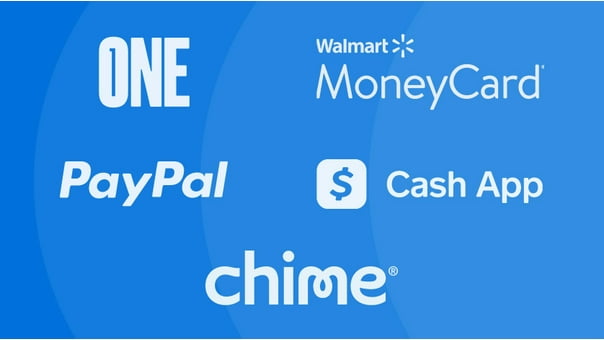
You should compare partner support before your visit if you use more than one financial app. PayPal, Cash App, Chime, and One Pay can each use different transaction steps.
For Chime loading, you can check Walmart store services and app instructions before leaving home. That step helps you confirm a convenient location and the right access point.
For Cash App deposits, you can look for participating Walmart locations and review the in-app setup first. You should know whether your transaction needs a barcode, card details, or a linked account.
Your access type also affects how quickly you move through the transaction. You may prefer an in-store register for routine stops, a MoneyCenter desk for added service help, or an ATM for card-based access.
Cardless withdrawal matters when you carry only your phone and still need cash. You should check whether your app generates a barcode or one-time code before you arrive.
Cash withdrawal steps and location planning
You can plan your cash withdrawal more smoothly when you check store services in advance. That preparation helps you choose a nearby Walmart location with the access type you need.
Some shoppers want a register transaction during a grocery run, while others want a MoneyCenter visit. You can also use ATM access when your card and account settings allow it.
Location planning matters for app-based deposits too, especially when you need a quick stop. You should confirm store participation online so your trip matches your service needs.
That extra check supports searches for Cash App deposit locations and Chime loading options. You get clearer expectations before you leave home and start the transaction.
One Pay cash withdrawal limit and other details
You should review daily limits, transaction limits, and service fees before starting any deposit or withdrawal. Those details can change based on your app, account settings, card, and access point.
For one pay cash withdrawal limit questions, you should check current limits in your app first. Your account settings may affect how much cash you can access in one visit or one day.
Fee structures also matter when you compare transaction methods across partner networks. You should review the amount shown during setup so you know the full transaction details before completion.
Large amounts may require extra planning because some services apply daily caps or per-transaction limits. You can avoid confusion when you check those numbers before heading to the store.
Using Walmart MoneyCenter with confidence
You can use Walmart MoneyCenter as a practical hub for cash withdrawals, deposits, and card loading. That setup helps you match your app, your amount, and your preferred access type.
Before you go, you should use your app as the final source for account-specific steps and eligibility. You arrive prepared with the right card, barcode, cash, or account details for a smoother transaction.