


Hubs and USB Gadgets in Computer Accessories

















About Hubs and USB Gadgets in Computer Accessories - Walmart.com
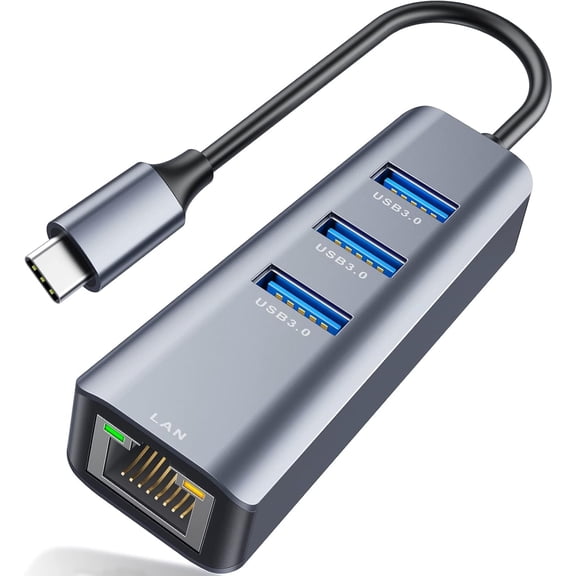
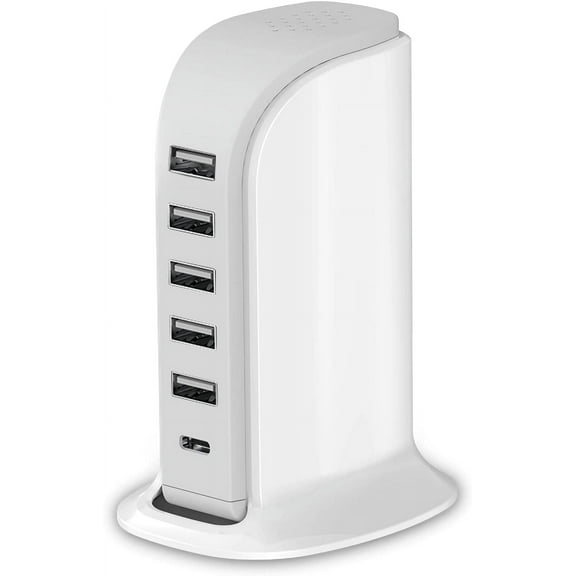
You can expand everyday connectivity with usb hubs and gadgets that add ports, simplify setups, and match how your laptop or desktop works. You can notice this category covers compact adapters, desktop docks, and port combinations that fit workstations, travel bags, and home offices.
How to choose USB hubs and gadgets
You should start with your host connection, because your computer needs the right plug type before anything else matters. You can usually compare USB-C, USB-A, and Thunderbolt based on the port already built into your device.
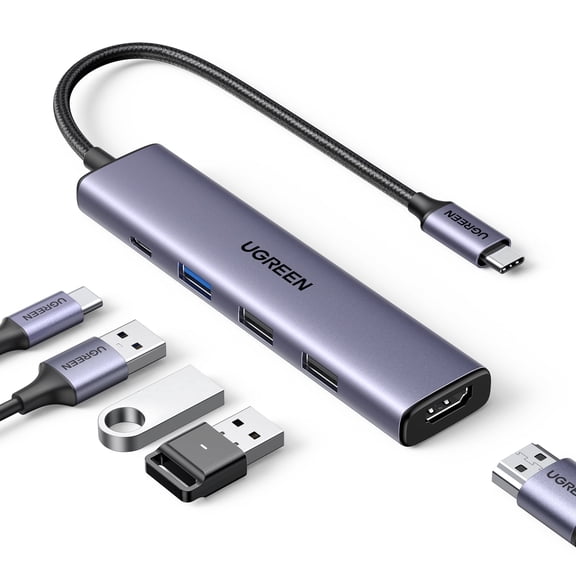
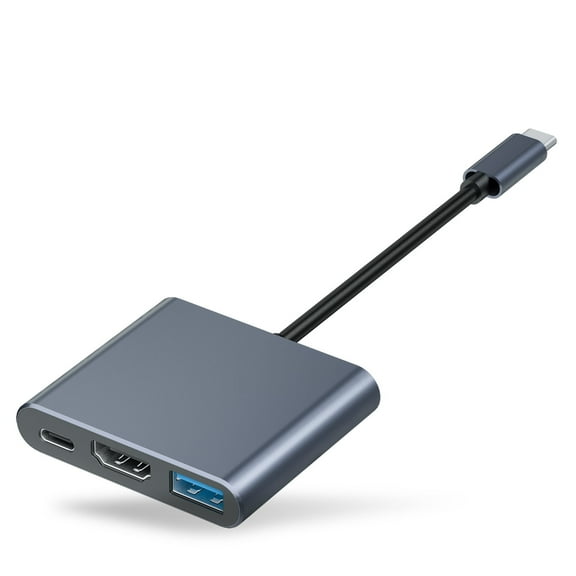
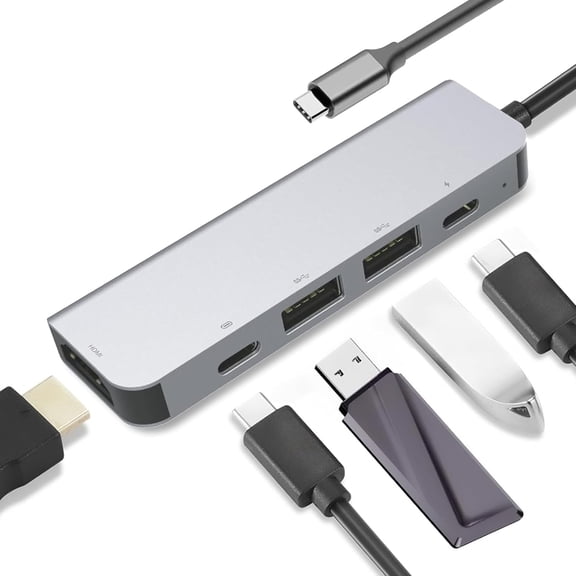
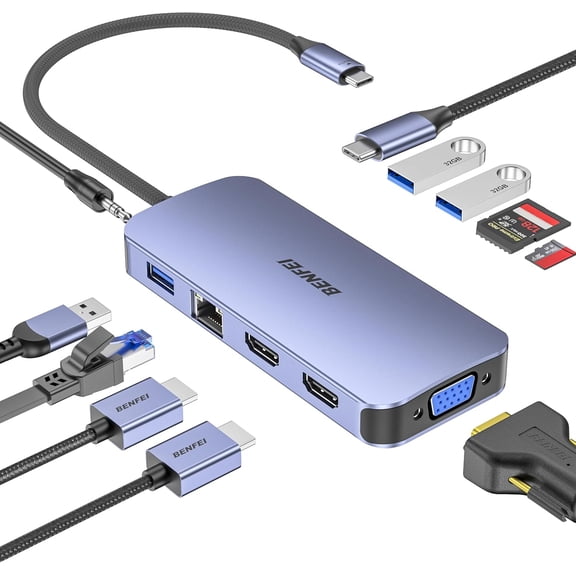
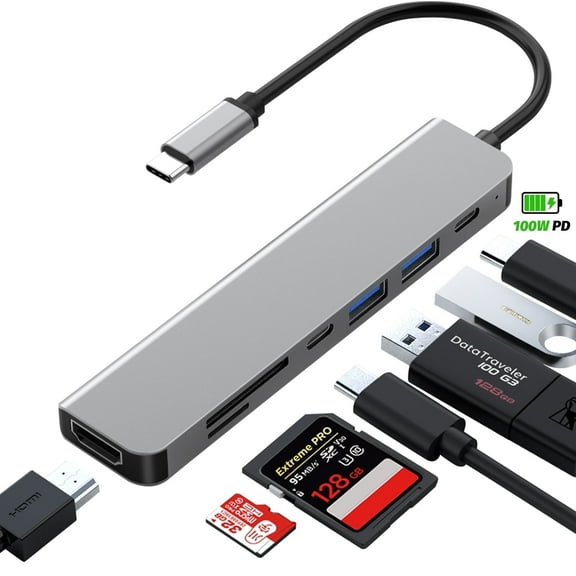
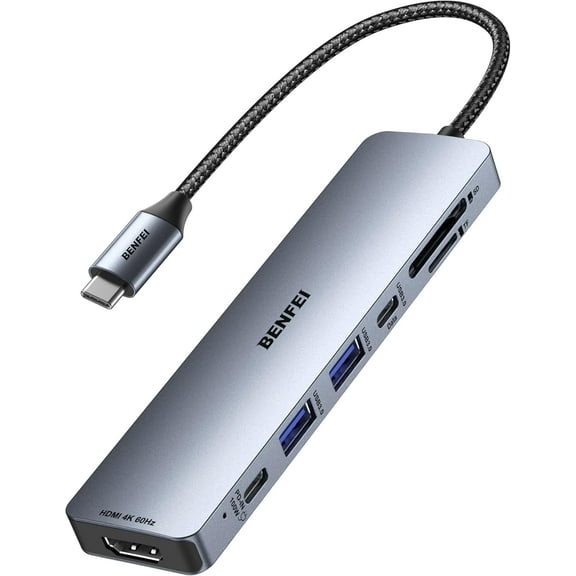
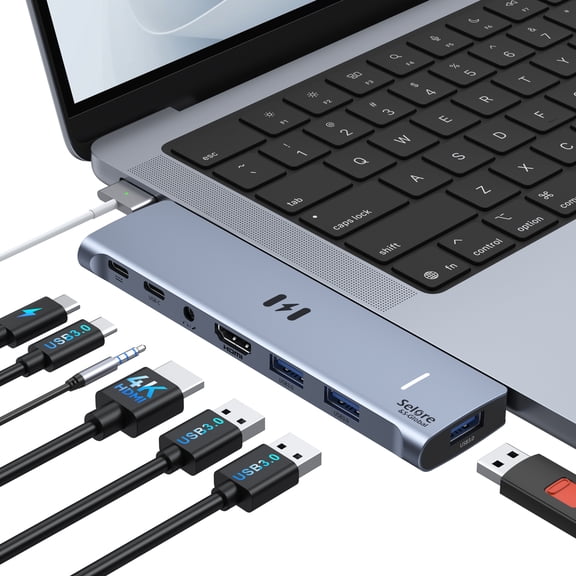
If your laptop has a modern oval port, you may want a usb c hub for charging, displays, and extra data ports. If your desktop uses a classic rectangular port, you may prefer a USB-A option that keeps older accessories connected.
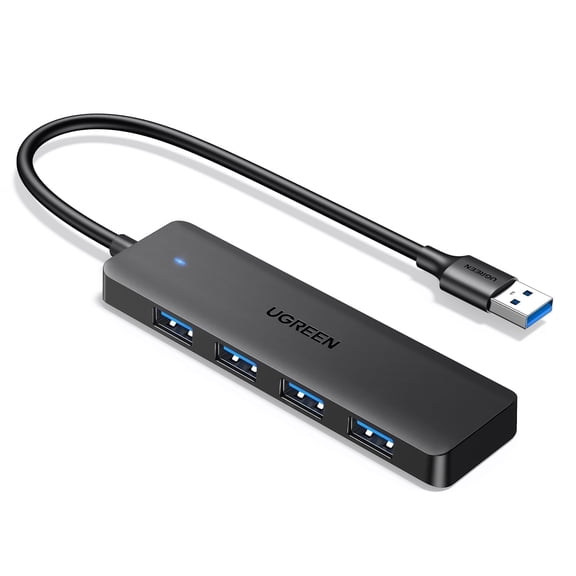
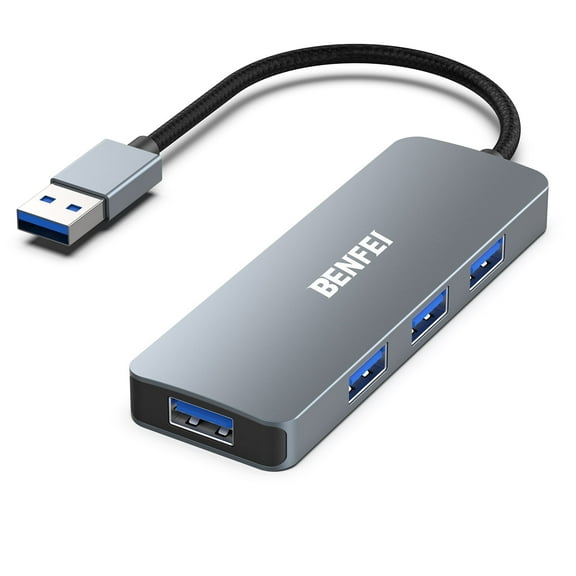
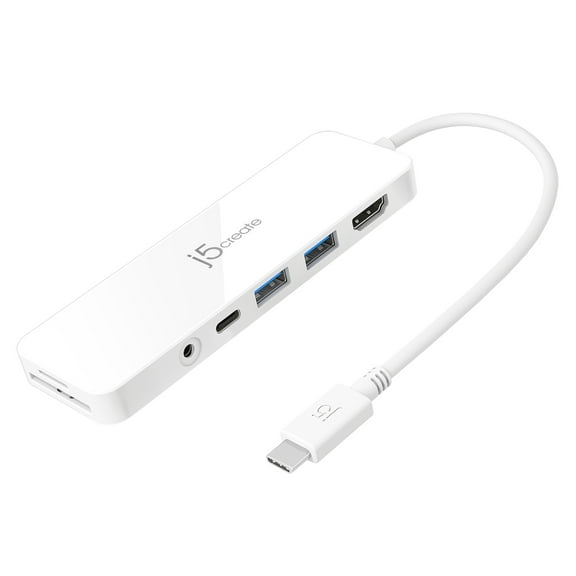
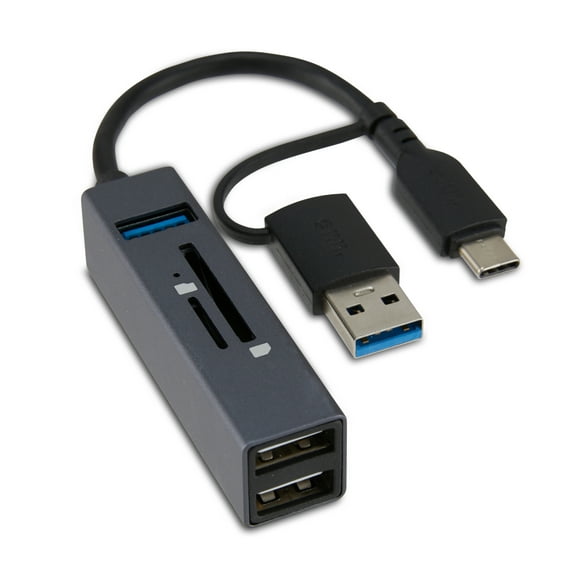
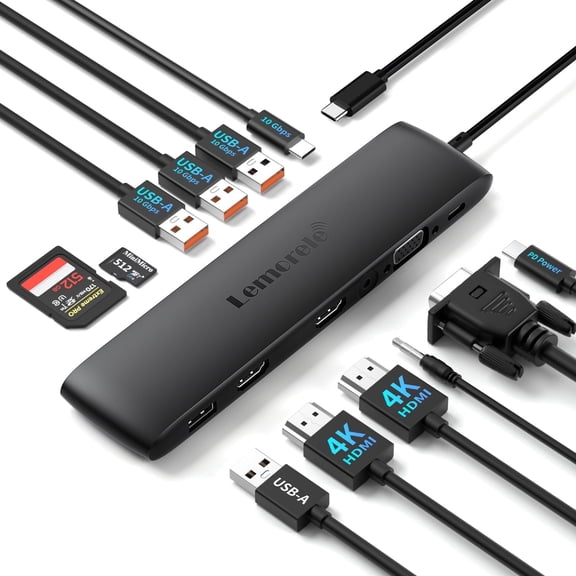
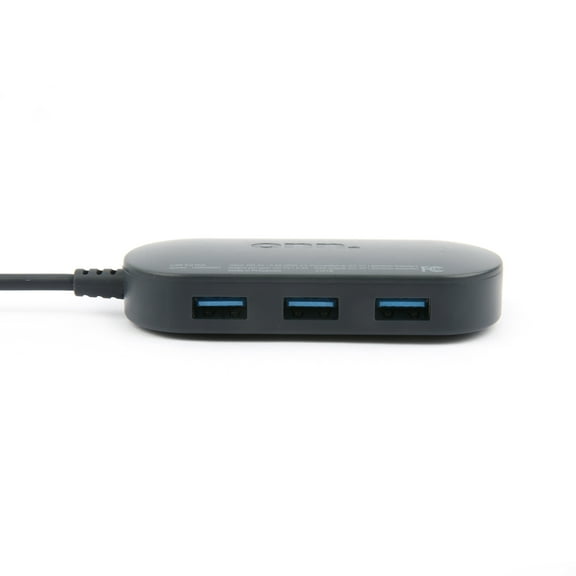
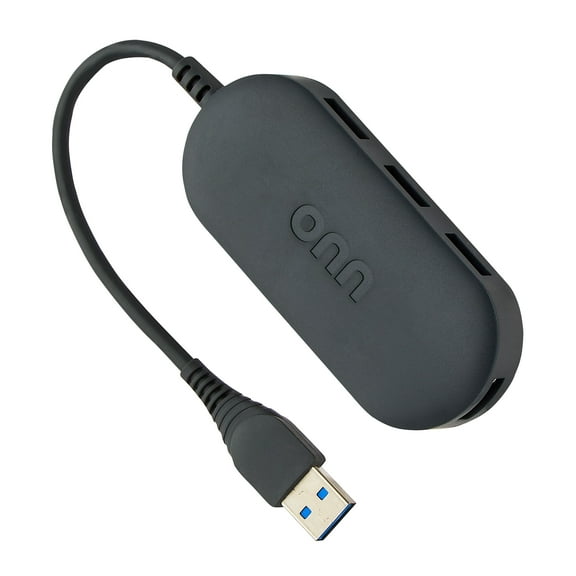
You can also narrow your choice by counting the accessories you use every day. You may need a simple usb splitter for a mouse, keyboard, and flash drive, or a multiport usb adapter with HDMI and card readers.
- You can add more ports without replacing your computer.
- You can connect displays, storage drives, and input devices from one hub.
- You can choose portable or desktop designs based on your setup.
- You can match power needs to basic accessories or larger peripherals.
Choosing interface type and transfer speed
You should check whether your computer uses USB-C, USB-A, or Thunderbolt before you compare anything else. You can enjoy a straightforward setup when your hub matches your computer’s native connection.
You may also want to compare data speeds, especially if you move large files often. You can typically see USB 3.0 or 5Gbps for faster transfers, while USB 2.0 or 480Mbps fits simple accessories.
If you plug in a keyboard, mouse, or printer, you may find lower-speed ports meet your daily needs. If you connect external drives, you may usually want faster transfer support for shorter file moves.
Thunderbolt-compatible options can make sense when your device supports that standard and your setup includes displays or high-speed storage. You’ll want to confirm your device specs before choosing that route.
Comparing port configuration and power supply
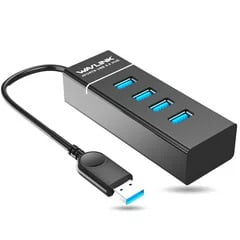
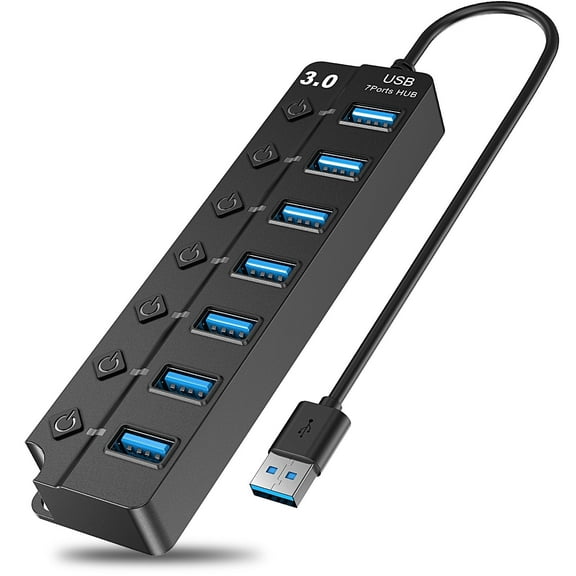
You should look at port count next, because your setup may need four ports, seven ports, or a mixed layout. You can often choose between a basic usb splitter and a multiport layout with HDMI, SD, or Ethernet.
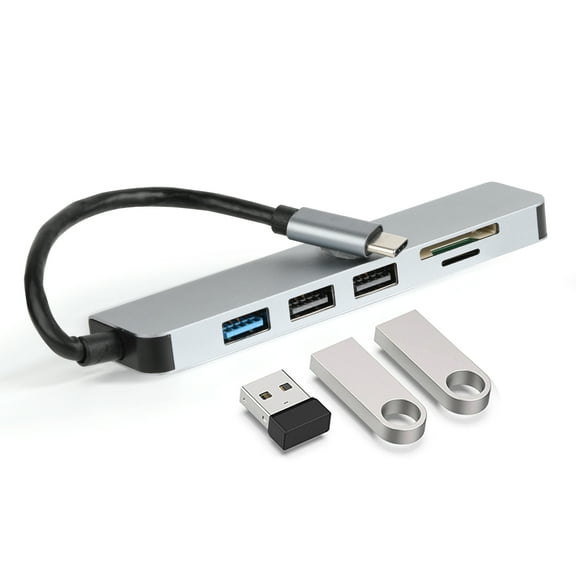
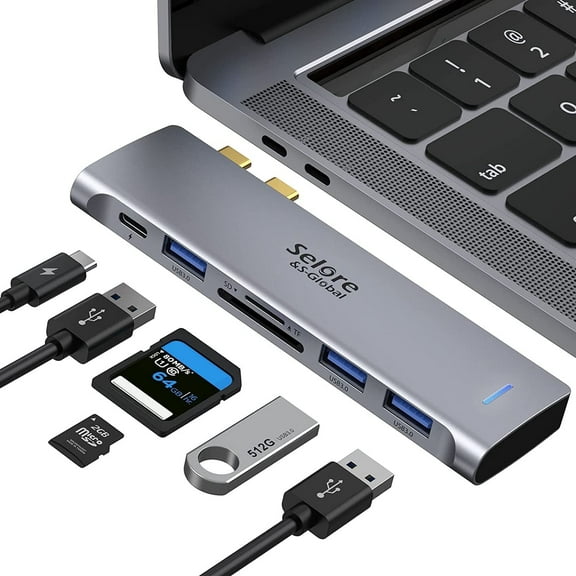
If your workday includes presentations or a second monitor, you may want HDMI built into your hub. If your workflow includes photos or cameras, you may appreciate SD or microSD slots.
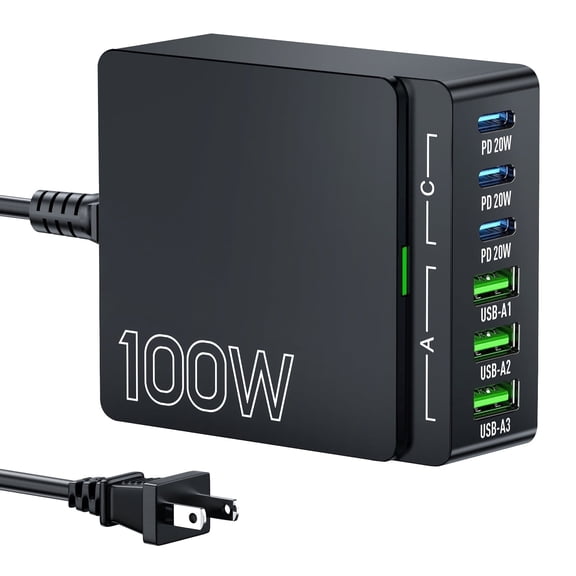
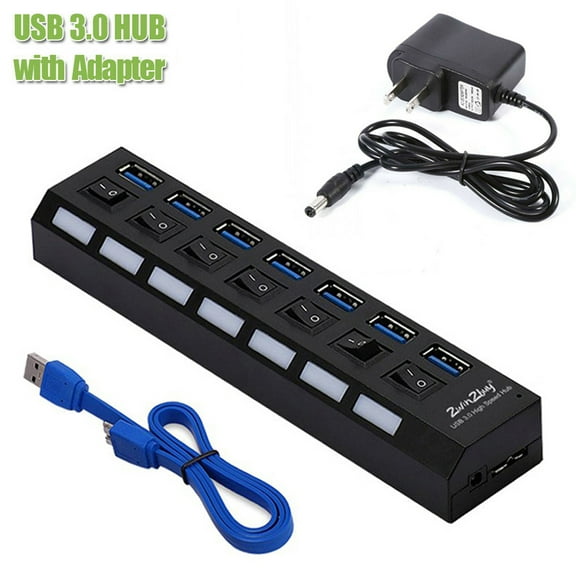
You should also compare bus-powered and self-powered designs. You can find bus-powered hubs draw power from your computer, while self-powered models use an AC adapter for more demanding accessories.
If you connect a mouse, keyboard, or flash drive, you may like a bus-powered usb port expander for a tidy travel setup. If you connect external hard drives, you may often want a powered hub for stable performance.
Picking the right form factor for your space
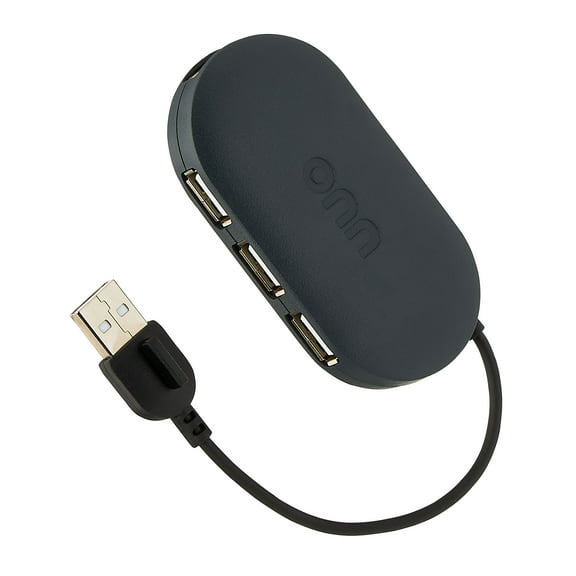
You can choose slim portable designs when your hub needs to fit in a backpack, laptop sleeve, or carry case. You may like these options when your desk changes often or your work moves between rooms.
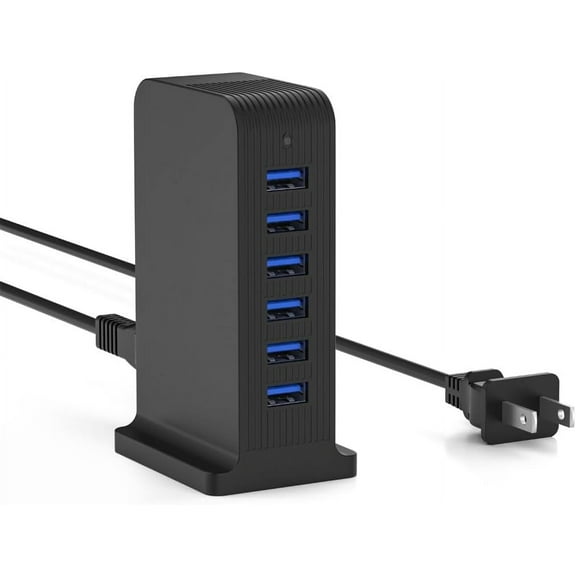
Desktop docking stations are suitable when your accessories stay connected in one place. You can keep your monitor, keyboard, Ethernet cable, and storage attached, then reconnect your laptop with one main cable.
You should also think about cable length and hub placement around your monitor or laptop stand. You can get a tidy setup when your ports stay within easy reach of your daily accessories.
If your workspace is tight, you may prefer a compact body with side-facing ports. If your setup includes several cables, you may often like a wider desktop base that spreads ports apart.
Matching USB hubs and gadgets to real setups
You may use a usb c hub with HDMI when your thin laptop has limited built-in ports. You can connect a monitor, charge your device, and keep a flash drive or keyboard attached.
If your family computer needs additional room for school accessories, you might choose a four-port or seven-port usb splitter. You can have room for webcams, printers, headphones, and learning tools.
You can use a multiport usb adapter at a home office desk when your routine includes video meetings and file transfers. You may appreciate having display output, USB-A ports, and memory card access in one place.
If your setup includes external hard drives, you should compare powered hubs with faster transfer support. You can get a solution that matches larger files, photo libraries, and frequent backups.
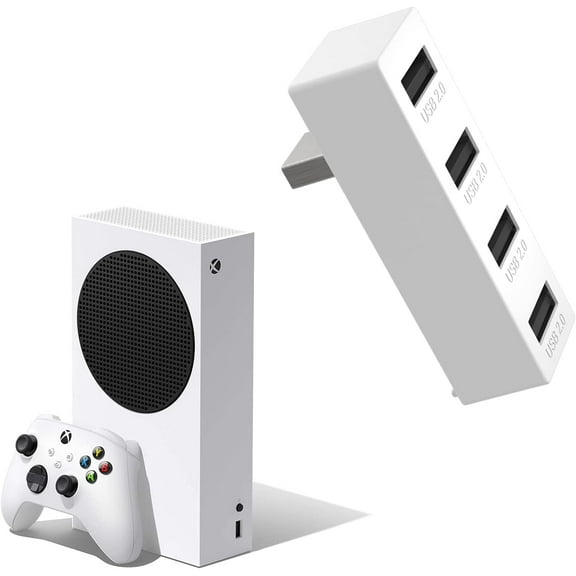
You may also want these usb gadgets for gaming spaces, shared desks, or creative stations with cameras and microphones. You can reduce cable swapping and keep your accessories ready when you need them.
You can feel more confident choosing the right hub when you match interface type, port mix, power style, and form factor to your setup. You can create an organized, connected workspace with minimal cable changes and direct device access.