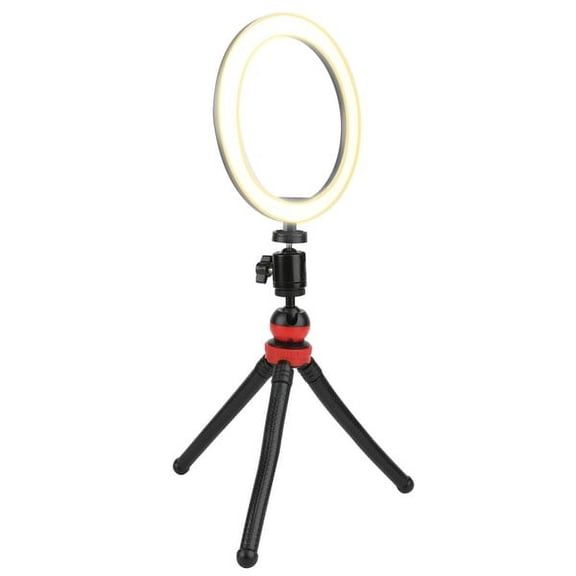
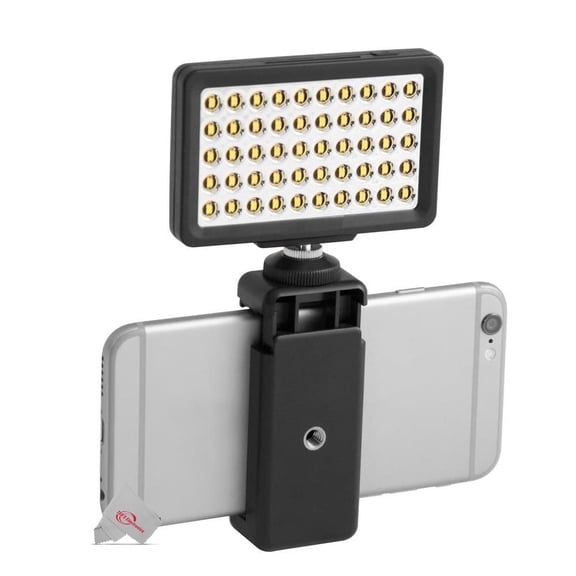
Ring 1080p(1)
4K UHD Ring Light Webcam for PC, 1080P Web Camera with Dual AI Noise-Cancelling Mics, Auto Light Correction, Privacy Cover, 73FOV, PDAF Autofocus, Privacy Cover, for Streaming, Conference, Zoom

4K UHD Ring Light Webcam for PC, 1080P Web Camera with Dual AI Noise-Cancelling Mics, Auto Light Correction, Privacy Cover, 73FOV, PDAF Autofocus, Privacy Cover, for Streaming, Conference, Zoom
Other options to consider(4)
New, 1080p 60 FPS Streaming Webcam with Adjustable Ring Light and Remote Control $116.11
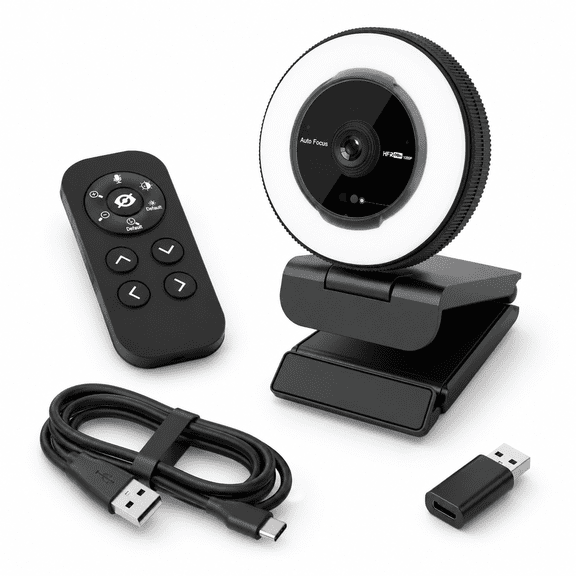
1080p 60 FPS Streaming Webcam with Adjustable Ring Light and Remote Control
Endony Streaming 1080P HD Webcam Built in Adjustable Ring Light and Mic. Advanced autofocus AF Web Camera for Google Meet Gamer Facebook YouTube Streamer $199.99

Endony Streaming 1080P HD Webcam Built in Adjustable Ring Light and Mic. Advanced autofocus AF Web Camera for Google Meet Gamer Facebook YouTube Streamer
New, 1080P Full HD Webcam with Integrated Ring Light and Noise-Canceling Microphone, 2.07 in / 5.25 cm Fixed Focus Streaming Web Camera, 4.76 ft / 1.45 m USB Cord for PC Desktop Laptop Video Conferencing $17.17
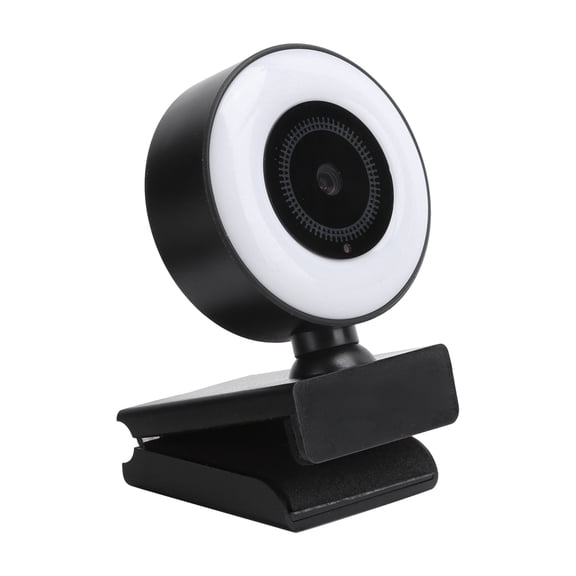
1080P Full HD Webcam with Integrated Ring Light and Noise-Canceling Microphone, 2.07 in / 5.25 cm Fixed Focus Streaming Web Camera, 4.76 ft / 1.45 m USB Cord for PC Desktop Laptop Video Conferencing
Bower Clip On Ring LED Light, Blue $11.99

Bower Clip On Ring LED Light, Blue
FAQ
How does the webcam's ring light help in video calls?
The ring light on the webcam is designed to brighten your face and reduce shadows during video calls, making you look clearer and more professional. It's especially helpful in low-light environments.
- It helps balance lighting for a more natural appearance.
- Adjustable brightness lets you control how much light is needed.
- Improves visibility without needing extra lamps.
Using the ring light can make your online meetings and streaming sessions look more polished.
What's the privacy cover used for on the webcam?
The privacy cover is a small shield you can slide or flip over the webcam lens when it's not in use. It's a great way to protect your privacy and prevent accidental video sharing.
- Physically blocks the camera when not needed.
- Gives peace of mind between meetings or streams.
- Helps keep the lens clean from dust.
It's an easy, reliable way to control when you're visible online.
Can I use this webcam for streaming and conferences?
This type of webcam is designed for versatility, making it a solid choice for streaming, video conferences, and online meetings. The dual noise-cancelling mics and autofocus can help you sound and look your best.
- Works with popular platforms like Zoom and Teams.
- Clear video and audio for professional presentations.
- Auto light correction helps in different lighting situations.
It's suitable for both work and creative projects from your computer.
How do I set up the webcam on my PC?
Setting up this webcam is usually straightforward. You'll just need to connect it to your PC using the provided USB cable.
- Plug the webcam into an available USB port.
- Wait for your computer to recognize it.
- Open your preferred video app and select the webcam as your camera source.
Some computers may install drivers automatically, but you can check your device settings if needed.
What should I do if the webcam picture looks blurry?
If your webcam picture appears blurry, there are a few quick steps you can try to improve clarity.
- Make sure the lens is clean and free from dust.
- Check that autofocus is enabled in your webcam settings.
- Adjust your distance from the camera for best focus.
- Try better lighting or use the built-in ring light.
These actions can help sharpen your image, but results may depend on your environment and how the webcam is used.
Popular in Shop Ring 1080p Electronics for Home Security
Related Products
Kalcinty Camera Mount with Ring Light Overhead, 6" LED Ring Light, Flexible Articulating Arm Compatible with iPhone, Logitech Webcam, Computer Tripod for YouTube Live Stream Cooking Video Recording
 Kalcinty Camera Mount with Ring Light Overhead, 6" LED Ring Light, Flexible Articulating Arm Compatible with iPhone, Logitech Webcam, Computer Tripod for YouTube Live Stream Cooking Video Recording$23.99current price $23.99
Flashpoint Wall-Mounted Boom Arm, 2.5-4.4'
 Flashpoint Wall-Mounted Boom Arm, 2.5-4.4'$50.24current price $50.24
Flashpoint Pro Air-Cushioned Heavy-Duty Light Stand (Blue, 7.2')
 Flashpoint Pro Air-Cushioned Heavy-Duty Light Stand (Blue, 7.2')$45.51current price $45.51
Cshidworld 2-Pack LED Video Light Kit, Remote Control Dimmable USB LED Continuous Light Photography Light with Tripods, 9 Color Filters and 10 Brightness Level for Video Recording, YouTube
 Cshidworld 2-Pack LED Video Light Kit, Remote Control Dimmable USB LED Continuous Light Photography Light with Tripods, 9 Color Filters and 10 Brightness Level for Video Recording, YouTube$25.89current price $25.89
ZOMEI 12" RGB Ring Light, Dimmable LED with 63" Tripod & Phone Holder for Live Stream, TikTok, Zoom and Vlog
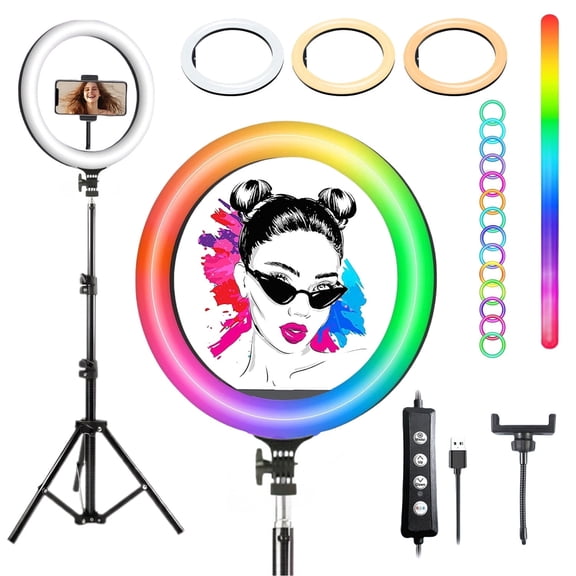 ZOMEI 12" RGB Ring Light, Dimmable LED with 63" Tripod & Phone Holder for Live Stream, TikTok, Zoom and Vlog$25.49current price $25.49
Knox Gear Selfie Ring Light Stand with Cell Phone Holder and Webcam/Camera Mount
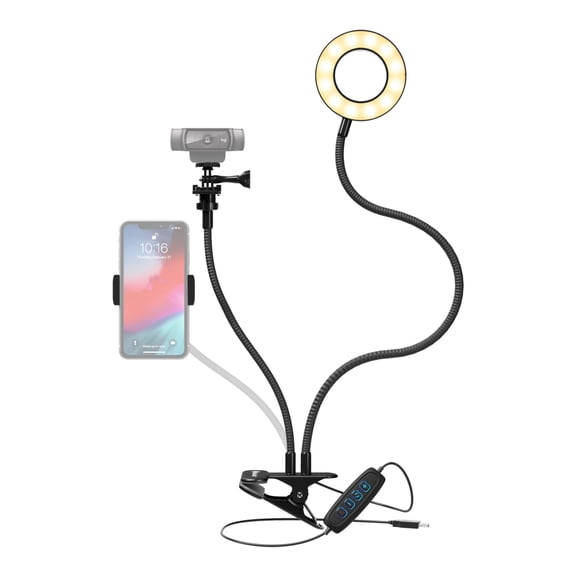 Knox Gear Selfie Ring Light Stand with Cell Phone Holder and Webcam/Camera Mount$10.00current price $10.00
Neewer Clip-on Snap Light for Streaming, Selfies & Remote Work - USB-C, 3-Level Brightness
 Neewer Clip-on Snap Light for Streaming, Selfies & Remote Work - USB-C, 3-Level Brightness$19.99current price $19.99
Koah Air-Cushion Stand for SOL Ring Light Kit
 Koah Air-Cushion Stand for SOL Ring Light Kit$39.99current price $39.99
Vivitar® 6-inch Streaming Essentials Led Ring Light With Spider Tr
Vivitar® 6-inch Streaming Essentials Led Ring Light With Spider Tr