

Pmkn4012b(2)
SDFGTstore Program Cable PMKN4012B for XPR6550 XPR7350e XPR7380e XPR7550 APX6000 $17.39

SDFGTstore Program Cable PMKN4012B for XPR6550 XPR7350e XPR7380e XPR7550 APX6000
PMKN4012B USB Programming Cable Cord for Talkie PR6550 APX6000 APX1000 APX4000 Two Way Radio Accessories $20.45

PMKN4012B USB Programming Cable Cord for Talkie PR6550 APX6000 APX1000 APX4000 Two Way Radio Accessories
Other options to consider(3)
USB Programming Cable for Motorola XPR6550 XPR7550 DGP6150 PMKN4012B Radio Data Cord 39.4 inches / 100 cm $19.06 Was $21.36

USB Programming Cable for Motorola XPR6550 XPR7550 DGP6150 PMKN4012B Radio Data Cord 39.4 inches / 100 cm
PMKN4010 PMKN4010B USB Programming Cable Compatible for XPR5550 XPR4550 XPR4350 XPR5350 XPR8300 XPR4300 XPR4500 $16.06
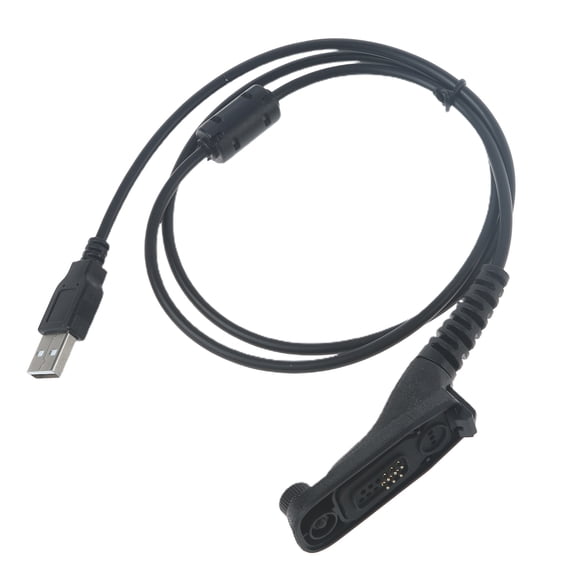
PMKN4010 PMKN4010B USB Programming Cable Compatible for XPR5550 XPR4550 XPR4350 XPR5350 XPR8300 XPR4300 XPR4500
Yajisi Premium USB Programming Cable for Motorola XPR6550 XPR7550 DGP6150 PMKN4012B Radio, Professional Walkie Talkie Cord Accessories (39.4 inches / 100 cm) $19.56

Yajisi Premium USB Programming Cable for Motorola XPR6550 XPR7550 DGP6150 PMKN4012B Radio, Professional Walkie Talkie Cord Accessories (39.4 inches / 100 cm)
FAQ
how do I connect the programming cable?
Getting started with your programming cable is pretty straightforward. First, make sure your two-way radio is powered off. Plug the USB end of the cable into your computer, then connect the other end to your radio's programming port. You may need to install the correct drivers or software, which are usually available from the radio manufacturer. After setup, launch the programming software and follow the prompts to configure your radio settings.
- Power off radio before connecting.
- Install drivers if needed.
- Use manufacturer programming software.
If you run into issues, check the software guide or your radio's manual for troubleshooting tips.
which radios does this cable work with?
This programming cable is designed to fit several models of two-way radios. According to product descriptions, it's compatible with radios like XPR6550, APX6000, APX1000, APX4000, XPR7350e, XPR7380e, and XPR7550. Always double-check your radio model and the cable's specs to confirm compatibility before purchase.
- Multiple radio models supported.
- Check model numbers carefully.
- Consult product details for full compatibility list.
If your radio isn't listed, you may want to verify with the manufacturer or reach out to Walmart's customer support.
do I need special software to use it?
Yes, you'll usually need specific programming software to use the cable with your radio. Manufacturers often provide downloadable software that works with their devices. Make sure your computer meets the requirements for the software, and follow all instructions for installation and setup. This helps you safely configure your radio settings and avoid potential issues.
- Manufacturer software is typically required.
- Check compatibility with your operating system.
- Follow setup instructions for best results.
For details on which software to use, refer to your radio's manual or the manufacturer's website.
what should I check before buying a programming cable?
Before purchasing a programming cable, it's a good idea to review your radio's model number and check the cable's compatibility. Look for details about USB type, supported operating systems, and whether drivers are included or needed. Reading customer reviews can provide insight on reliability and ease of setup.
- Confirm radio model compatibility.
- Check USB and software requirements.
- Review product specs and feedback.
Taking these steps can help you choose the right cable for your needs.
how can I troubleshoot connection issues?
If your programming cable isn't connecting properly, start by checking that both ends are firmly plugged in. Make sure your radio is powered off before connecting. If your computer doesn't recognize the cable, try reinstalling drivers or restarting both devices. Using a different USB port can sometimes help. Also, ensure you're using the correct programming software for your radio model.
- Check connections and ports.
- Reinstall drivers if needed.
- Restart devices and try again.
If problems persist, consult your radio's manual or reach out to Walmart's customer support for further guidance.
Popular in PMKN4012B Electronics USB Programming Cable Cord
Related Products
Startech.com 3ft / 0.9m Adapter Cord - Nema-l5-20r To Nema-5-20p (pac520plr3) - Cable - Nema L5-20r (r) Locking To Nema 5-20p (p) Locking - Ac 125 V - 13 A - 3 Ft - Molded - Black
 Startech.com 3ft / 0.9m Adapter Cord - Nema-l5-20r To Nema-5-20p (pac520plr3) - Cable - Nema L5-20r (r) Locking To Nema 5-20p (p) Locking - Ac 125 V - 13 A - 3 Ft - Molded - Black$37.13current price $37.13
Bescor Barrel Connector to 2-Pin Power Cable for BMPCC 4K/6K
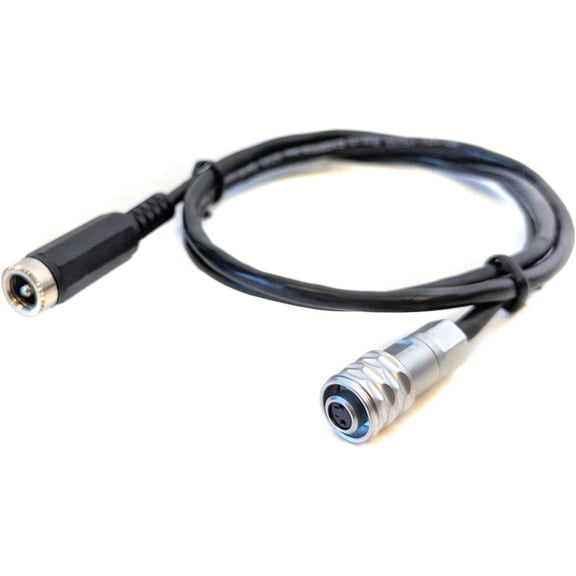 Bescor Barrel Connector to 2-Pin Power Cable for BMPCC 4K/6K$35.89current price $35.89
Kentek 6 feet FT 9 pin to 4 pin IEEE-1394b 1394a IEEE1394 Firewire iLINK DV cable cord 800/400 Mbps bilingual PC DV black
 Kentek 6 feet FT 9 pin to 4 pin IEEE-1394b 1394a IEEE1394 Firewire iLINK DV cable cord 800/400 Mbps bilingual PC DV black$13.50current price $13.50
Two 8Pin to 16Pin 12VHPWR PCIE 5.0 Cable for Power Supply
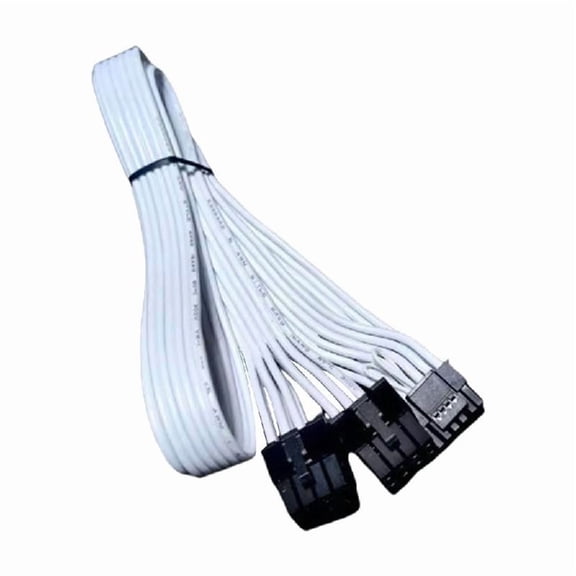 Two 8Pin to 16Pin 12VHPWR PCIE 5.0 Cable for Power Supply$13.99current price $13.99
Uxcell 5pcs FFC Flexible Flat Cable, 30 Pins 0.5 mm Pitch 250mm FPC FFC Flexible Ribbon Cable for LCD TV Car Audio DVD Player Laptop (B Type)
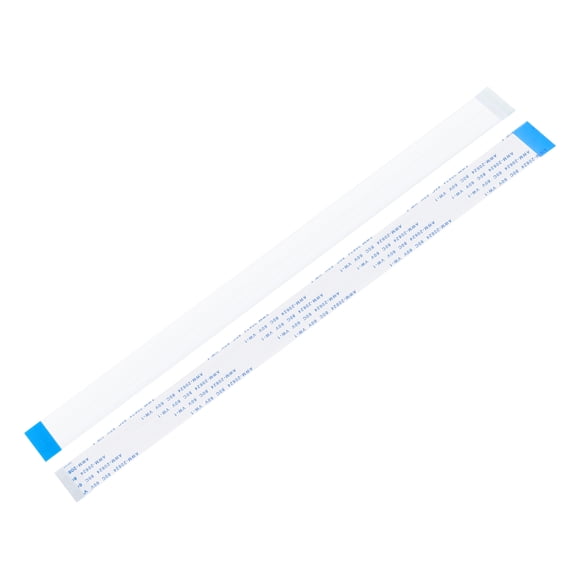 Uxcell 5pcs FFC Flexible Flat Cable, 30 Pins 0.5 mm Pitch 250mm FPC FFC Flexible Ribbon Cable for LCD TV Car Audio DVD Player Laptop (B Type)$8.24current price $8.24
Emlimny Feet Cable Male to Male Gold-Plated Cord Compatible for Lenovo, Dell, HP, ASUS and Other Brand
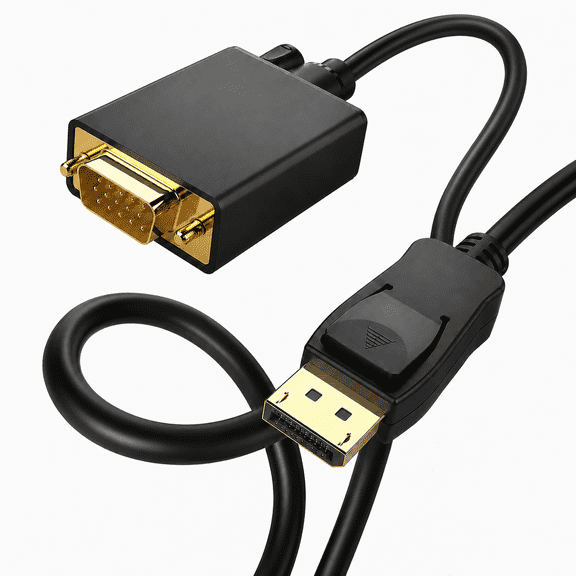 Emlimny Feet Cable Male to Male Gold-Plated Cord Compatible for Lenovo, Dell, HP, ASUS and Other Brand$10.99current price $10.99
Uxcell 5pcs FFC Flexible Flat Cable, 6 Pins 0.5 mm Pitch 250mm FPC FFC Flexible Ribbon Cable for LCD TV Car Audio DVD Player Laptop (A Type)
 Uxcell 5pcs FFC Flexible Flat Cable, 6 Pins 0.5 mm Pitch 250mm FPC FFC Flexible Ribbon Cable for LCD TV Car Audio DVD Player Laptop (A Type)$8.54current price $8.54
Uxcell 10pcs FFC Flexible Flat Cable, 5 Pins 0.5 mm Pitch 250mm FPC FFC Flexible Ribbon Cable for LCD TV Car Audio DVD Player Laptop (B Type)
 Uxcell 10pcs FFC Flexible Flat Cable, 5 Pins 0.5 mm Pitch 250mm FPC FFC Flexible Ribbon Cable for LCD TV Car Audio DVD Player Laptop (B Type)$7.78current price $7.78
Uxcell 5pcs FFC Flexible Flat Cable, 6 Pins 0.5 mm Pitch 60mm FPC FFC Flexible Ribbon Cable for LCD TV Car Audio DVD Player Laptop (B Type)
 Uxcell 5pcs FFC Flexible Flat Cable, 6 Pins 0.5 mm Pitch 60mm FPC FFC Flexible Ribbon Cable for LCD TV Car Audio DVD Player Laptop (B Type)$8.87current price $8.87
C2G C2G10400 15 ft. Performance Ultra Flexible High Speed HDMI Cable, Black
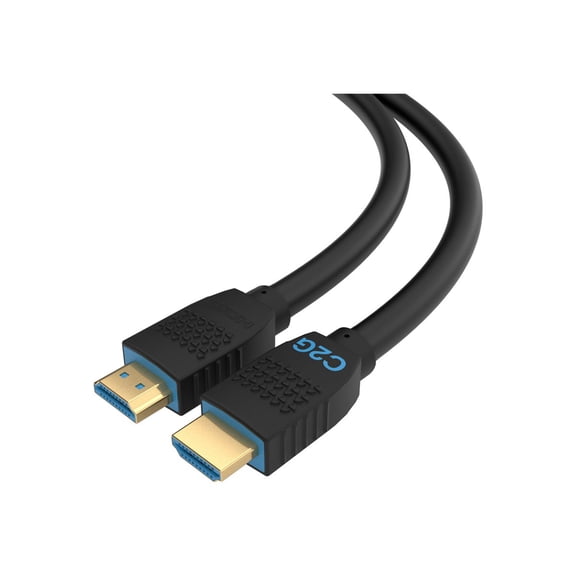 C2G C2G10400 15 ft. Performance Ultra Flexible High Speed HDMI Cable, Black$37.01current price $37.01
Uxcell 10pcs FFC Flexible Flat Cable, 15 Pins 0.5 mm Pitch 250mm FPC FFC Flexible Ribbon Cable for LCD TV Car Audio DVD Player Laptop (B Type)
 Uxcell 10pcs FFC Flexible Flat Cable, 15 Pins 0.5 mm Pitch 250mm FPC FFC Flexible Ribbon Cable for LCD TV Car Audio DVD Player Laptop (B Type)$8.27current price $8.27
Uxcell 10pcs FFC Flexible Flat Cable, 8 Pins 0.5 mm Pitch 250mm FPC FFC Flexible Ribbon Cable for LCD TV Car Audio DVD Player Laptop (B Type)
 Uxcell 10pcs FFC Flexible Flat Cable, 8 Pins 0.5 mm Pitch 250mm FPC FFC Flexible Ribbon Cable for LCD TV Car Audio DVD Player Laptop (B Type)$7.78current price $7.78
StarTech EPS8EXT 8" EPS 8-Pin Power Extension Cable, Female to Male
 StarTech EPS8EXT 8" EPS 8-Pin Power Extension Cable, Female to Male$13.57current price $13.57
Uxcell 5pcs FFC Flexible Flat Cable, 10 Pins 0.5 mm Pitch 250mm FPC FFC Flexible Ribbon Cable for LCD TV Car Audio DVD Player Laptop (A Type)
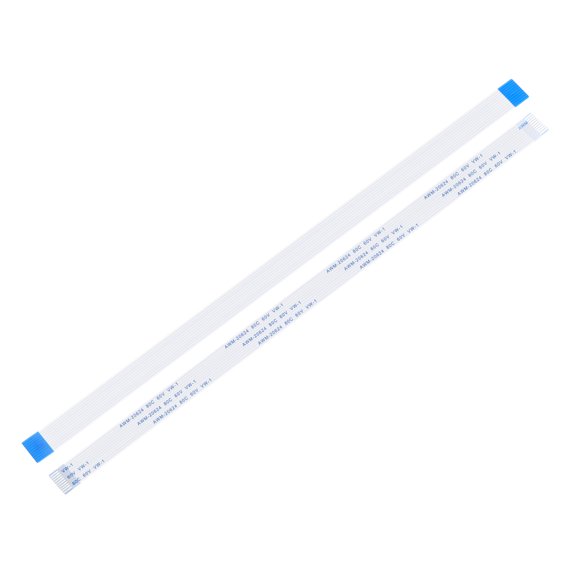 Uxcell 5pcs FFC Flexible Flat Cable, 10 Pins 0.5 mm Pitch 250mm FPC FFC Flexible Ribbon Cable for LCD TV Car Audio DVD Player Laptop (A Type)$8.54current price $8.54
Uxcell 5pcs FFC Flexible Flat Cable, 16 Pins 0.5 mm Pitch 250mm FPC FFC Flexible Ribbon Cable for LCD TV Car Audio DVD Player Laptop (B Type)
 Uxcell 5pcs FFC Flexible Flat Cable, 16 Pins 0.5 mm Pitch 250mm FPC FFC Flexible Ribbon Cable for LCD TV Car Audio DVD Player Laptop (B Type)$7.58current price $7.58
Uxcell 5pcs FFC Flexible Flat Cable, 24 Pins 0.5 mm Pitch 250mm FPC FFC Flexible Ribbon Cable for LCD TV Car Audio DVD Player Laptop (B Type)
 Uxcell 5pcs FFC Flexible Flat Cable, 24 Pins 0.5 mm Pitch 250mm FPC FFC Flexible Ribbon Cable for LCD TV Car Audio DVD Player Laptop (B Type)$7.58current price $7.58