

Microsoft Lifecam Stores(1)
Selected LifeCam Studio for Business by Microsoft $129.99

Selected LifeCam Studio for Business by Microsoft
Other options to consider(11)
Microsoft Modern Webcam $49.95

Microsoft Modern Webcam
Hetai Webcam Live Web Cameras for Microsoft HP Computer with Microphone Online Webcams 640x480 Widescreen Video $30.34
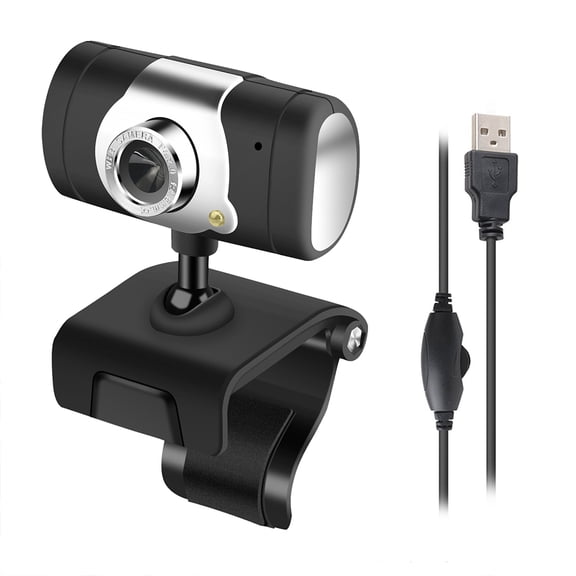
Hetai Webcam Live Web Cameras for Microsoft HP Computer with Microphone Online Webcams 640x480 Widescreen Video
HP 320 FHD Webcam $32.99 $32.99/count

HP 320 FHD Webcam
In 50+ people's carts, Logitech Pro Stream WebCam, 30 fps at 1080p, Autofocus, Omni-directional microphones, Black $56.00 Was $79.99
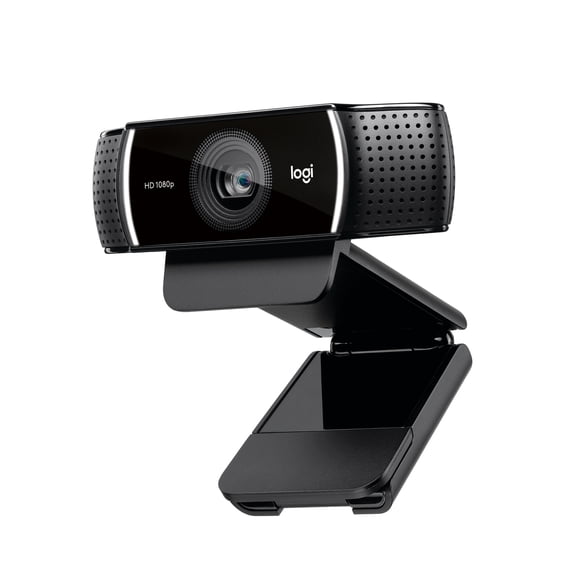
Logitech Pro Stream WebCam, 30 fps at 1080p, Autofocus, Omni-directional microphones, Black
Dell Webcam WB3023-2K QHD/FHD/HD Resolution, Sony Sensor, Microsoft Teams/Zoom Certified $40.00 Was $46.49
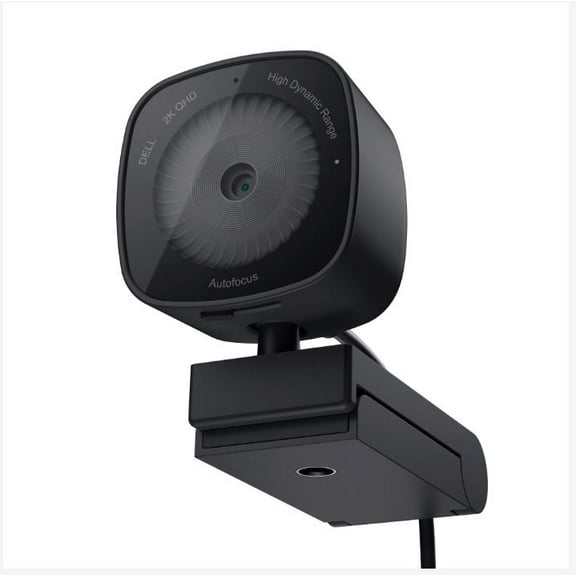
Dell Webcam WB3023-2K QHD/FHD/HD Resolution, Sony Sensor, Microsoft Teams/Zoom Certified
Logitech Core 3 Pack Mevo Start, Wireless Live Stream Cam, 1080p Full HD, Smart App, LTE/Wi-Fi $1,049.00 Was $1,149.99
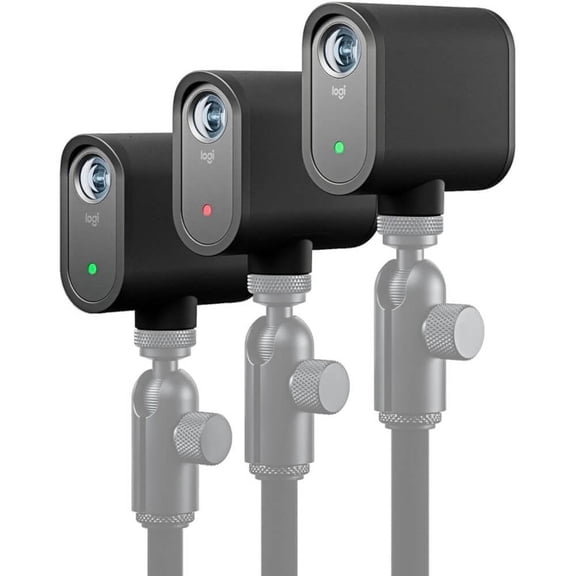
Logitech Core 3 Pack Mevo Start, Wireless Live Stream Cam, 1080p Full HD, Smart App, LTE/Wi-Fi
Yealink MVC S40-C5U Microsoft Teams Rooms System $3,814.99

Yealink MVC S40-C5U Microsoft Teams Rooms System
KUMEE Hd 1080P Mic-Enabled Webcam,Certified for Zoom,Microsoft Teams Compatible,Taa Compliant Clear Video Web Cam $68.35

KUMEE Hd 1080P Mic-Enabled Webcam,Certified for Zoom,Microsoft Teams Compatible,Taa Compliant Clear Video Web Cam
Logitech BCC950 Conference Web Cam Full HD 1080p Video Webcam with Remote Control

Logitech BCC950 Conference Web Cam Full HD 1080p Video Webcam with Remote Control
Computer camera,Computer Camera Os X Demo Compatible Windows Demo Camera 16mp Webcam Document Demo Invert Ideal Live Os 4k Live Camera 4k Usb Work Live Android Os Usb Document Live 4k Webcam $65.39

Computer camera,Computer Camera Os X Demo Compatible Windows Demo Camera 16mp Webcam Document Demo Invert Ideal Live Os 4k Live Camera 4k Usb Work Live Android Os Usb Document Live 4k Webcam
DataLocker H2 Webcam, 30 fps, USB 2.0, TAA Compliant $143.21

DataLocker H2 Webcam, 30 fps, USB 2.0, TAA Compliant
FAQ
How do I set up a webcam for video calls?
Setting up a webcam for video calls is pretty straightforward. Start by plugging the webcam into your computer's USB port. Most modern webcams are plug-and-play, so your computer should recognize it automatically. Next, open your preferred video call app and look for the settings menu.
- Select the webcam as your video input device.
- Adjust the position and angle so your face is well-lit and centered.
If you run into issues, checking your device's drivers or restarting your app can help. This can make your calls clearer and more enjoyable.
Can webcams work with laptops and desktops?
Webcams generally work with both laptops and desktop computers. Most laptops have built-in cameras, but external webcams can be plugged in for better image quality or features. Desktop computers usually require an external webcam, which connects through a USB port.
- Compatible with most operating systems, including Windows and Mac.
- Easy to install without needing extra software in many cases.
It's a good idea to check your device's ports and system requirements before purchasing.
What features should I look for in a webcam?
When shopping for a webcam, consider what matters most for your needs. Popular features include high-definition resolution for clear video, built-in microphones for audio, and autofocus for sharp images.
- HD or Full HD video quality
- Wide-angle lens for group calls
- Privacy shutter for security
- Easy mounting options
Thinking about your usage—like streaming, meetings, or family calls—can help you pick the right features.
How can I improve webcam picture quality?
If your webcam picture looks grainy or dark, a few simple tweaks can help. Try placing your webcam in a well-lit area, facing natural light if possible. Adjust the camera angle so your face is centered.
- Clean the lens gently with a soft cloth
- Update your webcam's drivers
- Adjust brightness and contrast in your video app
Experimenting with these steps can make your image look more professional and clear during calls.
Are there privacy tips for using webcams?
Protecting your privacy while using a webcam is important. Many webcams offer built-in privacy shutters you can slide over the lens when not in use. You can also unplug the webcam or disable it in your computer's settings.
- Keep your webcam covered when not needed
- Check device settings to turn off access
- Use trusted video call apps with security features
Staying mindful of these tips can help you feel safer while using technology at home or work.
Popular in Find Microsoft LifeCam at Electronics Stores Online
Related Products
RONY 1080P HD Computer Webcam with Microphone, USB Streaming Camera for PC Desktop Laptop with Noise Reduction
 RONY 1080P HD Computer Webcam with Microphone, USB Streaming Camera for PC Desktop Laptop with Noise Reduction$19.99current price $19.99
Logitech Adjustable Content Camera for Teaching & Demonstrating - 60 fps
 Logitech Adjustable Content Camera for Teaching & Demonstrating - 60 fps$358.09current price $358.09
Lenovo Video Conferencing Camera Black USB Type C 1 / Each 4XC1D66055
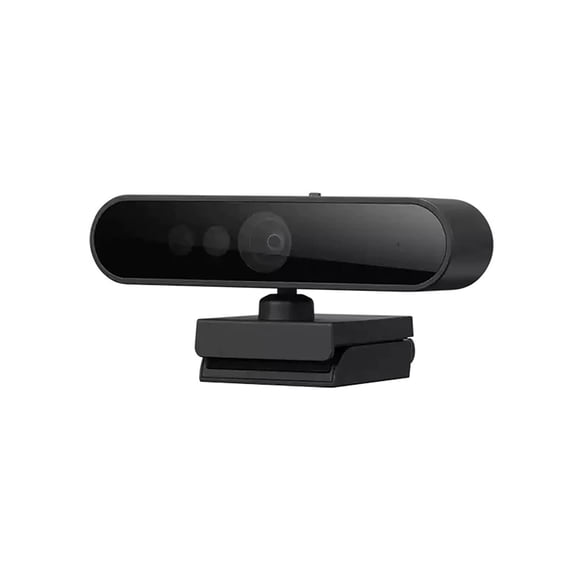 Lenovo Video Conferencing Camera Black USB Type C 1 / Each 4XC1D66055$64.99current price $64.99
MeetUp 2 All-in-One USB Conference Camera with Built-In AI 960001691
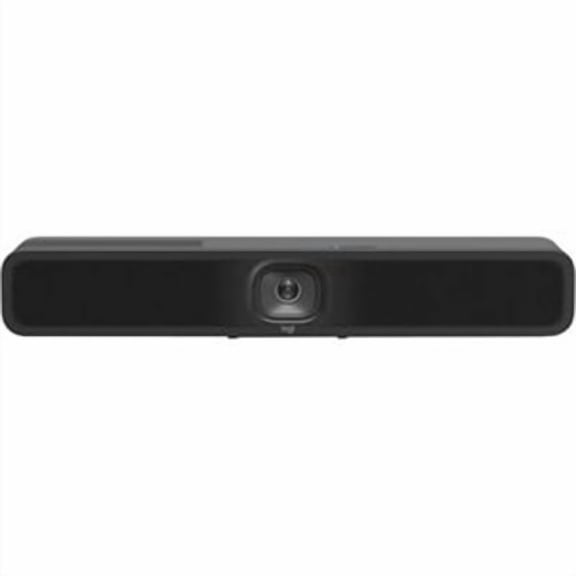 MeetUp 2 All-in-One USB Conference Camera with Built-In AI 960001691$879.99current price $879.99
RONY 1080P Full HD Webcam with Built-in Microphone, Privacy Cover & Rotatable Tripod , Wide Angle USB Camera for Desktop PC and Laptop, Black
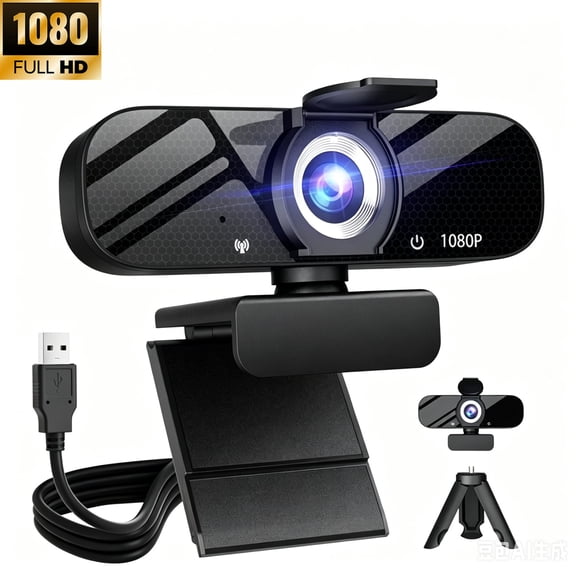 RONY 1080P Full HD Webcam with Built-in Microphone, Privacy Cover & Rotatable Tripod , Wide Angle USB Camera for Desktop PC and Laptop, Black$19.99current price $19.99
Logitech StreamCam Webcam, 60 fps, White, USB 3.1 (Gen 1) Type C
 Logitech StreamCam Webcam, 60 fps, White, USB 3.1 (Gen 1) Type C$119.00current price $119.00
SLIDE INNOVATIONS 1080P HD Webcam, Clamp-On Streaming Camera with Ring Light and Microphone
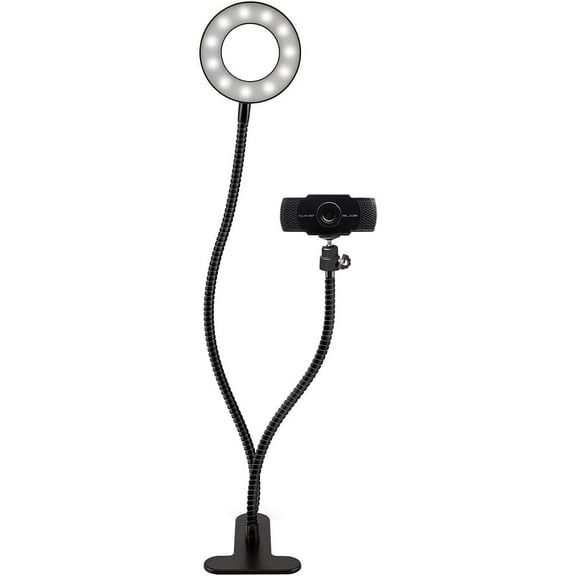 SLIDE INNOVATIONS 1080P HD Webcam, Clamp-On Streaming Camera with Ring Light and Microphone$34.98current price $34.98
Macally 1080P Webcam with Microphone - Stay Connected Virtually - 120° Wide Angle HD 30FPS USB Computer Camera for Desktop - Web Cam for Streaming, Meetings, Skype, Zoom, PC, Laptop, Mac, Face Time
 Macally 1080P Webcam with Microphone - Stay Connected Virtually - 120° Wide Angle HD 30FPS USB Computer Camera for Desktop - Web Cam for Streaming, Meetings, Skype, Zoom, PC, Laptop, Mac, Face Time$16.99current price $16.99
Facial Recognition Webcam for Windows 11/10, 1080P USB Computer Web Camera with Microphone, 120° Wide Angle View Webcam with Privacy Cover for PC/Laptop/Desktop Computer/Streaming
 Facial Recognition Webcam for Windows 11/10, 1080P USB Computer Web Camera with Microphone, 120° Wide Angle View Webcam with Privacy Cover for PC/Laptop/Desktop Computer/Streaming$23.99current price $23.99