

HDMI to Mini DisplayPort in HDMI Cables & Adapters
About HDMI to Mini DisplayPort in HDMI Cables & Adapters - Walmart.com
You need hdmi to mini displayport products that match your setup exactly. You can use this guide to compare direction, converter type, resolution support, and cable format before you choose.
This category is different from reverse-direction video cables. You should check that your source uses HDMI and your display uses Mini DisplayPort, because these items are typically non-bi-directional.
Choosing the right hdmi to mini displayport direction
You should start with directionality, because this category handles HDMI source to Mini DisplayPort display connections. You may need this path for a laptop dock, media box, console, or desktop with HDMI output.
You should confirm that your monitor accepts Mini DisplayPort input before you compare other specs. You shouldn't assume a reversible connection, because many hdmi to mini dp products work in one direction only.
Look for clear labeling that names the source side and the display side. You can avoid setup confusion when your cable or adapter states HDMI in and Mini DisplayPort out.
How to compare active hdmi to mini displayport converter options
You should compare active and passive designs next, because this signal path usually needs conversion. You can expect many setups to require an active hdmi to mini displayport converter with a built-in chipset.
An active converter changes the signal format so your HDMI source can communicate with a Mini DisplayPort display. You should treat that chipset as a key buying detail, not a minor extra.
You may see passive adapters in search results, but you should check compatibility notes carefully. You can use passive options only when your specific devices support that signal path.
- You can use active converters when your HDMI source needs signal translation for a Mini DisplayPort monitor.
- You should check non-bi-directional labeling, so your connection direction matches your devices.
- You can compare adapter dongles and direct cables based on how much reach and flexibility you need.
- You should review listed resolution support, especially if your display runs at 4K or 1080p.
- You can look for audio support details when you want video and sound through one connection.
Choosing resolution and compatibility details
You should match the converter to your display resolution and refresh rate. You may want 4k hdmi to mini displayport support for sharper detail on capable monitors.
Check whether the item lists 4K at 60Hz, 4K at 30Hz, or 1080p Full HD. You can use those numbers to estimate how smooth your picture may look during work or entertainment.
You should also compare HDMI and DisplayPort version notes when they appear in product details. You can read HDMI 2.0, HDMI 1.4, or DisplayPort 1.2 as compatibility clues for bandwidth.
Higher bandwidth support usually helps you connect newer displays at stronger refresh rates. You should still confirm your source device, display, and converter specs match before you decide.
You may also want audio transmission through the same connection. You should read product details to see whether your chosen adapter or cable carries audio with video.
Comparing hdmi to mini displayport cable and adapter formats
You should decide whether you want an adapter dongle or a direct connection cable. You can choose based on port spacing, cable management, and how often you move your setup.
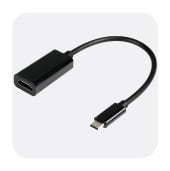
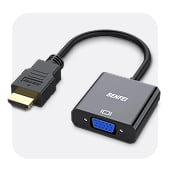
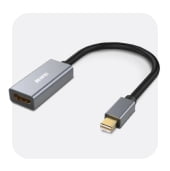
An adapter dongle can help when your ports sit close together or your display cable path changes often. You may prefer that format if you switch monitors, docks, or source devices regularly.
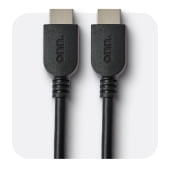
A direct hdmi to mini displayport cable can reduce the number of separate pieces on your desk. You should consider that option when you want a simpler connection between fixed devices.
Cable length matters when your source and display sit far apart. You should measure your desk, media stand, or workstation first, so your connection reaches comfortably.
Matching common setups to the right choice
You can use these products for a desktop with HDMI output and a Mini DisplayPort monitor. You may also need one for a conference display, capture setup, or older Apple-compatible monitor connection.
If your display supports 1080p, you can focus on basic compatibility and the right connector path. If your screen targets 4K, you should compare refresh rate support more closely.
You may want an active converter for a console or streaming box connected to a Mini DisplayPort display. You should also review power requirements when product details mention USB-powered conversion.
If your workspace stays in one place, you can choose a direct cable for a cleaner layout. If your setup changes often, you may prefer a dongle that adapts to different cable runs.
You should treat hdmi to mini displayport selection as a compatibility decision, not just a connector match. You can get a smoother setup when your direction, chipset, resolution, and format all line up.
You can shop this category with more confidence when you compare active conversion and non-bi-directional design first. Your right match helps your HDMI source connect cleanly to a Mini DisplayPort display.