Cradlepoint Wireless(1)
Pre-Owned Cradlepoint MBR1400 V2 Wireless Router Wi-Fi MBR1400 w/ Adapter and Antennas $63.75

Pre-Owned Cradlepoint MBR1400 V2 Wireless Router Wi-Fi MBR1400 w/ Adapter and Antennas
Other options to consider(1)
PKPOWER 6.6FT Cable AC/DC Adapter For CradlePoint MBR95 Wireless N 3G/4G Router Power Supply Cord Cable Charger Mains PSU $13.99

PKPOWER 6.6FT Cable AC/DC Adapter For CradlePoint MBR95 Wireless N 3G/4G Router Power Supply Cord Cable Charger Mains PSU
FAQ
What's the difference between Wi-Fi 4 and Wi-Fi 6 routers?
Wi-Fi 4 and Wi-Fi 6 refer to different generations of wireless technology in routers. Wi-Fi 4 (also known as 802.11n) is older and provides solid speeds for basic tasks. Wi-Fi 6 (also called 802.11ax) is newer, supports more devices at once, and can deliver faster speeds and improved reliability in busy environments. Choosing between them depends on your needs—if you have lots of smart devices or need faster connections for streaming and work, Wi-Fi 6 may be a better fit. Both types are available in CradlePoint’s wireless router lineups.
Can I use a wireless router with cellular data only?
Yes, many wireless routers, like those in the CradlePoint lineup, are designed to support cellular connections using SIM cards.
- This feature is especially useful in areas without reliable wired internet.
- Routers with multiple SIM slots let you switch networks for better coverage.
- Cellular routers can provide Wi-Fi by sharing mobile data with multiple devices at home, on the road, or in a small office.
How do I set up a CradlePoint router for first use?
Setting up a CradlePoint wireless router is fairly straightforward.
- Unbox your router and attach the included antennas.
- Insert a SIM card if you’ll use cellular internet.
- Connect the router to power and turn it on.
- Use an Ethernet cable or connect to the default Wi-Fi network (often listed on the router’s label).
- Log in to the router’s web interface using the instructions in your manual to finish setup and configure your network.
What can I do if my wireless signal seems weak?
If you notice weak Wi-Fi signals from your wireless router, try these quick troubleshooting tips:
- Move the router to a more central location, away from thick walls or metal objects.
- Ensure the antennas are screwed in tightly and positioned upright.
- Reduce interference by keeping the router away from microwaves or cordless phones.
- Check the router’s settings for antenna or signal adjustment options.
- Consider updating the firmware, following manufacturer instructions, to improve performance.
Are replacement power adapters easy to find for these routers?
Replacement power adapters for many wireless routers are available and easy to locate.
- You’ll want to check the voltage and connector specifications to match your specific model.
- It’s important to use only compatible adapters to avoid possible damage or safety concerns.
- On Walmart’s website, you can find a range of power supply cords and chargers for various routers.
Popular in Cradlepoint Wireless Routers and Modems for Wi-Fi
Related Products
Ubiquiti Networks Cloud Gateway Ultra (UCG-Ultra)
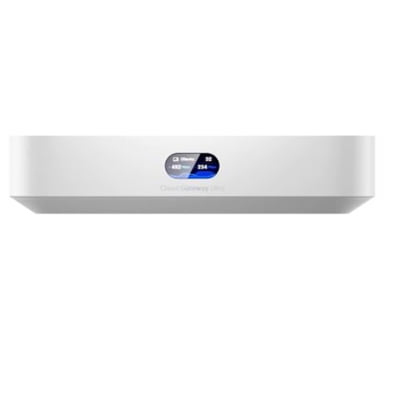 Ubiquiti Networks Cloud Gateway Ultra (UCG-Ultra)$166.80current price $166.80
MikroTik RB5009UG+S+IN | Home lab router with USB 3.0
 MikroTik RB5009UG+S+IN | Home lab router with USB 3.0$190.40current price $190.40
TP-Link WiFi 5 Indoor/Outdoor 5GHz Wireless Bridge EAP211BRIDGEKIT
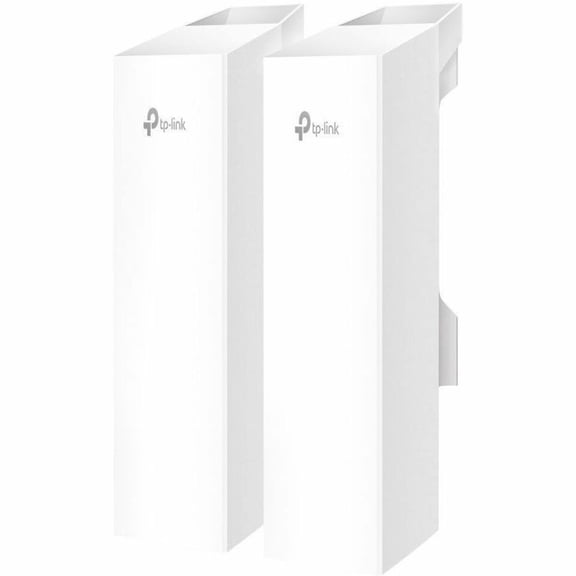 TP-Link WiFi 5 Indoor/Outdoor 5GHz Wireless Bridge EAP211BRIDGEKIT$139.39current price $139.39
Ubiquiti Networks UniFi Dream Machine Pro Max All-In-One Enterprise Security Gateway with Built-In 128GB SSD
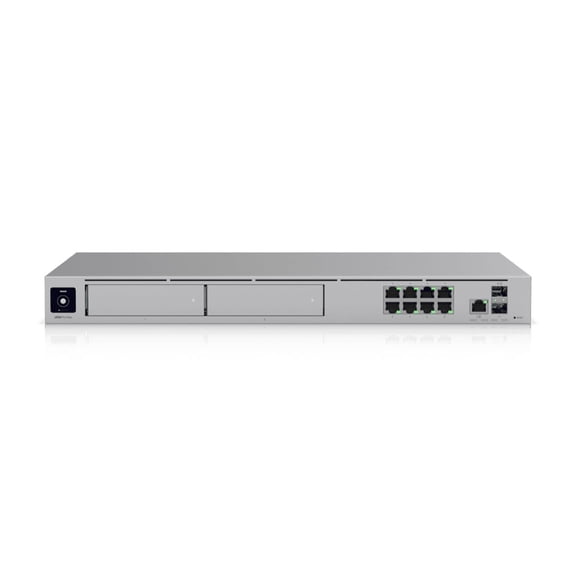 Ubiquiti Networks UniFi Dream Machine Pro Max All-In-One Enterprise Security Gateway with Built-In 128GB SSD$709.14current price $709.14
TP-Link TL-R605 Safe Stream Gigabit Multi-WAN Desktop VPN Router
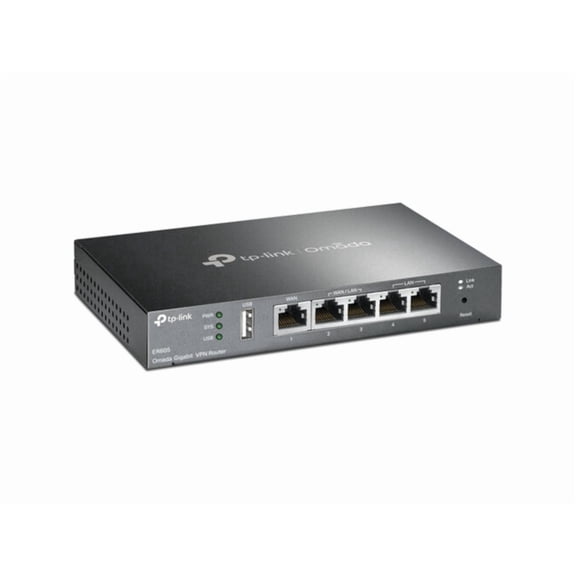 TP-Link TL-R605 Safe Stream Gigabit Multi-WAN Desktop VPN Router$76.78current price $76.78
TP-Link Archer T2UB Nano AC600 Dual Band 2.4G/5G USB Wi-Fi Adapter
 TP-Link Archer T2UB Nano AC600 Dual Band 2.4G/5G USB Wi-Fi Adapter$33.00current price $33.00
Starlink Standard Kit AX Tri-Band Wi-Fi System, High-Speed Low-Latency Internet, Gen 3 Router, Self-Install Setup, Global Satellite Coverage, Bundle (International Model)
 Starlink Standard Kit AX Tri-Band Wi-Fi System, High-Speed Low-Latency Internet, Gen 3 Router, Self-Install Setup, Global Satellite Coverage, Bundle (International Model)$439.99current price $439.99
Peplink B-One-5G Gigabit Dual WAN Wi-Fi Cellular Router for Fixed Wireless Access (FWA) with PrimeCare
 Peplink B-One-5G Gigabit Dual WAN Wi-Fi Cellular Router for Fixed Wireless Access (FWA) with PrimeCare$699.00current price $699.00
Netis WF2123 IEEE 802.11n Wi-Fi Adapter for Notebook - USB 2.0 - 300 Mbit/s - 2.48 GHz ISM - External
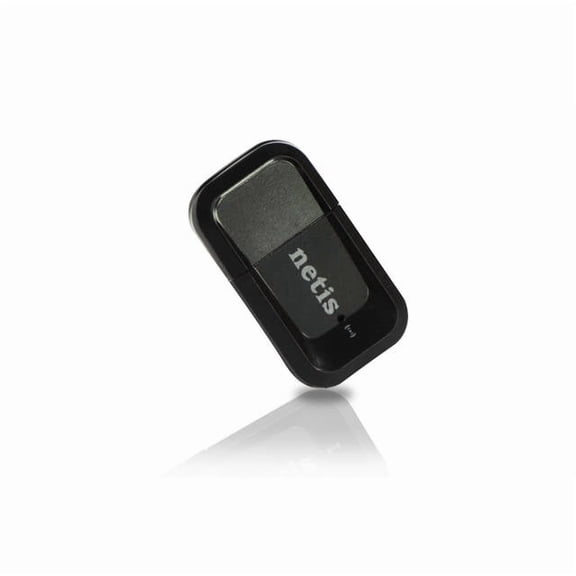 Netis WF2123 IEEE 802.11n Wi-Fi Adapter for Notebook - USB 2.0 - 300 Mbit/s - 2.48 GHz ISM - External$12.99current price $12.99
STARLINK - Mini Kit AC Dual Band Wi-Fi System - White (International Version)
 STARLINK - Mini Kit AC Dual Band Wi-Fi System - White (International Version)$299.90current price $299.90
GL.iNet GL SFT1200 Dual-Band 1.2 Gbps Portable VPN Gigabit Router
 GL.iNet GL SFT1200 Dual-Band 1.2 Gbps Portable VPN Gigabit Router$49.00current price $49.00
TP Link ARCHERTX10UBNANO Ax900 Nano Dual Band Wi-fi 6 Adapter
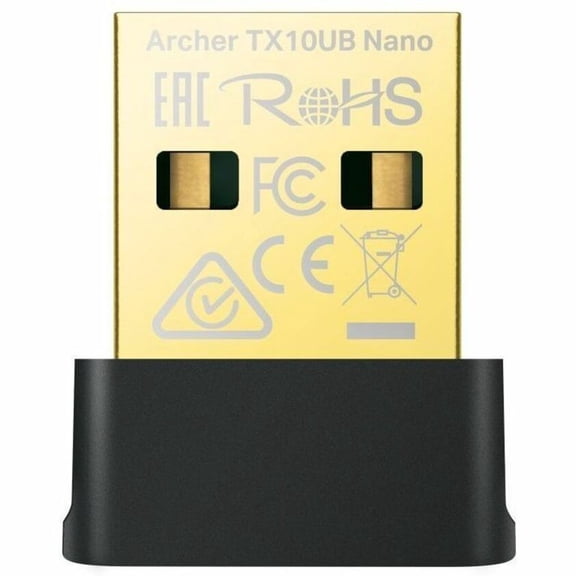 TP Link ARCHERTX10UBNANO Ax900 Nano Dual Band Wi-fi 6 Adapter$43.93current price $43.93