


Google Chromebooks


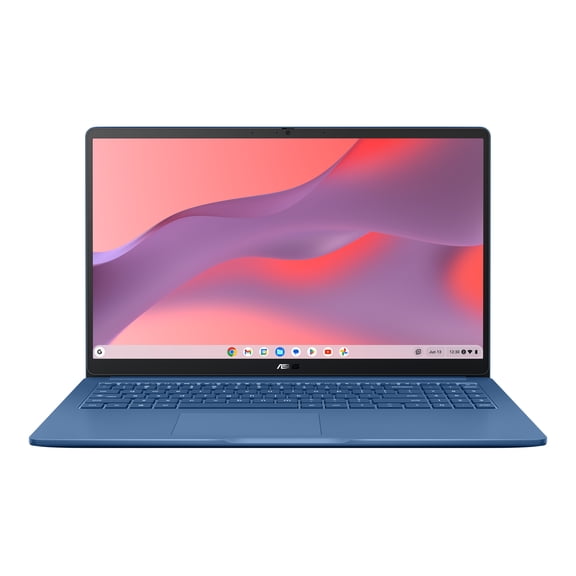


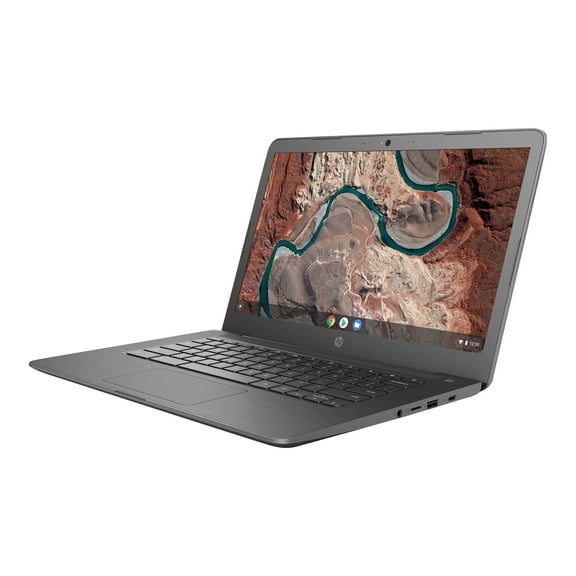
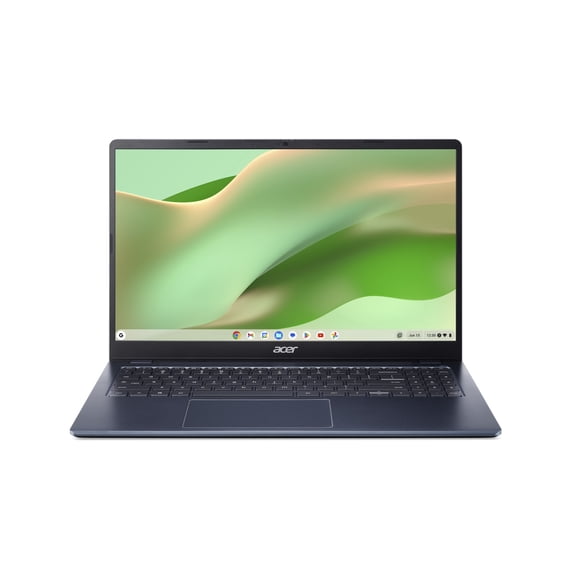


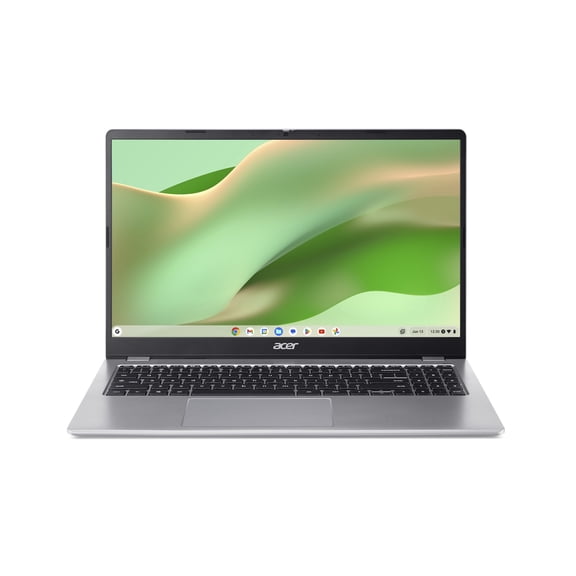











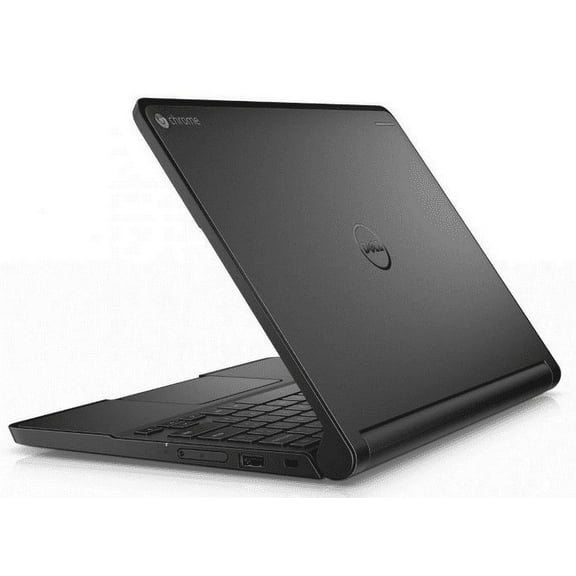
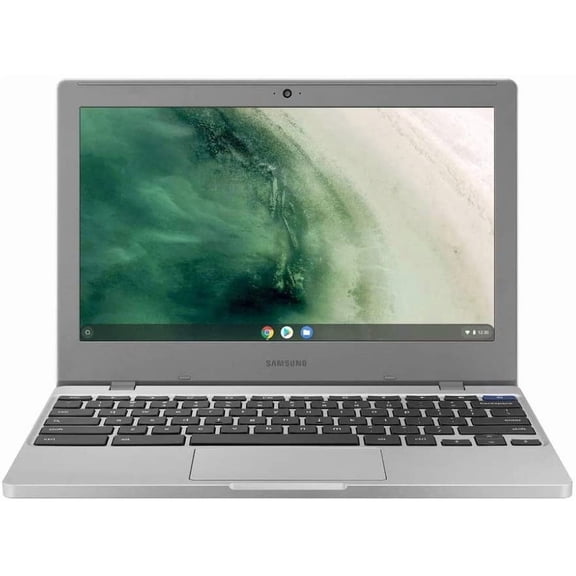

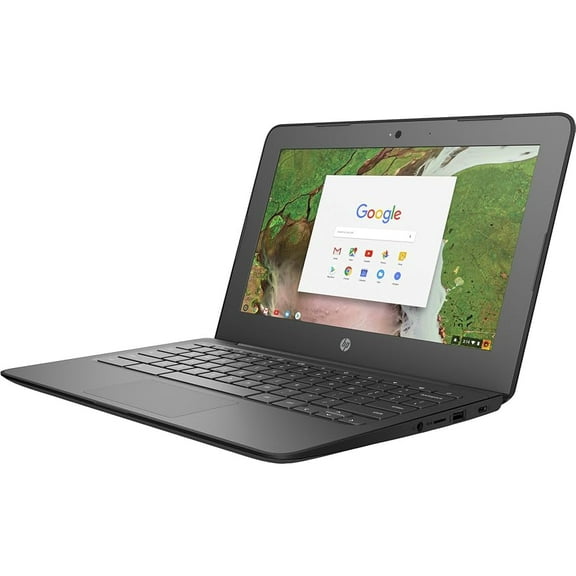

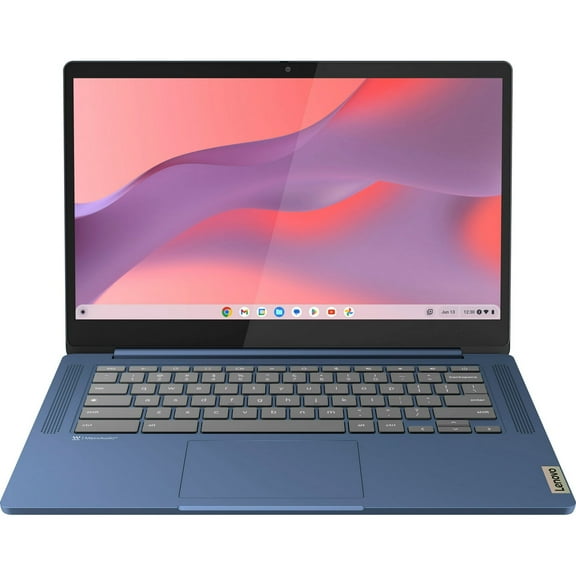




About Google Chromebooks - Walmart.com
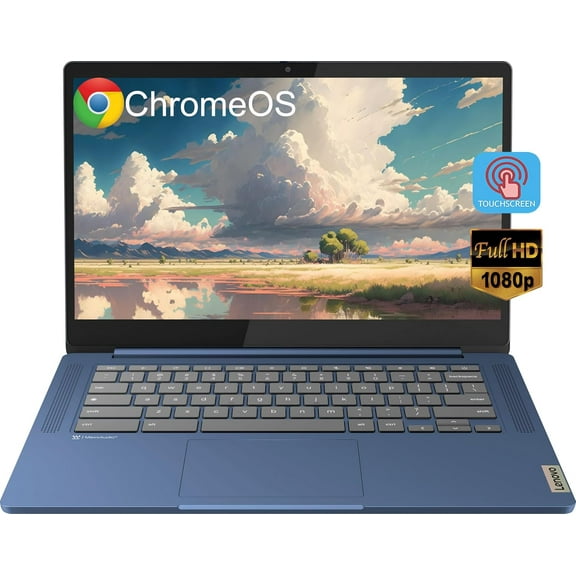
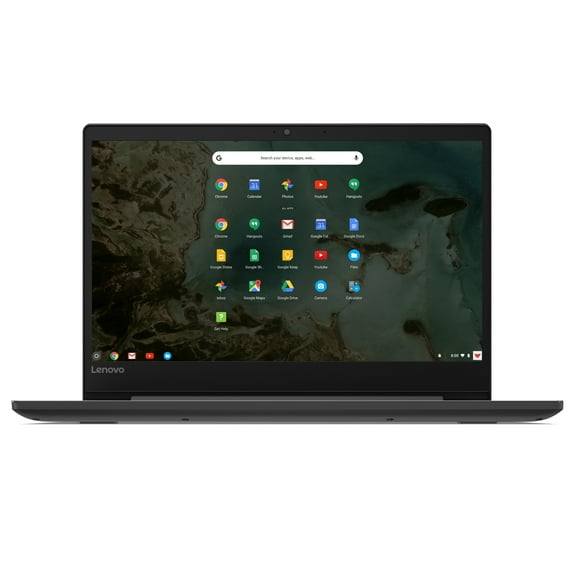
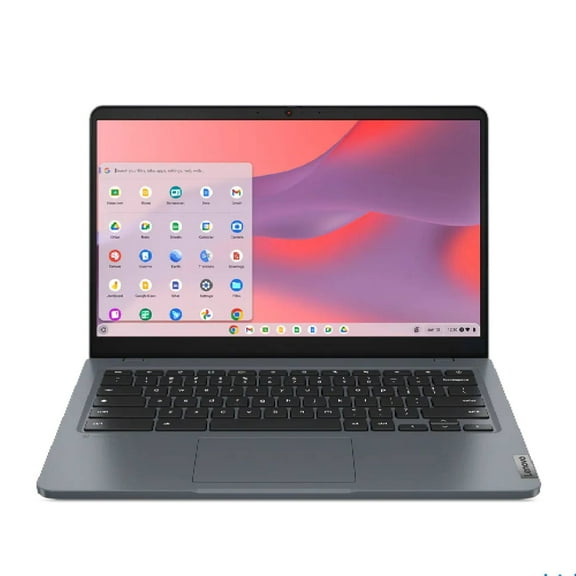
Google Chromebooks help you handle school, work, and travel with ChromeOS simplicity and easy setup. You can compare screen sizes, convertible designs, and memory needs to match your routine.
How to choose google chromebooks
When you compare google chromebooks, you’ll want to start with how you use your laptop each day. You can narrow choices faster when you check screen size, form factor, and memory together.
ChromeOS gives you a streamlined laptop experience built around web browsing, cloud files, and familiar Google tools. You’ll often find quick startup, straightforward updates, and a clean layout that feels easy to learn.
If you’re choosing between ChromeOS and Windows, you should focus on the apps you use most. You’ll want to confirm whether your tools run in a browser, through Android apps, or through web-based workspaces.
- You can use ChromeOS smoothly for browsing, streaming, email, and school portals.
- You can pick a lighter size when your backpack space and travel comfort matter.
- You can choose touchscreen chromebooks when you want tap, swipe, or tablet-style use.
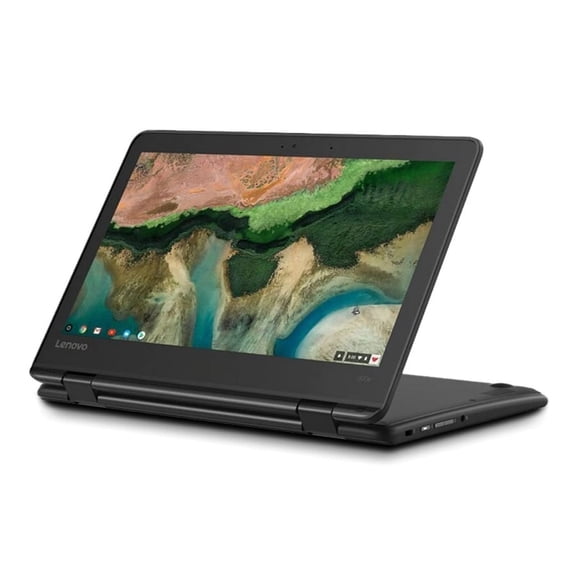
- You can move to a 2 in 1 chromebook when you want one device for typing and flexible viewing.
- You can check memory needs early, so your tabs and everyday tasks feel more responsive.
Choosing screen size and form factor
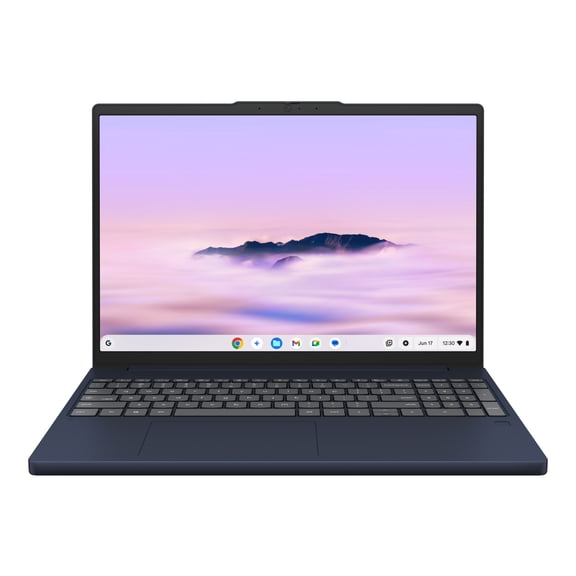
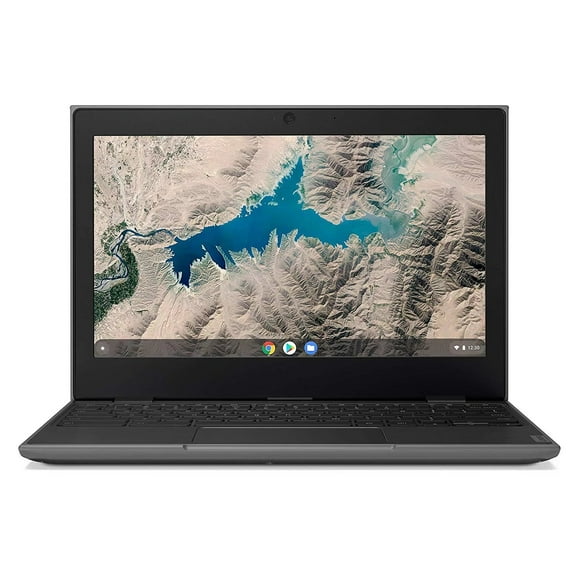
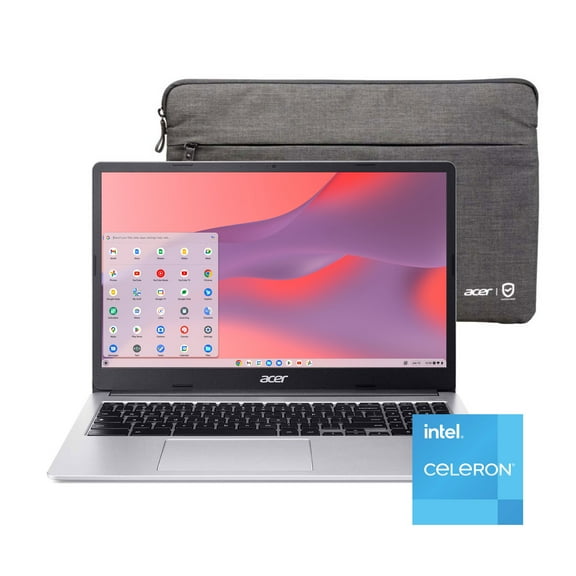
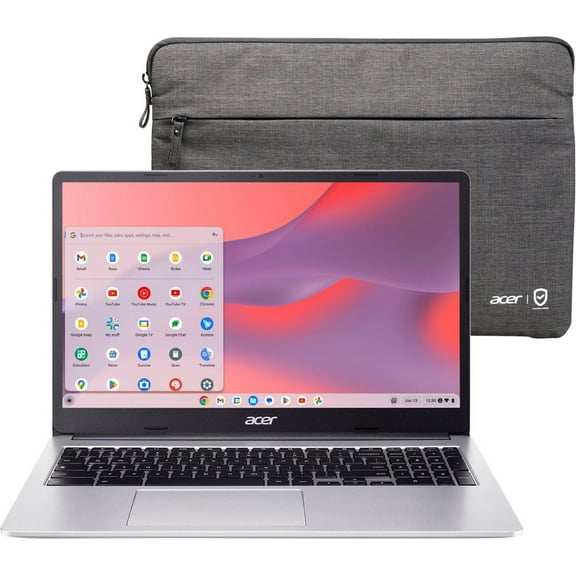
Screen size changes how your chromebook laptops feel during commutes, classes, and desk time. You should compare 11.6 inch, 14 inch, and 15.6 inch models based on where you work.
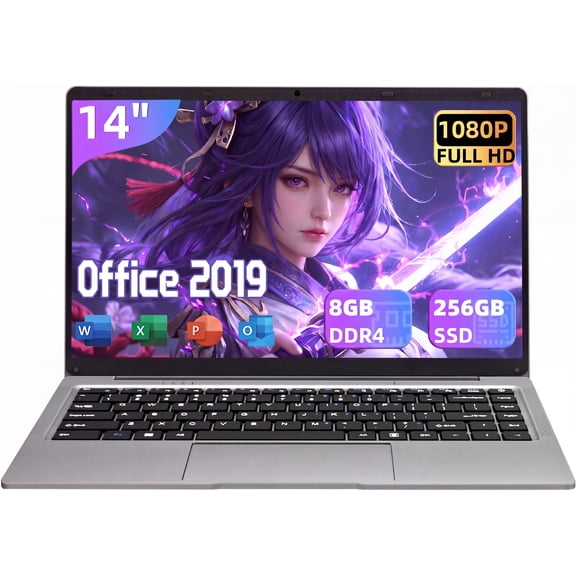
If you carry your laptop often, you may prefer an 11.6 inch model for lighter daily use. If you split time between class and home, a 14 inch chromebook gives you a balanced workspace.
When you want more room for documents and side-by-side tabs, you may lean toward 15.6 inch options. You’ll notice that larger screens can feel more comfortable during longer writing or spreadsheet sessions.
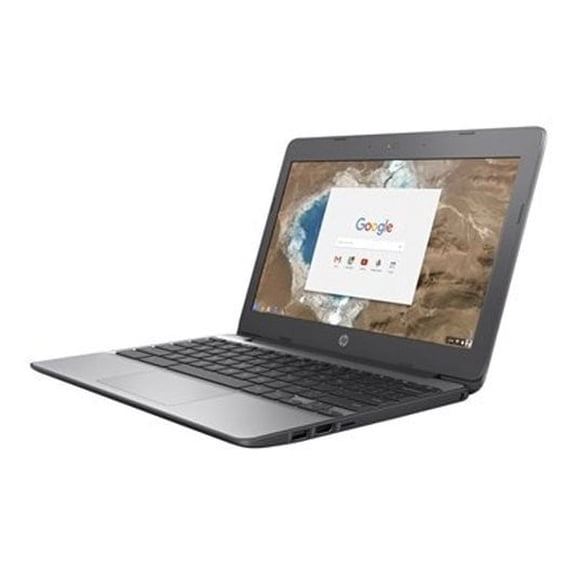
Form factor matters just as much as size when you compare google laptops for flexible use. You can choose a traditional laptop for familiar typing, or pick convertible designs for added versatility.
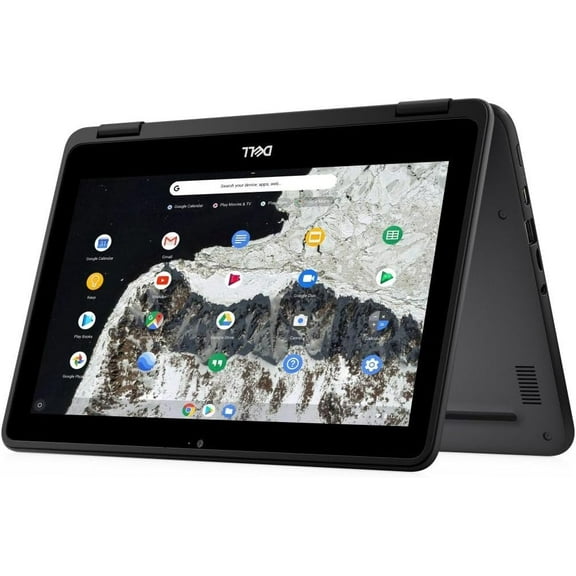
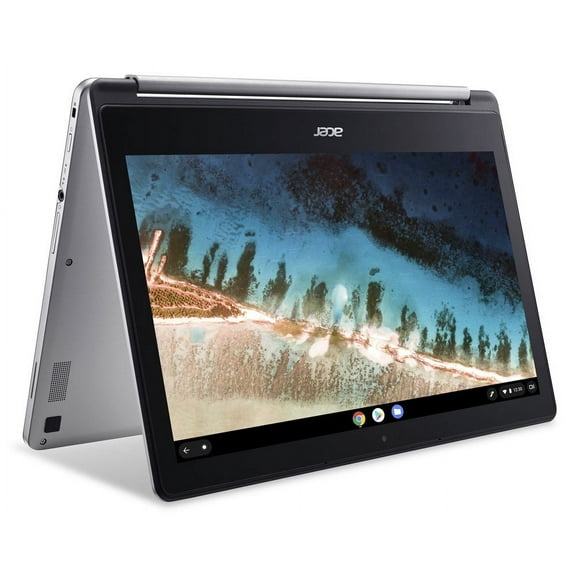
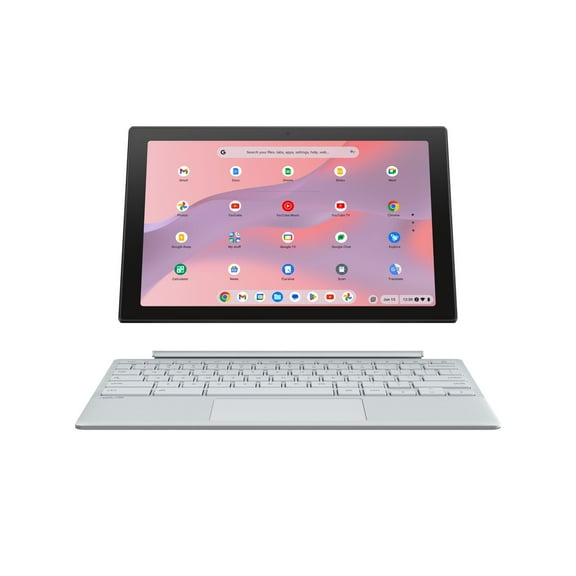
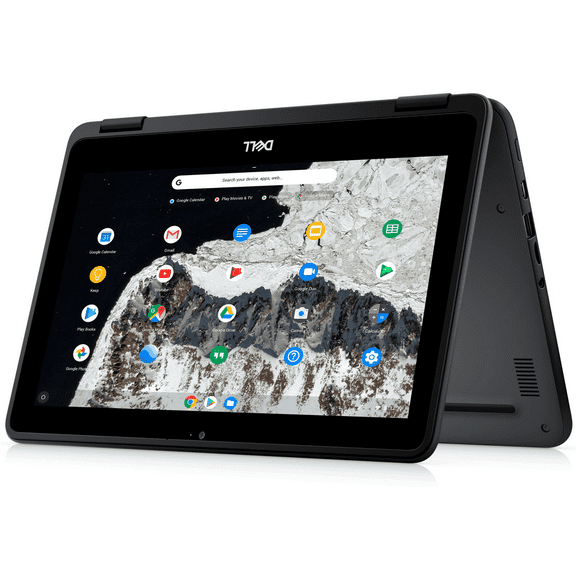
Touchscreen chromebooks let you tap through lessons, scroll pages, and use apps with direct control. A 2 in 1 chromebook also lets you fold into tablet, tent, or stand modes.
That flexibility can help you read recipes, watch videos, or present slides without a separate tablet. You should check hinge style and keyboard layout when you want frequent mode changes.
Comparing memory, performance, and ChromeOS compatibility
Memory plays a major role in how smoothly your chromebook handles everyday tasks. You should consider 4GB RAM for browsing, email, streaming, and lighter homework needs.
If you keep many tabs open or switch between meetings, documents, and research, you may want 8GB RAM. You’ll usually notice easier multitasking when your schoolwork or office tasks stay active together.
Storage matters differently on ChromeOS than on many traditional laptops because cloud use is common. You may rely on online files, but you should still check local storage for downloads and offline access.
App compatibility is another key choice when you compare chromebooks for students or home use. You should make a list of your school platform, browser tools, and favorite apps before you choose.
Many shoppers use web-based classrooms, video calls, writing tools, and streaming services without much setup. You’ll want to verify specialty software if your classes or job require a specific desktop program.
That difference is important because ChromeOS centers on browser-based work and app simplicity. You can often move quickly when your routine fits cloud documents, online research, and everyday communication.
Matching chromebooks for students, travel, and home tasks
Chromebooks for students often make sense when you need quick sign-ins, easy document sharing, and dependable portability. You can move from class notes to browser research without a complicated learning curve.
If you’re shopping for kids, you may prefer compact sizes and straightforward controls for learning platforms. You should look for a keyboard size and screen size that feel manageable for smaller hands.
For travel, you may want a lighter build that fits neatly into a carry-on or backpack. You’ll appreciate a compact laptop when you work in airports, hotel rooms, or small shared spaces.
Basic office work usually calls for comfortable typing, clear video calls, and enough memory for daily tabs. You can focus on a 14 inch chromebook or larger display when you review documents often.
If you stream shows, browse recipes, and manage family accounts, touchscreen chromebooks can feel especially convenient. You can tap through apps, swipe pages, and switch positions around the house more easily.
When you want one device for notes, browsing, and casual viewing, convertible designs give you flexible placement. You can match the right Chromebook setup to school routines, remote work, and lighter everyday computing.
With google chromebooks, you can choose a setup that fits how you study, work, and move through the day. You’ll feel more confident when your screen size, memory, and design match your real tasks.