

Asus Transformer Notebook(1)
Restored ASUS FX608JMR-SH73 TUF Gaming F16 16" WUXGA i7-14650HX 2.2GHz NVIDIA GeForce RTX 5060 8GB 16GB RAM 512GB SSD Win 11 Home Jaeger Gray $1,232.00
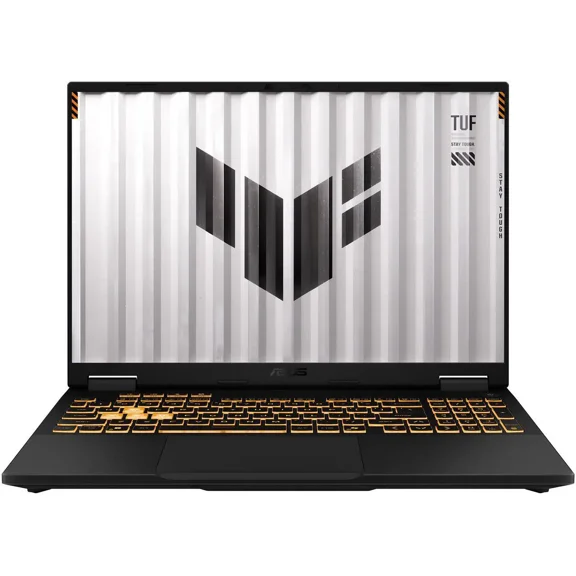
Restored ASUS FX608JMR-SH73 TUF Gaming F16 16" WUXGA i7-14650HX 2.2GHz NVIDIA GeForce RTX 5060 8GB 16GB RAM 512GB SSD Win 11 Home Jaeger Gray
Other options to consider(4)
ASUS Notebooks CORE 5 120U 8GB 512GB - White - Windows 11 Home F1404VAP-QB52-WH $500.00 Was $549.00

ASUS Notebooks CORE 5 120U 8GB 512GB - White - Windows 11 Home F1404VAP-QB52-WH
PwrON AC Adapter Replacement for ASUS Transformer Tablet Book T100TA-H1-GR T100TA-C2-GR Power Cord $12.99
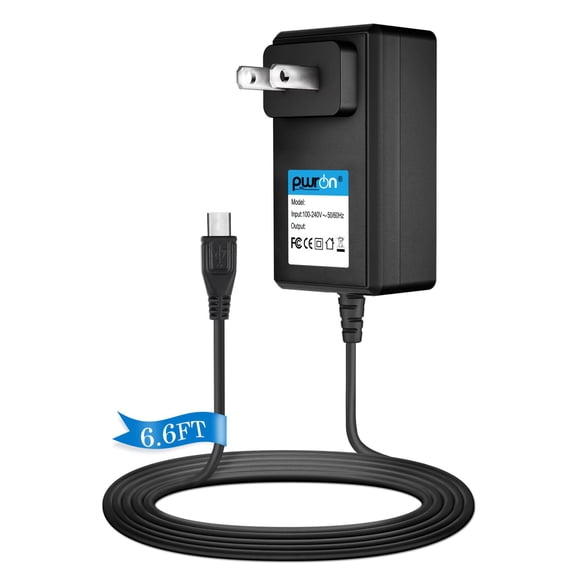
PwrON AC Adapter Replacement for ASUS Transformer Tablet Book T100TA-H1-GR T100TA-C2-GR Power Cord
AC Adapter Power Charger For Asus Transformer Book T302CA, T302CA-FL005T, T302CA-FL010R Laptop Power Cord Supply NEW $23.99

AC Adapter Power Charger For Asus Transformer Book T302CA, T302CA-FL005T, T302CA-FL010R Laptop Power Cord Supply NEW
Top rated for sound quality, ASUS Zenbook 14” OLED Touch PC Laptop, AMD Ryzen 5 7530U, 8GB, 256GB, Windows 11, UM3402YA-WS51T
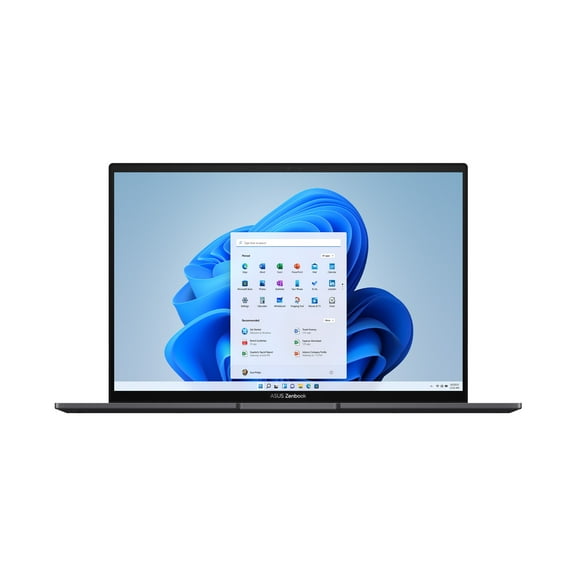
ASUS Zenbook 14” OLED Touch PC Laptop, AMD Ryzen 5 7530U, 8GB, 256GB, Windows 11, UM3402YA-WS51T
FAQ
What should I look for in a laptop display?
When choosing a laptop display, consider these aspects to match your needs:
- Size: Larger screens, like 15.6 inches, are great for multitasking and streaming. Smaller sizes offer more portability.
- Resolution: FHD (Full High Definition) or higher delivers sharper images, which is helpful for watching videos or working with text.
- Panel Type: OLED displays provide richer colors and deeper blacks, while standard LCD panels are often more affordable.
Think about your daily tasks and preferences to pick the most suitable screen.
How much storage do I really need on a notebook?
The right amount of storage depends on how you plan to use your notebook:
- Light Use: For web browsing, emails, and cloud-based tasks, 128GB may be sufficient.
- Media & Files: If you store photos, videos, or download games, you might want more capacity, like 512GB or higher.
- Cloud Storage: Using cloud services can help you get by with less local storage.
Think about your habits and if you often run out of space on your current device to decide what suits you best.
Is a Chromebook good for schoolwork?
Chromebooks can be a strong choice for schoolwork, especially if your tasks focus on web-based activities:
- They boot quickly and are easy to use.
- They work best with Google apps like Docs, Sheets, and Drive.
- Battery life is typically long, which is handy for classes or studying on the go.
Just make sure the software you need is available on ChromeOS before committing.
Can I upgrade memory on these laptops?
Memory upgrades depend on the specific laptop model and how it's built:
- Some notebooks have memory soldered onto the motherboard, making upgrades difficult or impossible.
- Others may offer accessible slots for adding or swapping RAM.
Check the user manual or product specifications to see if upgrades are possible for your chosen device before purchasing.
What's the best way to clean a laptop screen?
To keep your laptop screen clear and safe from damage, follow these steps:
- Turn off the device and unplug it.
- Use a microfiber cloth—avoid paper towels or rough fabrics.
- For smudges, lightly dampen the cloth with water or a screen-safe cleaner (never spray directly on the screen).
- Wipe gently in a circular motion.
Let it dry completely before turning the laptop back on.
Popular in ASUS Transformer Notebook Laptops for Gaming and Work
Related Products
180W Laptop Charger ADP-180TB HB for Asus Tuf Gaming F15 F505 F505D FX505 FX505G FX505GM FX506LI FX506 FX705 FX705DT FX705DY FX705GE FX705GM Laptop
 180W Laptop Charger ADP-180TB HB for Asus Tuf Gaming F15 F505 F505D FX505 FX505G FX505GM FX506LI FX506 FX705 FX705DT FX705DY FX705GE FX705GM Laptop$35.99current price $35.99
330W AC Charger 19.5V 16.92A for Acer Predator Helios 18 16 15 Triton 17 X Nitro 17 16 15 Laptop Power Adapter 5.5x1.7mm
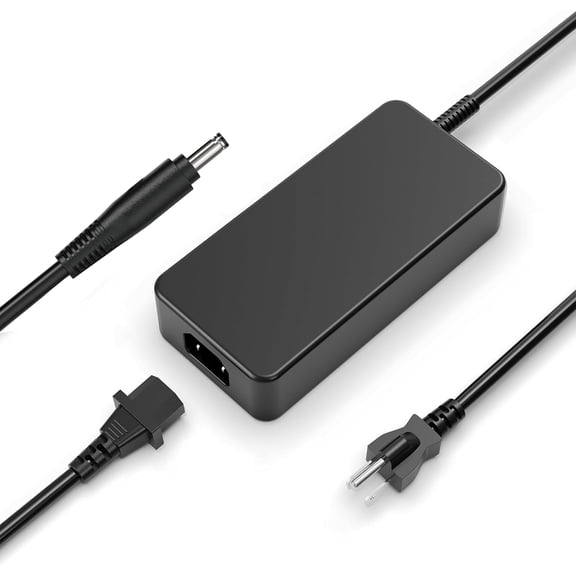 330W AC Charger 19.5V 16.92A for Acer Predator Helios 18 16 15 Triton 17 X Nitro 17 16 15 Laptop Power Adapter 5.5x1.7mm$68.99current price $68.99
DELL 19.5V 12.3A 240W 7.4mm AC Adapter Laptop Charger Power Cord for Alienware Precision Dell G3 G5 G7 G15 G16
 DELL 19.5V 12.3A 240W 7.4mm AC Adapter Laptop Charger Power Cord for Alienware Precision Dell G3 G5 G7 G15 G16$32.40current price $32.40
Laptop Charger AC Power Adapter For Asus L510MA-TH21, L510MA-WB04, L510MA-WS21, Asus M415DA-DB21 New Power Supply Cord
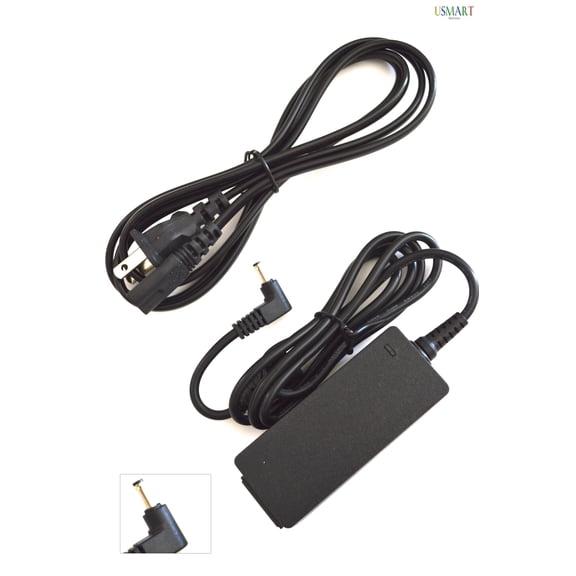 Laptop Charger AC Power Adapter For Asus L510MA-TH21, L510MA-WB04, L510MA-WS21, Asus M415DA-DB21 New Power Supply Cord$16.95current price $16.95
Laptop Charger AC Power Adapter For Asus B9450CEA-XH75 Asus C101PA Asus C101PA-DB02 Chromebook New Power Supply Cord
 Laptop Charger AC Power Adapter For Asus B9450CEA-XH75 Asus C101PA Asus C101PA-DB02 Chromebook New Power Supply Cord$22.45current price $22.45
AC Adapter Power Charger For Asus Chromebook C101PA-FS002 C203X C203XA C213NA-BU0008-OSS Laptop Power Cord Supply NEW
 AC Adapter Power Charger For Asus Chromebook C101PA-FS002 C203X C203XA C213NA-BU0008-OSS Laptop Power Cord Supply NEW$23.99current price $23.99
New 180W 19.5V 9.23A Laptop Charger Adapte for Dell Alienware 13 15 R1 R2 G3 G5 G7 Series; OptiPlex 3011 AIO; M4600 M4700 M4800
New 180W 19.5V 9.23A Laptop Charger Adapte for Dell Alienware 13 15 R1 R2 G3 G5 G7 Series; OptiPlex 3011 AIO; M4600 M4700 M4800
19V 45W Replacement AC Adapter Compatible with ASUS VivoBook S200E F200 X200 F200CA X200CA S200E-C157H S200E-CT178H Power Supply
 19V 45W Replacement AC Adapter Compatible with ASUS VivoBook S200E F200 X200 F200CA X200CA S200E-C157H S200E-CT178H Power Supply$15.99current price $15.99
AC Adapter Power Charger For ASUS P1701F P1512CE P1512CEA P1511CEA P1511CE Q302LA-BBI5T14 Laptop Power Cord Supply NEW
 AC Adapter Power Charger For ASUS P1701F P1512CE P1512CEA P1511CEA P1511CE Q302LA-BBI5T14 Laptop Power Cord Supply NEW$18.95current price $18.95
240 Watt 19.5V 12.3A Ac Adapter Charger & Power Cord for Alienware M17x M18x Dell Precision M4700 M6400 M6500 M6600 M6700 M6800 Laptops - Replaces PA-9E GA240PE1-00
 240 Watt 19.5V 12.3A Ac Adapter Charger & Power Cord for Alienware M17x M18x Dell Precision M4700 M6400 M6500 M6600 M6700 M6800 Laptops - Replaces PA-9E GA240PE1-00$49.99current price $49.99
Laptop Charger AC Power Adapter For Asus UX393 Asus UX391UA-XB71R Asus UX391UA-XB74T Chromebook New Power Supply Cord
 Laptop Charger AC Power Adapter For Asus UX393 Asus UX391UA-XB71R Asus UX391UA-XB74T Chromebook New Power Supply Cord$22.45current price $22.45
AC Adapter Power Charger For Asus Chromebook CZ11 CZ1104C CZ1104F CZ1104FM2A CZ1104CM2A Laptop Power Cord Supply NEW
 AC Adapter Power Charger For Asus Chromebook CZ11 CZ1104C CZ1104F CZ1104FM2A CZ1104CM2A Laptop Power Cord Supply NEW$23.99current price $23.99
Jippofu 65W Laptop Charger Compatible for Asus VivoBook 15 17 Laptop F512da F512ja Eeebook Transformer Book ImagineBook Power Supply Adapter Cord
 Jippofu 65W Laptop Charger Compatible for Asus VivoBook 15 17 Laptop F512da F512ja Eeebook Transformer Book ImagineBook Power Supply Adapter Cord$8.99current price $8.99
AC Power Adapter Charger For ASUS ZENBOOK UX305CA-OHM7-WH, Chromebook C200MA-EDU2 Laptop Notebook PC NEW Power Supply Cord
 AC Power Adapter Charger For ASUS ZENBOOK UX305CA-OHM7-WH, Chromebook C200MA-EDU2 Laptop Notebook PC NEW Power Supply Cord$18.85current price $18.85
AC Adapter Charger for ASUS Chromebook C204EE-YS01-GR, C403NA-YS02. By Galaxy Bang USA
 AC Adapter Charger for ASUS Chromebook C204EE-YS01-GR, C403NA-YS02. By Galaxy Bang USA$18.99current price $18.99
Laptop Charger AC Power Adapter For Asus TP401MA TP401NA TP412FA TP412FA-DB72T TP412FA-DS51T New Power Supply Cord
 Laptop Charger AC Power Adapter For Asus TP401MA TP401NA TP412FA TP412FA-DB72T TP412FA-DS51T New Power Supply Cord$16.95current price $16.95