

Acer Chromebooks in Google Chromebooks


















About Acer Chromebooks in Google Chromebooks - Walmart.com
Acer Chromebooks help you handle school, browsing, and remote work with portable designs and ChromeOS simplicity. You can compare screen size, form factor, display type, and performance to match your daily routine.
Choosing Acer Chromebook laptops by screen size
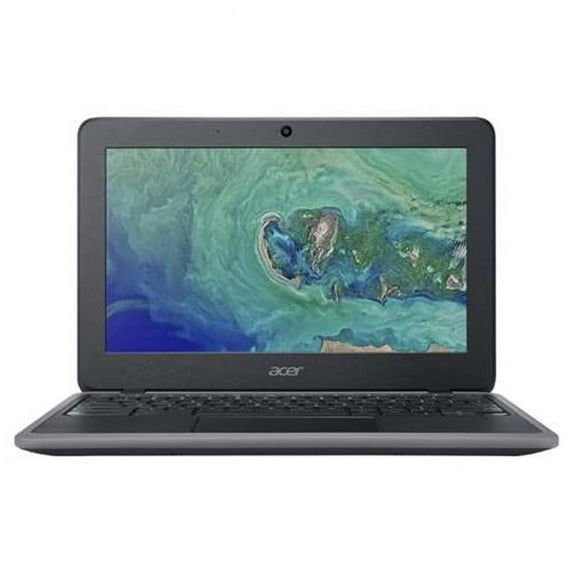
When you compare Acer Chromebook laptops, screen size often shapes your daily experience first. You may prefer an 11.6 inch model when you carry your laptop between classes or move often.
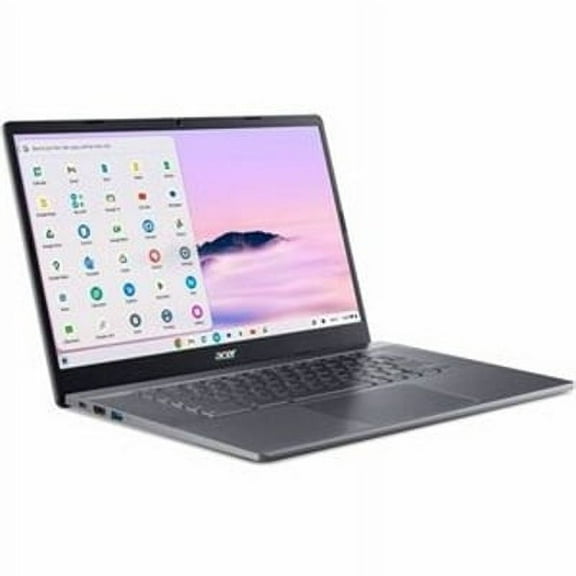
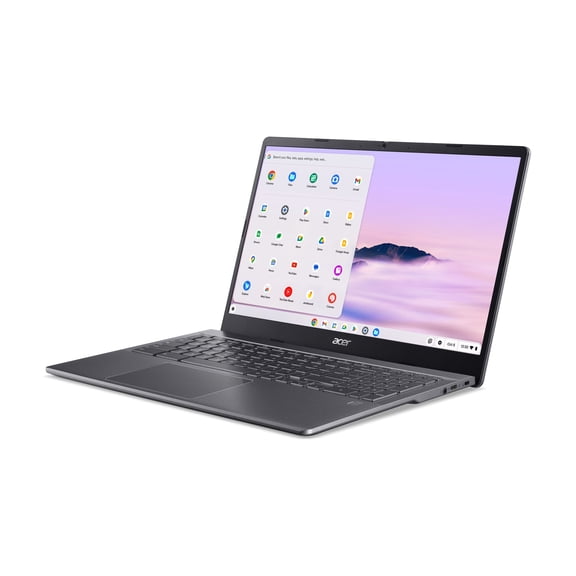
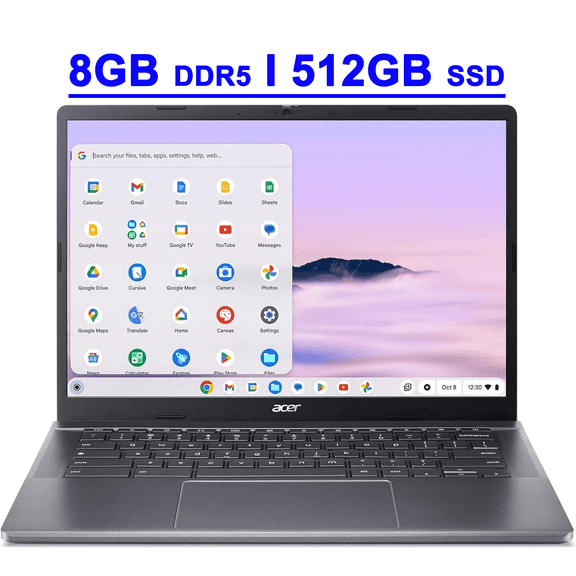
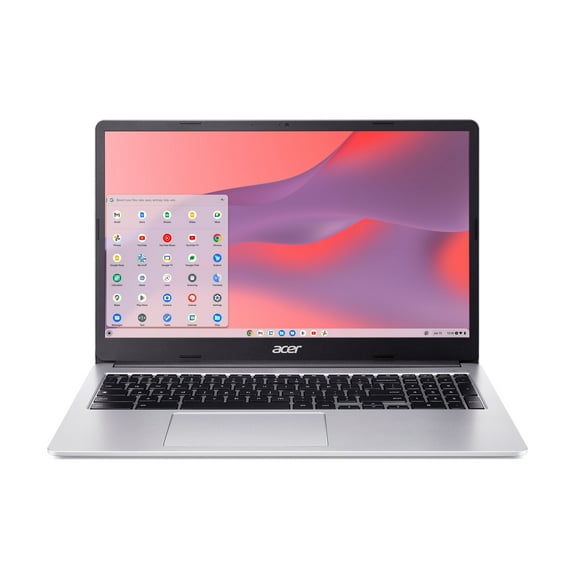
If you split screens or review long documents, you may want a 14 inch display. You can also choose a 15.6 inch screen when your workspace needs more room for tabs and spreadsheets.
Compact sizes help you fit your device into a backpack or small desk setup. Larger displays help you read comfortably and keep multiple windows visible during homework or work tasks.
What to look for in Acer Chromebooks
You can narrow your Acer Chromebook choices quickly when you focus on the details that affect your routine. You should compare portability, input style, memory, storage, and display response before you choose.
- You can pick an 11.6 inch model when your schedule calls for a light device and quick setup.
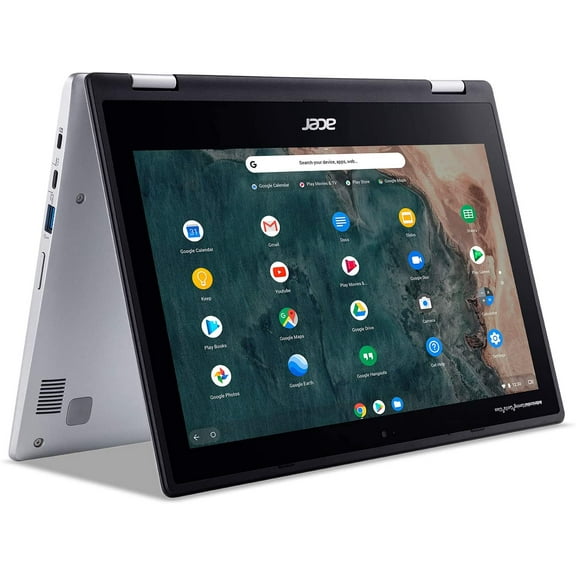
- You can choose a 2 in 1 convertible when you want laptop and tablet flexibility in one device.
- You can look for a touchscreen when you tap, scroll, sketch, or read with direct screen control.
- You can compare 4GB and 8GB RAM based on how many tabs and apps you keep open.
- You can check local eMMC storage and cloud use when you save school files or work documents.
You may also compare keyboard layout, webcam placement, and battery expectations for class or meetings. Those details help you choose a device that fits your routine instead of changing it.
Choosing form factor and display options for Acer Chromebooks
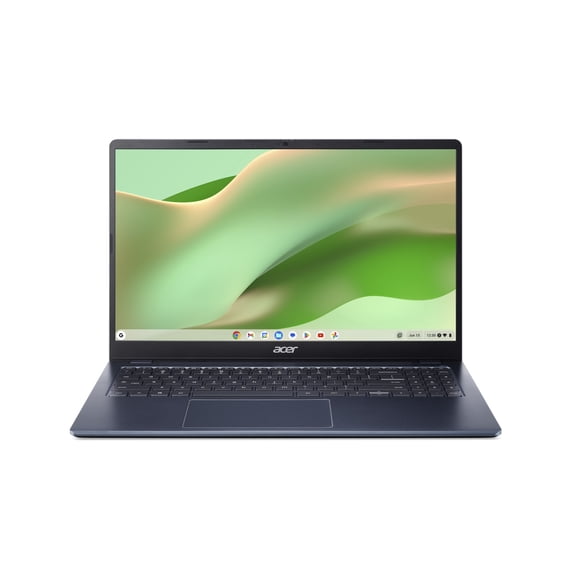
You can choose a traditional laptop when you type most of the day and want a familiar setup. You may prefer an acer 2 in 1 chromebook when you switch between writing, reading, and presenting.
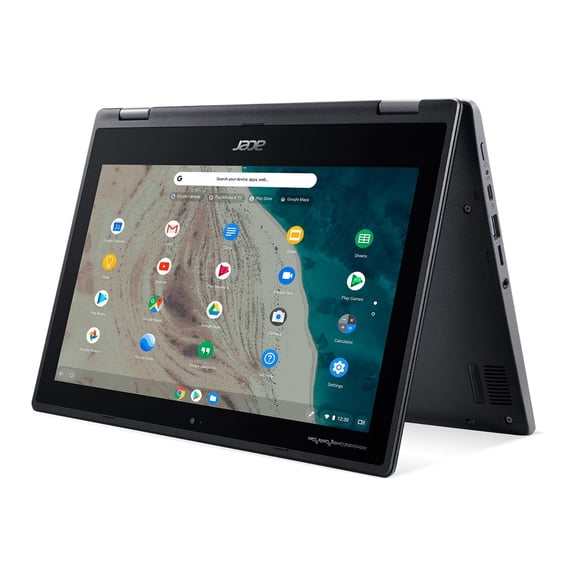
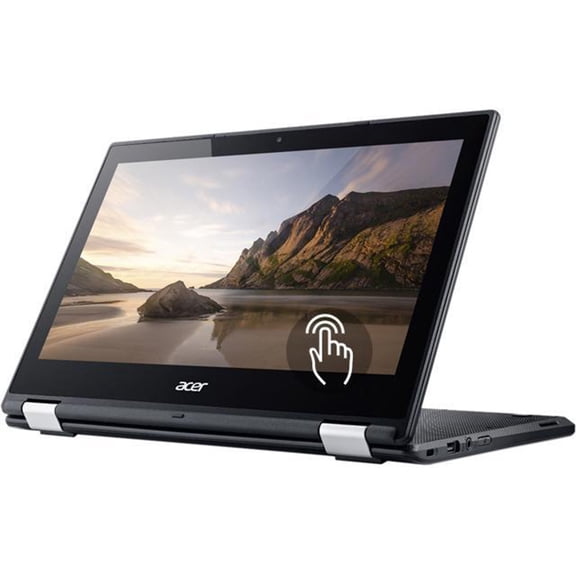
Spin designs give you added flexibility because you can fold the screen back for tablet-style use. You might notice an acer chromebook spin works well when you read articles, mark up notes, or stream hands-free.
If you interact directly with the screen, an acer touchscreen chromebook can feel more natural. You can also compare non-touch HD and IPS display options when you want simple viewing or a clear image.
Touch input helps you scroll through lessons, tap through apps, and use tablet mode comfortably. IPS displays help you keep colors and text clear from different angles during group work or shared viewing.
Comparing performance and storage in Acer Chromebooks
You should match memory and processor choices to the way you actually use your device. You can handle basic browsing, email, and documents smoothly with 4GB RAM in many everyday situations.
If you multitask across many tabs, video meetings, and streaming, you may want 8GB RAM instead. That extra memory helps you move between schoolwork, research, and communication with less waiting.
You can also compare processor types based on how light or busy your day looks. Standard chips fit routine browsing and writing, while high-performance options help you keep pace with heavier multitasking.
For storage, you may see eMMC capacity listed for files stored on the device itself. You can pair that local space with Google Drive when you prefer cloud access across classes, home, and work.
Matching Acer Chromebook 11 and larger sizes to your routine
An acer chromebook 11 can make sense when your priority is portability for lockers, backpacks, and shared study spaces. You can open it quickly in class, at a cafe, or during short breaks between tasks.
A 14 inch option gives you a middle ground when you want mobility without giving up too much screen area. You can read, browse, and join video calls comfortably while still keeping your setup easy to carry.
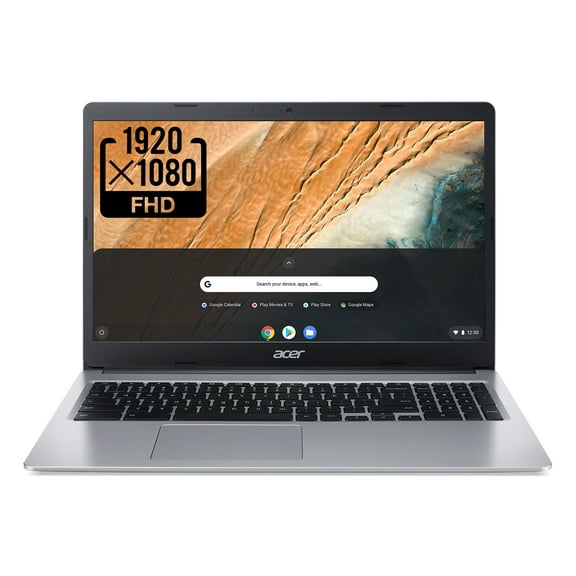
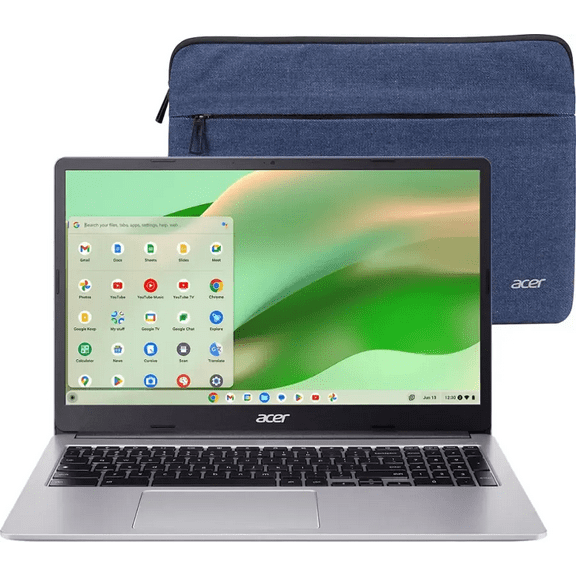
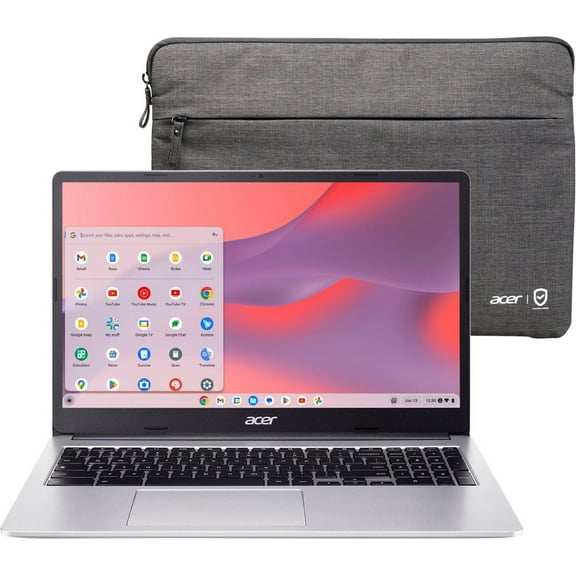
If you spend long hours at a table or desk, you may prefer a 15.6 inch model. You can keep school portals, writing tools, and chat windows visible with less constant switching.
Use cases for school, browsing, and remote work
You can choose an acer chromebook for school when you need easy startup, web-based apps, and classroom-friendly portability. You may find an 11.6 inch size with 4GB RAM fits note taking, research, and document editing.
For everyday browsing, you may want a 14 inch laptop with a clear display and comfortable keyboard. You can stream, check email, manage household tasks, and browse with a setup that feels simple.
If your day mixes meetings, spreadsheets, and many open tabs, you may lean toward 8GB RAM and a larger screen. You can make remote work feel smoother when your device supports heavier multitasking.
You might also want a touchscreen or convertible design for reading, casual drawing, or flexible viewing angles. That setup helps you switch from typing mode to tablet mode without carrying a second device.
When you compare these options closely, you can choose the Acer Chromebook setup that fits your workload and space. This helps you find a device that supports your schoolwork, daily browsing, and more comfortable tasks.