

Qomo(9)
Qomo 1920 x 1080P 5MP CMOS Web Camera $59.04

Qomo 1920 x 1080P 5MP CMOS Web Camera
Qomo HiteVision USB Doc Cam - CMOS $138.52

Qomo HiteVision USB Doc Cam - CMOS
QWC 004 Full HD 1080p Webcam with Microphone, USB Plug and Play, Streaming Camera for PC/Mac/Laptop $43.36

QWC 004 Full HD 1080p Webcam with Microphone, USB Plug and Play, Streaming Camera for PC/Mac/Laptop
QOMO ScannerCam 22 (QPC22) Portable USB 8.0 MP Document Camera and Web Camera in One $154.75

QOMO ScannerCam 22 (QPC22) Portable USB 8.0 MP Document Camera and Web Camera in One
QOMO 4K Document Camera, HDMI/USB, Extendable Neck $294.14
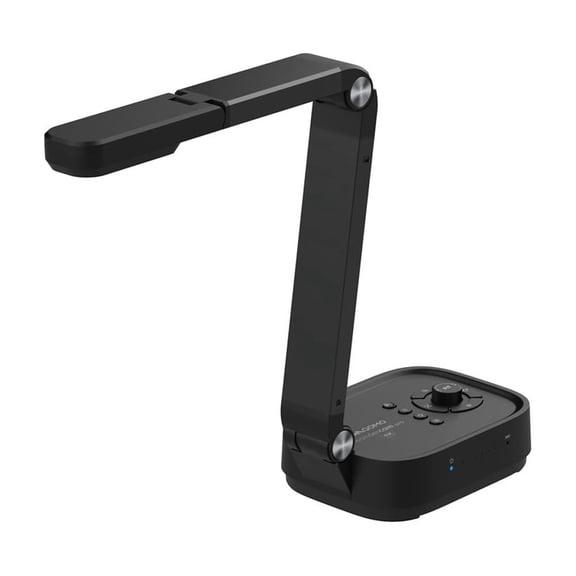
QOMO 4K Document Camera, HDMI/USB, Extendable Neck
Qomo HiteVision Flatbed Document Camera - CMOS $1,391.67

Qomo HiteVision Flatbed Document Camera - CMOS
Qomo HiteVision Wireless 4K Doc Cam - 0.33" CMOS $363.37 Was $405.32

Qomo HiteVision Wireless 4K Doc Cam - 0.33" CMOS
Qomo HiteVision PresenStation QIT600 F3 21.5" Collaboration Display $1,431.30
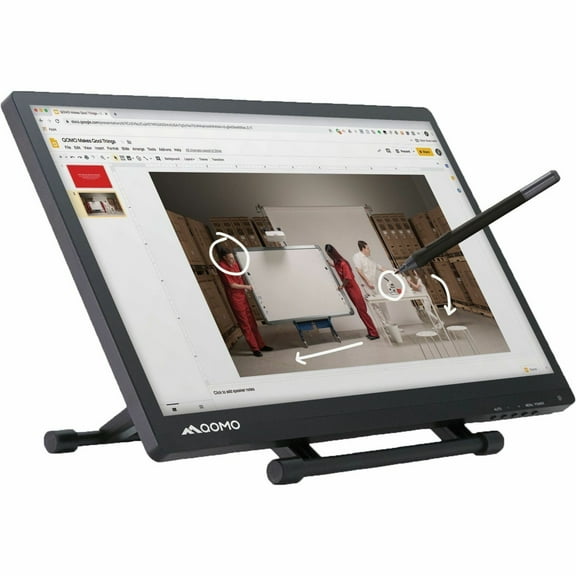
Qomo HiteVision PresenStation QIT600 F3 21.5" Collaboration Display
Qomo 24" PresenSation 800F1 Interactive LCD Podium Monitor QIT800 F1

Qomo 24" PresenSation 800F1 Interactive LCD Podium Monitor QIT800 F1
FAQ
How do I set up a document camera?
Getting started with a document camera is pretty straightforward. First, connect it to your computer or display using the appropriate cable, like USB or HDMI. Then, power it on and install any drivers if prompted. Most models have adjustable necks or arms so you can position the camera over your documents easily.
- Plug in the camera and connect to your device.
- Adjust the neck to focus on your document.
- Install drivers or software if needed.
Once set up, you're ready to start capturing images or streaming documents for presentations or lessons.
Can I use a webcam for video meetings?
Absolutely, a webcam is a popular choice for video meetings. Most webcams connect via USB and are compatible with common platforms like Zoom, Teams, and Skype. Look for features like built-in microphones and high resolution for clearer video and sound.
- Connect the webcam to your computer.
- Select the webcam in your meeting software.
- Check audio and video settings for best quality.
This setup can help you participate in virtual meetings from home or office with ease.
What's the difference between USB and wireless document cameras?
USB and wireless document cameras offer different ways to connect and interact with devices. USB models plug directly into your computer, making them ideal for single-location use and reliable connections. Wireless cameras connect over Wi-Fi, allowing more flexibility and mobility in classrooms or meeting spaces.
- USB cameras provide stable, wired connections.
- Wireless cameras offer mobility and remote access.
Choosing between them depends on your setup and how you plan to use the camera.
How do I clean a web camera lens?
Keeping your web camera lens clean helps maintain image clarity. Start by powering off the camera and disconnecting it. Use a soft, lint-free cloth—microfiber works best—to gently wipe the lens. If needed, lightly dampen the cloth with water or a lens cleaning solution.
- Turn off and unplug the camera.
- Wipe the lens gently with a microfiber cloth.
- Use a small amount of cleaning solution if necessary.
Regular cleaning can help keep your camera's picture sharp and clear.
Do document cameras work with laptops?
Yes, most document cameras are designed to work with laptops. Simply connect the camera using a USB or HDMI cable, and your laptop should recognize it. Some models may require you to install software or drivers, so check the instructions that come with your camera.
- Plug the camera into your laptop's USB or HDMI port.
- Install drivers if prompted.
- Open your preferred software to start using it.
This makes document cameras versatile for both classroom and office settings.
Popular in Qomo
Related Products
NexiGo N960E 1080P Webcam with Light, Autofocus, Stereo Microphone & Privacy Cover
 NexiGo N960E 1080P Webcam with Light, Autofocus, Stereo Microphone & Privacy Cover$62.99current price $62.99
Seetec Atem156 15.6 inch Live Streaming Broadcast Monitor 4 HDMI Inputs Outputs Quad Split Display
 Seetec Atem156 15.6 inch Live Streaming Broadcast Monitor 4 HDMI Inputs Outputs Quad Split Display$383.19current price $383.19
NexiGo N60 1080p Webcam with Microphone & Privacy Cover
 NexiGo N60 1080p Webcam with Microphone & Privacy Cover$29.99current price $29.99
Adesso 4K 11-Megapixel Dual Mode Document Camera and Webcam CYBETRACK830
 Adesso 4K 11-Megapixel Dual Mode Document Camera and Webcam CYBETRACK830$129.99current price $129.99
OBSBOT Tiny 2 Lite AI-Powered 4K PTZ Webcam
 OBSBOT Tiny 2 Lite AI-Powered 4K PTZ Webcam$126.02current price $126.02
Poly Studio Webcam - 30 fps - USB 2.0 Type A
 Poly Studio Webcam - 30 fps - USB 2.0 Type A$14.99current price $14.99
Aluratek AWC04F - HD 1080P Video Webcam Full HD Webcam with Built-in Microphone, Manual Focus, w/Adjustable Clip Perfect for Streaming, Video Calls, and Online Meetings
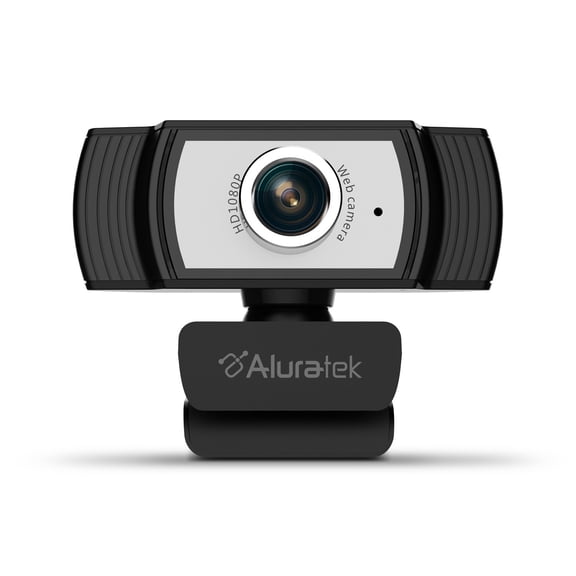 Aluratek AWC04F - HD 1080P Video Webcam Full HD Webcam with Built-in Microphone, Manual Focus, w/Adjustable Clip Perfect for Streaming, Video Calls, and Online Meetings$14.99current price $14.99
RONY 2K QHD Webcam: USB Autofocus PC Webcam with Noise-Canceling Mic, Streaming Computer Camera for PC Laptop Desktop
 RONY 2K QHD Webcam: USB Autofocus PC Webcam with Noise-Canceling Mic, Streaming Computer Camera for PC Laptop Desktop$18.89current price $18.89
VisionTek VTWC40 Webcam 2 Megapixel 60 fps USB 2.0
 VisionTek VTWC40 Webcam 2 Megapixel 60 fps USB 2.0$53.52current price $53.52
Cybertrack H4 1080p Hd Usb Manual Focus Webcam With Microphone, 1920 Pixels X 1080 Pixels, 2.1 Mpixe | Bundle of 2
 Cybertrack H4 1080p Hd Usb Manual Focus Webcam With Microphone, 1920 Pixels X 1080 Pixels, 2.1 Mpixe | Bundle of 2$110.45current price $110.45
Kensington K81175WW W2000 1080p Auto Focus Webcam with 2 Mpixels - Black
 Kensington K81175WW W2000 1080p Auto Focus Webcam with 2 Mpixels - Black$37.57current price $37.57
SLIDE INNOVATIONS 1080P HD Webcam, Computer Camera with Microphone, Mini Tripod & Privacy Lens
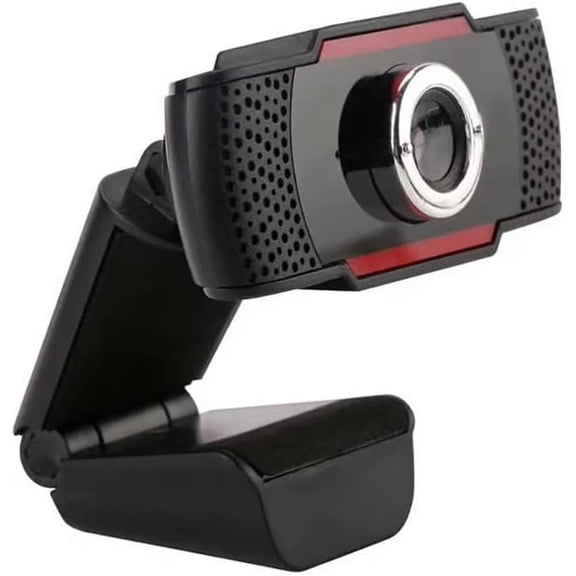 SLIDE INNOVATIONS 1080P HD Webcam, Computer Camera with Microphone, Mini Tripod & Privacy Lens$29.99current price $29.99