

Brand: Posiflex(7)
Uses item details. Price when purchased online
Posiflex CR6417L0 5 Bill 6 Coin USB Cash Drawer Black $257.91

$25791
current price $257.91Posiflex CR6417L0 5 Bill 6 Coin USB Cash Drawer Black
POSIFLEX, CASH DRAWER, CR-3000, PRINTER DRIVEN, 15.75W X 16.15D X 3.4H, 5 BILL, $176.08

$17608
current price $176.08POSIFLEX, CASH DRAWER, CR-3000, PRINTER DRIVEN, 15.75W X 16.15D X 3.4H, 5 BILL,
Posiflex CT4200-US Cash Tray without Cover for Series CR4000 and CR6000 $45.00

$4500
current price $45.00Posiflex CT4200-US Cash Tray without Cover for Series CR4000 and CR6000
POSIFLEX, CASH DRAWER, CR6400, USB INTERFACE, 16.85IN X 18.11IN X 3.94IN, SCRATC $239.98

$23998
current price $239.98POSIFLEX, CASH DRAWER, CR6400, USB INTERFACE, 16.85IN X 18.11IN X 3.94IN, SCRATC
Posiflex CR6300 Series Cash Drawer 5 Coin / 5 Bill Tray Black CR-6310B $218.06

$21806
current price $218.06Posiflex CR6300 Series Cash Drawer 5 Coin / 5 Bill Tray Black CR-6310B
Posiflex LM3010EX000 Posiflex, Customer Display, 9.7In LCD 2Nd Monitor, Bezel Free Display, 1024X768, Rear Mounted, Black, for Xt Series, Replaced Lm3010000 $178.98

$17898
current price $178.98Posiflex LM3010EX000 Posiflex, Customer Display, 9.7In LCD 2Nd Monitor, Bezel Free Display, 1024X768, Rear Mounted, Black, for Xt Series, Replaced Lm3010000
Pre-Owned POSIFLEX AC Adapter EA10953A 4-Pin 12V 6.6A 80W Power Supply $33.06
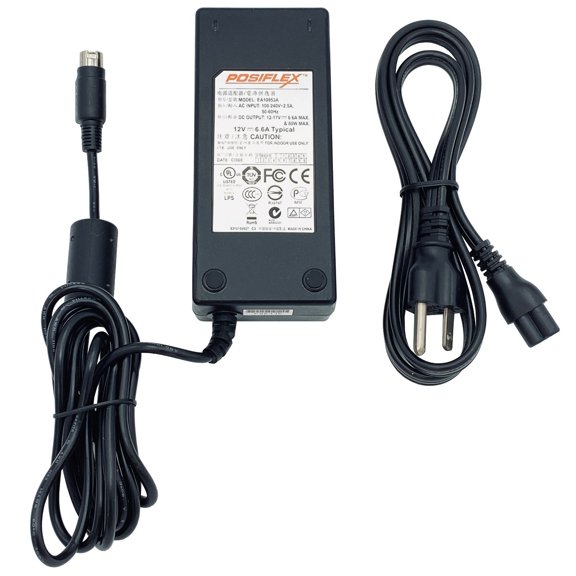
$3306
current price $33.06Pre-Owned POSIFLEX AC Adapter EA10953A 4-Pin 12V 6.6A 80W Power Supply
FAQ
How do I know which cash drawer fits my setup?
Choosing the right cash drawer depends on a few key things: the type of point-of-sale (POS) system you have, the interface you need (like USB or printer-driven), and the size you have available.
- Double-check the connection options required by your POS device—some models are USB compatible, while others connect through your receipt printer.
- Look at the dimensions to make sure the cash drawer fits your counter space.
- Consider your cash handling needs—there are drawers with different combinations of bill and coin slots to match your business volume.
What’s the best way to organize cash and coins inside?
For efficiency and security, use the slots and trays as designed:
- Place each bill denomination in its dedicated slot, starting from the lowest to highest.
- Use coin compartments to separate each value, helping you make change quickly.
- Consider putting higher-value bills beneath the visible tray for added security.
Can I use a replacement tray from a different model?
Replacement trays are designed for specific models, so mixing trays from different series may not fit properly or work as intended. Always check that the replacement tray matches the model number of your cash drawer.
- Look for compatibility details in the product description or manual.
- If possible, search by the exact series or drawer type (for example, CR4000 or CR6000) to find a tray designed for your unit.
How do I connect a USB cash drawer to my POS system?
Most USB cash drawers are plug-and-play but may require drivers or software configuration. Here’s how to get started:
- Plug the USB cable into your POS terminal or computer.
- Install any necessary drivers if prompted—often, installers are provided with the drawer or online.
- Configure your POS software to recognize the new device. Look for a hardware or peripherals section in your software settings.
What should I do if my cash drawer isn’t opening?
Start by checking a few basics:
- Make sure power cables, USB, or printer connections are secure.
- Test opening the drawer both manually (if there’s an emergency release) and through the POS system.
- Check your software settings to ensure the drawer is selected and properly configured.
Popular in Shop Brand Products and Essentials Online Home Page
Related Products
EOM-POS Cash Drawer with Mounting Brackets, Printer-Driven, Square-Compatible via Receipt Printer
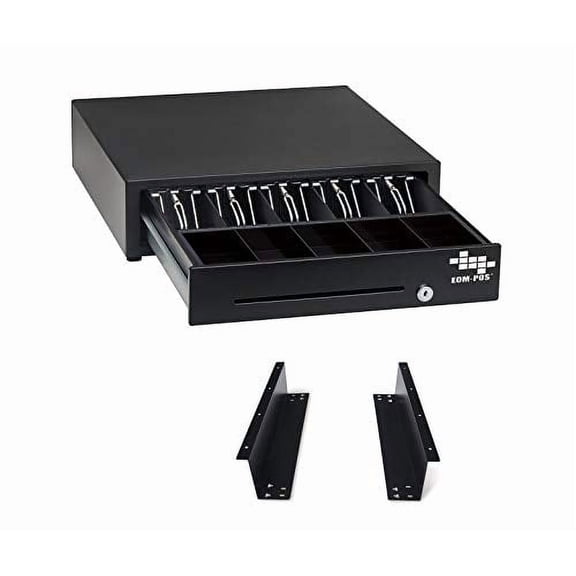 EOM-POS Cash Drawer with Mounting Brackets, Printer-Driven, Square-Compatible via Receipt Printer$109.99current price $109.99
Volcora Cash Drawer Tray with Locking Cover - 11.7 x 10.3 x 2.3 Inch Metal Cash Lock Box with Lid - 4 Bill/5 Coin Money Organizer for Volocara 13" Fully-Removable Cash Drawers - For Business Use
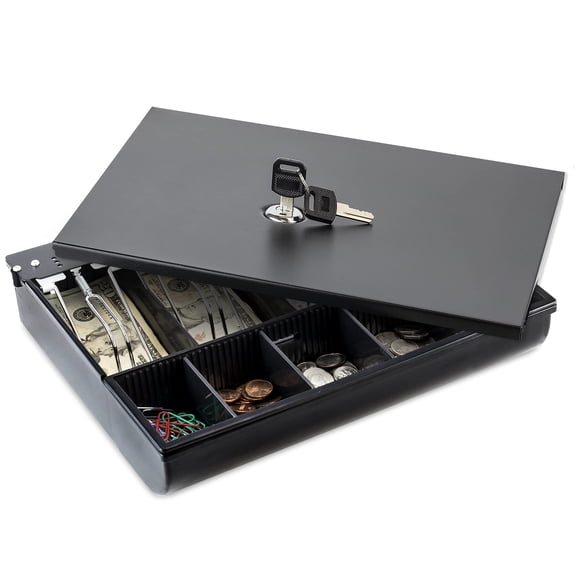 Volcora Cash Drawer Tray with Locking Cover - 11.7 x 10.3 x 2.3 Inch Metal Cash Lock Box with Lid - 4 Bill/5 Coin Money Organizer for Volocara 13" Fully-Removable Cash Drawers - For Business Use$32.95current price $32.95
Volcora 13" Cash Register Drawer for Point of Sale (POS) System with 4 Bill 5 Coin Cash Tray, Removable Coin Compartment, 24V, RJ11/RJ12 Key-Lock, Media Slot, White - for Stores, Shops and Businesses
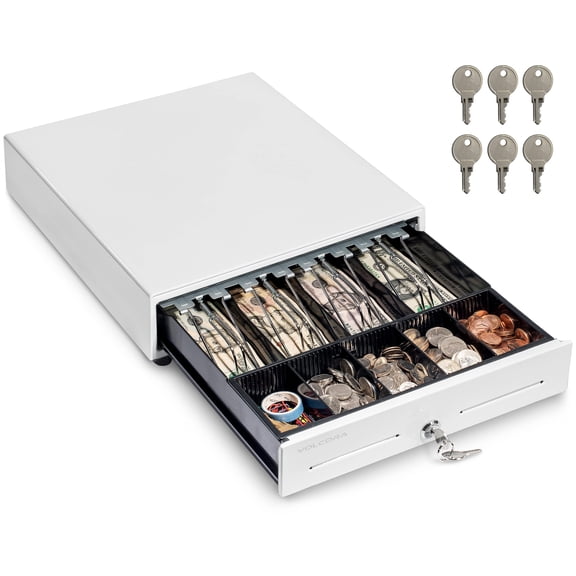 Volcora 13" Cash Register Drawer for Point of Sale (POS) System with 4 Bill 5 Coin Cash Tray, Removable Coin Compartment, 24V, RJ11/RJ12 Key-Lock, Media Slot, White - for Stores, Shops and Businesses$45.95current price $45.95
Heavy Duty Cash Drawer Register with RJ12 Point of Sale DK Drawer Kick, Key-Lock, Bill + Coin Trays, Black
 Heavy Duty Cash Drawer Register with RJ12 Point of Sale DK Drawer Kick, Key-Lock, Bill + Coin Trays, Black$79.99current price $79.99
Volcora 16" Cash Register Drawer for Point of Sale (POS) System with 5 Bill 6 Coin Cash Tray, Removable Coin Compartment, 12-24V, RJ11/RJ12 Key-Lock, White - for Stores, Shops and Businesses
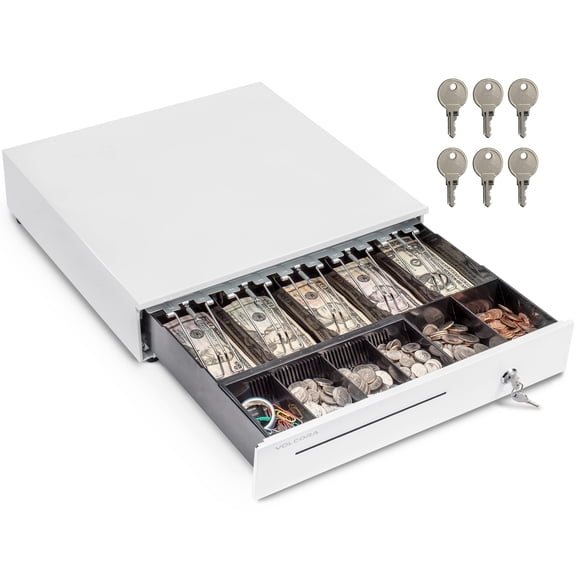 Volcora 16" Cash Register Drawer for Point of Sale (POS) System with 5 Bill 6 Coin Cash Tray, Removable Coin Compartment, 12-24V, RJ11/RJ12 Key-Lock, White - for Stores, Shops and Businesses$59.95current price $59.95
Star Cash Drawer CD4-1616BK55-S2 - 16" x 16" - Black - 5 Bill / 5 Coin - Printer Driven - Choice Series - 5 Bill - 5 Coin - 2 Media SlotPrinter Driven - Black - 4.3" Height x 16.1"
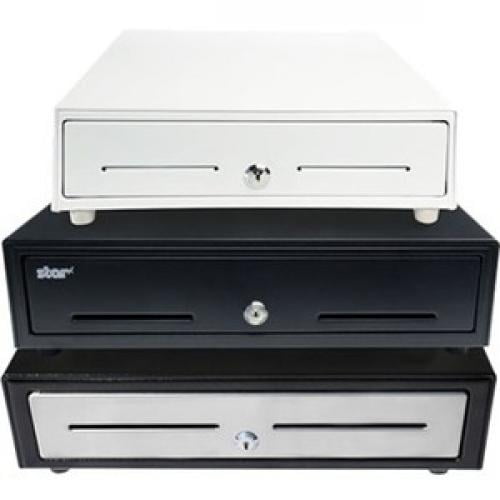 Star Cash Drawer CD4-1616BK55-S2 - 16" x 16" - Black - 5 Bill / 5 Coin - Printer Driven - Choice Series - 5 Bill - 5 Coin - 2 Media SlotPrinter Driven - Black - 4.3" Height x 16.1"$92.72current price $92.72
Manual Push Open Cash Register Drawer with Under Counter Mounting Metal Bracket - 16" Black/Stainless Steel Front Cash Drawer for POS, Partial Removable 5 Bill 8 Coin Tray, Key Lock, Media Slots
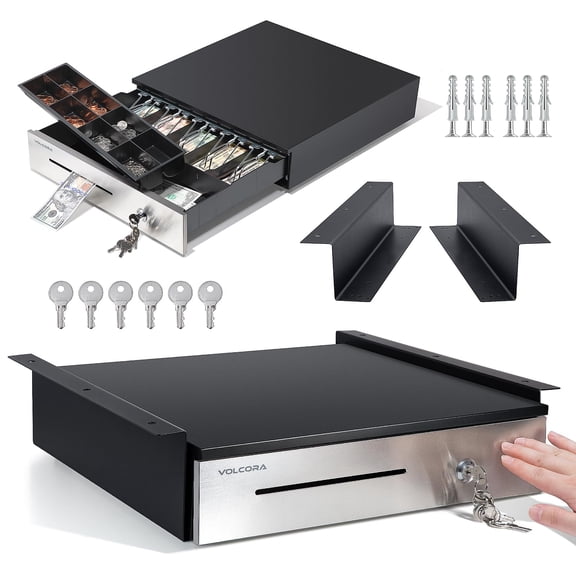 Manual Push Open Cash Register Drawer with Under Counter Mounting Metal Bracket - 16" Black/Stainless Steel Front Cash Drawer for POS, Partial Removable 5 Bill 8 Coin Tray, Key Lock, Media Slots$79.95current price $79.95
Volcora 13 Inch Cash Drawer for POS System, Cash Register Drawer with 4 Bill 5 Coin Tray, Removable Coin Compartment, Stainless Steel Front, RJ11/RJ12, 12V-24V, 3-Position Key Lock with 6 Keys, Black
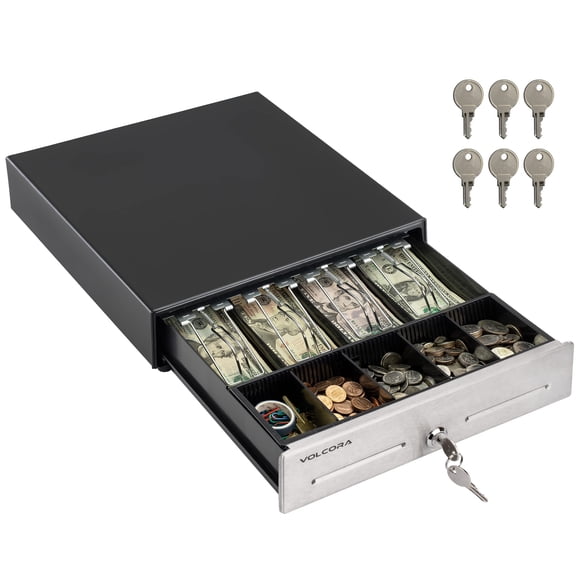 Volcora 13 Inch Cash Drawer for POS System, Cash Register Drawer with 4 Bill 5 Coin Tray, Removable Coin Compartment, Stainless Steel Front, RJ11/RJ12, 12V-24V, 3-Position Key Lock with 6 Keys, Black$44.95current price $44.95
Volcora Cash Drawer Tray - 11.7 x 10.3 x 2.3 Inch Cash Register Insert - 4 Bill / 5 Coin Replacement Cash Tray 13" Fully-Removable Drawers - Stainless Steel Currency Compartment Money Storage
 Volcora Cash Drawer Tray - 11.7 x 10.3 x 2.3 Inch Cash Register Insert - 4 Bill / 5 Coin Replacement Cash Tray 13" Fully-Removable Drawers - Stainless Steel Currency Compartment Money Storage$28.95current price $28.95
Volcora 16" Manual Push Open Cash Register Drawer for Point of Sale (POS) System, Black Heavy Duty Till with 5 Bills/8 Coin Slots, Key Lock with Fully Removable Money Tray and Double Media Slots
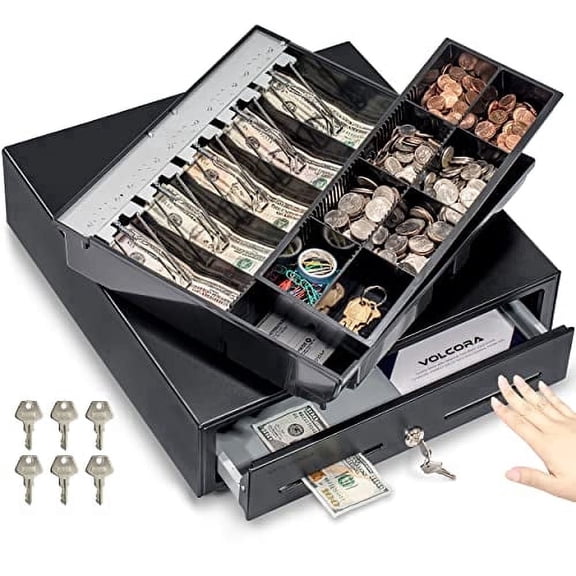 Volcora 16" Manual Push Open Cash Register Drawer for Point of Sale (POS) System, Black Heavy Duty Till with 5 Bills/8 Coin Slots, Key Lock with Fully Removable Money Tray and Double Media Slots$62.96current price $62.96
Tera 13" Auto Open Cash Register Drawer Heavy Duty with Micro Switch 12V RJ12 Key-Lock for 330R
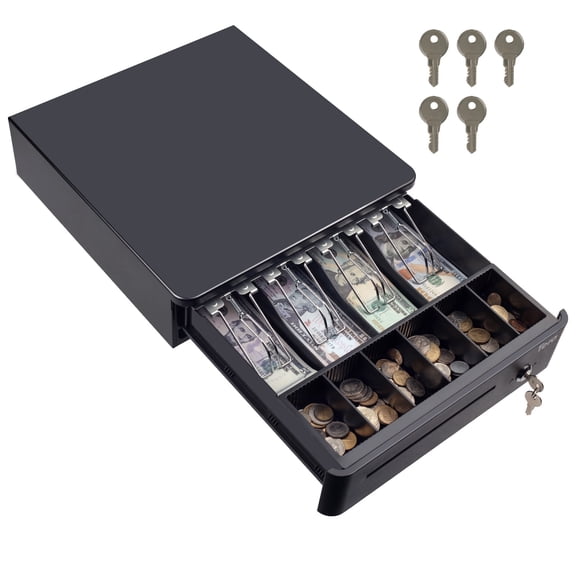 Tera 13" Auto Open Cash Register Drawer Heavy Duty with Micro Switch 12V RJ12 Key-Lock for 330R$48.59current price $48.59
Volcora 16“ Cash Register Drawer for Point of Sale (POS) System with Fully Removable 2 Tier Cash Tray, 5 Bill/8 Coin, 24V, RJ11/RJ12 Key-Lock, Double Media Slot, White
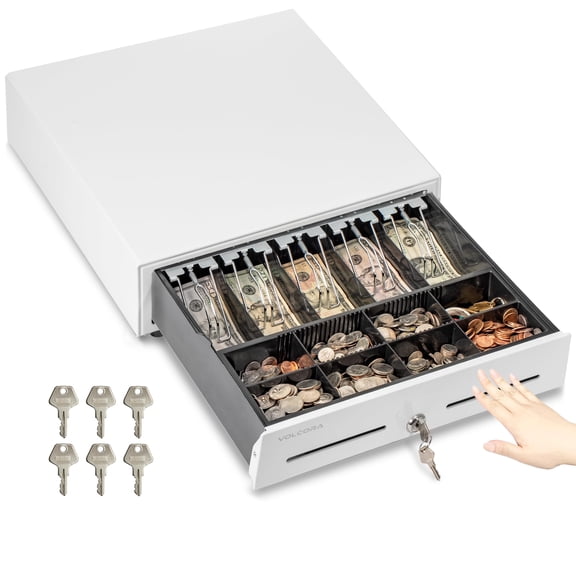 Volcora 16“ Cash Register Drawer for Point of Sale (POS) System with Fully Removable 2 Tier Cash Tray, 5 Bill/8 Coin, 24V, RJ11/RJ12 Key-Lock, Double Media Slot, White$62.95current price $62.95
Replacement Cash Tray, 2 1/4"H x 15 7/8"W x 11 1/4"D, Black
 Replacement Cash Tray, 2 1/4"H x 15 7/8"W x 11 1/4"D, Black$34.02current price $34.02