

Brand: Philips Projectors(1)
PHILIPS NeoPix 320 Multimedia Home Projector $99.99

PHILIPS NeoPix 320 Multimedia Home Projector
FAQ
How can I set up a home movie night with a projector?
Setting up a cozy home movie night with a projector can be simple and fun! To get started:
- Choose a flat surface: Use a blank wall or a projector screen for the best picture.
- Connect your device: Hook up your streaming stick, laptop, or DVD player using the appropriate cable or HDMI port.
- Adjust the projector: Position it so the image fills your screen area and is in focus.
- Control ambient light: Dim or switch off lights for a clearer, more vibrant picture.
- Enjoy sound: Use the projector's built-in speakers or connect to an external speaker for better audio.
Every space is unique, so feel free to experiment for the perfect set up!
What do I need to connect my laptop to a projector?
To connect your laptop to a projector, you’ll need a few basics:
- Video cable: Most projectors support HDMI; make sure your laptop has a compatible port or consider an adapter.
- Power connection: Plug in both your laptop and the projector.
- Settings adjustment: Once connected, switch the projector to the correct input source and adjust your laptop’s display settings (often under ‘display’ or ‘screen mirroring’ options).
If audio is needed, you can use the laptop’s headphone jack to connect external speakers or see if the projector has its own audio-in port. Checking your laptop and projector manuals for specific compatibility suggestions can be helpful.
Can I use a projector during the day with sunlight?
Projectors can be used during the day, but image visibility depends on a few factors:
- Brightness: Look for models with higher lumen ratings for better daytime performance.
- Room control: Try to darken the room with curtains or blinds to reduce glare.
- Screen choice: A high-gain projector screen can help enhance brightness in brighter rooms.
If complete darkness isn’t an option, positioning your projector so it’s not facing direct sunlight can also improve picture quality. Adjusting these elements can make your viewing experience much more enjoyable.
How do I keep my projector clean and dust-free?
Keeping your projector clean helps maintain picture quality and longevity. Here are some tips:
- Turn off and unplug the projector before cleaning.
- Wipe the exterior gently with a soft, dry cloth. Avoid harsh cleaners.
- Clean the lens using a lens cleaning cloth or a special lens brush. Don’t use paper towels as they may scratch the surface.
- Check air vents and filters: Remove dust with a can of compressed air, avoiding direct contact inside the unit.
Regular gentle cleaning can help keep your projector in great shape without causing damage. Always refer to your product manual for specific recommendations.
Is it possible to stream content wirelessly to a projector?
Yes, many projectors allow wireless content streaming through built-in Wi-Fi, adapters, or screen mirroring features:
- Built-in Wi-Fi: Some models support apps or streaming from devices directly.
- Streaming dongles: Devices like media sticks can plug into the projector’s HDMI port, letting you stream online content.
- Screen mirroring: Use screen sharing from your smartphone, tablet, or computer if both devices support this feature.
The available options depend on your projector model. Always check compatibility and follow instructions to connect devices securely for smooth streaming.
Popular in Brand Projectors and Screens for Home Viewing
Related Products
Advanced Lamps™ LMP-H220 Lamp & Housing for Sony Projectors - 1 Unit Per Pack
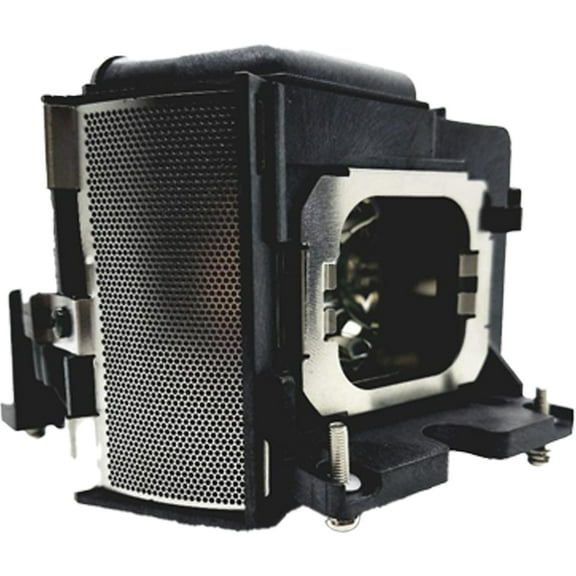 Advanced Lamps™ LMP-H220 Lamp & Housing for Sony Projectors - 1 Unit Per Pack$72.99current price $72.99
Advanced Lamps™ Lm P-H130 Lamp & Housing for Sony Projector Fits HS50 VPL-HS51A VPL-HS60 Lm P-H130 & More 90-Day Warranty 1 Unit per pack
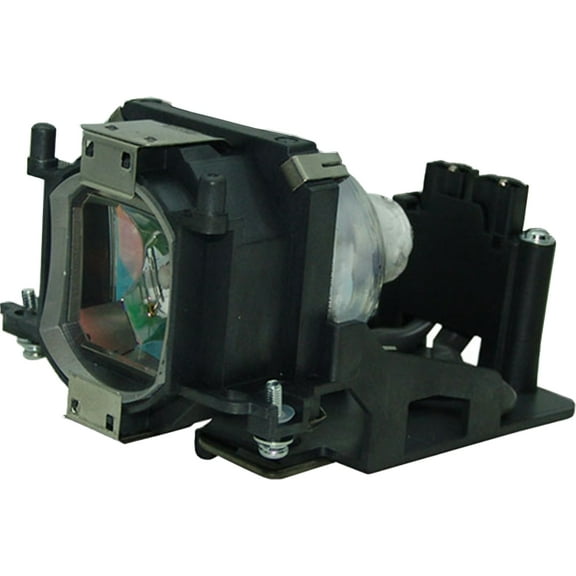 Advanced Lamps™ Lm P-H130 Lamp & Housing for Sony Projector Fits HS50 VPL-HS51A VPL-HS60 Lm P-H130 & More 90-Day Warranty 1 Unit per pack$40.99current price $40.99
Advanced Lamps™ LMP-F300 Lamp & Housing for Sony Projectors - 1 Unit Per Pack
 Advanced Lamps™ LMP-F300 Lamp & Housing for Sony Projectors - 1 Unit Per Pack$74.99current price $74.99
Advanced Lamps™ TS-CL110UAA Lamp & Housing for JVC TVs - 1 Unit per pack
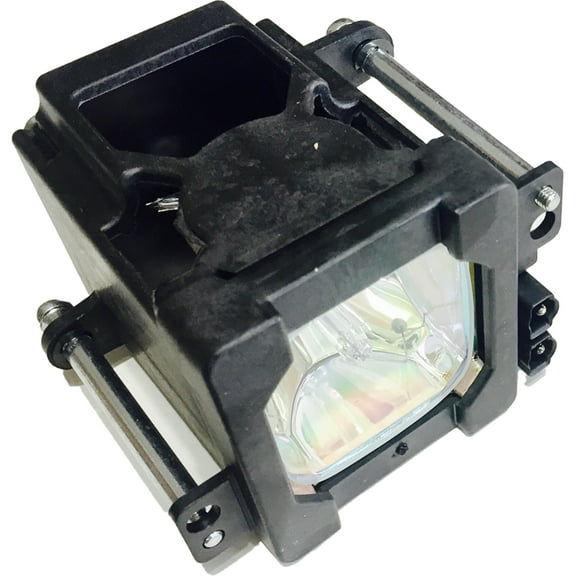 Advanced Lamps™ TS-CL110UAA Lamp & Housing for JVC TVs - 1 Unit per pack$39.99current price $39.99
OEM Lm P-H220 Lamp & Housing for Sony Projectors - 1 Year Jaspertronics Full Support Warranty! - 1 Unit per pack
 OEM Lm P-H220 Lamp & Housing for Sony Projectors - 1 Year Jaspertronics Full Support Warranty! - 1 Unit per pack$349.99current price $349.99
Sony LMP-H280 Replacement Projector Lamp for VPL-VW665ES
Sony LMP-H280 Replacement Projector Lamp for VPL-VW665ES
P Premium Power Products Projector Lamp Replaces NEC NP28LP for NEC NP-M322XS, NP-M322X, NP-M322WS series
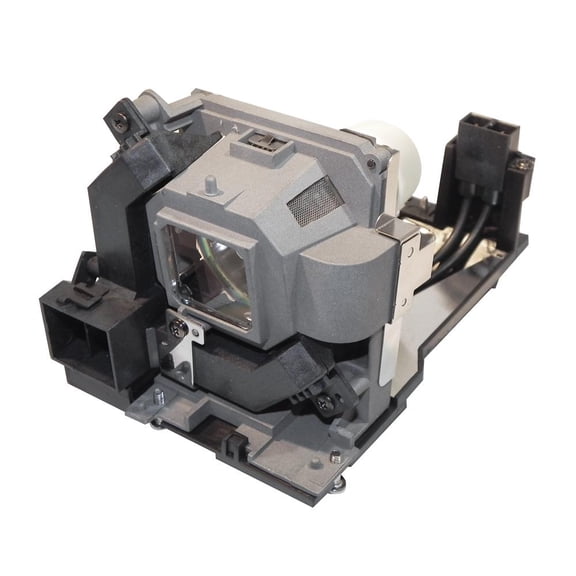 P Premium Power Products Projector Lamp Replaces NEC NP28LP for NEC NP-M322XS, NP-M322X, NP-M322WS series$112.43current price $112.43
Advanced Lamps™ A-1085-447-A Lamp & Housing for Sony TVs - 1 Unit per pack
 Advanced Lamps™ A-1085-447-A Lamp & Housing for Sony TVs - 1 Unit per pack$39.99current price $39.99
Advanced Lamps™ A1127024A Lamp & Housing for Sony TVs - 1 Unit per pack
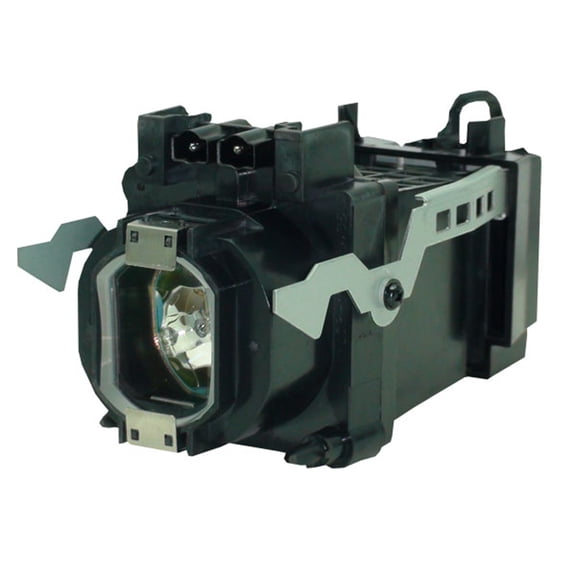 Advanced Lamps™ A1127024A Lamp & Housing for Sony TVs - 1 Unit per pack$39.99current price $39.99
Advanced Lamps™ LMP-E191 Lamp & Housing for Sony Projectors - 1 Unit Per Pack
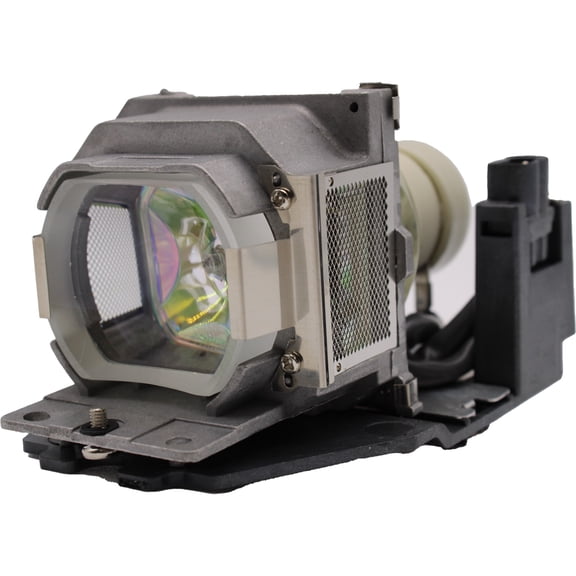 Advanced Lamps™ LMP-E191 Lamp & Housing for Sony Projectors - 1 Unit Per Pack$40.99current price $40.99
Advanced Lamps™ Lamp & Housing for The Philips PS PXG30 Projector - 1 Unit per pack
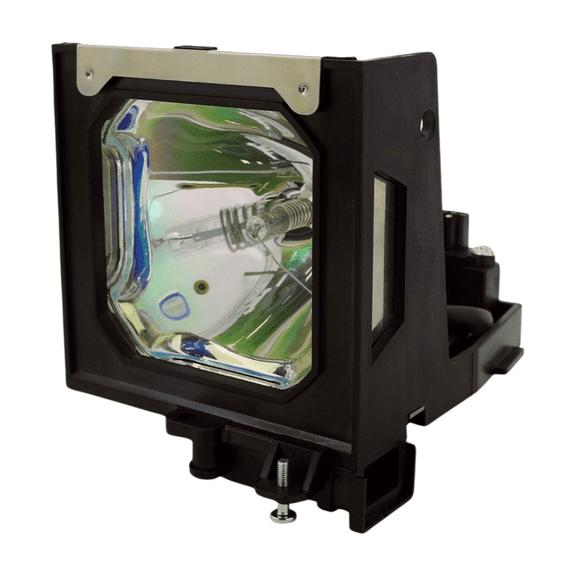 Advanced Lamps™ Lamp & Housing for The Philips PS PXG30 Projector - 1 Unit per pack$43.99current price $43.99
Advanced Lamps™ Lamp & Housing for The Mitsubishi WD-73733 TV - 1 Unit per pack
 Advanced Lamps™ Lamp & Housing for The Mitsubishi WD-73733 TV - 1 Unit per pack$39.99current price $39.99
MITSUBISHI 915B455011 Projection TV Assembly with Original Philips UHP Bulb Inside
MITSUBISHI 915B455011 Projection TV Assembly with Original Philips UHP Bulb Inside
Advanced Lamps™ Lamp & Housing for The Mitsubishi WD-73737 TV - 1 Unit per pack
 Advanced Lamps™ Lamp & Housing for The Mitsubishi WD-73737 TV - 1 Unit per pack$39.99current price $39.99
Advanced Lamps™ A1129776A Lamp & Housing for Sony TVs - 1 Unit per pack
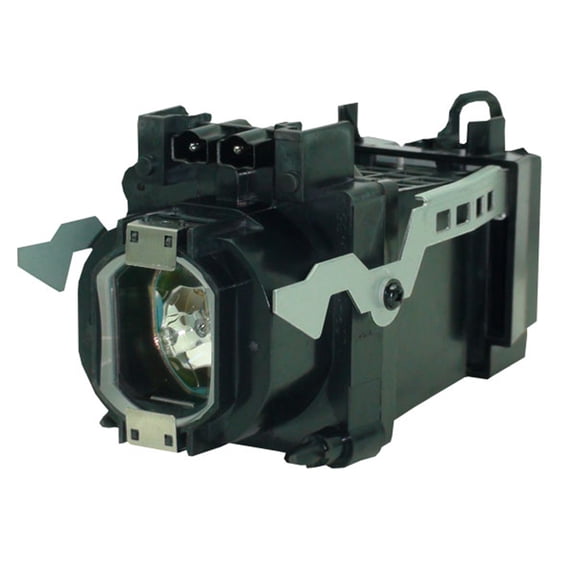 Advanced Lamps™ A1129776A Lamp & Housing for Sony TVs - 1 Unit per pack$39.99current price $39.99
Advanced Lamps™ POA-LMP38 Lamp & Housing for Sanyo Projectors - 1 Unit per pack
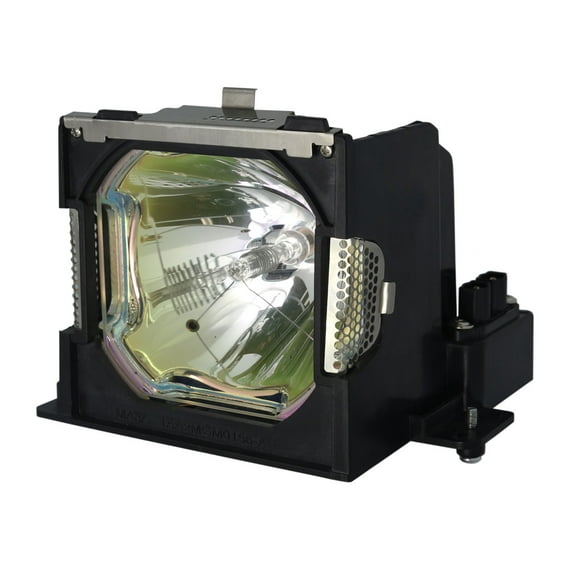 Advanced Lamps™ POA-LMP38 Lamp & Housing for Sanyo Projectors - 1 Unit per pack$39.99current price $39.99
Advanced Lamps™ Lamp & Housing for The Eiki LC-XT5A Projector - 1 Unit per pack
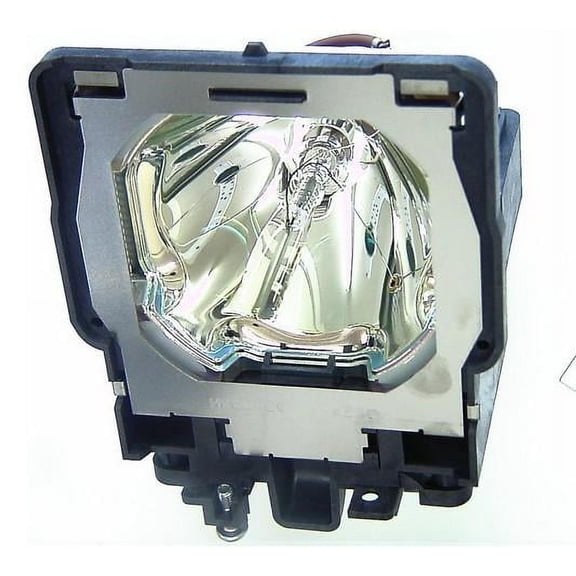 Advanced Lamps™ Lamp & Housing for The Eiki LC-XT5A Projector - 1 Unit per pack$52.99current price $52.99