

Darmoshark(1)
Darmoshark M3 Optical Esports Gaming Mouse Wireless Bluetooth 3-Mode 26000 DPI PAM3395 TTC Microswitch Mice For Computer Laptop PC $42.99

Darmoshark M3 Optical Esports Gaming Mouse Wireless Bluetooth 3-Mode 26000 DPI PAM3395 TTC Microswitch Mice For Computer Laptop PC
FAQ
How does this gaming mouse connect to my computer?
This gaming mouse supports three connectivity options for your convenience:
- Wireless 2.4GHz receiver—Offers a reliable, fast connection with low latency for gaming.
- Bluetooth mode—Provides flexible, cable-free use with compatible laptops and tablets.
- Wired USB—Lets you plug in directly for uninterrupted sessions or while recharging the mouse.
Switching between modes is usually done with a button on the mouse. Each option helps adapt to your setup at home or on the go. Check the mouse’s compatibility with your device’s ports and Bluetooth version for the best experience.
Can I adjust the DPI settings on this mouse?
Yes, you can adjust the DPI (dots per inch) settings on this mouse to suit different games and tasks. Here’s how it can help:
- Customizable DPI levels—Switch easily between sensitivity settings for precise aiming in games or quick movements in design work.
- On-the-fly adjustment—A dedicated button usually lets you change DPI without using any software.
- High maximum DPI—With a range up to 26,000, there’s plenty of flexibility for detailed gaming or everyday use.
Check your mouse’s manual to see how to set and save your preferred DPI profiles for different activities.
What makes an esports mouse different from a regular one?
An esports gaming mouse is designed with advanced features tailored for competitive play:
- Faster response times—Optimized sensors and switches provide more accurate tracking and quicker clicks.
- Lighter weight—This helps with speed and reduces fatigue during long gaming sessions.
- Custom features—Adjustable DPI, programmable buttons, and enhanced grip textures for personalized control.
These enhancements can provide more control and precision, which can be useful for both serious gamers and anyone wanting a responsive, comfortable mouse for extended computer use.
How do I clean my gaming mouse properly?
Keeping your gaming mouse clean helps it perform at its best. Here’s a simple routine:
- Turn off and unplug the mouse before cleaning.
- Wipe the surface with a soft, slightly damp microfiber cloth to lift dirt and oils.
- Use a cotton swab to gently clean around buttons and the sensor area.
- Avoid harsh chemicals or too much moisture, as these can damage electronics.
Regular cleaning can help maintain the feel and performance of the mouse, especially during long gaming sessions. Always make sure the mouse is completely dry before using it again.
What can I do if the mouse clicks aren’t registering?
If you notice the mouse clicks aren’t always registering, try these troubleshooting steps:
- Check the battery—If using wireless mode, low battery power can affect performance. Recharge or replace batteries as needed.
- Switch connection modes—Try connecting via a different mode (wired or Bluetooth) to see if the issue persists.
- Clean the buttons—Dust or debris might interfere with the buttons. Give them a gentle clean with a soft cloth.
- Update firmware or drivers—Check for updates on your device to ensure full compatibility.
If the issue continues, consider reaching out to the product’s support resources or checking Walmart’s return policies if your purchase is recent.
Popular in Brand Home Page Featuring Gaming Mice
Related Products
Meetion BTM010R Ergonomic Vertical Mouse, 2.4G Wireless & Bluetooth, Large Size, Rechargeable, Pink
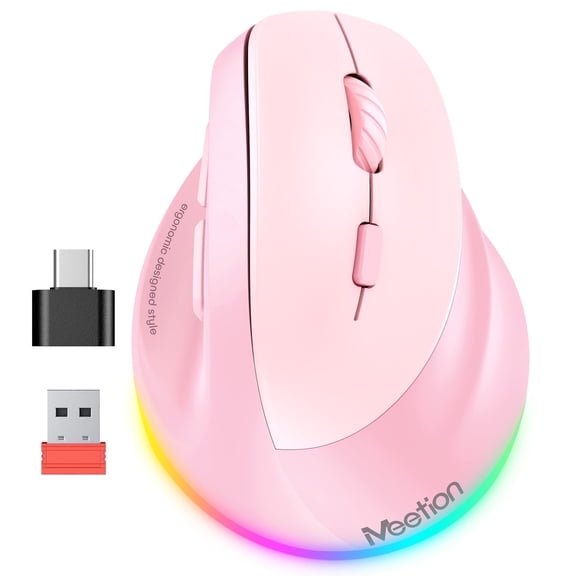 Meetion BTM010R Ergonomic Vertical Mouse, 2.4G Wireless & Bluetooth, Large Size, Rechargeable, Pink$24.99current price $24.99
Ergonomic Vertical Mouse, 2.4 GHz Wireless Mouse with Nano Receiver and Auto-Sleep Mode, 800/1200/1600 DPI Optical Tracking, MEMZUOIX Wireless Gaming Mouse for PC Laptop Macbook, Blue
 Ergonomic Vertical Mouse, 2.4 GHz Wireless Mouse with Nano Receiver and Auto-Sleep Mode, 800/1200/1600 DPI Optical Tracking, MEMZUOIX Wireless Gaming Mouse for PC Laptop Macbook, Blue$18.99current price $18.99
X5 Wireless Bluetooth Gaming Mouse, Rechargeable LED Wireless Mouse,Silent Optical Rainbow USB Computer Mice for Laptop PC
 X5 Wireless Bluetooth Gaming Mouse, Rechargeable LED Wireless Mouse,Silent Optical Rainbow USB Computer Mice for Laptop PC$11.69current price $11.69
Wireless Bluetooth Dual Mode Mouse - 1600 DPI Adjustable Silent Click Gaming & Office Mouse with Type-C Fast Charging, Ergonomic 4.69in (White)
 Wireless Bluetooth Dual Mode Mouse - 1600 DPI Adjustable Silent Click Gaming & Office Mouse with Type-C Fast Charging, Ergonomic 4.69in (White)$8.99current price $8.99
HongHeng Wired Mouse - USB Computer Corded Mouse, Responsive 3-Button Silent Click for Business Home office, Ergonomic Shape for Windows Computers, Macs,iMac, PC and Laptops
 HongHeng Wired Mouse - USB Computer Corded Mouse, Responsive 3-Button Silent Click for Business Home office, Ergonomic Shape for Windows Computers, Macs,iMac, PC and Laptops$3.99current price $3.99
Bluetooth Mouse Multi-Device,Rechargeable Wireless Gaming Mice,3 Modes (BT5.0,BT3.0 and USB 2.4GHz),3600 DPI,12 Lighting Modes RGB Rainbow Backlit
Bluetooth Mouse Multi-Device,Rechargeable Wireless Gaming Mice,3 Modes (BT5.0,BT3.0 and USB 2.4GHz),3600 DPI,12 Lighting Modes RGB Rainbow Backlit
XMMSWDLA Wireless Mouse, Cool Sports Car Shaped Mouse 2.4GHz Optical Gaming Mouse for Computer PC Notebook Laptop
 XMMSWDLA Wireless Mouse, Cool Sports Car Shaped Mouse 2.4GHz Optical Gaming Mouse for Computer PC Notebook Laptop$2.99current price $2.99
4GHz Wireless Bluetooth Gaming Mouse Wireless,for Laptop, Computer, Tablet in Office and Home,Ergonomic Optical Mouse,12M Wireless Receiving Distance (Battery Version)
 4GHz Wireless Bluetooth Gaming Mouse Wireless,for Laptop, Computer, Tablet in Office and Home,Ergonomic Optical Mouse,12M Wireless Receiving Distance (Battery Version)$6.90current price $6.90
KUYHRF USB Wired Vertical Mouse M Size for Small Hands, Ergonomic Optical Low Noise 6 Buttons, Reduce Wrist Strain, Compatible with MacBook/PC/Laptop/Desktop/Windows/Mac OS-White
 KUYHRF USB Wired Vertical Mouse M Size for Small Hands, Ergonomic Optical Low Noise 6 Buttons, Reduce Wrist Strain, Compatible with MacBook/PC/Laptop/Desktop/Windows/Mac OS-White$12.68current price $12.68