

Nvidia tech




About
Nvidia tech helps you build a smooth gaming setup with targeted choices for graphics cards, gaming PCs, and upgrade-ready hardware. You can compare GPU series, VRAM, form factor, and cooling before you commit to a desktop refresh.
If you're replacing an older card, you can use this page as a practical guide for Nvidia-powered options. You'll find clear paths for 1080p, 1440p, and 4K play, plus setup details that matter.
How to choose Nvidia tech for your setup
When you shop Nvidia tech, you should start with how you play and what your system supports. You can narrow choices quickly when you match performance goals to your case, power supply, and monitor.
Some shoppers need a simple GPU upgrade for esports titles and everyday play. Others want ray tracing, DLSS support, and extra VRAM for larger games or creative workloads.
You can use a few decision points to compare options without getting lost in specs. You'll usually make a suitable choice when you focus on fit, resolution, and cooling first.
- You can match GPU series to your target resolution, from 1080p play to detailed 4K gaming.
- You can compare VRAM capacity for gaming, streaming, editing, and multitasking needs.
- You can check form factor, power connections, and case clearance before your GPU upgrade arrives.
- You can choose cooling that fits your space, airflow plan, and noise preferences.
Choosing between Nvidia graphics cards and GPU series
You should compare GPU series by the experience you want on screen. RTX 40-Series options usually fit shoppers who want newer features, advanced ray tracing, and DLSS 3 support.
If you want solid performance for many popular games, RTX 30-Series options can still make sense. You may prefer GTX Series models when you want straightforward graphics performance without advanced ray tracing priorities.
You can also compare Nvidia graphics cards by the resolution you plan to use most. For 1080p gaming, you may need less graphics power than you would for 1440p or 4K.
When you move to higher resolutions, your card works harder to render more detail. You'll often notice that capable GPUs help maintain smooth frame rates on large, sharp displays.
Understanding VRAM and performance needs
You should treat VRAM as working space for textures, effects, and larger game assets. If you play newer titles or create content, you may want more VRAM headroom.
Eight GB can suit lighter gaming and many everyday titles at 1080p. Twelve GB or 16GB may fit 1440p gaming, larger texture settings, and heavy multitasking more comfortably.
If your workflow includes editing high-resolution media or handling complex visual projects, 24GB may make more sense. You'll want to compare your software demands with the games and apps you use most.
You shouldn't assume larger memory alone determines speed. You should balance VRAM with the GPU series, your processor, and your display resolution for a more complete decision.
Checking fit, power, and gaming PC compatibility
Before you choose a desktop GPU, you should measure your case and check open expansion space. You should also confirm your power supply wattage and the power connectors your card needs.
Your motherboard slot matters too, especially when you're planning a GPU upgrade in an older tower. You can check PCIe compatibility to make sure your new card fits your existing build.
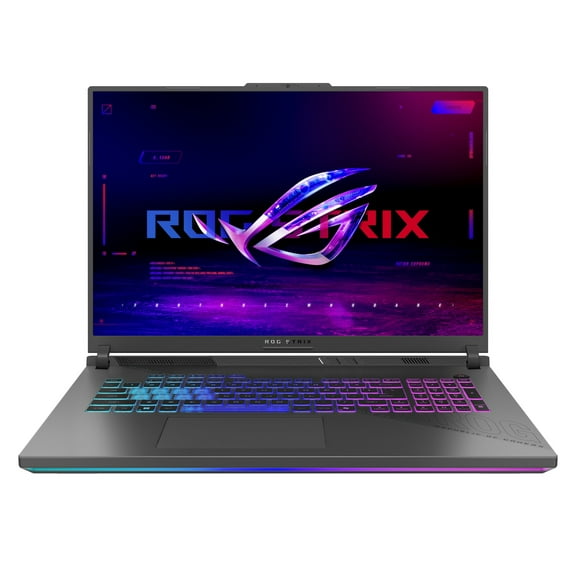
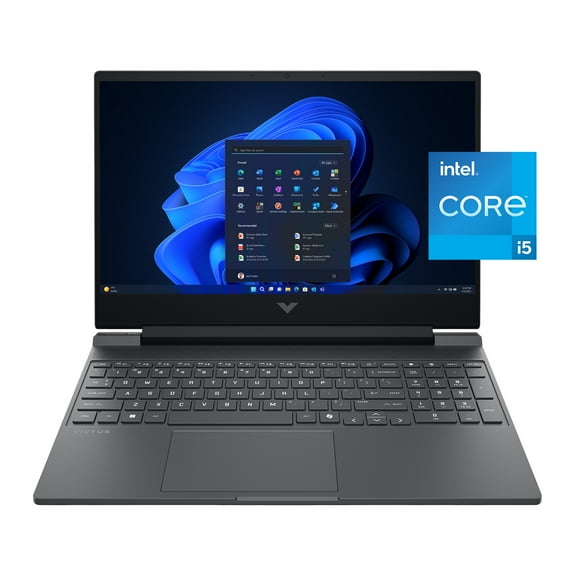
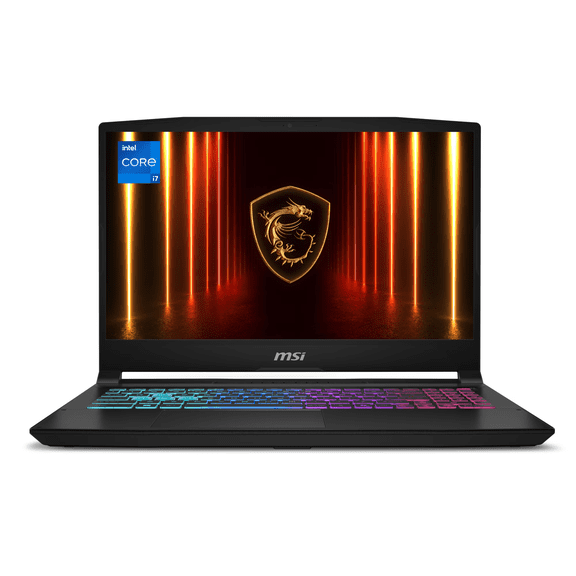
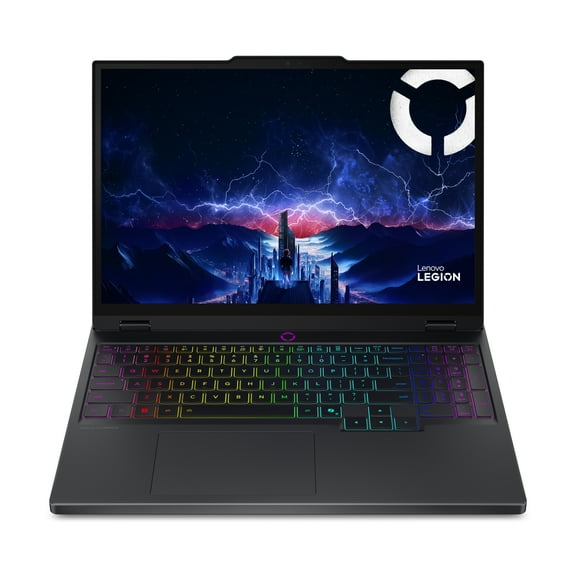
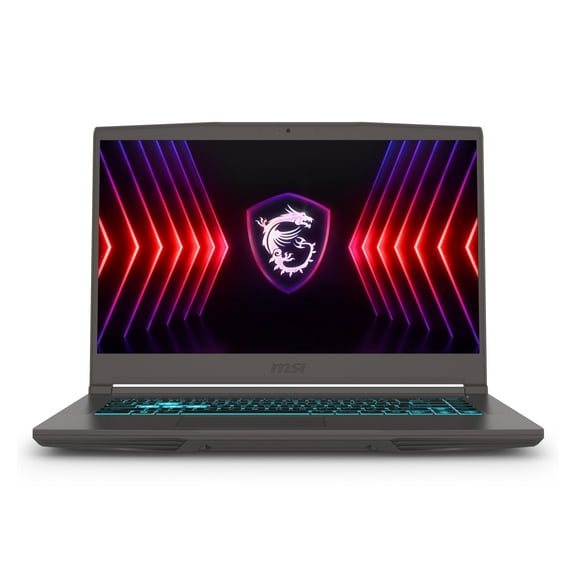
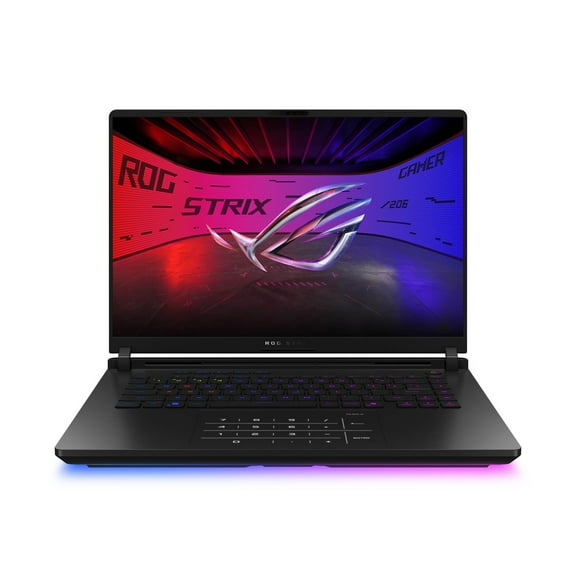
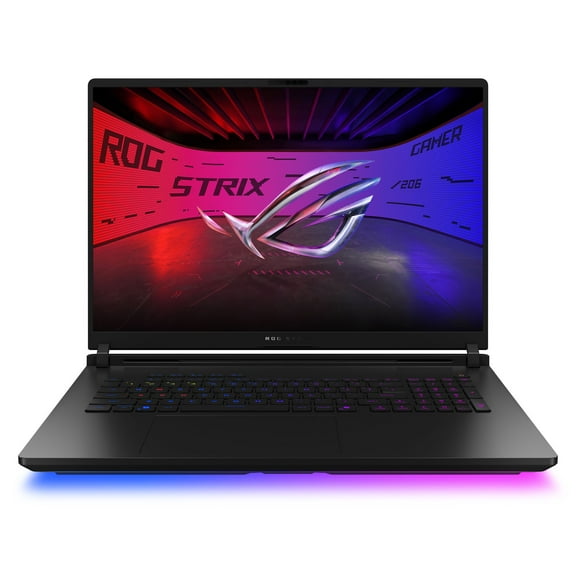
If you want a complete Nvidia gaming PC, you can skip some installation steps and focus on ready-to-use performance. You may also compare laptop GPU and desktop GPU options based on portability, desk space, and upgrade flexibility.
SFF GPU choices can help when your case is compact and clearance is tight. You'll want to measure length and thickness carefully if your build has limited room near fans or drive bays.
Comparing cooling types and everyday use
You can choose cooling based on your case airflow and the room your card has to breathe. Dual fan and triple fan designs often suit larger cases with steady air movement.
Blower styles can make sense when your system has tighter internal spacing. Liquid cooled options may appeal to you if you want a setup built around advanced thermal planning.
Your cooling choice can affect noise, size, and installation clearance. You should compare cooler dimensions with your case before you select larger graphics cards for a smaller tower.
If you stream, play long sessions, or render projects, you may appreciate extra cooling capacity. You'll often get a more predictable experience when your airflow plan matches your card design.
Ray tracing, DLSS, and real-world use cases
If you want rich lighting and reflections, you should look at cards with ray tracing support. You'll see that this feature matters most in games designed to showcase detailed visual effects.
DLSS can help you keep gameplay smooth by using AI upscaling techniques. You may find it useful when you want sharp output without pushing your hardware as hard.
For a first gaming PC, you might pair a midrange card with a 1080p or 1440p monitor. If you're upgrading an older system, you should focus on clearance, wattage, and connector checks first.
If you create videos, stream gameplay, or edit large files, you may want higher VRAM and a higher GPU tier. You can also compare laptop GPU options if you need gaming performance in a portable format.
With Nvidia tech, you can make a confident hardware choice when you compare series, memory, fit, and cooling together. You'll get closer to the setup you want, with fewer compatibility surprises after installation.