

Mac Game Controllers in Mac Gaming Peripherals and Accessories







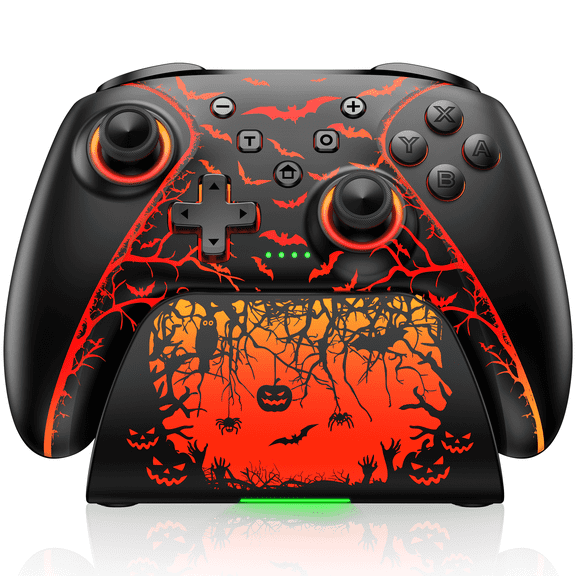
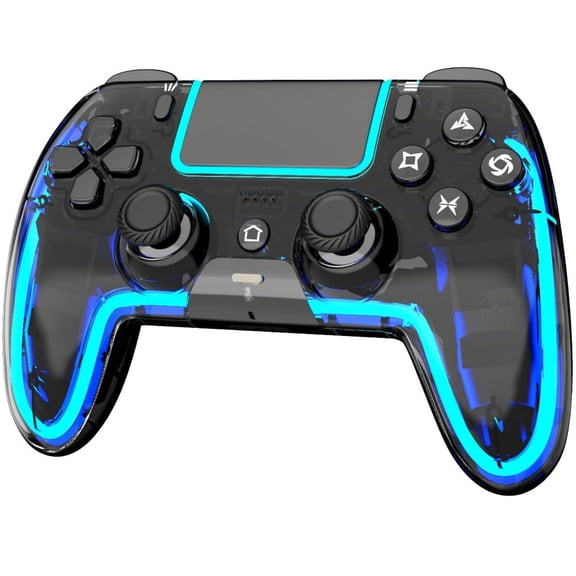
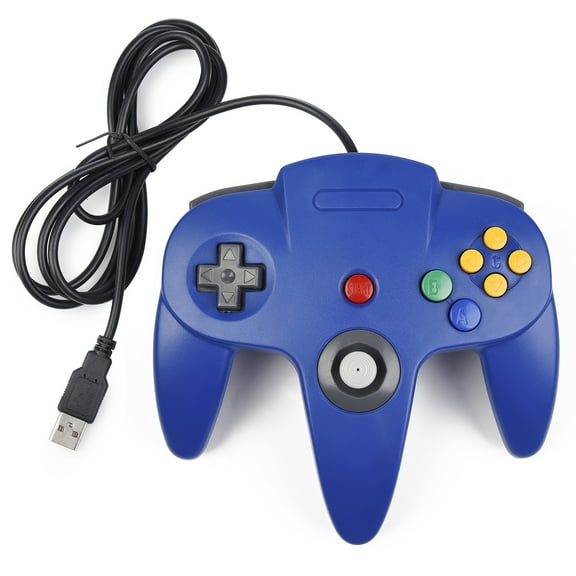


















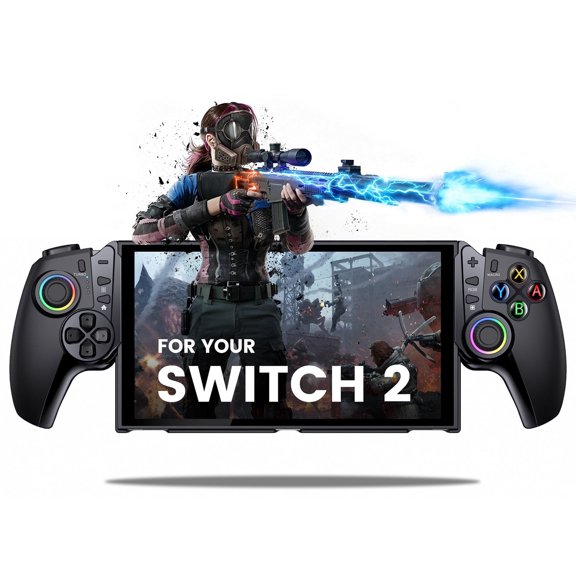

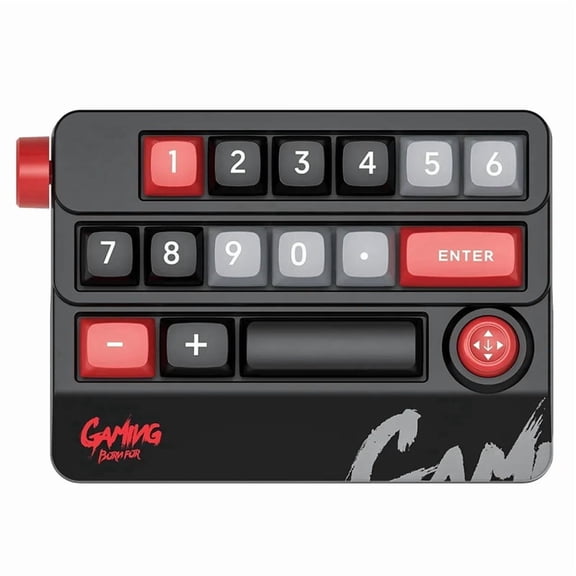

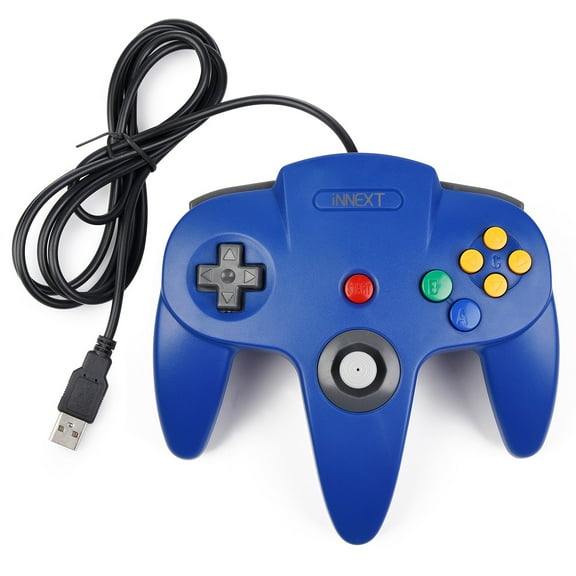


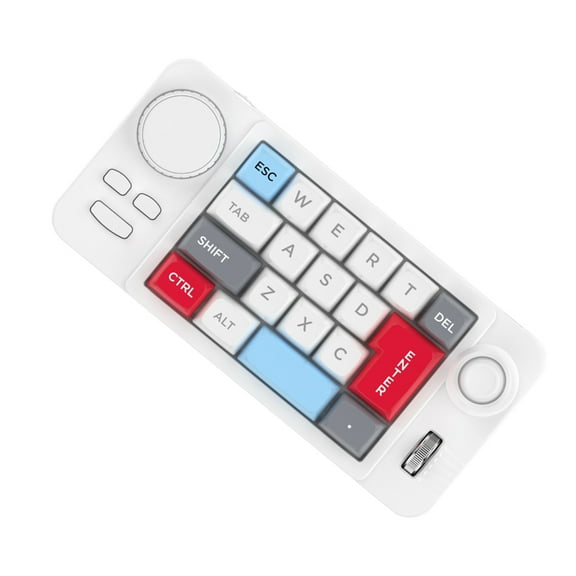
About Mac Game Controllers in Mac Gaming Peripherals and Accessories - Walmart.com
If you want a usb controller mac setup that feels simple, this page helps you compare wired and wireless options for Apple devices. You can focus on macOS compatibility, port type, and platform support before you choose a controller for everyday play.
Because Mac gaming varies by device, you should check whether your controller matches MacBook Air, MacBook Pro, iMac, or Mac mini. You should also compare Apple Silicon support, Intel support, and driver-free pairing for a smooth start.
How to choose a USB controller Mac setup
When you compare controllers, you should start with connection type because it affects latency, charging, and travel convenience. You may prefer wired play for steady response, or you may want wireless freedom around your desk.
A wired USB option usually gives you direct plug-in use with fewer setup steps on macOS. A wireless option gives you clean cable management when you move between rooms, screens, or backpacks.
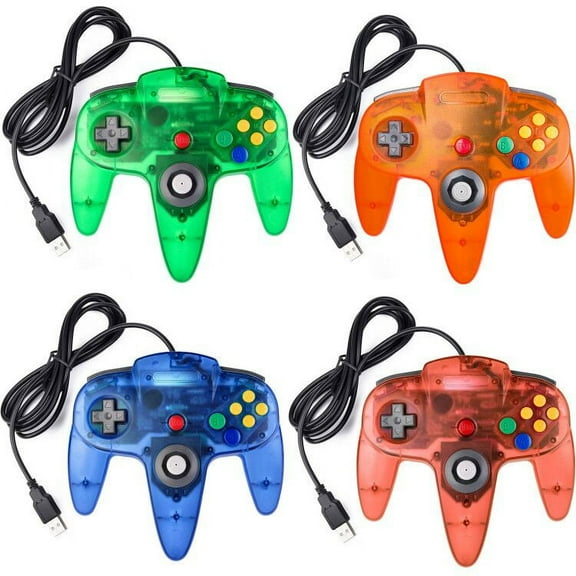
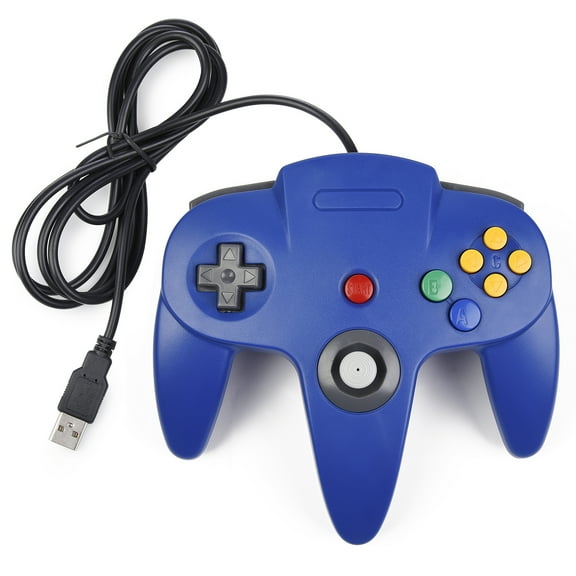
- You can use wired USB controllers when you want stable input for racing, platform, or fighting games.
- You can choose Bluetooth when you want a tidy desk and easy use with a MacBook Air or MacBook Pro.
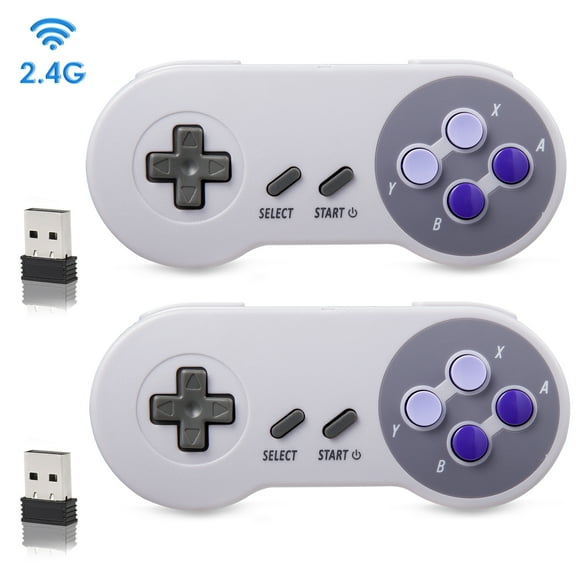
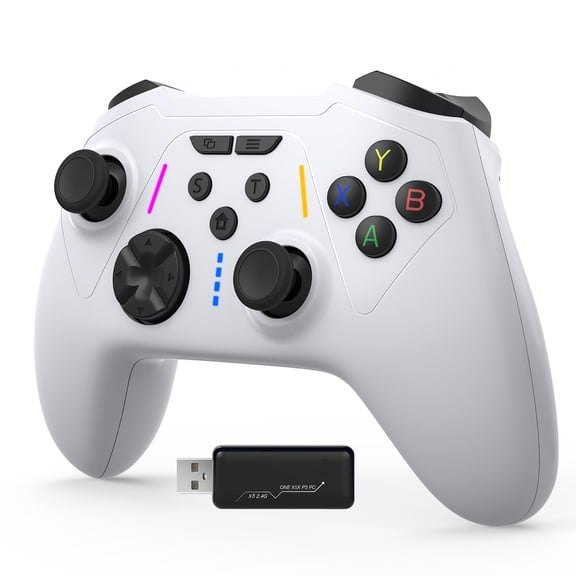
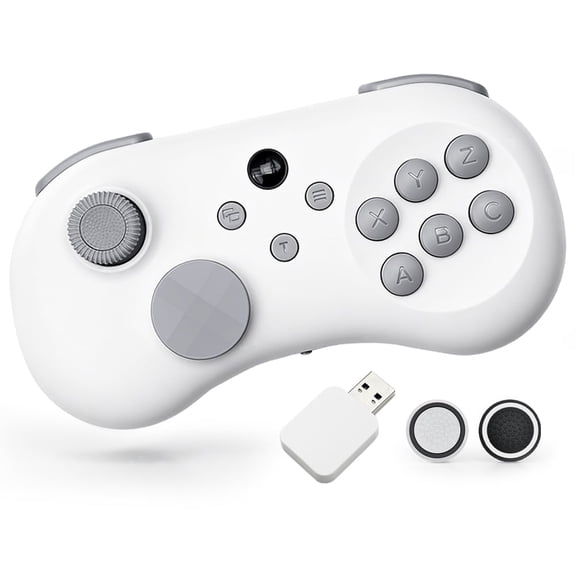
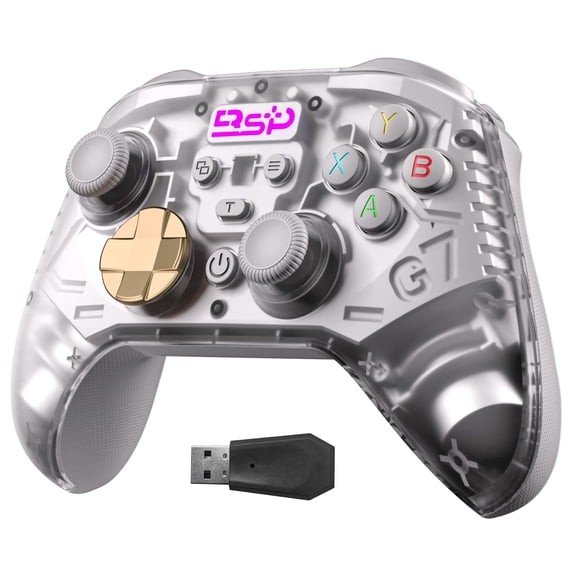
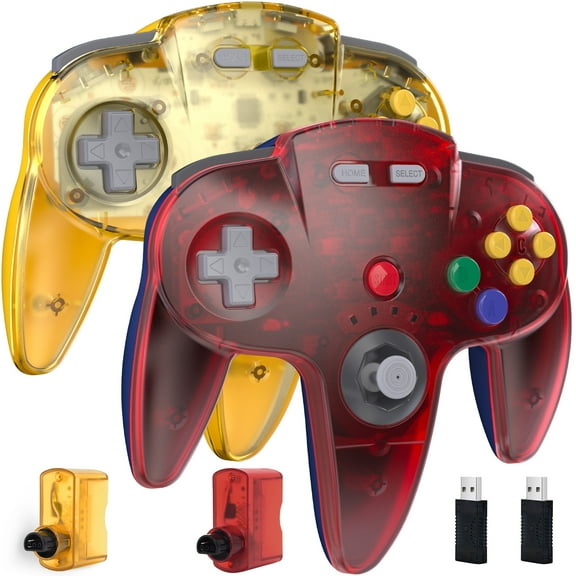
- You can consider 2.4GHz wireless when you want quick connection through a receiver instead of device pairing menus.
- You can compare USB-C and USB-A connections to match the ports on your Mac and accessories.
If you play across Apple devices, you should check whether your controller's macOS support also extends to iPadOS or iOS. That extra flexibility can help you move from a Mac game session to mobile play without relearning controls.
Choosing connection type and ports for Mac
When you review connection types, you should think about where you play and how often you move your setup. A mac usb controller can feel straightforward when you want a cable connection and simple desktop use.
If your Mac has USB-C ports, you should look for direct USB-C support or confirm adapter compatibility. If your setup still uses USB-A accessories, you should check that connection before you commit.
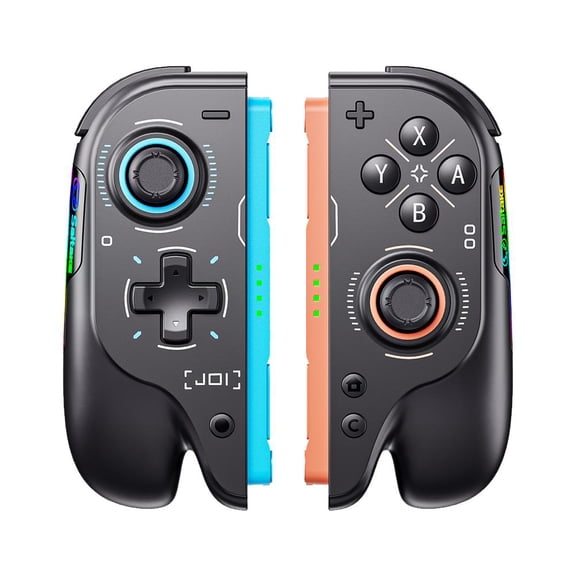
A bluetooth game controller for mac is highly practical when you use a laptop on a couch, tray, or shared table. You can avoid cable clutter, and you can pack your controller easily for travel.
You should also compare battery habits with your routine because charging style changes the everyday experience. If you play for long sessions at a desk, you may prefer a wired model that stays ready.
Checking controller macOS support and Apple device compatibility
Before you choose, you should confirm support for current macOS versions and older OS X systems if you use legacy hardware. You should also verify compatibility with Apple Silicon chips and Intel processors.
This step matters because some games and input modes behave differently across Macs and software versions. You can avoid setup friction by checking support for M1, M2, M3, and Intel devices before you buy.
If you want a macbook air gaming controller, you should pay attention to portability, wireless convenience, and port matching. If you use an iMac or Mac mini, you may care more about desk placement and cable reach.
You should compare whether a controller works with MacBook Air, MacBook Pro, iMac, and Mac mini if you switch devices often. That wider compatibility can make one controller easy to keep in your daily rotation.
What to look for in platform and game support
When you pick a controller for mac gaming, you should check where you plan to play most often. You may want support for Apple Arcade, Steam, or Xbox Cloud Gaming that recognizes common controller inputs.
If you use Apple Arcade, you may want a setup that connects quickly with familiar buttons and sticks. If you use Steam, you may care about controller mapping and recognition inside game settings.
When you stream through cloud gaming services, you should look for consistent pairing and dependable input across sessions. You can reduce menu time when your controller reconnects cleanly after sleep or travel.
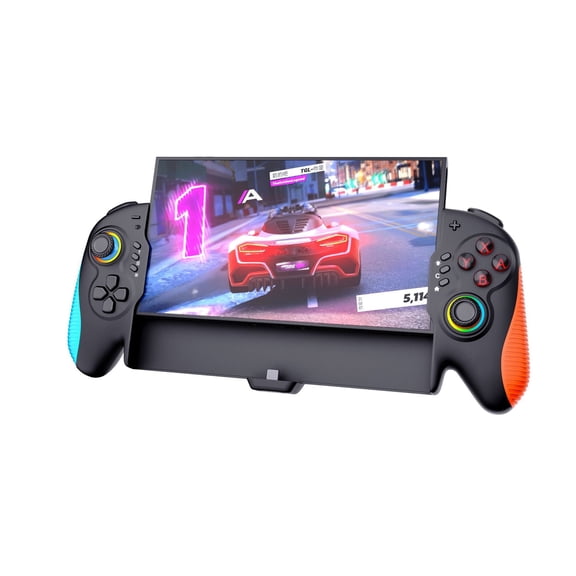
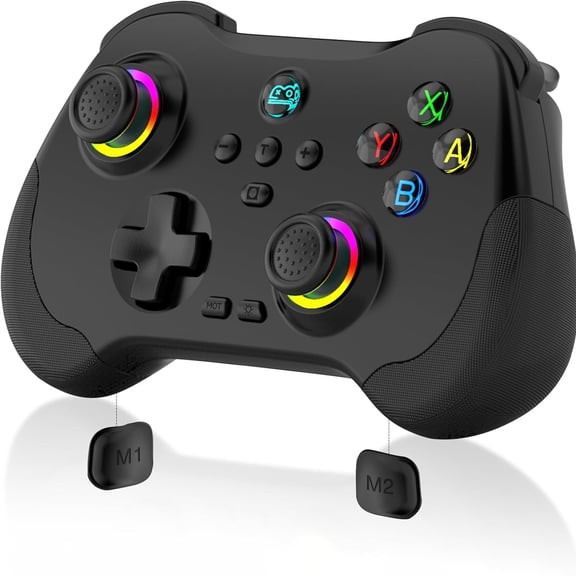
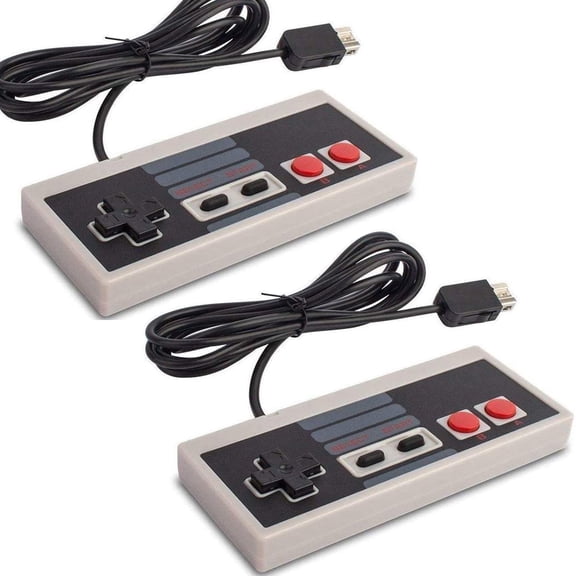
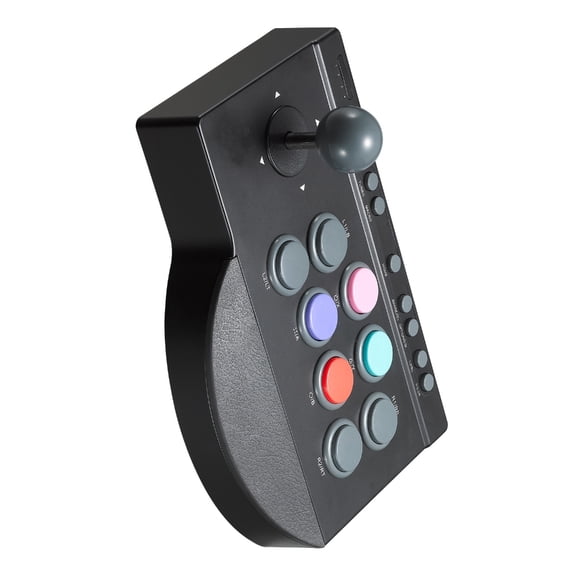
You should also think about layout because control style changes how comfortable games feel over time. Traditional dual-analog layouts can suit action, sports, and adventure titles, while retro shapes can fit classic games.
Matching controller features to how you play
If you play at a desk every day, a usb controller for mac can keep your setup simple and predictable. You can plug in, launch a game, and focus on play instead of battery checks.
If you commute with a laptop, a gaming controller for MacBook Air may fit well when it pairs quickly and packs easily. You can move between home, school, and travel without rebuilding your setup each time.
For shared households, you should look for fast switching between devices and easy reconnection after standby. That can help you keep game time smooth when more than one person uses the same controller.
If you alternate between a Mac and an iPad, you should compare cross-device support before making a final choice. You can get highly flexible use when one controller works across your Apple screens and services.
When you weigh all these details, you should focus on compatibility first, then connection type, then platform support. That order helps you land on a controller that fits your Mac, your ports, and your everyday games.
With the right match, you can get smooth setup, clean input recognition, and a controller that fits how your Apple gaming actually happens. You can feel confident when your controller works with your Mac hardware and favorite platforms.