

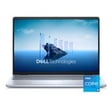
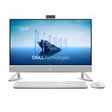
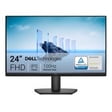
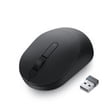
Dell Accessories for Computers and Laptops












About Dell Accessories for Computers and Laptops - Walmart.com
Dell accessories help you keep your setup compatible, connected, and ready for work or class. You can compare chargers, docks, keyboards, and cables by model fit, port type, and wattage.
If you use an Inspiron, Latitude, XPS, Vostro, or Precision device, you need parts that match your system. You can compare series details first, so you can choose an accessory with less guesswork.
How to choose Dell accessories by device compatibility
You should start with exact model compatibility, because fit matters across dell laptop accessories. You may notice an XPS charger or dock won't always match a Latitude or Precision setup.
When you compare accessories, check your laptop series and model number first. You can avoid guesswork when your charger tip, dock support, and keyboard connection match your device.
- You can match Inspiron accessories to everyday home and school devices.
- You can compare Latitude options for office desks, travel kits, and shared workspaces.
- You can look at XPS accessories when your setup needs slim connections and modern ports.
- You can check Vostro and Precision compatibility when your system uses business-focused power and display needs.
You may also compare OEM and third-party compatibility in plain terms before you decide. You can use OEM for direct brand matching, or choose compatible alternatives when the specs align.
Choosing power adapters and Dell power adapter wattage
You should check wattage before you choose any dell power adapter or dell laptop charger. You can often find 45W, 65W, 90W, and 130W options for different Dell systems.
When you replace a charger, compare the original adapter rating with your new choice. You should match or exceed the original wattage requirement for the intended device connection.
You also need to confirm the connector style before you order. You can compare USB-C charging with a proprietary barrel connector, depending on your laptop model.
If you move between home and office, you may want an extra adapter for each location. You can keep one in your bag and one at your desk for easier daily charging.
Selecting the right Dell docking station and ports
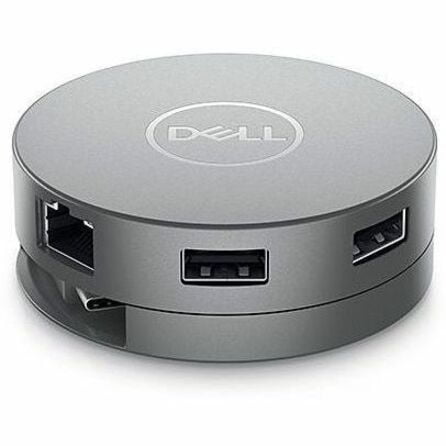
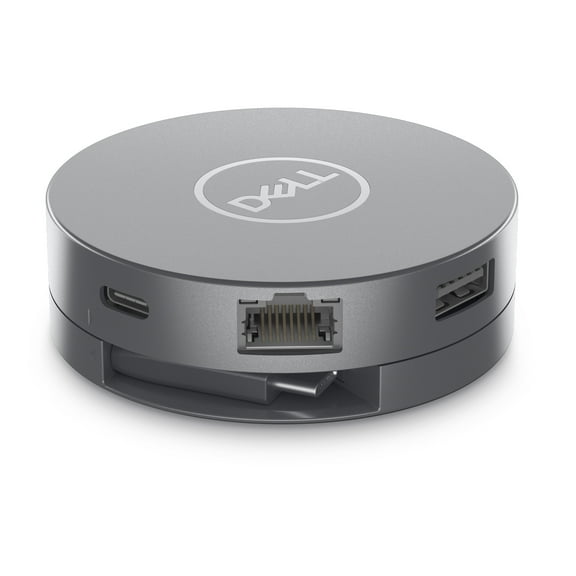
You should compare ports carefully when you choose a dell docking station for your desk. You can find options with USB-C, USB-A, HDMI, and other common connections.
When you use several accessories at once, a dock can simplify your workspace. You can connect monitors, storage, input devices, and charging through one main connection.
You should measure your daily port needs before you compare dock styles. You can check whether you need extra USB-A ports, HDMI output, or USB-C support for newer laptops.
If you switch between meetings and desk work, a dock can reduce cable swapping. You can reconnect quickly when your monitor, mouse, keyboard, and power stay linked in one place.
Comparing keyboards, mice, cables, and connection types
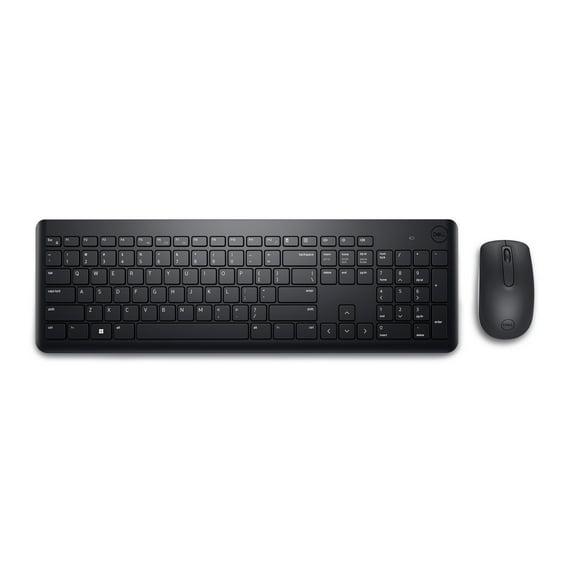
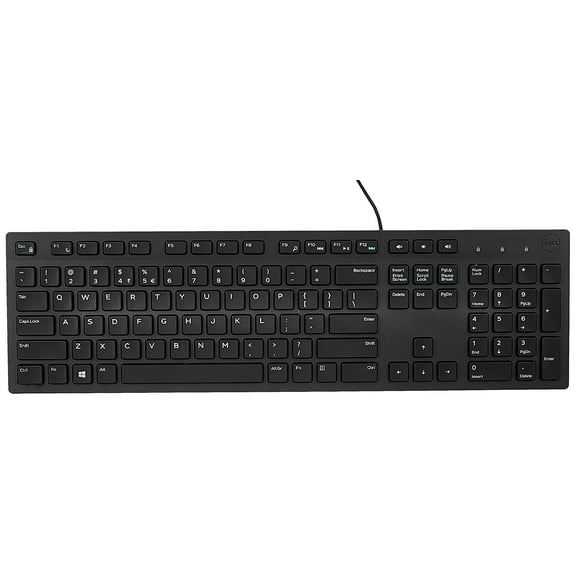
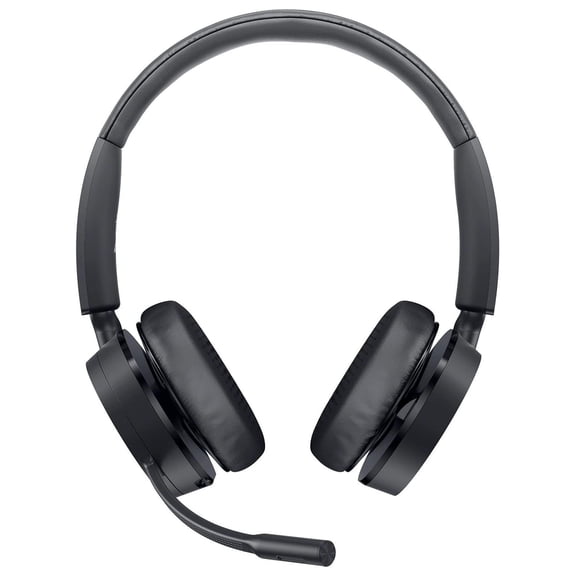
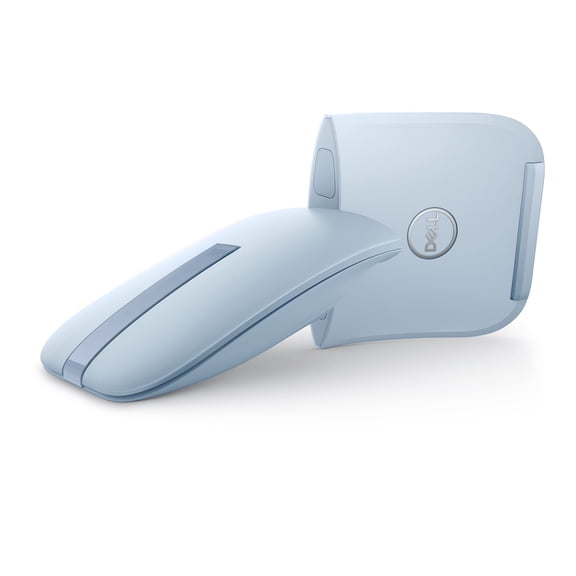
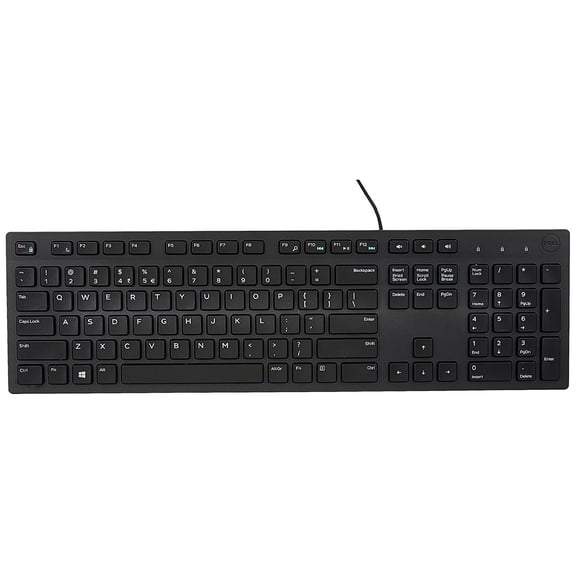
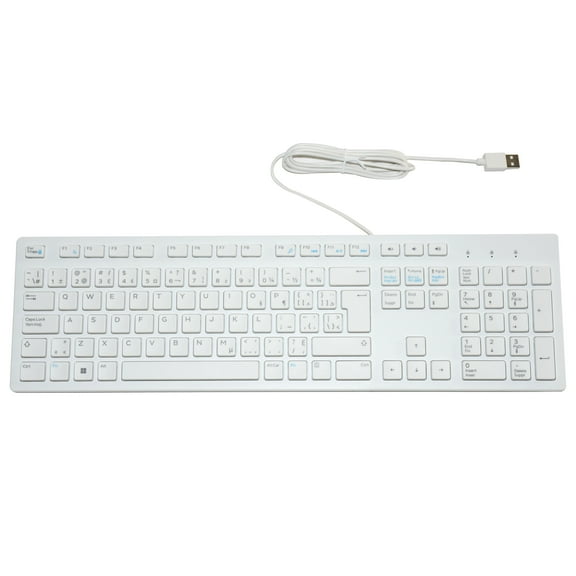
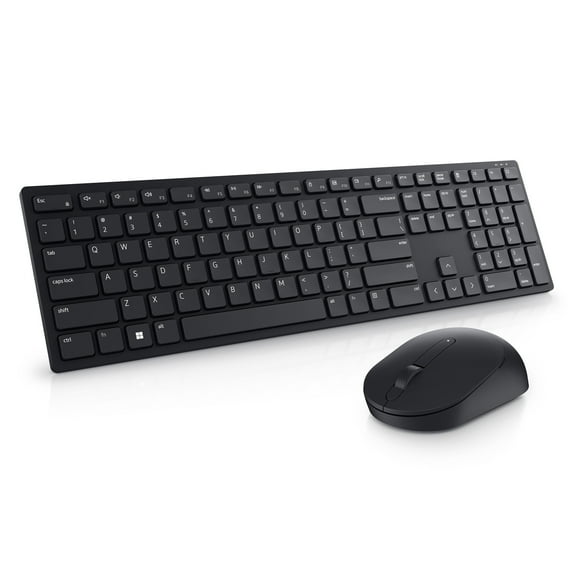
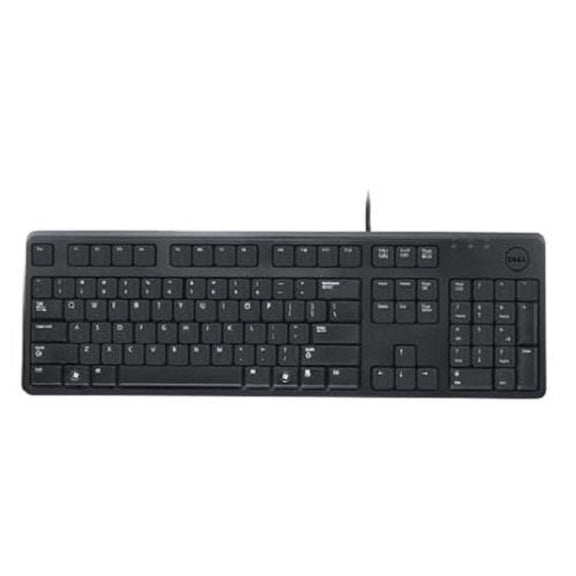
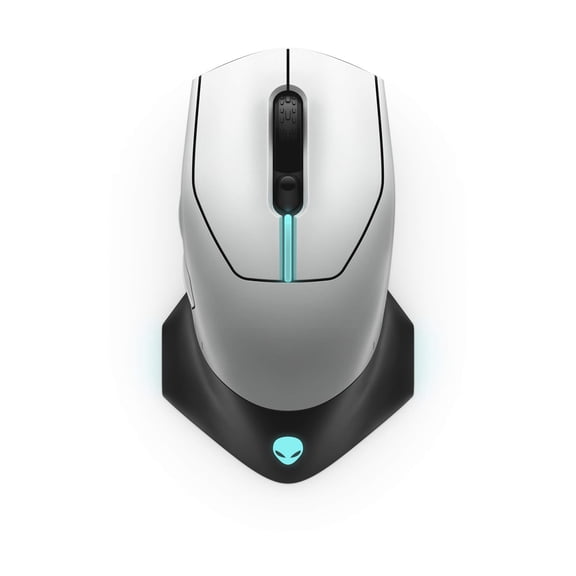
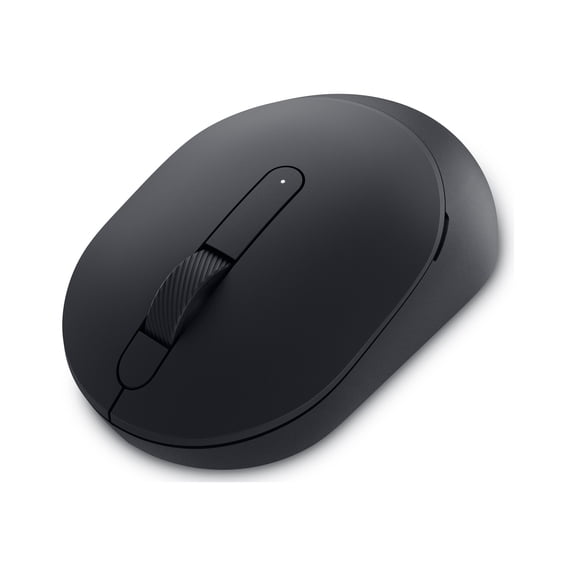
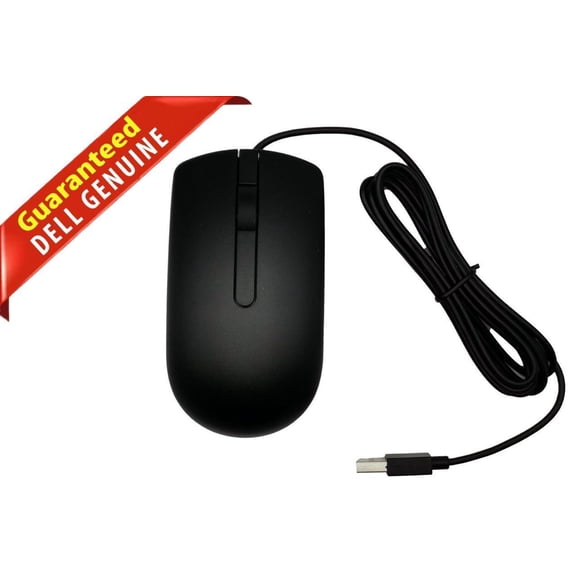
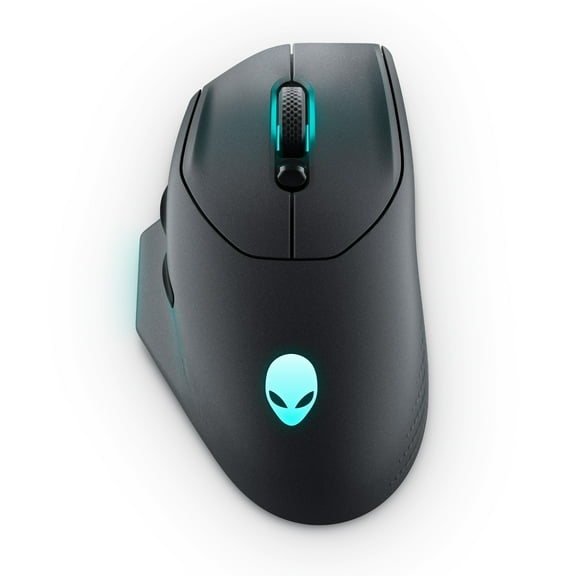
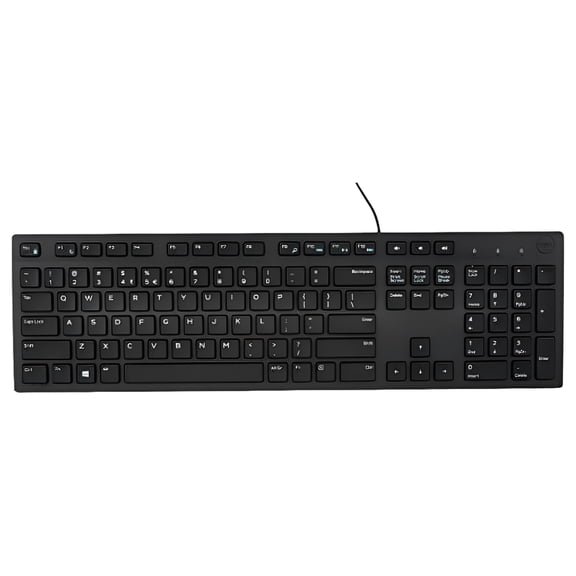
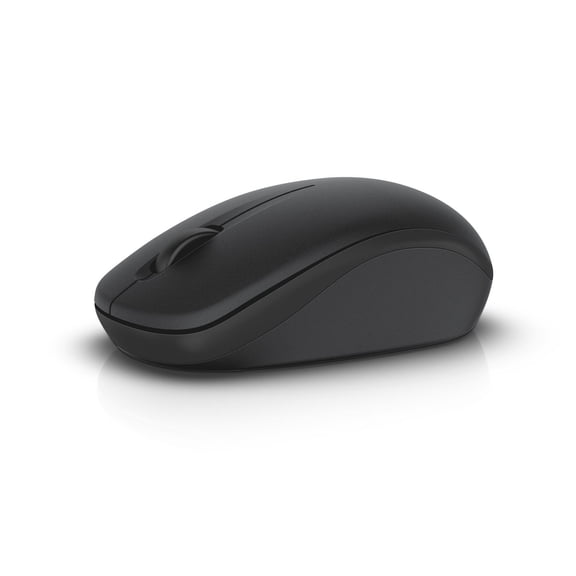
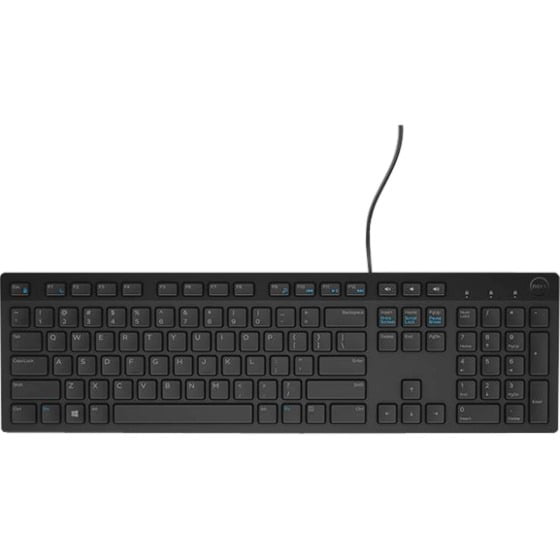
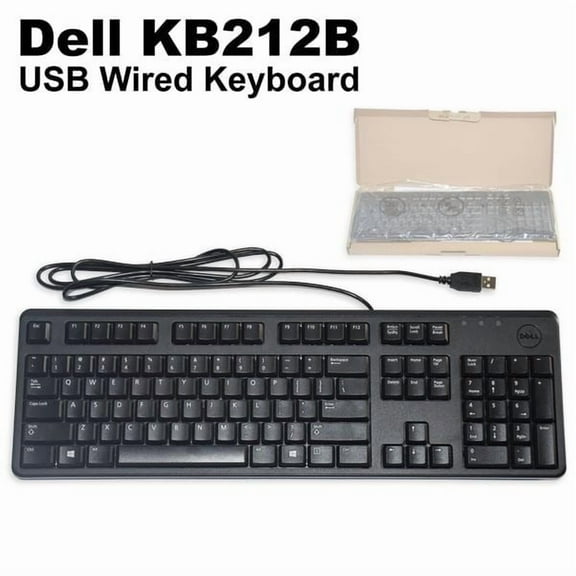
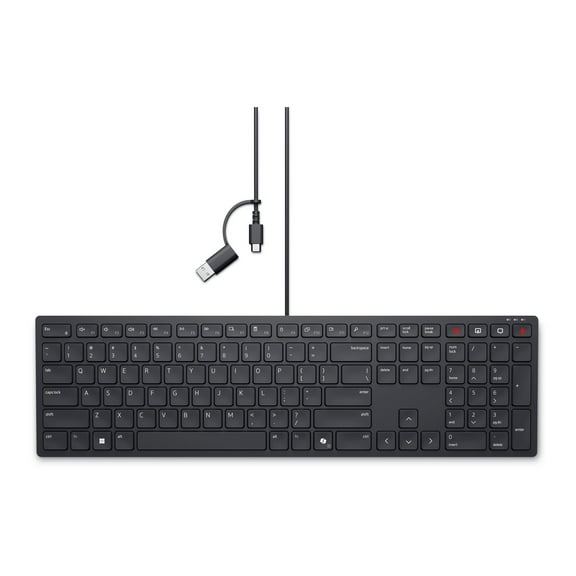
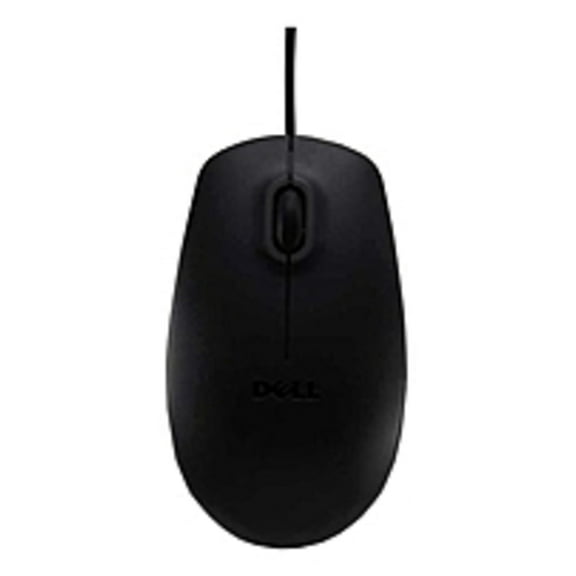
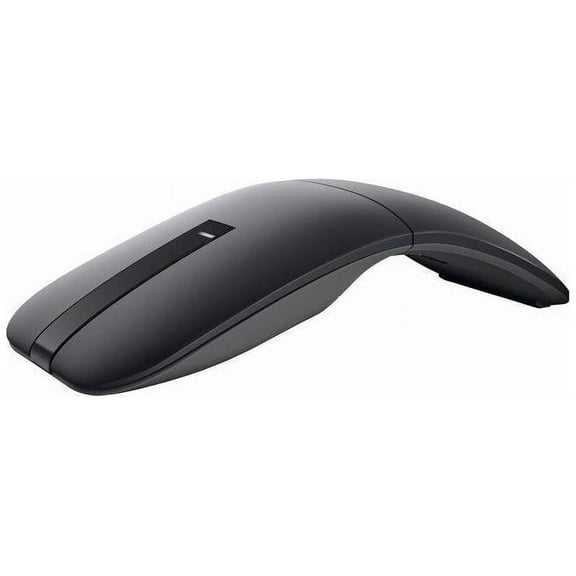
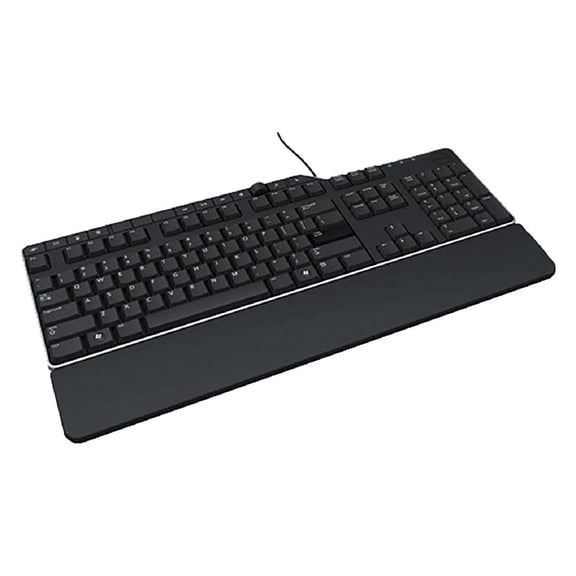
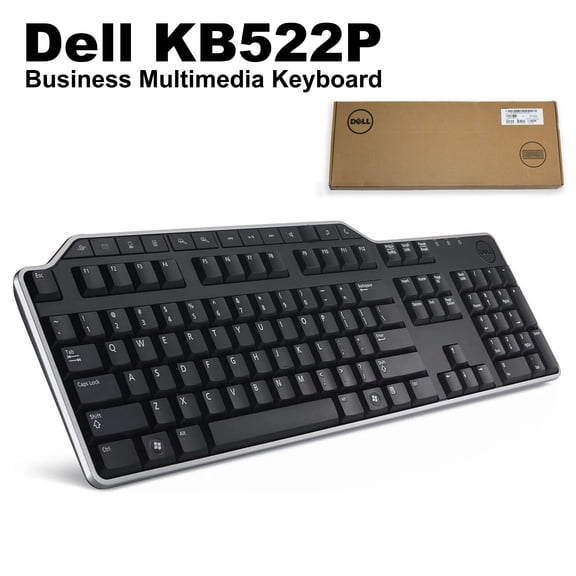
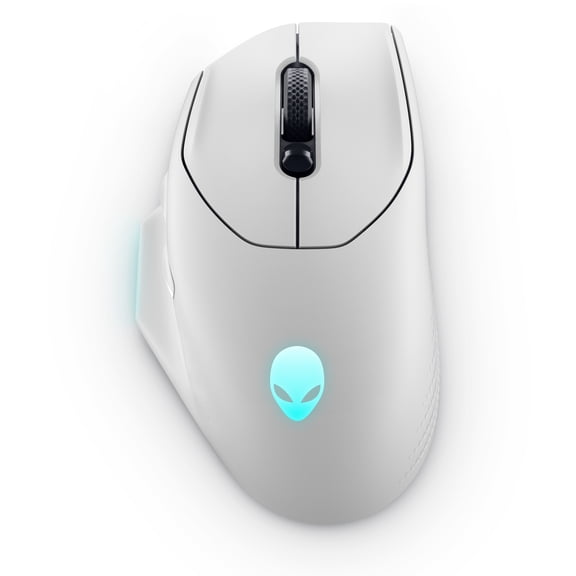
You can round out your setup with a dell keyboard and mouse, cables, or adapters. You should compare wireless and wired options based on how you work each day.
If you want a cleaner desk, you may prefer wireless input devices. You can choose wired accessories when you want simple plug-in use at a fixed workstation.
You should also review cable ends before you buy any adapter or cord. You can compare USB-C, USB-A, and HDMI connections to match displays, chargers, and hubs.
When you add a dell usb c adapter, you can expand what your laptop connects to. You can link older accessories, external screens, or storage without replacing your whole setup.
Matching Dell laptop accessories to real use cases
You may need different combinations depending on where and how you use your device. You can build a practical setup by matching accessory type, port style, and model compatibility.
If you carry an XPS or Latitude between rooms, you may prefer a USB-C charger and compact dock. You can keep your bag light while maintaining monitor and keyboard connections at your desk.
If you use a Precision system with larger power demands, you should verify adapter wattage carefully. You can compare 90W or 130W choices when your original setup requires higher output.
For schoolwork or home tasks on an Inspiron, you may want a simple charger, mouse, and HDMI cable. You can cover everyday charging, typing, and screen sharing with a straightforward setup.
If your office uses shared desks, you should check docks and wireless peripherals for quick reconnects. You can move between spaces with fewer cable changes and less setup time.
When you compare dell accessories at Walmart, you can focus on the details that matter to you. You can choose with more confidence when your model, ports, and wattage line up from the start.