








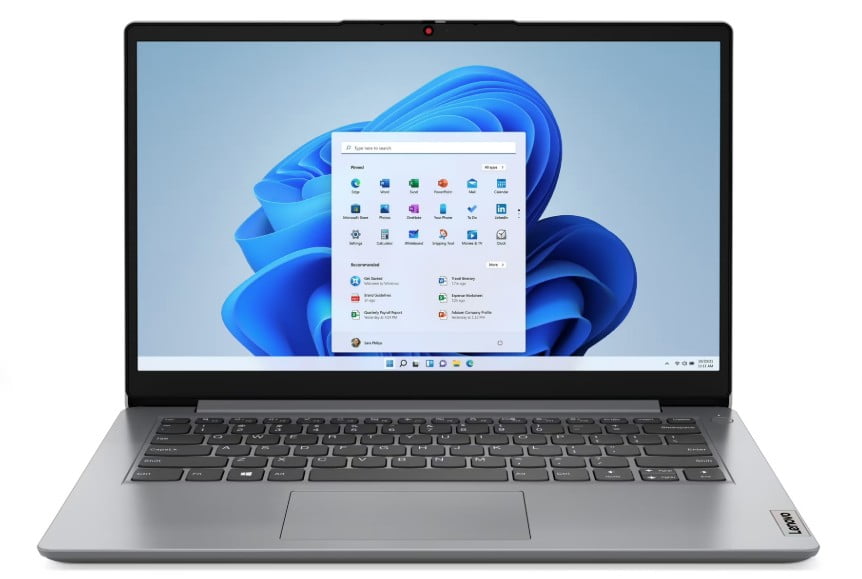


Shop Laptops by Type for Every Need






















About Shop Laptops by Type for Every Need - Walmart.com
Computer cables help you connect your setup with the right fit, speed, and signal for work, gaming, streaming, and everyday tasks. You can compare connector types, cable lengths, and transfer speeds to match your monitor, laptop, desktop, router, or dock.
If you’re replacing a worn cord or building a new desk setup, you’ll want options that match your exact ports. You can also choose computer adapters when your devices use different connection types.
Choosing the right computer cables for your setup
You should start with device compatibility, because the right connector determines whether your screen, network, or accessory works as expected. You can compare HDMI, DisplayPort, Ethernet, USB-C, and VGA by the ports already built into your gear.
When you connect a monitor or TV, you may compare hdmi cables with DisplayPort based on your screen inputs. If you connect older office displays, you may still need VGA for legacy monitors and projectors.
You can also match usb cables and adapters to laptops, hubs, external drives, and charging accessories. If your ports don’t line up, you can use computer adapters to bridge USB-C, USB-A, HDMI, or display connections.
- You can connect monitors, docks, routers, printers, and storage with the cable type your devices require.
- You can reduce desk clutter by choosing the right length instead of coiling extra cable behind your workspace.
- You can support smooth file transfers, display output, and network performance by checking speed ratings before you buy.
- You can keep frequent-use connections in better shape by comparing braided jackets, shielding, and connector finishes.
How to compare computer adapters and cable features
You should measure the distance between devices before you choose a cord length. You can use 3-foot and 6-foot cables for tidy desks, while 10-foot and 15-foot options give you more placement flexibility.
If your router or wall jack sits farther away, you may need 50-foot ethernet cables for a longer run. You should leave a little slack so your cable reaches comfortably without pulling across furniture edges.
You can also compare connector gender when you’re extending or converting a connection. Male-to-male works for many direct connections, while male-to-female and female-to-female options help with extensions and couplers.
For data tasks, you should check transfer ratings like 480 Mbps, 5 Gbps, 10 Gbps, or 40 Gbps. You can use these numbers to match simple peripherals, fast drives, or high-bandwidth docks.
If you’re shopping for network performance, you may compare Cat5e and Cat6 based on your internet equipment and speed goals. You’ll often choose Cat6 when you want stronger support for modern home or office networking.
You should also look at shielding, braided exteriors, and connector construction if your cable gets moved often. You can use gold-plated contact points and reinforced strain relief as signs of a connection built for repeated use.
When hdmi cables, ethernet cables, and usb cables make sense
You can use hdmi cables when you want to connect a laptop, desktop, console, or streaming device to a monitor or TV. If you need a simple video connection, HDMI often fits living rooms, home offices, and shared workstations.
You may prefer DisplayPort when your monitor and computer both support that connection type. If you use a multi-monitor desk or a dedicated PC setup, you can compare DisplayPort options with your display inputs.
When your goal is stable wired internet, you can use ethernet cables between routers, modems, switches, and desktop towers. If your workspace sits away from the router, you can choose a longer cable that fits the room layout.
You can pick USB-C for newer laptops, tablets, docks, and external storage that use one compact port. If your accessory still uses USB-A, you can choose an adapter that connects older devices to newer hardware.
You may need monitor cables for conference rooms, school spaces, or home offices with mixed display types. If your display uses an older port, you can keep a VGA cable or adapter ready for presentations.
For everyday setups, you should match the cable to the task instead of guessing by shape alone. You’ll get a smoother setup when your connector type, length, and speed all fit your actual equipment.
What to look for before you choose
You should confirm your port type, measure your distance, and compare your speed needs before you decide. You can narrow the options quickly when you know whether your setup needs video, data, power, or network support.
With the right computer cables, you can keep your desk connected, your display matched, and your accessories ready without unnecessary trial and error. You’ll feel more confident when each cable fits your devices and your space.