


Tablets for Kids




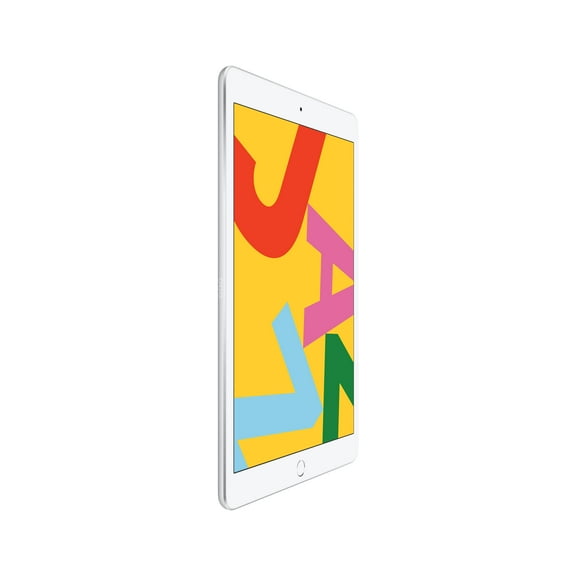


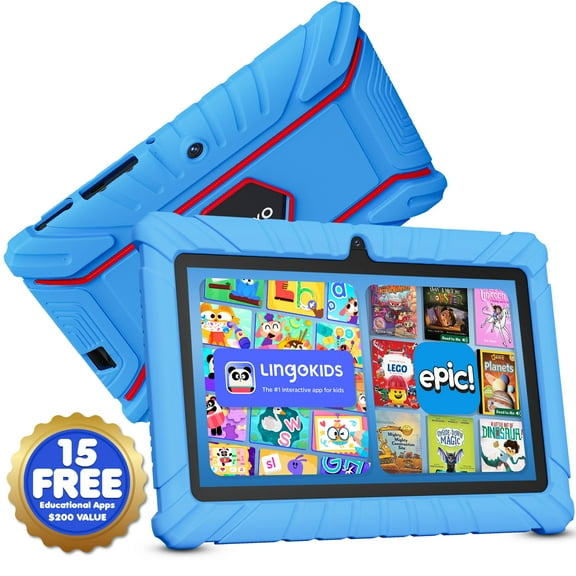


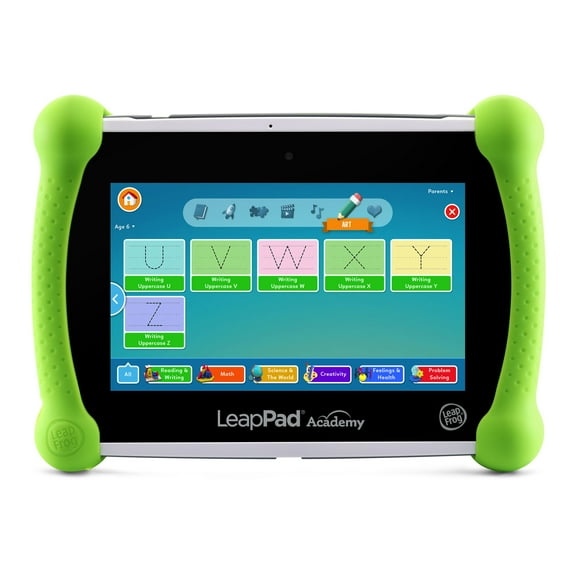


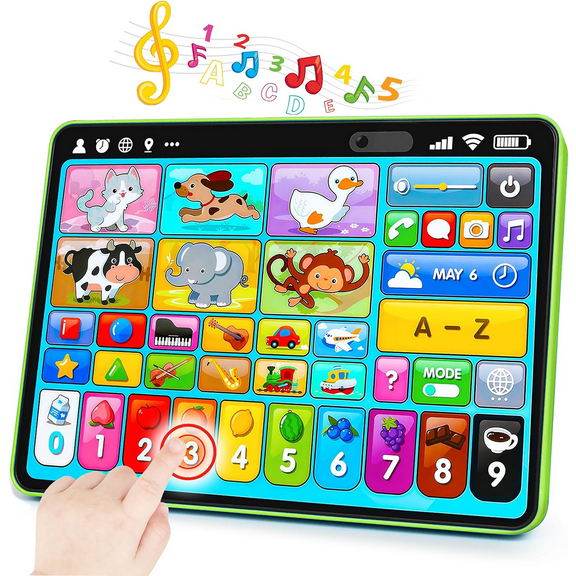




































About Tablets for Kids - Walmart.com
Tablets for kids help you match learning, play, and screen time to your child’s age and routine. You can compare age fit, operating systems, safety tools, and durable designs for everyday family use.
Choosing tablets for kids by age
Age group is one of your first decisions because your child’s skills change quickly. You’ll usually want simpler menus for toddlers and broader app access for older kids.
For toddlers ages one to three, you may prefer educational tablets for toddlers with large icons and guided activities. You can focus on touch-friendly games, songs, and early letter or number practice.
Preschoolers ages three to five often need room to grow without complex setup. You can compare learning tablets with reading activities, tracing games, and short video options.
School-age kids ages six to nine may use tablets for reading practice, homework support, and travel entertainment. You can look for fast processing, expanded storage, and kid-friendly profiles.
Tweens ages 10 and up often need flexible features and broad content choices. You may compare app selection, camera quality, and account settings that still keep your rules in place.
Key differences in kids learning tablets
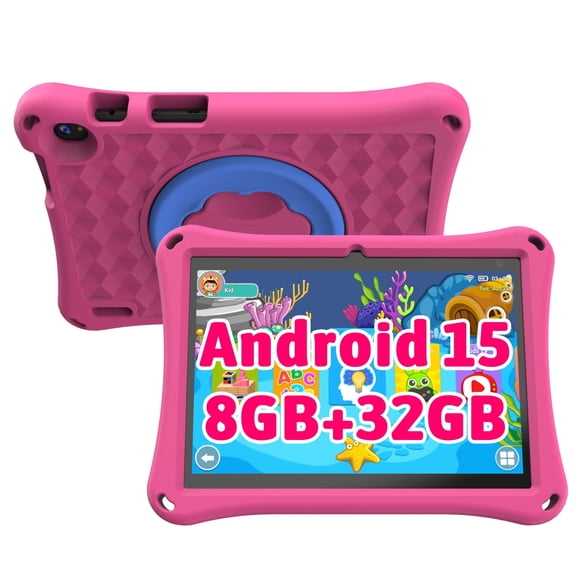
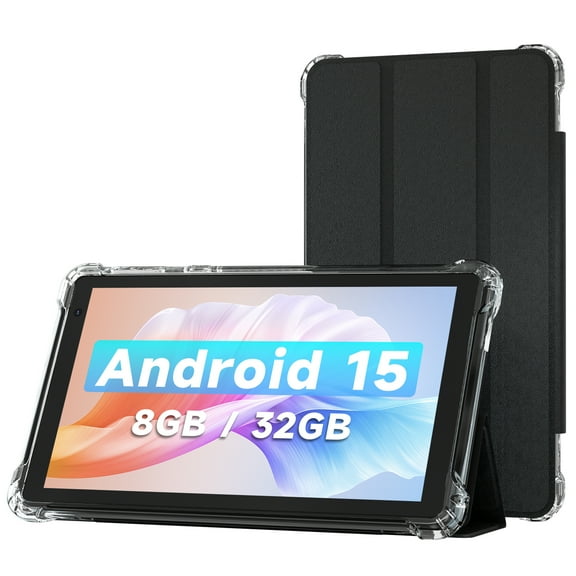
Operating system affects what you can download, how you manage settings, and how long your child can grow with one device. You should compare Android, Fire OS, and proprietary learning systems before choosing.
Android tablets for kids can give you wide app access and familiar account tools. You may like them if your child uses streaming apps, reading apps, or drawing programs.
Fire OS can give you a curated kid experience with straightforward family settings. You can often manage profiles, screen limits, and content choices without a long setup process.
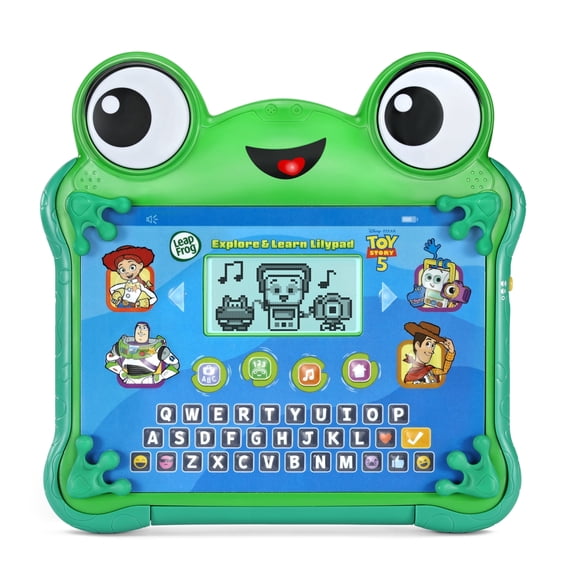
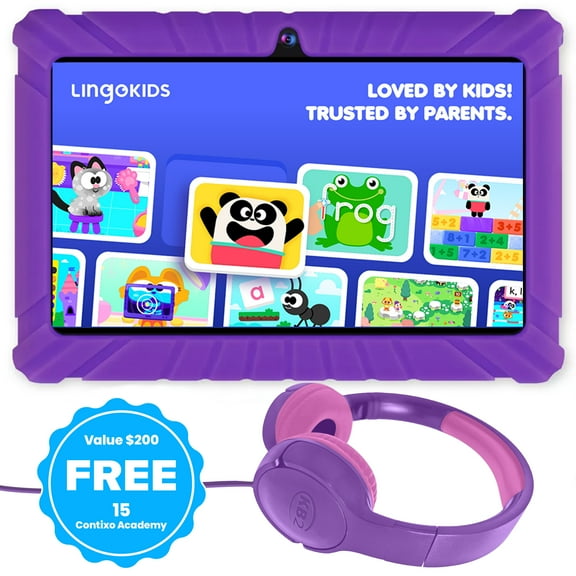
Proprietary learning systems can work well when you want a more guided environment. You may prefer them if your child focuses on letters, phonics, counting, and simple educational games.
- You can match the interface to your child’s age and attention span.
- You can compare free learning games with subscription content libraries.
- You can choose broader app access or a more guided experience.
- You can pick a device that fits reading, streaming, or drawing.
Choosing safety features and durability
Safety features shape how much control you keep over daily use. You should compare parental controls, time limits, and content filters before you choose a kids tablet with parental controls.
Parental controls can help you approve downloads, review activity, and manage profiles from your own device. You may want remote access if your child switches between home use and travel use.
Time limits matter when you want screen routines to stay predictable. You can check whether the tablet lets you set weekday rules, bedtime cutoffs, or app-specific limits.
Content filters help you guide what your child sees without constant checking. You should compare age filters, browser restrictions, and purchase approval settings.
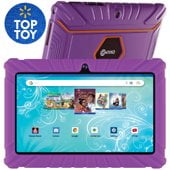
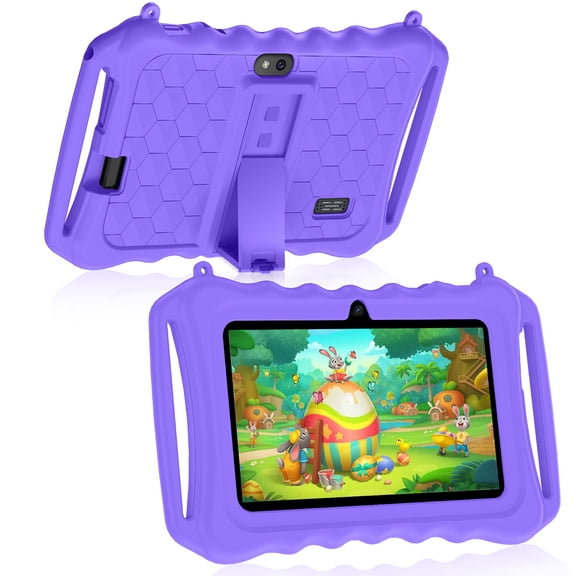
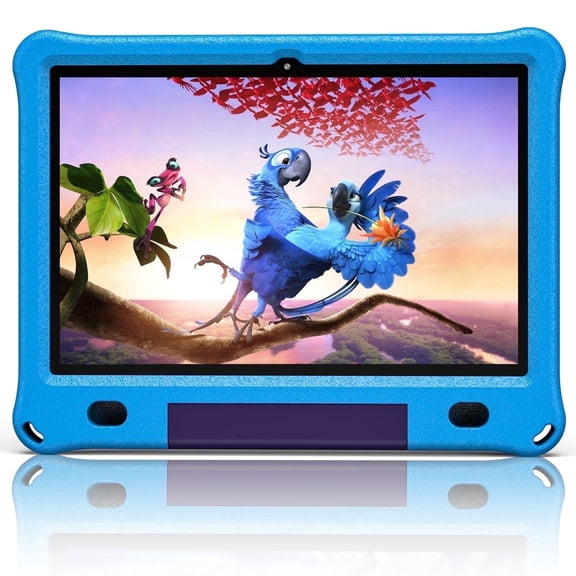
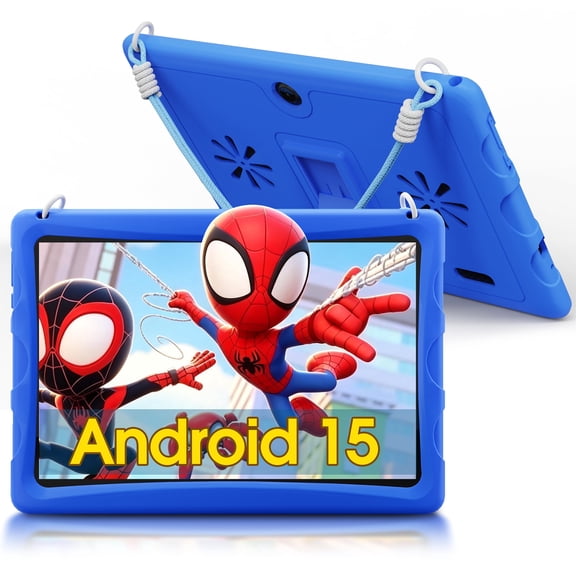
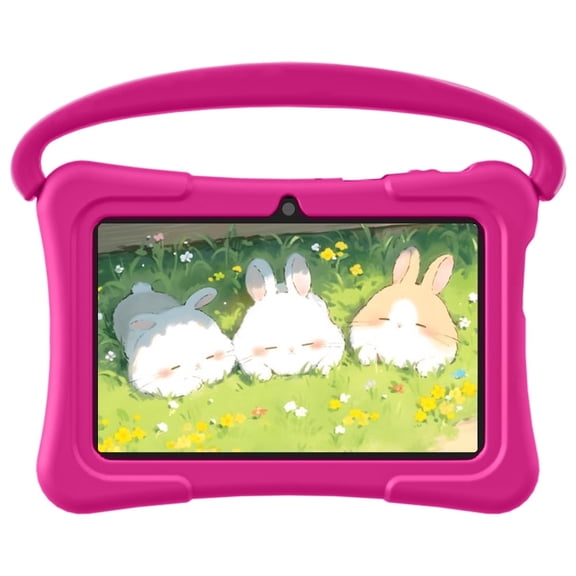
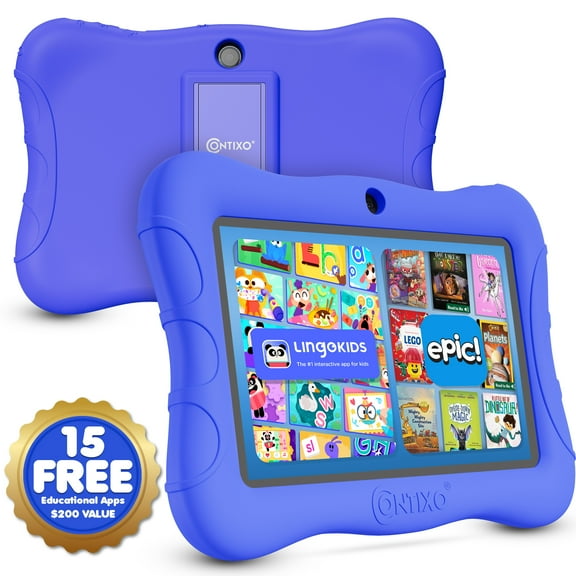
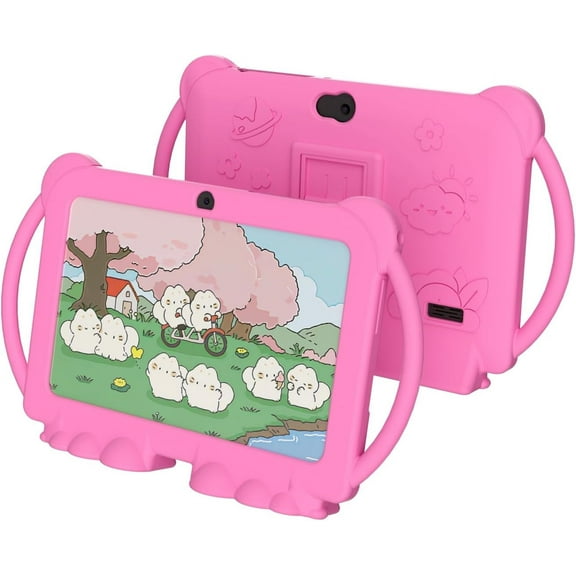
Durability matters because your kids carry tablets from couches to car seats to kitchen tables. You can look for bumper case thickness, reinforced corners, and gorilla glass for extra screen protection.
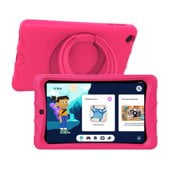
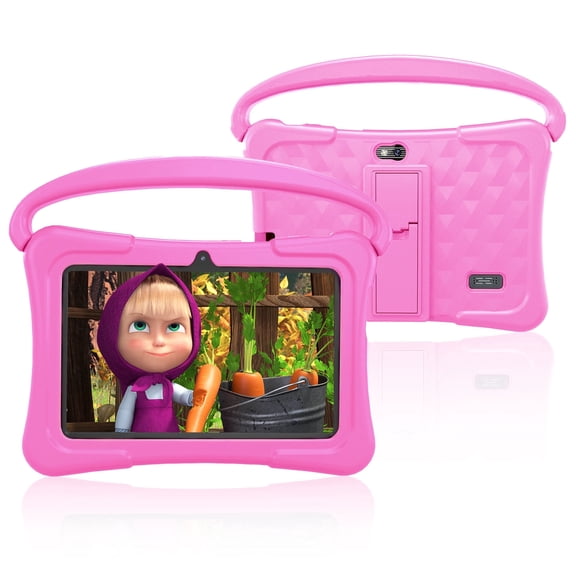
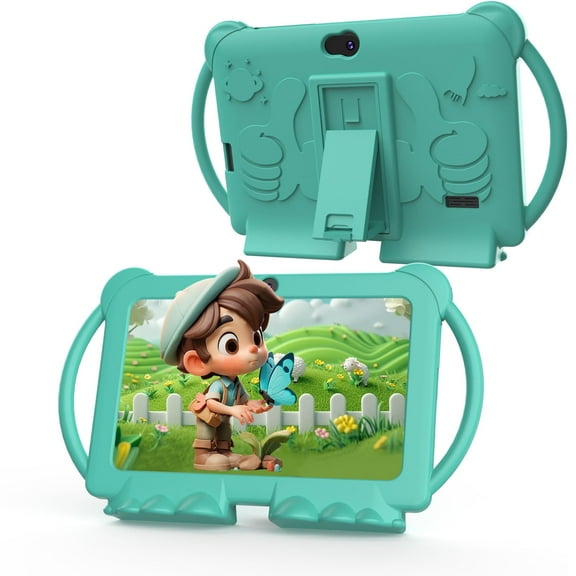
A thick bumper case can help your child grip the tablet securely during games or videos. You may also want raised edges that keep the screen from touching flat surfaces.
Gorilla glass is a decision-critical detail because it usually means a durable display surface. You can use that spec to compare tablets that face frequent taps, swipes, and backpack storage.
Matching features to everyday use
Your child’s main activities can narrow the field quickly. You should compare educational games, video streaming, reading, and drawing before choosing toddler tablets or school-ready options.
For educational games, you may want responsive touch controls and age-based content libraries. You can also compare whether lessons come pre-loaded or through downloadable apps.
For video streaming, you should look for enough storage, clear speakers, and dependable battery life. You may also want a stand-friendly case for hands-free viewing in the car.
Battery life changes how useful your tablet feels during errands, flights, and long drives. You should compare active video playback hours so you know how long streaming or lessons may last.
If you travel often, you may want a tablet that handles several hours of video without frequent charging. You can also check charging type and cable compatibility for convenient daily use.
For reading, you can compare screen size, brightness controls, and text-friendly layouts. You may prefer a tablet that supports library apps, ebooks, and adjustable fonts.
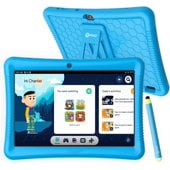
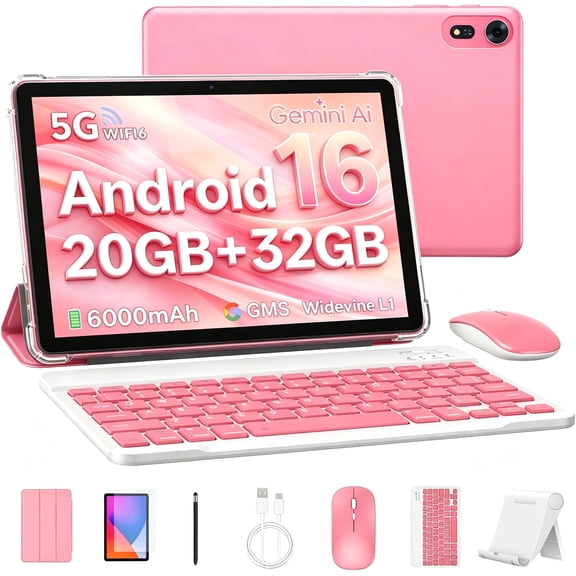
For drawing, you should check stylus support, palm-friendly screens, and app compatibility. You can choose a setup that gives your child room for sketching, coloring, and creative play.
Pre-loaded content can help you start quickly without extra setup on day one. App store access can give you more flexibility if your child’s interests change over time.
Some kids learning tablets include subscription libraries, while others lean on free learning games and standard apps. You should compare ongoing access, renewal terms, and how easily you can add new content.
When you compare tablets for kids with age fit, operating system, use case, and safety tools in mind, your choice becomes clearer. You can feel confident picking a device that supports learning, play, and smoother screen-time routines.