

Microsoft Surface Tablet












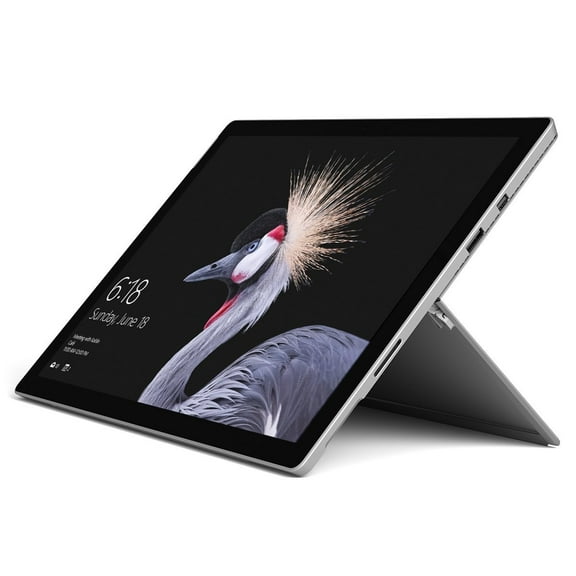
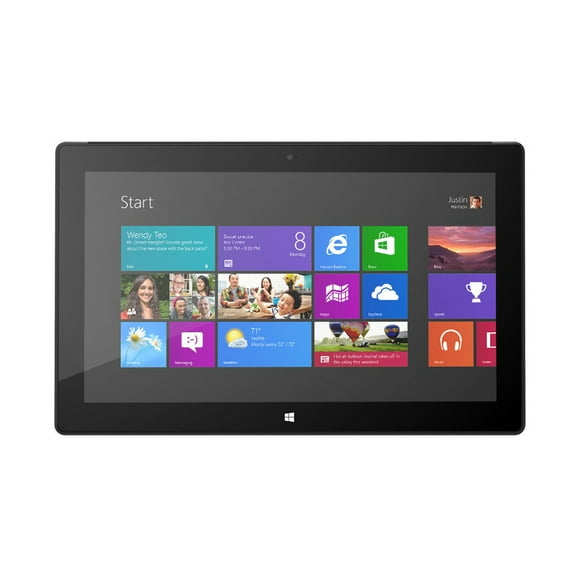
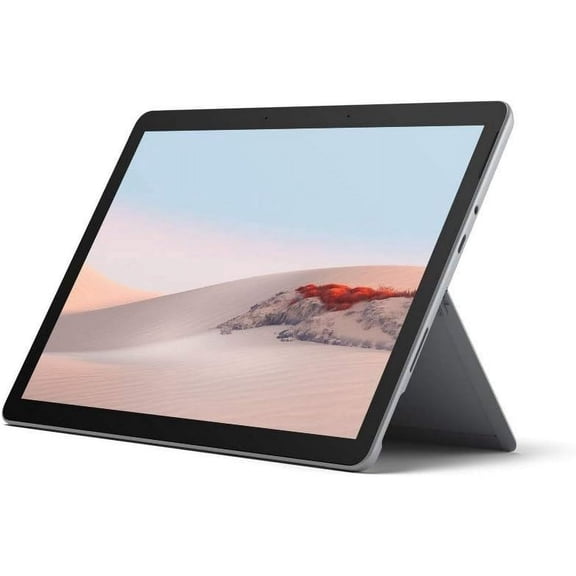
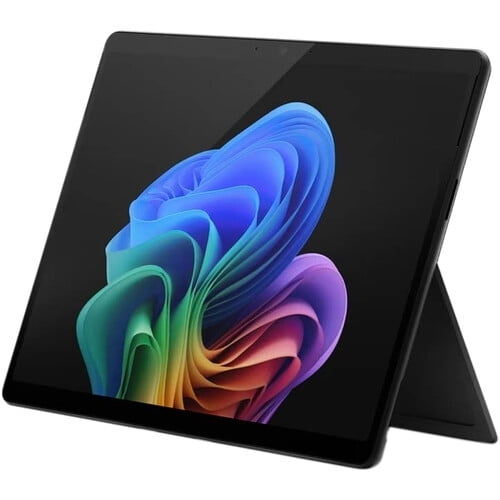


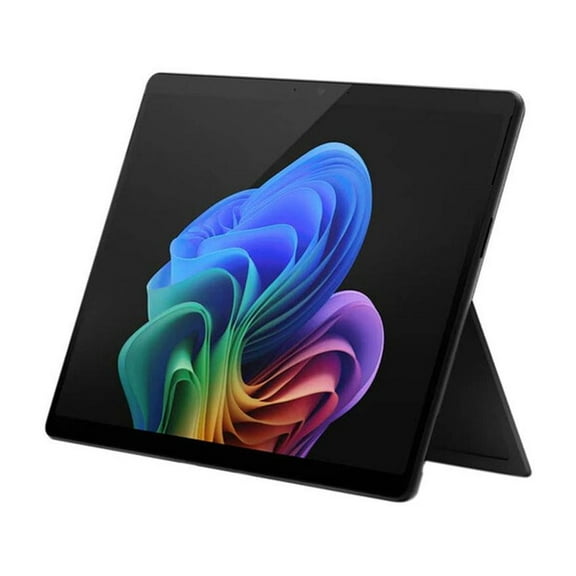

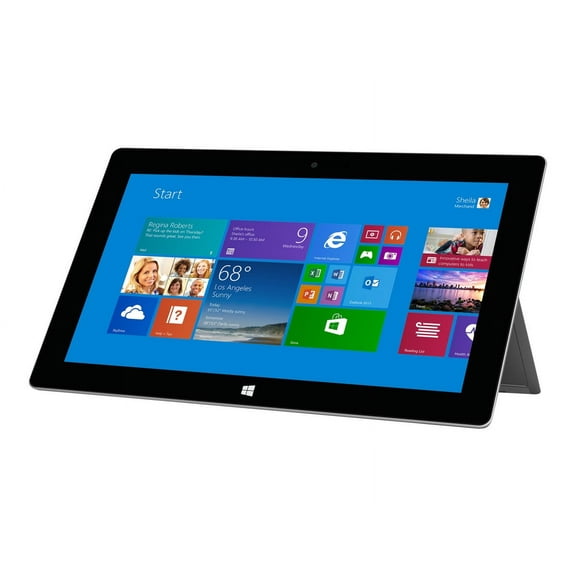
About Microsoft Surface Tablet - Walmart.com
Surface tablets bring laptop-style productivity into a portable format for work, school, and travel. This category centers on Windows compatibility, detachable flexibility, and model choices that fit different routines.
When you're comparing this device type, focus on model family, form factor, performance, and accessory support. Surface devices stand out for you because they run familiar desktop programs and pair with keyboard and pen accessories.
How to choose surface tablets by model family
Start with model family because each option fits a different routine. Surface Pro choices often support multitasking, while Surface Go styles fit lighter everyday tasks.
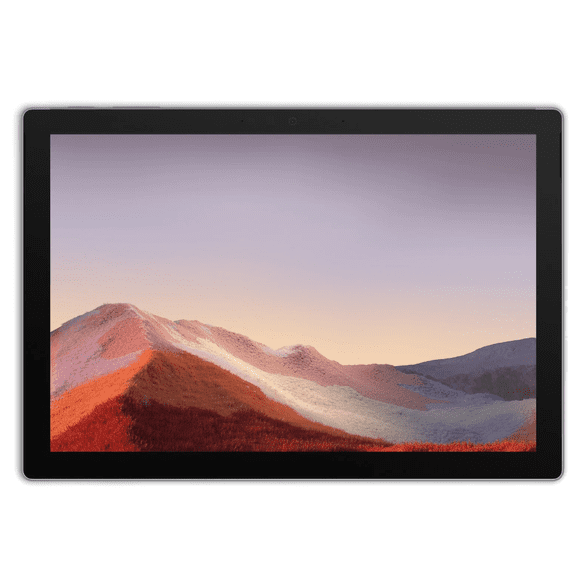
A Microsoft Surface Pro tablet often appeals to you if you want a tablet that can step into laptop duties. A smaller Microsoft tablet can feel easier to carry between classes, meetings, and flights.
Compare these category-specific benefits when narrowing your options. They help explain why this category differs from standard media-first tablets.
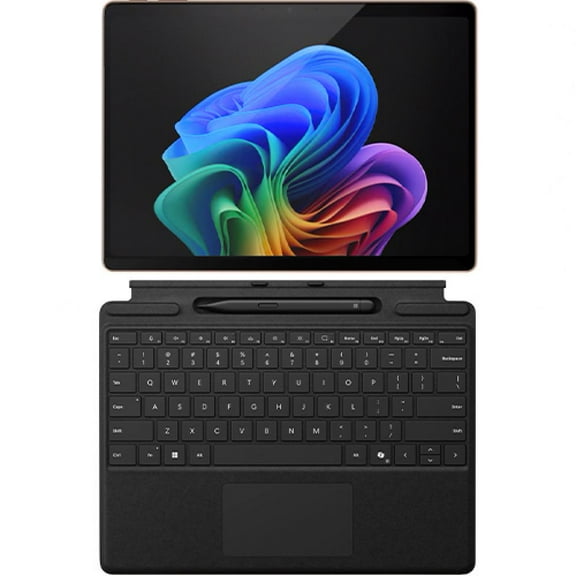
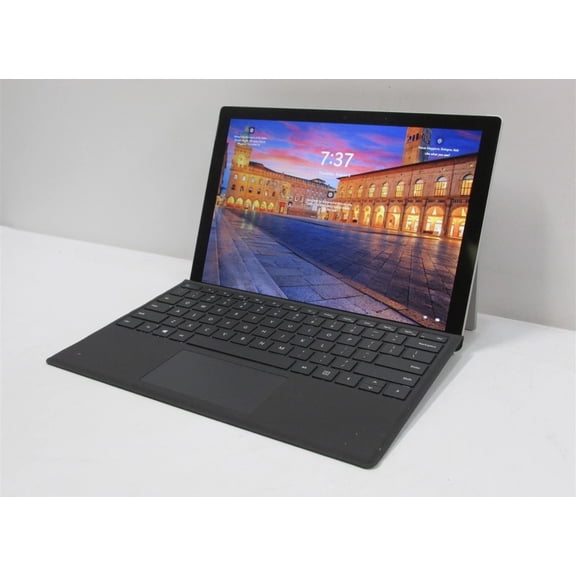
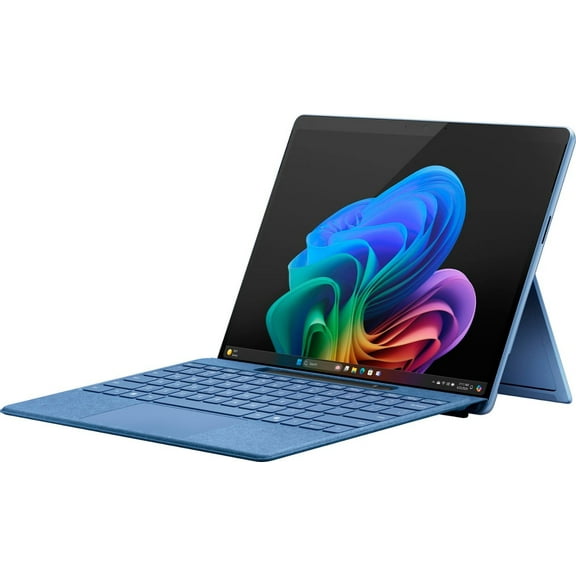
- Detachable designs let you switch between touch use and keyboard-based typing.
- Windows support keeps file management, desktop browsing, and app access familiar.
- Compact tablet PC designs travel easily in backpacks, totes, and carry-ons.
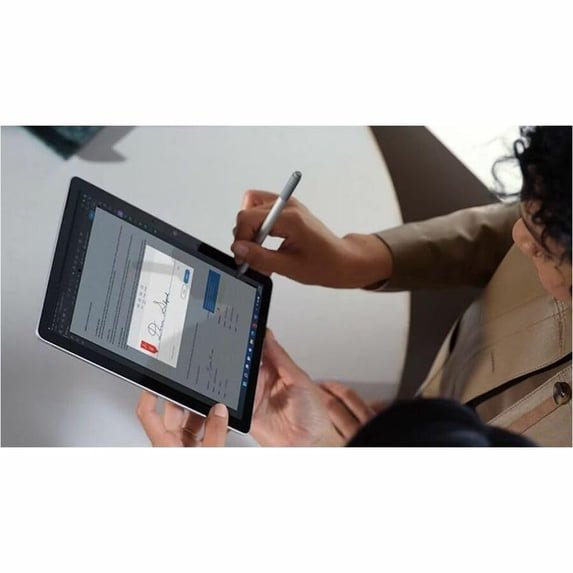
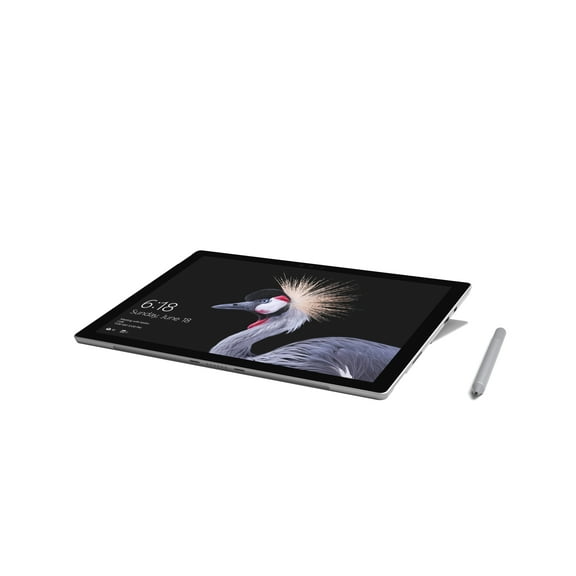
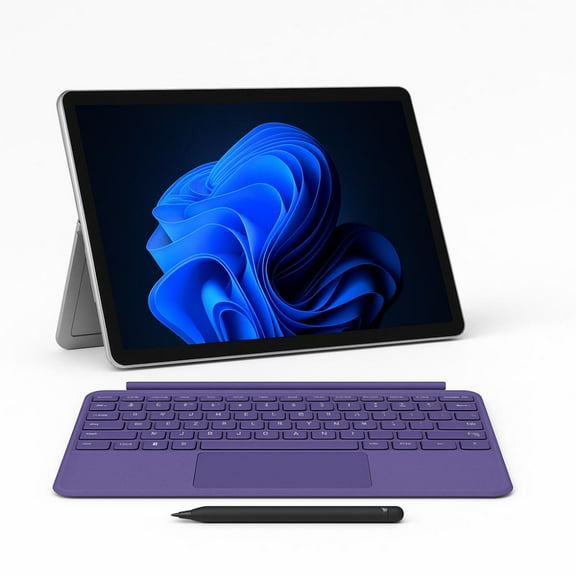
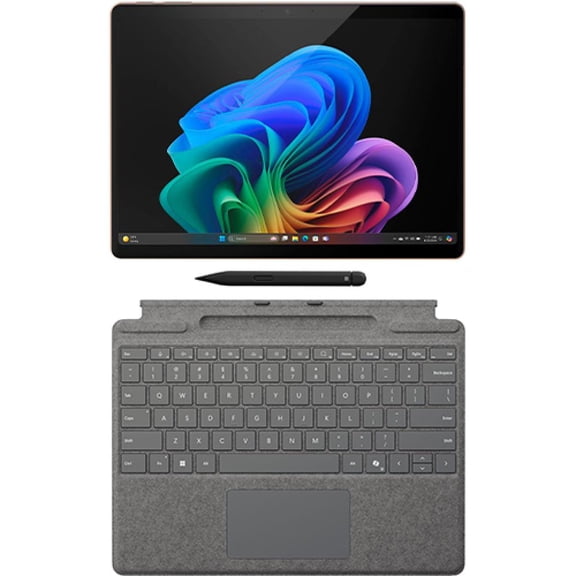
- Accessory compatibility helps you build a setup for writing, drawing, or desk work.
Look for a balance between portability and daily workload. A lighter unit may suit streaming and note-taking, while a larger one may fit longer writing sessions.
Choosing Windows Surface tablets by compatibility
Windows Surface tablets are often chosen for software compatibility and workflow continuity. They fit shoppers who want a touch device that still works within the Microsoft ecosystem.
Check whether your routine depends on desktop-style browsing, document editing, spreadsheets, or presentation work. That compatibility can shape whether a Surface tablet feels like a casual screen or a true productivity tool.
Operating system support matters because it changes how you handle files, external displays, and everyday tasks. Compare login methods, cloud storage access, and support for familiar productivity software.
Some shoppers move between a tablet and a larger monitor during the day. Others want one device for classroom notes, video calls, and evening streaming.
Consider how often you use a keyboard, mouse, dock, or stylus. Surface categories are especially relevant when accessory pairing is part of your purchase decision.
What to look for in form factor and performance
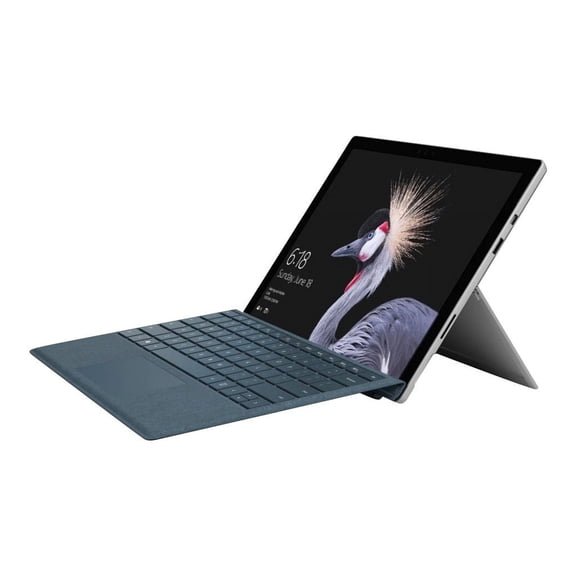
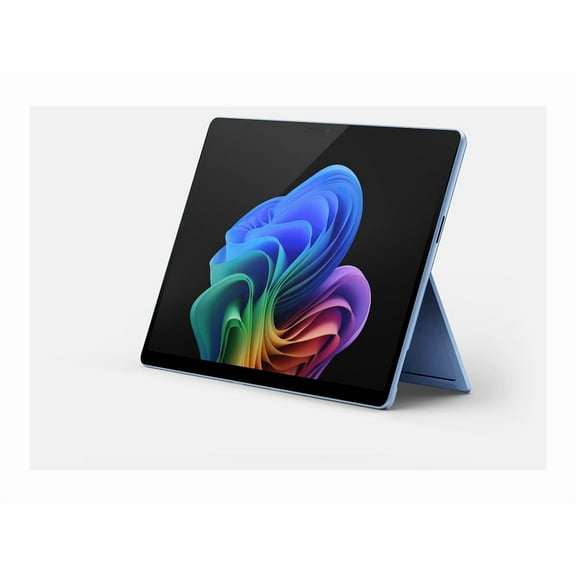
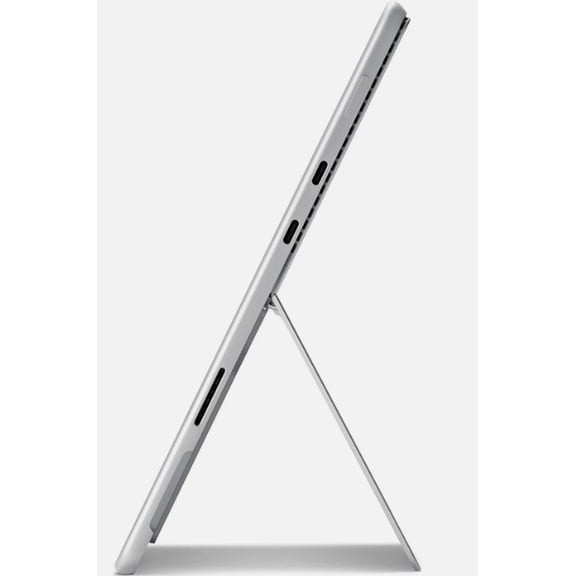
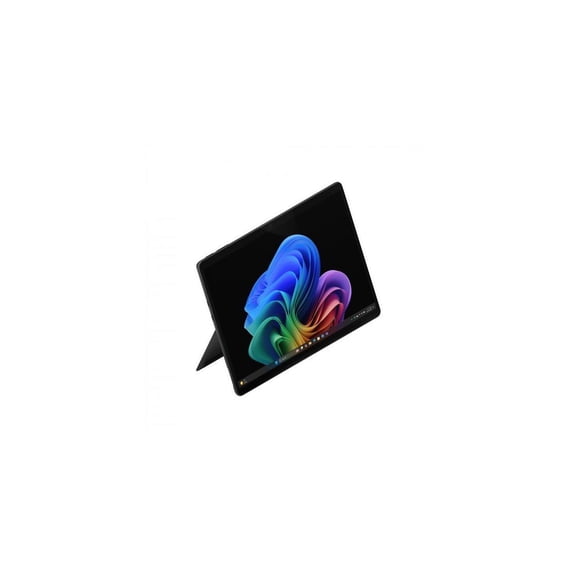
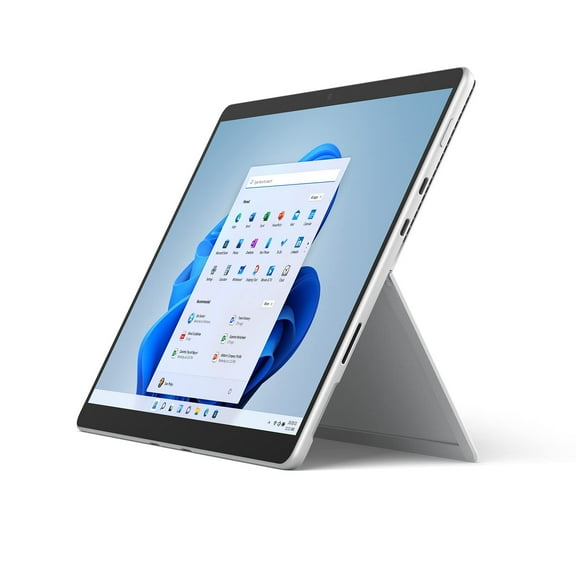
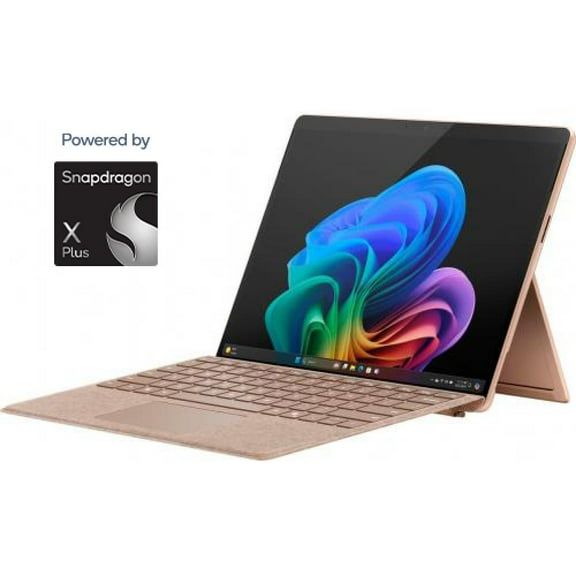
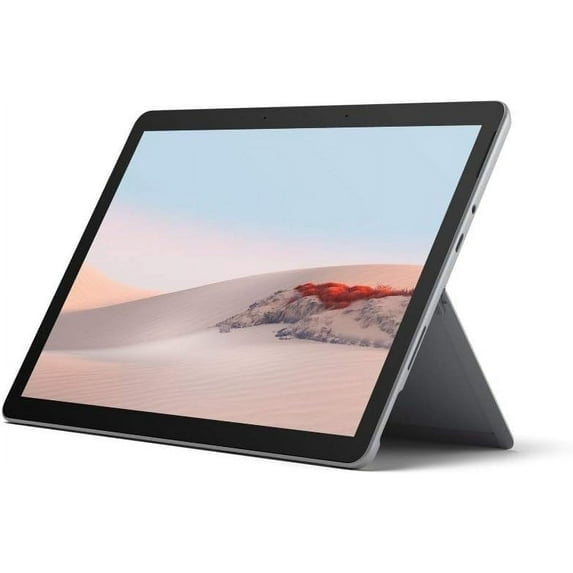
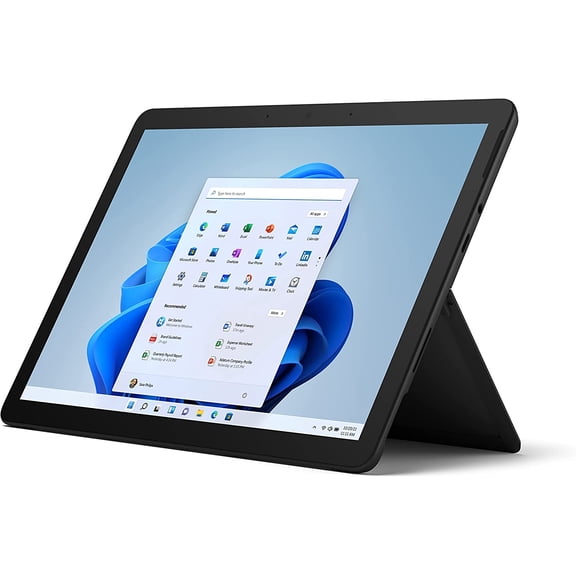
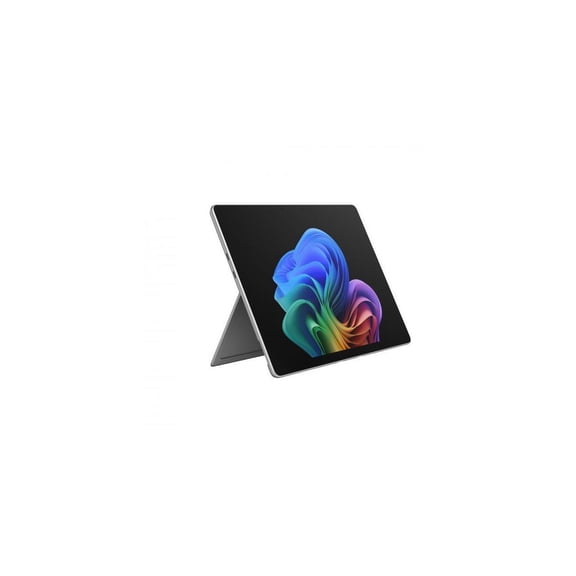
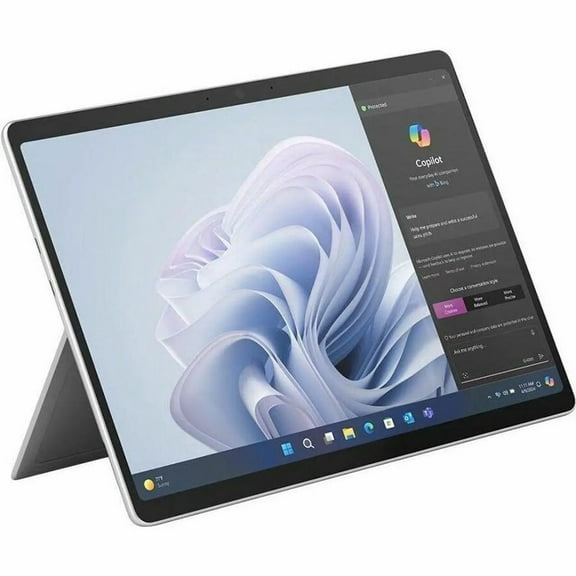
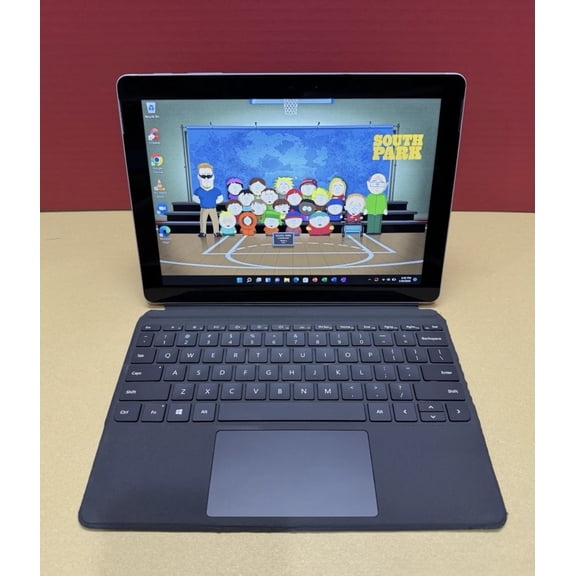
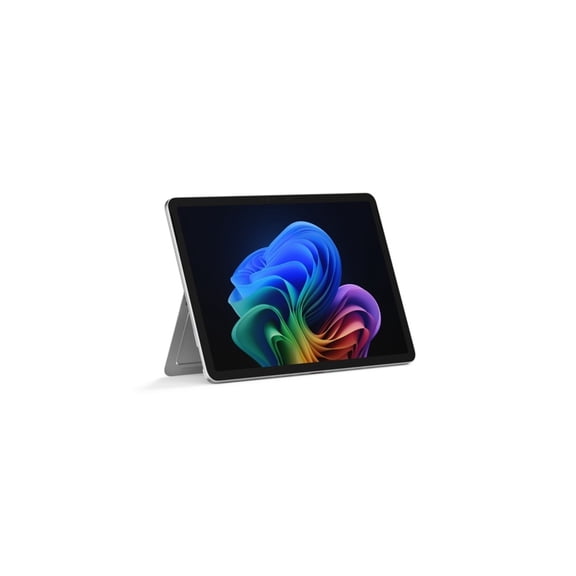
Form factor changes how the device feels in real use. A Surface tablet PC can work as a handheld screen, a kickstand device, or a detachable two-in-one.
Measure where you'll use it most before comparing specs. On a tray table or small desk, a compact footprint can matter as much as processor speed.
Performance and storage are practical filters, not just spec lines. Light productivity may need modest memory, while multitasking usually benefits from higher memory and storage.
Compare screen size with your daily tasks and viewing habits. Smaller displays feel easier to carry, while larger displays can support split-screen work and longer reading sessions.
Storage also affects how much room you have for files, downloads, and apps. If you keep presentations, schoolwork, or media offline, check capacity before deciding.
You'll also notice entry-level, mid-range, and higher performance tiers across this category. Those differences usually connect directly to memory, storage, and multitasking expectations.
Matching use cases to the right Surface tablet
Use case is often the fastest way to narrow Surface tablets. Work, school, travel, streaming, and note-taking each favor different combinations of size and performance.
For work, consider a model with room for multitasking, desktop-style apps, and a keyboard setup. That combination supports presentations, email, documents, and video meetings.
For school, many shoppers compare lighter builds with enough storage for assignments and class materials. Pen support and detachable typing can matter during lectures and study sessions.
For travel, look for a compact design that packs easily and handles entertainment during downtime. A smaller screen can be easier to manage in airports, cars, and hotel rooms.
For streaming, compare display size, kickstand usability, and storage for downloaded content. For note-taking, check accessory compatibility and the overall writing setup.
If you want one device for mixed routines, compare a Surface tablet against a Windows tablet with similar dimensions and memory. The right fit depends on how often you switch between touch and typing.
How accessories complete the setup
Accessories can change how a device fits your day. Keyboards, pens, docks, and cases often matter as much as screen size.
Consider whether you need desk productivity, handwritten notes, or easier travel protection. Those needs can help narrow which Microsoft Surface tablet configuration makes sense for your setup.
A well-matched choice supports touch use, desktop tasks, and portable productivity in one device. That mix gives you a flexible setup that handles more of your daily routine.