

Desktop Components in Desktop Computers








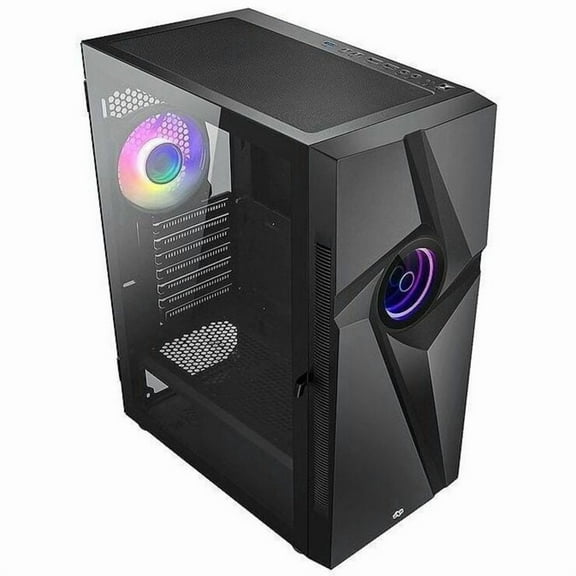
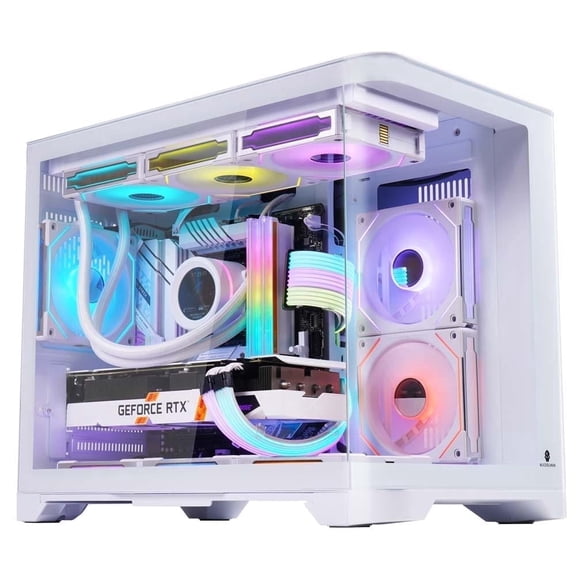


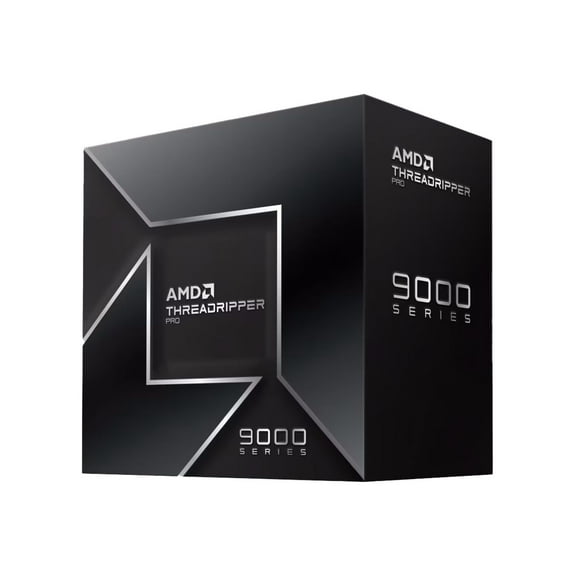
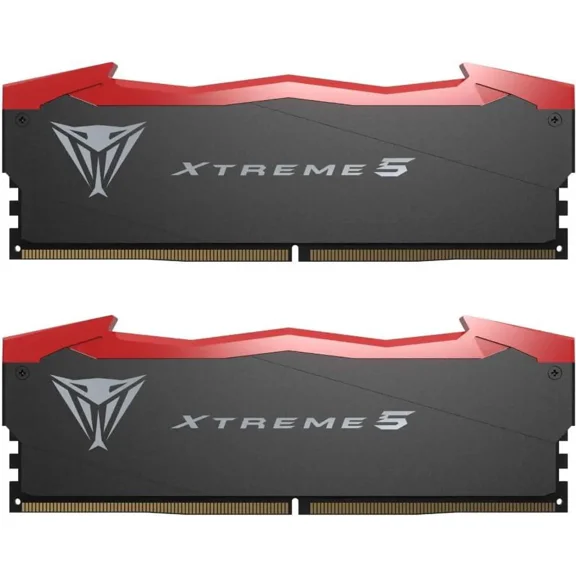










About Desktop Components in Desktop Computers - Walmart.com
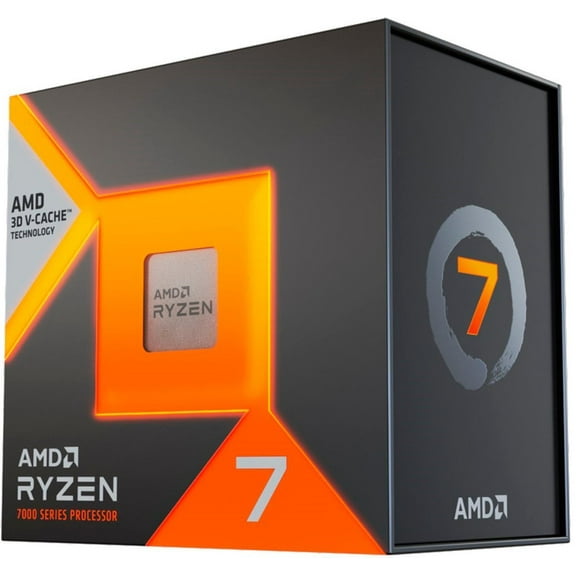
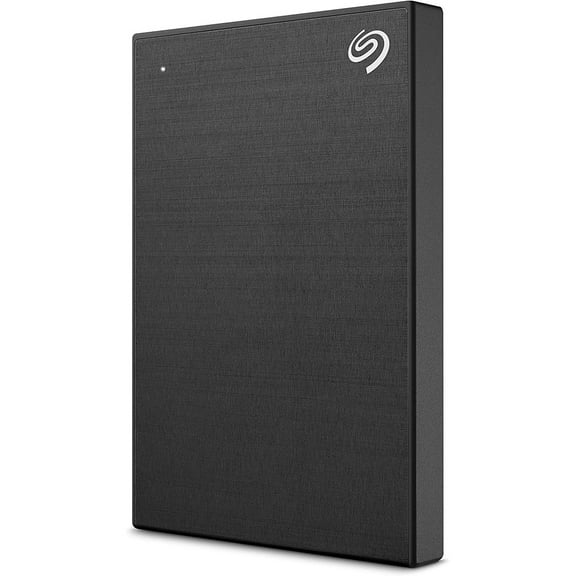
Desktop components help you build, upgrade, and fine-tune your PC with the exact hardware your setup needs. You can compare core parts like CPUs, GPUs, motherboards, RAM, SSDs, and power supplies in one place.
If you're planning a first build or refreshing an older tower, you need parts that match your goals and your existing hardware. You can use this category to sort through compatibility, form factor, and performance choices without losing sight of practical needs.
How to choose desktop components for your build
You should start with the component type that drives your project, because each part affects the rest of your build. You may need a CPU for processing tasks, a GPU for graphics output, or a motherboard that connects everything correctly.
Your RAM affects multitasking speed, while your SSD shapes boot times, file access, and game loading. Your power supply supports the whole system, so you should match its wattage to the parts you plan to run.
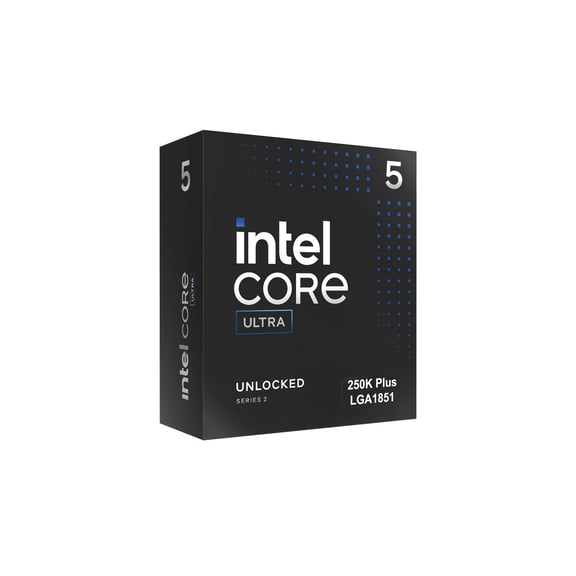
- You can choose a CPU based on socket support and your everyday workload.
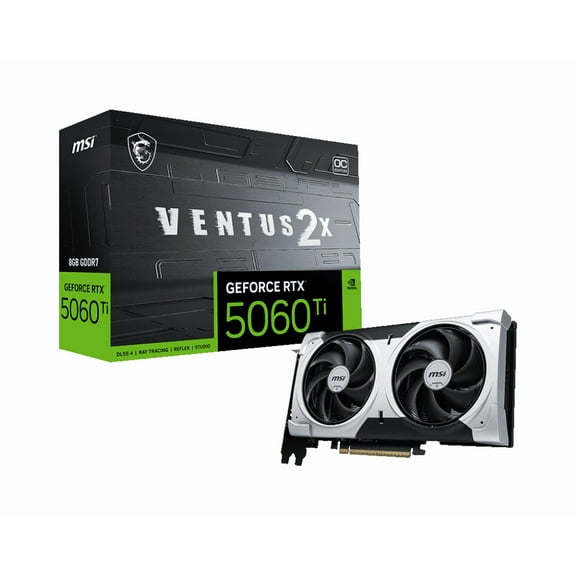
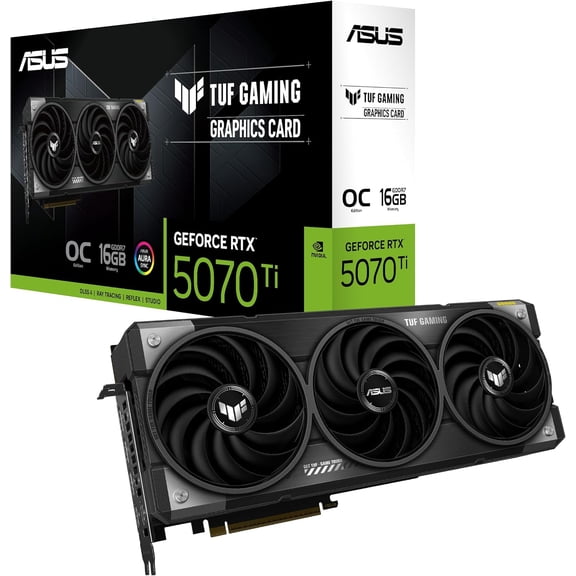
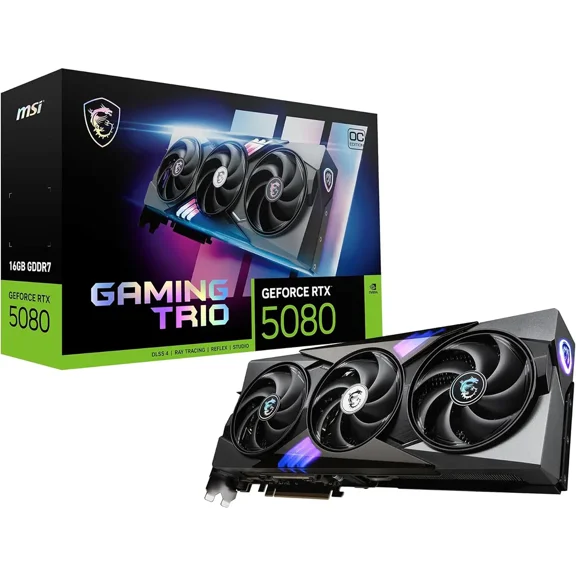
- You can choose a GPU based on gaming resolution, creative apps, and case clearance.
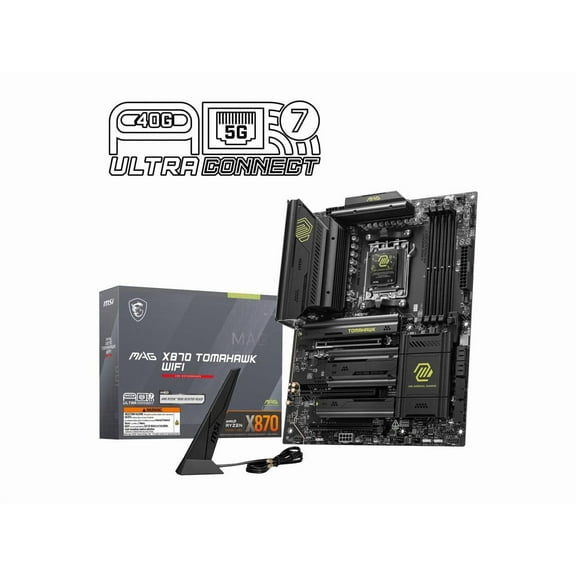
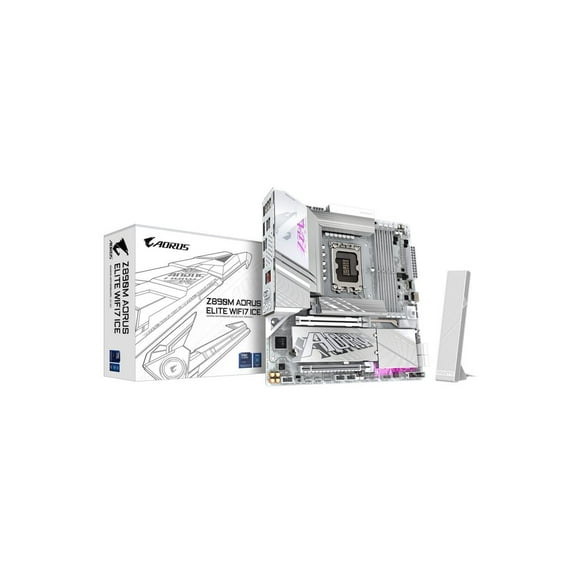
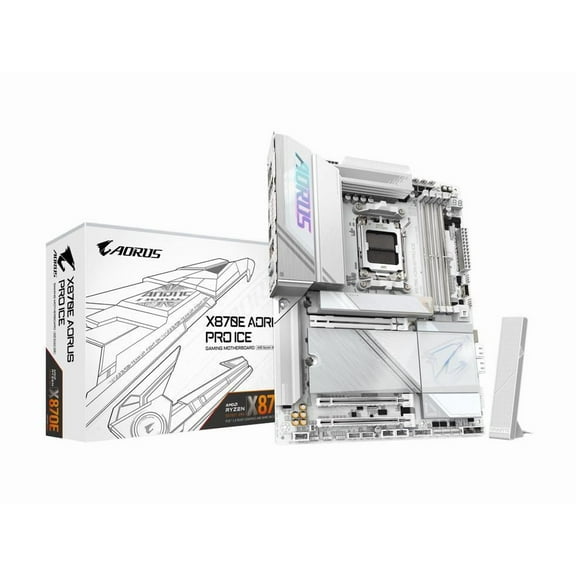
- You can choose a motherboard based on chipset, RAM generation, and expansion needs.
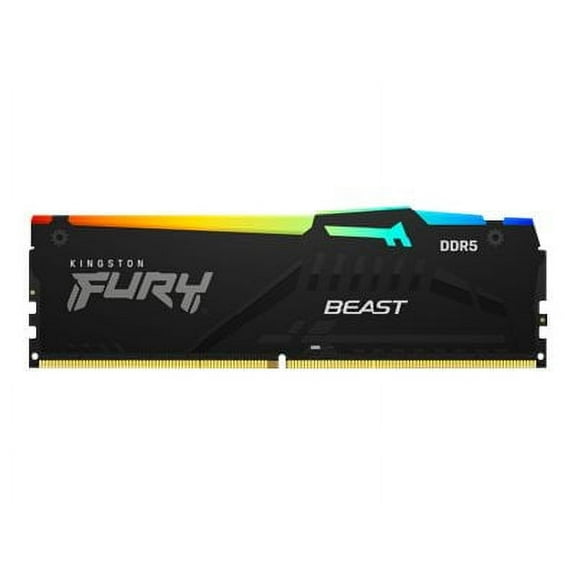
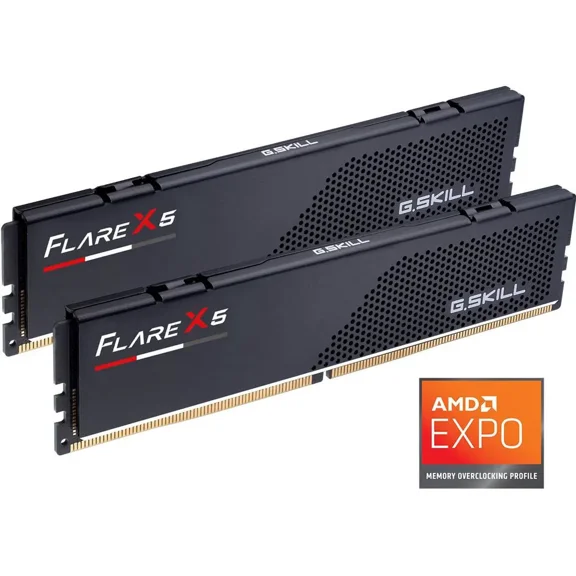
- You can choose RAM based on capacity, speed, and whether your board supports DDR5.
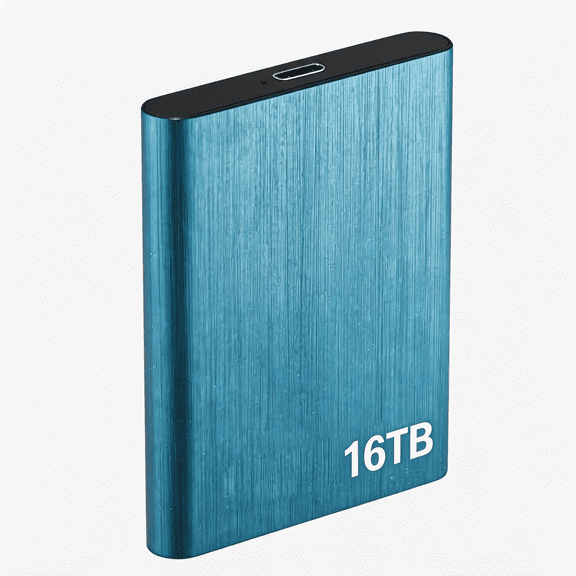
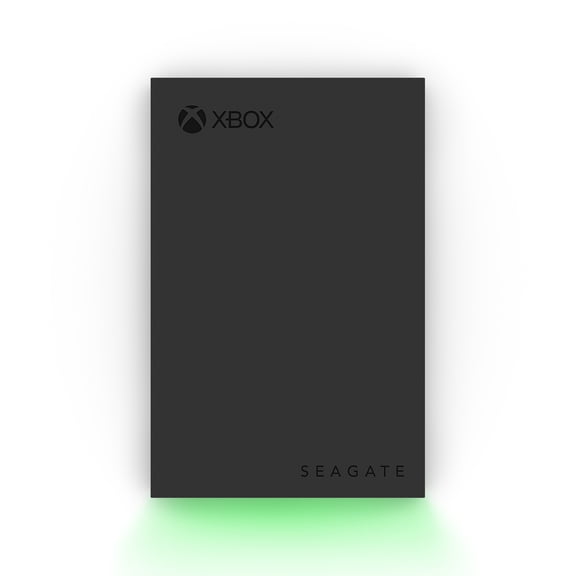
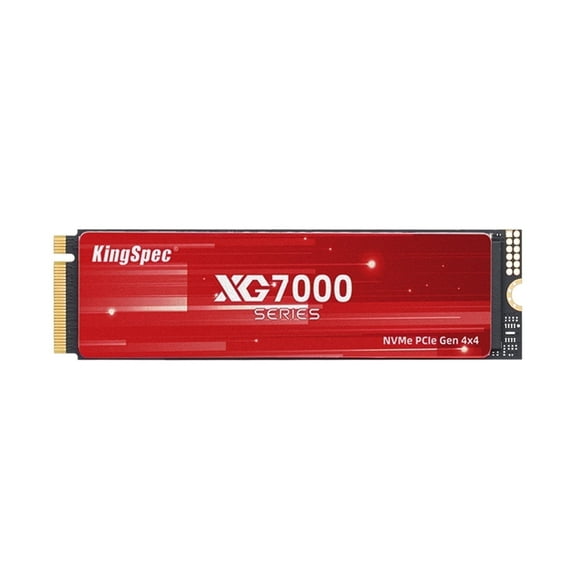
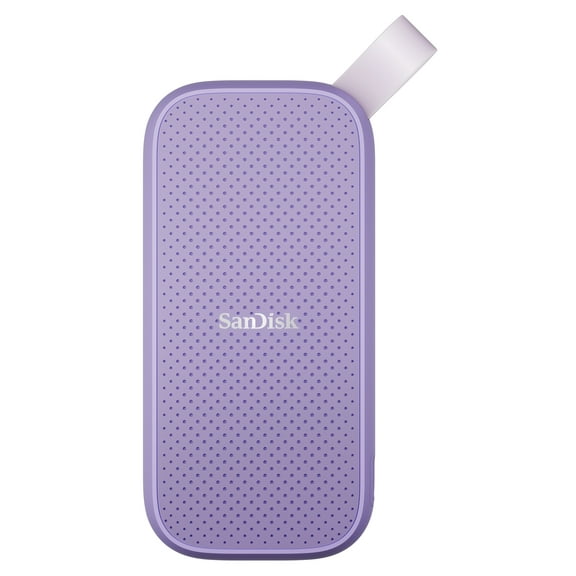
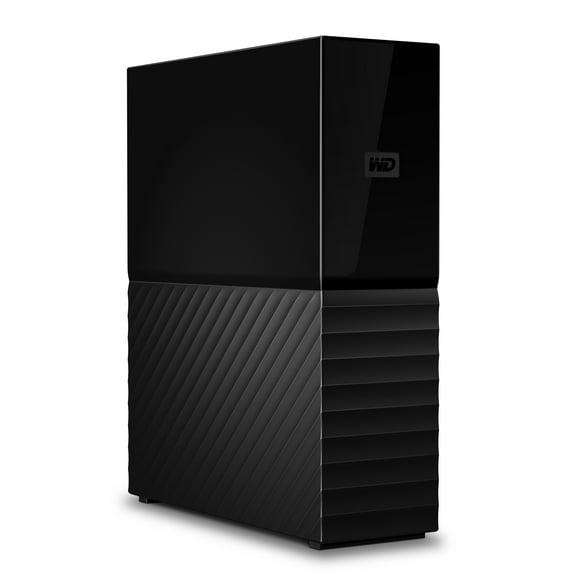
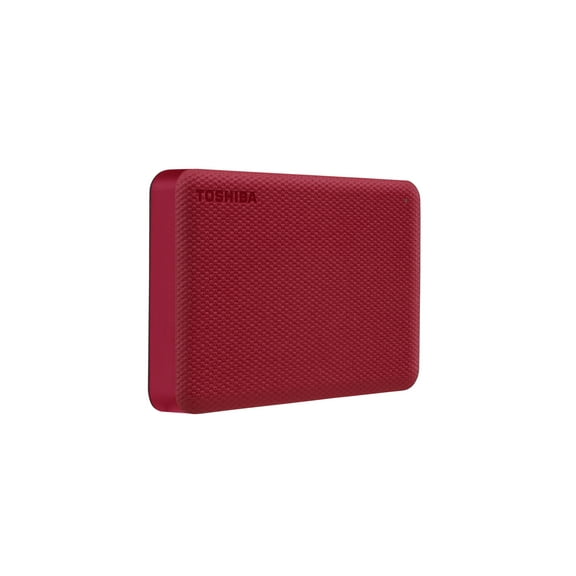
- You can choose an SSD based on storage size and PCIe generation support.
- You can choose a power supply based on total wattage and connector compatibility.
When you compare computer parts this way, you can avoid mismatched upgrades and wasted effort. You also get a clearer path for future changes, especially if you plan to swap in faster desktop hardware later.
Choosing compatibility across PC components
You should check socket and platform details first, because your processor and motherboard must work together. If you choose Intel LGA1700 or AMD AM5, you need a board built for that exact socket.
You should also confirm memory support before you buy, since your board determines whether you can use DDR5. If your motherboard supports a newer RAM generation, you can plan for stronger multitasking and easier long-term upgrades.
PCIe support matters when you want faster storage or newer graphics cards in your system. If your board and SSD both support PCIe 4.0, you can expect quicker data access for large files and game installs.
Your power planning deserves equal attention, especially when you add a graphics card with higher power demands. You should compare total wattage needs and connector types so your power supply fits your build plan.
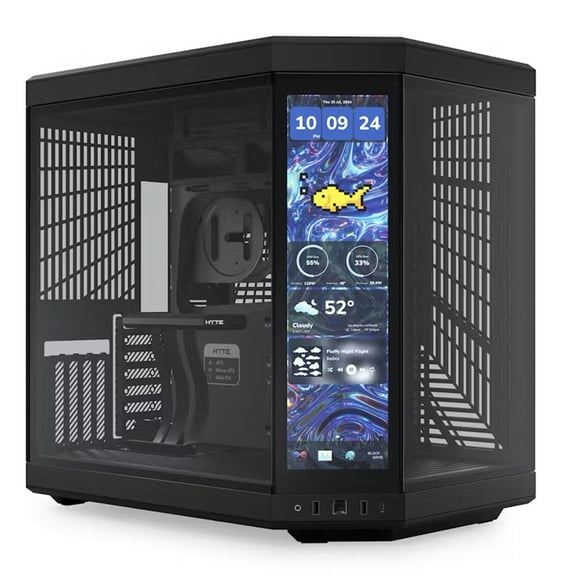
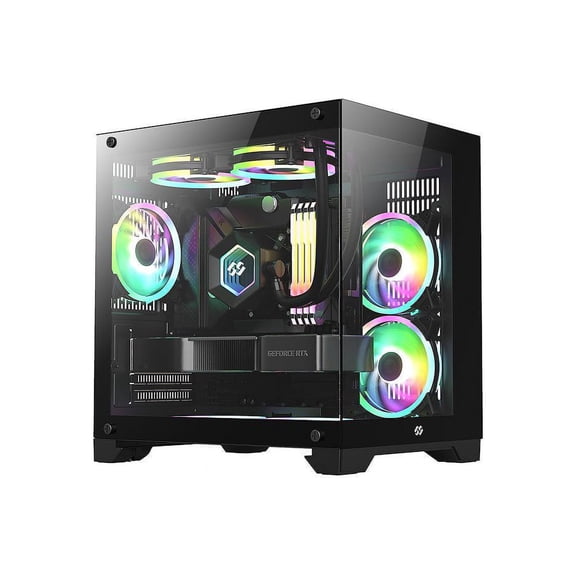
Physical fit matters just as much as electrical fit in desktop PC parts. You should measure GPU length, CPU cooler height, and motherboard size so your case can accommodate each component cleanly.
What to look for in computer parts by form factor
You can narrow computer components faster when you understand how form factor shapes your build. ATX gives you more slots and headers, while Micro-ATX and Mini-ITX help you fit a smaller case.
If you want more expansion room, you may prefer ATX for extra PCIe slots, storage options, and fan headers. If you want a compact desktop, you may lean toward Mini-ITX and plan around tighter internal clearance.
You should compare motherboard size with your case dimensions before you choose other PC building parts. That check helps you avoid conflicts with long graphics cards, tall air coolers, and front-mounted radiators.
Your cable layout and airflow can also change with case size and board layout. If you build in a smaller chassis, you should pay closer attention to power supply dimensions and cooler compatibility.
Matching desktop components to performance goals
You should align your parts with the way you actually use your desktop, not just headline specs. Entry-level builds can support web tasks, schoolwork, and everyday computing without unnecessary complexity.
If you want smooth gaming and responsive multitasking, you may target a mid-range gaming setup. That usually means balancing your CPU, GPU, RAM capacity, and SSD speed instead of overspending on one area.
High-end workstation builds serve heavier creative workloads, larger files, and demanding multitasking sessions. You should look for stronger processors, more memory headroom, and power supplies that support sustained hardware loads.
Your display plans can guide your graphics choice in plain terms. If you play at 1080p, you may need different desktop components than you would for 1440p gaming or content creation.
You should also think about upgrade timing before you buy your first part. If you want room to expand later, you may choose a motherboard and power supply with extra capacity now.
Using desktop hardware for upgrades and new builds
You can use desktop hardware differently depending on whether you're replacing one weak part or assembling a full system. An upgrade path works well when your case, motherboard, and power setup still match your next component.
If your desktop feels slow when launching programs, you may start with RAM or an SSD. If your games struggle with visual settings, you may focus first on a graphics card that fits your case.
For a fresh build, you should plan the whole part list before you buy anything. That approach helps you match socket type, RAM generation, storage support, and wattage from the start.
You can also use these decisions to support specific setups, like a small-form-factor PC, a mainstream gaming tower, or a content workstation. Each path calls for different tradeoffs in cooling room, expansion slots, and power capacity.
When you compare desktop components with compatibility, clearance, and workload in mind, you can build with more confidence. You end up with computer parts that fit together cleanly and support the performance you actually want.
Popular in Desktop Components in Desktop Computers - Walmart.com
- Desktops 3 GHz Up Computers Tablets
- Desktops Windows 8 Pro Computers Tablets
- Desktops Windows Vista Computers Tablets
- Desktop Browser
- Desktops Intel HD Graphics Computers Tablets
- Desktop Screening
- Desktops 64 GB Above Computers Tablets
- Computer Setup
- Desktop Duo
- Mini Computers Renewed Desktop
- Windows 10 Mini Pc
- Windows Desktop Gadgets