




Computer Monitors for Gaming and Work



















About Computer Monitors for Gaming and Work - Walmart.com
Computer monitors help you build a sharper, more comfortable workspace for work, gaming, and streaming. You can compare screen size, resolution, refresh rate, panel type, and screen shape to match your desk and daily routine.
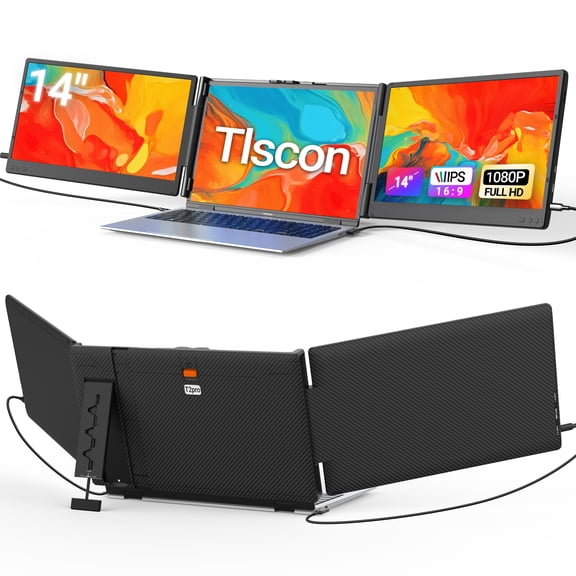
If you're replacing an older display, you may notice how much easier clear text and wider screens feel. You can also find setups that support dual screens, compact desks, and laptop connections without guesswork.
How to choose computer monitors
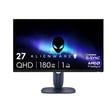
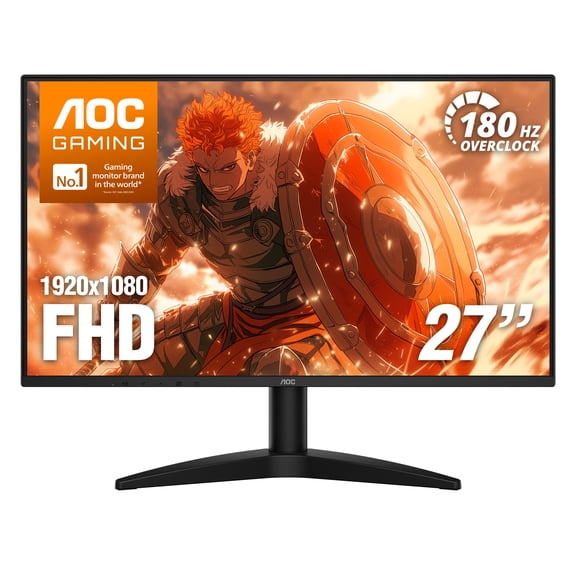
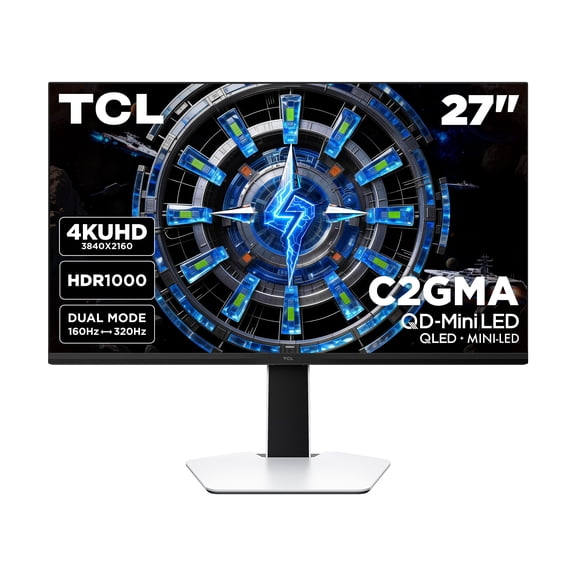
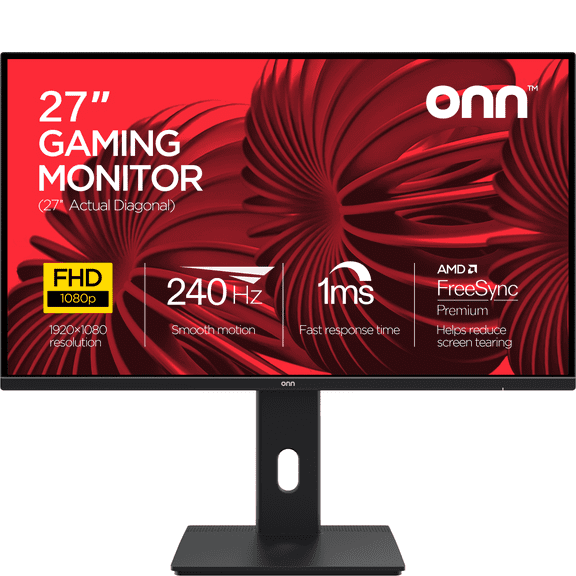
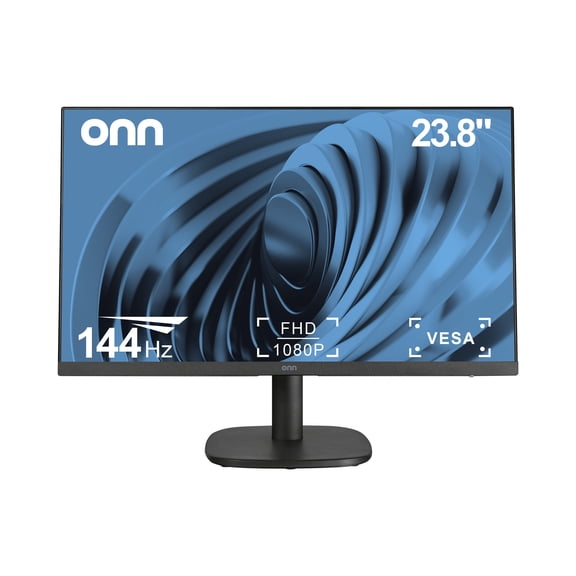
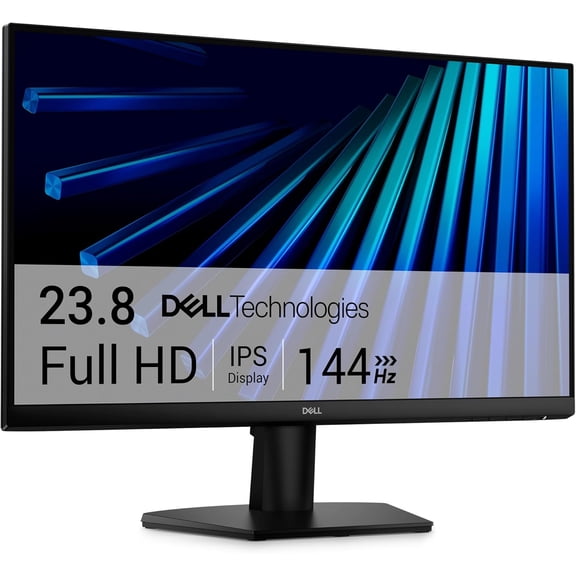
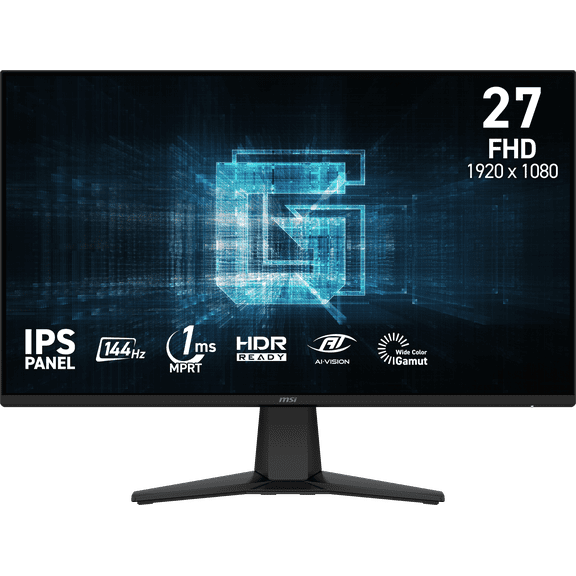
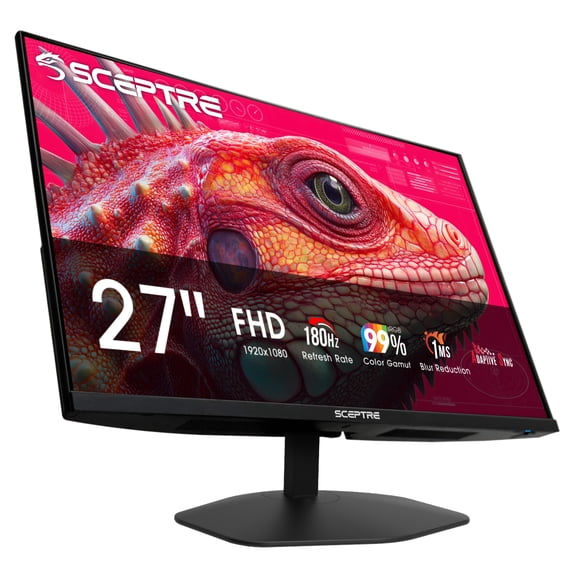
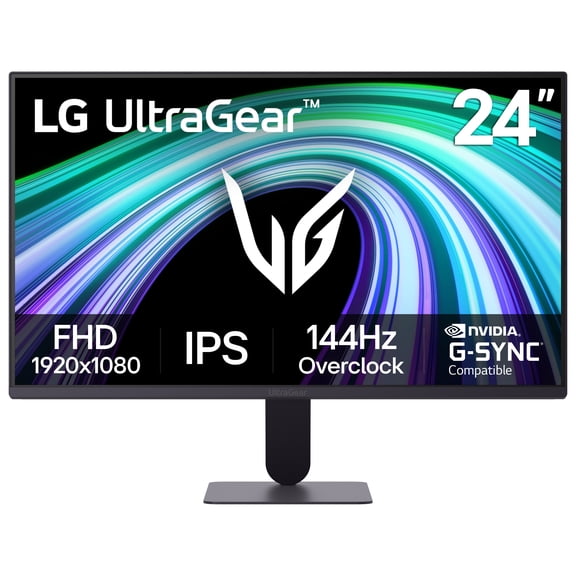
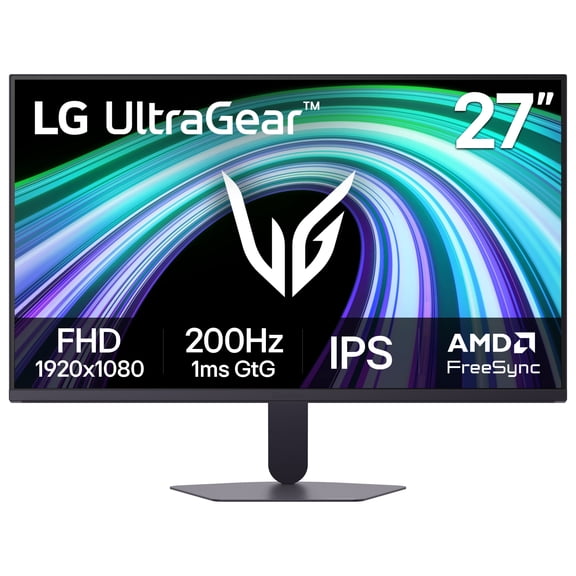
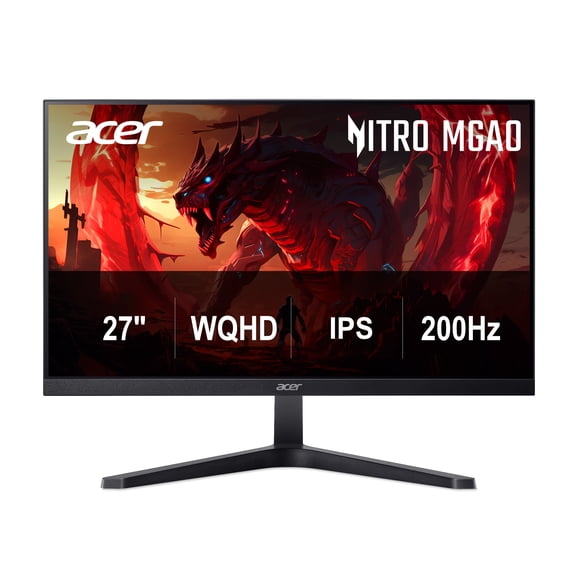
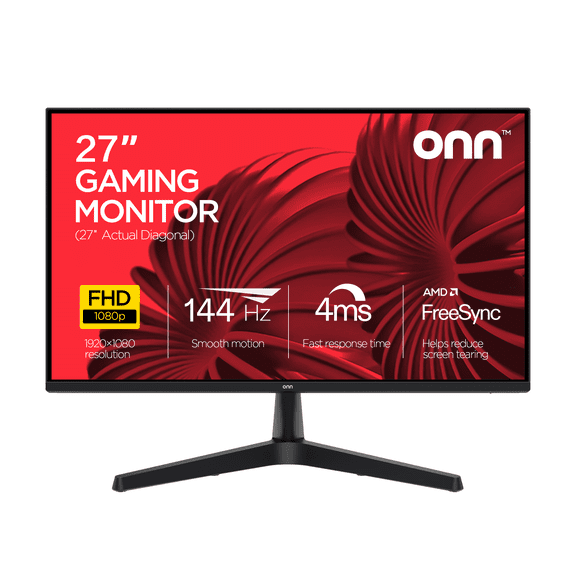
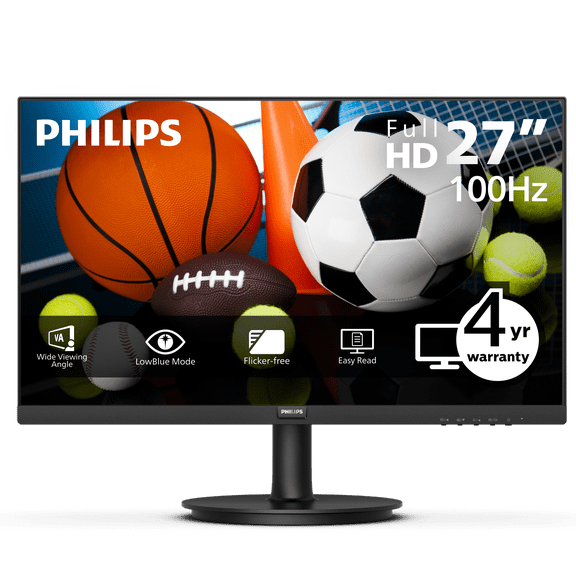
Start with screen size because your desk depth changes how comfortable your view feels. You may prefer a 24 inch screen for tight spaces, while a 27 inch monitor gives you more room for documents.
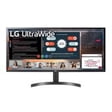
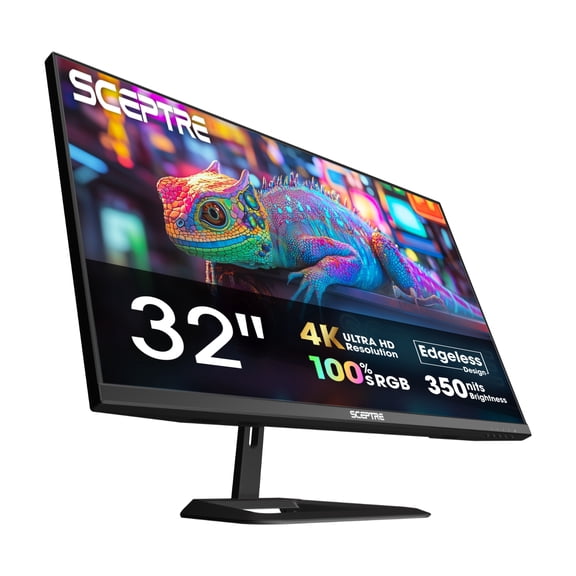
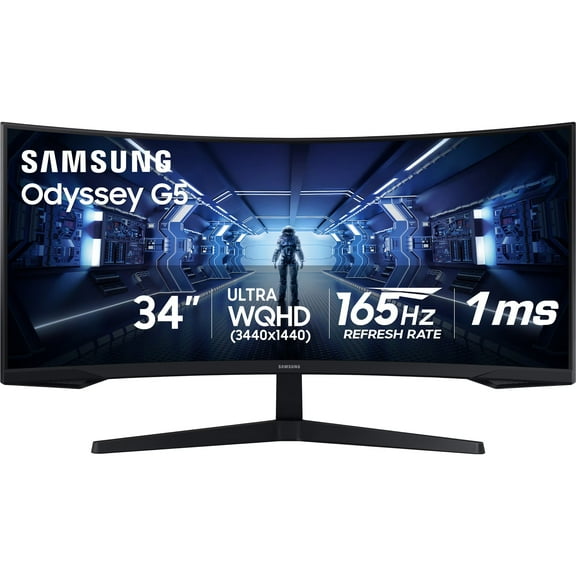
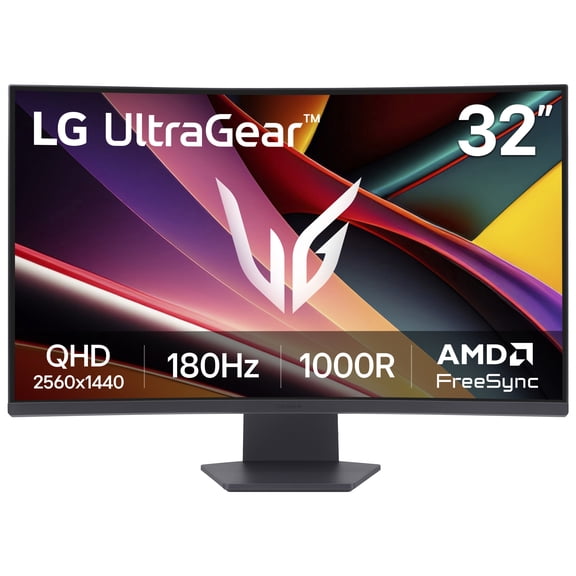
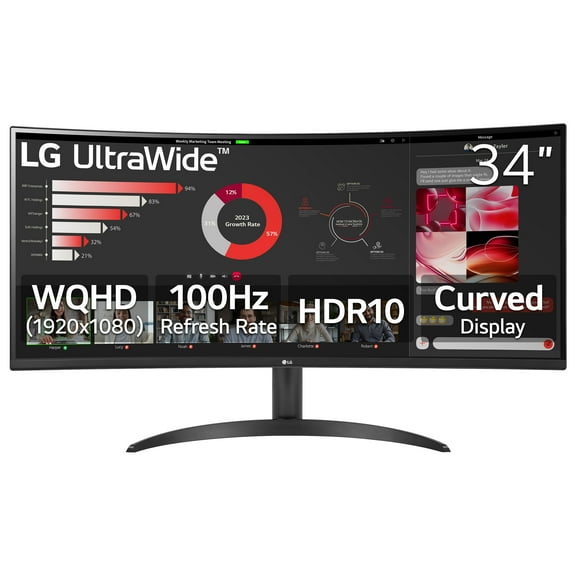
If your setup has extra width, you can consider a 32 inch display for immersive viewing. You might also choose a 34 inch ultrawide when you want one screen for timelines, spreadsheets, or side-by-side windows.
Next, compare resolution because sharper detail affects text, photos, and video. You can choose 1080p Full HD for everyday tasks, 1440p QHD for extra detail, or 4K UHD for crisp creative work.
- You can pick 24 inch or 27 inch screens when your desk space is limited.
- You can choose 1440p or 4K when your work depends on sharper detail.
- You can compare 60Hz, 144Hz, and 240Hz based on office use or fast gameplay.
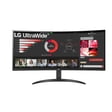
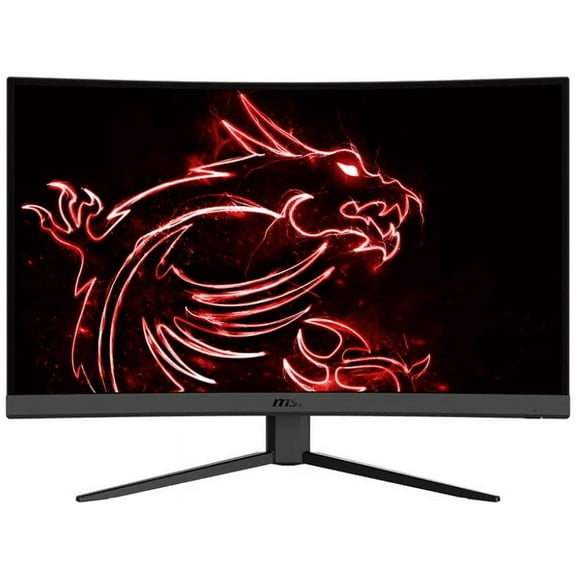
- You can check flat or curved screens based on focus, immersion, and viewing distance.
Choosing gaming monitors by refresh rate and response
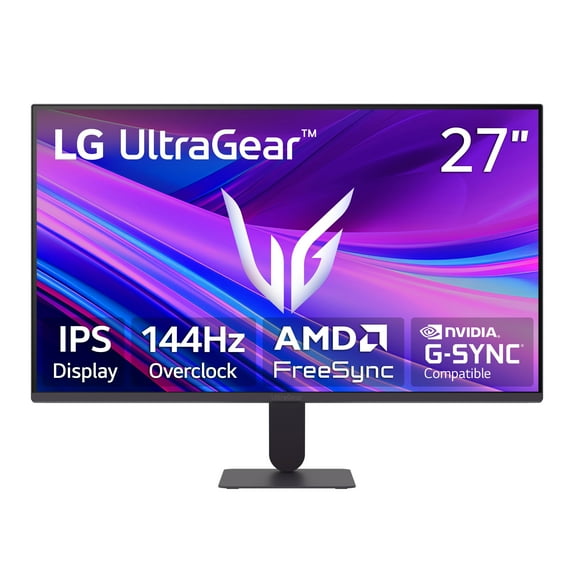
Refresh rate matters when you want smoother motion during competitive play and fast camera movement. You may find 60Hz works for office tasks, while 144Hz feels more fluid for gaming monitors.
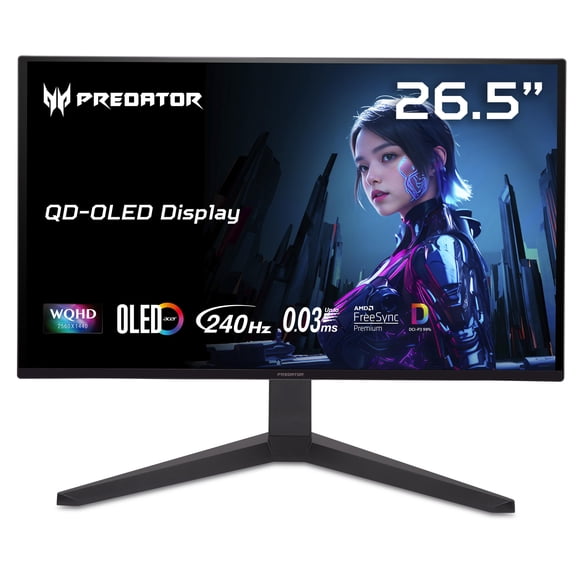
If you play fast shooters or racing games, you can compare 240Hz options for quicker on-screen updates. You should also check response time, because lower numbers usually mean cleaner motion during rapid action.
Panel type also shapes what you see from one game or task to the next. You can look at IPS for broad viewing angles, VA for strong contrast, or OLED for deep blacks and vivid scenes.
When you switch between schoolwork and gaming, you may want a screen that balances motion and color. You can narrow your choices faster by matching Hz and panel type to the games you actually play.
Comparing 4k monitors and resolution options
Resolution decides how fine text looks and how much detail you can fit on screen. You can keep things simple with 1080p, step up to QHD, or choose 4k monitors for dense pixel detail.
If you edit photos, manage large spreadsheets, or stream high-resolution video, you may appreciate extra clarity. You should also compare pixel density, because smaller screens with higher resolution can look especially sharp.
Some displays include HDR support, which can help bright highlights and dark scenes look more defined. You can check whether your computer, cables, and content support those settings before you choose.
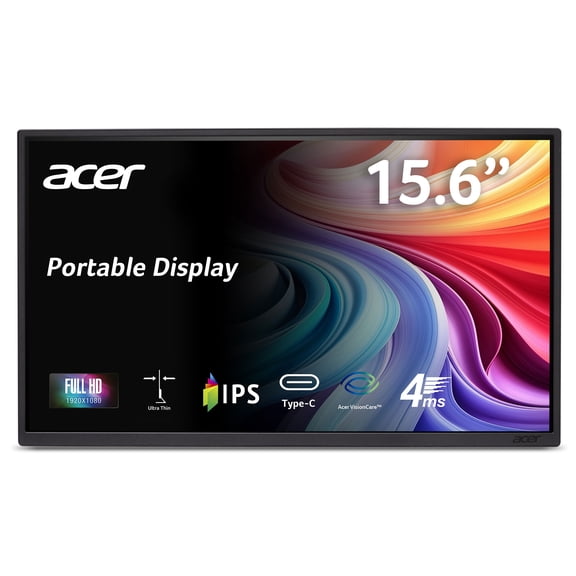
Laptop users often need easy docking, so you may want HDMI, DisplayPort, or USB-C Power Delivery. You can simplify your desk when one USB-C cable handles video, charging, and accessories.
Deciding between curved monitors, flat screens, and ultrawide formats
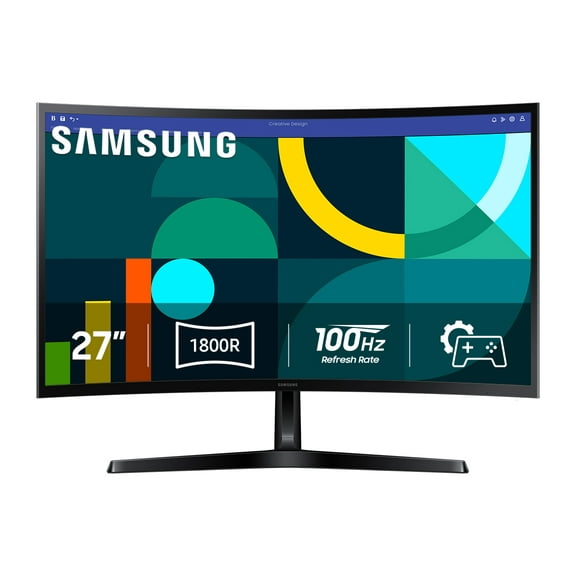
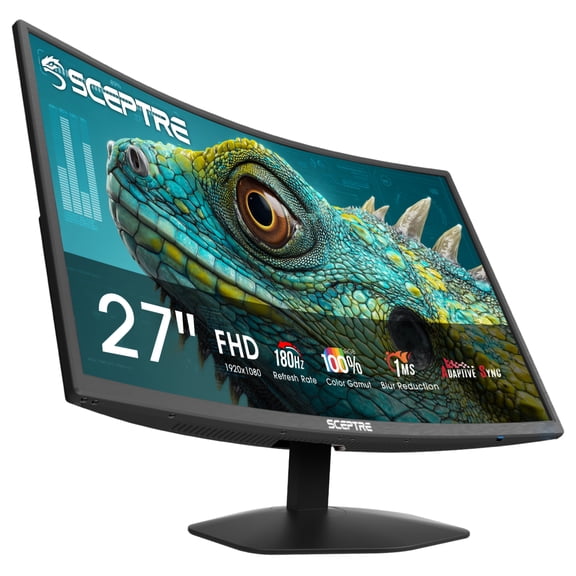
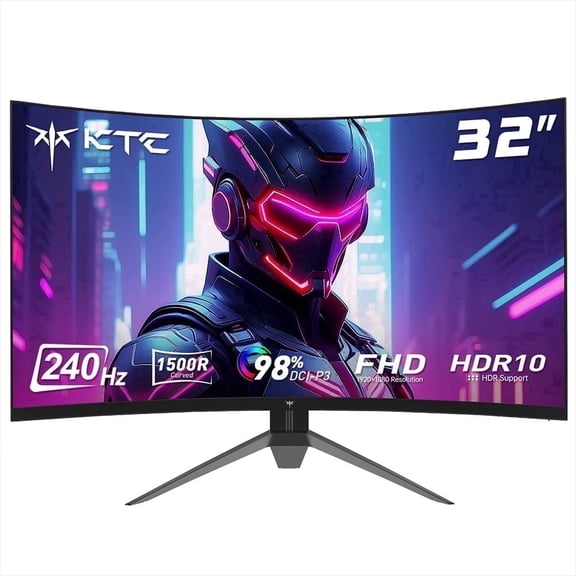
Screen shape changes how your display fits your field of view and your desk. You can choose flat panels for straightforward layouts, or curved monitors for a more wrapped visual feel.
If you work with multiple windows, you may like ultrawide monitors that reduce bezel breaks. You can keep chat, documents, and creative tools visible at once without switching between tabs as often.
Curved screens often make the most sense on larger displays where the edges sit farther from your eyes. You should measure your desk width and viewing distance so your new setup feels natural.
Flat screens can be easier to align in dual-monitor arrangements for office or school tasks. You can pair matching sizes and stands when you want a clean, balanced desktop layout.
What features to check before you buy
Connections affect how easily your monitor fits into your current setup. You should check for HDMI for common devices, DisplayPort for many desktop graphics cards, and USB-C for modern laptops.
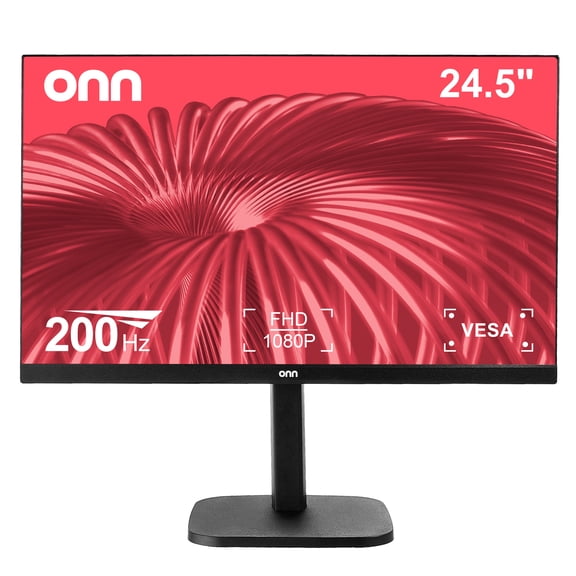
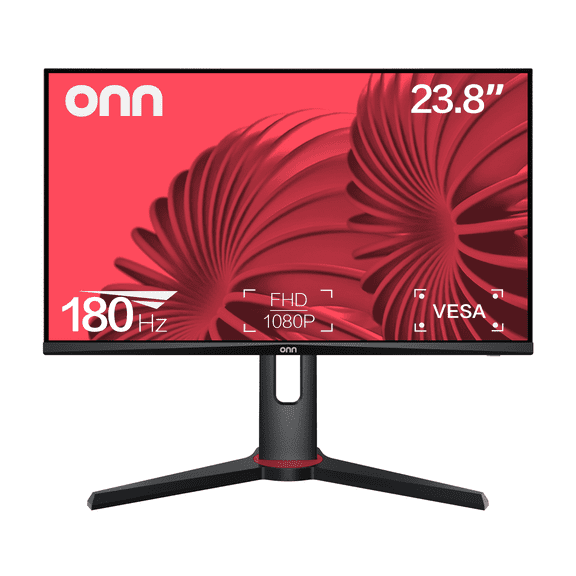
Mounting support can matter if you want more desk space and flexible screen placement. You can look for VESA compatibility when you plan to use monitor mounts or adjustable arms.
Stand design also changes your comfort during long sessions at a desk. You may want height, tilt, swivel, or pivot adjustments so your screen lines up with your seating position.
Bezel style and port placement can also make daily use easier in shared spaces or dual-screen setups. You can compare side and rear ports when you connect consoles, webcams, or external drives often.
When you choose computer monitors with the right size, clarity, speed, and connections, your whole setup feels easier to use. You can move from emails to games to creative projects with a screen that fits your space and routine.