

Computer Cable Adapters for Electronics
















About Computer Cable Adapters for Electronics - Walmart.com
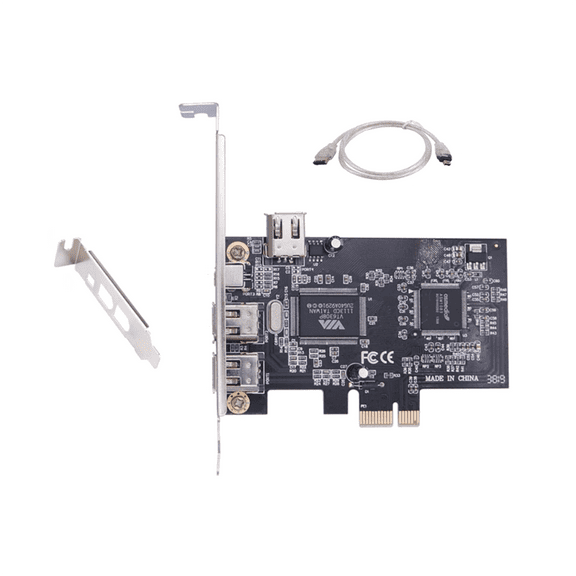
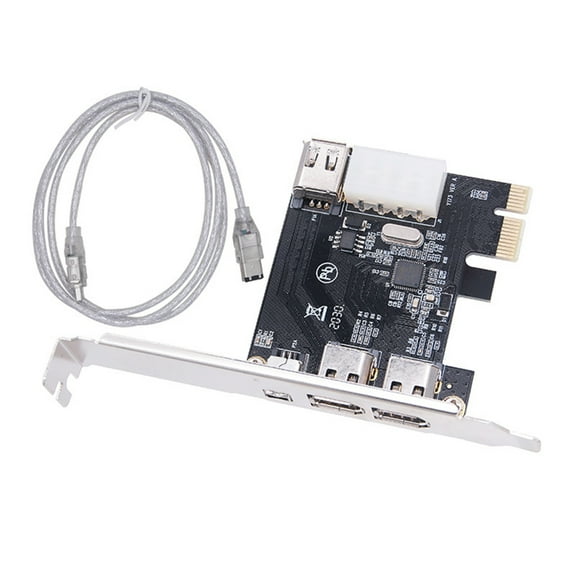
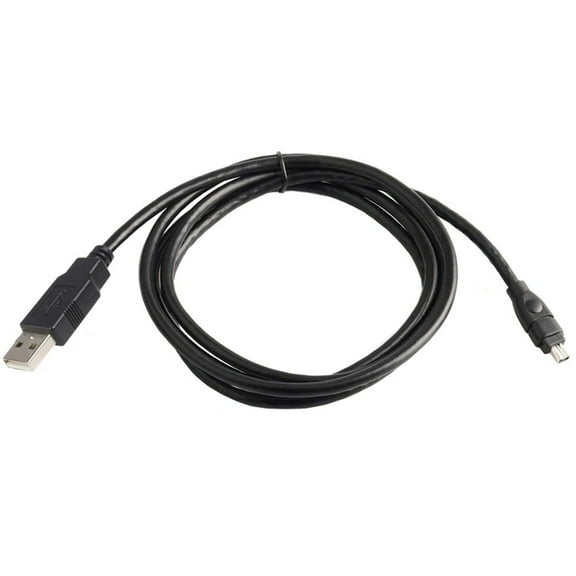
Computer cable adapters help you connect newer ports to older screens, drives, and networks without replacing your setup. You can compare connector types, adapter formats, and signal support to match your desk, monitor, and accessories.
If your laptop has USB-C and your monitor uses HDMI, computer cable adapters bridge that gap fast. You can also connect DisplayPort, VGA, DVI, Ethernet, and USB-A equipment with fewer compatibility surprises.
Choosing the right computer cable adapters
Start by checking Connector Type A on your device, then match Connector Type B on your display or accessory. You should compare both port shape and interface standard before you pick a cable adapter.
A USB-C port can carry video, data, or charging, so you should confirm what your device supports. If your screen uses HDMI or VGA, you may want an adapter cable that matches both ends exactly.
DisplayPort to HDMI works well when you need a modern monitor connection for workstations or docks. VGA to HDMI and HDMI to VGA need closer compatibility checks because analog and digital signals differ.
- You can connect a slim laptop to an HDMI monitor for presentations or home office use.
- You can link DisplayPort devices to compatible screens when your ports don’t match.
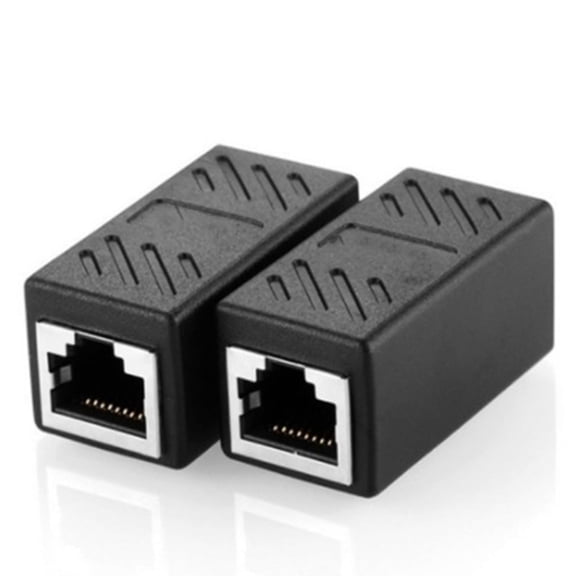
- You can add Ethernet through a multi-port hub when your computer lacks a wired network port.
- You can keep older VGA displays useful while you transition to newer hardware.
What to look for in a cable adapter format
You can usually choose among dongles, molded blocks, multi-port hubs, and short patch cable designs. You should pick the format that fits your workspace, travel habits, and the weight of connected cables.
A dongle keeps your bag light and works well when you need a simple single-port conversion. A molded block gives you a compact connector body that can feel steadier on crowded desk setups.
A multi-port hub helps you connect video, USB devices, and Ethernet from one main port. A short patch cable can reduce strain at the port because the connector doesn’t pull as hard.
If you move between meeting rooms, you may prefer a small adapter cable that packs quickly. If your setup stays in place, you may prefer a hub that keeps several ports available.
How a cable adapter handles resolution and speed
You should check resolution and speed support before you connect a monitor, storage device, or dock. Terms like 4K at 60Hz, 1080p Full HD, 5Gbps, and 10Gbps tell you what your connection can carry.
If you use a larger display, 4K at 60Hz can give you sharper detail and smoother motion. If you handle everyday office tasks, 1080p Full HD may fit your setup and screen.
For data connections, 5Gbps and 10Gbps describe how quickly supported devices can move files. You should match those ratings with your computer port and peripheral specs for expected performance.
Interface standards matter too, especially when you compare HDMI 2.0 and HDMI 2.1 connections. You can check your source device, display, and cable adapter so the whole path supports your target output.
Comparing plug-and-play compatibility and build details
You may want plug-and-play computer cable adapters when you need a faster setup with fewer extra steps. You should still check whether your device asks for software when you use advanced docking features.
Simple video or data conversions often work right after you plug them in. Multi-port hubs can vary more, so you should read compatibility notes for your operating system and port type.
Build details also shape daily use, especially when you connect and disconnect often. You can look for sturdy housings, reinforced ends, and shielding that helps your signal stay consistent.
Shielding matters when you run longer connections near other electronics on your desk. You may notice a more stable picture or data link when your adapter cable uses dependable construction.
Matching computer cable adapters to your setup
If you work from a desk, you may need USB-C to HDMI for an external monitor and Ethernet for wired internet. A multi-port hub can cover both needs while keeping your laptop charging area tidy.
If you use legacy office equipment, you may need VGA or DVI connections for older displays. A short patch cable format can help you fit tight spaces behind monitors and docking stations.
For travel, you may prefer a small dongle that handles conference room displays without adding bulk. If your destination screens vary, you should compare HDMI, VGA, and DisplayPort options before you go.
Gamers and creators may focus on refresh rate, 4K support, and reliable signal handling. You should verify every link in the chain so your monitor setup performs the way you expect.
When you choose computer cable adapters with the right ports, format, and signal support, your setup works with less guesswork. This helps you get a cleaner connection path that fits your devices and your daily routine.