


USB Flash Drives in Computer Accessories




















About USB Flash Drives in Computer Accessories - Walmart.com
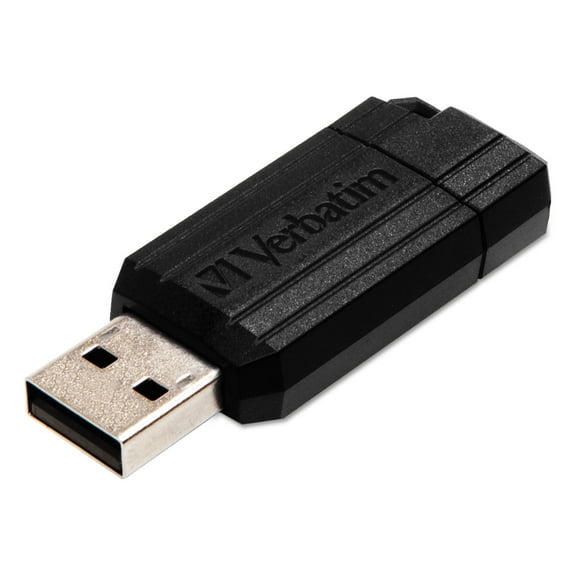
usb flash drives give you a simple way to carry school files, work documents, photos, and videos between devices. You can compare capacities, ports, and speeds on one page, so your storage choice matches your daily routine.
How to choose usb flash drives for your files
You should start with storage capacity, because file size changes how useful your drive feels every day. You may want 32GB or 64GB for documents, class notes, and presentations.
If you move large photo libraries or long video clips, you may prefer a 128GB flash drive or larger. You can also compare 256GB, 512GB, and 1TB options when your projects keep growing.
Capacity affects how often you clear space and reorganize folders. You’ll notice larger drives give your backups, media files, and shared folders more room to stay together.
- You can keep homework, resumes, and office files on compact 32GB or 64GB thumb drives.
- You may prefer a 128GB flash drive when you transfer photos, videos, and larger creative files.
- You can choose 256GB, 512GB, or 1TB usb memory sticks for bigger archives and ongoing backups.
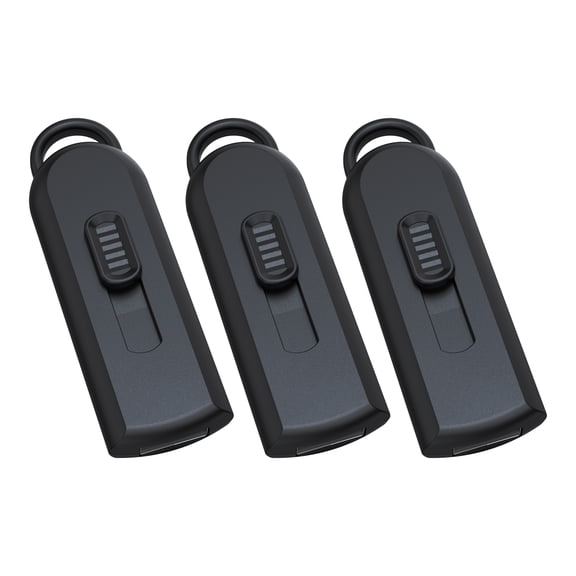
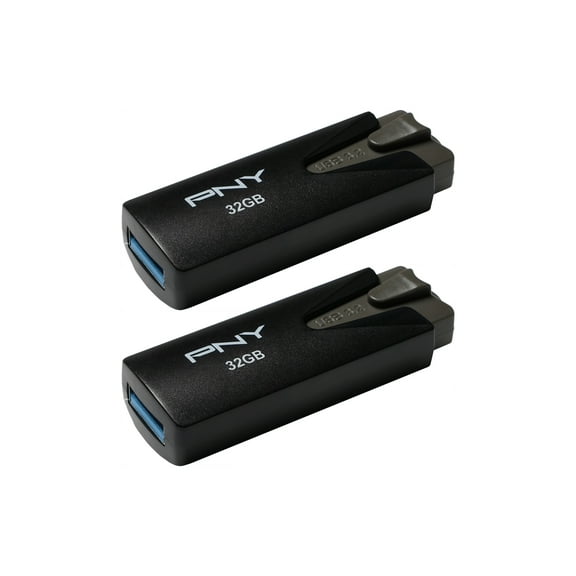
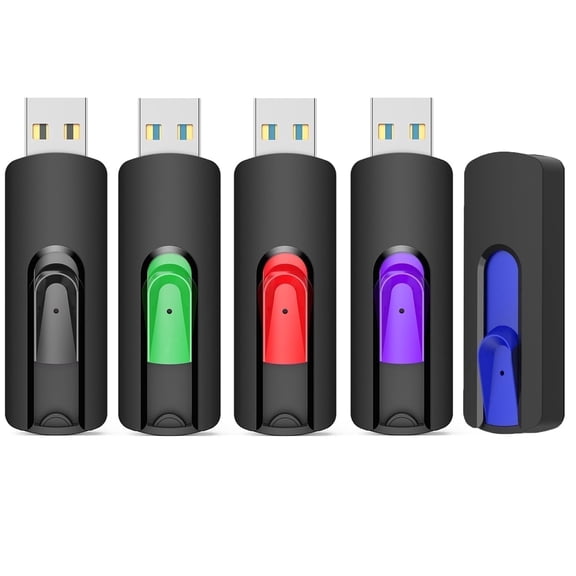
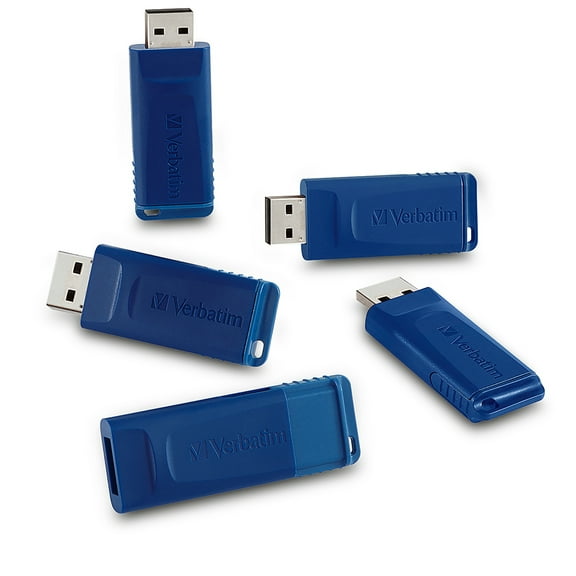
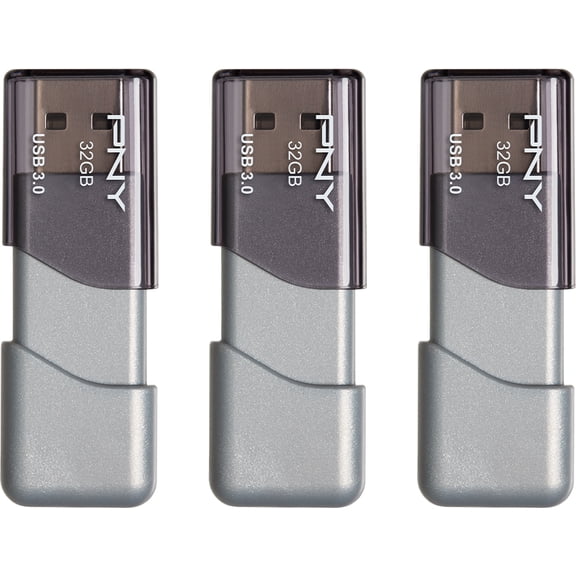
- You might want bulk usb flash drives or multi-packs when you prepare training kits, events, or classroom handouts.
Choosing interface type and speed
You should check your device ports before you choose a drive, because connector type shapes everyday convenience. You may use classic USB-A ports on desktops, monitors, game consoles, and many laptops.
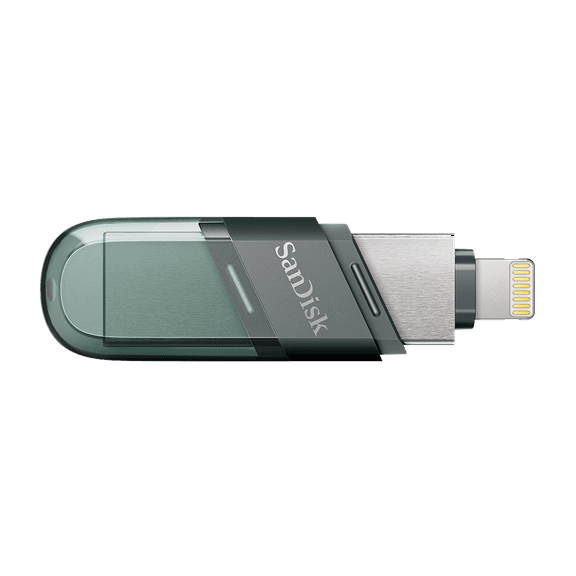
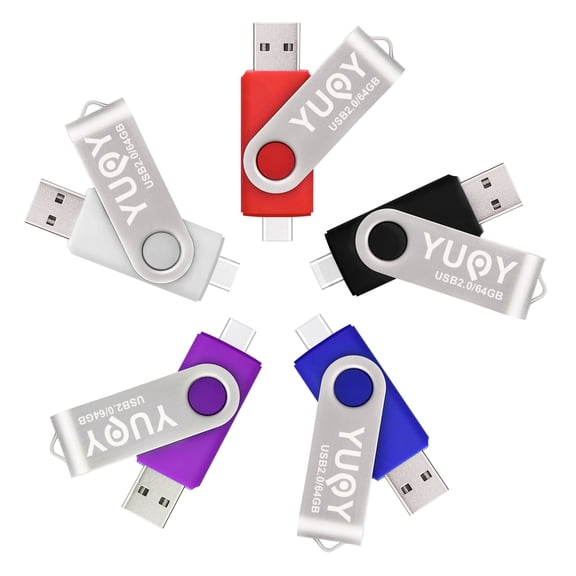
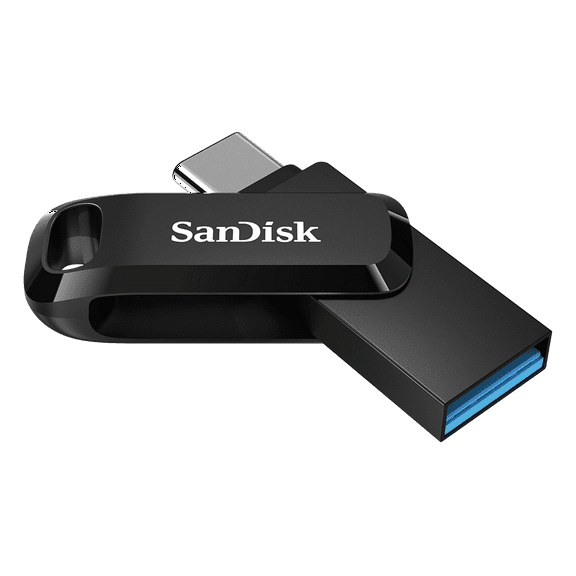
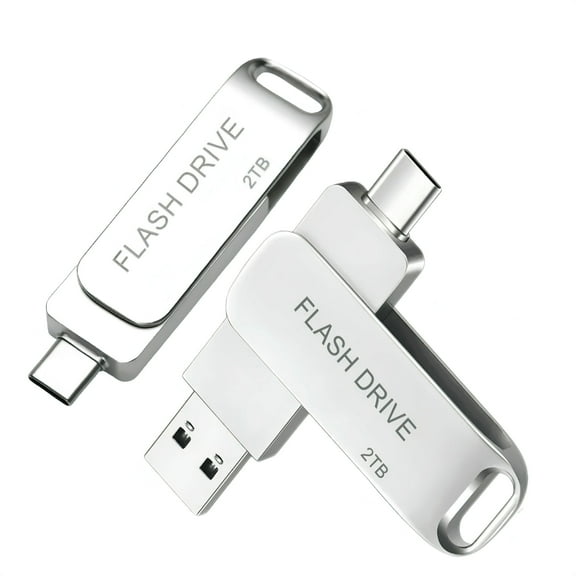
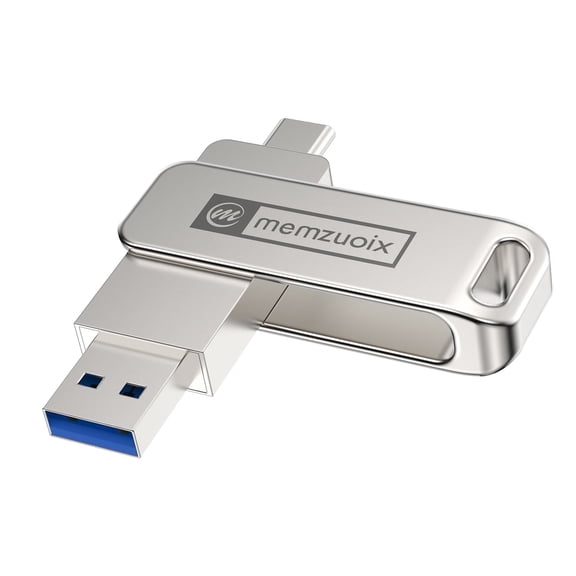
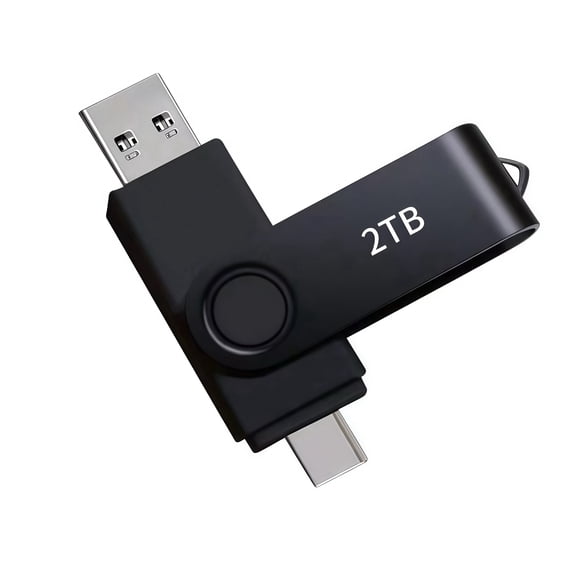
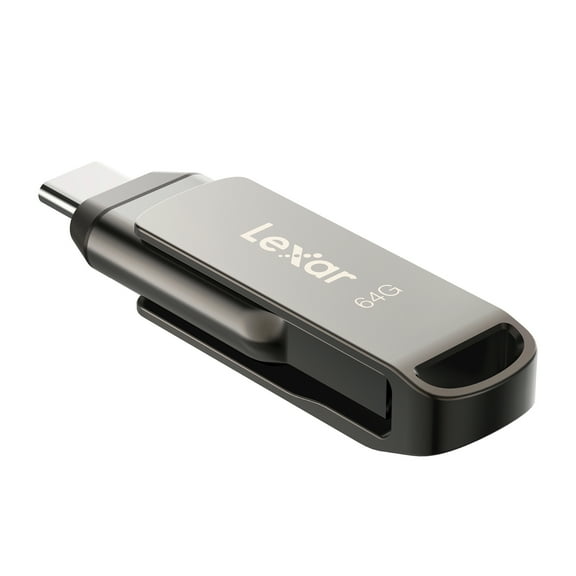
If your newer devices use smaller ports, you may need a usb c flash drive or a dual drive. You can move files between newer laptops, tablets, and compatible phones with fewer adapters.
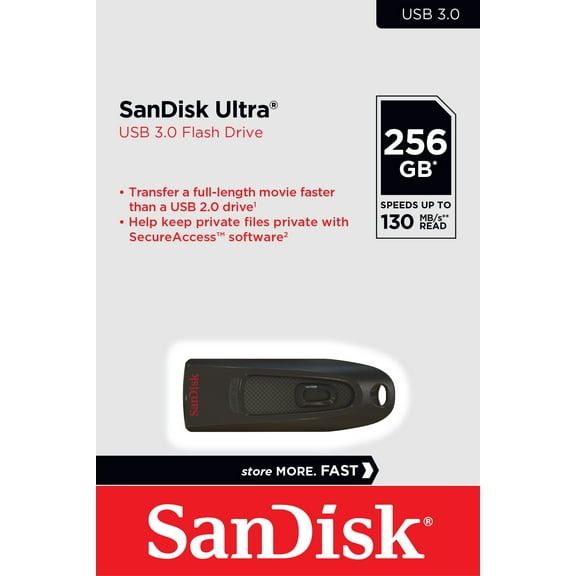
Speed matters most when you copy large folders or long videos. You’ll usually find a usb 3.0 flash drive moves big files faster, while USB 2.0 works well for lighter document storage.
You can use USB 3.1 options when you want quick transfers and frequent file movement. You should compare interface labels carefully, because speed ratings and connector style are different details.
What design details should you compare
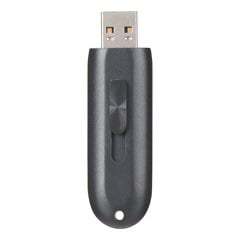
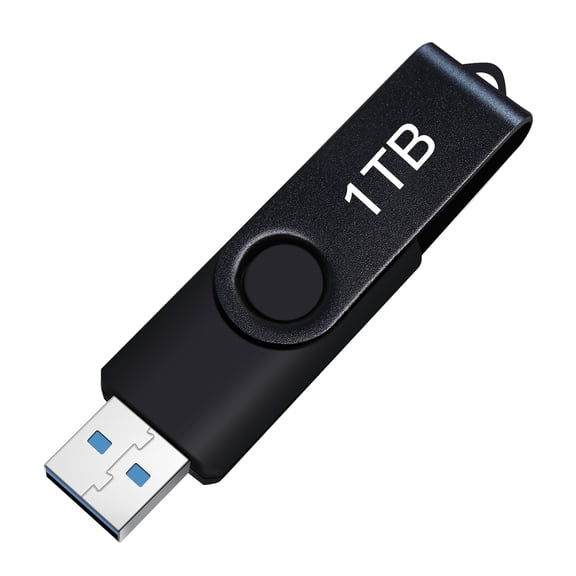
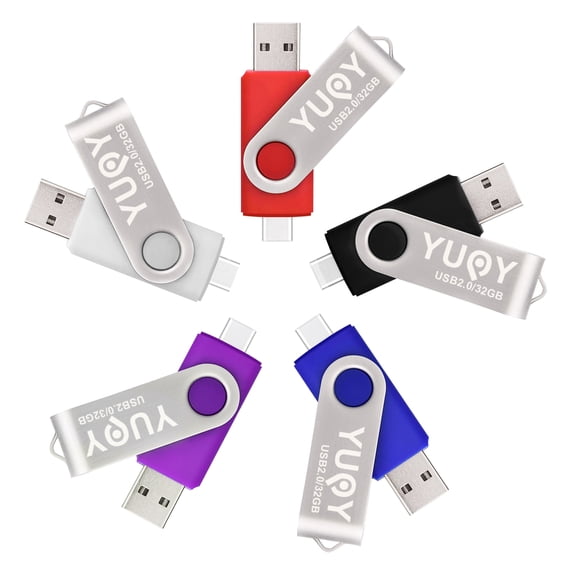
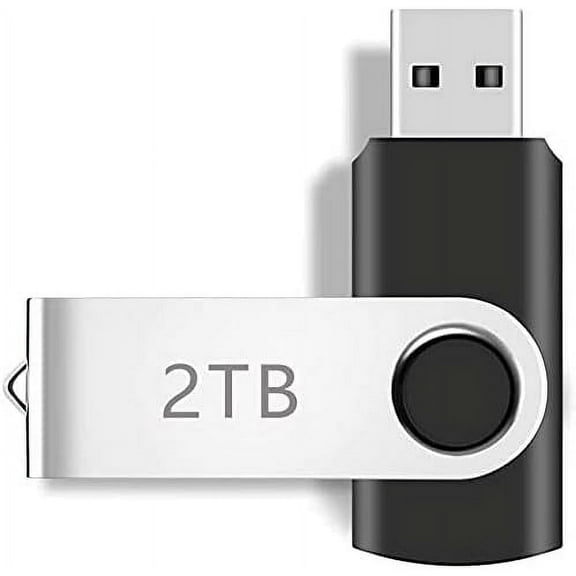
You can narrow your choice faster when you compare form factor with your routine. You may prefer swivel designs when you want a built-in cover without carrying a separate cap.
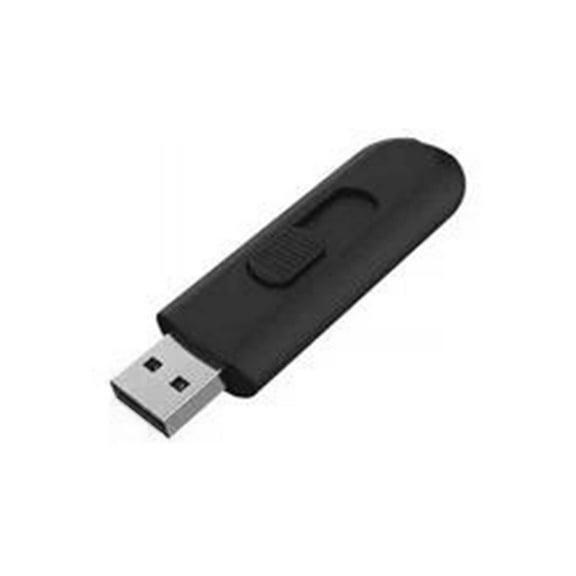
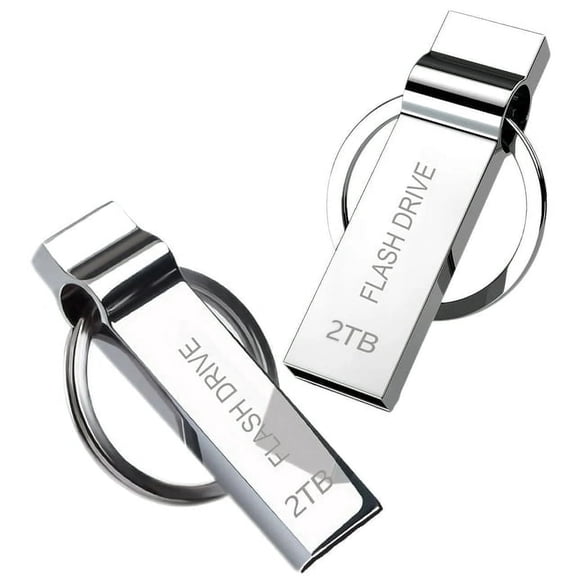
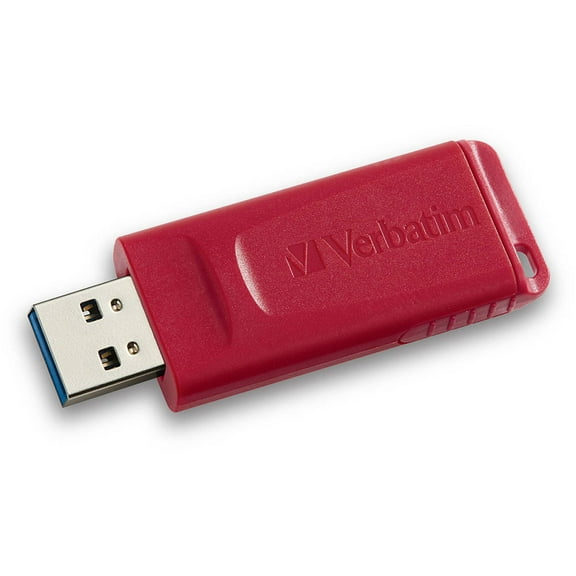
If you use a drive on a key ring, you should look for keychain loops, mini shapes, or capless bodies. You’ll likely appreciate designs that slip into pockets, laptop sleeves, or small organizer pouches.
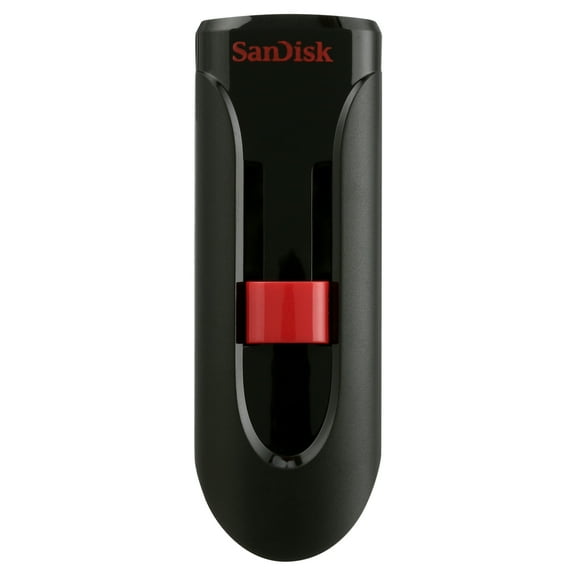
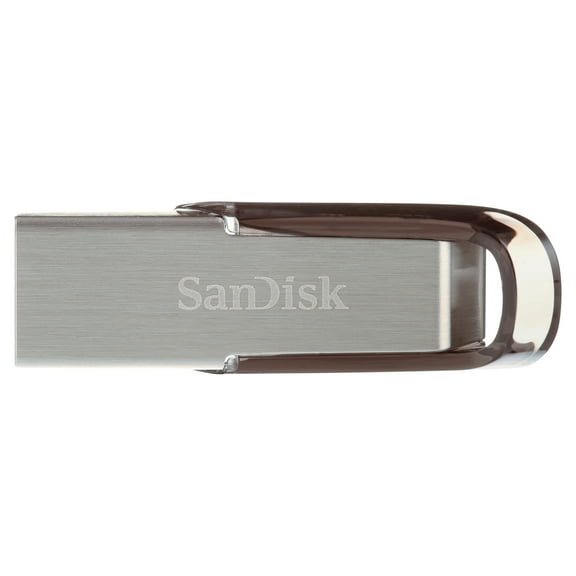
You may also compare metal usb drive styles when you want a sturdy feel and a sleek look. You can choose capless or swivel options for quick access during presentations, print jobs, or shared office use.
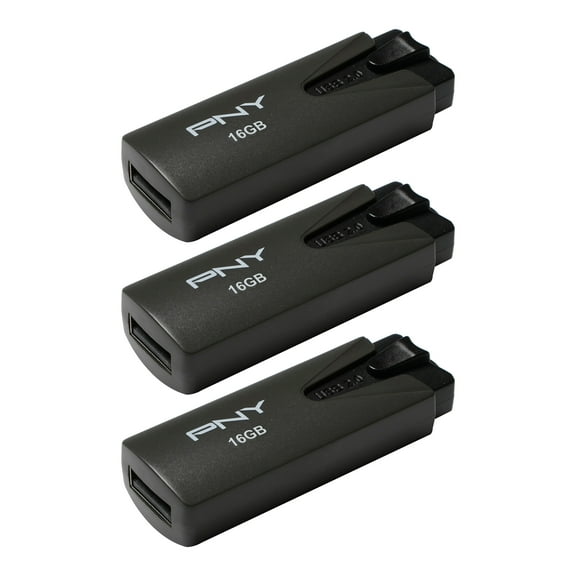
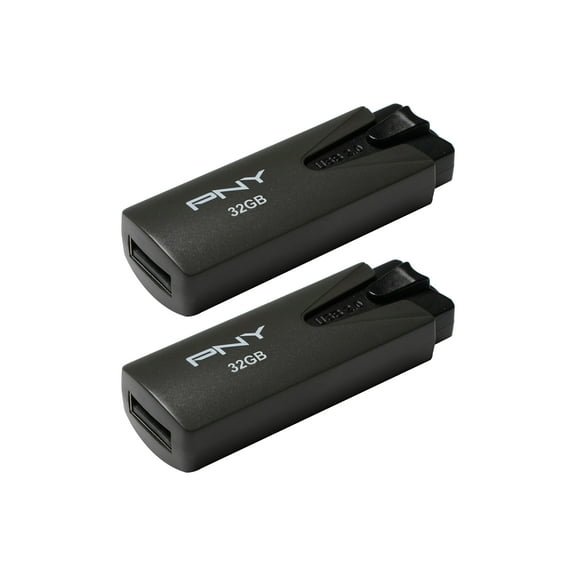
Pack size also changes how you shop for this category. You might buy a single drive for personal files, two-packs for home and office, or bulk usb flash drives for teams.
Matching usb flash drives to everyday use
You can match smaller capacities and USB 2.0 models to school papers, spreadsheets, and printable forms. You’ll have an easy option for carrying routine files between classrooms, libraries, and shared computers.
For creative work, you may want faster interfaces and more storage for image folders, short films, or design drafts. You can reduce waiting during transfers when you choose USB 3.0 or USB 3.1.
If you switch between a modern laptop and a compatible phone or tablet, a type c flash drive can simplify your setup. You can move files across devices without relying on cloud access every time.
When you prepare onboarding packets, conference materials, or client handoffs, multi-pack and bulk formats make planning easier. You can keep each set organized by label, capacity, or project type.
You may also want a compact drive for travel bags, camera pouches, or glove box tech kits. You’ll benefit from mini, metal, or keychain-friendly designs that stay close at hand.
What to look for before you decide
You should compare capacity, connector type, speed standard, and pack size before you choose. You can narrow usb flash drives quickly when you know which devices you use and which files you move.
That approach helps you pick storage that fits your workflow instead of creating extra steps later. You’ll end up with a drive that handles your transfers smoothly and keeps your files ready to go.