

Touchscreen Laptop





![Pre-Owned HP Chromebook 11 G5 11.6" Touchscreen (In-plane [ (N82E16834266180) ]](https://i5.walmartimages.com/seo/Chromebook-11-G5-ENERGY-STAR_3ddf187a-dd51-4d22-b6f3-a3268c1287ae_1.5bcad1e1fa00c76c868da793c46f50fa.jpeg?odnHeight=576&odnWidth=576&odnBg=FFFFFF)





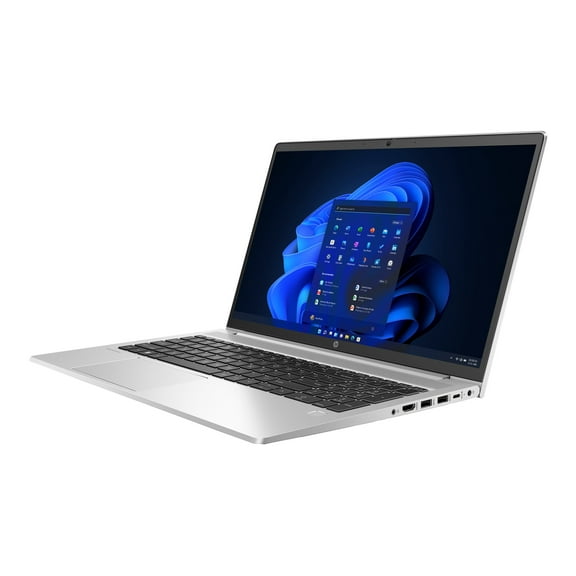

About Touchscreen Laptop - Walmart.com
Touchscreen laptops give you hands-on control for notes, sketches, streaming, and work in one device. You can compare form factors, screen sizes, and hardware details that shape how your laptop fits daily routines.
Choosing touchscreen laptops by form factor
When you compare touchscreen laptops, you’ll first want to choose the form factor that matches your routine. You can pick 2 in 1 laptops, traditional clamshell models, or detachable keyboard designs.
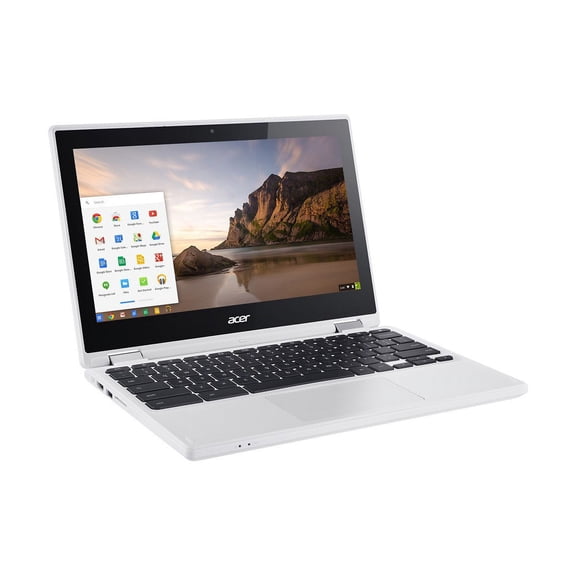
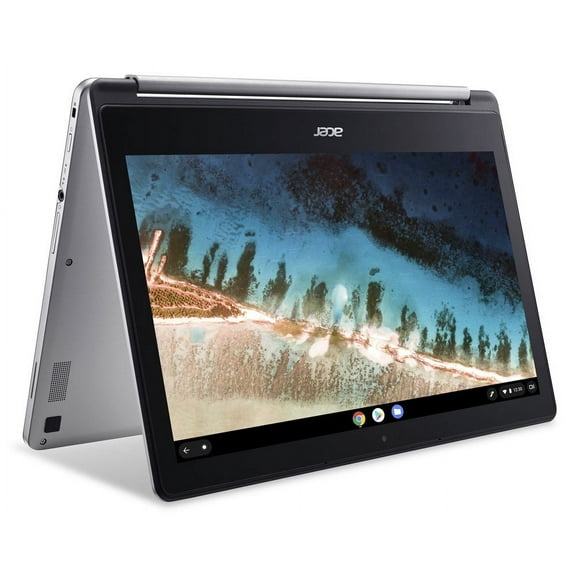
If you want tablet-style flexibility, you should consider convertible laptops with a 360-degree hinge. You can flip the display back for drawing, reading, or presenting in tight spaces.
When you compare hinge designs, you should look for a dual-torque mechanism that feels steady during taps and swipes. You’ll notice a firmer hinge helps keep the screen stable on desks, laps, and trays.
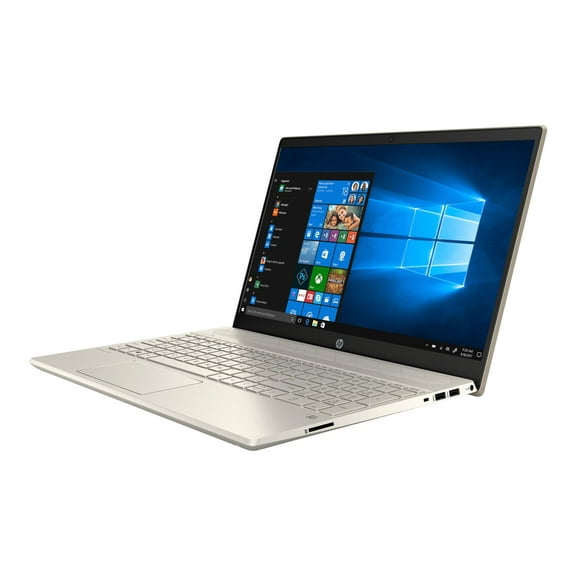
If you type for long stretches, you may prefer traditional laptops with touch screen displays. You can still tap, scroll, and zoom quickly while keeping a familiar keyboard-first layout.
For travel or quick note-taking, you might like a detachable keyboard design. You can separate the screen when you want a lighter setup for reading, sketching, or couch browsing.
How to compare touch screen laptop computers by size
Screen size changes how your touch screen laptop computers feel in backpacks, classrooms, and home offices. You should measure where you’ll carry it and where you’ll use it most.
If you want easier portability, you may lean toward 11- to 13-inch touchscreen notebook laptops. You can slip them into smaller bags and move between classes or meetings with less bulk.
When you want a balance of workspace and mobility, 14- to 15-inch options often make sense. You’ll get room for multitasking while keeping a size that still travels well.
If your work includes large spreadsheets, timelines, or editing panels, you may prefer 16-inch and larger screens. You can tap icons more comfortably and view more content at once.
Screen finish matters too, especially if you work near windows or bright lights. You should compare glossy and anti-reflective coatings because glare can change how easily you see details.
Glossy displays can make colors look vivid indoors, especially for movies and photos. Anti-reflective finishes can help you see the screen with fewer distracting reflections during daytime use.
What to look for in touchscreen laptops performance
Processor type and memory shape how smoothly your touchscreen laptops handle everyday tasks and heavier workloads. You should match Intel Core, AMD Ryzen, or Apple M-Series options to your usual apps.
If you use web tabs, documents, and video calls, 8GB of RAM can cover basic daily use. You may want 16GB if you multitask often or keep many apps open.
When you edit photos, manage complex projects, or run creative software, 32GB can give you more breathing room. You’ll notice extra memory helps reduce slowdowns during larger workloads.
- You can choose Intel Core or AMD Ryzen for broad app support and familiar Windows laptop options.
- You can consider Apple M-Series if your workflow already fits that ecosystem and software setup.
- You should look for SSD storage because you’ll get quicker startup times and faster file access.
- You may want more RAM if you stream, multitask, or switch between school and work apps all day.
Touch input can also affect battery expectations because the digitizer uses extra power. You should compare battery claims carefully if you need longer unplugged sessions for travel or class.
That doesn’t mean you need to avoid touch features when battery life matters. You just need to balance screen brightness, performance settings, and your daily usage pattern.
Choosing stylus support and input features
If you plan to write or draw on the screen, you should check stylus compatibility before you decide. You may see active stylus support, MPP 2.0, or USI protocol listed in product details.
An active stylus gives you more precise input than a basic capacitive pen. You’ll want that added control if you annotate PDFs, sketch diagrams, or mark up presentations.
Pressure sensitivity matters when you want strokes that respond more naturally to your hand. You can use that feature for shading, handwritten notes, and design work that needs finer control.
Stylus support also affects how useful a convertible laptop feels in tablet mode. You’ll get more from that form factor when your device supports the pen features you actually use.
Matching laptops with touch screen features to your routine
Your use case should guide every choice, from hinge style to screen size and memory. You can narrow laptops with touch screen features faster when you focus on where and how you’ll use them.
For school and study, you may want a lighter size, solid battery life, and stylus support. You can switch between typed papers, handwritten notes, and streaming lectures with less friction.
For business and work, you might prefer a steady hinge, a mid-size display, and 16GB of RAM. You’ll have room for video meetings, spreadsheets, and frequent multitasking across several windows.
If you create art or visual content, you should look closely at pen support and larger displays. You can benefit from pressure sensitivity, comfortable screen space, and hardware that handles creative apps smoothly.
For casual browsing, you may want simple touch navigation and a size that fits your home setup. You can tap recipes, scroll social feeds, and stream shows without reaching for a mouse.
With the right mix of size, hinge, stylus support, and performance, you can make touchscreen laptops feel practical every day. You’ll end up with a device that fits your work style, study habits, and favorite ways to interact.