

HDMI Computer Cables in Computer Cables & Connectors









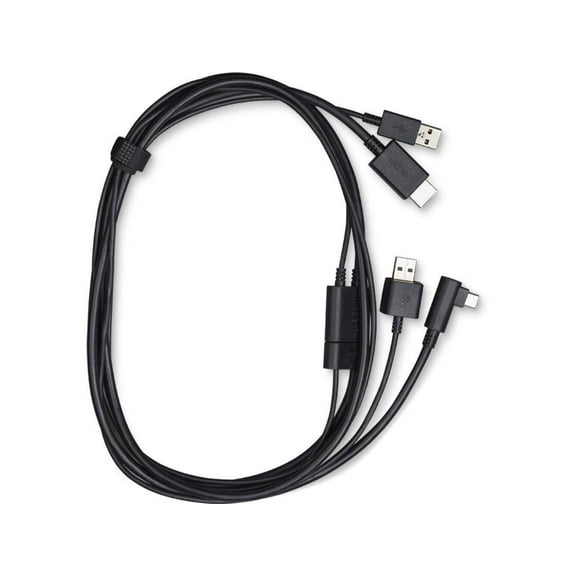



About HDMI Computer Cables in Computer Cables & Connectors - Walmart.com
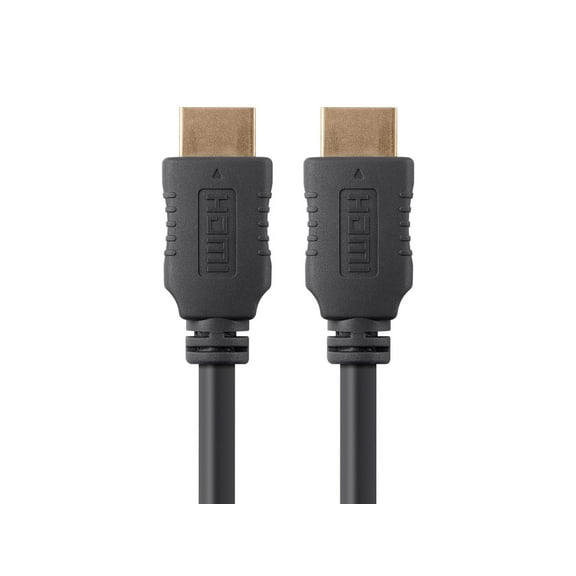
HDMI computer cables help you connect your desktop, laptop, or monitor with clear video and audio in one simple cord. You can compare cable length, HDMI version, connector type, resolution support, and jacket material to match your setup.
How to choose HDMI computer cables for your setup
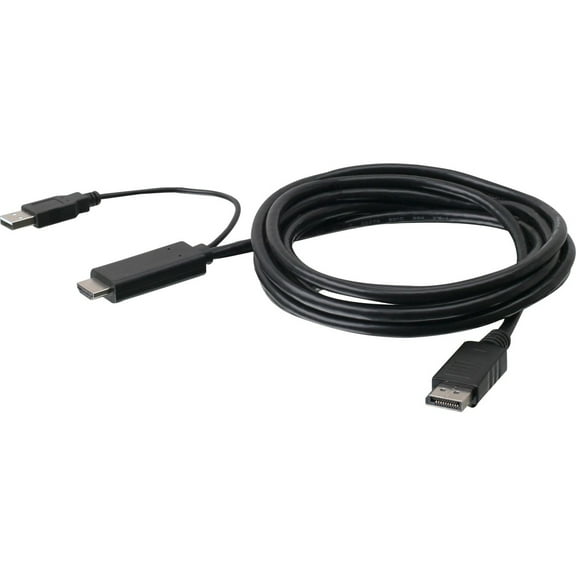
When you choose HDMI computer cables, you should start with the ports on your computer and display. You can avoid adapter confusion by checking whether you need HDMI to HDMI, HDMI to DisplayPort, or HDMI to USB-C.
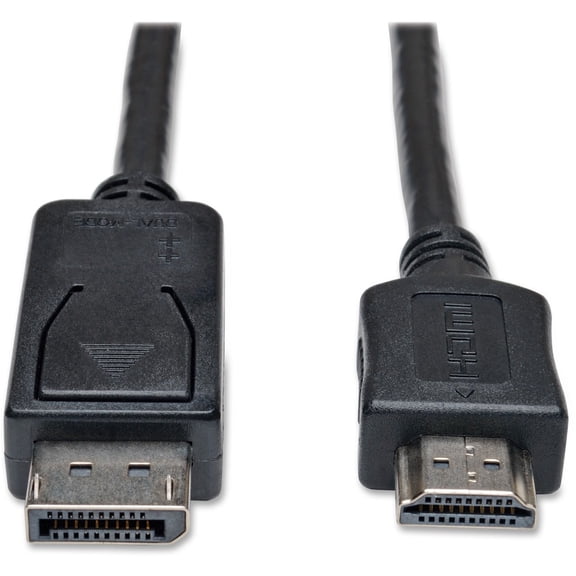
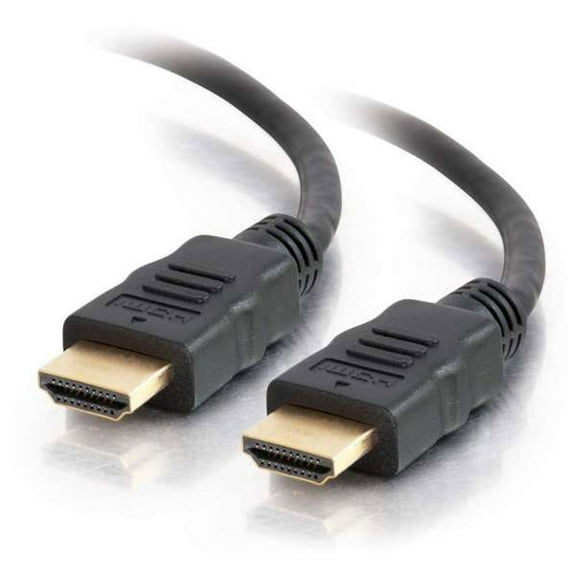
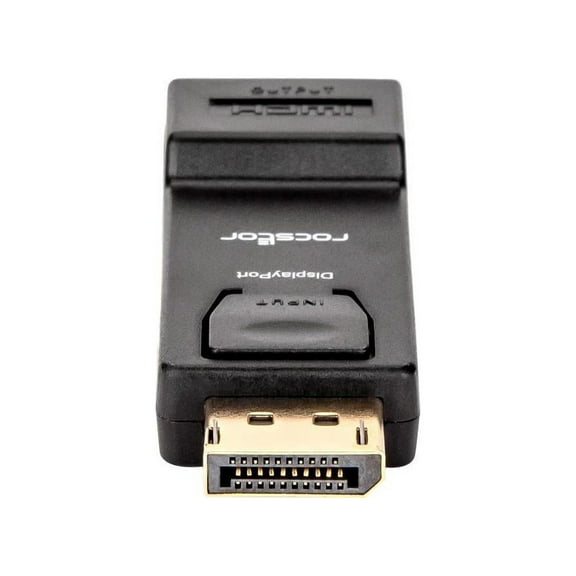
A standard HDMI to HDMI connection works when both devices have full-size HDMI ports. An hdmi to displayport cable can fit mixed setups where your computer and monitor use different video connections.
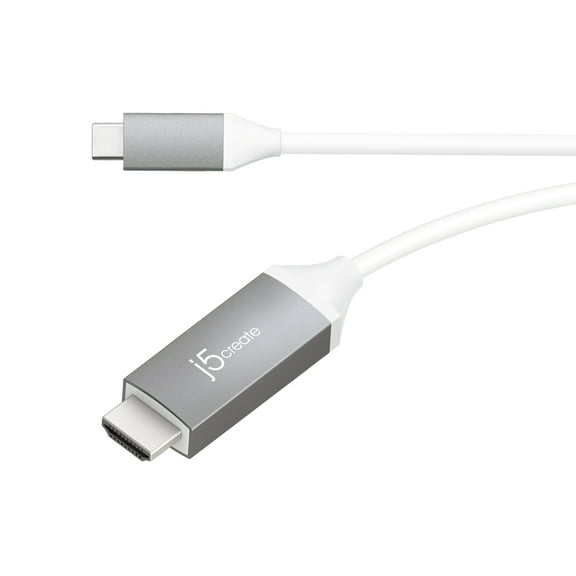
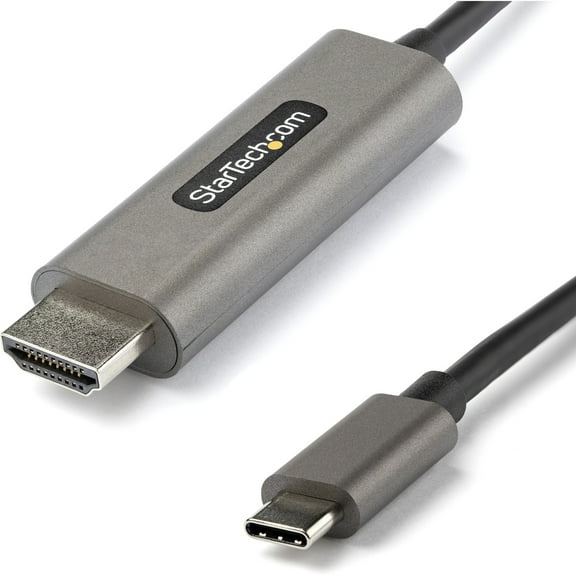
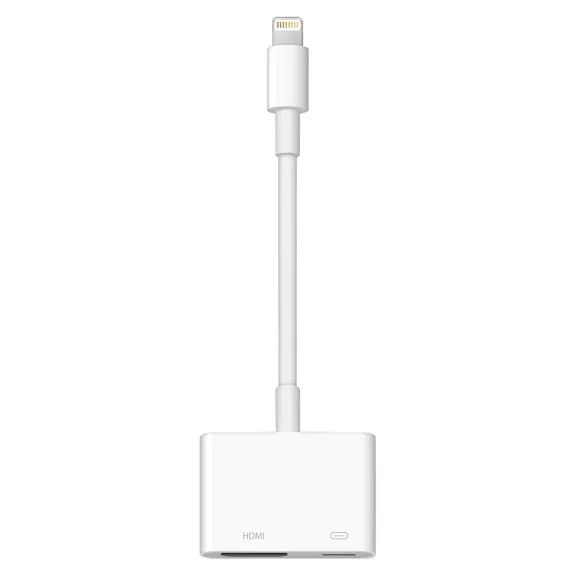
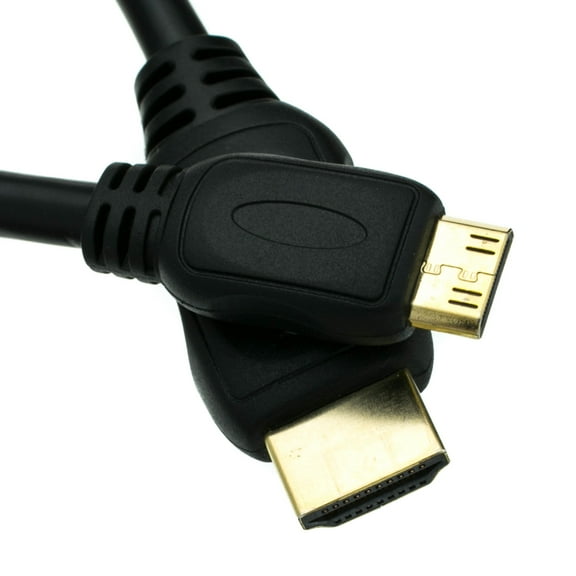
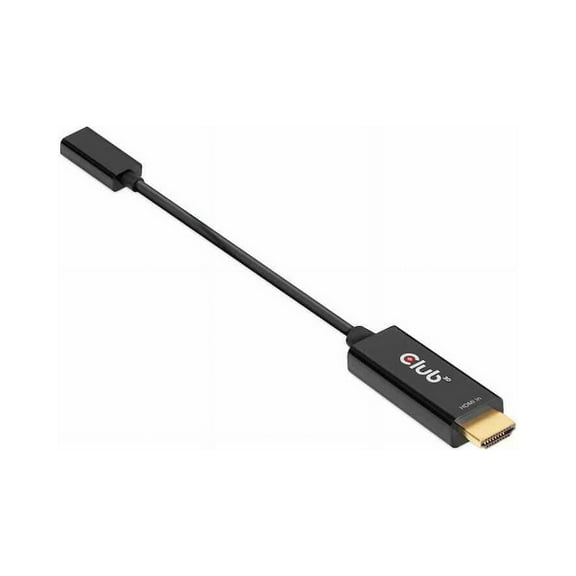
If your laptop uses USB-C video output, you should check whether HDMI to USB-C matches your dock or display plan. You can also compare plug shape before you buy, so your cable fits right away.
Choosing the right high speed hdmi cable
You should match cable version to the picture quality and refresh rate you want on screen. A high speed hdmi cable often works well for everyday 1080p use and many 4K setups.
If you use HDMI 2.0, you can support common 4K viewing needs for workstations and home office displays. If you use HDMI 2.1, you can handle higher refresh rate needs like 120Hz or 144Hz on compatible gear.
Ultra High Speed options matter when you want extra bandwidth for newer graphics cards and displays. You should compare your monitor specs first, so your cable matches your resolution and refresh goals.
- You can choose 1080p support for basic office monitors and everyday desktop tasks.
- You can choose a 4k hdmi cord when you want sharper detail for creative work or streaming.
- You can choose 8K-ready options when your display and source equipment support that resolution.
- You can choose HDMI 2.1 when your setup calls for higher refresh rates on compatible monitors.
What to look for in cable length and jacket material
You should measure the path between your computer and display before you pick a cord length. A three-foot cable suits tight desk layouts, while a six-foot cable gives you more placement flexibility.
If your tower sits under a desk, you may prefer 10-foot or 15-foot lengths for cleaner routing. You can reduce clutter by choosing the shortest length that still reaches comfortably.
Jacket material also changes how the cable feels during daily use. A braided hdmi cable can feel easier to manage when you plug and unplug often, while standard PVC can suit simple stationary setups.
You should also check how your cable bends around monitor arms, docking stations, or wall-mounted screens. A flexible jacket can help your setup look tidier without forcing sharp turns.
HDMI cable for monitor connections and mixed-port devices
An hdmi cable for monitor use should match both your display input and your computer output. You can compare port labels on the back of your monitor to confirm the right connector type.
If your monitor has DisplayPort but your computer has HDMI, you may need an hdmi to displayport cable. You should confirm directional compatibility, because mixed-port cables can work one way only.
For docking stations and slim laptops, you may also compare HDMI to USB-C options. You can simplify a dual-screen desk by matching each output type to the correct display input.
Resolution support matters here too, especially if you edit photos, stream content, or multitask across large screens. You should check whether your monitor supports 1080p, 4K, or 8K before choosing a cord.
How HDMI computer cables fit real work and gaming spaces
You might need a short cable for a compact home office with a monitor close to your laptop stand. You can keep your desk cleaner when the cord length matches the actual distance.
If you run a desktop tower below your desk, you may need six-foot or 10-foot cables for comfortable routing. You can avoid a stretched connection by measuring around furniture instead of across open air.
For creative setups, you may want a 4K connection for sharper timelines, spreadsheets, and design details. You can pair the right HDMI version with your monitor, so your screen output stays aligned.
If you play on a high refresh display, you should compare HDMI 2.1 with your monitor's supported frame rate. You can get the intended performance only when your cable and devices match.
Frequent travel or shared desks can make durability more important in your choice. You may prefer braided jackets when your cable moves between docking stations, monitors, and laptops throughout the week.
What helps you choose with confidence
You can narrow your choice faster when you compare ports, version, length, resolution, and jacket material together. HDMI computer cables become easier to pick when your cord matches your monitor, desk layout, and daily routine.