

Hard Drives











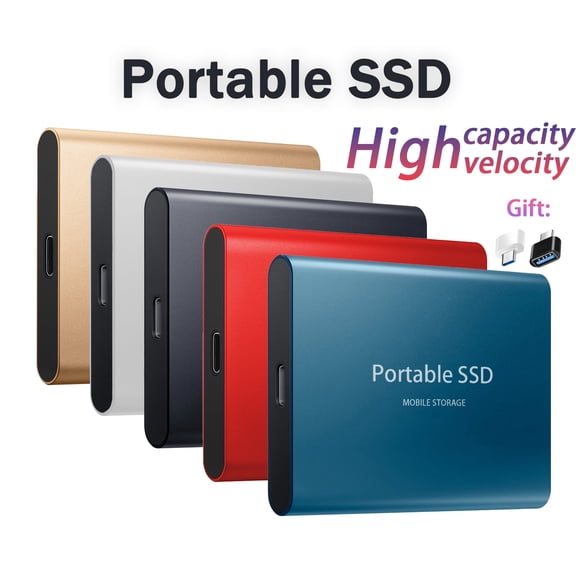

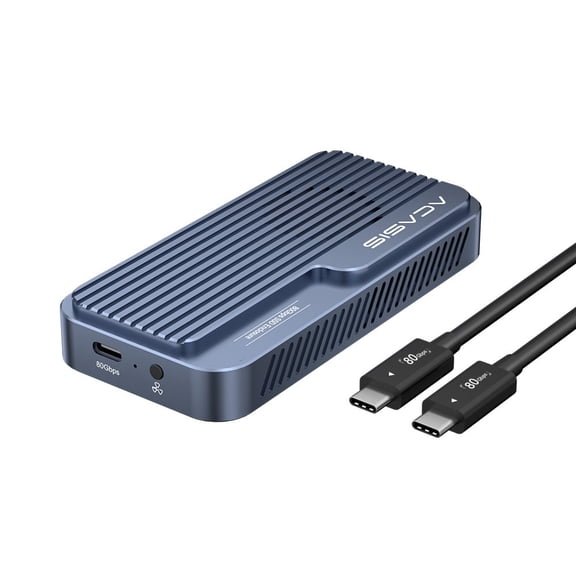




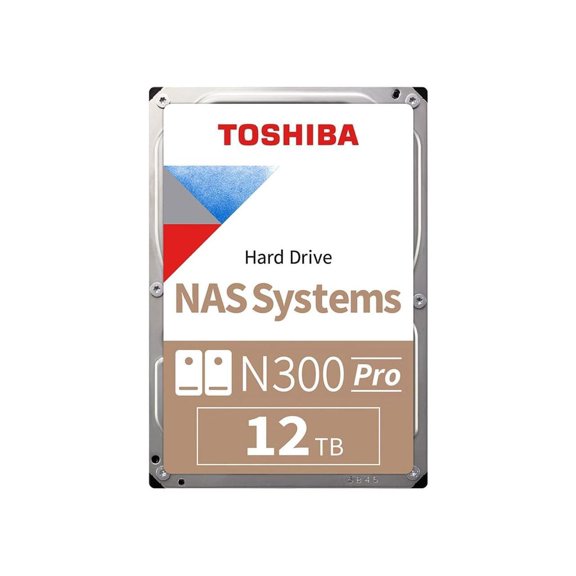
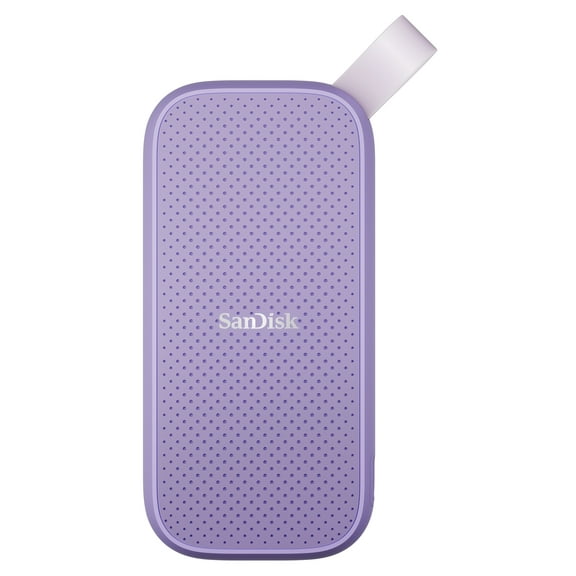


About Hard Drives - Walmart.com
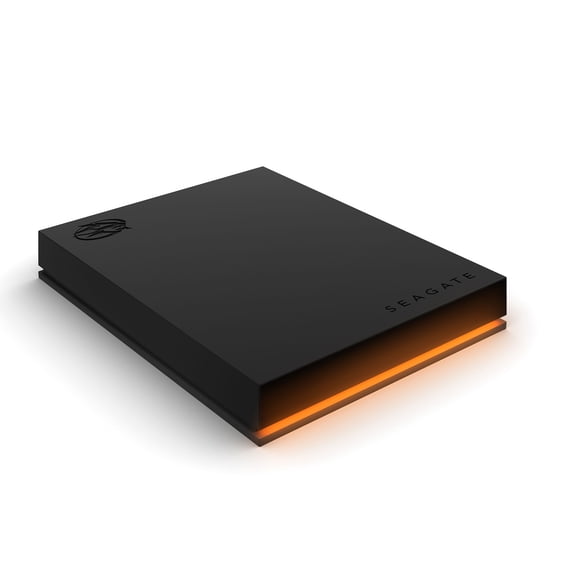
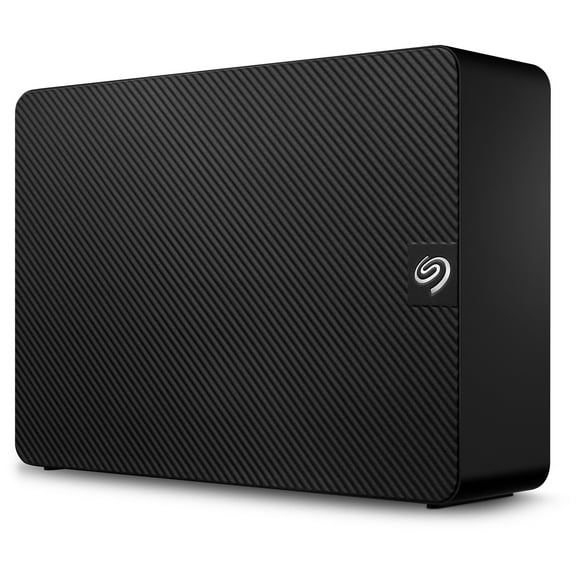
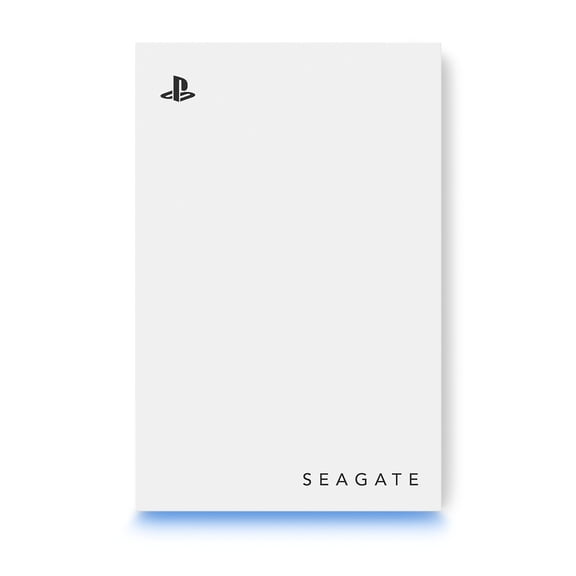
Your sata drive 4tb search should lead you to storage that fits your system, your files, and your daily workload. You can compare desktop, NAS, and higher-capacity options here, with practical details on interfaces, bay sizes, and performance.
How to choose a sata drive 4tb by capacity
You should start with storage capacity because your photo libraries, video projects, backups, and game files can grow quickly. You may find 4TB hits a useful middle ground when your drive needs feel bigger than 2TB but less demanding than 8TB.
When you compare 1TB, 2TB, 4TB, 8TB, and 10TB+ options, you can match your purchase to your actual file habits. You can keep everyday desktop storage lean, or you can plan room for large media archives and backup copies.
If you need a balance of space and familiar compatibility, a sata drive 4tb often fits common desktop and storage upgrade plans. You can use that capacity for documents, creative files, system backups, and shared household data.
- You can store large photo libraries, video files, and project folders without moving files constantly.
- You can separate work files, personal backups, and media collections across one higher-capacity internal drive.
- You can choose larger capacities for long-term archives, surveillance footage, or multi-user storage needs.
Choosing the right interface and bay fit
You should check interface type before anything else because your system must match the drive connection. You’ll usually compare SATA, SAS, and PCIe NVMe, and each one serves a different hardware setup.
If your motherboard or enclosure uses standard SATA ports, you’ll want a SATA model instead of SAS or NVMe. You should also measure whether your case or enclosure accepts a 3.5-inch or 2.5-inch drive bay.
You may see SATA as the familiar choice for many desktop towers, home servers, and some external enclosures. You’ll usually reserve SAS for enterprise hardware, while you’ll choose PCIe NVMe when your system supports faster solid-state storage slots.
When you want hard drives nearly here through delivery or pickup options, you still need to confirm your connector and bay size first. You can avoid mismatch issues by checking your manual, tray dimensions, and available cables.
How to compare HDD and SSD storage choices
You should compare drive type next because HDD and SSD options feel different in daily use. You’ll often choose HDD when your priority is larger internal storage, and you’ll choose SSD when your priority is faster response.
If you use a desktop for file storage, an HDD can give you roomy capacity for backups, media, and long-term archives. If you want faster boot times or quicker app launches, you may prefer an SSD for your main system drive.
You can also build a mixed setup that pairs an SSD for speed with a hard drive for bulk storage. You’ll get a practical split between everyday responsiveness and room for larger folders.
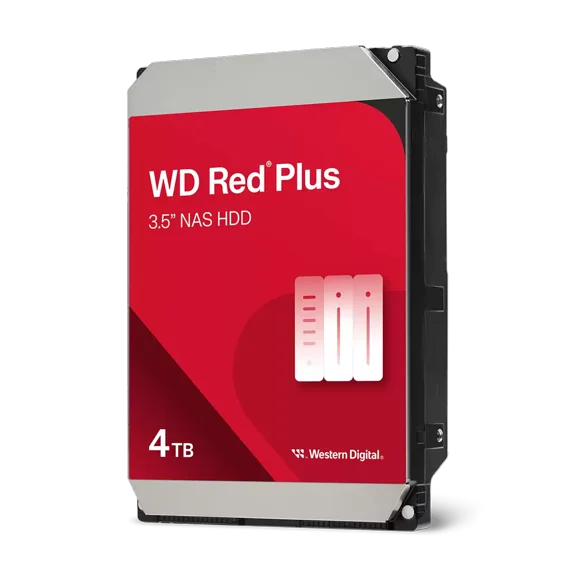
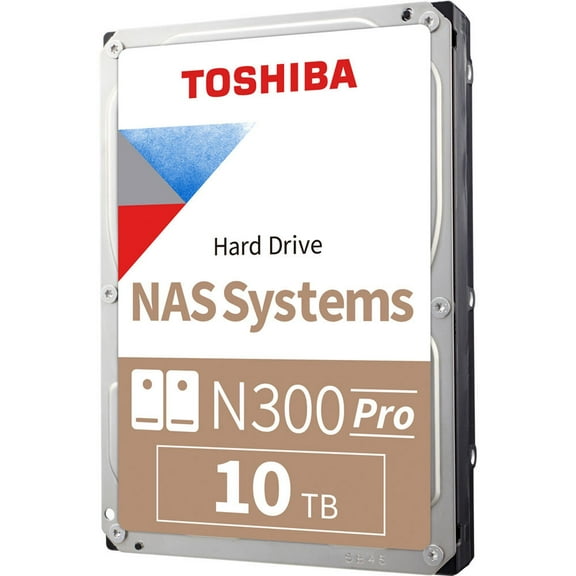
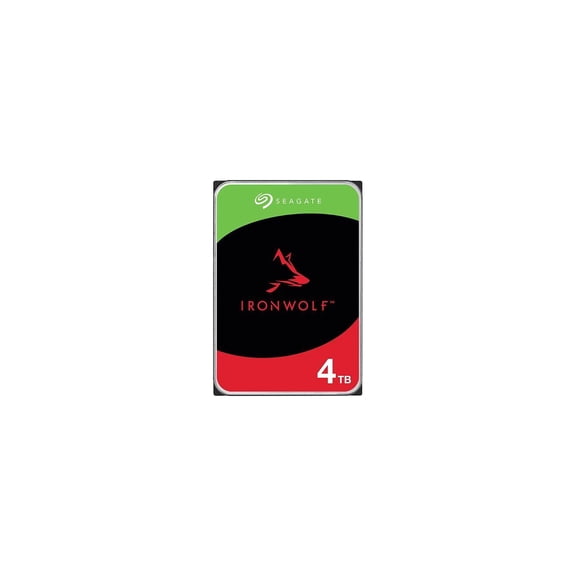
4 tb nas hard drive decisions for shared storage
You should look closely at workload details when you’re choosing a 4 tb nas hard drive for shared access. You may want to compare MTBF and workload rate limits because they show how manufacturers design the drive to perform.
If your NAS runs backups, media streaming, or shared folders across several users, you’ll want a drive built for that ongoing activity. You should also check whether your enclosure takes 3.5-inch drives and supports SATA connectivity.
You may notice rotational speed listed as RPM, and that number affects how quickly your system accesses your files. You can compare common HDD speeds with SSD response times to decide whether your setup needs archive storage or faster file handling.
When your network storage stays active through the day, a 4 tb nas hard drive can suit home servers and small office file sharing. You can also compare higher capacities when your camera footage, backups, or team folders expand over time.
Matching drive specs to your real use case
You should match specs to your actual routine instead of choosing by capacity alone. You can narrow options faster when you compare desktop PC, NAS, and surveillance use cases side by side.
If you’re upgrading a desktop PC, you’ll likely focus on SATA compatibility, bay fit, and enough room for games, media, and documents. You may also compare RPM for smoother file transfers and general storage performance.
When you’re building NAS storage, you should check workload ratings, shared access demands, and enclosure compatibility. You can plan around backup schedules, family file access, or small business folders without guessing at basic fit.
If your system records surveillance footage, you’ll usually want larger capacities and a setup built for steady recording demands. You can compare 4TB with 8TB or 10TB+ when your camera count and retention needs grow.
What to look for before you choose
You should confirm four details before you decide: capacity, interface, bay size, and drive type. You can then compare workload ratings and performance specs that fit your desktop or network storage plan.
With the right match, your storage upgrade feels simpler and your system stays ready for backups, media libraries, and shared files. You’ll gain space that fits your hardware and your everyday routine.