

All Computer Monitors
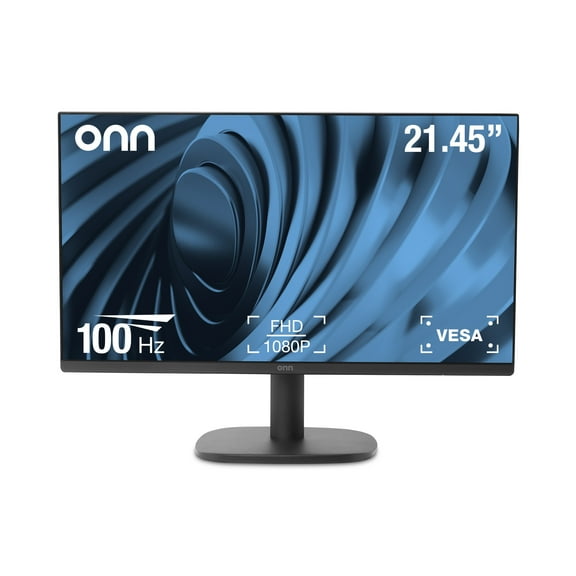

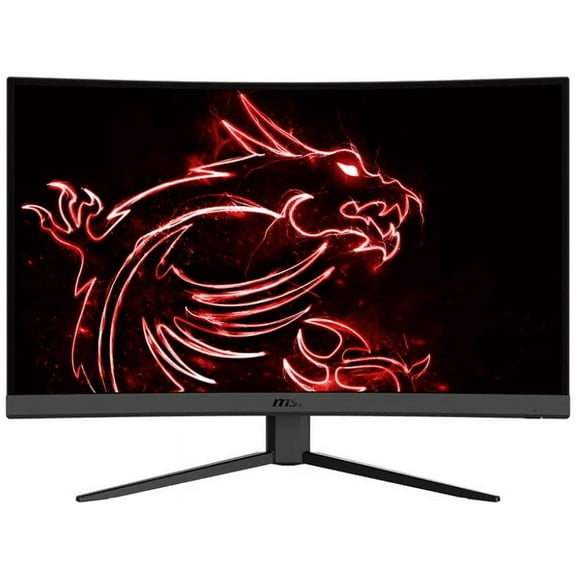

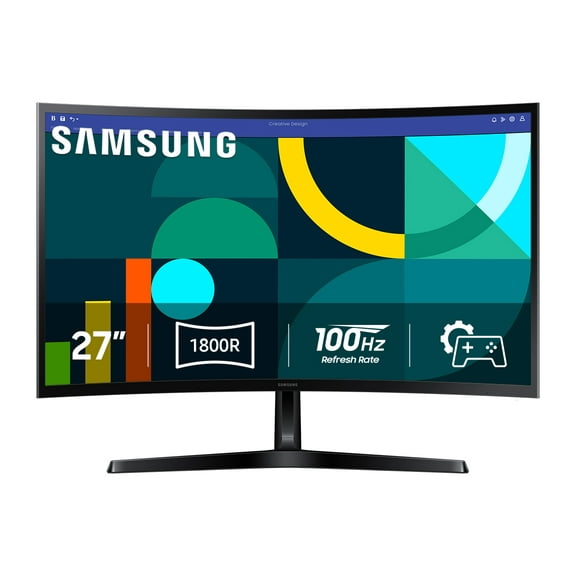
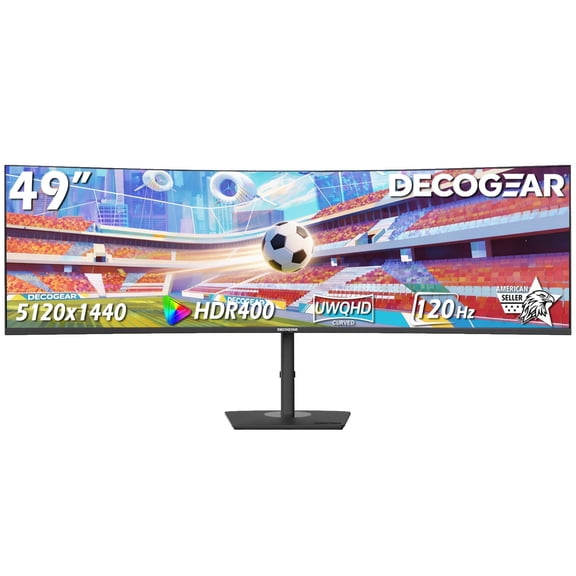
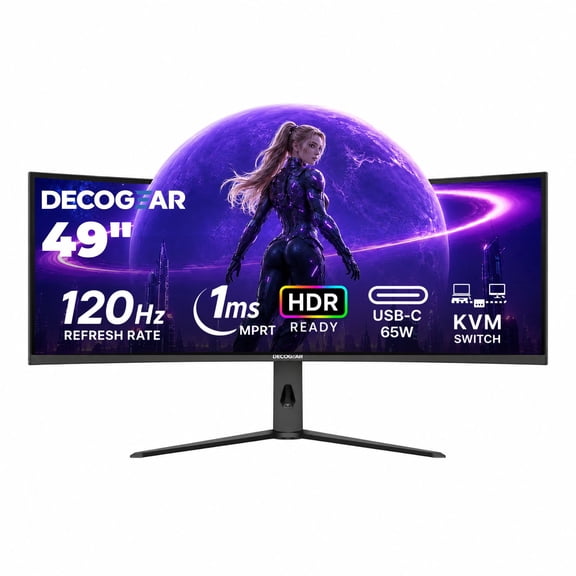
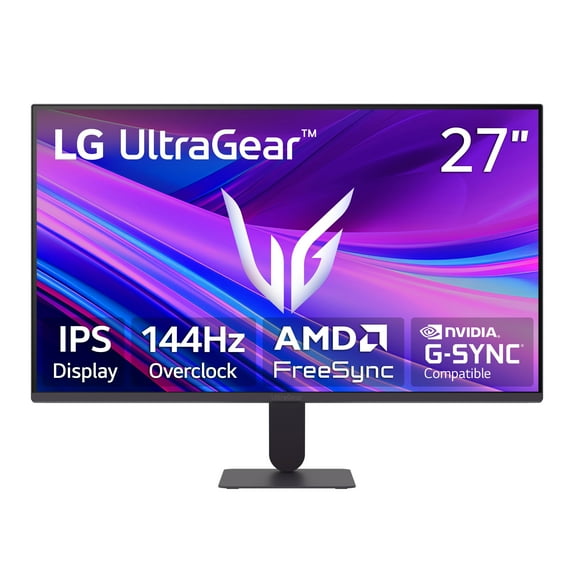
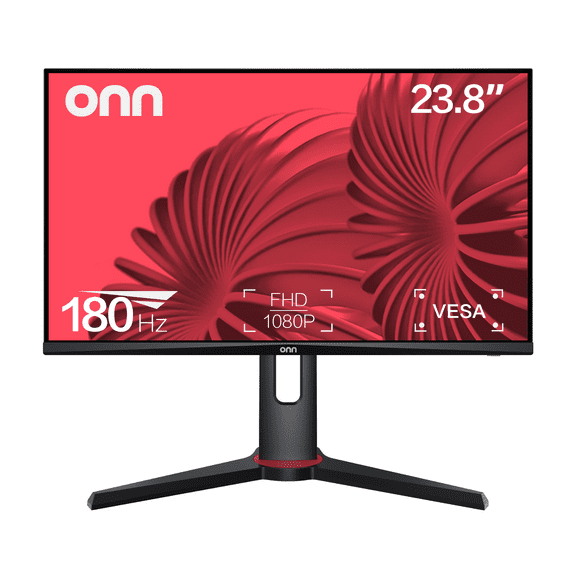

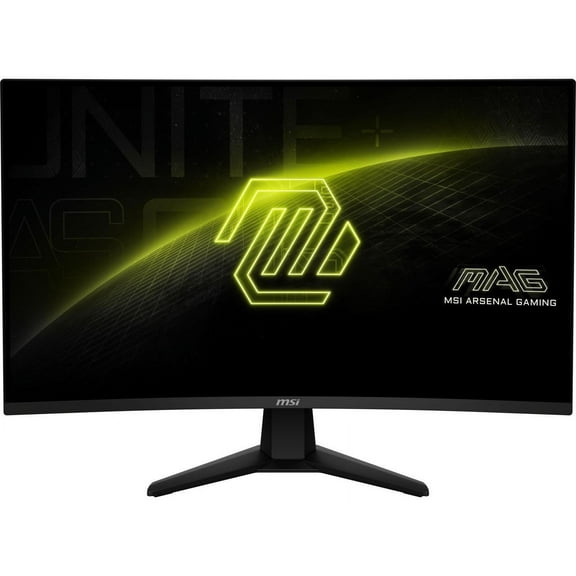
















About All Computer Monitors - Walmart.com
Acer monitors give you clear ways to match your screen to your desk, your games, and your daily workload. You can compare size, resolution, refresh rate, and connections in one place, which makes your search feel more focused.
How to choose Acer monitors for your setup
You should start with screen size because your desk depth changes how comfortable your view feels. You can measure your space first, then compare a 24 inch, 27 inch, or 32 inch display.
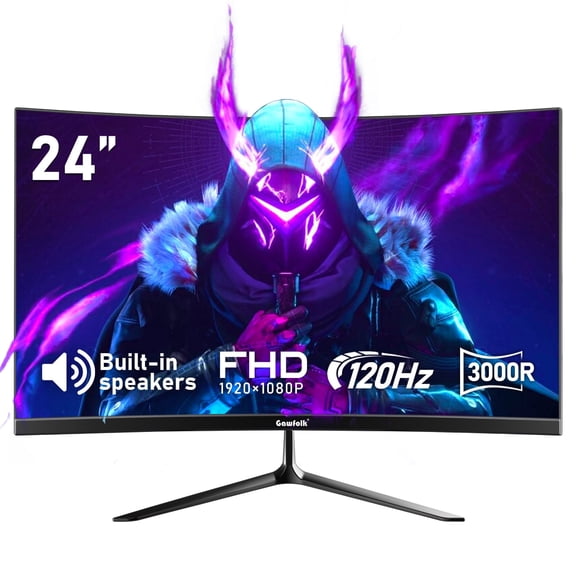
A 24 inch screen usually suits compact desks, shared spaces, and simple home office setups. You may prefer an Acer 27 inch monitor when you want extra room for split screens, spreadsheets, or side-by-side windows.
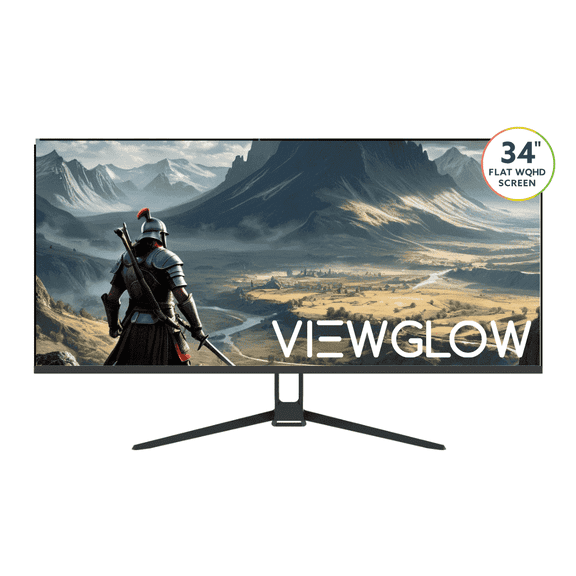
A 32 inch display can help you see more content at once without constant resizing. You should check your viewing distance, because larger screens feel more natural when you sit a bit farther back.
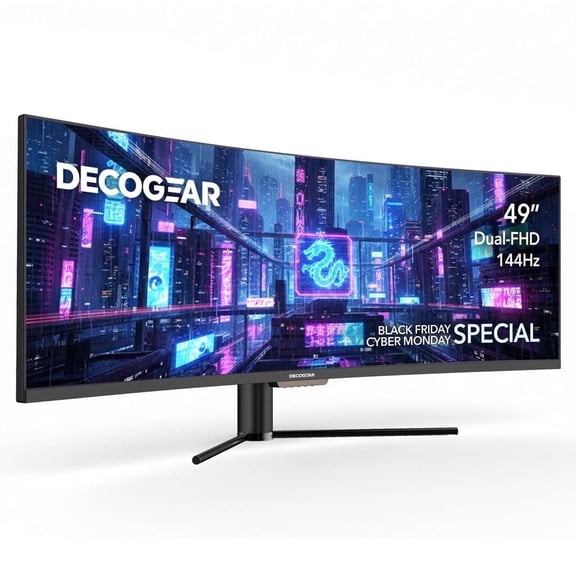
You can also narrow your choices by shape, since flat and curved screens support different viewing styles. You may like an Acer curved monitor if you want a more wrapped visual feel across a wider panel.
- You can match 24 inch screens to tighter desks and everyday tasks.
- You can choose 27 inch models when you want balanced size for work and entertainment.
- You can compare 32 inch options if you need a larger canvas for multitasking.
- You can pick flat screens for classic layouts or curved screens for wider viewing comfort.
Choosing resolution and clarity for Acer monitors
You should compare resolution next, because it shapes how sharp text, images, and video appear. You can keep your decision simple by looking at 1080p Full HD, 1440p QHD, and 4K UHD.
You may find 1080p works well for everyday browsing, school tasks, and basic office use. You can move to 1440p when you want a sharper picture with more room for detailed windows.
An Acer 4K monitor can give you finer detail for editing, streaming, and immersive viewing. You should also consider screen size here, because higher resolution often stands out more on larger displays.
You can make reading documents easier when you pair the right resolution with the right monitor size. You may notice cleaner text edges, more visible toolbars, and less zooming during long work sessions.
Comparing Acer gaming monitors and motion specs
You should review refresh rate if your screen use includes gaming, sports, or fast on-screen movement. You can compare 75Hz, 144Hz, and 240Hz models based on how smooth you want motion to appear.
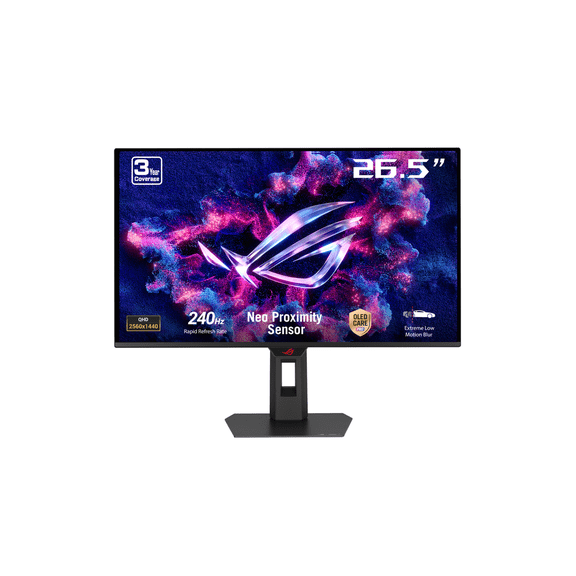
A 75Hz display can fit everyday computing, streaming, and lighter play without adding extra complexity. You may want 144Hz or 240Hz when you expect quicker visual updates during competitive matches.
Acer gaming monitors often attract shoppers who care about both speed and picture quality. You should also look at response time in milliseconds, because lower ms ratings can help motion look cleaner.
You don't need deep technical knowledge to make a smart choice in this category. You can think of higher Hz as smoother movement and lower ms as quicker pixel changes on screen.
Checking ports and compatibility
You should confirm your monitor connections before you choose a model for your desk. You can save setup frustration when you check whether your laptop, desktop, or console matches the available ports.
HDMI works well for many home setups, streaming devices, and common computer connections. You may prefer DisplayPort when you want support for higher refresh rates on compatible gaming hardware.
USB-C matters if you use a newer laptop and want a simpler cable setup. You should compare your device outputs carefully, because the right port mix can make everyday switching much easier.
You can also think about how many devices you plan to keep connected at once. You may appreciate extra inputs when you move between work screens, personal computers, and console play.
Matching Acer gaming monitors, curved screens, and 4K displays to your routine
You can narrow your shortlist faster when you connect features to your daily routine. You may want Acer gaming monitors with 144Hz or 240Hz refresh rates for competitive play and smoother animation.
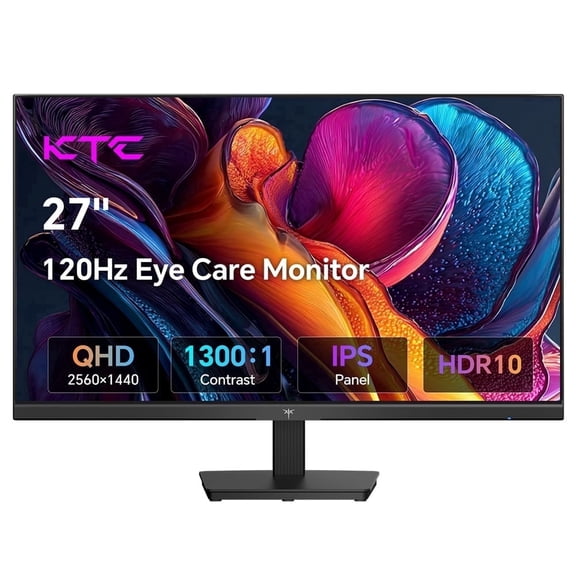
You can pair a 27 inch QHD screen with a mixed-use desk if you work by day and game at night. You may lean toward a curved 32 inch display when you want broader viewing for racing, movies, or multitasking.
You can choose a 24 inch 1080p monitor for homework, email, and streaming in smaller rooms. You may prefer a 4K screen for detailed creative projects, sharper media, and larger workspaces.
You should think about how often you split windows, edit images, or connect multiple devices. You can use those habits to compare Acer monitors in a way that feels practical and specific.
You can shop Acer monitors with a clearer plan when you understand how size, sharpness, speed, and ports affect your setup. You can feel more confident choosing a screen that fits your space and your everyday use.