






In Game Streamer



































About
Game streaming gear helps you build a clean, creator-ready setup for clearer audio, sharper video, and smoother broadcasts. You can compare microphones, webcams, capture cards, lights, and screens in one place.
How to choose game streaming gear
You should start with the component type that changes your stream the most. Your microphone shapes how clearly viewers hear you, while your webcam and lighting shape how polished you look.
You'll usually need a streaming microphone, webcam, capture card, ring light, or green screen based on your content style. You can build around solo chatting, console gameplay, reaction clips, or a full pc streaming setup.
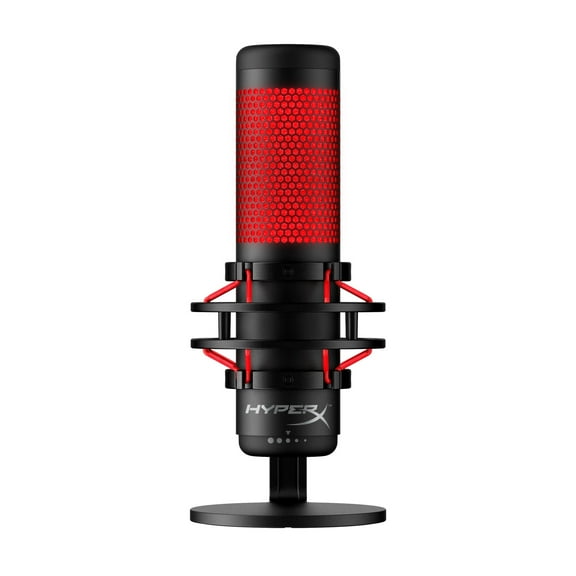
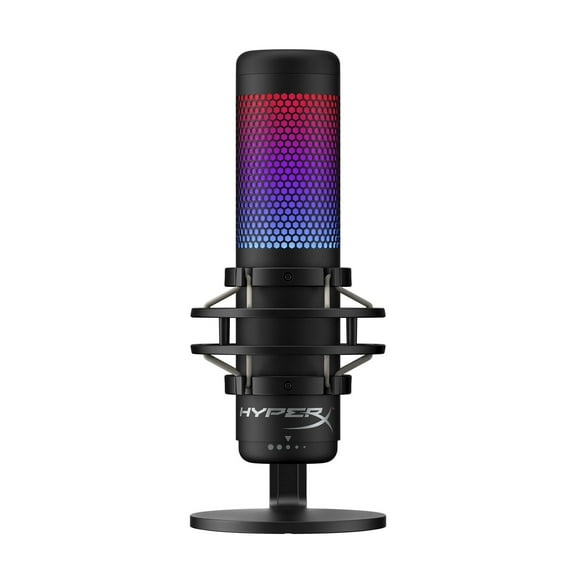
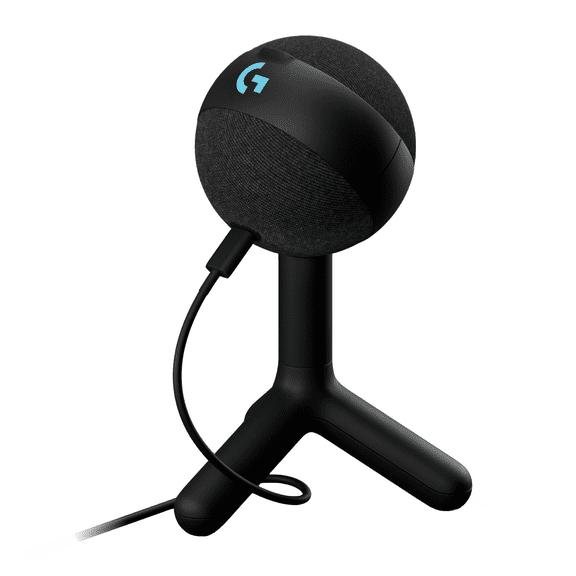
- You can improve voice clarity with a streaming microphone that fits your desk and connection type.
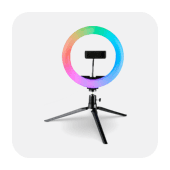
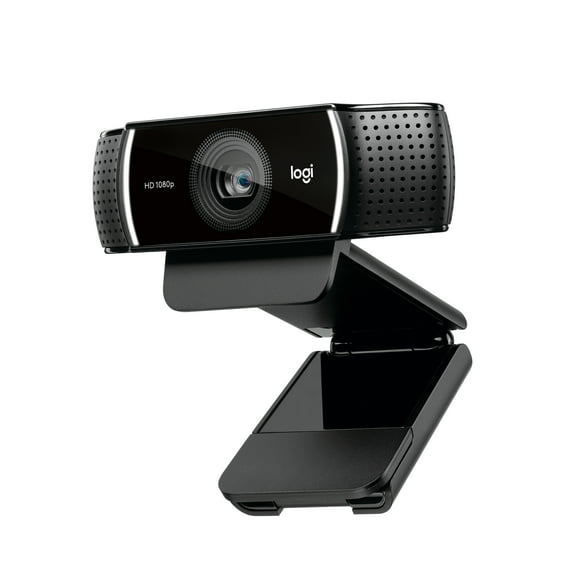
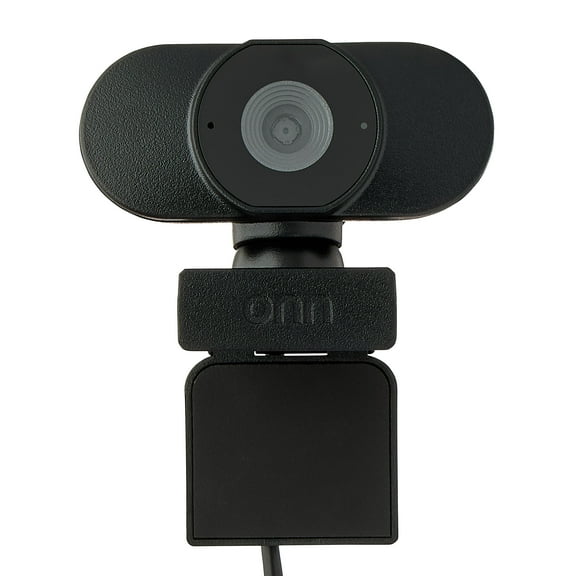
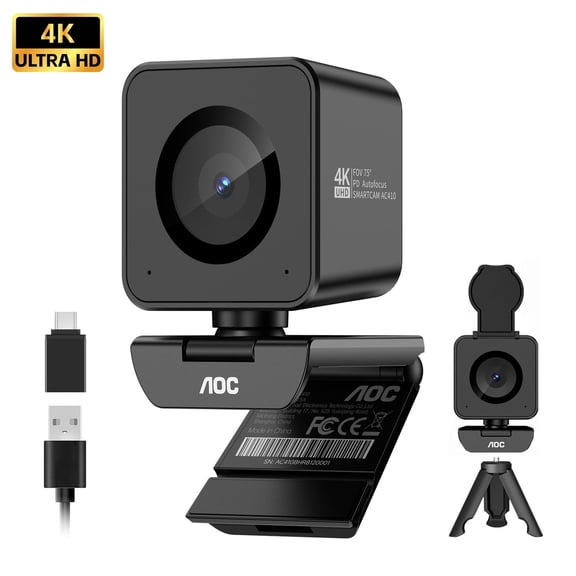
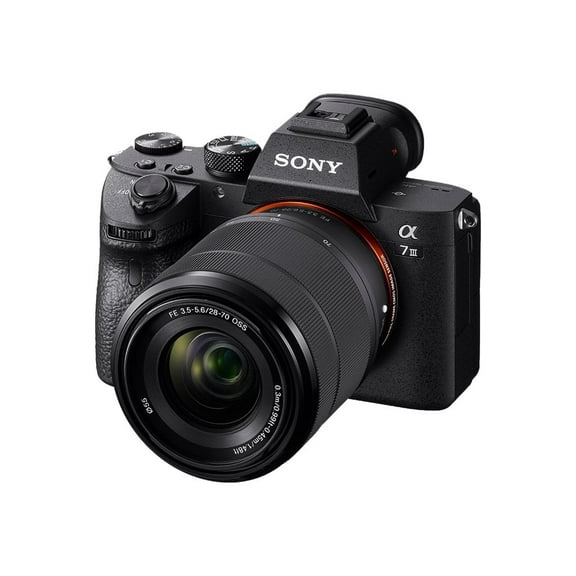
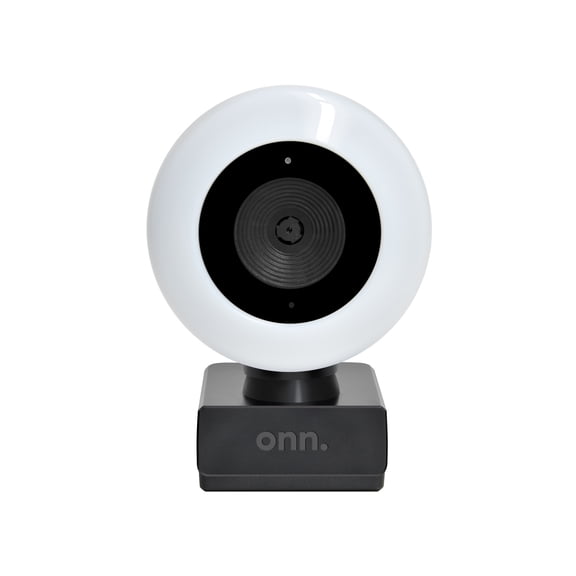
- You can sharpen your camera image with a ring light for streaming and a webcam matched to your resolution needs.
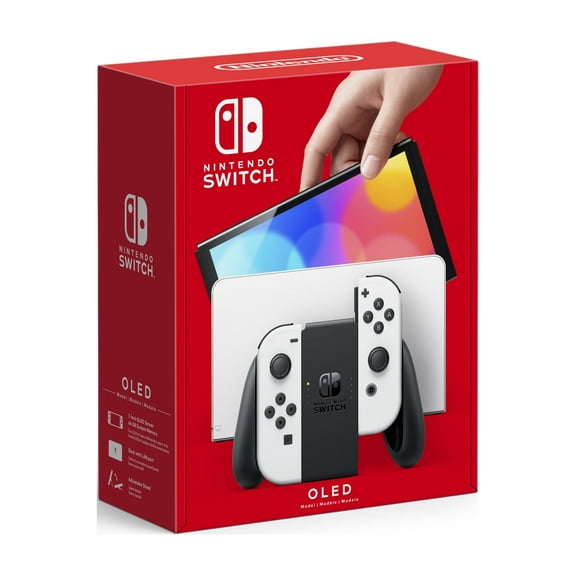
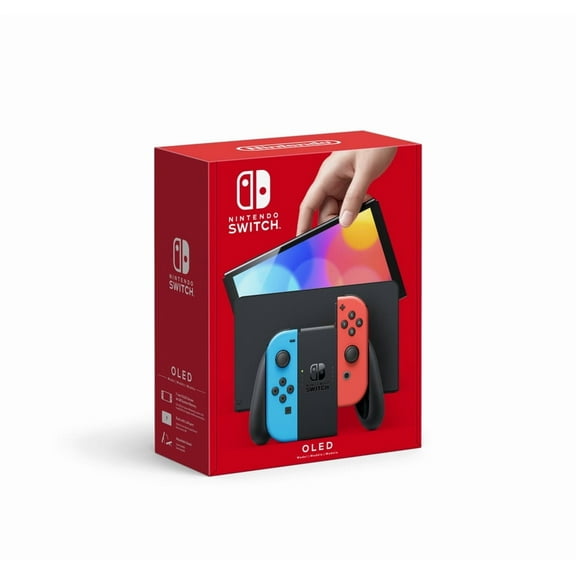
- You can connect consoles with a capture card for streaming when you want gameplay from PS5, Xbox Series X, or Nintendo Switch.
- You can create a cleaner backdrop with a green screen when your room setup stays visible on camera.
If you stream from a bedroom or shared space, you may want gear that handles tight layouts. You can often keep your setup simpler by choosing compact stands, USB connections, and smaller lights.
Choosing streaming equipment for gaming by connection type
You should compare connection types early because they affect setup time and expandability. Your choice between USB, XLR, HDMI, and PCIe changes how your whole station comes together.
You can pick USB gear when you want faster setup and fewer extra parts. You'll usually plug in a USB microphone or webcam and start configuring your stream quickly.
If you want more control over sound, you may compare XLR microphones with mixers or audio interfaces. You can adjust levels more precisely, but your setup usually needs extra hardware.
You should check HDMI and PCIe options when you plan to capture console or dual-PC gameplay. Your capture card for streaming may connect externally through HDMI or install internally through PCIe.
You'll also want to compare cable paths and desk space before you commit. You can keep your station cleaner by matching your gear to the ports you already use.
What to look for in platform compatibility
You should confirm platform compatibility before you choose any live streaming gear. Your setup can work differently across PC, Mac, PS5, Xbox Series X, and Nintendo Switch.
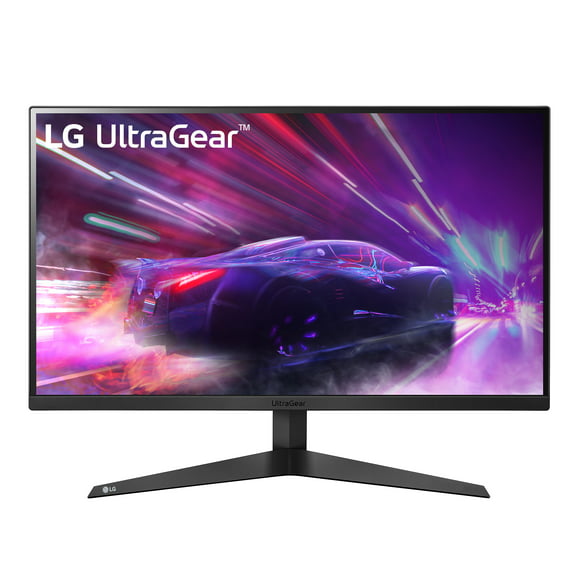
If you stream on console, you may need a capture card with pass-through resolution that matches your display. You can keep gameplay looking smooth on your monitor while your stream records the signal.
You should check whether your capture device supports 1080p, 4K, or 60 FPS input and output. Your viewers notice steady motion, and you notice fewer setup compromises during play.
If you use a PC or Mac, you can focus more on driver support, software compatibility, and available ports. You'll want your camera, microphone, and lighting to work together without extra adapters.
When you switch between platforms, you should look for flexible gear that moves with your routine. You can avoid rebuilding your station each time you stream from a different device.
Comparing resolution, audio, and lighting details
You should match video and audio quality to the kind of content you make. Your audience notices face detail, motion smoothness, and voice presence before they notice decorative extras.
You can compare 1080p and 4K webcams based on your stream layout and upload limits. You'll often find 1080p works well for face cams, while 4K gives you more cropping flexibility.
For motion-heavy games, you should pay attention to 60 FPS support in cameras and capture gear. Your gameplay can appear smoother when your equipment supports faster frame rates.
You can also compare 24-bit audio options when you want more detailed sound capture. Your voice can come through with richer texture, especially when you fine-tune levels in streaming software.
If background sounds distract your stream, you should look for a cardioid pickup pattern in a streaming microphone. Your mic then focuses more on your voice from the front.
You shouldn't overlook lighting because your webcam image depends heavily on it. You can make your face look more evenly lit with a ring light for streaming placed near eye level.
A green screen can help when you want a cleaner background during gameplay or commentary. You can keep attention on your content instead of shelves, doors, or wall clutter.
Matching gear to your streaming routine
You should choose gear based on how and where you stream each week. Your routine often decides whether simple plug-and-play gear or a layered setup makes more sense.
If you stream casually after work, you may prefer USB gear with quick mounting and easy storage. You can get on camera faster without rearranging your desk every session.
If you create longer broadcasts, you may want an XLR microphone, dedicated lighting, and a stronger capture workflow. You can fine-tune sound and video more closely across different scenes.
When you share console gameplay, you should prioritize a capture card, HDMI routing, and platform support. Your stream can stay consistent whether you rotate between PS5, Xbox Series X, or Nintendo Switch.
If you focus on chatting, tutorials, or reactions, you may care more about facial lighting and vocal clarity. You can put more of your setup budget toward a webcam, ring light, and microphone.
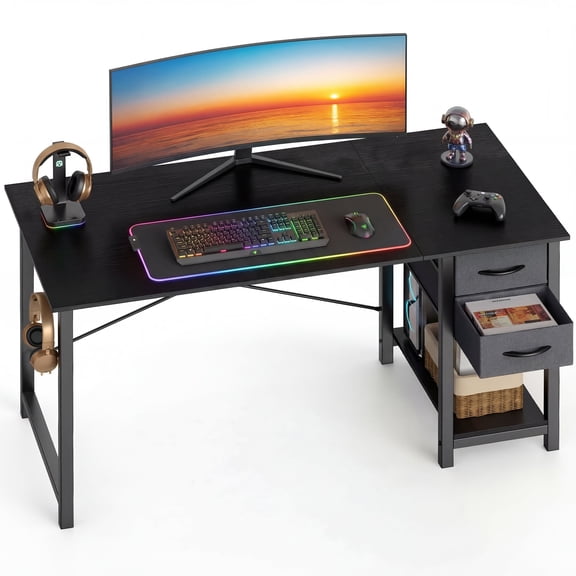
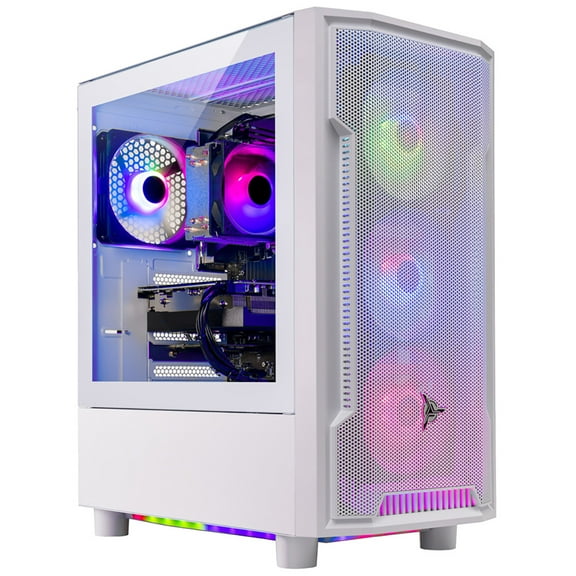
For a complete pc streaming setup, you should balance ports, desk space, and upgrade paths from the start. You can add pieces over time without replacing your whole setup later.
With the right game streaming gear, you can create a setup that fits your platform, room, and content style. You can stream with clearer sound, cleaner visuals, and fewer setup frustrations.