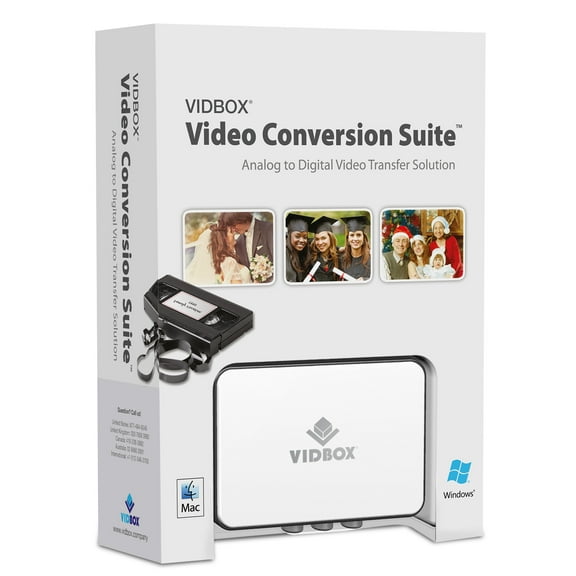
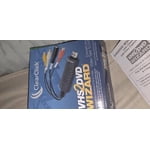
Got a box of old video tapes in your closet or basement? Turn them into DVD or digital video file!
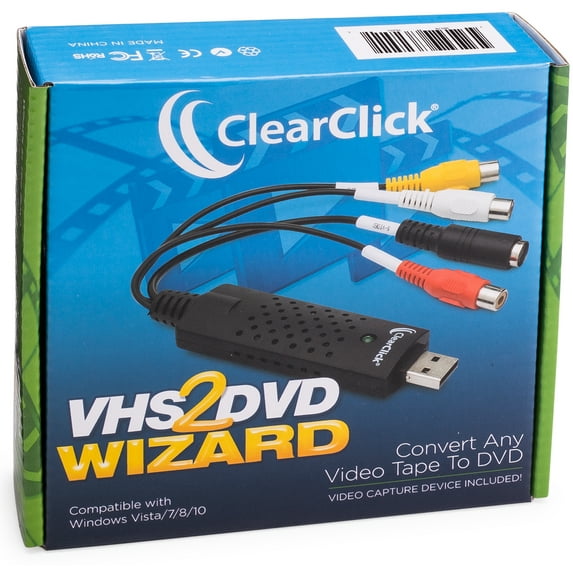
The VHS To DVD Wizard software from ClearClick makes this easy by providing you with a step-by-step, "wizard" software format. Plus, there's a simple user's manual (included in digital PDF format on the CD) that you can actually understand, because it's written in everyday language! Here's how this conversion system works.
Step #1: Install the ClearClick VHS To DVD Wizard Software.
Just insert the software CD to install the VHS To DVD Wizard and associated driver files.
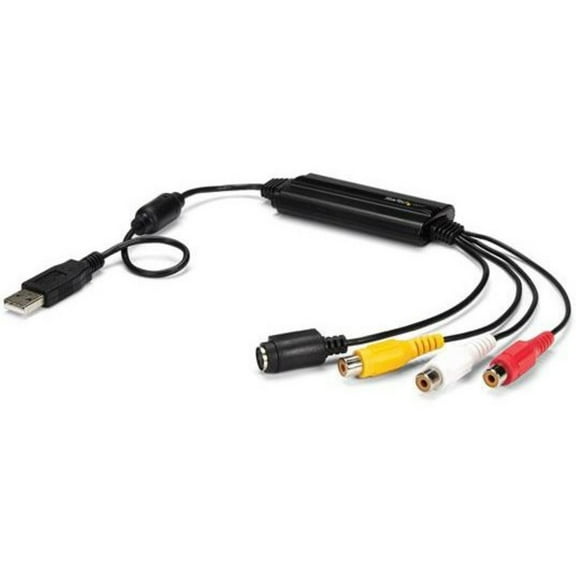
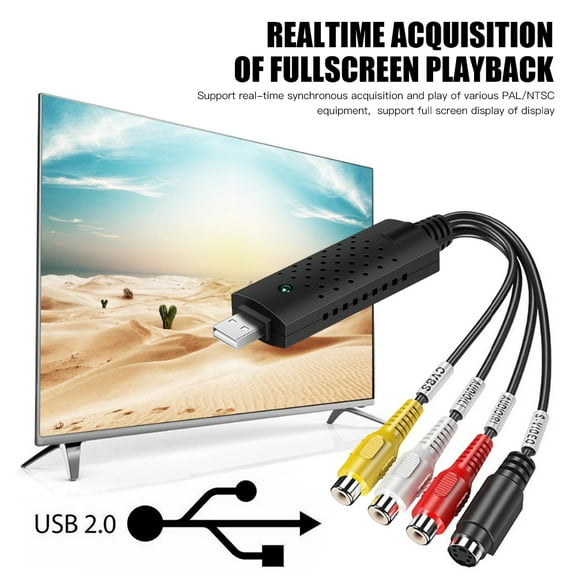
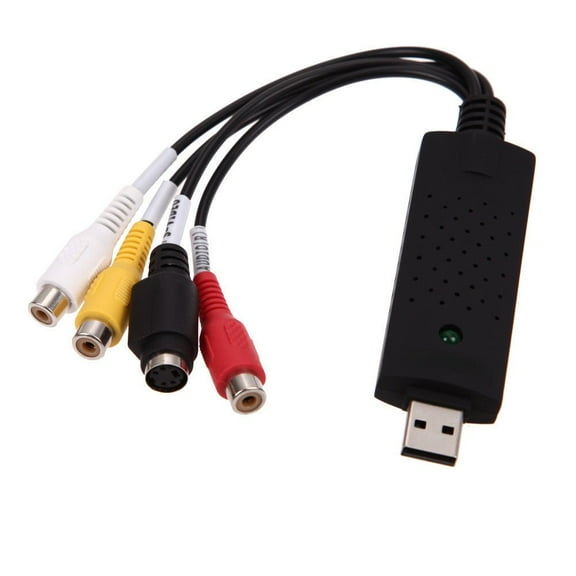
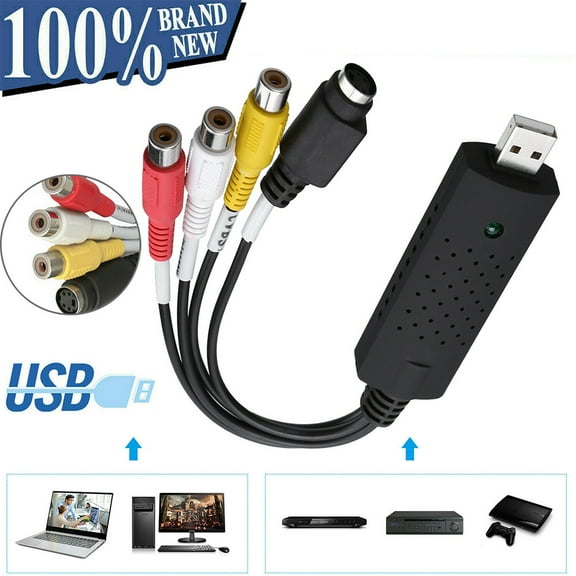
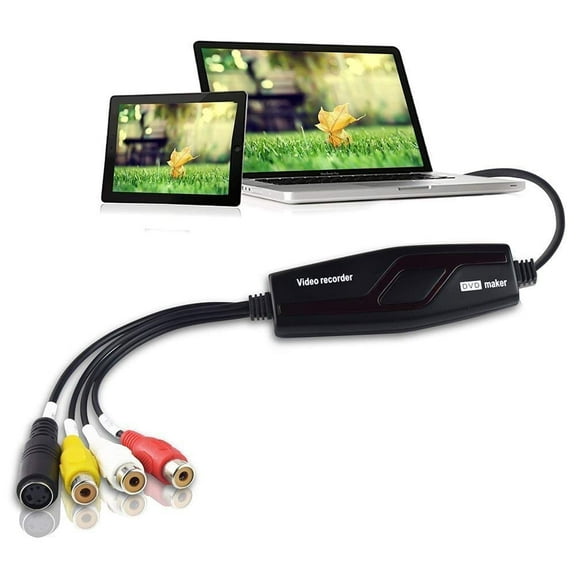
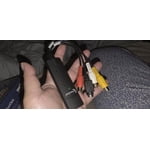
Step #2: Plug in the ClearClick USB Video Grabber.
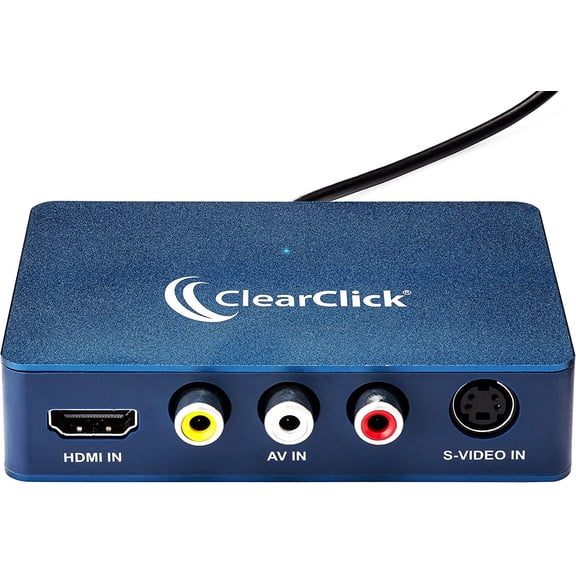
Plug in the included ClearClick USB Video Grabber into your PC. Your computer will install it automatically.
Step #3: Connect Your VCR.
Connect your VCR to your USB video grabber with an RCA audio/video cable, and start playing a VHS tape in your VCR. Note: a VCR and RCA audio/video cable are not included.
Step #4: Capture Your Video.
Click "Capture" in the software and your video will start transferring to your computer! You can either capture your video to a digital video file on your computer so that you can edit it, or you can burn your video directly to DVD as you capture it.
Step #5: Edit and Burn Your Video To DVD.
After optionally editing your video with the software to remove unwanted portions, simply burn it to DVD with the "Create DVD" section. You're done!
Finally, as a ClearClick customer, you get access to top-quality, USA-based technical support. Unlike other companies with "outsourced" tech support or support you have to pay for, ClearClick's top-notch tech support is free and USA-based.
SYSTEM REQUIREMENTS:
Windows 10/8/7/Vista
2.0 GHz Dual Core processor or better recommended
2-4 GB RAM or higher
DVD burner & Blank DVD-R discs
15 GB or more of free hard disk space
VCR video tape player or camcorder (to play your tapes)