Dell WM615 - mouse - - black
Key item features
Dell WM615 Mouse Black:
- Scrolls using a touch strip
- Offers comfortable use, especially during extended sessions
- Infrared LED tracking sensor delivers accurate and precise movement
- Twisting design makes it easily portable
- Bluetooth mouse WM615 comes in black
Specs
- BrandDell
- Mouse typeWireless Mice
- ColorAssorted
- WirelessBluetooth
- Motion detectInfrared
- Buttons3
How do you want your item?
About this item
Product details
Dell WM615 Mouse Black:
- Scrolls using a touch strip
- Offers comfortable use, especially during extended sessions
- Infrared LED tracking sensor delivers accurate and precise movement
- Twisting design makes it easily portable
- Bluetooth mouse WM615 comes in black
Specifications
Brand
Mouse type
Color
Wireless
Warranty
Warranty information
Please be aware that the warranty terms on items offered for sale by third party Marketplace sellers may differ from those displayed in this section (if any). To confirm warranty terms on an item offered for sale by a third party Marketplace seller, please use the 'Contact seller' feature on the third party Marketplace seller's information page and request the item's warranty terms prior to purchase.
Warranty url
Warnings
Ingestion Hazard
Warning Text
Similar items you might like
Based on what customers bought
In 50+ people's carts Logitech Silent Wireless Mouse, Black, Walmart Exclusive $9.88 Was $13.83
In 50+ people's carts 4 optionsAvailable in additional 4 options$988current price $9.88, Was $13.83$13.83
Logitech Silent Wireless Mouse, Black, Walmart Exclusive
43714.5 out of 5 Stars. 4371 reviewsDell MS116 Wired Optical Mouse USB, 1000 DPI, Black $8.99
 $899current price $8.99
Dell MS116 Wired Optical Mouse USB, 1000 DPI, Black
11 out of 5 Stars. 1 reviewsDell Wireless Mouse WM126, 1000 DPI, 3 Buttons, USB Wireless Receiver, 1 AA Battery Black $14.97
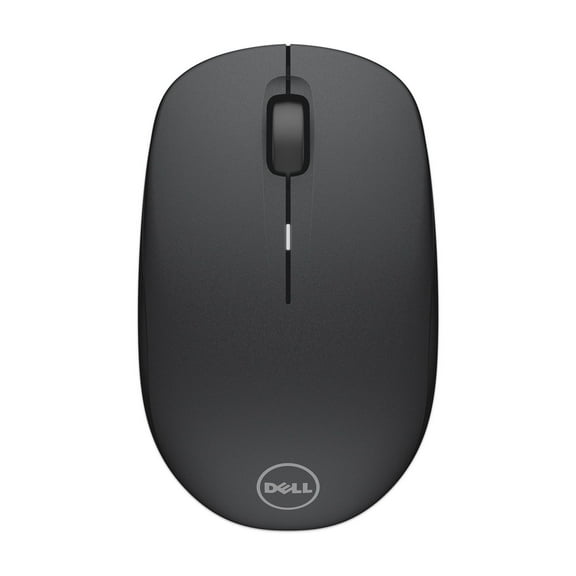 $1497current price $14.97
Dell Wireless Mouse WM126, 1000 DPI, 3 Buttons, USB Wireless Receiver, 1 AA Battery Black
5454.4 out of 5 Stars. 545 reviewsIn 200+ people's carts Wireless Mouse, Mouse for Laptop, Bluetooth Mouse, Pink $12.99 Was $15.99
In 200+ people's carts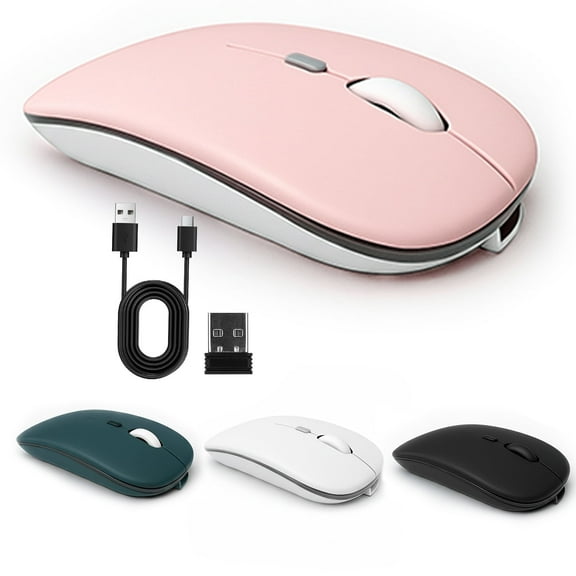 $1299current price $12.99, Was $15.99$15.99
Wireless Mouse, Mouse for Laptop, Bluetooth Mouse, Pink
34.7 out of 5 Stars. 3 reviews50+ bought since yesterday Logitech Compact Wireless Mouse $14.88
50+ bought since yesterday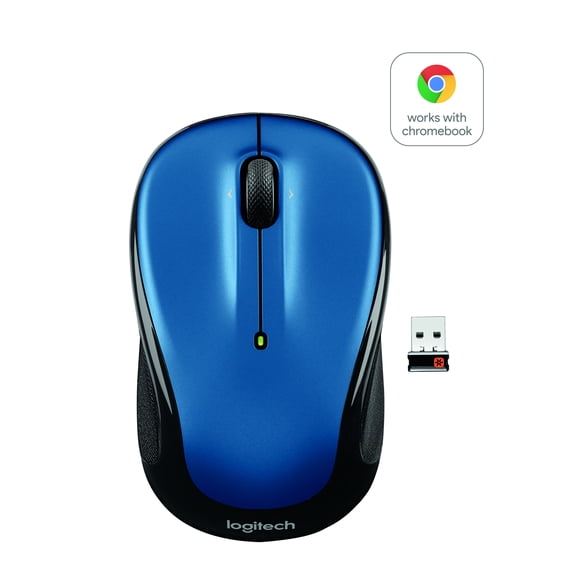

 $1488current price $14.88
Logitech Compact Wireless Mouse
43334.6 out of 5 Stars. 4333 reviewsRollback Logitech Full Size Wireless Mouse, Silver, Walmart Exclusive $12.88 Was $16.88
Rollback 3 optionsAvailable in additional 3 options$1288current price $12.88, Was $16.88$16.88
Logitech Full Size Wireless Mouse, Silver, Walmart Exclusive
2594.6 out of 5 Stars. 259 reviewsBest seller Wireless Mouse, 2.4GHz with USB Receiver, 1200 DPI Optical Tracking, 5 Buttons,Ambidextrous PC/Mac/Laptop - Red $9.99 Was $11.69
Best seller


 $999current price $9.99, Was $11.69$11.69
Wireless Mouse, 2.4GHz with USB Receiver, 1200 DPI Optical Tracking, 5 Buttons,Ambidextrous PC/Mac/Laptop - Red
13924.5 out of 5 Stars. 1392 reviewsBest seller Logitech Precision Pro Wireless Mouse, Black, Walmart Exclusive $36.82
Best seller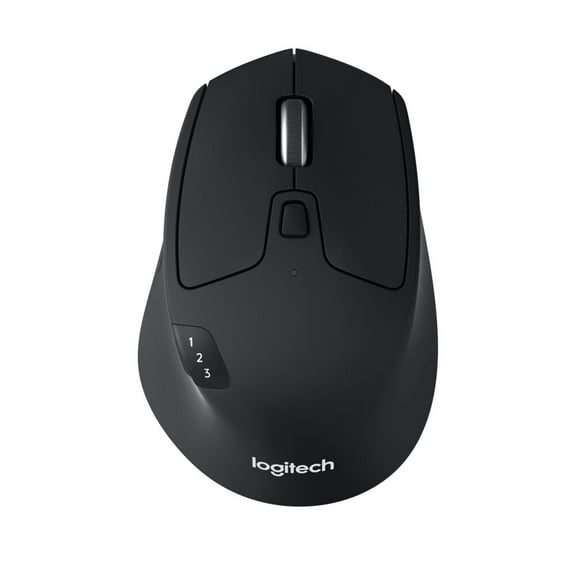 $3682current price $36.82
Logitech Precision Pro Wireless Mouse, Black, Walmart Exclusive
1744.5 out of 5 Stars. 174 reviewsUSB Wired Mouse, Portable Computer Mouse for Desktop, Laptop, Home Office and School Use By PULMCheerger $6.97
 2 optionsAvailable in additional 2 options$697current price $6.97
USB Wired Mouse, Portable Computer Mouse for Desktop, Laptop, Home Office and School Use By PULMCheerger
684.1 out of 5 Stars. 68 reviewsBest seller onn 6-Button Wireless Mouse, Ergonomic, 6 Buttons, 2.4GHz, Black $19.88
Best seller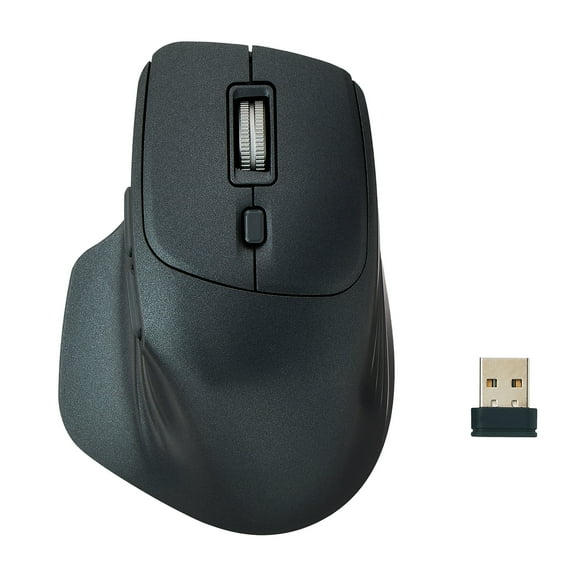 $1988current price $19.88
onn 6-Button Wireless Mouse, Ergonomic, 6 Buttons, 2.4GHz, Black
1234.5 out of 5 Stars. 123 reviewsWireless Mouse, Mouse for Laptop, Bluetooth Mouse, Black $14.99
 4 optionsAvailable in additional 4 options$1499current price $14.99
Wireless Mouse, Mouse for Laptop, Bluetooth Mouse, Black
2744.5 out of 5 Stars. 274 reviewsBest seller Advanced Wireless Mouse 2, White, Walmart Exclusive $24.88
Best seller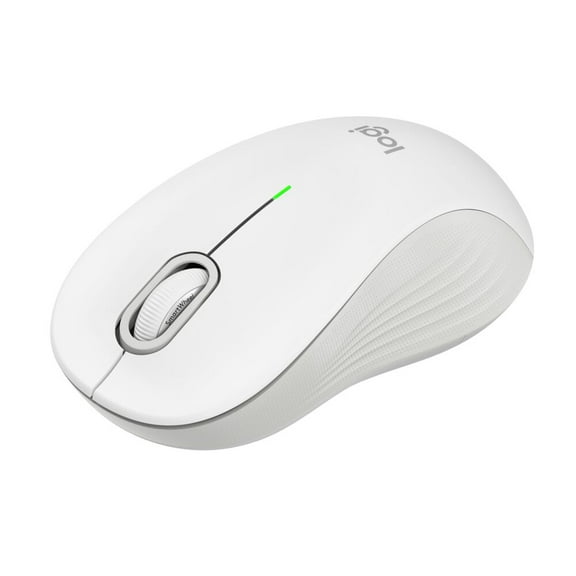 $2488current price $24.88
Advanced Wireless Mouse 2, White, Walmart Exclusive
454.9 out of 5 Stars. 45 reviewsDell MS116 Optical USB Wired Mouse, 1000 DPI, 3 Buttons with Scroll Wheel - Black $9.99
 $999current price $9.99
Dell MS116 Optical USB Wired Mouse, 1000 DPI, 3 Buttons with Scroll Wheel - Black
15 out of 5 Stars. 1 reviewsPerixx Perimice-717 Wireless USB Trackball Programmable Computer Mouse, Built-in Trackball $24.99
 2 optionsAvailable in additional 2 options$2499current price $24.99
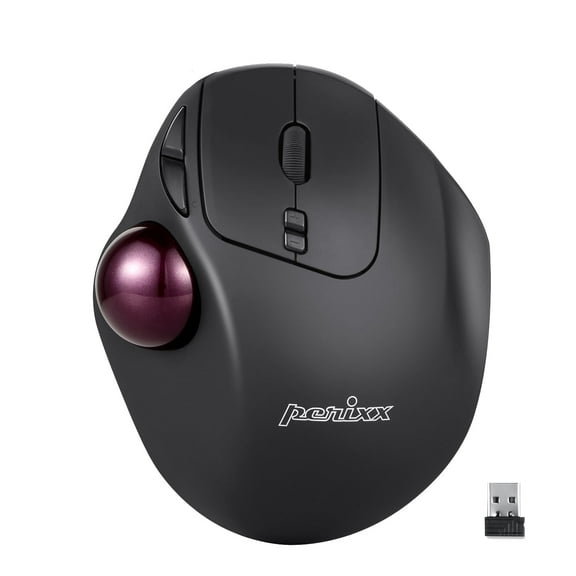
Perixx Perimice-717 Wireless USB Trackball Programmable Computer Mouse, Built-in Trackball
924.2 out of 5 Stars. 92 reviewsBest seller Wired Mouse, USB-A Wired , 1200 DPI Optical Tracking, 5 Buttons,Ergonomic Cord Mouse for PC/Mac/Laptop-Red $10.89 Was $22.99
Best seller 8 optionsAvailable in additional 8 options$1089current price $10.89, Was $22.99$22.99
Wired Mouse, USB-A Wired , 1200 DPI Optical Tracking, 5 Buttons,Ergonomic Cord Mouse for PC/Mac/Laptop-Red
1694.6 out of 5 Stars. 169 reviewsBest seller Uciefy Wireless Mouse Rechargeable Optical Mouse Slim Silent Mouse with USB Receiver Rose Gold $12.99 Was $15.99
Best seller 11 optionsAvailable in additional 11 options$1299current price $12.99, Was $15.99$15.99
Uciefy Wireless Mouse Rechargeable Optical Mouse Slim Silent Mouse with USB Receiver Rose Gold
1524.3 out of 5 Stars. 152 reviewsBest seller Logitech Advanced Wireless Mouse 2, Walmart Exclusive $24.88
Best seller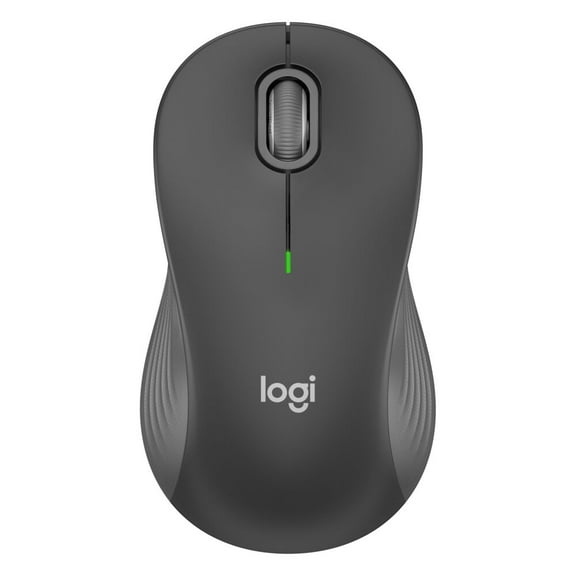 $2488current price $24.88
Logitech Advanced Wireless Mouse 2, Walmart Exclusive
1294.7 out of 5 Stars. 129 reviewsTENMOS Wireless Bluetooth Mouse Rechargeable Silent Mouse Dual Mode (Bluetooth 5.1 2.4G) with Nano Receiver $13.99 Was $18.99
 12 optionsAvailable in additional 12 options$1399current price $13.99, Was $18.99$18.99
TENMOS Wireless Bluetooth Mouse Rechargeable Silent Mouse Dual Mode (Bluetooth 5.1 2.4G) with Nano Receiver
3594.6 out of 5 Stars. 359 reviewsDell Pro Wireless Mouse MS5120W Black MS5120WBLK $39.99
 $3999current price $39.99
Dell Pro Wireless Mouse MS5120W Black MS5120WBLK
33.7 out of 5 Stars. 3 reviewsLogitech M325S Red Wireless Mouse 910-006830 $14.99 Was $20.81
 $1499current price $14.99, Was $20.81$20.81
Logitech M325S Red Wireless Mouse 910-006830
284.6 out of 5 Stars. 28 reviews
Customer ratings & reviews
Filtered and sorted results would be available on the new 'Customer ratings & reviews' page.
Showing 1-3 of 3 reviews
Terrible Mouse
Mouse paired once and then stopped working. What a terrible product!
@Catherine, we're sorry about the mouse issue. We understand the importance of a mouse while surfing the web, playing games and everyday use. We want you to start clicking again, please follows these steps - 1) Check the wireless connection. For Dell mice with USB receivers, proceed to Step 2. For Dell mice with Bluetooth connections, proceed to Step 3. 2) Make sure that the USB receiver is turned on. Some Dell models have a small button or switch on the receiver. Push this and wait for the small light to come on. If there is no light, remove the receiver and try plugging it into another USB port. 3) Check the Bluetooth connectivity. Locate the Bluetooth icon (see Resources) in the lower right of the Windows desktop. You may need to click the small arrow to expose all of the icons. 4) Right-click the Bluetooth logo and verify that the connection is on. If not, select "Make Discoverable" or "Turn on Bluetooth." Wait for the icon to light up. Press the small connection button on the underside of the mouse to sync the device. 5) Turn the mouse over and remove the battery compartment. Replace the batteries with fresh batteries. Most Dell wireless mice take AA batteries. 6) Verify that the mouse is positioned on a flat surface that is not reflective. You can place a standard piece of white printer paper under the mouse to prevent reflective surfaces from confusing the optics of the mouse. 7) Press the small connection button on the underside of the mouse to ensure the mouse is on and sending and receiving signals from the USB receiver or Bluetooth. If you've reset the receiver, computer or Bluetooth connection, you may need to push this button once more to sync the device. For more help please check out our Dell Support article (https://www.dell.com/support/article/us/en/19/sln305030/mouse-usage-and-troubleshooting-guide?lang=en) on mouse troubleshooting or give us a call at 1 (800) 624-9897. We hope this helps, Catherine!
Doesn't work
Mouse doesn't work, at all. Couldn't get it to pair to my Dell xps laptop
Hello, Marc. First, thank you for your review. Next, we regret you're having issues with your mouse. Here is some suggested quick fix: 1) Reseat the USB cable or wireless USB receiver. 2) When you have a wireless USB or Bluetooth mouse, install new batteries. 3) Save any data, close any open program(s) and restart the computer. Please call our support team with more detail on the issue at 1-800-624-9897 and visit www.dell.com/support/home/us/en/4 and https://www.dell.com/support/article/us/en/19/sln305030/mouse-usage-and-troubleshooting-guide?lang=en for more assistance. - Chris
BEWARE
Potential buyers beware that this mouse only works with Dell computers!