

External Hard Drives














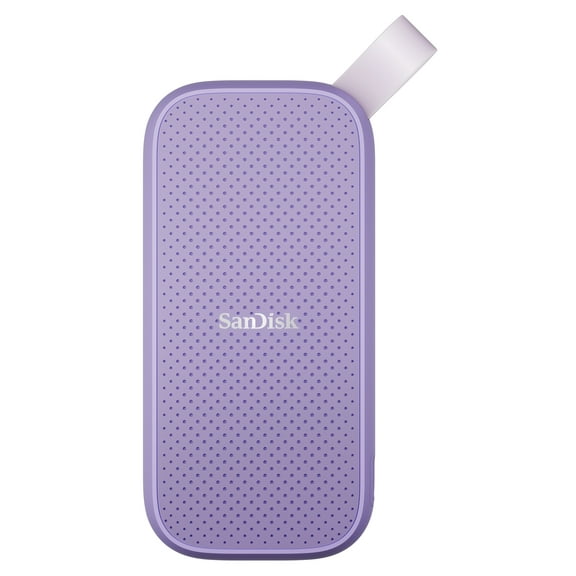
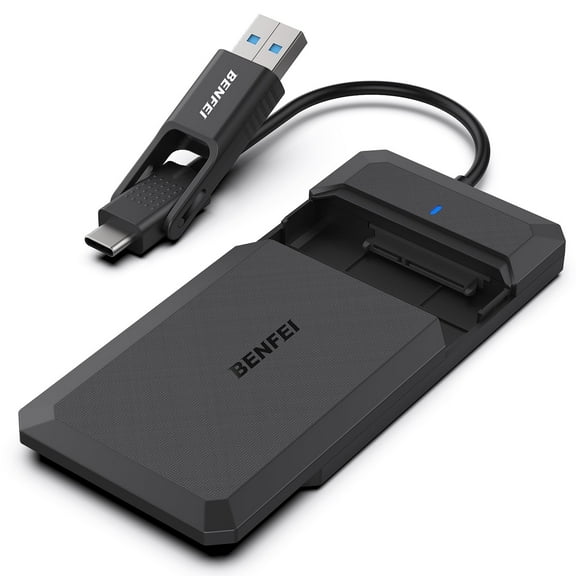
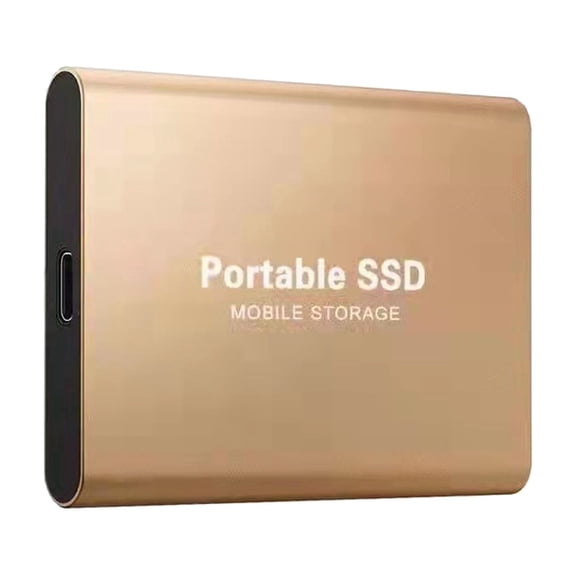








About External Hard Drives - Walmart.com
You can compare 2tb external hard drives by speed, size, and device fit, so your storage setup stays simple. You can get room for photo libraries, video files, game installs, and routine backups without constant file juggling.
How to choose 2tb external hard drives
When you shop 2tb external hard drives, you should start with drive type because your speed needs shape daily use. You should also compare form factor, connection type, and compatibility before you choose storage for your desk, bag, or console.
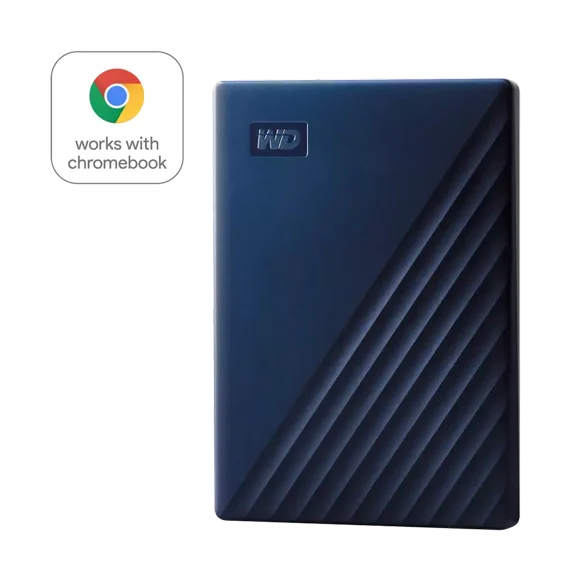
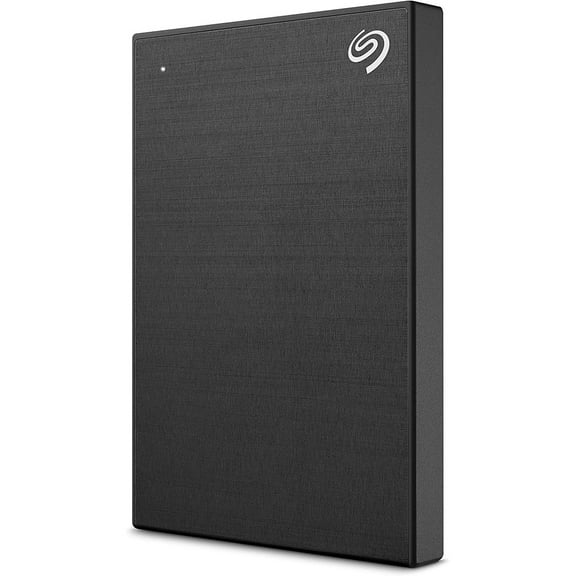
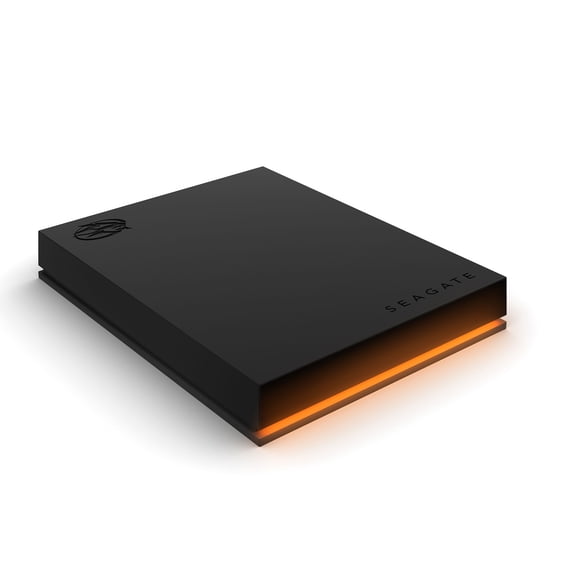
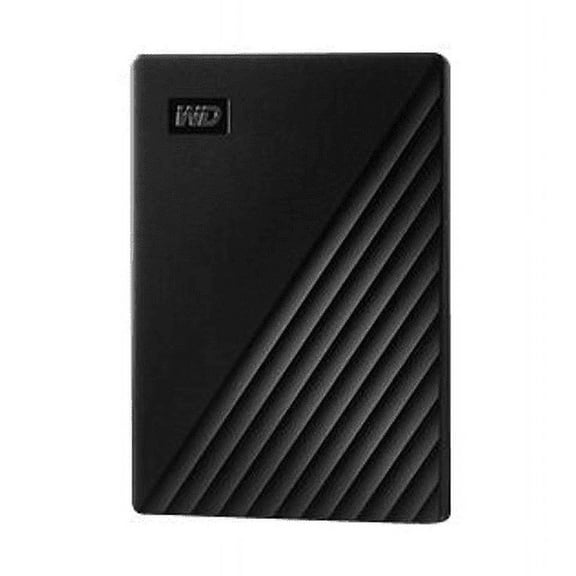
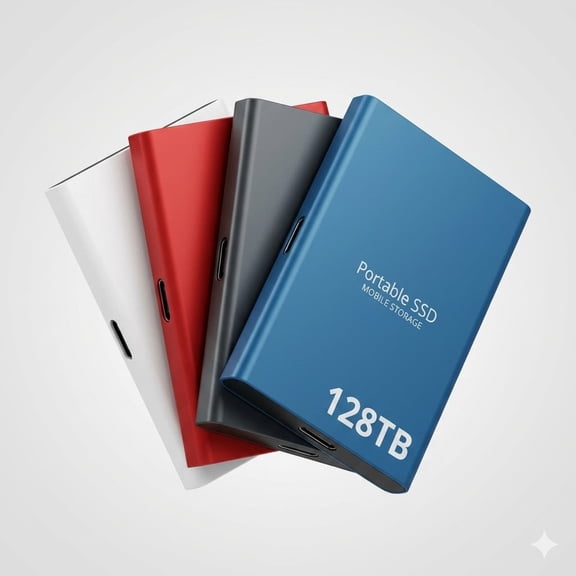
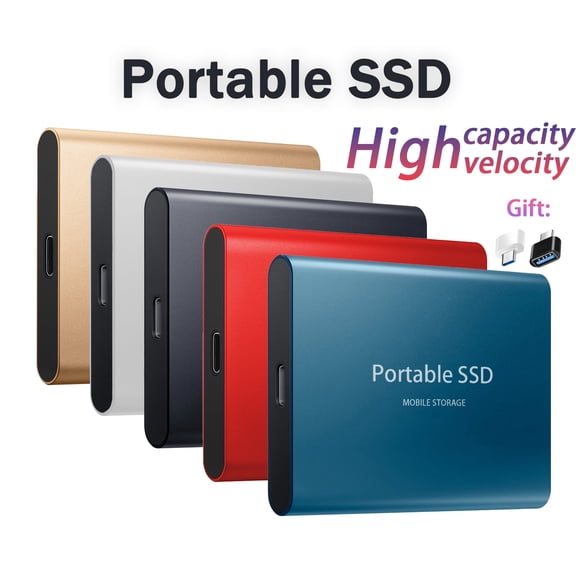
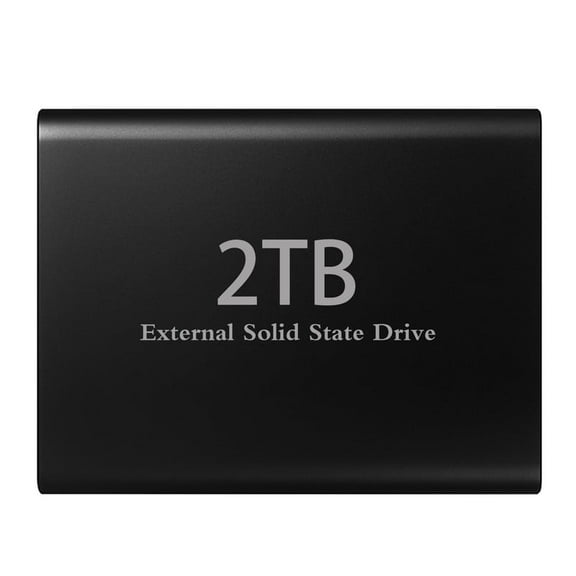
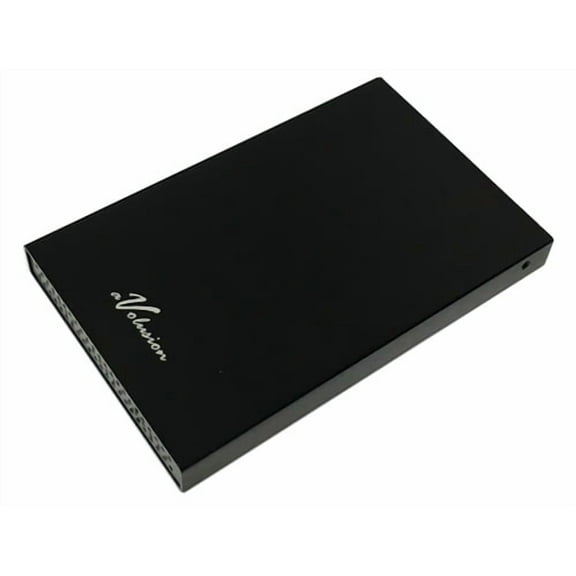
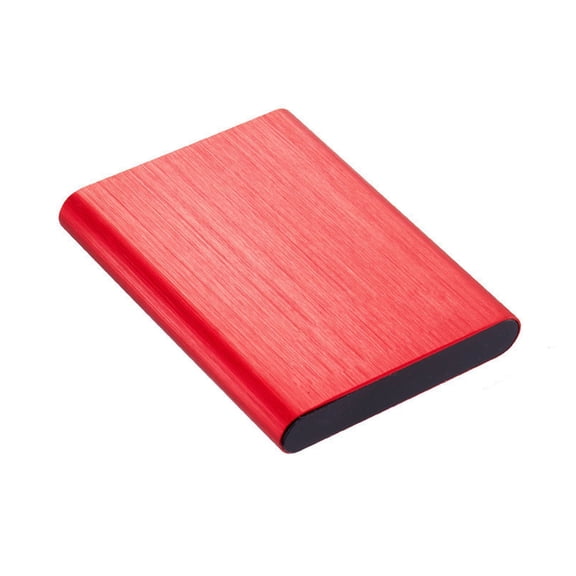
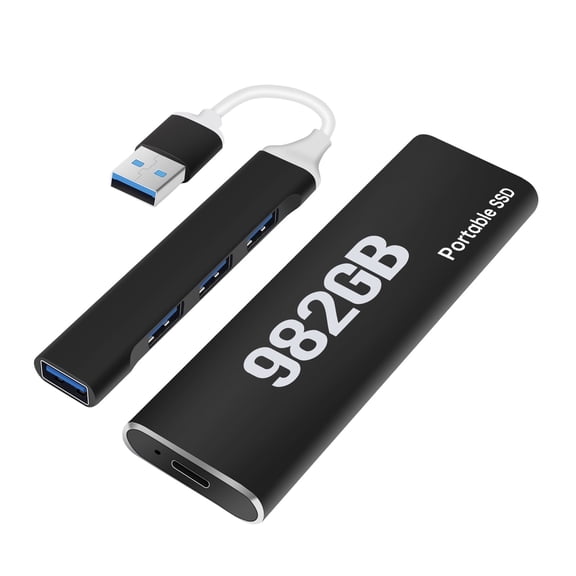
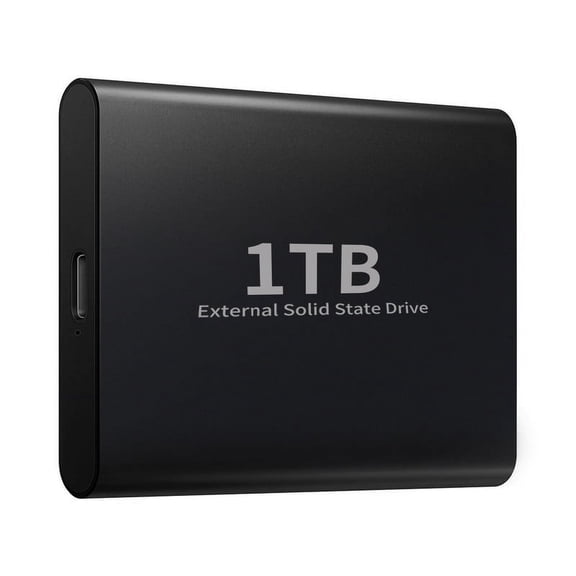
For many shoppers, a 2tb portable hard drive works well when you want easy storage in a slim body. If you need faster file transfers, you may prefer a 2tb external ssd for shorter waits and quicker project moves.
Choosing between 2tb portable hard drive and external SSD options
You should compare HDD and SSD choices by how you plan to use your files each day. If you store documents, photos, and backups, you may find an HDD fits your routine well.
If you edit video, move large folders often, or want quicker game access, you may lean toward an SSD. You can notice some HDDs reach about 140 MB per second, while some SSDs reach about 1050 MB per second.
- You can use HDD options for large file libraries, routine backups, and home office storage.
- You can choose SSD options when you want faster transfers, quicker launches, and less waiting.
- You may prefer solid-state designs when your drive travels often in a backpack or laptop sleeve.
- You can compare speed ratings directly when your workflow includes 4K video, RAW photos, or large game files.
Another key difference is daily handling and movement. You may prefer a solid-state design when your drive goes between meetings, classes, or shared workspaces.
Choosing the right form factor and power setup
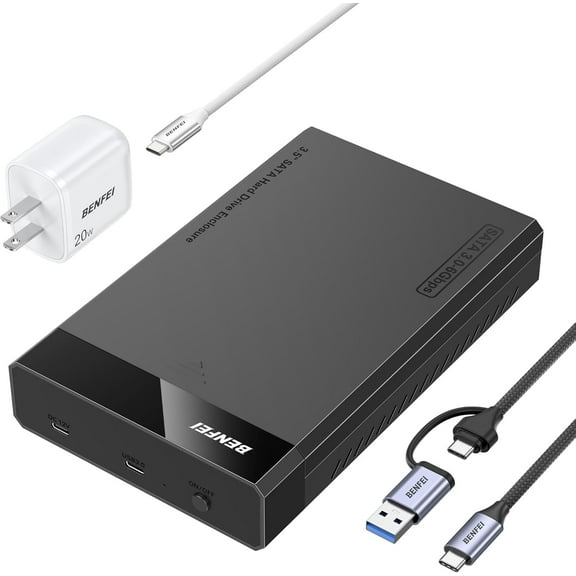
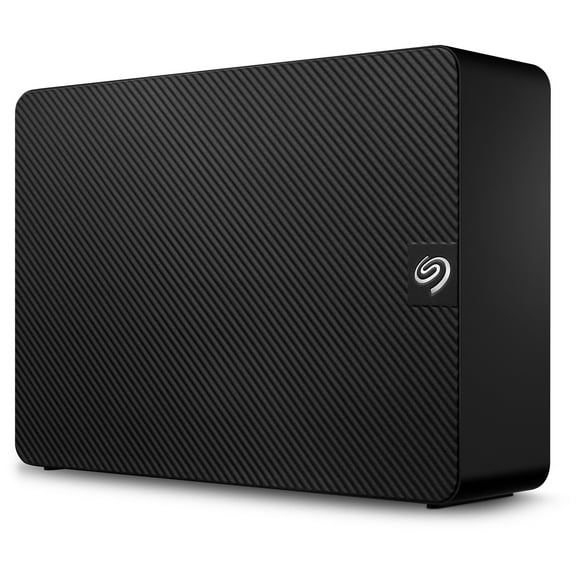
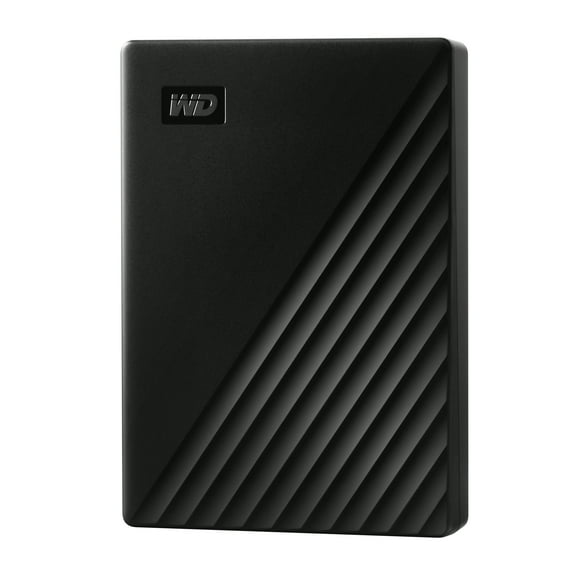
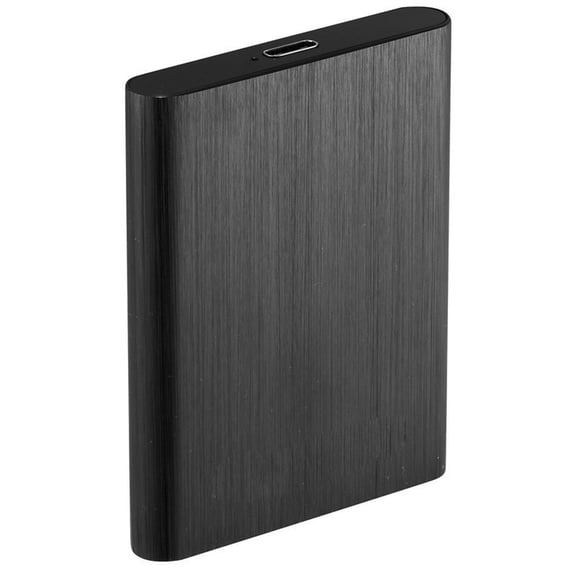
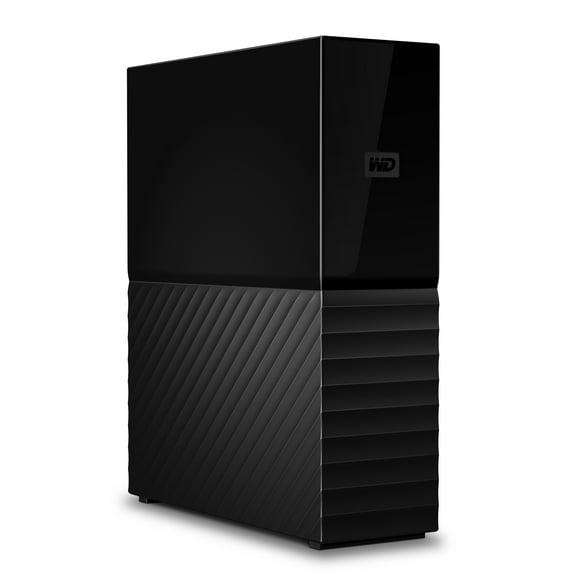
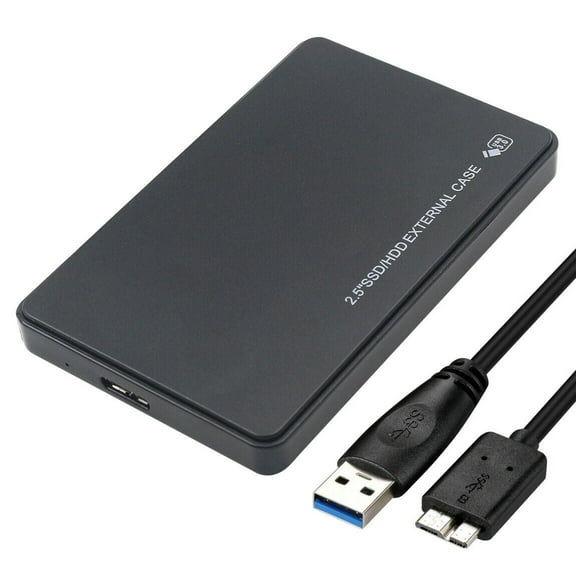
You should check whether you want a portable 2.5 inch drive or a desktop 3.5 inch drive. If you carry storage between rooms or trips, you may usually want a smaller portable model.
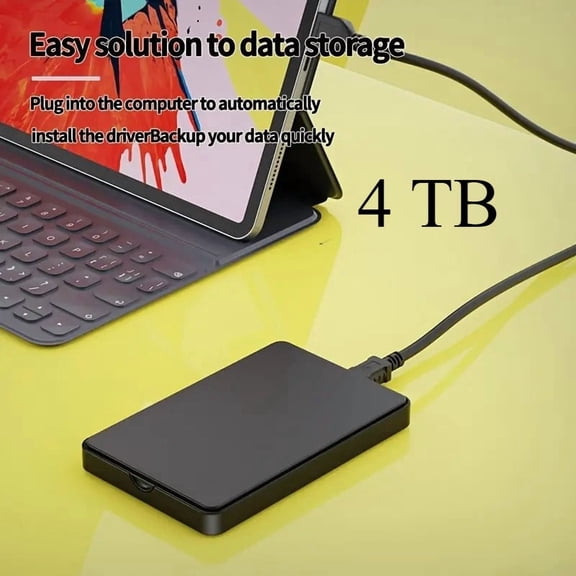
Portable drives are often bus-powered, which means your cable supplies power from your computer or console. You won’t need an extra wall adapter, so your setup stays cleaner on a laptop table or shared desk.
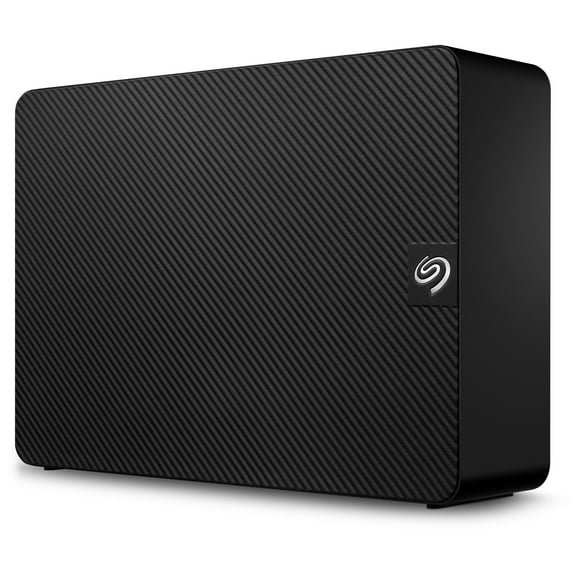
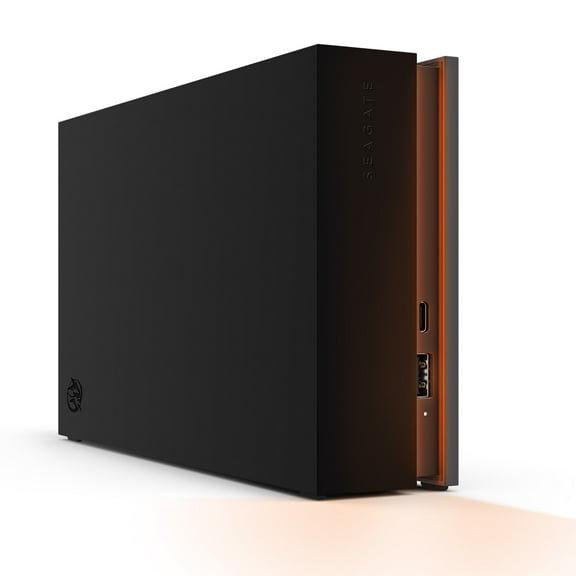
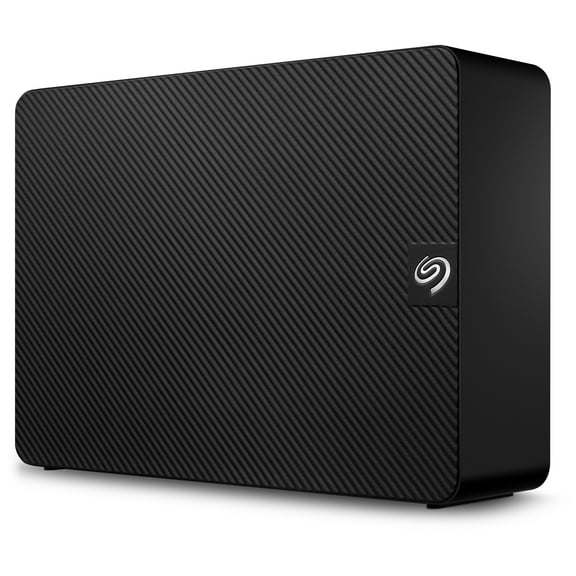
Desktop drives are larger and often use external power from a wall outlet. You may choose that style when your drive stays in one place for media libraries, scheduled backups, or a home workstation.
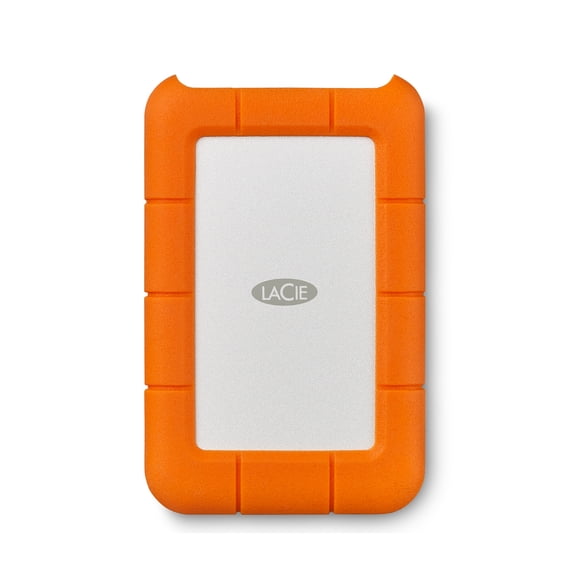
You should also think about casing and daily handling before you decide. If your drive moves often, you may look for rugged housings, while standard plastic shells can suit steady home office use.
Comparing USB 3.0, USB-C, and Thunderbolt connections
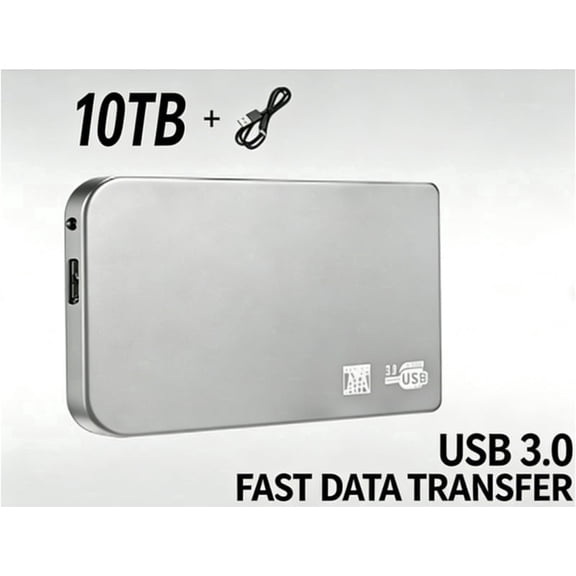
You can match the interface to your computer, cable preferences, and transfer goals. A usb 3.0 external hard drive 2tb can work well when you want broad compatibility with many existing ports.
USB-C can simplify your setup when your newer laptop or tablet already uses that port style. Thunderbolt may matter when you move very large files often and your device supports that higher-bandwidth connection.
You should check the port on your device before you choose a drive. You may also want to confirm whether your box includes the cable you need for your desktop, monitor hub, or dock.
Checking compatibility and formatting before setup
You should confirm whether you will use your drive with a PC, Mac, PS5, or Xbox before your first transfer. That step matters because formatting affects how systems read and write your files.
Windows systems commonly use NTFS, so you may see it on many PC-ready drives. APFS or HFS+ can matter for Mac setups, while exFAT can help when you want broader use across different systems.
If you need an external hard drive for laptop use across mixed devices, you should review the listed format carefully. You can avoid setup delays when you choose a format that matches your current computer or console.
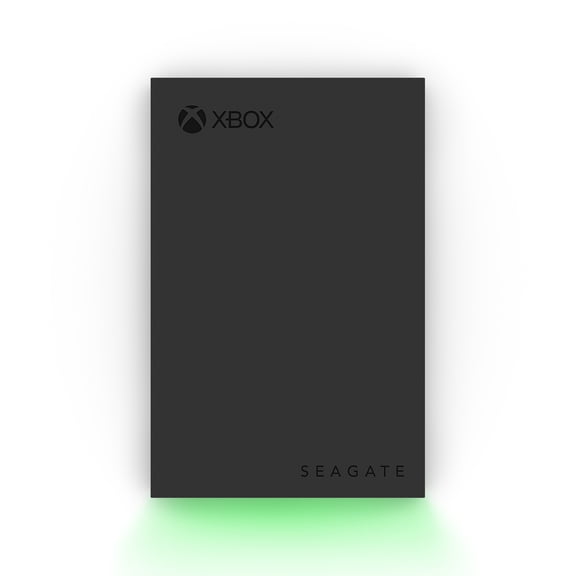
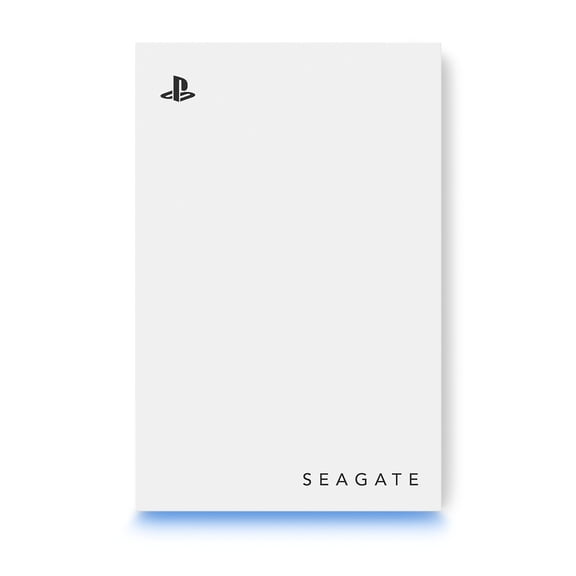
Console shoppers should also review storage rules before they decide. You may use some drives for storing and playing supported titles, while others work mainly for archiving larger game libraries.
Matching your storage choice to real use cases
If you back up family photos and school files, you may want a portable HDD that slips into a drawer or backpack. You can get useful capacity for everyday storage without taking much desk space.
If you edit media or transfer footage between devices, you may prefer an SSD with faster read and write speeds. You can spend less time waiting on large folders, especially during repeated project exports.
For shared households, you might want a desktop drive that stays connected for routine backups and media access. You can keep one location for archives, downloaded files, and older documents that don’t need cloud space.
For gaming setups, you should compare compatibility notes, speed expectations, and cable connections before you choose. You can want a drive that fits your console, your game library size, and your preferred setup style.
When your work moves between home, school, and travel, you may want lighter storage with a simple plug-in setup. You can keep presentations, creative files, and personal folders close without relying on internal storage alone.
You can make an informed choice when you compare drive type, form factor, interface, and formatting together. Your storage can feel easier to use when you align the speed, setup, and device match from the start.