

Windows Tablets in iPad & Tablets



















About Windows Tablets in iPad & Tablets - Walmart.com
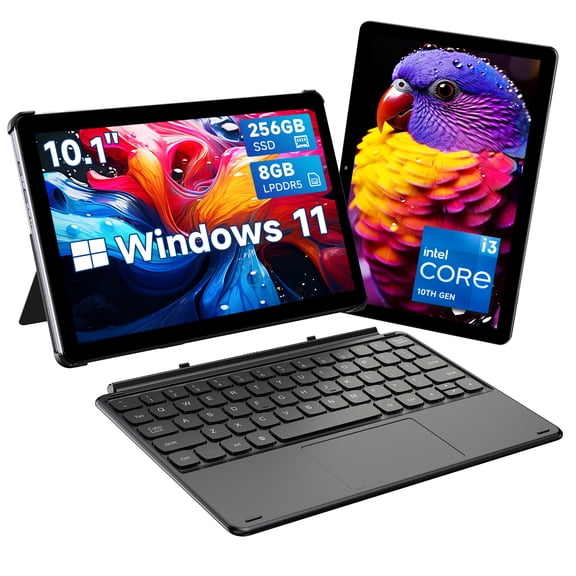
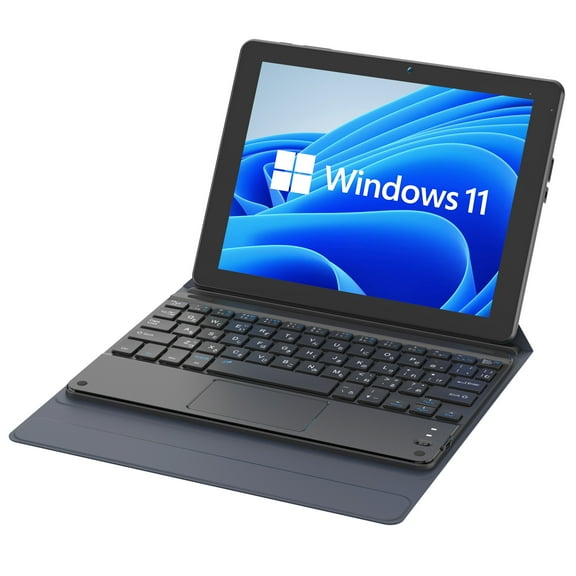
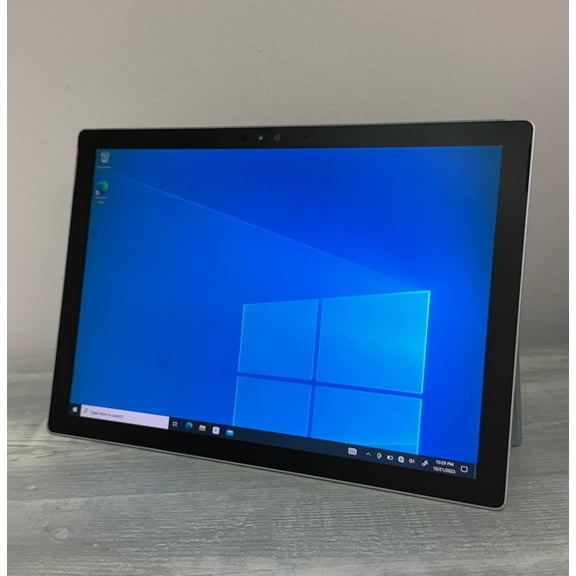
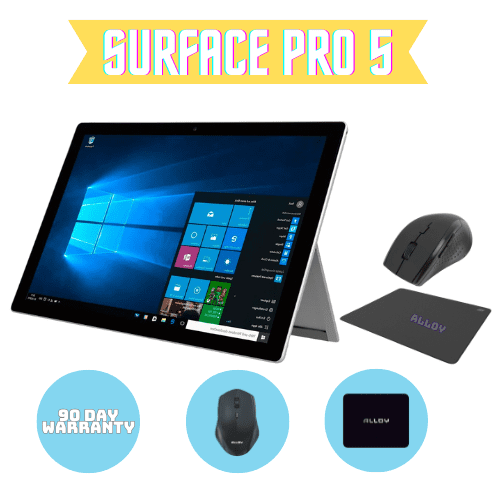
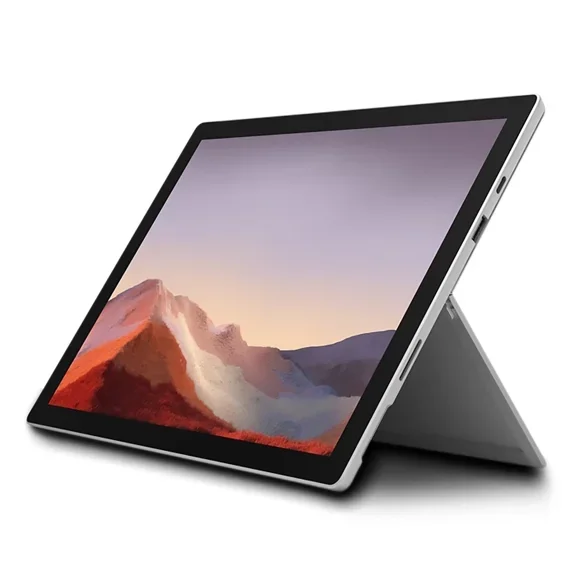
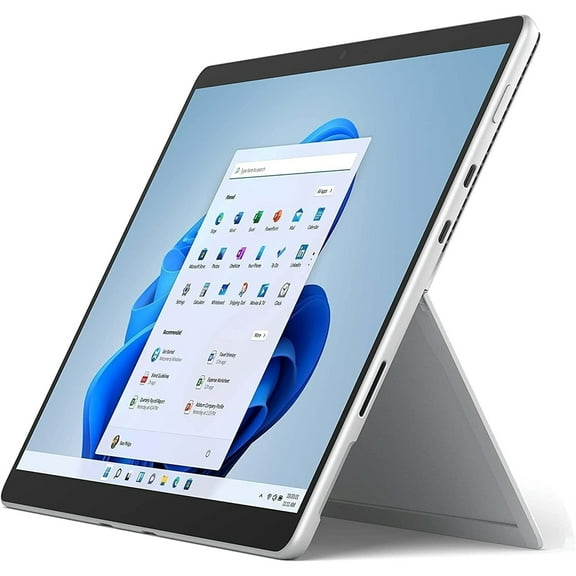
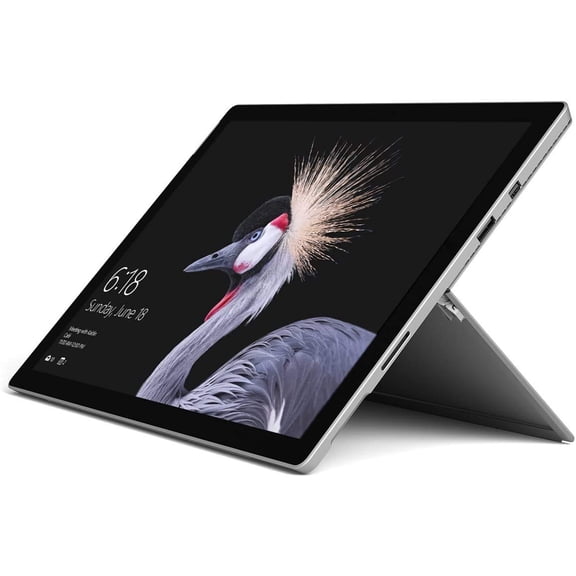
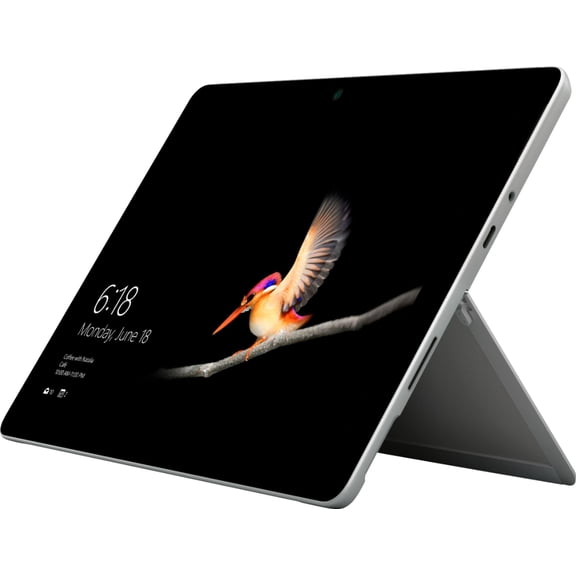
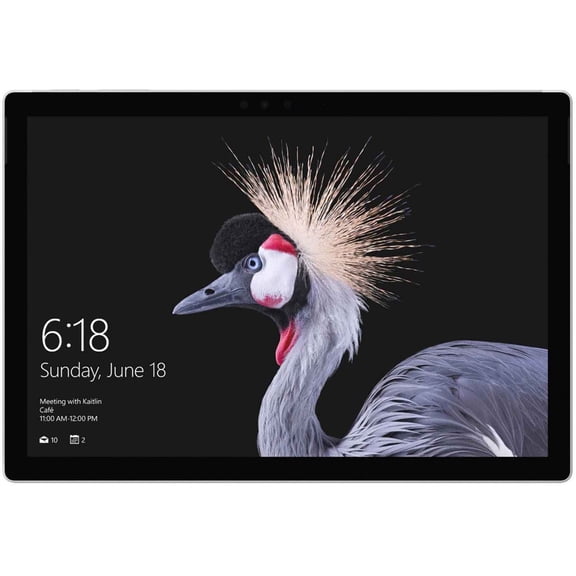
Windows tablets give you laptop-style software in a touch-friendly design. You can compare screen size, processor power, and keyboard options to match work, school, or travel.
You may want a device that runs familiar desktop programs without giving up tablet convenience. You’ll also find choices like detachable designs, stylus support, and compact builds for everyday carry.
How to choose windows tablets
You should start with the operating system version because it affects features and workplace setup. You’ll often see Windows 11 Home, Windows 11 Pro, and some Windows 10 models.
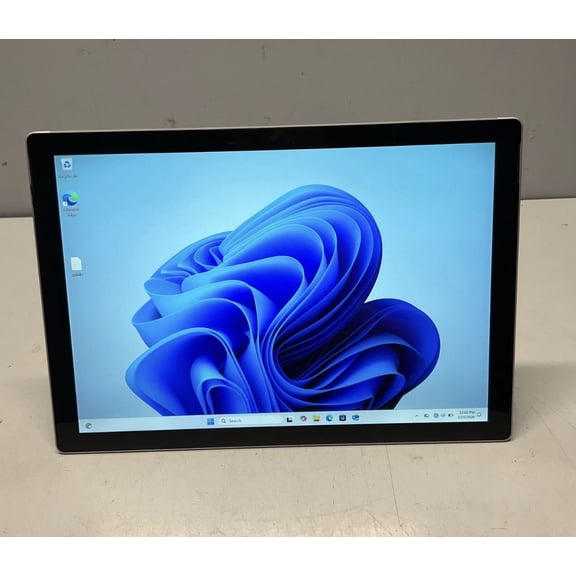
You may prefer a windows 11 tablet if you want a current interface and broad app support. You might choose Pro when your workplace needs added account and management tools.
You should also check whether your device runs the desktop programs you already use. You’ll want to confirm x86 app support when legacy business software matters.
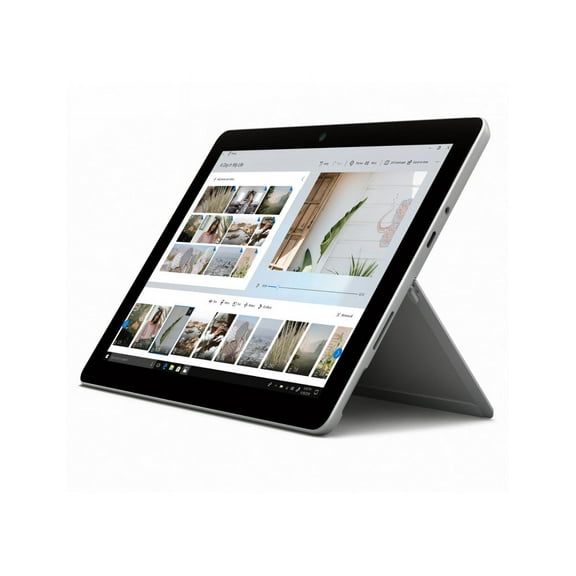
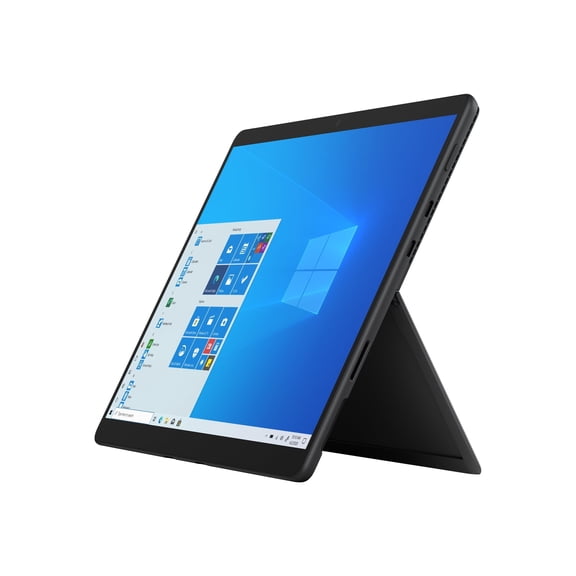
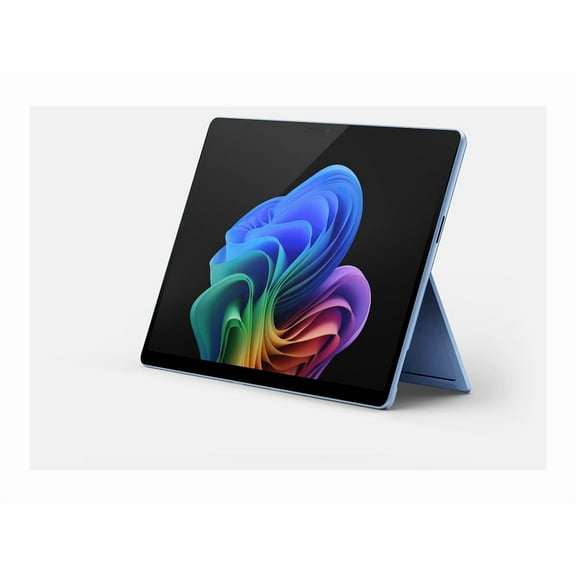
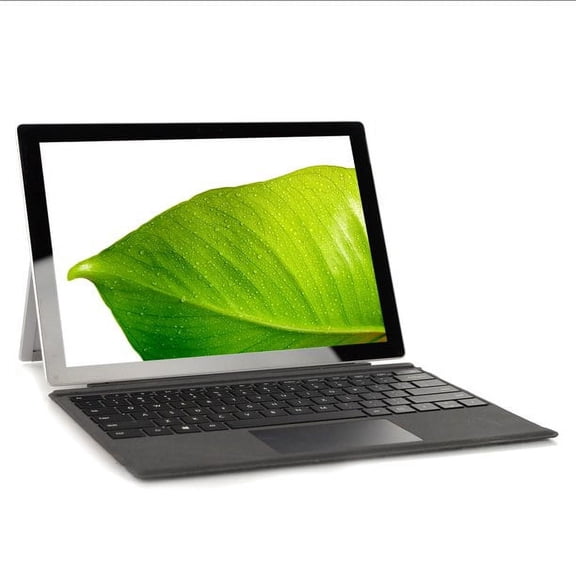
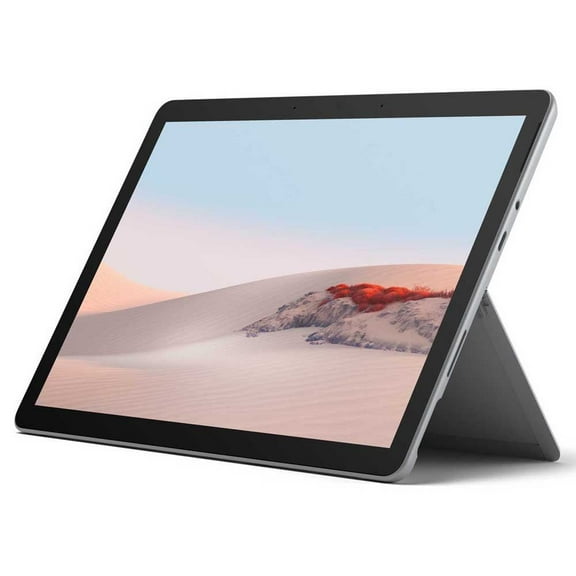
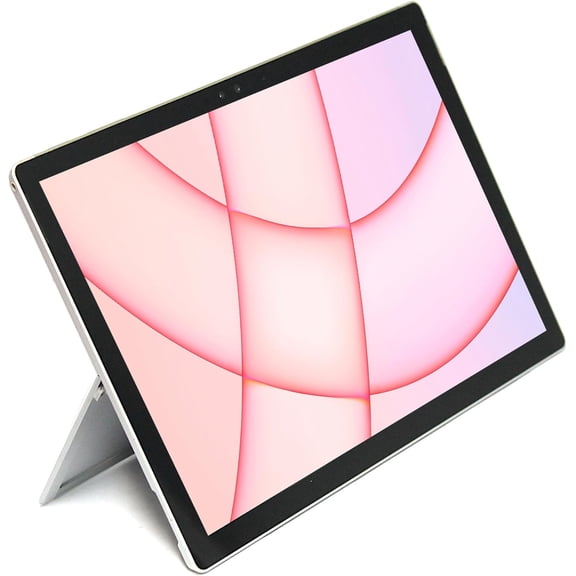
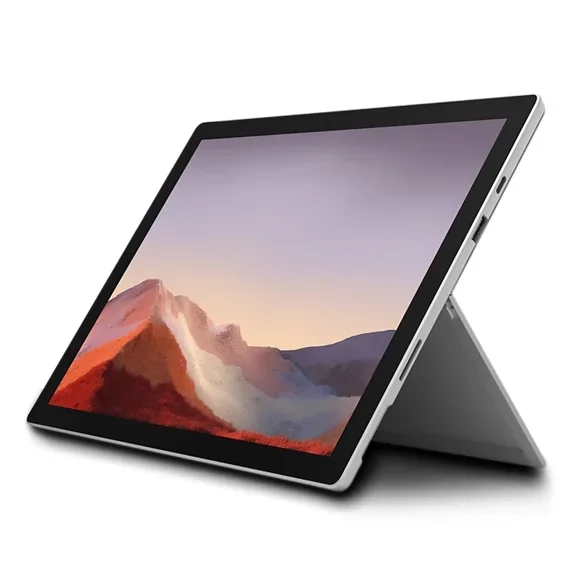
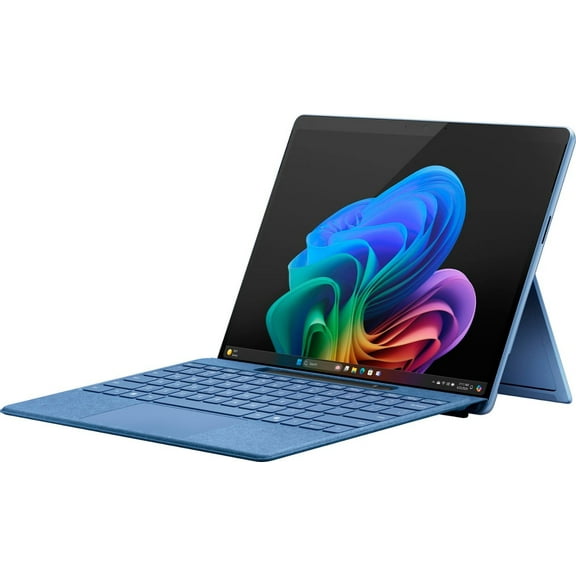
Many shoppers compare a 2 in 1 windows tablet with a traditional slate before choosing. You can detach a keyboard on some models, while other designs fold into laptop mode.
Key benefits for everyday work and play
You get familiar Windows navigation, so your files, apps, and accessories feel easier to manage. You can move from touch input to keyboard typing without changing ecosystems.
Your workflow can stay flexible because these devices fit desks, couches, classrooms, and carry-ons. You’ll notice that a portable windows tablet can handle notes, streaming, browsing, and presentations.
- You can run many desktop-style programs instead of relying only on mobile apps.
- You can pair a windows tablet with keyboard accessories for longer typing sessions.
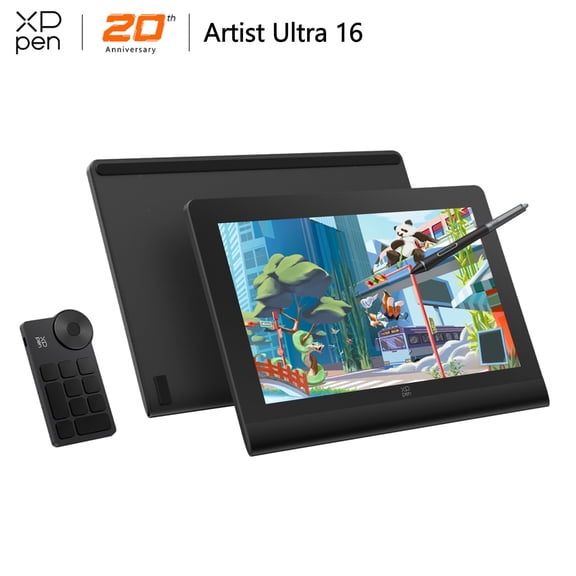
- You can choose touchscreen control for sketching, tapping, signing, and quick navigation.
- You can carry a lighter device when your day includes meetings, classes, or travel.
You may also like how a touchscreen windows laptop style design supports both work and casual use. You can type reports in one moment and watch videos in the next.
Your setup can feel more organized when one device handles email, spreadsheets, video calls, and web tools. You won’t need to switch between a separate tablet and laptop as often.
Comparing operating systems, processors, and memory
You should compare Windows 11 Home and Pro based on how you’ll use the device. You may choose Home for everyday personal tasks, while Pro can suit business-focused setups.
Your processor choice affects speed, multitasking, and battery expectations throughout the day. You’ll often see Intel Core i5, Intel Core i7, Intel Celeron, and ARM options.
You may want an intel windows tablet when you use common desktop applications and multitask often. You can look to Core i5 or i7 options for heavier files and more open windows.
You might consider Celeron when your routine centers on browsing, streaming, email, and documents. You can also compare ARM models if your priority is lighter travel use.
Your memory and storage matter when you keep many apps, files, and downloads on one device. You should look for 8GB RAM or 16GB RAM, plus 128GB SSD or 256GB SSD options.
You’ll usually notice smoother multitasking with more RAM when you keep several programs open. You can benefit from larger SSD capacity if your work includes local files and offline access.
You should measure screen size before deciding between 10 inch, 12 inch, and 13 inch models. You may prefer smaller screens for portability, while larger displays give you more room for documents.
Choosing a windows tablet with keyboard and accessories
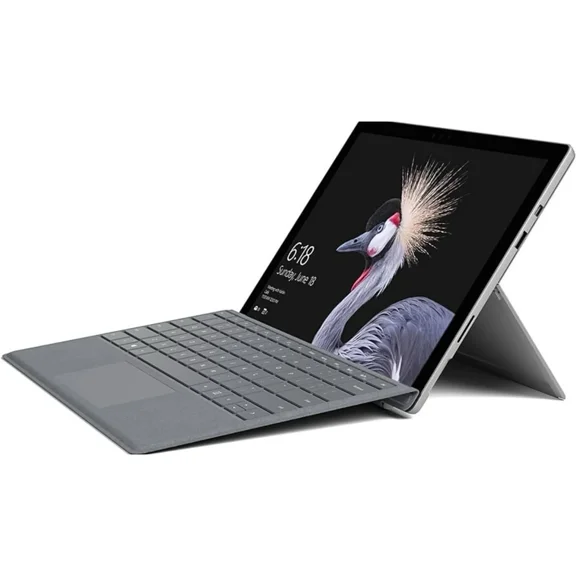
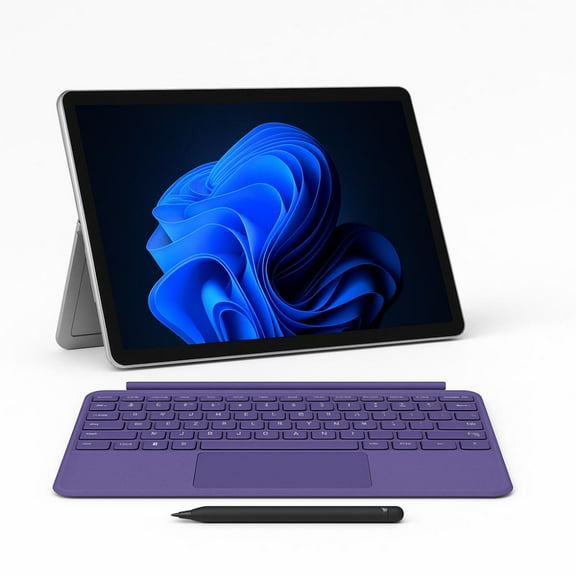
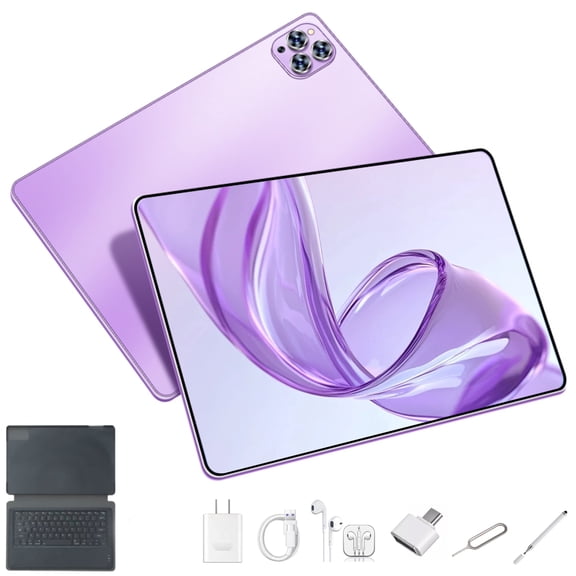
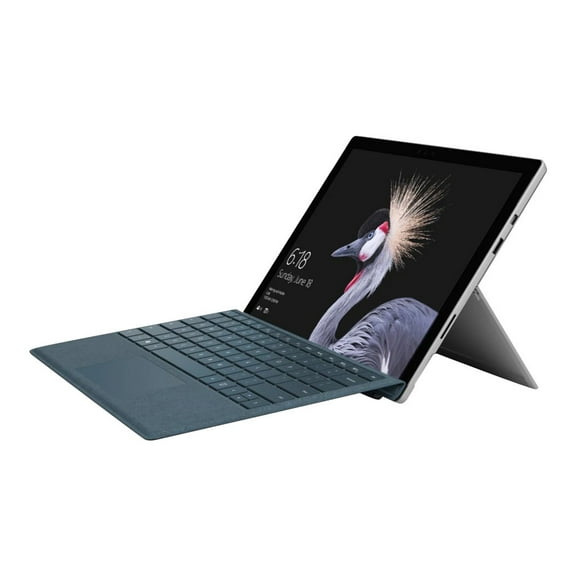
You should check whether a windows tablet with keyboard includes the keyboard or supports one separately. You’ll also want to compare kickstands, hinge styles, and stylus compatibility.
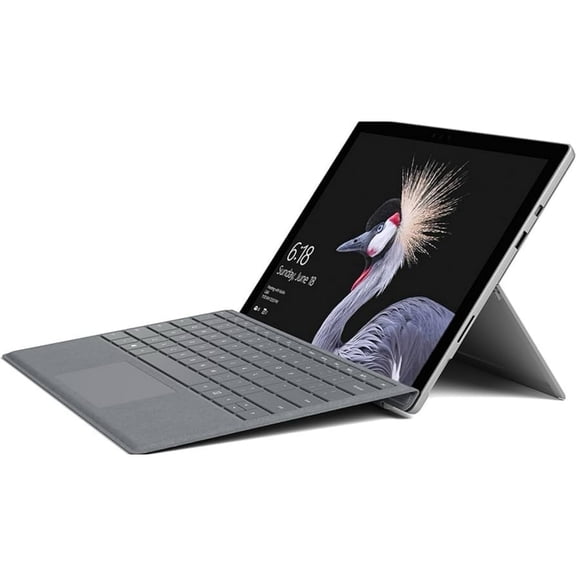
Your typing comfort can change a lot based on key spacing and viewing angle. You can get a more laptop-like feel from a 2-in-1 detachable or convertible design.
You may want a detachable model if you switch often between handwriting and typing. You might prefer a convertible laptop style when your day includes longer writing sessions.
Your use case may also point you toward a rugged tablet for fieldwork and mobile tasks. You can compare build style and portability when you need a device outside a desk setup.
Matching use cases to the right setup
You can choose a 10 inch model for reading, web tasks, and commuting. You may want a 12 inch windows tablet when you need more room for split-screen work.
Your school setup may benefit from 8GB RAM, a responsive touchscreen, and keyboard support. You can take notes, join video classes, and draft papers from one device.
You might choose 16GB RAM and 256GB SSD when your work involves larger files and steady multitasking. You’ll have more room for presentations, documents, and offline projects.
Your travel routine may call for a lightweight windows 11 tablet with long-lasting daily usability. You can pack one device for email, streaming, video calls, and quick edits.
You may also need desktop software access during meetings or remote work sessions. You can benefit from windows tablets when browser tools alone don’t cover your workflow.
Your decision gets easier when you compare operating system, processor, RAM, storage, and form factor together. You’ll end up with a device that fits your apps, typing style, and daily carry.