

Operating System Software in Computer Software for Home & Office


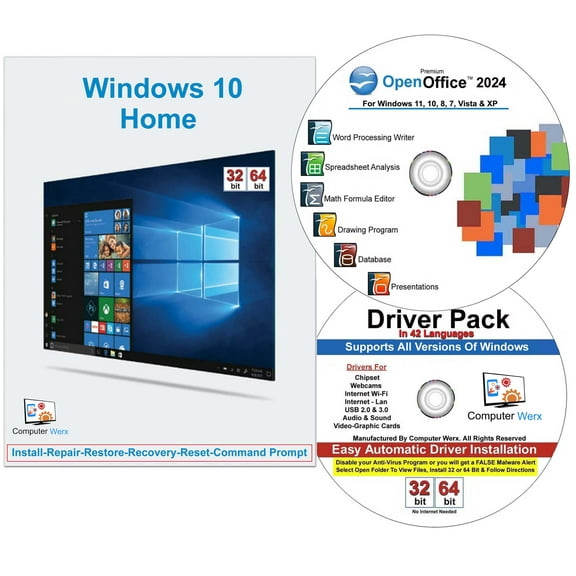
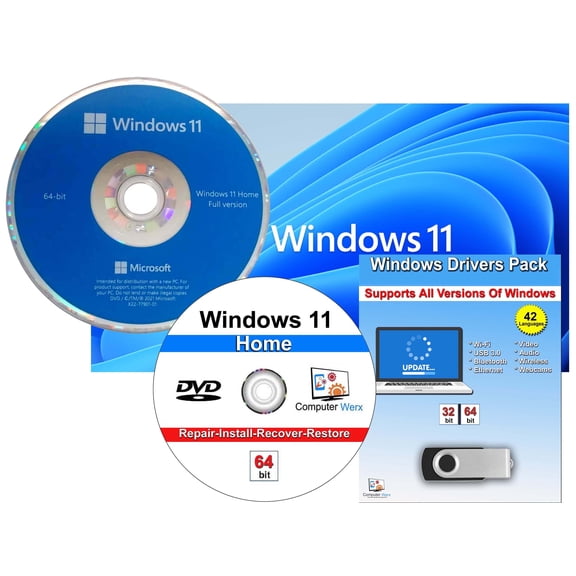


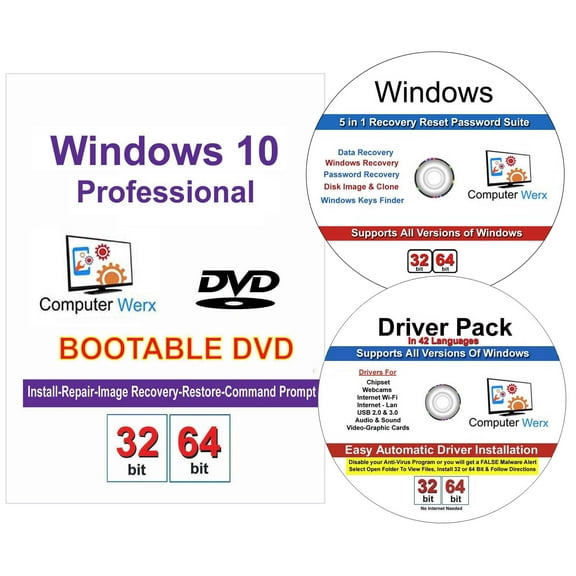
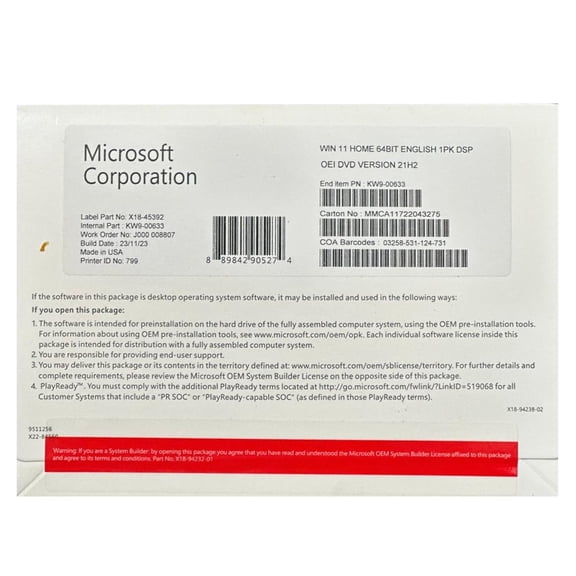



About Operating System Software in Computer Software for Home & Office - Walmart.com
Operating system software helps you set up, upgrade, and run your computer for home office, school, business, or gaming needs. You can compare Windows editions, license types, and compatibility details easily when you shop this category.
How to choose operating system software
When you compare operating system software, you should start with your computer hardware and your daily tasks. You’ll want a version that matches your processor, RAM, storage, and security requirements.
If you’re upgrading an older device, you should check processor speed, available storage, and memory before you choose a license. You should also check whether your device supports TPM 2.0 if you’re considering newer Windows editions.
For a new build or replacement computer, you may compare an upgrade with a clean installation. You’ll often decide based on whether you want to keep your files, apps, and current settings.
Choosing the right Windows operating system
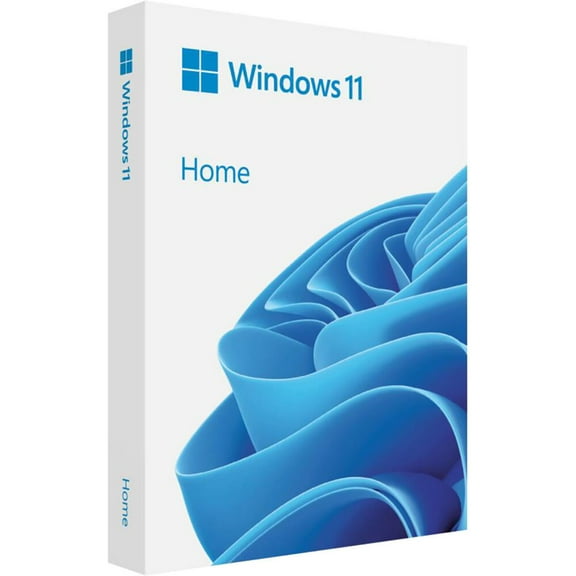
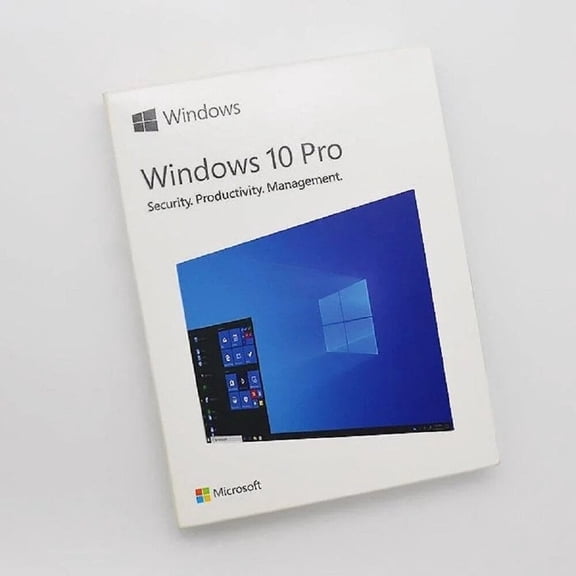
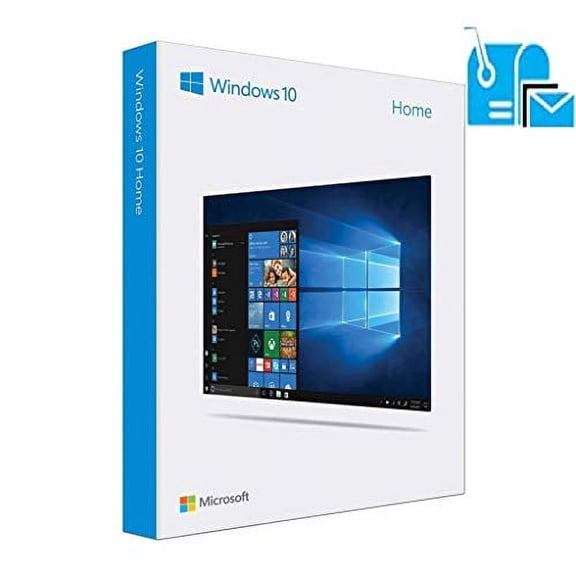
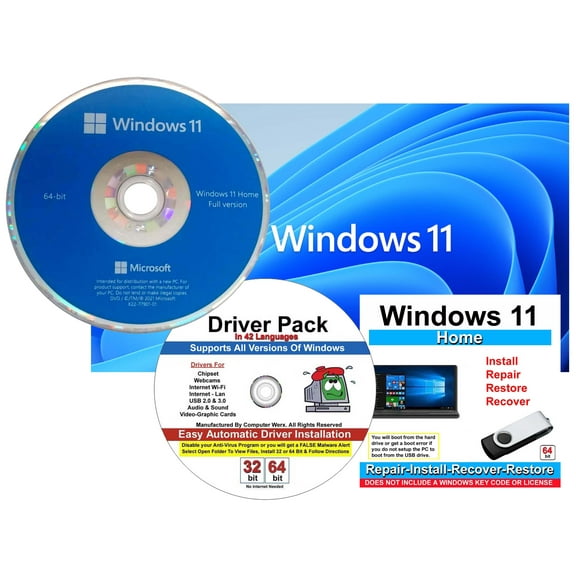
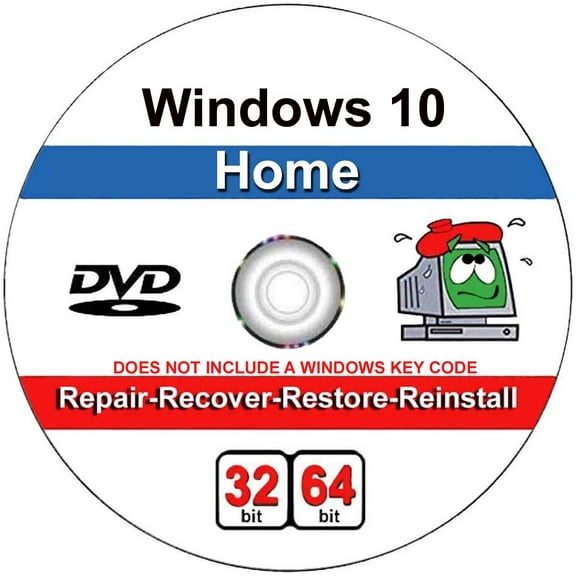
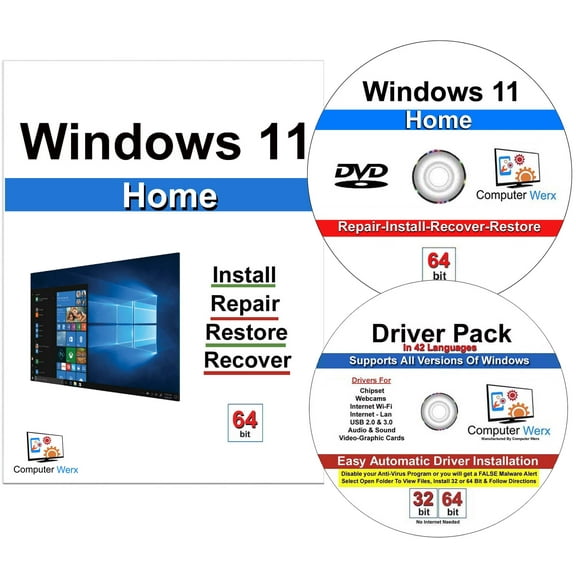
You can narrow your Windows operating system choice by looking at your work style and the features you’ll actually use. You may prefer Windows 11 Home for web use, schoolwork, streaming, and common home office routines.
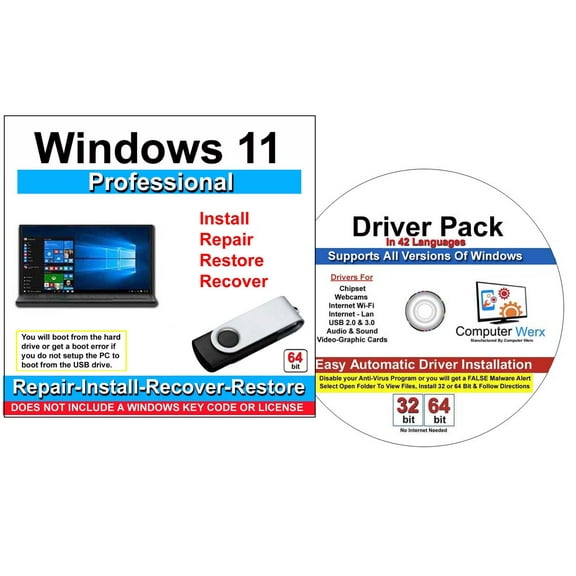
If you manage business files or remote access needs, you may compare Windows 11 Pro with Home closely. You’ll often look for device management tools, encryption support, and Remote Desktop access.
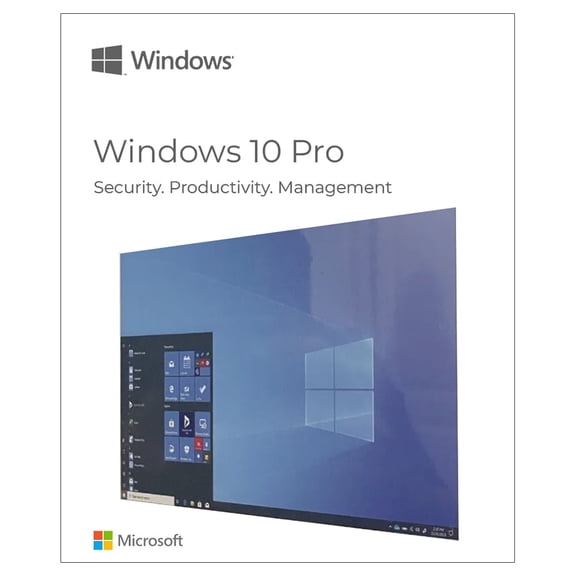
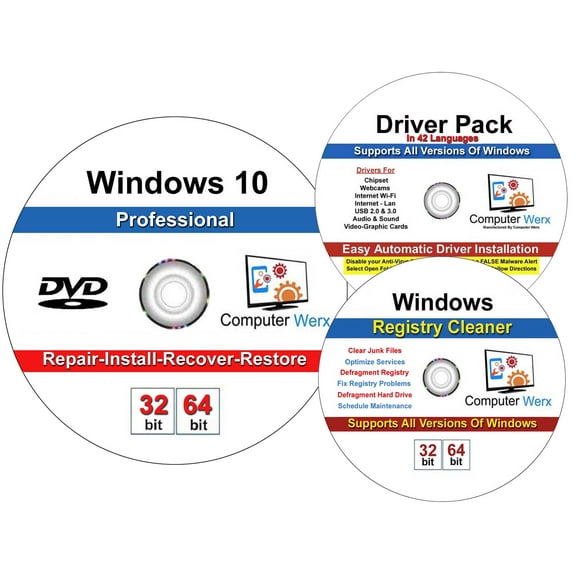
You may also see Windows 10 options if you need familiar navigation for older workflows or specific software compatibility. If you support networked environments, you may compare Windows Server options for comprehensive user management and shared resource control.
- You can choose Home editions for documents, video calls, browsing, and everyday productivity.
- You can choose Pro editions when your work needs Remote Desktop access and expanded management settings.
- You can compare Windows 10 and Windows 11 when your apps or hardware have version-specific needs.
- You can look at Windows Server when your setup includes shared accounts, storage, or network administration.
What to look for in PC operating systems
When you compare PC operating systems, you should match the software architecture to your hardware. You’ll usually want 64-bit support for current processors, expanded memory capacity, and newer applications.
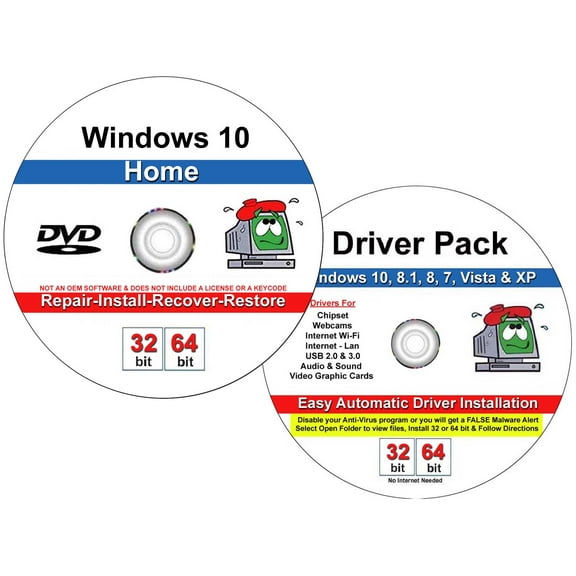
If your system is older, you may still need 32-bit compatibility for legacy programs or specialized equipment. You should check the product details so your chosen license aligns with your device and installation plan.
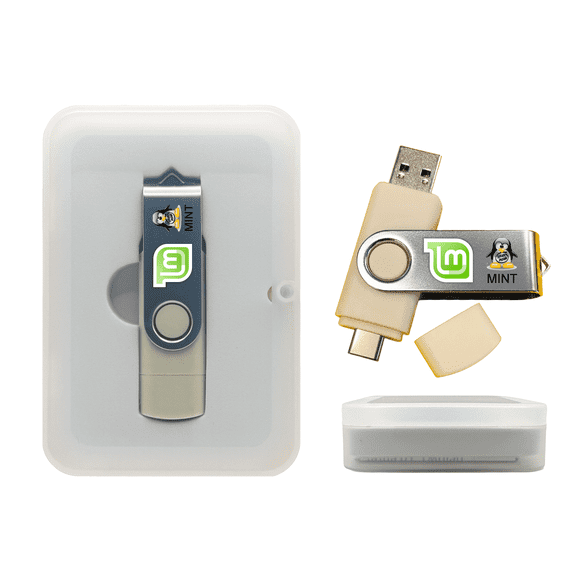
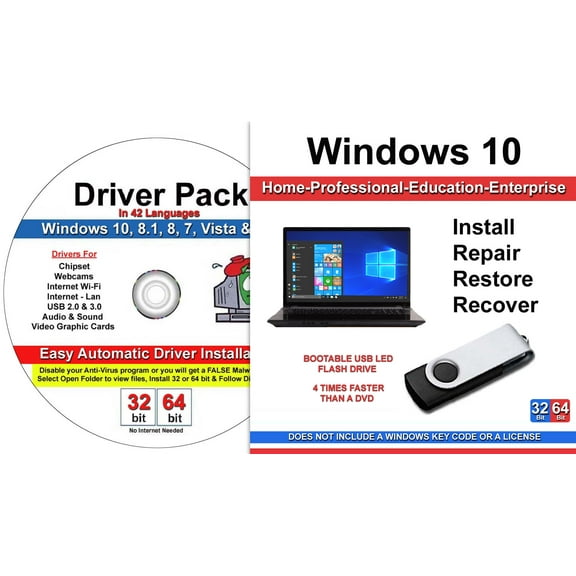
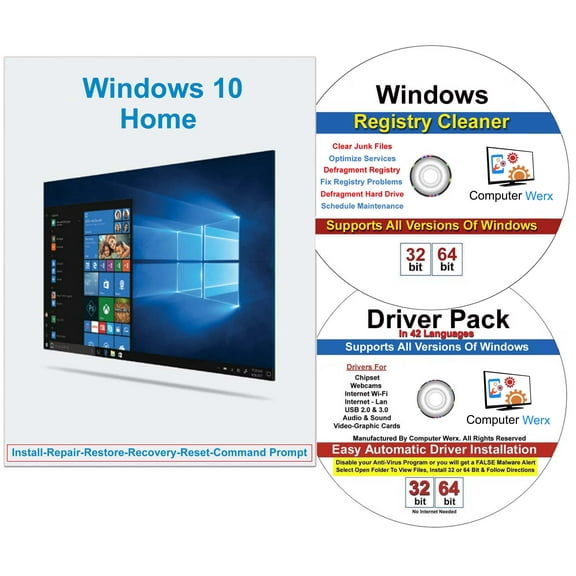
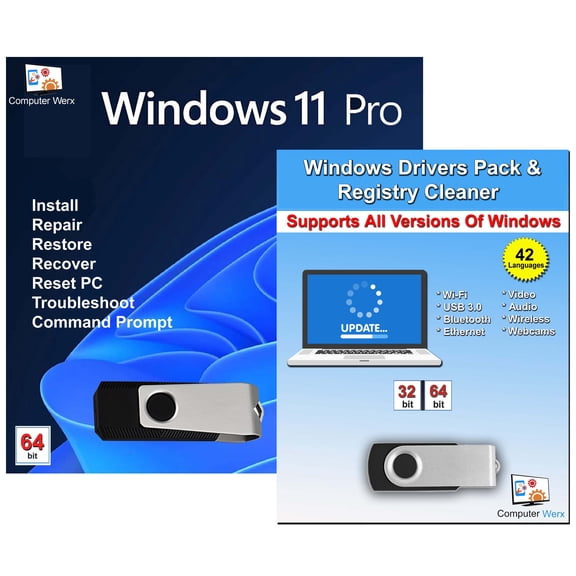
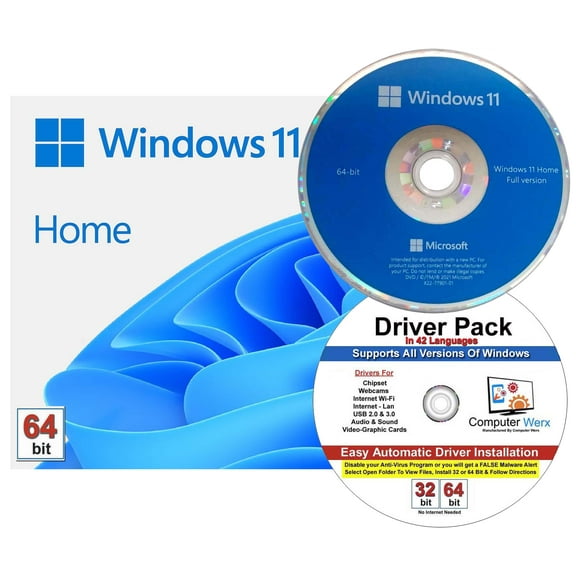
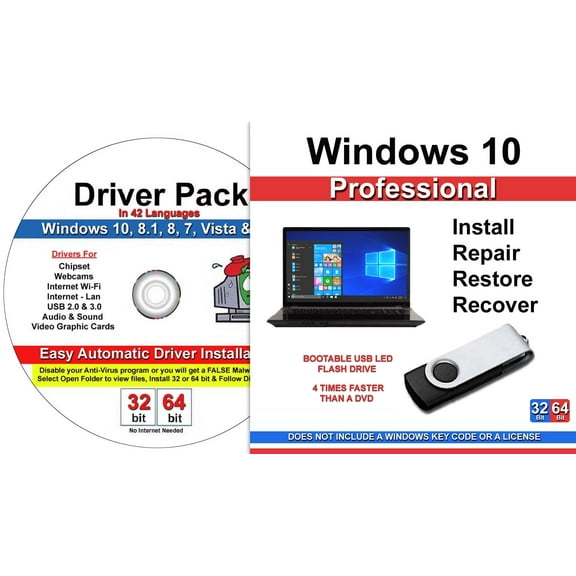
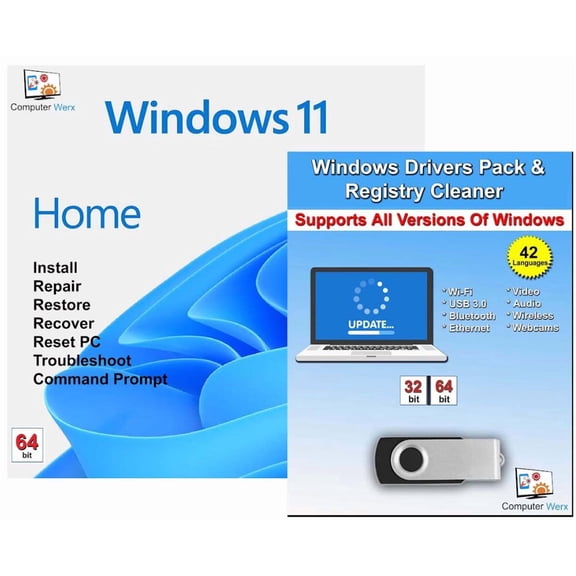
You’ll also want to compare activation and installation formats before you buy. You may prefer a digital download for quick access, or you may want a USB flash drive for offline setup.
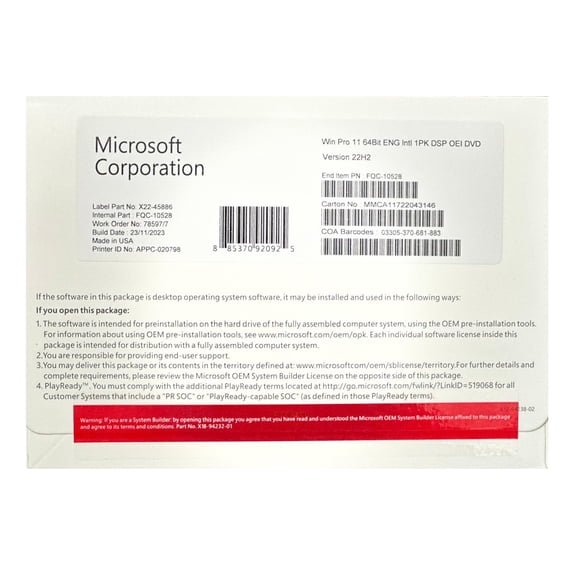
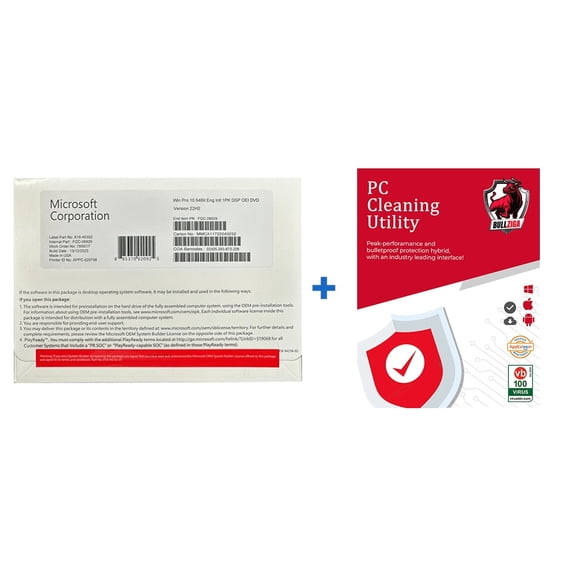
Retail licenses usually give you flexibility if you plan to move the software to another compatible computer later. OEM licenses often fit a single device setup, so you should confirm how you plan to use it.
Key features that guide your decision
You can use technical details as simple buying signals when you compare operating systems in this category. You should check processor support, RAM requirements, storage needs, and TPM 2.0 guidance before you decide.
If you want a straightforward upgrade path, you should confirm whether your current computer meets the listed version requirements. You’ll avoid setup delays when your hardware, architecture, and edition line up from the start.
You may also compare delivery style based on how you like to install software. If you want quick access, you might choose a digital key, while a USB installer can help with fresh setups.
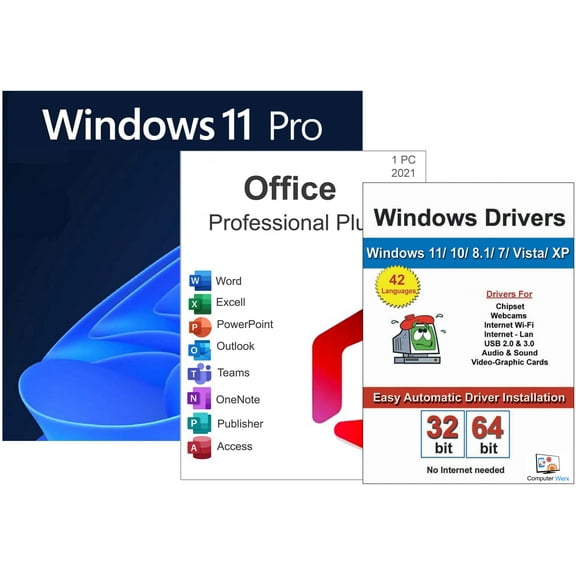
For office use, you may focus on compatibility with productivity apps, printers, and shared networks. For personal use, you may focus on familiar navigation, account setup, and support for everyday software.
Matching operating systems to your use case
If you work from home, you may want operating systems that support video meetings, document editing, and multitasking across several windows. You’ll likely appreciate a version that fits common office apps and current device standards.
If you game on your PC, you may compare architecture support, graphics compatibility, and background performance needs. You should check that your operating system for PC works with your hardware and game platform.
For business use, you may need centralized settings, remote access tools, and comprehensive account controls. You can compare Home and Pro editions clearly when you list the tasks your team handles each day.
If you’re shopping for a student device, you may want a straightforward setup with support for browsers, writing tools, and online classes. You’ll also want installation options that fit a laptop refresh or a shared family computer.
You may be replacing an old version, planning a clean installation, or setting up a new desktop from scratch. In each case, you can use license type, OS version, and system architecture as your core decision points.
Why this category helps you compare with clarity
You can use this operating system software category to compare Windows versions, license formats, and hardware requirements in one place. You’ll make a confident choice when your software matches your device, installation method, and daily workload.