

Education Software in Computer Software for Home & Office





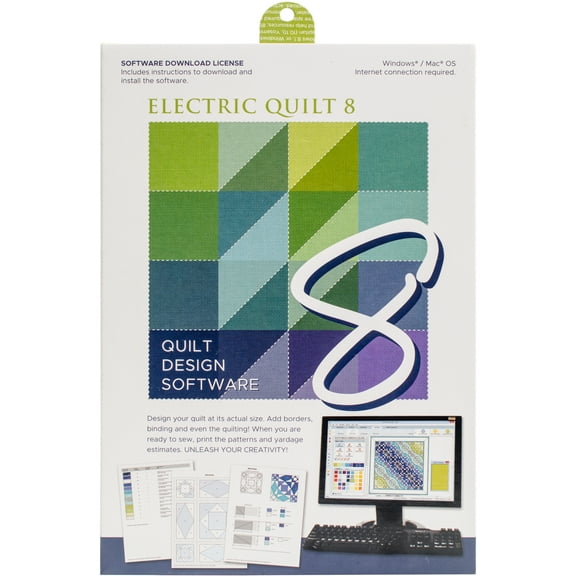
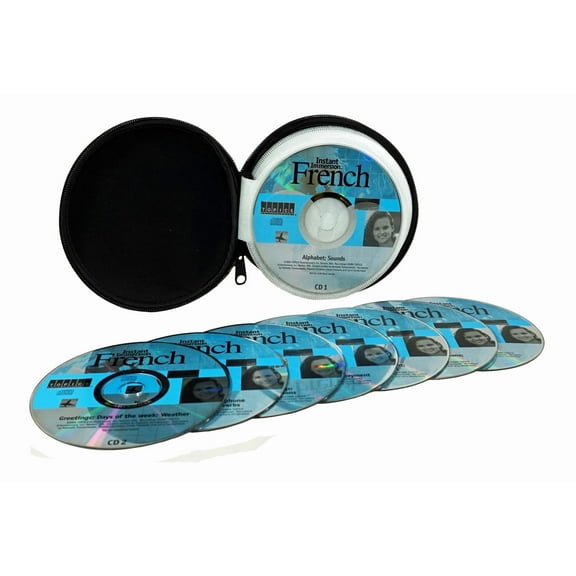

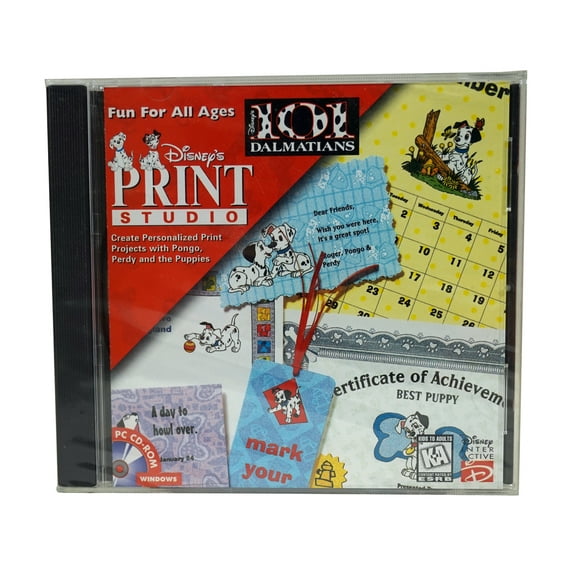


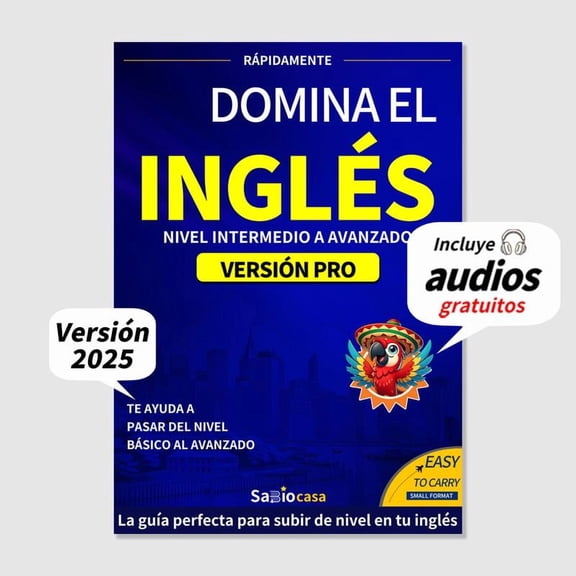
![Norton 360 for Gamers for 3 Devices - Includes Advanced AI Scam Protection, Game Optimizer, Gamer tag monitoring, VPN, Dark Web Monitoring & PC Cloud Backup [Download]](https://i5.walmartimages.com/seo/Norton-360-Gamers-Antivirus-Software-3-Devices-Game-Optimizer-Gamer-tag-monitoring-1-Year-Subscription-PC-Mac-iOS-Android-Digital-Download_0465338e-6f2c-45e3-acac-d7d6204d826c.6d944c970b5a4e33a6f2043ff598453b.png?odnHeight=576&odnWidth=576&odnBg=FFFFFF)


![Mavis Beacon Teaches Typing [Digital Download]](https://i5.walmartimages.com/seo/Mavis-Beacon-Teaches-Typing-Digital-Download_d875c13d-92ab-4125-9c50-9a91d64df6a9.13f20c6b59c101e066281d40d892bc31.jpeg?odnHeight=576&odnWidth=576&odnBg=FFFFFF)


![Typing Instructor Platinum 21 - Windows [Digital Download]](https://i5.walmartimages.com/seo/Typing-Instructor-Platinum-21-Windows-Digital-Download_6d9b11c2-869c-42b8-b65a-58598b24e180.94d3b5ca5feb38b6b7300238aa08b450.jpeg?odnHeight=576&odnWidth=576&odnBg=FFFFFF)


![Individual Software Kid's Typing Bundle Gold - Windows [Box]](https://i5.walmartimages.com/seo/Individual-Software-EVE-KTBG-Kids-Typing-Bundle-Gold-Windows_28259920-41c1-4060-90e8-322a7929d78e.6b1db1bae861cff8cbbbc992421ef9d4.jpeg?odnHeight=576&odnWidth=576&odnBg=FFFFFF)





About Education Software in Computer Software for Home & Office - Walmart.com
You can choose computer learning software by matching your device, subject goals, and learner stage. You’ll find category guidance for PC, Mac, Chromebook, and Windows 11 needs.
When you compare titles, you should check format, grade fit, and account access before you decide. This helps you make a clearer choice for home study, classroom support, or independent practice.
How to buy educational software with confidence
You should start with platform compatibility because installation depends on your computer. You’ll want to check whether your setup uses PC, Mac, Chromebook, or Windows 11.
If your household shares one laptop, you should confirm user limits before you choose a program. This can help you avoid setup friction when your license matches your number of learners.
You can also compare delivery formats before you choose a title. You’ll see digital download, CD-ROM, and online subscription options for different setup preferences.
- You can pick digital downloads when you want quick access and simple installation.
- You may prefer CD-ROM options when your computer has a disc drive and you want physical media.
- You can choose online subscriptions when you want browser-based access and refreshed lesson libraries.
- You should check single-user or family licensing when your household has more than one learner.
You should also compare subject focus before you purchase. You can narrow choices faster when your learner needs math practice, reading support, language lessons, or coding activities.
Choosing the right computer learning software
You should match computer learning software to the learner’s age and grade level first. You’ll notice preschool titles use simpler navigation, while older students need deeper lessons and clearer progress tracking.
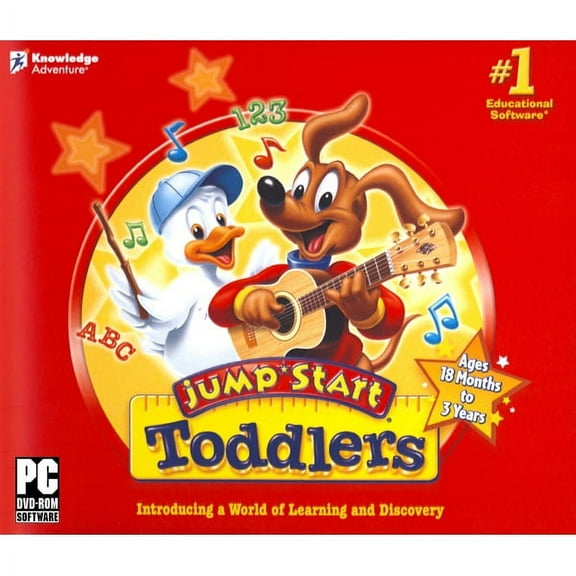
For toddlers and young kids, you should look for large icons, guided activities, and short lessons. This helps keep attention focused when the program uses simple prompts and easy movement between tasks.
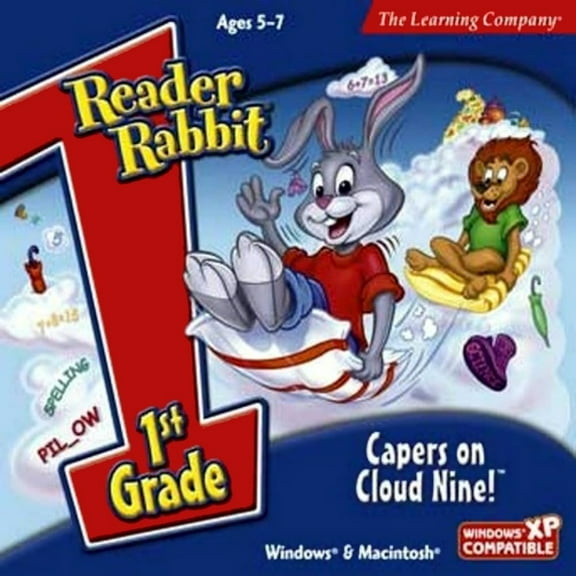
Elementary learners often need practice across reading, math, and early science concepts. You can choose programs that reinforce classroom topics through spelling drills, number work, and step-by-step activities.
Middle school, high school, and adult learners usually need targeted instruction. You’ll want software with subject depth, organized lesson paths, and content that fits independent study.
You should compare lesson structure as closely as you compare age labels. You can look for progress markers, repeatable exercises, and skill checks that fit your learning routine.
Choosing platform compatibility and installation details
You should treat compatibility as a main decision point, not a small detail. You’ll need to confirm supported systems before you download, install, or insert physical media.
If you shop for education software for pc, you should review Windows version details carefully. You’ll want to confirm support for Windows 11 when your computer uses a newer operating system.
If your home uses macOS, you should check whether the title supports Mac installation or browser access. This helps avoid returns and delays when the listed platform matches your device.
Chromebook users should look for web-based programs or titles built for ChromeOS access. You can narrow choices faster when you know whether a program runs in a browser.
You should also check storage needs, internet requirements, and activation steps before purchase. This can help you set up faster when your device has enough space and the right connection type.
Comparing subjects and computer software for students
You can narrow computer software for students by subject focus and learning goals. You can get more useful results when you choose software built for the exact skill you want to practice.
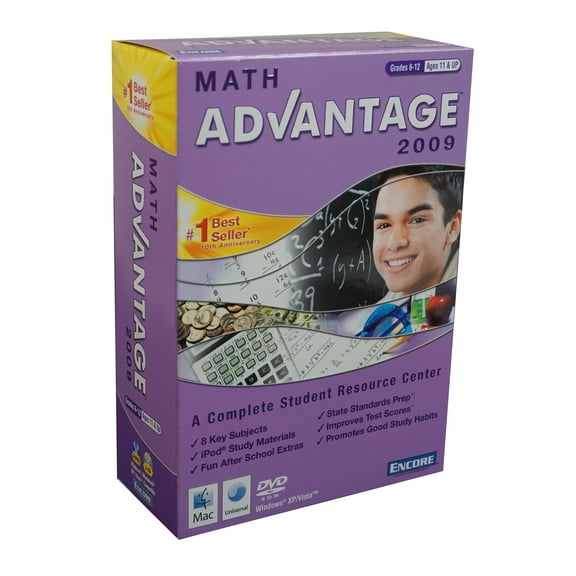
Math programs can help you organize arithmetic, fractions, algebra, or problem-solving practice into smaller lessons. You’ll often see progress-based activities that make repeated practice easier to follow.
Reading titles may focus on phonics, vocabulary, comprehension, or writing structure. You can select a program that matches early reading support or stronger language development for older learners.
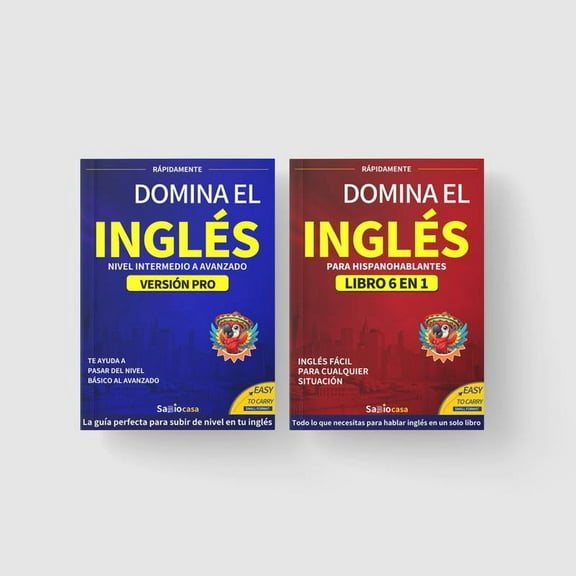
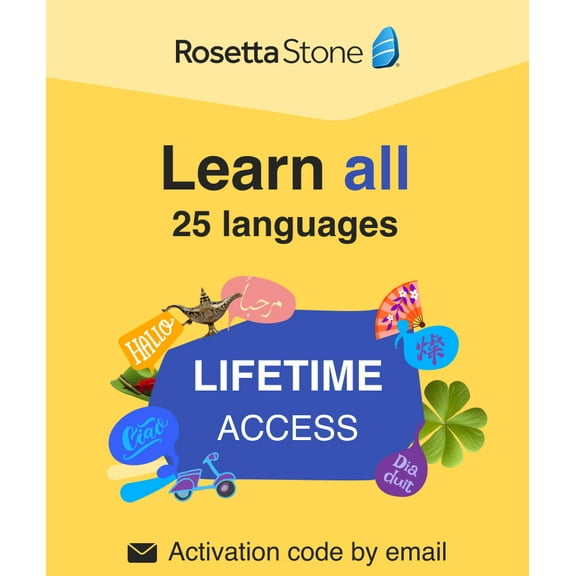
Language learning software often centers on vocabulary review, pronunciation practice, and lesson sequencing. You can benefit from choosing a title that fits your learner’s pace and current level.
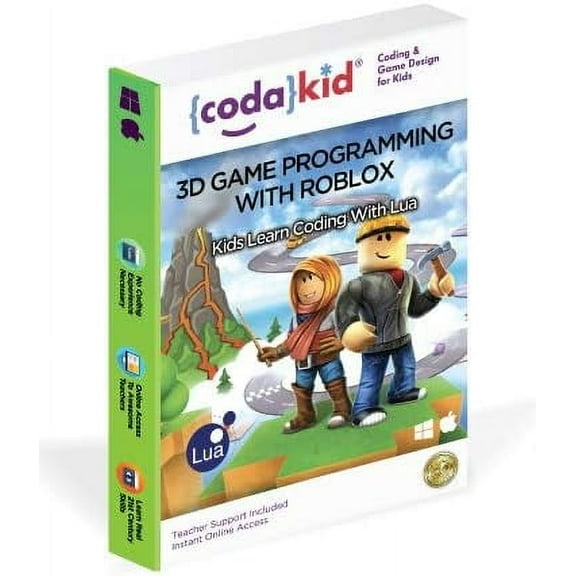
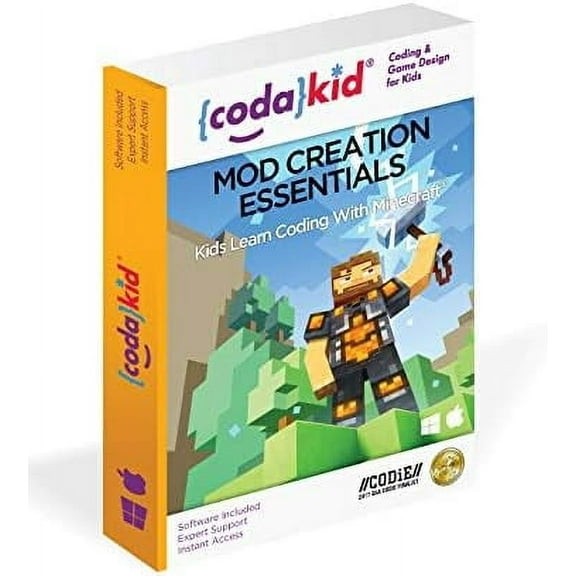
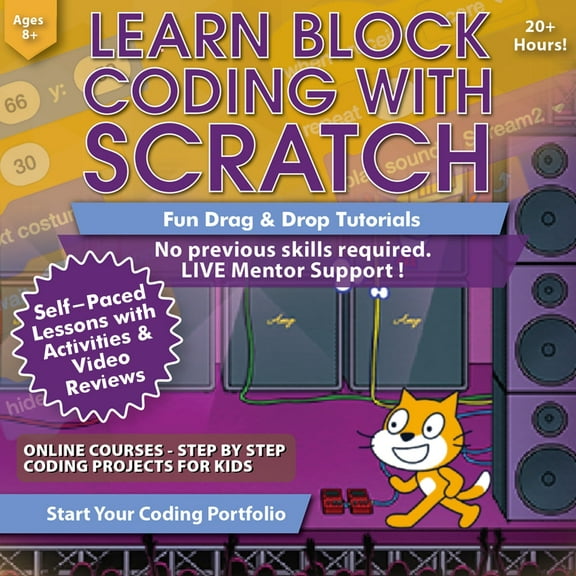
Coding software can introduce logic, sequencing, and beginner programming concepts through projects and guided tasks. You should compare age labels carefully because coding tools vary widely in complexity.
Using computer learning software in real situations
You can use computer learning software for after-school review, homeschool planning, or independent practice during breaks. This can help you have an easier time building routine when lessons fit your schedule and device.
If your child needs subject-specific review, you can choose focused software instead of broad survey content. This helps keep sessions more productive when the activities match the exact class topic.
For homes with multiple learners, you should compare account access and age range before choosing a title. You can simplify daily use when one format supports your family’s setup.
If you travel between home and school, you may prefer browser-based access on a Chromebook or shared computer. This can offer more flexibility when lessons stay available through an online account.
Adults returning to coursework can use structured programs for refresher study or new skill building. You may appreciate clear lesson order when you want organized practice without a classroom schedule.
When you choose the right mix of platform, subject, and format, your setup becomes easier from the start. This helps you spend less time troubleshooting and more time on steady learning progress.