

Drawing Tablets for Digital Art and Design















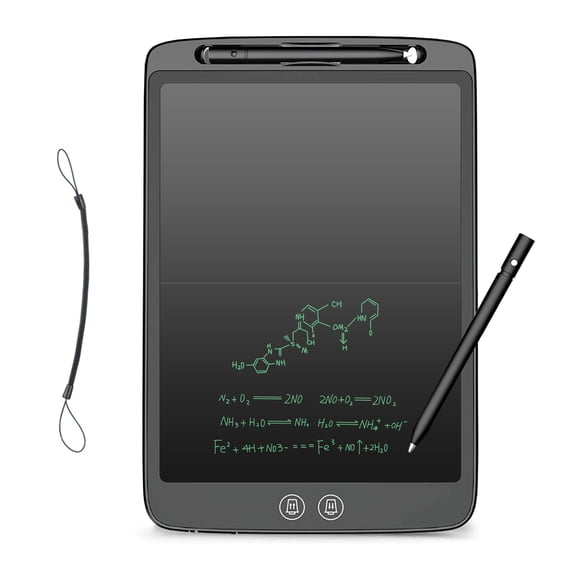
![Riousery LCD Writing Tablet Portable Erasable 6.5 Inch / 16.51 cm Full Screen Digital Notepad for Taking Notes Drawing[cite: 1]](https://i5.walmartimages.com/seo/Riousery-LCD-Writing-Tablet-Portable-Erasable-6-5-Inch-16-51-cm-Full-Screen-Digital-Notepad-for-Taking-Notes-Drawing-cite-1_8a8a5678-89ea-4b1d-90c6-de15fae0e11b.405cfb92b01788c63cf2349be1dd5d84.jpeg?odnHeight=576&odnWidth=576&odnBg=FFFFFF)











About Drawing Tablets for Digital Art and Design - Walmart.com
Graphic tablets help you sketch, edit, and design with more control than a mouse. You can compare screen types, compatibility, and stylus features to match your workflow.
If you draw for class, client work, or hobbies, you need choices that fit your setup. You can use this guide to compare pen displays, pen tablets, and connectivity options clearly.
How to choose graphic tablets for your workflow
You should first decide whether you want to draw directly on a screen. You may also prefer a non-screen tablet if you already use a larger monitor.
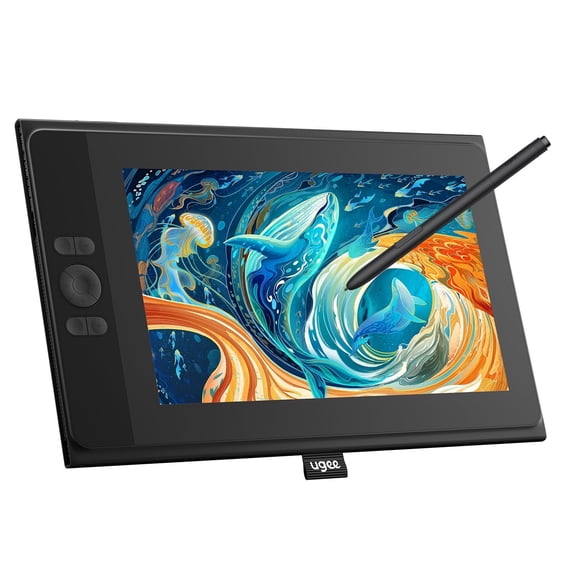
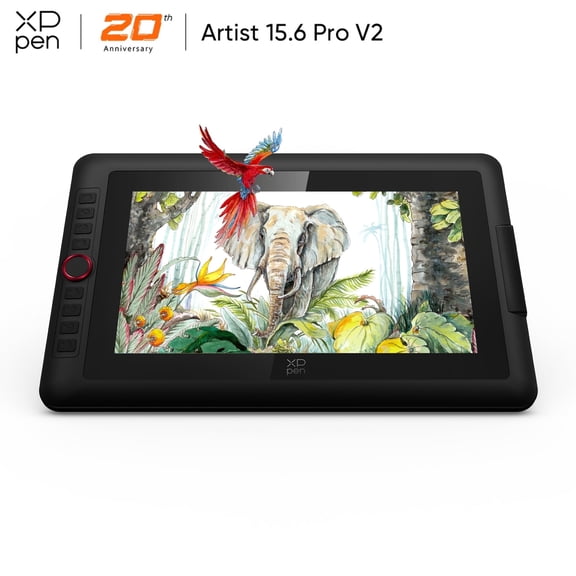
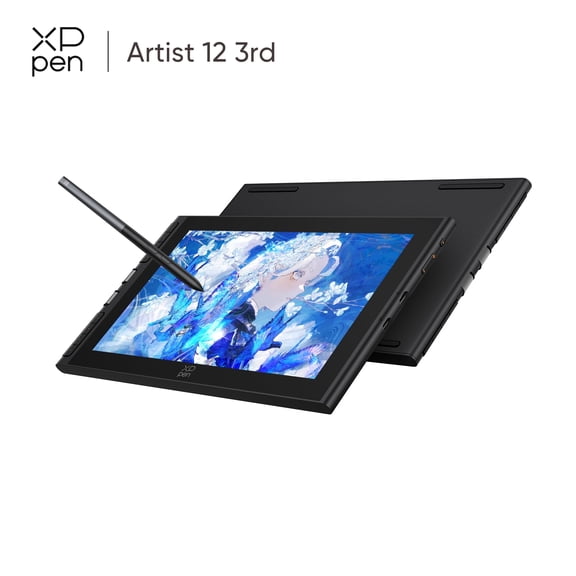
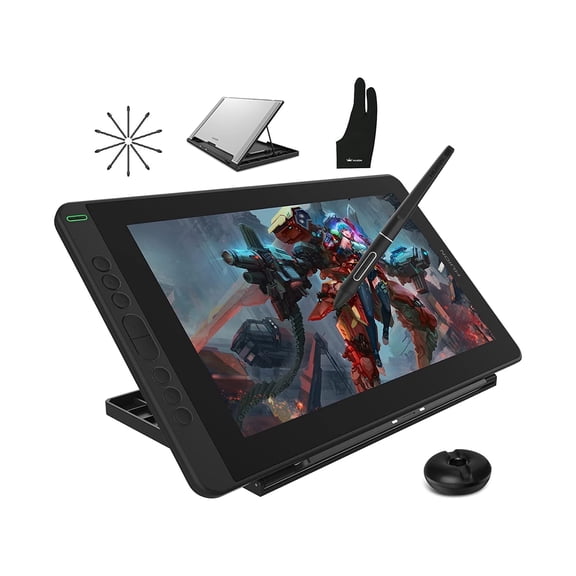
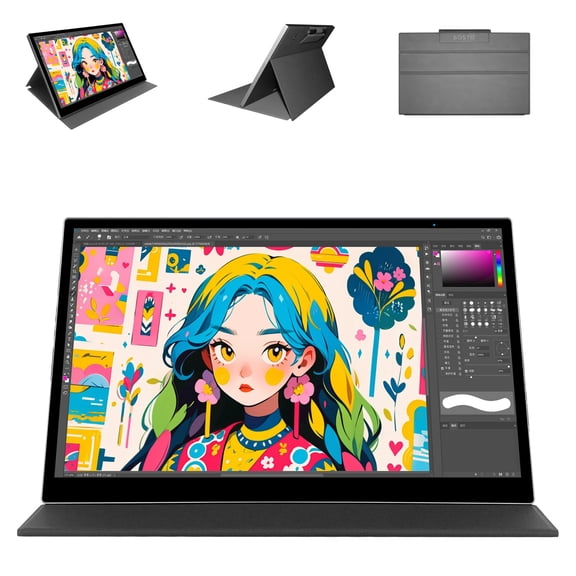
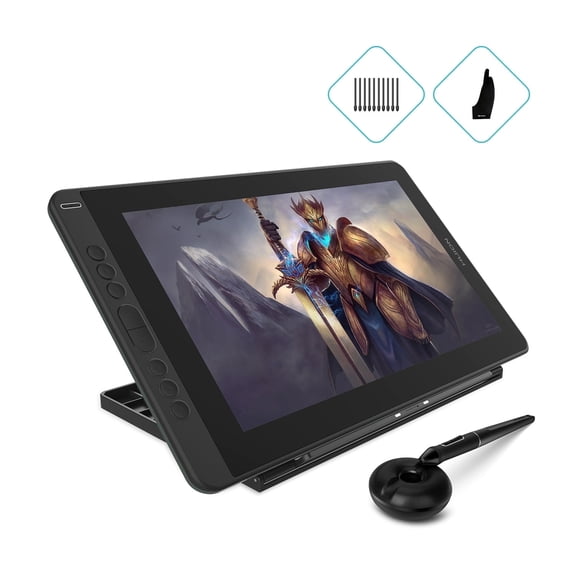
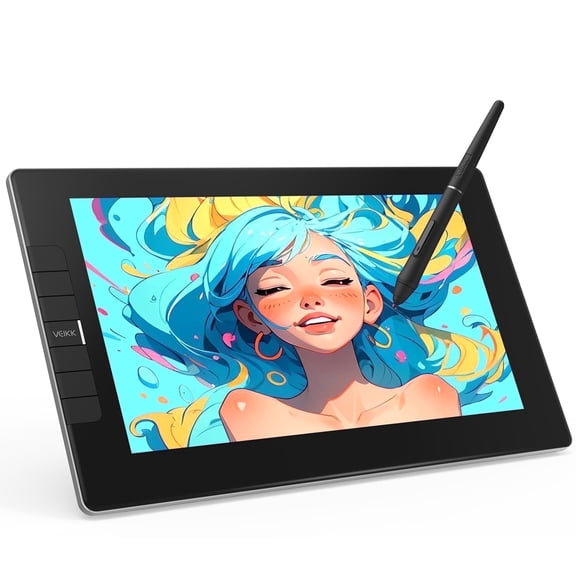
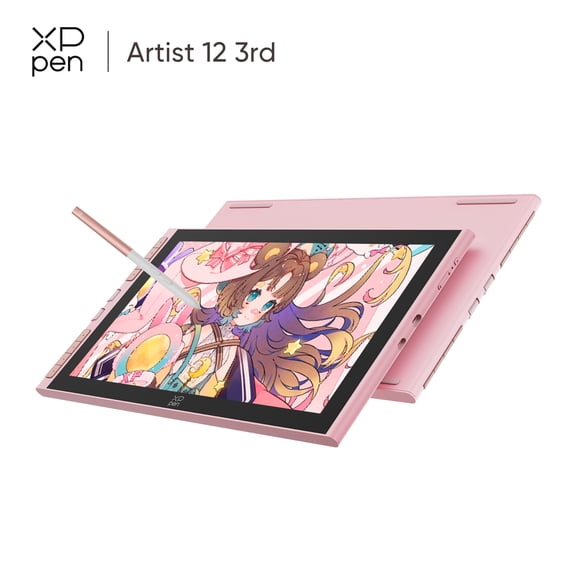
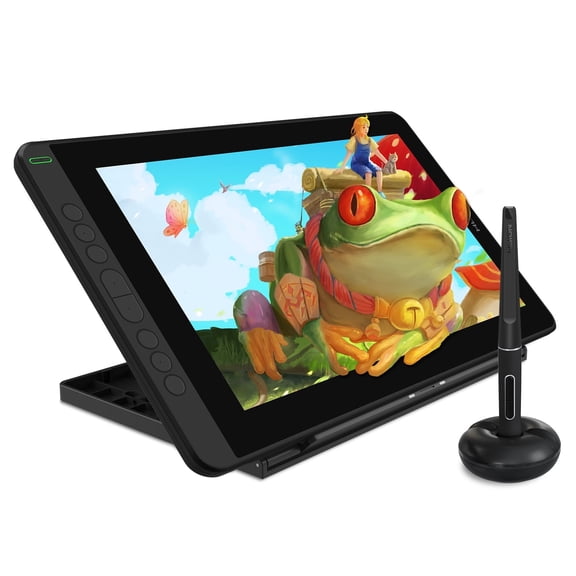
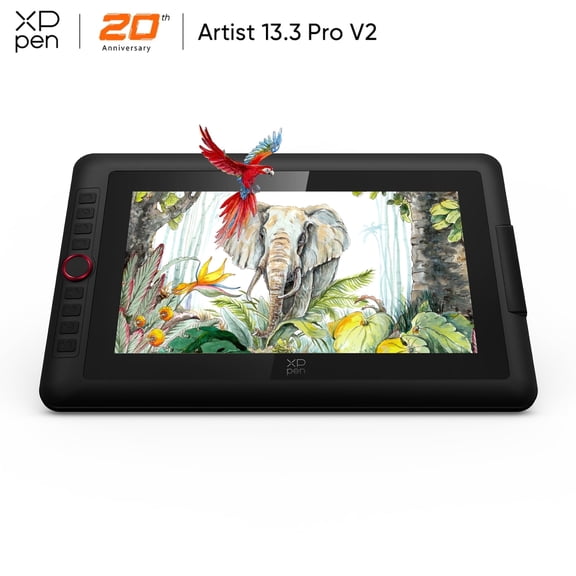
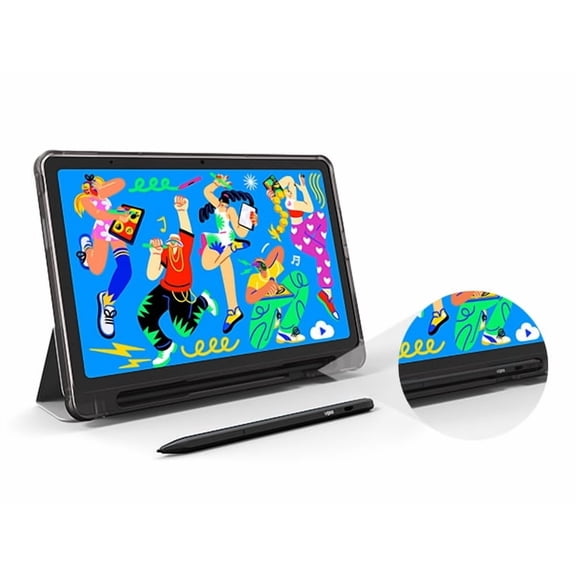
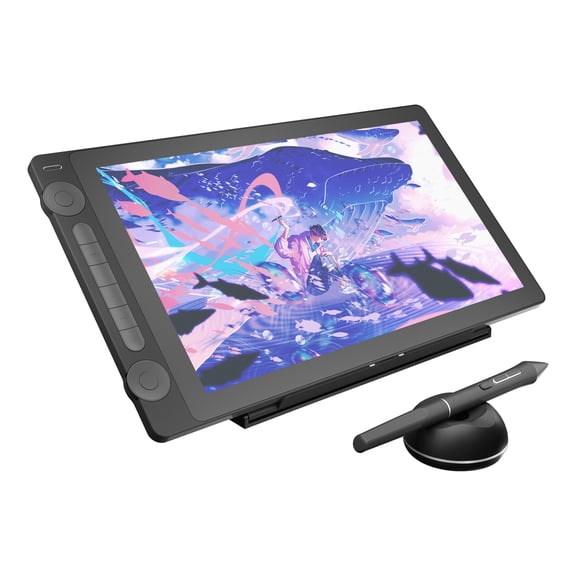
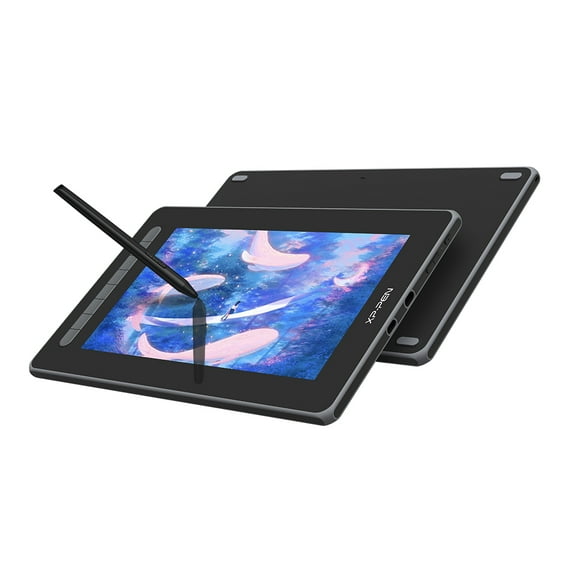
A pen display tablet gives you direct hand-to-line placement on the display. You can often adapt faster because your pen tip appears where your mark lands.
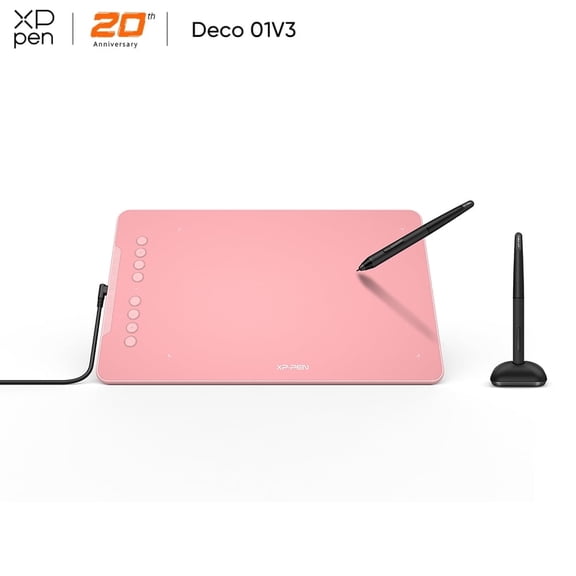
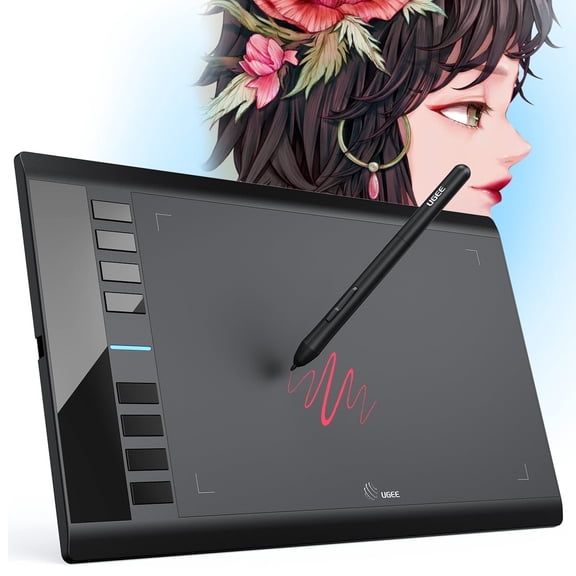
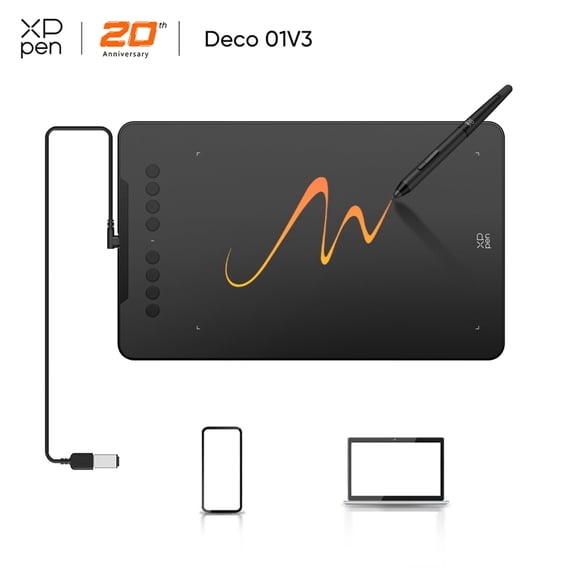
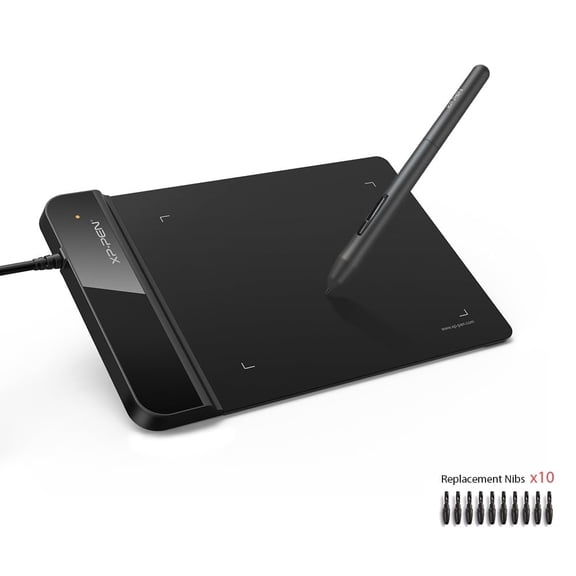
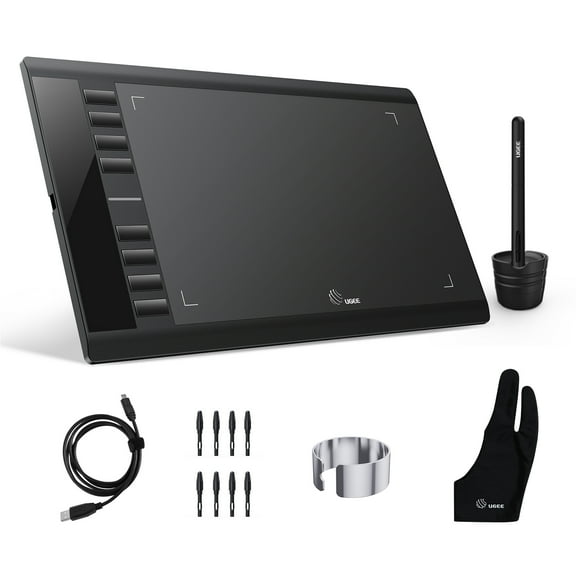
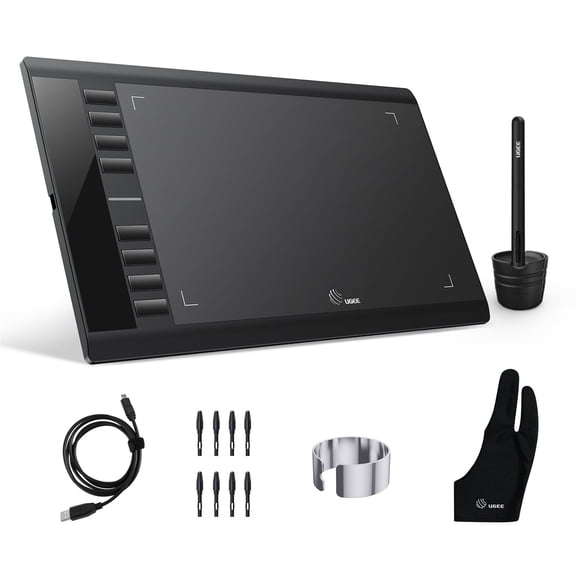
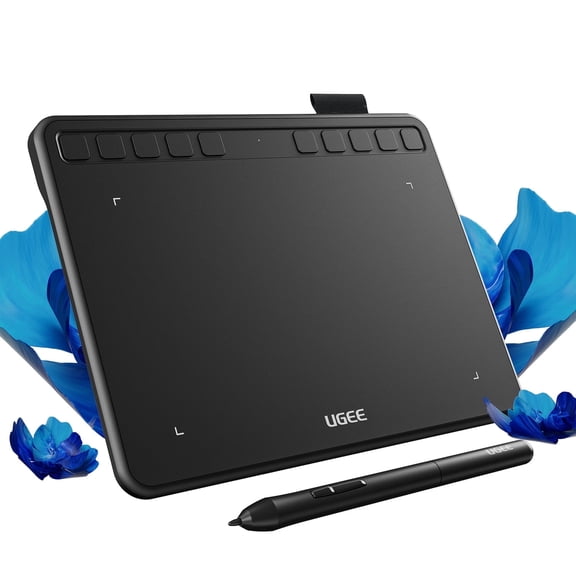
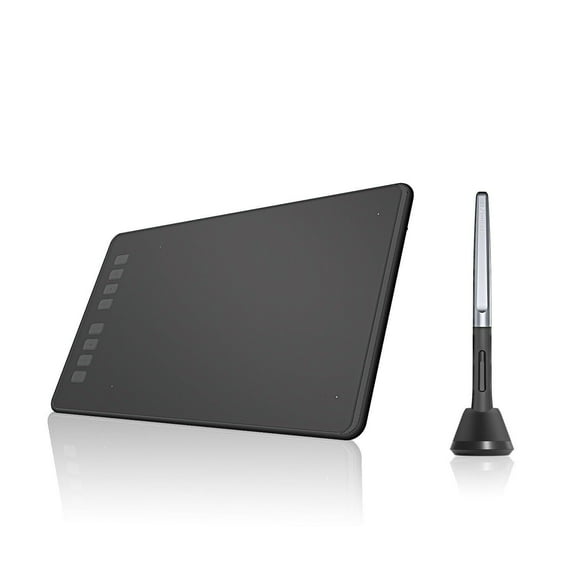
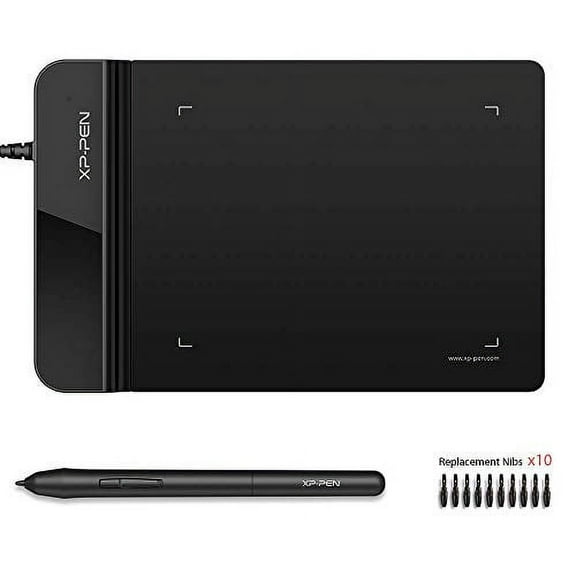
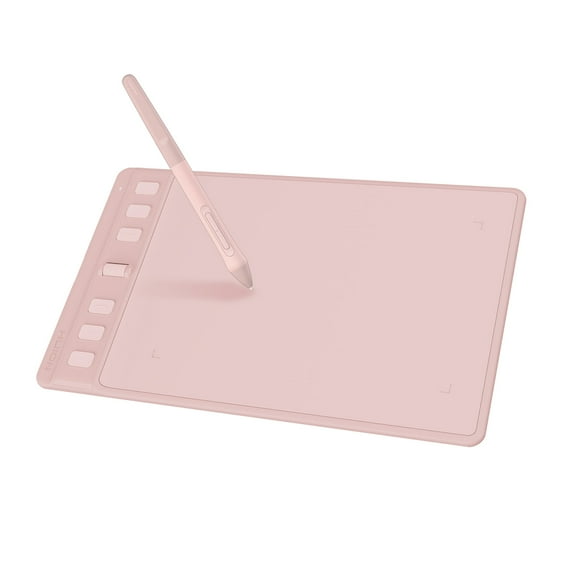
A pen tablet without a screen keeps your desk lighter and your setup simpler. You can look at your monitor while your hand moves on the tablet surface.
- You can choose a drawing tablet with screen for direct visual feedback.
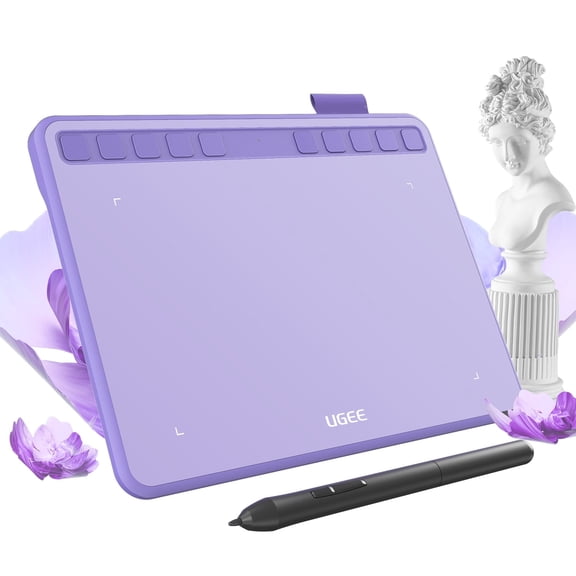
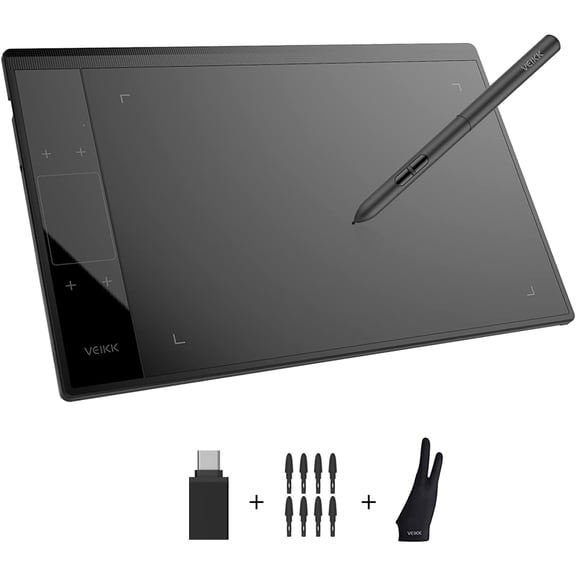
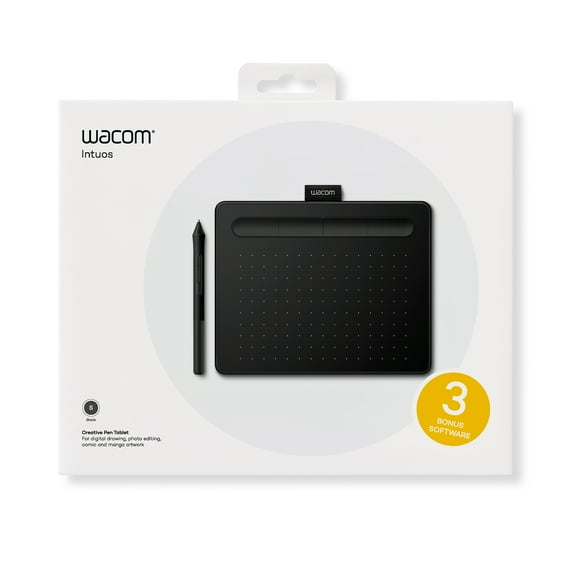
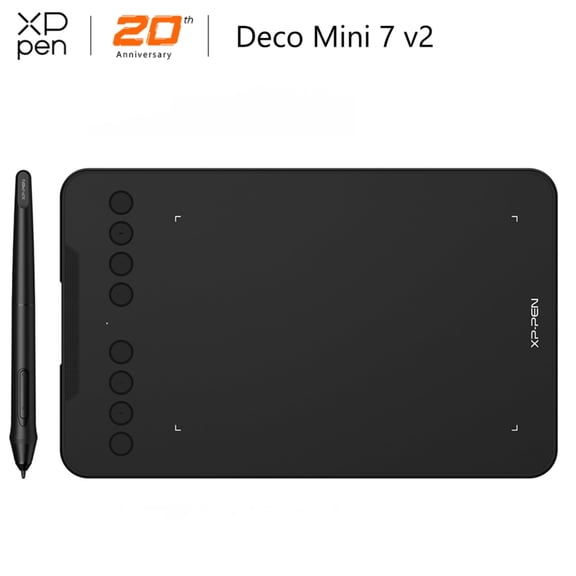
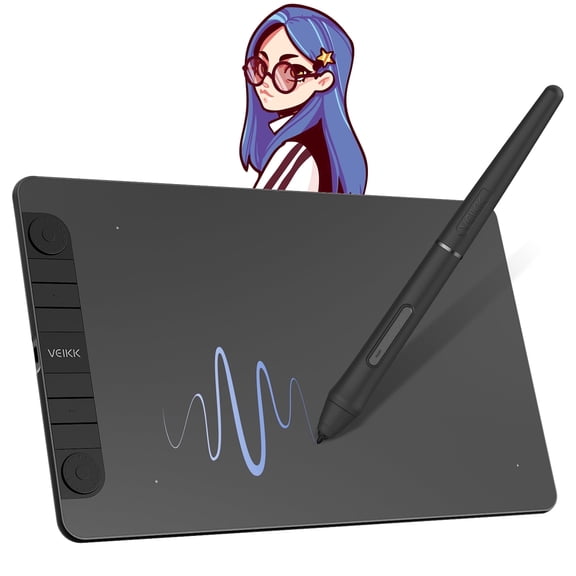
- You can choose a pen tablet for a compact digital drawing pad setup.
- You can compare wired and wireless options for desk flexibility.
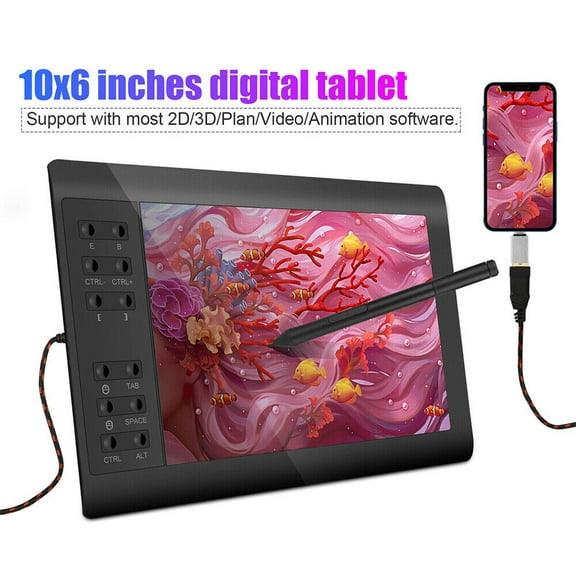
- You can match compatibility with Windows, macOS, Android, or Chromebook.
- You can check pressure sensitivity for lighter strokes and firmer lines.
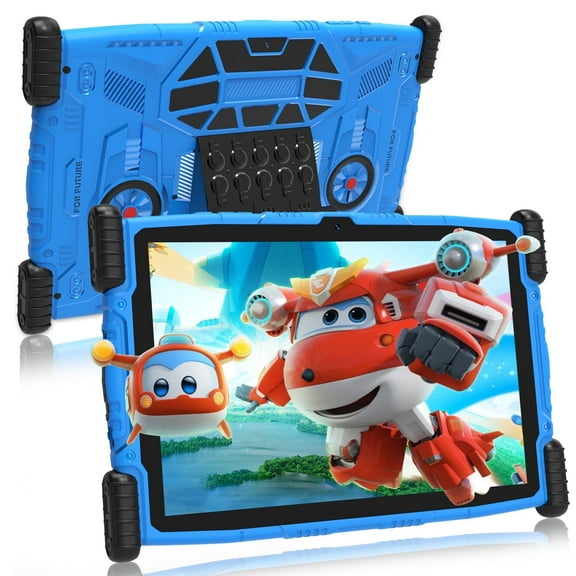
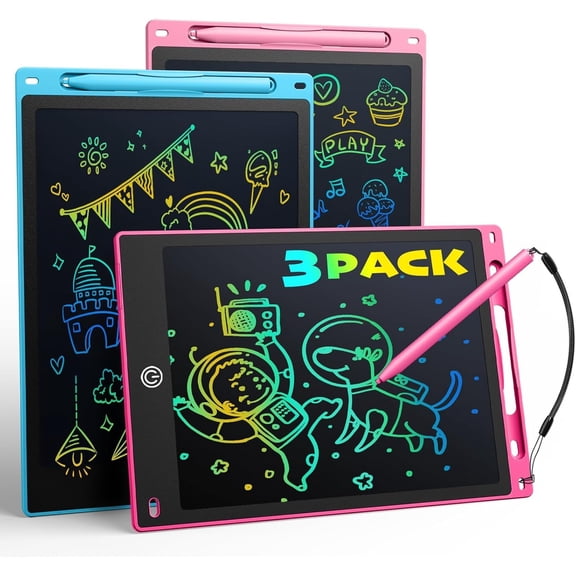
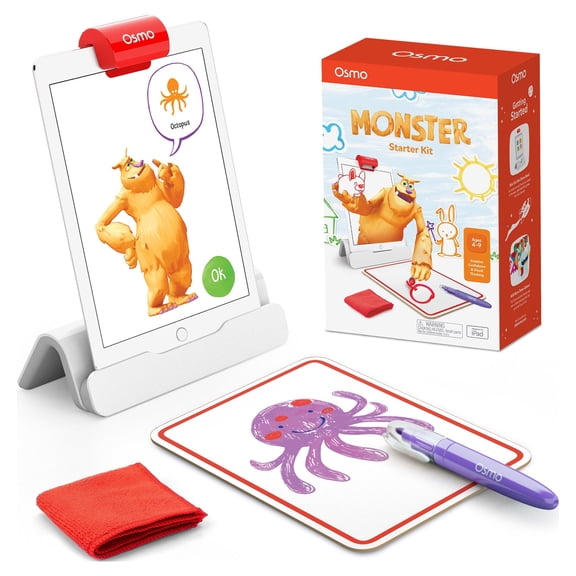
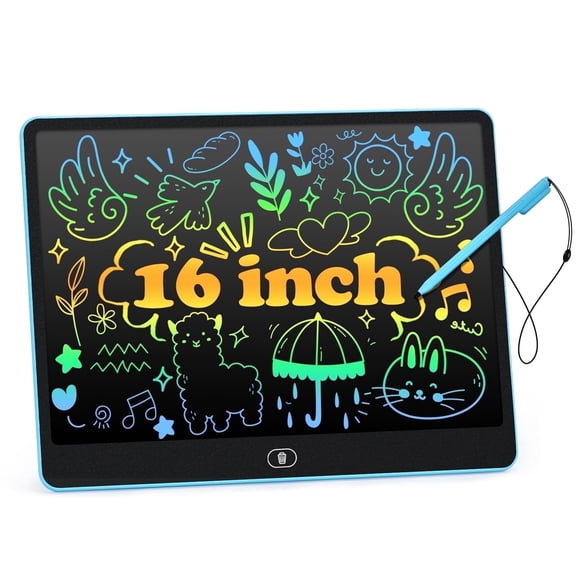
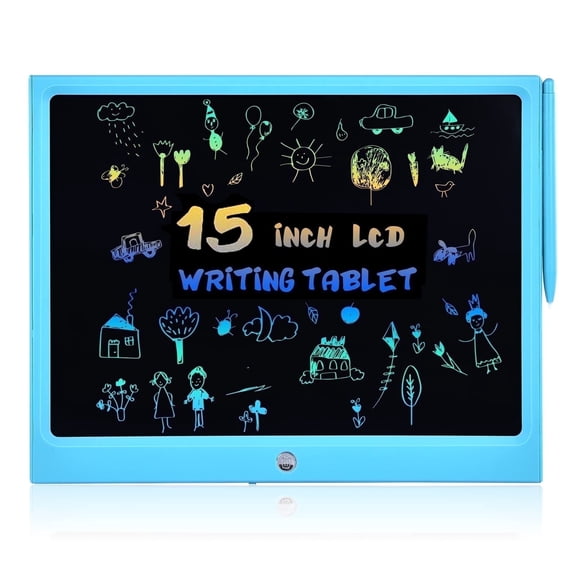
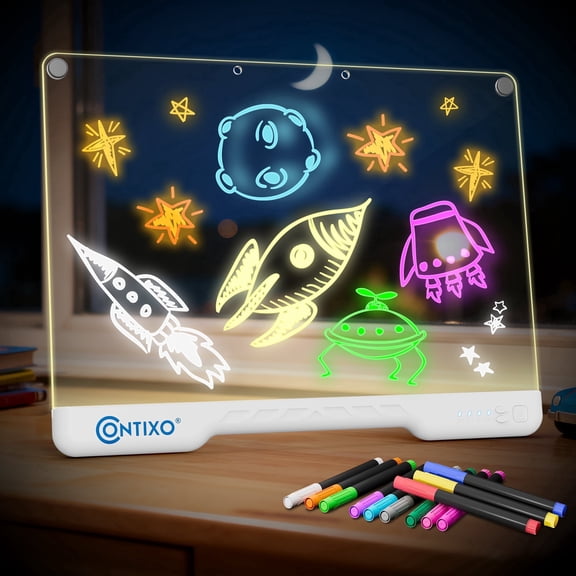
You may also want a drawing tablet for kids if you need simple setup and approachable controls. You can compare smaller sizes for school desks and shared spaces.
Choosing a drawing tablet with screen or without one
You should consider how you like to see your work while drawing. You can choose a drawing tablet with screen if direct viewing feels more natural.
Screen models help you place brush strokes, signatures, and fine edits with clear visual alignment. You can use them for illustration, photo retouching, animation frames, and handwritten notes.
Non-screen models help you keep your workspace open for a separate monitor or laptop. You can also move them more easily between home, class, and travel setups.
You should check the active drawing area before you decide. You can use a larger area for broad arm movement, or a smaller one for portability.
A compact graphics drawing tablet fits tighter desks and mobile bags more easily. A larger digital art board gives you more room for detailed lines and wider gestures.
Checking compatibility and connections
You need to confirm that your device works with your operating system before anything else. You can check support for Windows, macOS, Android, and Chromebook in the product details.
If you want a drawing pad for PC, you should look for clear Windows support first. You can also compare driver requirements if you switch between work and personal devices.
You may use macOS for design apps, or Android for portable sketching sessions. You should verify app support, cable needs, and screen mirroring details before you choose.
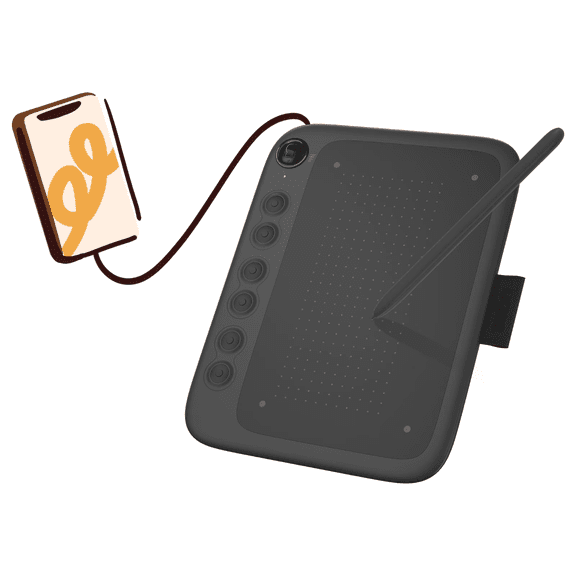
Connection type also affects how you set up your desk. You can pick USB-C for simple cabling, or Bluetooth and wireless options for fewer cords.
A wireless drawing tablet can help you keep your workspace cleaner and more flexible. You should still check charging habits, pairing steps, and response preferences for daily use.
What to look for in stylus response and control
You should compare pressure sensitivity because it affects how your lines respond. You can look for 4096 or 8192 levels when you want more nuanced stroke control.
Higher levels can give you more gradual changes between light and firm input. You may notice smoother variation when you shade, ink, or blend textured brush effects.
You should also compare stylus battery type before you buy. You can choose battery-free electromagnetic resonance pens for a lighter routine with fewer charging steps.
Rechargeable pens may suit your setup if you already manage charging accessories. You should check charging ports, runtime details, and whether replacement pens are easy to find.
You can also look at shortcut keys, dial controls, and palm-friendly layouts. These details help you keep common commands close while you draw or edit.
Matching graphic tablets to how you create
You might want graphic tablets for digital painting, comic work, photo editing, or online teaching. You can match your tablet choice to the kind of input precision your projects require.
If you create illustrations, you may prefer a pen display tablet with direct on-screen drawing. You can place color fills, line art, and layer edits with closer visual control.
If you edit photos or mark up documents, a pen tablet may fit your routine well. You can pair it with a monitor and keep your hand movements precise and repeatable.
Students and beginners may want a digital drawing pad that sets up quickly with a laptop. You can use it for note annotations, starter art apps, and creative practice.
If you move between devices, you should compare lightweight sizes and wireless options carefully. You can switch from a desk setup to a shared room without changing your whole workflow.
Creators who use multiple apps should check compatibility and shortcut customization closely. You can streamline repetitive actions when your tablet works smoothly with your software.
When you compare graphic tablets by screen type, compatibility, size, and stylus design, you can narrow the field faster. You end up with a setup that supports cleaner lines, smoother edits, and a more natural creative flow.