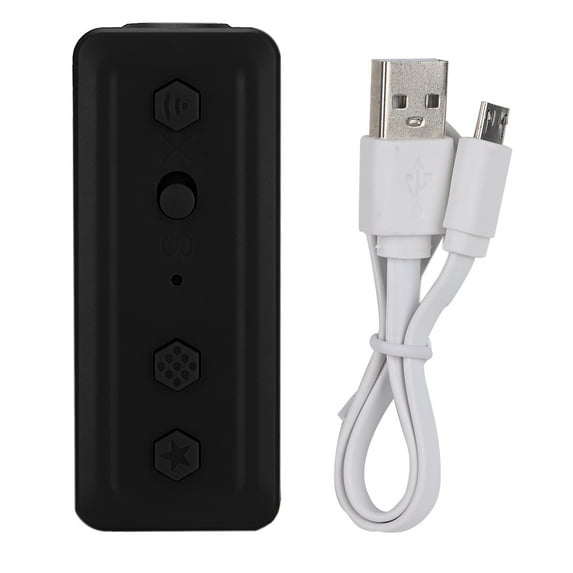
Features: Connect to the for Switch/PC platform via Bluetooth, allowing players to get rid of the trouble of wired connections and experience the game more smoothly. Support a variety of handles: For Game Cube handle / Game Cube limited edition handle / Wii classic handle / Wii classic Pro handle / NES handle / SNES handle, allowing players to use their favorite or idle handles on the for Switch, PC, for Android platform. Compact and portable: It is very convenient for daily use and travel. The product uses two AA batteries (the battery needs to be supplied by the customer). The converter supports the for GameCube/Classic Editions/Wii Classic handles and third-party handles with the same interface. TURBO Function: The converter is designed with the Turbo function. After setting the Turbo function for the function keys of the handle, you only need to press and hold the function key to realize a running shooting and easy setting. Specifications: Material: ABS Optional Color: Red blue, Blue red, Black Working voltage: 3V Working current: about 37mA Sleep current: 2 UA Suitable for host: for Switch host Suitable for operating platform: for Switch host / PC Size: approx. 9.6 * 4 * 2.7cm / 3.78 * 1.57 * 1.06inch Weight: approx. 58.4 g Package list: 1 * Handle Converter 1 * Instruction Manual 1 * Data Cable Operation Guidance: 1. Mode and Bluetooth Connection Instructions Wireless for SWITCH Bluetooth mode connection: Turn the switch to the S position, press the HOME button for 1 second, the start light will flash slowly, and then press the SYNC button for 2 seconds. The LED flashes into the paired state. Open the Controller host's Controller settings, enter the Change Grip/Order interface, and wait for the connection. After the connection is complete, the indicator LED is always on. Wireless PC computer Bluetooth mode connection: Turn the switch to the X position, press the HOME button for 1 second, the start light will flash slowly, and then press the SYNC button for 2 seconds. The LED flashes into the pairing state, the Bluetooth setting is turned on, the Bluetooth search interface is waiting for the connection, and the indicator LED is always on after completion. , the default detection is x-input 2. Back Connect Mode Press the HOME button for 1 second to wake up the handle. After being woken up, it will automatically connect to the host that is paired with it. If the connection is unsuccessful for 1 minute, it will automatically sleep; other buttons have no wake-up function. 3. Wired Connection Open the PC, the USB mirco data cable connects the converter to the PC, and the LED is always on after connection. The default detection is x-input. 4. Automatic Sleep Automatically sleeps without any button presses within 5 minutes. 5. TURBO Function Press and hold the function key you want to set on the handle, then press the button on the converter to complete the setting. Press and hold the button that has the TURBO function on the handle, and then press the button to set the clear. Note: It is only used on PC (the joystick and direction keys do not support bursting, the TURBO function cannot be set). 6. HOME Key Function Press the HOME button on the converter to return to the main page. Note: Only for Switch host use. 7. Screen Capture Function Press the button on the converter to complete the screen capture and long press to record the video. Note: Only available to for Switch hosts. 8. The converter is on the for Switch/PC host. When the handles of the two interfaces of for NGC/WII are connected at the same time, they cannot be used together. When the two interfaces of for NGC/WII are connected to the handle at the same time, the default for WII interface handle takes precedence, followed by the for NGC interface handle. (The for NGC interface handle can be used only after the for WII interface handle is removed.)