QGeeM USB C to VGA Cable Adapter
VGA Monitor Companion
The QGeeM USB-C to VGA Cable provides a compact design and easy solution for connecting ,tablet, laptop, or other devices with USB-C port to a VGA display such as monitor, projector or TV .Directly connect to these devices with VGA without the bother of an adapter.
Compact & friendly design
- 24k golded USB-C reversible connector port
- Premium aluminum casing for better heat insulation
- Reinforced VGA and USB-C connectors for snug fit
Note: Not all USB-C interfaces are compatible, only works for USB-C 3.1 or thunderbolt 3 port interfaces which support DisplayPort Alternate Mode
Important : This usb c to vga cable only supports one-way transmission when it is working
Mirror&Extend Mode
- Mirror mode can put a small screen converted into a big screen,let you more shock during the movie.
- Extend mode can put the different content on the two screen,browse the web while watching movies.
Play and plug:
- No software installation required. You can use an external display as your main workspace or to extend your desktop
- Easily switch between different projectors during a meeting without multiple adapters
Ideal for new ipad:
- This cable is compatible with iPad pro 2018-2020.
- Got your back easily from entertainment, daily work, to high-demanding professional editing
Enjoy your 1080p@60Hz resolution:
- Resolutions up to 1080p (Full HD, with 60Hz), downward compatible with 1080i, 720p, 576p, 480i,480pSupports resolution up to 1080P@60Hz
- Note: Recommend you to make sure your monitor/tv could supply corresponding output
Wide Compatibility ( Not a full list )
- For Apple: MacBook Pro 2016-2019, MacBook Air 2018-2019, iMac Pro, iMac 2017-2019
- For Dell: Dell XPS 12 9250, 13 9350,Latitude 5480 / 5580,Alienware 13
- For HP: HP Elite X2 1012 G1/G2,EliteBook 1040 G4/X360,
- For ACER: Acer Aspire Switch, Predator 15/17/17X
- For SAMSUNG: Samsung ChromeBook +, Samsung Galaxy s8//s9/, Samsung Note 8/9/10
- For ASUS: ASUS ROG GL/G5/G7/GX/Strix
Kind Note:
1.For macOs system: Please go to Top left corner Apple icon-->System Preferences-->Displays-->Mirror or Extend Displays
2.For Windows system: Please press Windows key + P combination command-->choose Duplicate or Extend



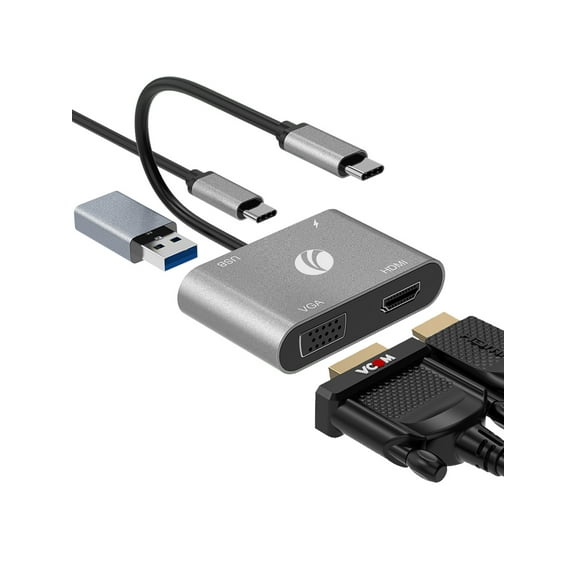
![Fasgear USB C to HDMI Adapter (4K@60Hz),USB Type-C to HDMI Adapter [Thunderbolt 3] Compatible with MacBook Pro 2021/ Pro 2020/ Air 2019, iPad Pro 2021, Galaxy S10/ S9, Surface Book 2 and More (Gray)](https://i5.walmartimages.com/asr/fb3b7bfb-ce5e-4e49-abfa-385615cdfef1.0658240fe5552d633332ffff89de4269.jpeg?odnHeight=576&odnWidth=576&odnBg=FFFFFF)
![Adapter, variant on Fasgear USB C to HDMI Adapter (4K@60Hz),USB Type-C to HDMI Adapter [Thunderbolt 3] Compatible with MacBook Pro 2021/ Pro 2020/ Air 2019, iPad Pro 2021, Galaxy S10/ S9, Surface Book 2 and More (Gray)](https://i5.walmartimages.com/asr/aba9d239-846c-4401-8c89-eeb94d115ebb.2c3976371e7f050686c25380947aabd6.jpeg?odnHeight=30&odnWidth=30&odnBg=FFFFFF)
![Cable, variant on Fasgear USB C to HDMI Adapter (4K@60Hz),USB Type-C to HDMI Adapter [Thunderbolt 3] Compatible with MacBook Pro 2021/ Pro 2020/ Air 2019, iPad Pro 2021, Galaxy S10/ S9, Surface Book 2 and More (Gray)](https://i5.walmartimages.com/asr/ed533c3f-2955-4bfc-8e7c-69d07e58a1c9.61d69f62cd8c6e811140e3bb60db7ffa.jpeg?odnHeight=30&odnWidth=30&odnBg=FFFFFF)