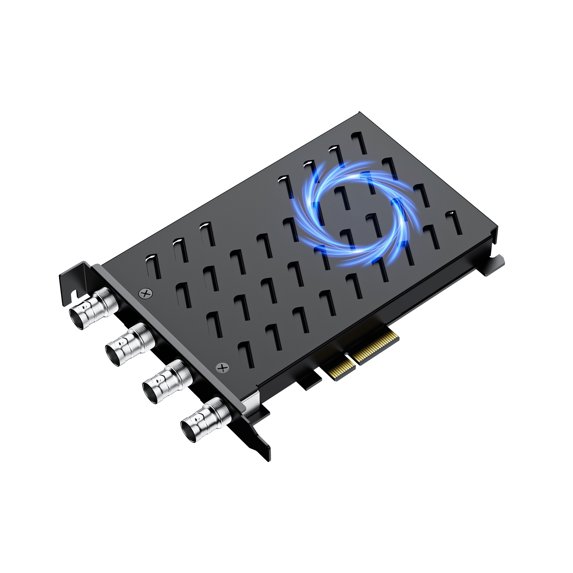
ACASIS 4-channel Co-display PCIE Built-in SDI Capture Card with Cooling Fan 1920x1080P60HZ
Hero image 0 of ACASIS 4-channel Co-display PCIE Built-in SDI Capture Card with Cooling Fan 1920x1080P60HZ, 0 of 14

ACASIS 4-channel Co-display PCIE Built-in SDI Capture Card with Cooling Fan 1920x1080P60HZ

|2 ratings

Key item features

  • This ACASIS 4-channel co-display PCIE built-in SDI capture card AC-4SDIPLUS (Built-in 4CH SDI Capture Card Upgrade Requires Driver Installation) has a resolution of up to 1920x1080P60HZ when recording, allowing you to use it for a very good live streaming or recording experience, whether it's a big game or live streaming, it's the right choice for you!
  • [Hardware Requirements]This is a motherboard computer accessory built-in capture card for PCIE * 4 interface motherboards, so please check if your motherboard has PCIE * 4 or more interfaces before purchasing. This capture card is suitable for almost all motherboards on the market:
  • [Driver Installation]This is a capture card that needs to install the driver to be able to use normally, related to the latest version of the driver file we will maintain on the official website, please download and take it.
  • [Excellent performance]PCIE card slot transmission is more stable. The capture card supports one machine and multiple cards can form a multi-channel live up to 16-way support. Capture card factory comes with thermal paste heat dissipation effect is good. Support 4-way SDI screen display at the same time.
  • [Easy to use manual on Linux]Capture card in the use of Linux system details:Our capture card driver support Ubuntu16.04 above the kernel Linux system. 1.UOS, 2.zhongke kylin, 3.uBuntu, 4.other versions of Linux.Steps:1.Installation operation: to install UBuntu22.04 as an example.2.After installing the system you need to install the basic compilation environment. : sudo apt update, sudo apt install build-essential. 3, query whether the capture card exists; lspci. 4. driver file unzipped, into the installation directory Open the terminal Run install.sh or dkms-install.sh sudo . /install.sh . 5, driver installation permissions: when running the installation script appears the following message you need to use root privileges or sudo .6, installation script permissions: when running the installation script appears to run the message can not be run, we need to set the run permissions to the sh file. You need to run the following two commands (the scripts directory is the real run script) sudo chmod +x *.sh sudo chmod +x . /scripts/*.sh .7. driver can not be installed properly: need to sign: two options: 1. turn off the BIOSO encrypted boot function (secure boot do not check). 2. according to the linux signature rules for the signature of the driver. 8: capture card driver installation: check whether the driver is installed correctly: reboot using ls /dev/video * should be able to You should be able to see the device. 9, capture card driver uninstall: sudo . /uninstall.sh:
Price when purchased online
Not Available

How do you want your item?

How do you want your item?
Not available

About this item

Product details

Specifications

Warranty

Customer ratings & reviews

5 out of 5 stars
stars2 ratings0 reviews
How item rating is calculated
  1. 2 ratings are rated 5 stars, 100% of all ratings
  2. 0 ratings are rated 4 stars, 0% of all ratings
  3. 0 ratings are rated 3 stars, 0% of all ratings
  4. 0 ratings are rated 2 stars, 0% of all ratings
  5. 0 ratings are rated 1 star, 0% of all ratings
Filtered and sorted results would be available on the new 'Customer ratings & reviews' page.
Sort by |
This item does not have any reviews yet