Instructions
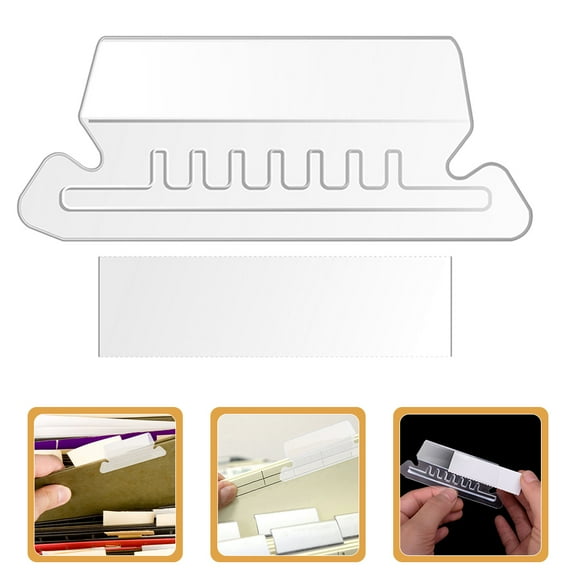
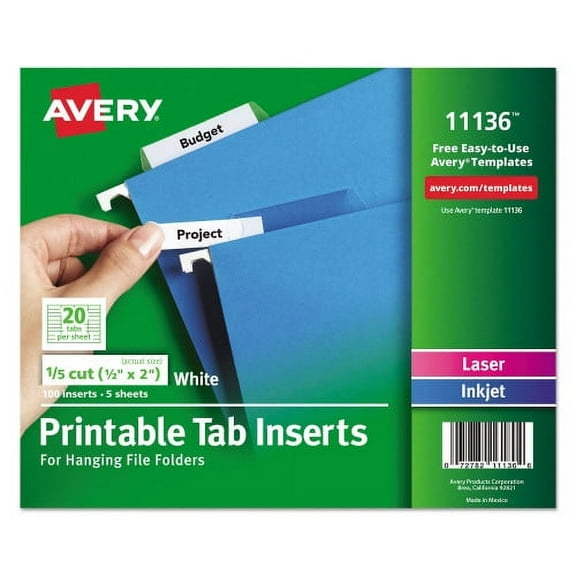
. Printing Instructions. 1. In your word processor or on your printer's control panel, select the printer's manual feed tray. 2. Send the print command from your word processor. 3. Insert the enclosed practice sheet in your printer's Manual Feed Tray. Note: On some printers you must open the printer's front door to use the Manual Feed Tray. 4. If your printer does not pick up the sheet, press On Line or Continue. 5. Check alignment on practice sheet. Adjust as needed. Note: For more detailed printing instructions and specific instructions on how to adjust the alignment of your text, call Avery Technical Support. See Avery Technical Support below. 6. Load the insert sheet and print using your printer's manual feed tray. Printing your inserts is easy! Step 1. Key in or type your insert titles. Step 2. Use your laser or ink jet printer to print titles onto insert sheets. Step 3. Remove inserts from sheet, fold and place in hanging file folder tabs. General Manual Word Processing Instructions. The instructions below are for use with your word processing software and laser/ink jet printer. We recommend that you first test your formatting on the practice sheet provided before printing on the insert sheets enclosed. Note: It may be necessary to make minor adjustments to your software and /or printer to align tab titles properly. 1. Set the page margins as follows. Margins: Left; For 1/5th cut size (2”) - 0.25”, For 1/3rd cut size (3-1/2”) - 0.75”. Margins: Right; For 1/5th cut size (2”) - 0.25”, For 1/3rd cut size (3-1/2”) - 0.75”. Margins: Top; For 1/5th cut size (2”) -1.00”, For 1/3rd cut size (3-1/2”) - 1.00”. 2. Set centered tabs at these positions:. Centered Tabs: First tab; For 1/5th cut size (2”) - 1.00”, For 1/3rd cut size (3-1/2”) - 1.75”. Centered Tabs: Second tab; For 1/5th cut size (2”) - 3.00”, For 1/3rd cut size (3-1/2”) - 5.25”. Centered Tabs; Third tab; For 1/5th cut size (2”) - 5.00”. Centered Tabs; Fourth tab; For 1/5th cut size (2”) - 7.00”. Note: These tab positions are set relative to the left margin. If your program sets tab positions relative to the edge of the page, add the left margin to these dimensions. 3. Set the paragraph line spacing (line height) to 0.5” (36pt). Be sure the spacing is set to “exactly” or “fixed” (the term depends on your program) - not “at least” or “auto. 4. Type the tab titles at each tab setting, beginning at the first tab position, not at the left margin: (That is begin each line with a tab character). Type each title twice, side by side. (The insert fold on the side). Press enter after each row of tab titles. Note: If you're going to print more than ten rows of WorkSaver® Inserts, insert a page break (hard page break) after each tenth row.