

TestPageSPD6


Dopamine Dorm
A little whimsy & a lot of personality.
Rollback Mainstays Blurred Rose 2-Piece Pink Comforter Set, Twin/Twin XL $22.49 Was $29.98
Rollback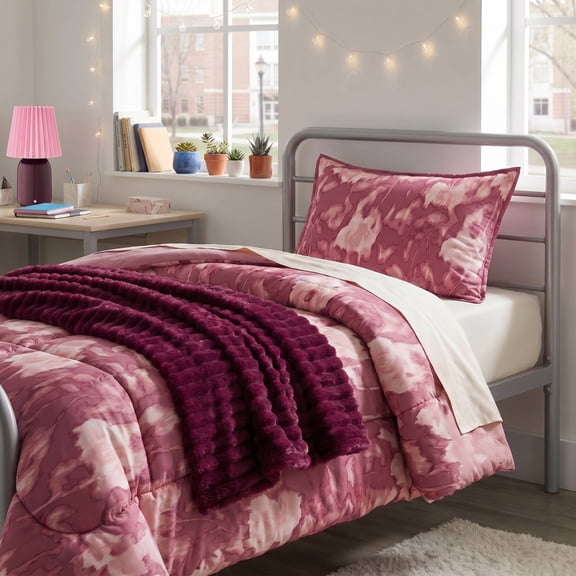 4 optionsAvailable in additional 4 optionsNow$2249current price Now $22.49, Was $29.98$29.98Options from $22.49 – $34.42
Mainstays Blurred Rose 2-Piece Pink Comforter Set, Twin/Twin XL
Save with
Betsey Johnson Flower Fun Green Twin Sheet Set $29.99
 4 optionsAvailable in additional 4 options$2999current price $29.99More options from $20.78
Betsey Johnson Flower Fun Green Twin Sheet Set
Best seller BrightSide Disco Cherries String Lights - 8.5 ft Battery-Powered String Lights $9.98
Best seller $998current price $9.98
BrightSide Disco Cherries String Lights - 8.5 ft Battery-Powered String Lights
Save withBest seller Urban Shop , Ribbed Compressed Foam Kids and Teen Chair, Emerald $44.86
Best seller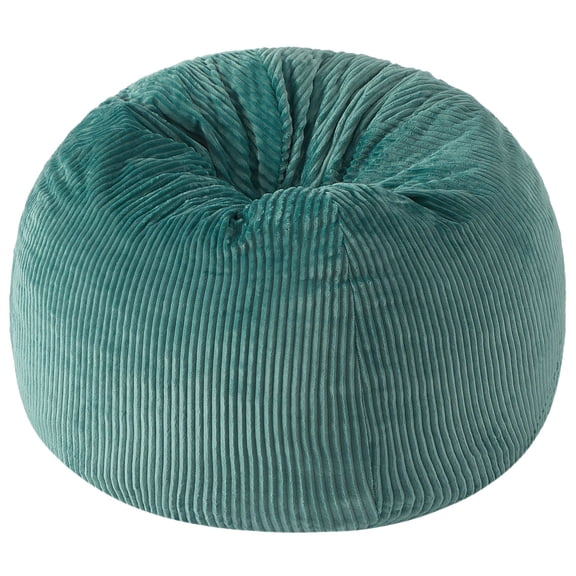 4 optionsAvailable in additional 4 options$4486current price $44.86
Urban Shop , Ribbed Compressed Foam Kids and Teen Chair, Emerald
Save withBest seller Mainstays 4-Cube Storage Desk, Spring Pine $75.00
Best seller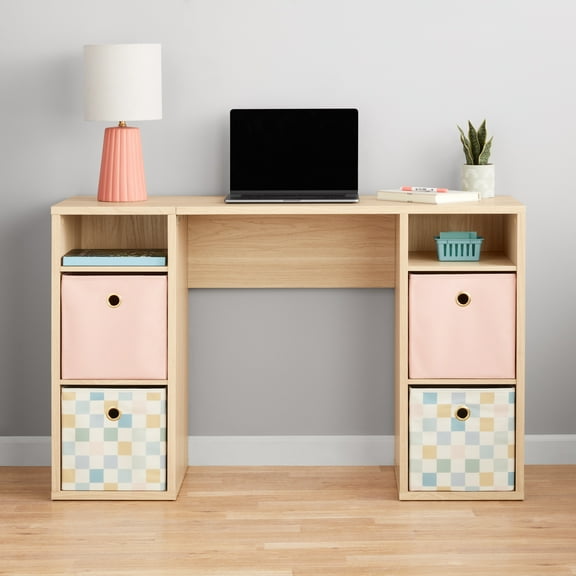 4 optionsAvailable in additional 4 options$7500current price $75.00
Mainstays 4-Cube Storage Desk, Spring Pine
Save withMainstays Collapsible Fabric Cube Storage Bins, Green Boucle, 4 Pack, 10.5 in x 10.5 in x 10.75 in $19.68
 4 optionsAvailable in additional 4 options$1968current price $19.68
Mainstays Collapsible Fabric Cube Storage Bins, Green Boucle, 4 Pack, 10.5 in x 10.5 in x 10.75 in
Save withBest seller Mainstays Small Portable Shower Caddy Frost Plastic $2.97
Best seller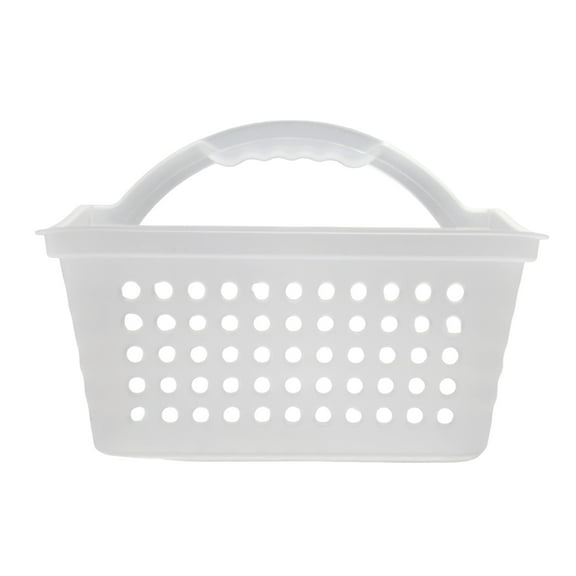 3 optionsAvailable in additional 3 options$297current price $2.97Options from $2.97 – $35.64
Mainstays Small Portable Shower Caddy Frost Plastic
Save withBest seller Mainstays Performance Cotton 6-Piece Bath Towel Set, Textured, Terracotta $15.97
Best seller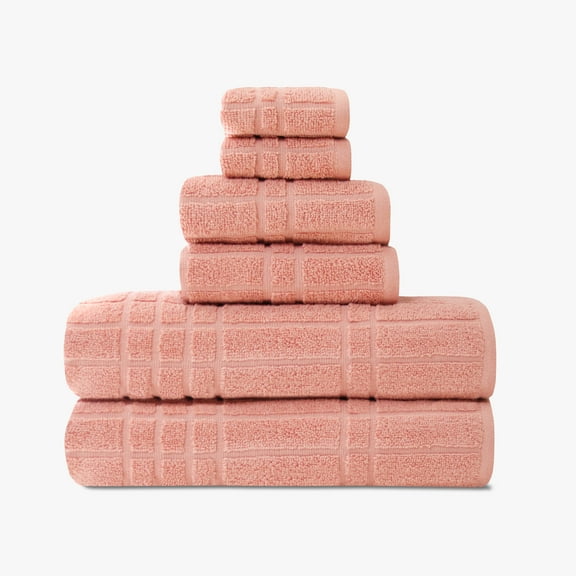 4 optionsAvailable in additional 4 options$1597current price $15.97
Mainstays Performance Cotton 6-Piece Bath Towel Set, Textured, Terracotta
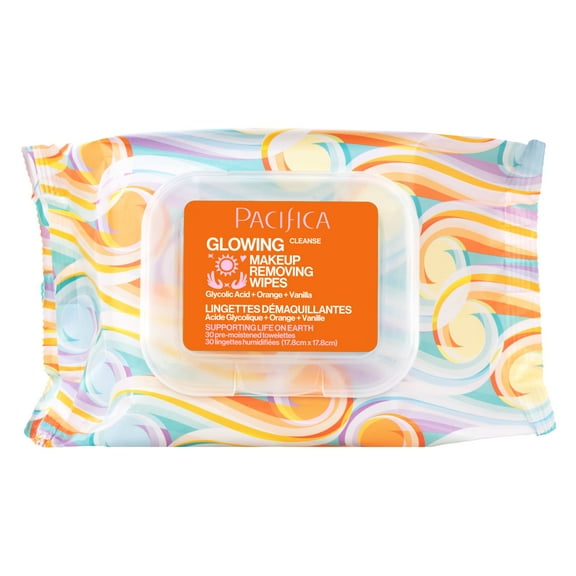
Save withPacifica Glowing Makeup Removing Wipes 30 Count $4.97 $16.57/100 ct
 $497current price $4.97$16.57/100 ct
Pacifica Glowing Makeup Removing Wipes 30 Count
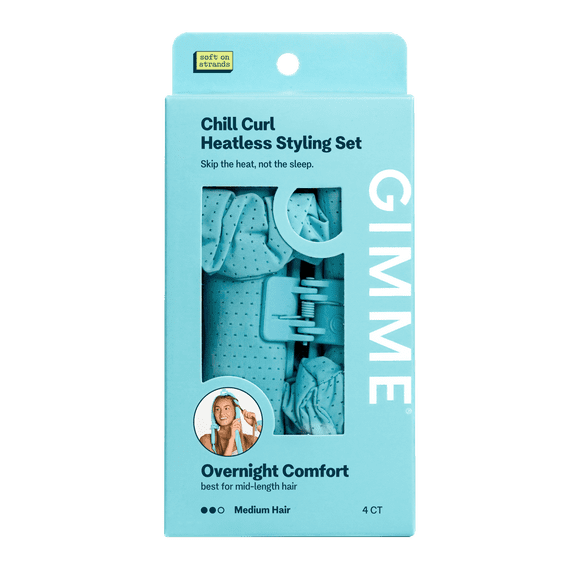
Save withGimme Beauty Heatless Curling Rod Set for Medium Hair, 1 Count $14.94
 $1494current price $14.94
Gimme Beauty Heatless Curling Rod Set for Medium Hair, 1 Count
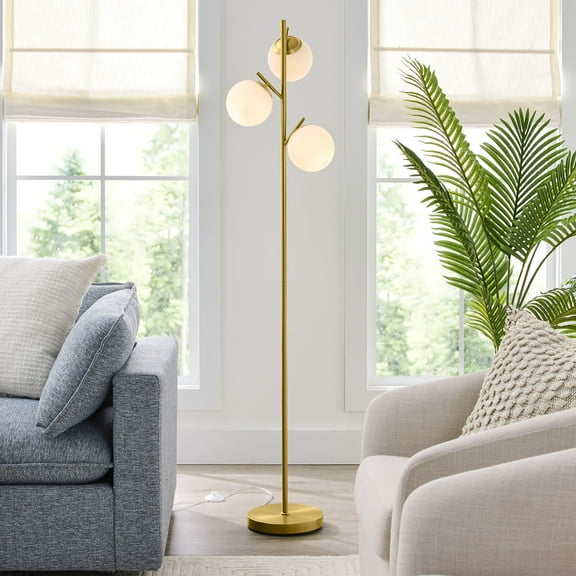
Save withBetter Homes & Gardens 3-Globe Freestanding Floor Lamp, 65 in, Frosted Glass Shades, Foot Switch $75.76
 $7576current price $75.76
Better Homes & Gardens 3-Globe Freestanding Floor Lamp, 65 in, Frosted Glass Shades, Foot Switch
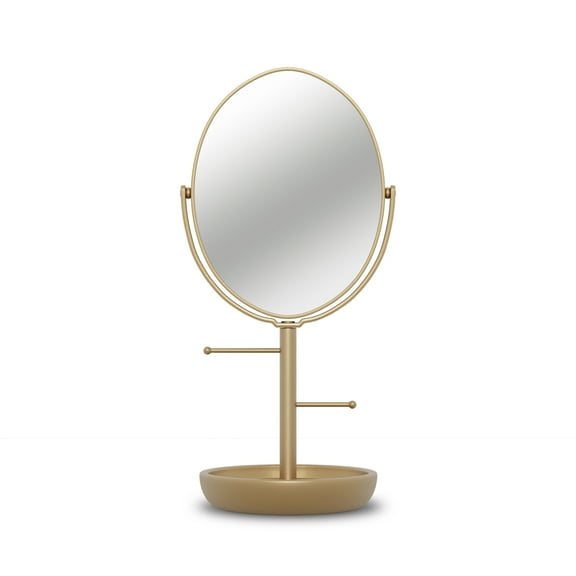
Save withBeautiful Gold Vanity Mirror w/ Storage, Floral Design by Drew Barrymore – 1X Magnification, Space-Saving, Vintage-Inspired $29.98
 $2998current price $29.98
Beautiful Gold Vanity Mirror w/ Storage, Floral Design by Drew Barrymore – 1X Magnification, Space-Saving, Vintage-Inspired
Save withBest seller onn Adjustable Metal Laptop Stand $19.87
Best seller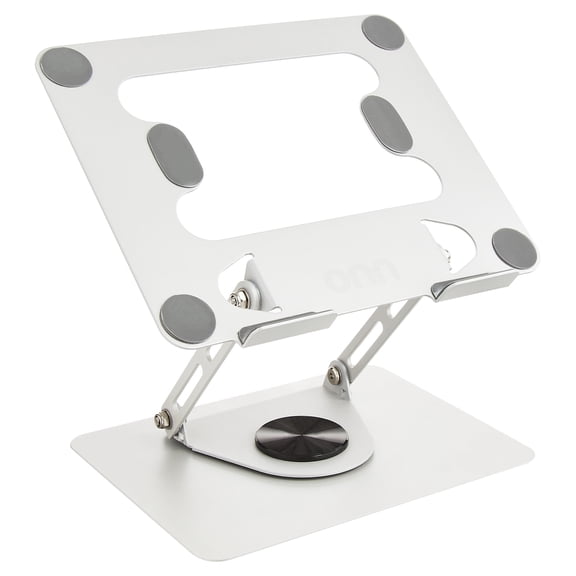 $1987current price $19.87
onn Adjustable Metal Laptop Stand
Save withBest seller HP 15.6 inch HD Windows Laptop AI Intel Core Ultra 5 225U 8GB 512GB SSD Natural Silver $507.00 Was $599.00
Best seller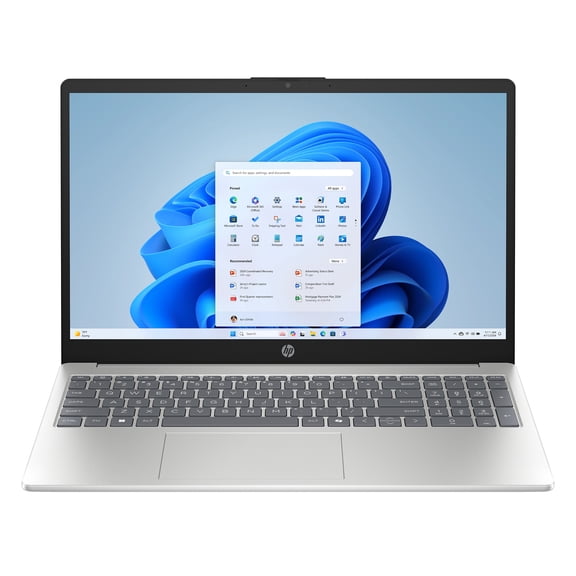 Now$50700current price Now $507.00, Was $599.00$599.00$507.00
HP 15.6 inch HD Windows Laptop AI Intel Core Ultra 5 225U 8GB 512GB SSD Natural Silver
Best seller BrightSide 12" Heart Shaped LED Neon Table Light, Pink, Battery-Powered $9.96
Best seller 4 optionsAvailable in additional 4 options$996current price $9.96
BrightSide 12" Heart Shaped LED Neon Table Light, Pink, Battery-Powered
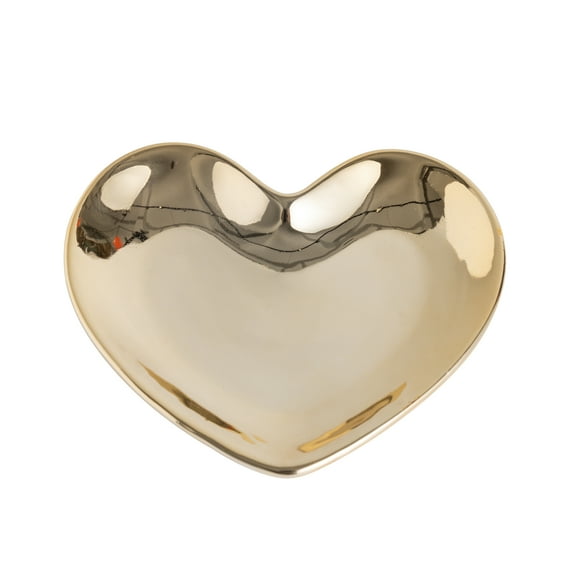
Save withMainstays Gold Ceramic Decorative Heart Tabletop Trinket Tray $7.78
 $778current price $7.78
Mainstays Gold Ceramic Decorative Heart Tabletop Trinket Tray
Save with

Game Zone
Fully kitted for finals & fun.
Best seller GTRACING RGB Ergonomic Gaming Chair with Massage, LED Lights, Footrest, Lumbar Support, Black $149.00
Best seller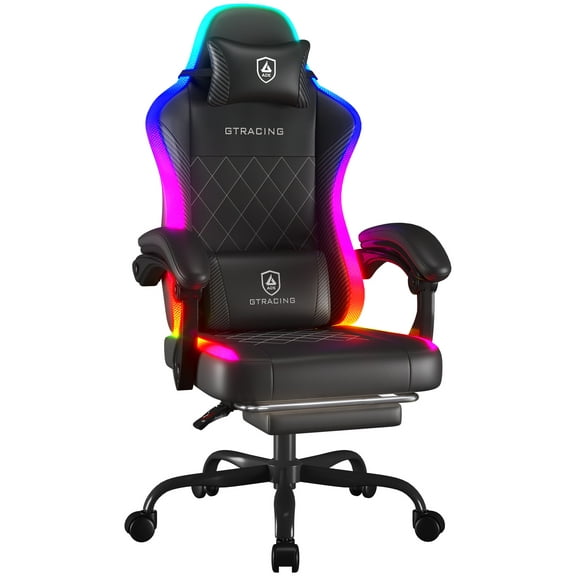 $14900current price $149.00
GTRACING RGB Ergonomic Gaming Chair with Massage, LED Lights, Footrest, Lumbar Support, Black
Save withBest seller Bestier Gaming Desk with LED Lights, 44'' Computer Desk with Reversible Shelves, PC Gamer Desk with Side Storage Bag, Hooks and Height Adjustable Shelf for Home Office, Carbon Fiber Black $59.93 Was $109.99
Best seller 8 optionsAvailable in additional 8 optionsNow$5993current price Now $59.93, Was $109.99$109.99Options from $59.93 – $78.87
Bestier Gaming Desk with LED Lights, 44'' Computer Desk with Reversible Shelves, PC Gamer Desk with Side Storage Bag, Hooks and Height Adjustable Shelf for Home Office, Carbon Fiber Black
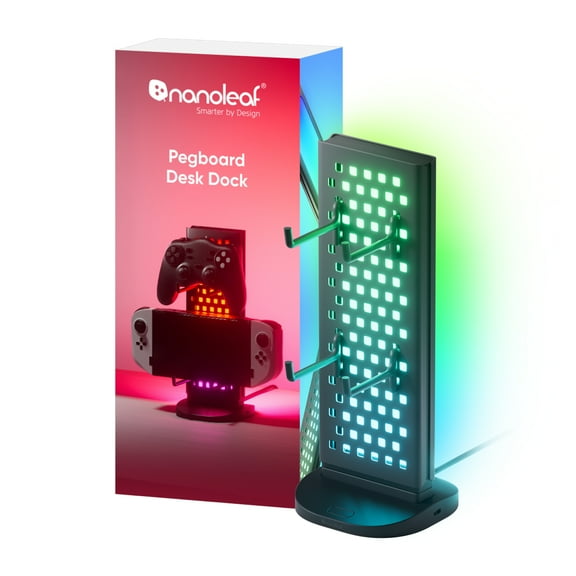
Save withNanoleaf Pegboard Desk Dock (1pk) $54.00
 $5400current price $54.00
Nanoleaf Pegboard Desk Dock (1pk)
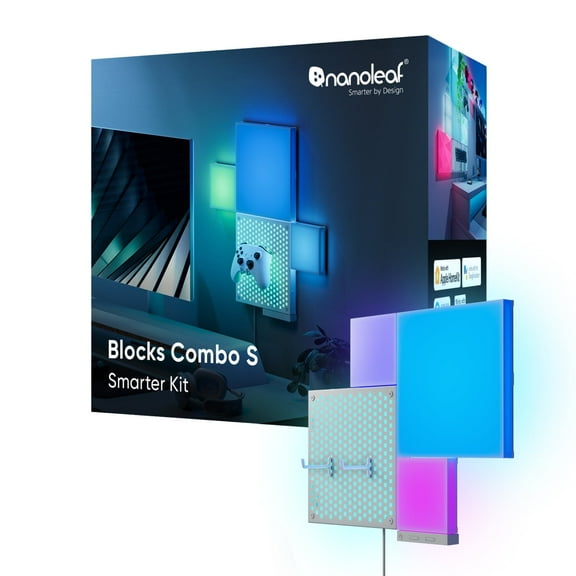
Save withNanoleaf Blocks Combo S Smarter Kit, Indoor RGBW Wifi Wall Light Panels, 4pk $89.98 Was $108.00
 Now$8998current price Now $89.98, Was $108.00$108.00
Nanoleaf Blocks Combo S Smarter Kit, Indoor RGBW Wifi Wall Light Panels, 4pk
Rollback Mainstays 3.2 cu ft 2-Door Compact Refrigerator with Freezer, Stainless-Steel Look, Mini Fridge for Dorm, Apartment & Office $148.00 Was $174.00
Rollback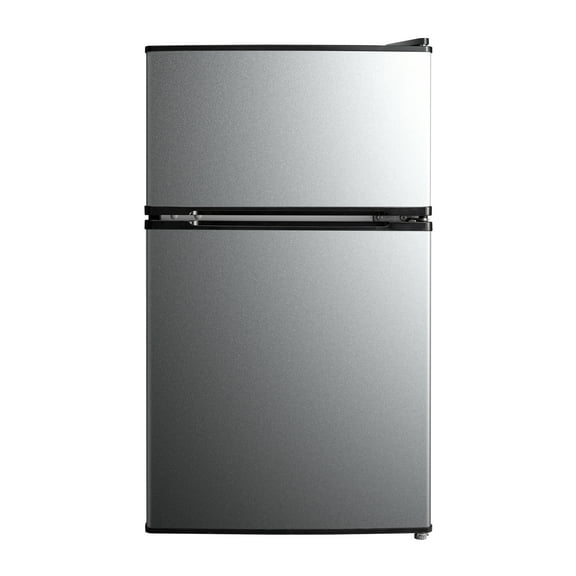 Now$14800current price Now $148.00, Was $174.00$174.00
Mainstays 3.2 cu ft 2-Door Compact Refrigerator with Freezer, Stainless-Steel Look, Mini Fridge for Dorm, Apartment & Office
Save withBest seller BrightSide 7” Chill LED Neon Table Light, Blue, Battery-Powered $9.96
Best seller 4 optionsAvailable in additional 4 options$996current price $9.96
BrightSide 7” Chill LED Neon Table Light, Blue, Battery-Powered
Save withRollback Keurig K-Express Essentials Black Single-Serve K-Cup Pod Coffee Maker $49.47 Was $54.97
Rollback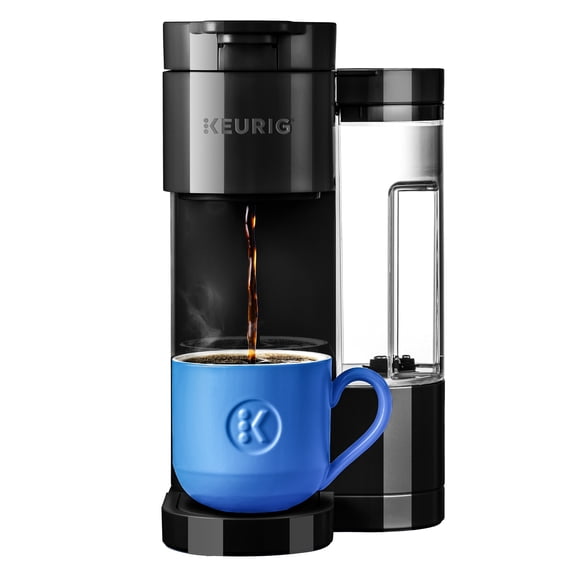 4 optionsAvailable in additional 4 optionsNow$4947current price Now $49.47, Was $54.97$54.97
Keurig K-Express Essentials Black Single-Serve K-Cup Pod Coffee Maker
Save withRollback Mainstays Over-the-Door Rectangular Mirror, Black, 14.25 in x 50.45 in $14.92 Was $17.78
Rollback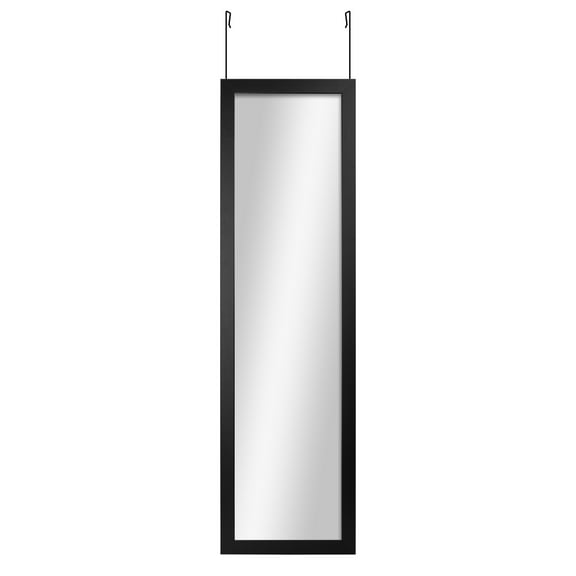 3 optionsAvailable in additional 3 optionsNow$1492current price Now $14.92, Was $17.78$17.78
Mainstays Over-the-Door Rectangular Mirror, Black, 14.25 in x 50.45 in
Save withRollback Beats Solo 4 Wireless Headphones - On-Ear Wireless Headphones - Slate Blue $129.95 Was $199.95
Rollback 4 optionsAvailable in additional 4 optionsNow$12995current price Now $129.95, Was $199.95$199.95More options from $81.00
Beats Solo 4 Wireless Headphones - On-Ear Wireless Headphones - Slate Blue
Save withShark Cyclone Handheld Vacuum, On-the-Go Cleaning, HyperVelocity Suction, USB Charging, CH700WM, Herb $62.00
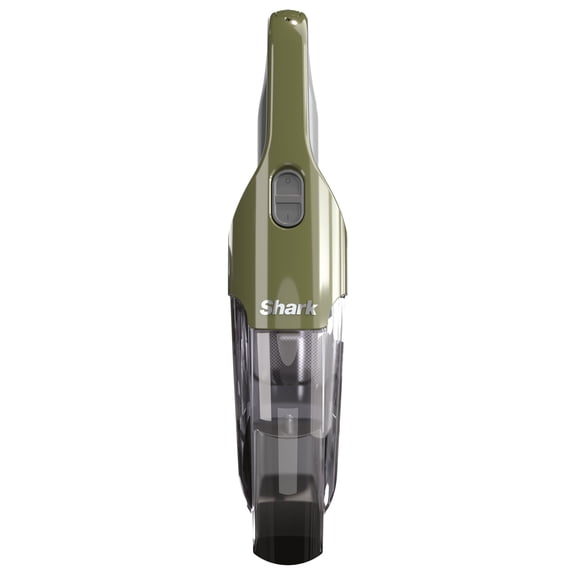 $6200current price $62.00
Shark Cyclone Handheld Vacuum, On-the-Go Cleaning, HyperVelocity Suction, USB Charging, CH700WM, Herb
Save withBest seller PlayStation 5 Pro Console $1,299.99
Best seller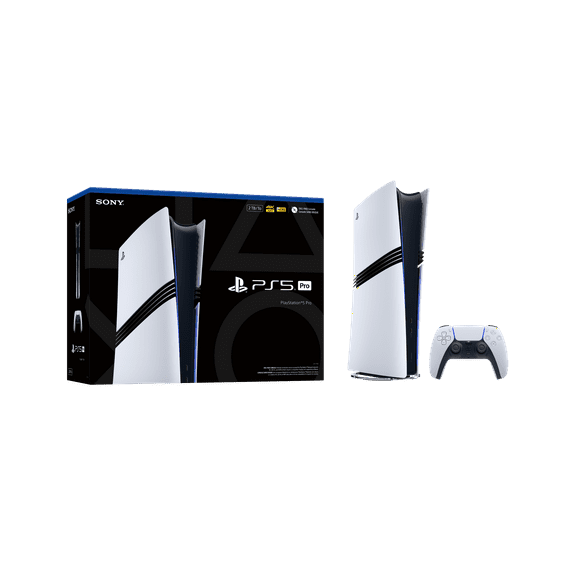 $1,29999current price $1,299.99$1,299.99
PlayStation 5 Pro Console
Best seller Mainstays 5-Drawer 40 in Wide Fabric Storage Dresser for Bedroom, Grey $64.88
Best seller 2 optionsAvailable in additional 2 options$6488current price $64.88Options from $64.88 – $129.76
Mainstays 5-Drawer 40 in Wide Fabric Storage Dresser for Bedroom, Grey
Save withBest seller JBL Flip 6 - Portable Waterproof Speaker - Black $114.95 Was $129.95
Best seller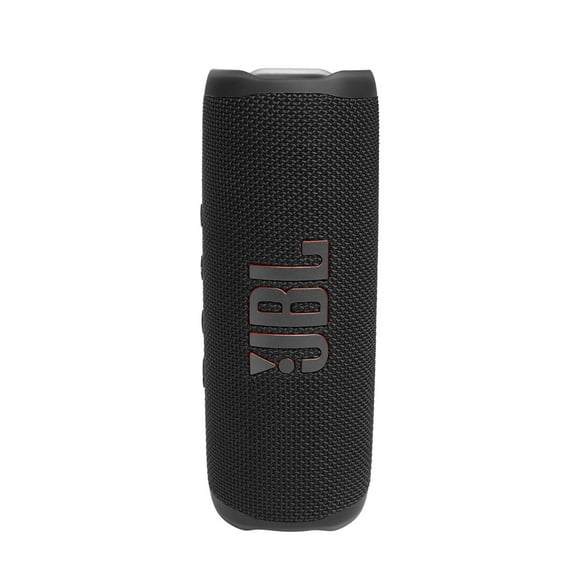 4 optionsAvailable in additional 4 optionsNow$11495current price Now $114.95, Was $129.95$129.95More options from $89.97
JBL Flip 6 - Portable Waterproof Speaker - Black
Save withRollback Ray-Ban Meta (Gen 1), Wayfarer Large, Matte Black, Polarized Gradient Graphite Lenses $284.00 Was $329.00
Rollback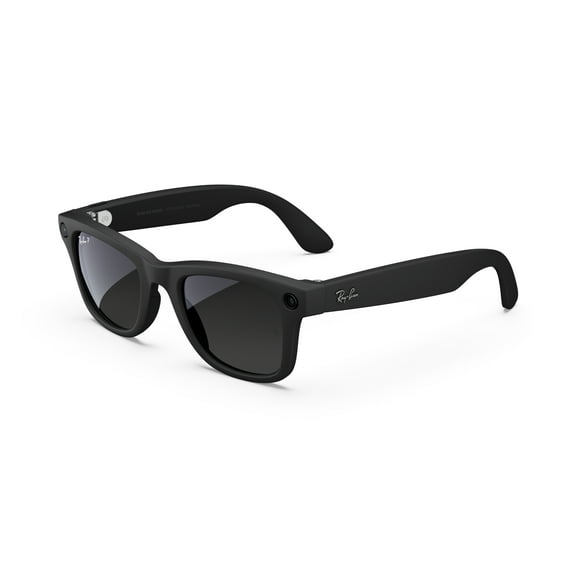 4 optionsAvailable in additional 4 optionsNow$28400current price Now $284.00, Was $329.00$329.00
Ray-Ban Meta (Gen 1), Wayfarer Large, Matte Black, Polarized Gradient Graphite Lenses
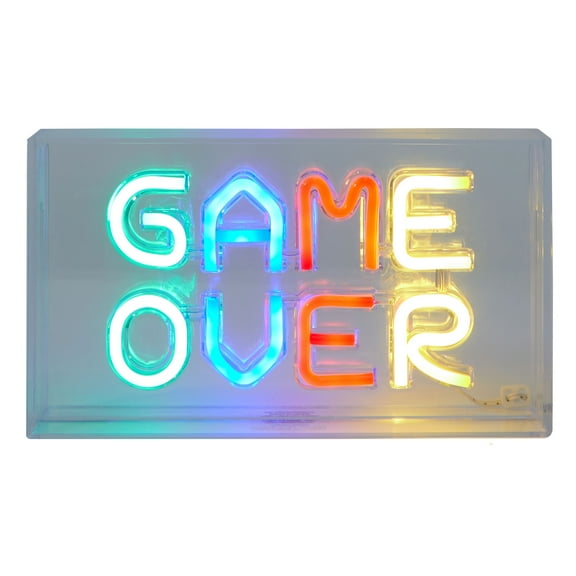
Save withAmerican Kids Game Over Neon Acrylic Lamp Box, 9" W x 5" H $23.99
 $2399current price $23.99
American Kids Game Over Neon Acrylic Lamp Box, 9" W x 5" H
Save withBest seller ASUS ROG Strix G18 Gaming Laptop, 18” WQXDA 240Hz, AMD Ryzen 9 9955HX, NVIDIA GeForce RTX 5070 8GB VRAM, 32GB DDR5-5600 RAM, 1TB PCIe Gen 4 SSD, 3 Months of Microsoft 365 Personal ,Eclipse Gray $2,099.00 Was $2,699.99
Best seller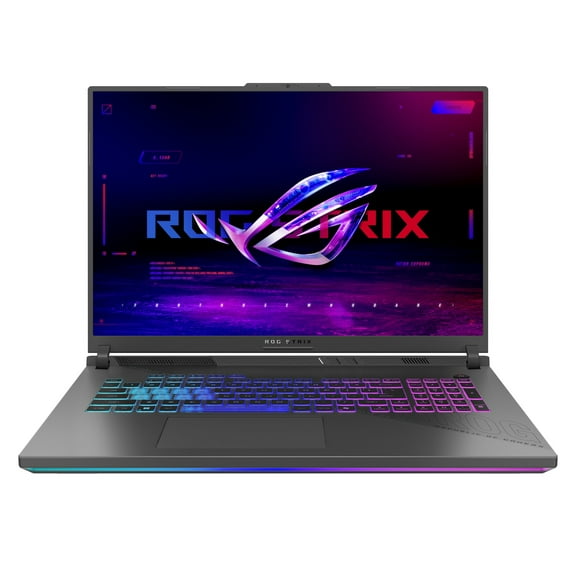 Now$2,09900current price Now $2,099.00, Was $2,699.99$2,699.99
ASUS ROG Strix G18 Gaming Laptop, 18” WQXDA 240Hz, AMD Ryzen 9 9955HX, NVIDIA GeForce RTX 5070 8GB VRAM, 32GB DDR5-5600 RAM, 1TB PCIe Gen 4 SSD, 3 Months of Microsoft 365 Personal ,Eclipse Gray
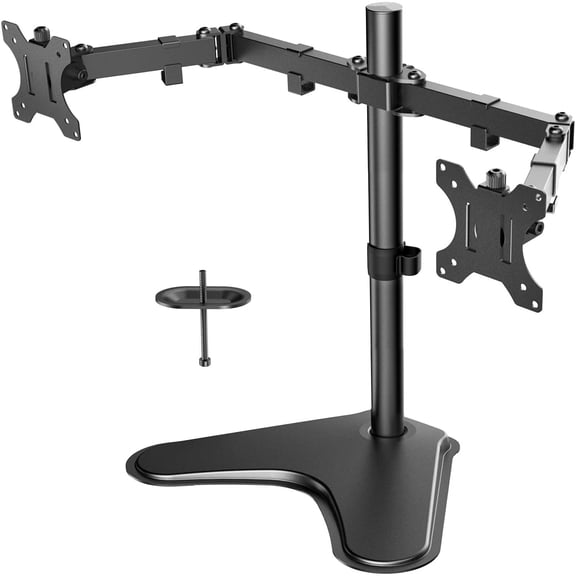
Save withDual Monitor Stand for Two 13-32 inch Flat Curved LCD Screens with Swivel, Tilt, Rotation & Height Adjustable Free Standing, Black $29.66 Was $49.99
 Now$2966current price Now $29.66, Was $49.99$49.99
Dual Monitor Stand for Two 13-32 inch Flat Curved LCD Screens with Swivel, Tilt, Rotation & Height Adjustable Free Standing, Black
Save withBest seller Tide PODS Laundry Detergent Soap Pacs, Original Scent, 76 Count $19.94
Best seller 5 optionsAvailable in additional 5 options$1994current price $19.94More options from $4.97
Tide PODS Laundry Detergent Soap Pacs, Original Scent, 76 Count
Save with
Holistic Haven
Make yourself a cozy sanctuary.
Best seller Mainstays All in One Reversible Comforter and Sheet set- 11 Piece, Queen, Cream Ruffle $62.00
Best seller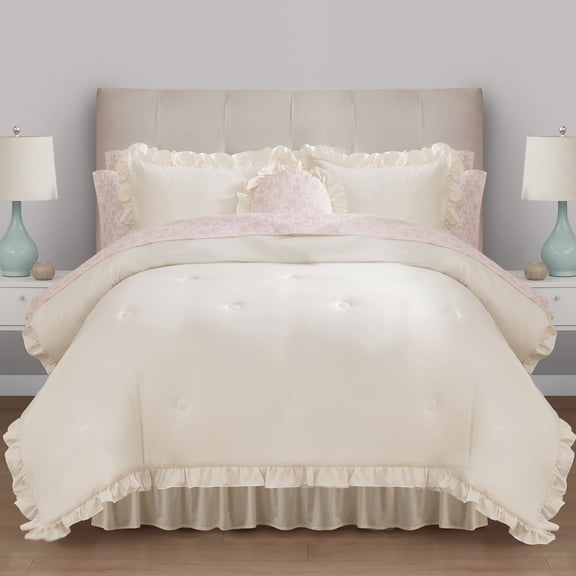 4 optionsAvailable in additional 4 options$6200current price $62.00More options from $39.00
Mainstays All in One Reversible Comforter and Sheet set- 11 Piece, Queen, Cream Ruffle
Save withBest seller decorUhome Pack of 2 Faux Fur Plush Throw Pillow Covers 18x18, Soft Fluffy Striped Decorative Couch Pillow Covers , Cream White $9.99 Was $18.98
Best seller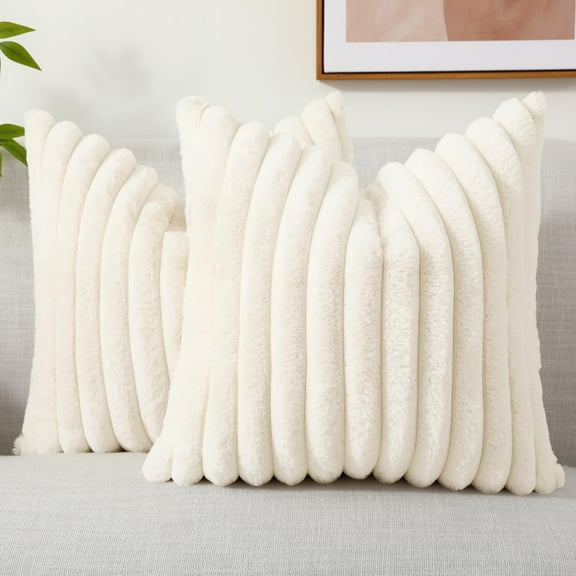 4 optionsAvailable in additional 4 optionsNow$999current price Now $9.99, Was $18.98$18.98Options from $9.99 – $23.99
decorUhome Pack of 2 Faux Fur Plush Throw Pillow Covers 18x18, Soft Fluffy Striped Decorative Couch Pillow Covers , Cream White
Save withBest seller Mainstays Solid High Low Tufted Grid Beige Indoor Area Rug, 8' x 10' $188.00
Best seller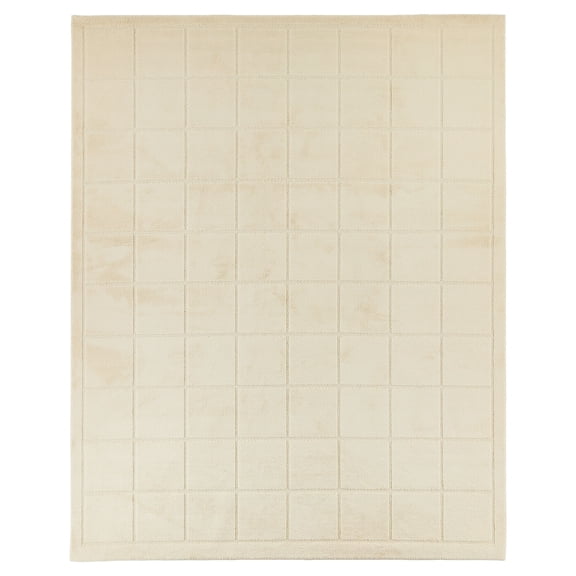 4 optionsAvailable in additional 4 options$18800current price $188.00More options from $27.97
Mainstays Solid High Low Tufted Grid Beige Indoor Area Rug, 8' x 10'
Save withBest seller Himalayan Shop Natural Pink Real Rock Salt Lamp, Small, 4-5.5 lbs $28.28
Best seller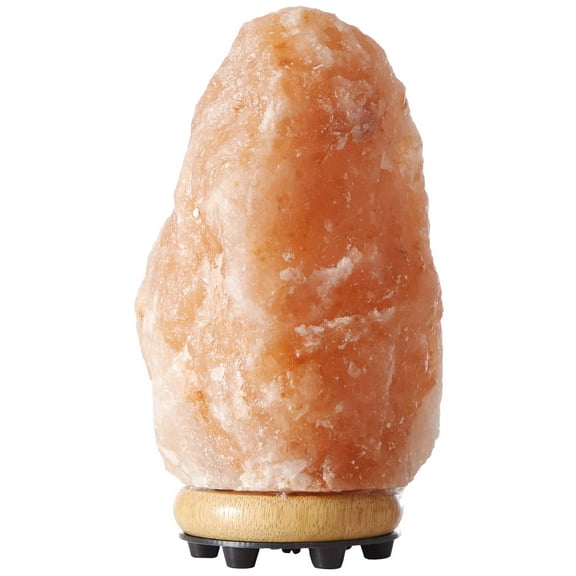 2 optionsAvailable in additional 2 options$2828current price $28.28Options from $28.28 – $56.56
Himalayan Shop Natural Pink Real Rock Salt Lamp, Small, 4-5.5 lbs
Save withBest seller Frigidaire 3.2 Cu Ft Retro Compact Refrigerator, White Mini Fridge with Freezer for Apartment, Dorm, Office, Bedroom $178.00
Best seller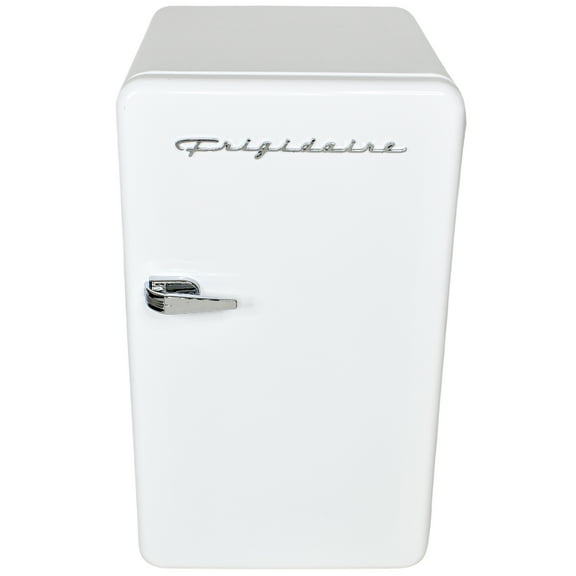 4 optionsAvailable in additional 4 options$17800current price $178.00
Frigidaire 3.2 Cu Ft Retro Compact Refrigerator, White Mini Fridge with Freezer for Apartment, Dorm, Office, Bedroom
Save withMainstays 96-Count Indoor Curtain Lights, with Warm White LED Light Bulbs, Corded Electric $12.86
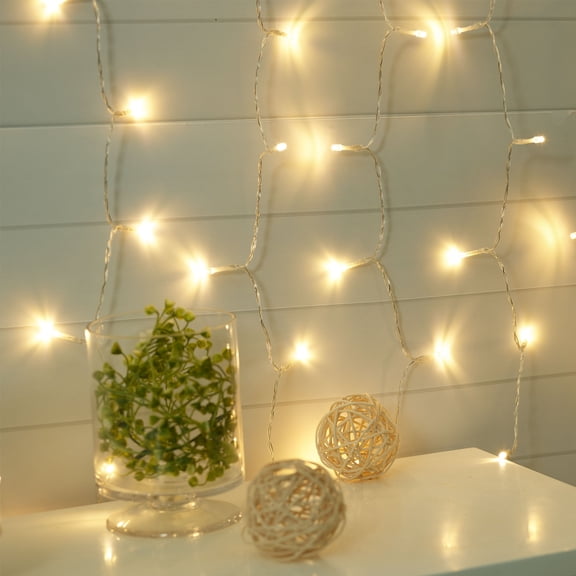 $1286current price $12.86
Mainstays 96-Count Indoor Curtain Lights, with Warm White LED Light Bulbs, Corded Electric
Save withMainstays Modern Dowel Storage Ottoman, Cream Boucle $49.88
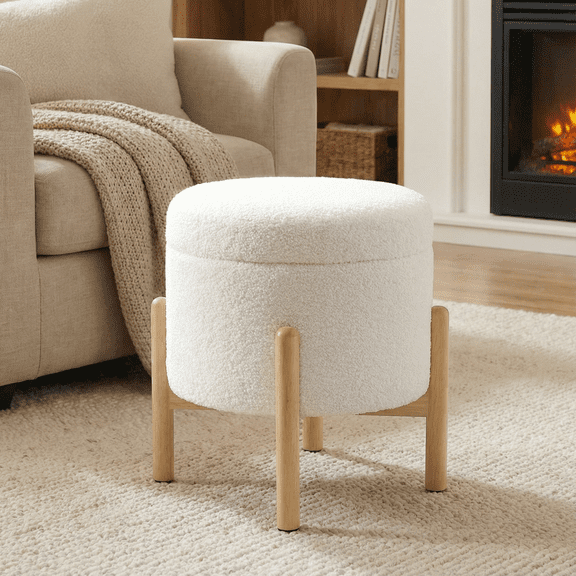 $4988current price $49.88
Mainstays Modern Dowel Storage Ottoman, Cream Boucle
Save withBest seller Better Homes & Gardens Juliet Curved Desk with Storage 23.5 inch depth, Light Honey Finish $114.00
Best seller 3 optionsAvailable in additional 3 options$11400current price $114.00
Better Homes & Gardens Juliet Curved Desk with Storage 23.5 inch depth, Light Honey Finish
Save withBest seller Straight Talk Samsung Galaxy A17, 5G, 128GB, Black - Prepaid Smartphone [Locked to Straight Talk] $99.88
Best seller![Straight Talk Samsung Galaxy A17, 5G, 128GB, Black - Prepaid Smartphone [Locked to Straight Talk]](https://i5.walmartimages.com/asr/d852042d-706a-493b-801b-47cd7997b463.025b6198fab0f09016dcb0c813d024d3.jpeg?odnHeight=576&odnWidth=576&odnBg=FFFFFF) $9988current price $99.88More options from $80.00
$9988current price $99.88More options from $80.00Straight Talk Samsung Galaxy A17, 5G, 128GB, Black - Prepaid Smartphone [Locked to Straight Talk]
Save withHoller Lip Gloss Holder Phone Attachment, Guava Colored, 1 Count $6.79
 $679current price $6.79
Holler Lip Gloss Holder Phone Attachment, Guava Colored, 1 Count
Save withHoller Sunny Sundaze Hot Tropic Dragon Fruit Lip Butter, Hydrating Shea Butter, 0.33 fl oz $4.97
 3 optionsAvailable in additional 3 options$497current price $4.97
Holler Sunny Sundaze Hot Tropic Dragon Fruit Lip Butter, Hydrating Shea Butter, 0.33 fl oz
Save withBetter Homes & Gardens Intense Cashmere Teak Scented Wooden 4-Wick Glass Jar Candle, 60 oz $37.28
 7 optionsAvailable in additional 7 options$3728current price $37.28
Better Homes & Gardens Intense Cashmere Teak Scented Wooden 4-Wick Glass Jar Candle, 60 oz
Save withBose QuietComfort Headphones, Bluetooth Over Ear Noise Cancelling Headphones, White Smoke $359.00
 4 optionsAvailable in additional 4 options$35900current price $359.00Options from $359.00 – $363.00
Bose QuietComfort Headphones, Bluetooth Over Ear Noise Cancelling Headphones, White Smoke
Save withBest seller LG 27" FHD IPS Smart Monitor with webOS 100Hz, White, 27U55WSA-W $184.00
Best seller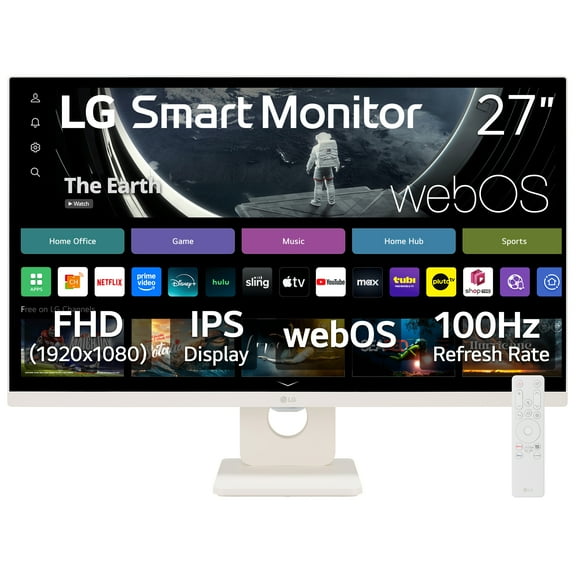 $18400current price $184.00$184.00
LG 27" FHD IPS Smart Monitor with webOS 100Hz, White, 27U55WSA-W
Save withBest seller Better Homes and Gardens, Chunky Knit Papyrus Throw, Cotton-Blend, 50"x60", 2.3 lb, All Ages $22.34
Best seller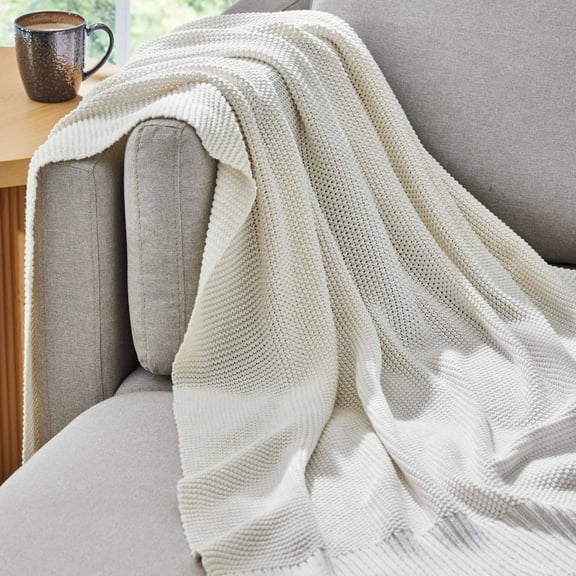 4 optionsAvailable in additional 4 options$2234current price $22.34
Better Homes and Gardens, Chunky Knit Papyrus Throw, Cotton-Blend, 50"x60", 2.3 lb, All Ages
Save withBetter Homes & Gardens Lillian Swivel Birdcage Accent Chair, Cream Boucle $274.00
 3 optionsAvailable in additional 3 options$27400current price $274.00
Better Homes & Gardens Lillian Swivel Birdcage Accent Chair, Cream Boucle
Save withStupell Industries Pastel Soft Landscape Landscape & Nature Painting Gold Floater Framed Canvas Art Print Wall Art, 25 x 25 $63.99
 8 optionsAvailable in additional 8 options$6399current price $63.99Options from $63.99 – $83.82
Stupell Industries Pastel Soft Landscape Landscape & Nature Painting Gold Floater Framed Canvas Art Print Wall Art, 25 x 25
Save withBest seller Mainstays Natural Canvas Fabric Decorative Storage Basket with Handles, 15 in x 8 in x 11 in $8.97
Best seller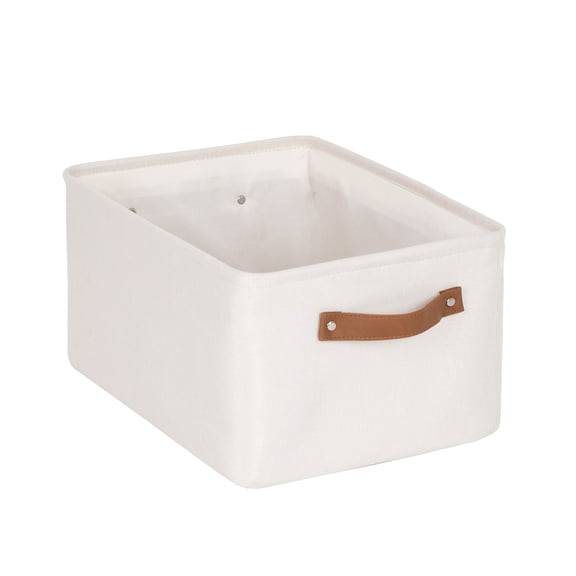 4 optionsAvailable in additional 4 options$897current price $8.97Options from $8.97 – $35.88
Mainstays Natural Canvas Fabric Decorative Storage Basket with Handles, 15 in x 8 in x 11 in
Save with
Midnight Archive
BYOB—bring your own book.
Best seller Regency Heights Full/Queen Comforter Set Green, 3 Pieces Faux Suede Comforters Full/Queen Size, Pieced Bedding Comforters Sets, Cozy Comforter Bed Set, Machine Washable $59.99
Best seller 4 optionsAvailable in additional 4 options$5999current price $59.99More options from $40.48
Regency Heights Full/Queen Comforter Set Green, 3 Pieces Faux Suede Comforters Full/Queen Size, Pieced Bedding Comforters Sets, Cozy Comforter Bed Set, Machine Washable
Clearance GEMBED Faux Fur Throw Blanket for Couch Fuzzy Soft Plush Thick Bubble Blanket for Living Room, 60x80 inches, Tie Dye Blue $44.99 Was $49.99
Clearance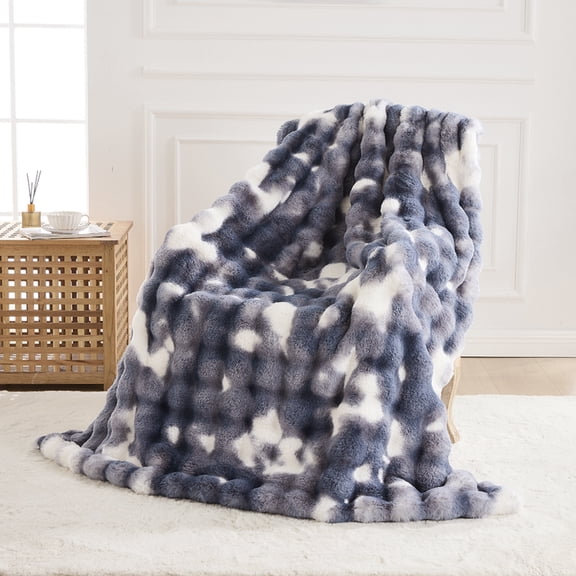 16 optionsAvailable in additional 16 optionsNow$4499current price Now $44.99, Was $49.99$49.99More options from $24.99
GEMBED Faux Fur Throw Blanket for Couch Fuzzy Soft Plush Thick Bubble Blanket for Living Room, 60x80 inches, Tie Dye Blue
Best seller Mainstays 15" LED Adjustable Matte Black Gooseneck Desk Lamp $18.82
Best seller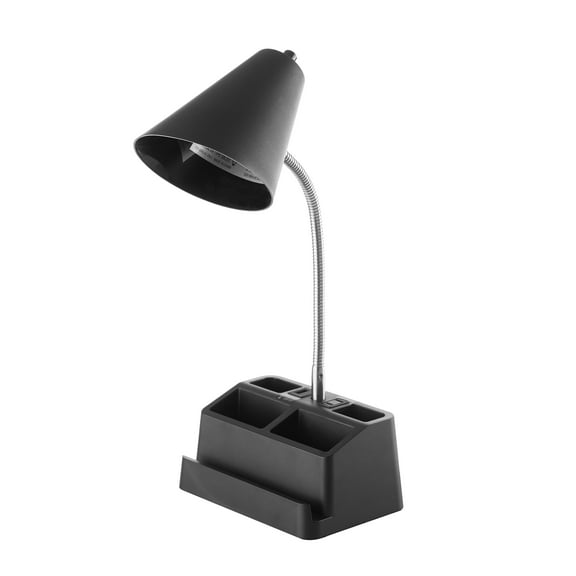 2 optionsAvailable in additional 2 options$1882current price $18.82
Mainstays 15" LED Adjustable Matte Black Gooseneck Desk Lamp
Save withStupell Industries Expressive Bold Brush Strokes Abstract Painting Black Floater Framed Canvas Art Print Wall Art, 17 x 25 $70.23
 8 optionsAvailable in additional 8 options$7023current price $70.23Options from $70.23 – $86.55
Stupell Industries Expressive Bold Brush Strokes Abstract Painting Black Floater Framed Canvas Art Print Wall Art, 17 x 25
Save withBest seller Better Homes & Gardens Juliet Desk with Storage, Walnut Finish $114.00
Best seller 3 optionsAvailable in additional 3 options$11400current price $114.00
Better Homes & Gardens Juliet Desk with Storage, Walnut Finish
Save withBetter Homes & Gardens Wyatt Velvet Office Chair, Ochre $120.00
 3 optionsAvailable in additional 3 options$12000current price $120.00More options from $115.00
Better Homes & Gardens Wyatt Velvet Office Chair, Ochre
Save withStupell Industries Contemporary Line Squiggle Shapes Graphic Art Gallery Wrapped Canvas Print Wall Art, Set of 2, Design by Susan Jill $24.89
 2 optionsAvailable in additional 2 options$2489current price $24.89
Stupell Industries Contemporary Line Squiggle Shapes Graphic Art Gallery Wrapped Canvas Print Wall Art, Set of 2, Design by Susan Jill
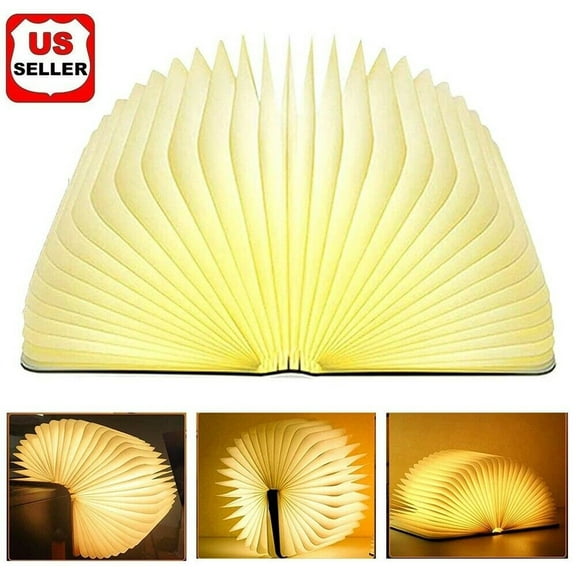
Save withWooden Book Lamp Folding Portable Desk Light,Novelty LED Lantern with USB Rechargable Gift for Christmas Happy Birthday Happy New Year Friend Party $14.98
 3 optionsAvailable in additional 3 options$1498current price $14.98
Wooden Book Lamp Folding Portable Desk Light,Novelty LED Lantern with USB Rechargable Gift for Christmas Happy Birthday Happy New Year Friend Party
Best seller onn 32" Class 720P HD Powered by VIZIO Smart Television, 32S2V1 $88.00
Best seller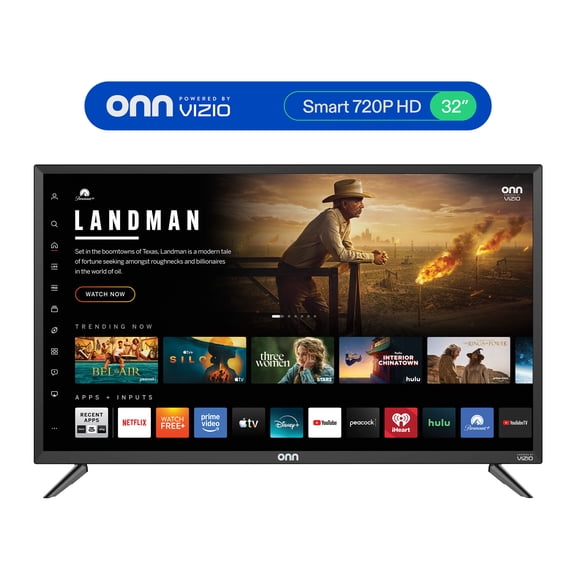 $8800current price $88.00More options from $66.00
onn 32" Class 720P HD Powered by VIZIO Smart Television, 32S2V1
Save withRollback Beats Solo 4 Wireless Headphones - On-Ear Wireless Headphones - Drenched Gray $129.00 Was $149.00
Rollback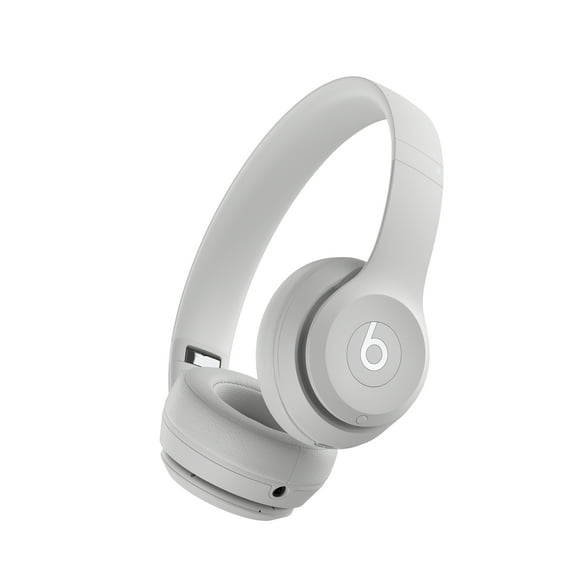 4 optionsAvailable in additional 4 optionsNow$12900current price Now $129.00, Was $149.00$149.00More options from $81.00
Beats Solo 4 Wireless Headphones - On-Ear Wireless Headphones - Drenched Gray
Save withIncipio Universal Headphone Stand with Weighted Base and Arched Support $17.98
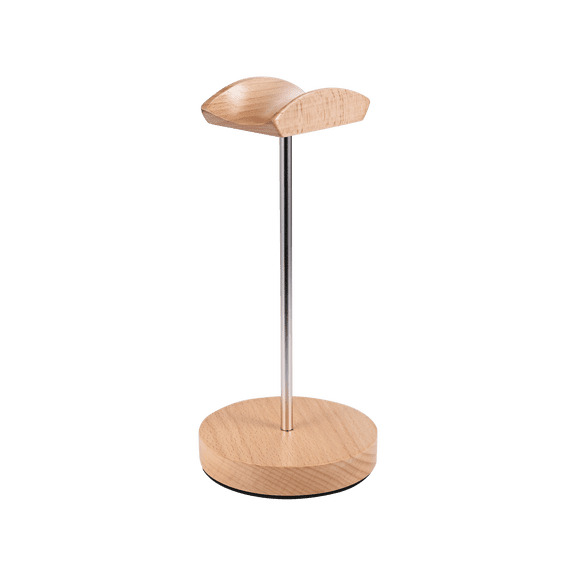 $1798current price $17.98
Incipio Universal Headphone Stand with Weighted Base and Arched Support
Save withBest seller Mainstays 10.5 Inch Round Plastic Etched Blueberry Plate, Navy $0.50
Best seller 2 optionsAvailable in additional 2 options$050current price $0.50
Mainstays 10.5 Inch Round Plastic Etched Blueberry Plate, Navy
Save withBest seller Mainstays 26-Ounce Navy Blueberry Etched Plastic Tumbler $0.50
Best seller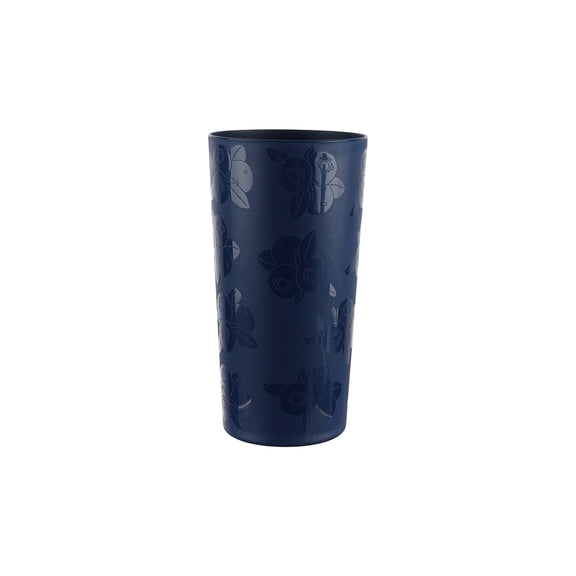 4 optionsAvailable in additional 4 options$050current price $0.50Options from $0.50 – $0.98
Mainstays 26-Ounce Navy Blueberry Etched Plastic Tumbler
Save withBest seller Mainstays 38-Ounce Round Plastic Cereal Bowl with Blueberries Etched Pattern, Navy $0.50
Best seller 4 optionsAvailable in additional 4 options$050current price $0.50
Mainstays 38-Ounce Round Plastic Cereal Bowl with Blueberries Etched Pattern, Navy
Save withBest seller Mainstays Large Flex Laundry Tote, Indigo, 18 in W x 8.75 in D x 13 in H $19.94
Best seller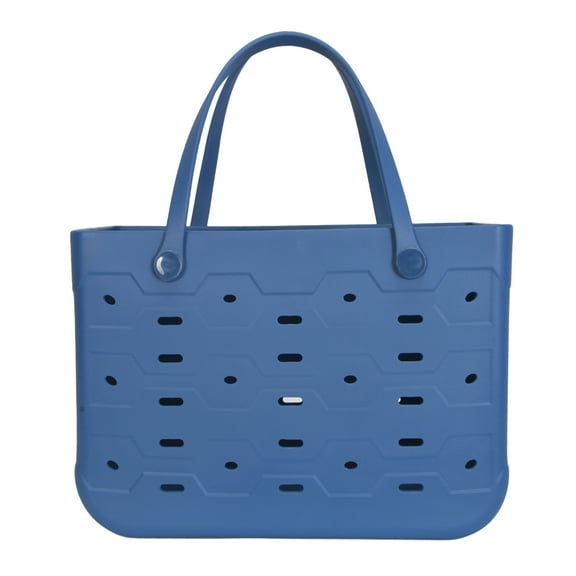 19 optionsAvailable in additional 19 options$1994current price $19.94
Mainstays Large Flex Laundry Tote, Indigo, 18 in W x 8.75 in D x 13 in H
Save withRollback Hamilton Beach 0.9 Cu ft Countertop Microwave Oven, 900 Watts, Stainless Steel, New $59.00 Was $80.00
Rollback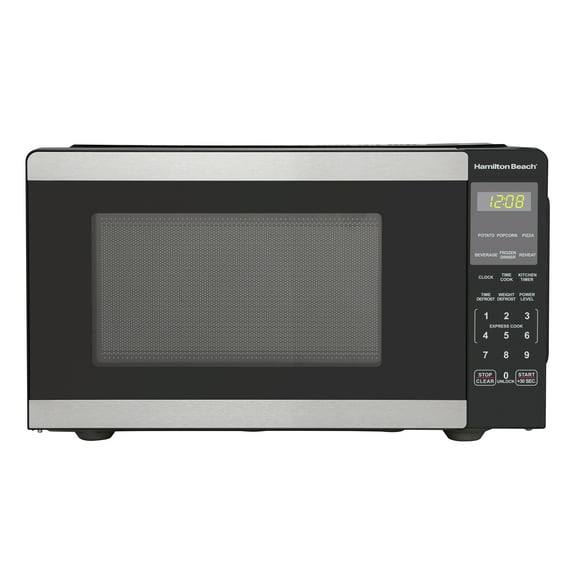 2 optionsAvailable in additional 2 optionsNow$5900current price Now $59.00, Was $80.00$80.00
Hamilton Beach 0.9 Cu ft Countertop Microwave Oven, 900 Watts, Stainless Steel, New
Save withRollback Shark NeverChange Compact Pro 250 Sq Ft HEPA Air Purifier, 5-Year HEPA-Exceeding Filter, Captures Pollutants, Pet Dander, Dust, and Smoke, HP070 Black $99.00 Was $119.00
Rollback 4 optionsAvailable in additional 4 optionsNow$9900current price Now $99.00, Was $119.00$119.00Options from $99.00 – $117.00
Shark NeverChange Compact Pro 250 Sq Ft HEPA Air Purifier, 5-Year HEPA-Exceeding Filter, Captures Pollutants, Pet Dander, Dust, and Smoke, HP070 Black
Save withRollback Canon PIXMA TS3722 Wireless All-In-One Inkjet Printer for Home Office $39.00 Was $53.00
Rollback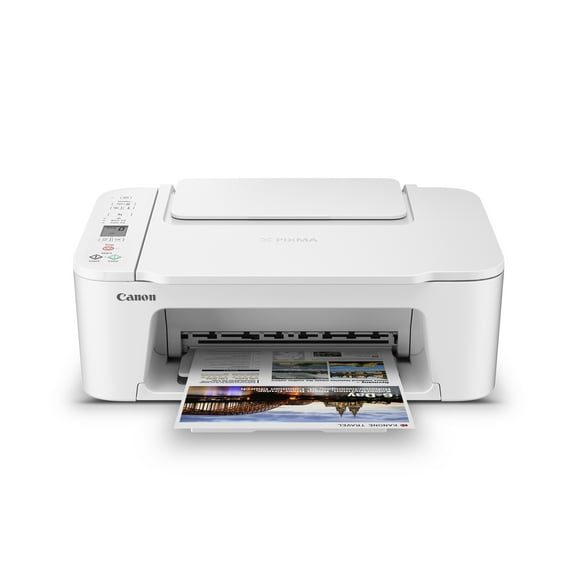 Now$3900current price Now $39.00, Was $53.00$53.00
Canon PIXMA TS3722 Wireless All-In-One Inkjet Printer for Home Office
Save with
Canopy Cottage
Go wild with nature-inspired style.
Best seller Mainstays 11-Piece Bed-in-a-Bag Comforter Set with Sheets, Black Arch, Queen $62.00
Best seller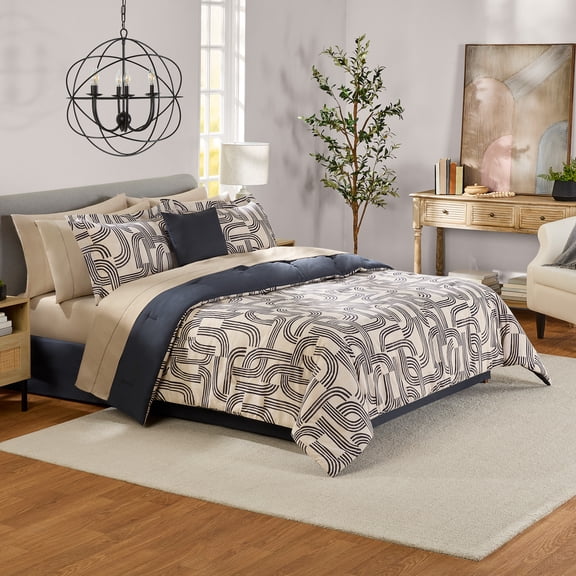 4 optionsAvailable in additional 4 options$6200current price $62.00More options from $39.00
Mainstays 11-Piece Bed-in-a-Bag Comforter Set with Sheets, Black Arch, Queen
Save withBest seller BrightSide LED Cascading Curtain Vine Indoor Lights, Warm White, 3.5ft W x 5ft H $14.82
Best seller 2 optionsAvailable in additional 2 options$1482current price $14.82Options from $14.82 – $29.64
BrightSide LED Cascading Curtain Vine Indoor Lights, Warm White, 3.5ft W x 5ft H
Save withRollback SheaMoisture Silk Press Prep Hair Cream with Plant-Derived Straightening Actives, Alma Oil & Hydroplex Technology Provides Heat Protection While Helping to Preserve Natural Curl Pattern, 3.3 fl oz $10.97 Was $12.97 $3.32/fl oz
Rollback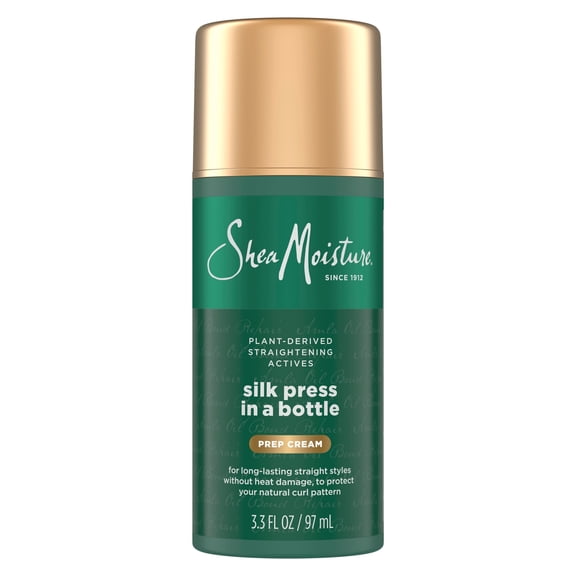 Now$1097current price Now $10.97, Was $12.97$12.97$3.32/fl oz
SheaMoisture Silk Press Prep Hair Cream with Plant-Derived Straightening Actives, Alma Oil & Hydroplex Technology Provides Heat Protection While Helping to Preserve Natural Curl Pattern, 3.3 fl oz
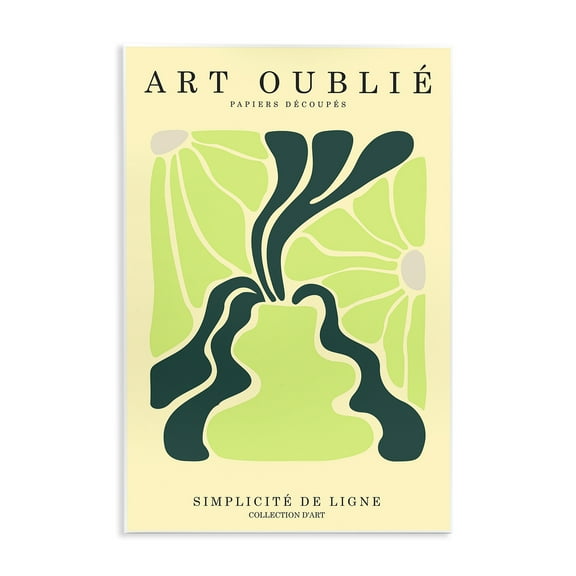
Save withStupell Industries French Floral Poster Typography Painting Unframed Art Print Wall Art, 10 x 15 $20.87
 2 optionsAvailable in additional 2 options$2087current price $20.87Options from $20.87 – $24.91
Stupell Industries French Floral Poster Typography Painting Unframed Art Print Wall Art, 10 x 15
Save withBest seller Better Homes & Gardens Lillian Velvet Tufted Ottoman, Olive $68.97
Best seller 4 optionsAvailable in additional 4 options$6897current price $68.97
Better Homes & Gardens Lillian Velvet Tufted Ottoman, Olive
Save withBest seller Better Homes & Gardens Rechargeable LED Portable Table Lamp, 9.5 in, Green Dome, Dimmable Touch Sensor $13.00 Was $16.18
Best seller 4 optionsAvailable in additional 4 optionsNow$1300current price Now $13.00, Was $16.18$16.18
Better Homes & Gardens Rechargeable LED Portable Table Lamp, 9.5 in, Green Dome, Dimmable Touch Sensor
Save withBetter Homes & Gardens Vista Woven Coastal End Table, 18 in Round, Light Honey $84.00
 $8400current price $84.00
Better Homes & Gardens Vista Woven Coastal End Table, 18 in Round, Light Honey
Save withBest seller Lenovo IdeaPad 5i 15.3" Touchscreen 2-in-1 Laptop, Intel Core Ultra 5, 16GB Ram, 512GB SSD, Luna Grey - 3 Months of Microsoft 365 Personal included $879.00 Was $1,199.99
Best seller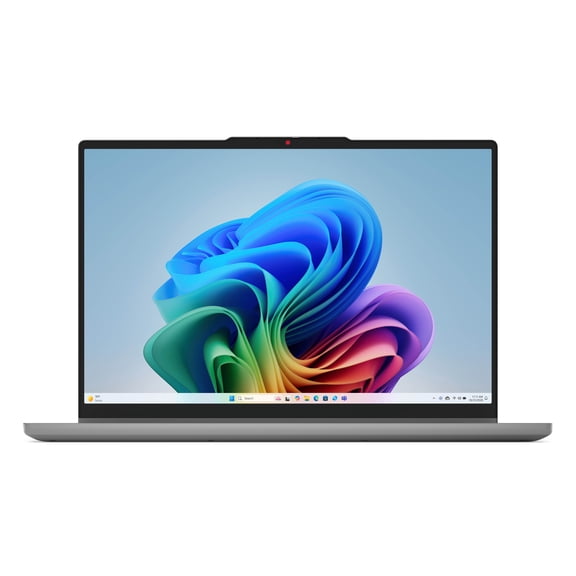 Now$87900current price Now $879.00, Was $1,199.99$1,199.99
Lenovo IdeaPad 5i 15.3" Touchscreen 2-in-1 Laptop, Intel Core Ultra 5, 16GB Ram, 512GB SSD, Luna Grey - 3 Months of Microsoft 365 Personal included
Save withBose QuietComfort Headphones, Bluetooth Over Ear Noise Cancelling Headphones, Cypress Green $363.00
 4 optionsAvailable in additional 4 options$36300current price $363.00More options from $359.00
Bose QuietComfort Headphones, Bluetooth Over Ear Noise Cancelling Headphones, Cypress Green
Save withBest seller La Roche-Posay Toleriane Double Repair Face Moisturizer for Sensitive Skin, 3.38 fl oz $24.97 $7.39/fl oz
Best seller $2497current price $24.97$7.39/fl oz
La Roche-Posay Toleriane Double Repair Face Moisturizer for Sensitive Skin, 3.38 fl oz
Save withWild Refillable Deodorant Starter Pack – Aluminum Free. Emma Bridgewater Bee Case + Honey & Cactus Flower Refill, for Women and Men, 1.4oz $16.97
 12 optionsAvailable in additional 12 options$1697current price $16.97Options from $16.97 – $16.98
Wild Refillable Deodorant Starter Pack – Aluminum Free. Emma Bridgewater Bee Case + Honey & Cactus Flower Refill, for Women and Men, 1.4oz
Save withSOFE Bulletin Board 30"x18", Farmhouse Rustic Wood Framed Pin Board, Decorative Hanging Message Board with Pins for Wall, Office, School & Home Decor $46.89
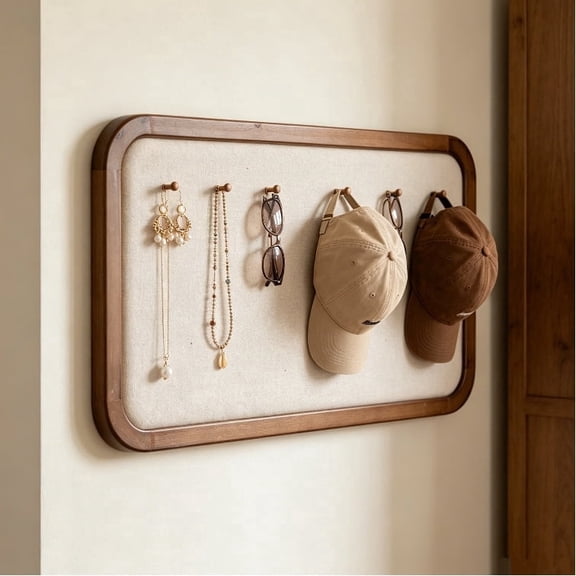 3 optionsAvailable in additional 3 options$4689current price $46.89More options from $41.89
SOFE Bulletin Board 30"x18", Farmhouse Rustic Wood Framed Pin Board, Decorative Hanging Message Board with Pins for Wall, Office, School & Home Decor
Save withBetter Homes & Gardens Wyatt Velvet Office Chair, Olive $115.00
 3 optionsAvailable in additional 3 options$11500current price $115.00Options from $115.00 – $120.00
Better Homes & Gardens Wyatt Velvet Office Chair, Olive
Save withEYYTHUNG Fluted Office Desk with Storage Shelf, 47" Modern Wood Executive Desk with Long Monitor Stand & 2 Drawers, Home Writing Study Computer Table Vanity Desk, Natural Oak $149.99
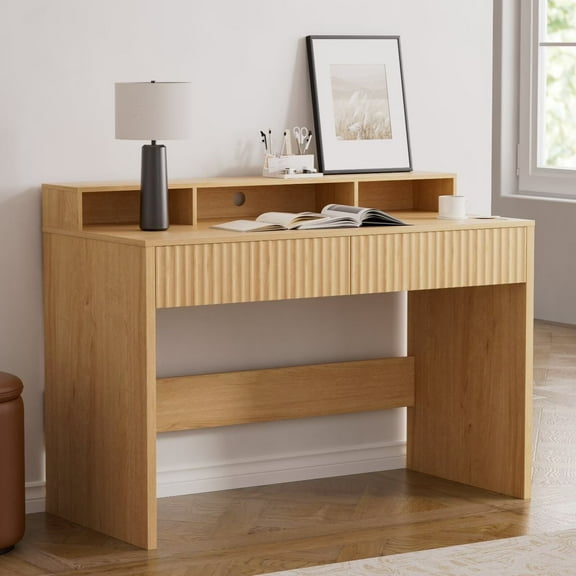 3 optionsAvailable in additional 3 options$14999current price $149.99More options from $144.49
EYYTHUNG Fluted Office Desk with Storage Shelf, 47" Modern Wood Executive Desk with Long Monitor Stand & 2 Drawers, Home Writing Study Computer Table Vanity Desk, Natural Oak
Mainstays Brown Ceramic Cowboy Hat Planter, 6.8 in x 7.1 in x 3.2 in $7.88
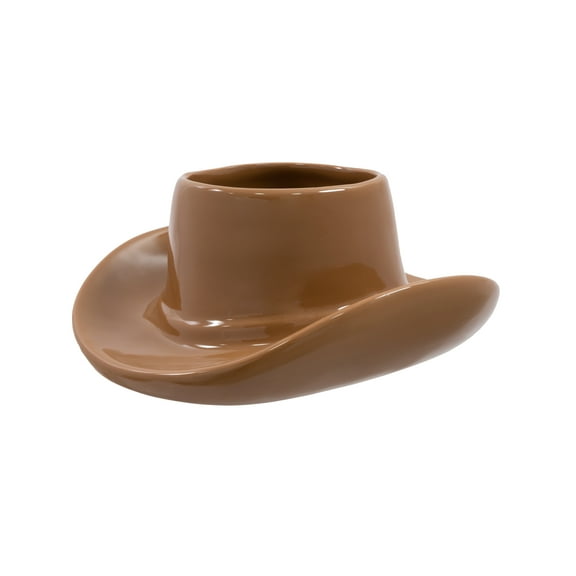 2 optionsAvailable in additional 2 options$788current price $7.88Options from $7.88 – $11.97
Mainstays Brown Ceramic Cowboy Hat Planter, 6.8 in x 7.1 in x 3.2 in
Save withCasafield Set of 3 Seagrass Planter Baskets - Two-Tone, Hand Woven Indoor Flower Pot Covers with Liners for Plants, Succulents, Home Decor $28.99
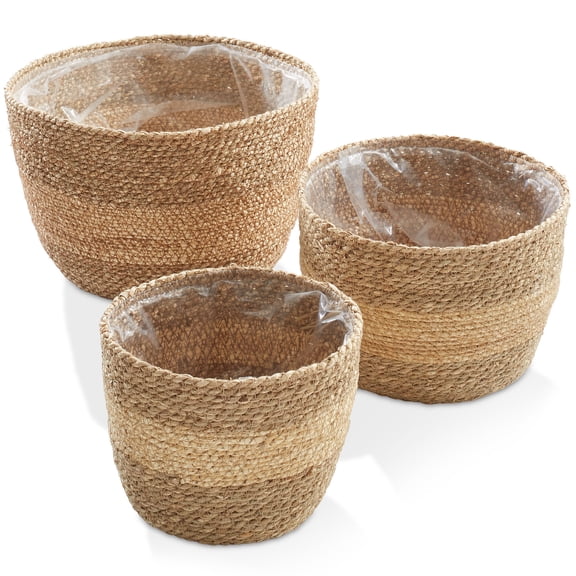 2 optionsAvailable in additional 2 options$2899current price $28.99
Casafield Set of 3 Seagrass Planter Baskets - Two-Tone, Hand Woven Indoor Flower Pot Covers with Liners for Plants, Succulents, Home Decor
ROMSWI 6FT Artificial Fiddle Leaf Fig Tree with White Planter Pot Natural Trunk Realistic Leaves Lifelike Faux Floor Plant For Home House Office Decor Indoor $44.99 Was $79.99
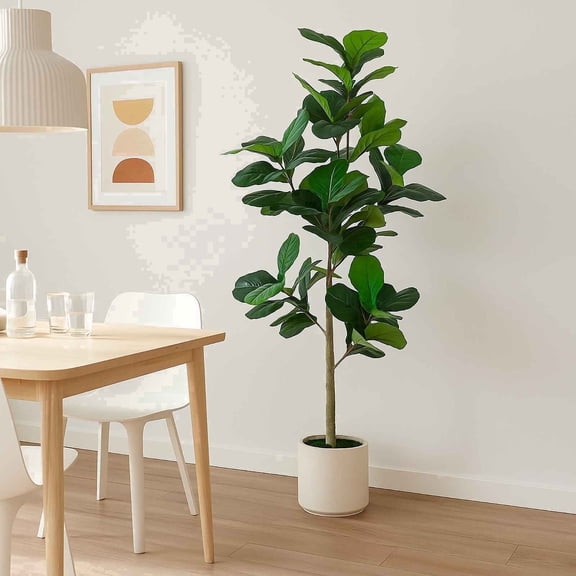 2 optionsAvailable in additional 2 optionsNow$4499current price Now $44.99, Was $79.99$79.99More options from $42.75
ROMSWI 6FT Artificial Fiddle Leaf Fig Tree with White Planter Pot Natural Trunk Realistic Leaves Lifelike Faux Floor Plant For Home House Office Decor Indoor
FAQ
What is a printer test page?
A printer test page is a simple page designed to quickly show how your printer is performing. It typically includes color blocks, grayscale ramps, fine lines, and small text so you can spot issues before a big print job.
- What it checks: Color accuracy, banding or streaks, alignment, and text sharpness.
- When to use it: After installing new cartridges, changing paper types, or if prints look off.
- What you’ll need: Plain paper and your printer’s built‑in test feature or a basic document with colors and text.
- What to look for: Even color patches, clean lines, and legible text without gaps.
Results can vary by model, but a quick test page can help you decide if maintenance steps are needed.
How much ink does a test page use?
Ink use depends on the design of the test page and your printer settings. A color-heavy test (large CMYK blocks) uses more ink than a page with small color swatches or simple black text.
- Color vs. black only: Full-color tests use more ink than black-only checks.
- Print mode: Draft or economy mode can reduce ink for routine checks.
- Frequency: Run tests only when troubleshooting or after a change (new cartridge, paper, or setting).
- Paper choice: Plain paper is usually fine for diagnostics.
If you’re managing costs, start with a light test (small color swatches and text). Supplies like paper and cartridges are available online or in-store for your convenience.
What’s the best way to test my printer?
You can get a clear snapshot of performance with a quick, step-by-step check. These steps are general and may vary by model, but they’re a practical starting point.
- Run a built-in test: Use your printer or driver’s maintenance/test page.
- Align and check nozzles: If available, run alignment and nozzle/printhead checks.
- Print a simple page: One page with small text, fine lines, and a few color blocks.
- Inspect under good light: Look for streaks, gaps, or color shifts.
- Adjust if needed: Try cleaning cycles, alignment, or setting changes; consider updating drivers/firmware.
These steps can help identify issues and point to the next action, but results may vary based on your specific printer and paper.
How do I print a color test page?
You can print a color test page using your device’s printer settings or your printer’s maintenance tools. The exact labels differ by model, but these general options can help:
- Use maintenance/test print: Look for a “test” or “diagnostics” option in your printer’s menu or driver.
- Create a simple test: Make a document with cyan, magenta, yellow, and black swatches, plus a photo or gradient.
- Match settings to paper: Select the paper type you’re actually using; turn off draft mode if you’re evaluating color.
- Review the output: Check for even color, clean transitions, and consistent tone.
If colors look uneven or dull, maintenance utilities (like cleaning or alignment) may improve results, though effectiveness can vary by printer.
Why is my test print streaky or faded?
Streaks, gaps, or fading often point to maintenance or setup issues. A few targeted checks can help you narrow down the cause without using a lot of supplies.
- Run cleaning cycles: Use nozzle/printhead cleaning and then re-test.
- Check supplies: Verify ink/toner levels and reseat cartridges or toner.
- Match paper and settings: Choose the correct paper type in print settings; avoid damp or textured paper.
- Align printhead: If available, run an alignment utility.
- For laser models: Gently redistribute toner as recommended in your manual; avoid touching the drum.
If quality doesn’t improve, consult your printer’s support resources for model-specific guidance. Paper and replacement supplies are available online and in stores for added convenience.