

Ergonomic Trackball Mice: Wireless & Wired Options

















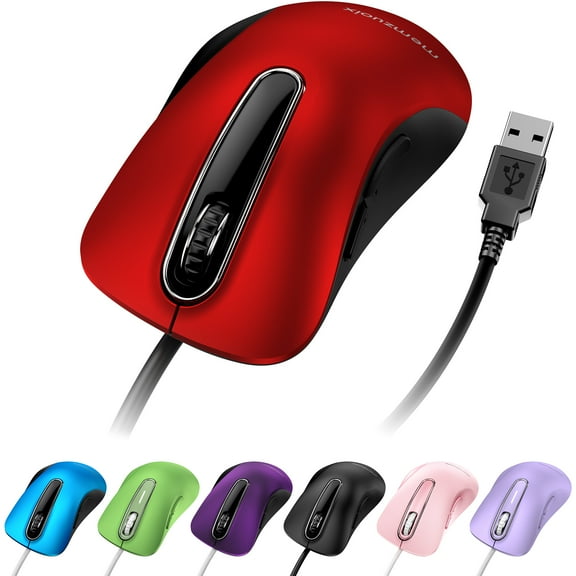


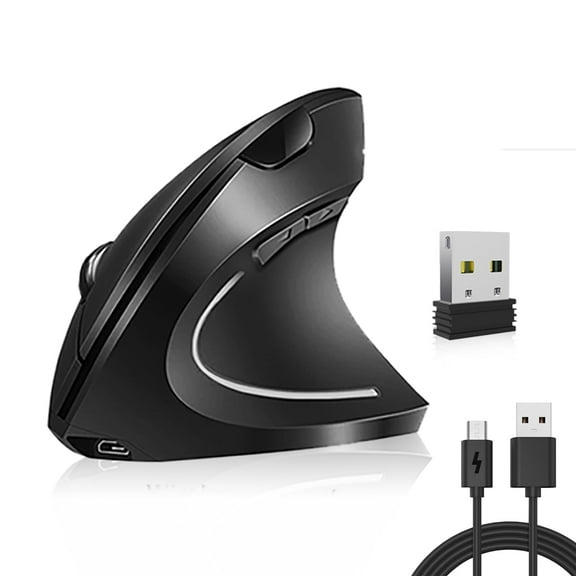
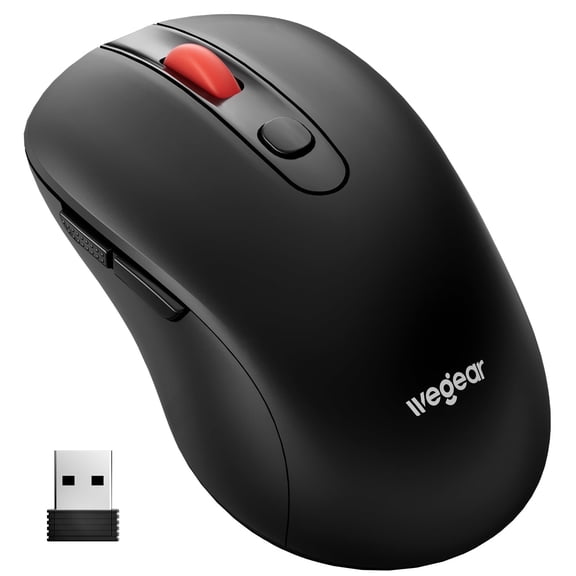


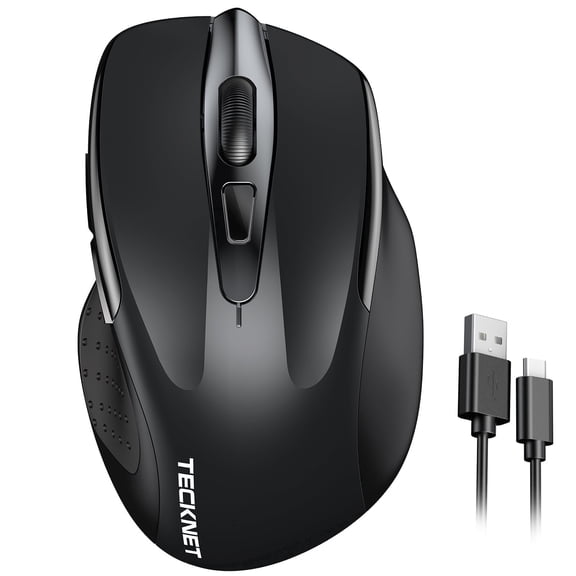










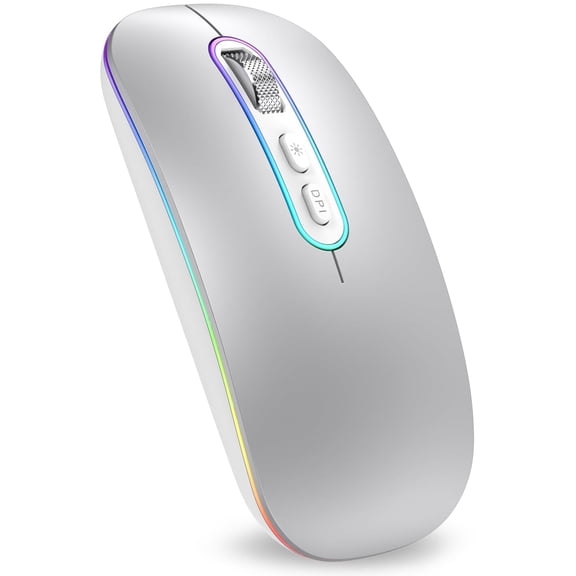


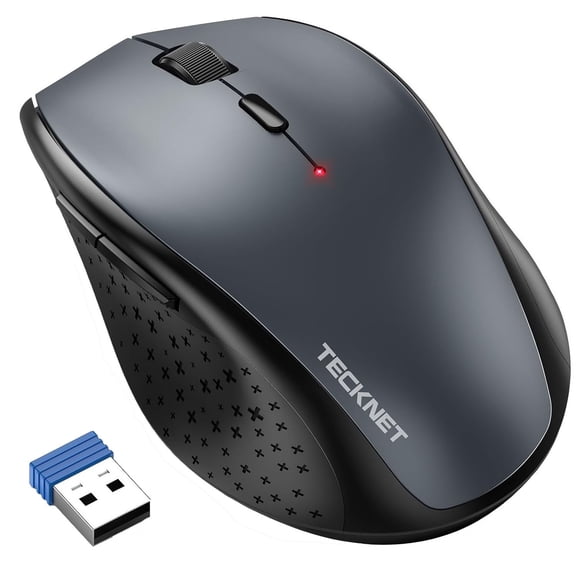


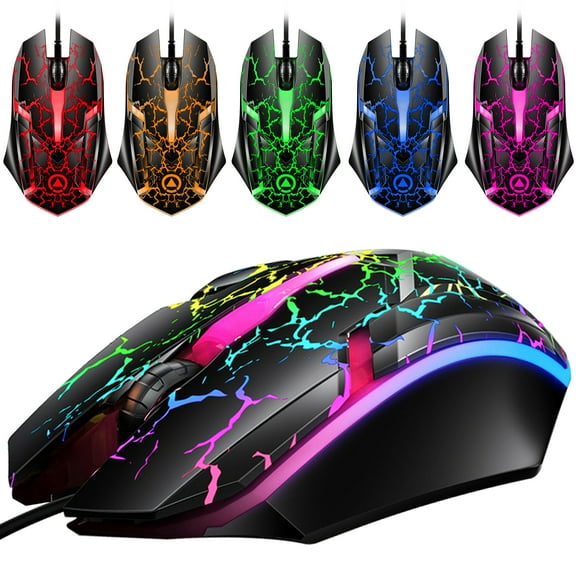


About Ergonomic Trackball Mice: Wireless & Wired Options - Walmart.com
An ergonomic trackball mouse helps you control your cursor without sliding your hand across the desk. You get precise movement, a stationary base, and options available near you or online.
If you spend long hours clicking, editing, or reviewing spreadsheets, you can compare shapes that support a more natural hand position. You can also choose thumb, finger, or center-ball control based on how you work.
How to choose an ergonomic trackball mouse
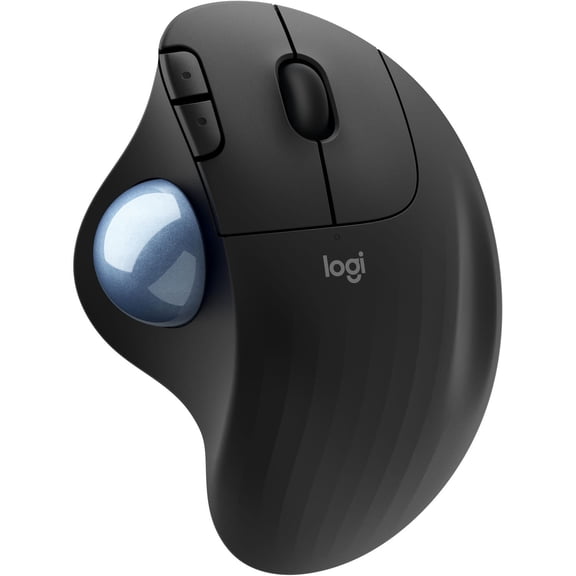
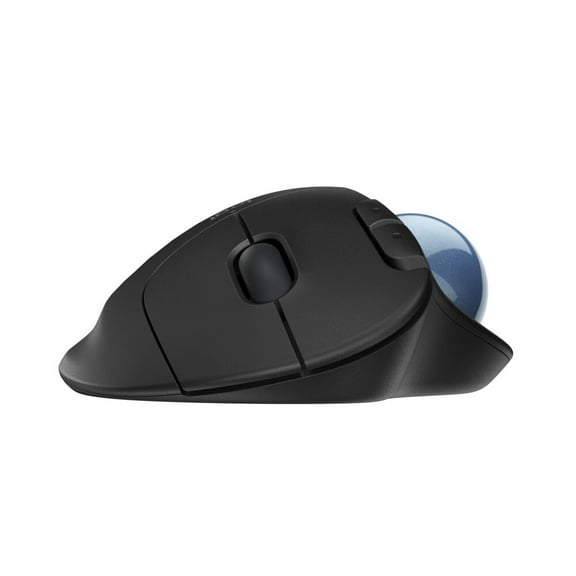
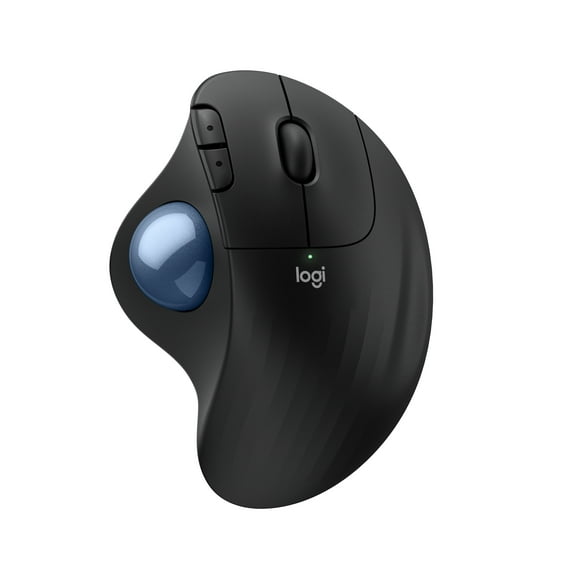
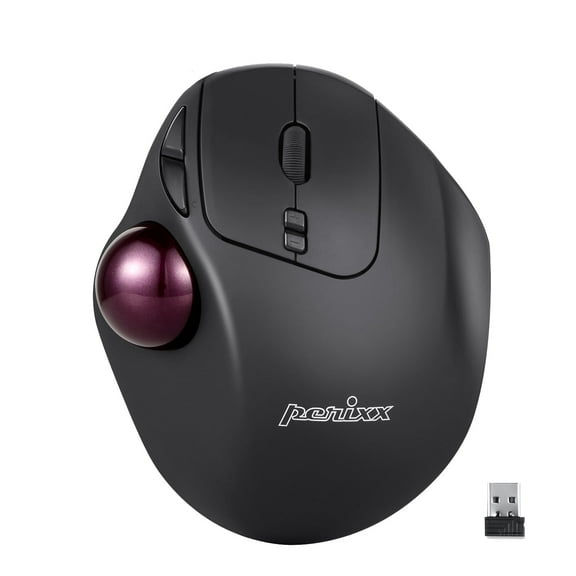
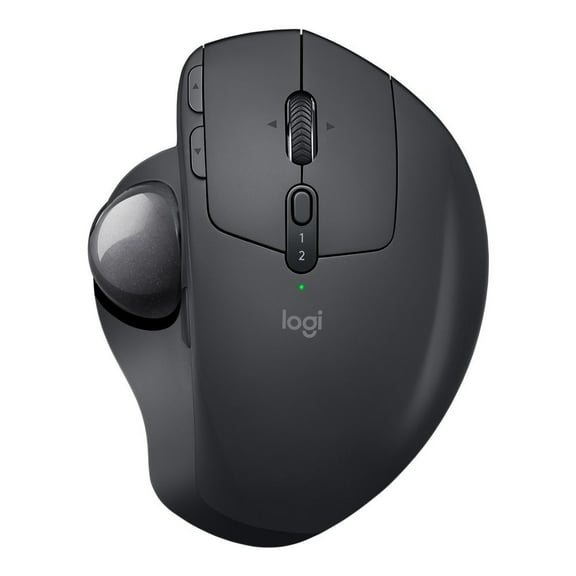
You should start with the tracking method because it changes how your hand and fingers move all day. You may prefer a thumb-controlled design if you want familiar button placement and minimal desk movement.
You might choose a finger-controlled model if you want larger ball movement and broad cursor control. You can also consider a center-trackball layout if you want a more symmetrical setup.
When you compare trackball styles, you should notice how pronation angle affects comfort during long sessions. You can often reduce desk travel because your hand stays planted while the ball handles navigation.
- You can keep your mouse in one place, which works well on compact desks and keyboard trays.
- You can choose thumb-controlled, finger-controlled, or center-trackball layouts for different movement preferences.
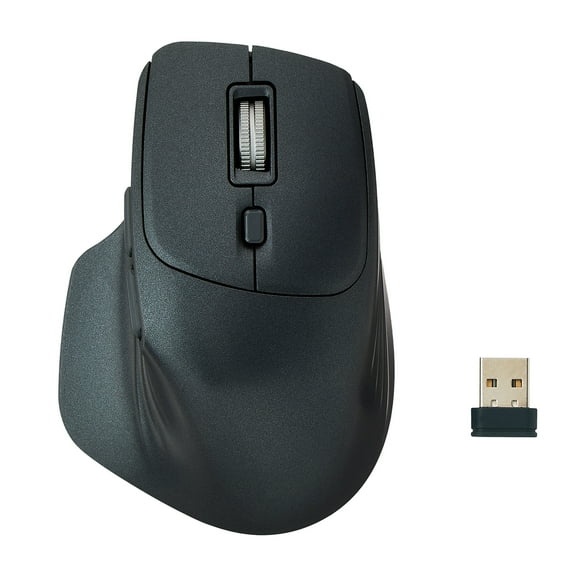
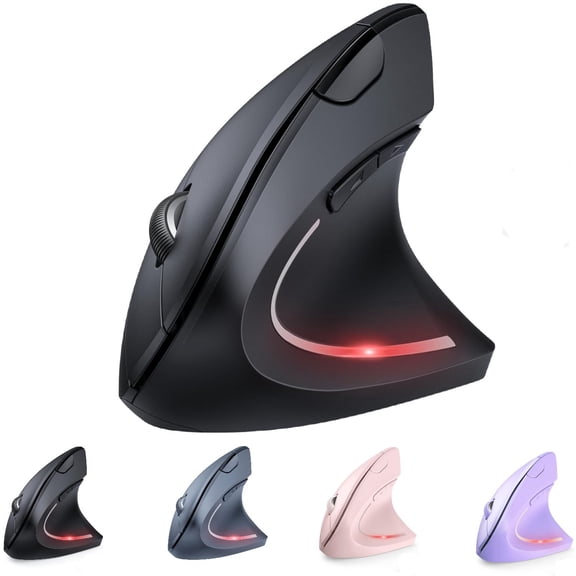
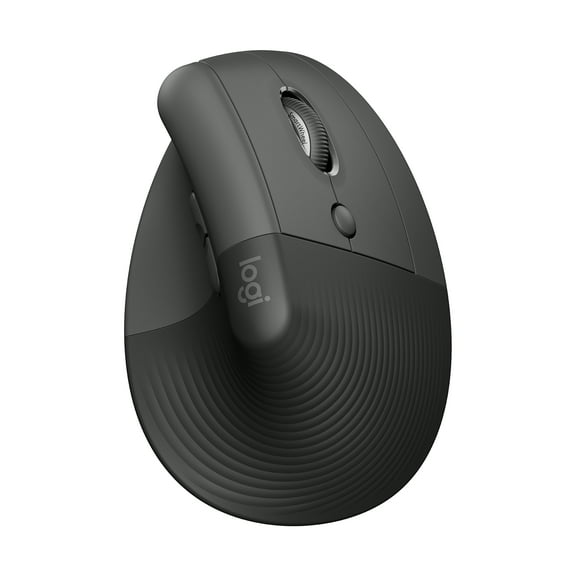
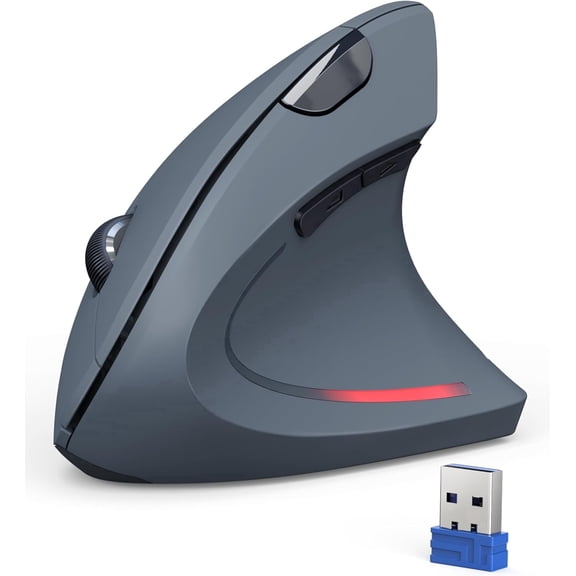
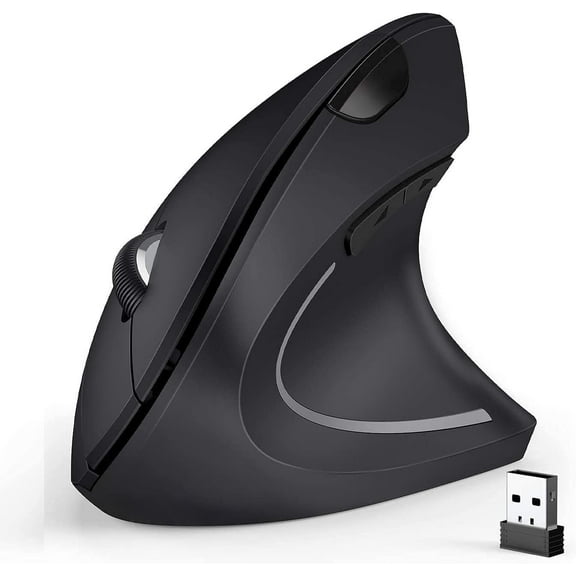
- You can compare vertical angle, adjustable tilt, and standard contour shapes for hand positioning.
- You can find right-handed, left-handed, and ambidextrous options that match your setup.
Choosing connection type and compatibility
You should check connection type early because it affects how your mouse works with your laptop or desktop. You can choose wireless, Bluetooth, or wired options based on ports, battery preferences, and travel needs.
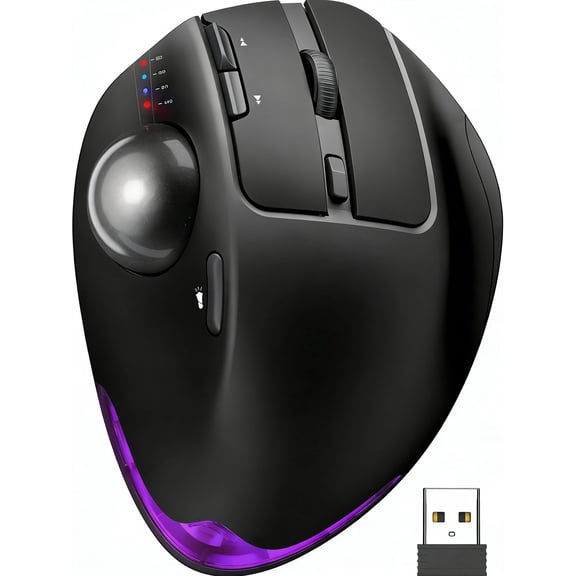
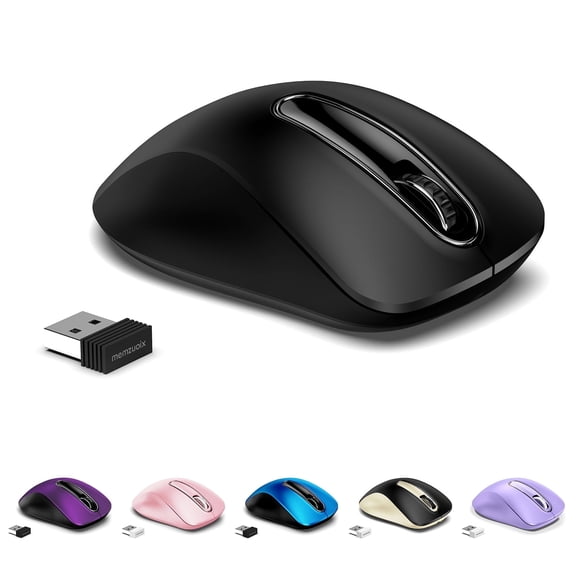
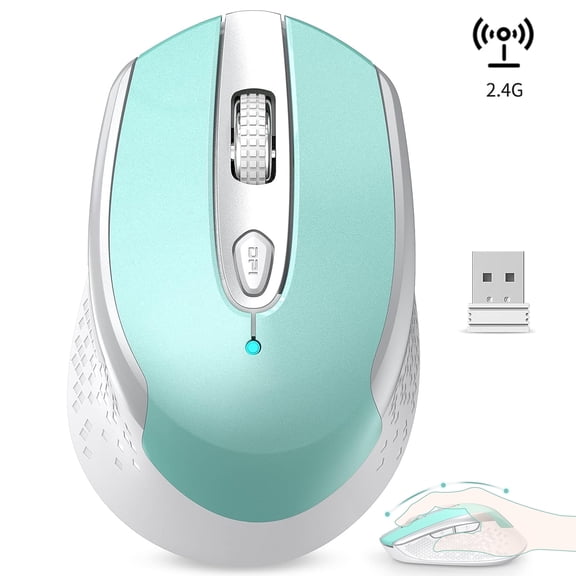
If you want fewer cables, you may prefer Bluetooth LE support for a cleaner desk. If you want simple pairing, you might choose a 2.4GHz USB dongle or a wired USB connection.
You should also check whether your device uses USB-A or USB-C before you decide. You can avoid adapter hassles by matching the receiver or cable to your computer's available ports.
For workstations with multiple devices, you may like connection options that let you switch between systems. You can move from a laptop to a desktop more smoothly when compatibility is clear upfront.
What to look for in ergonomic design
You should compare vertical angle, adjustable tilt, and standard contour shapes as separate comfort choices. You can use these design differences to match your grip, desk height, and daily workload.
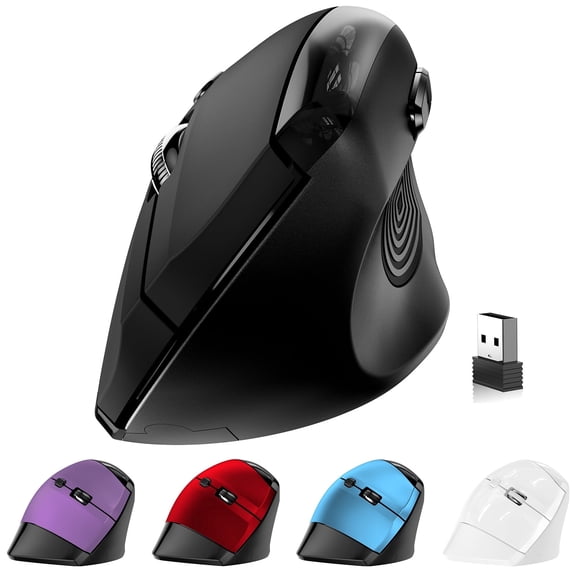
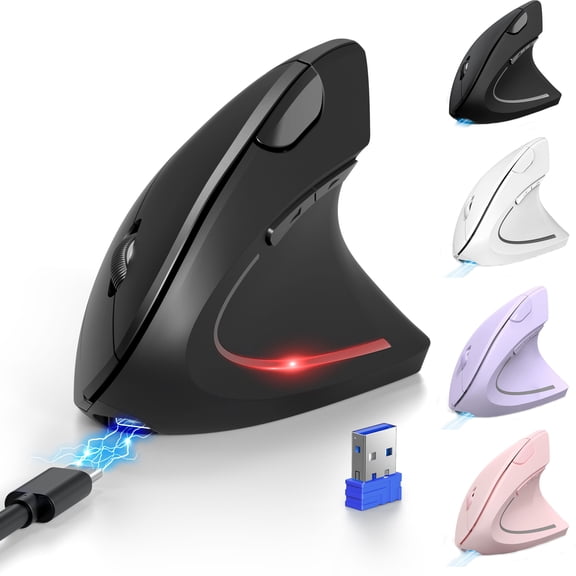
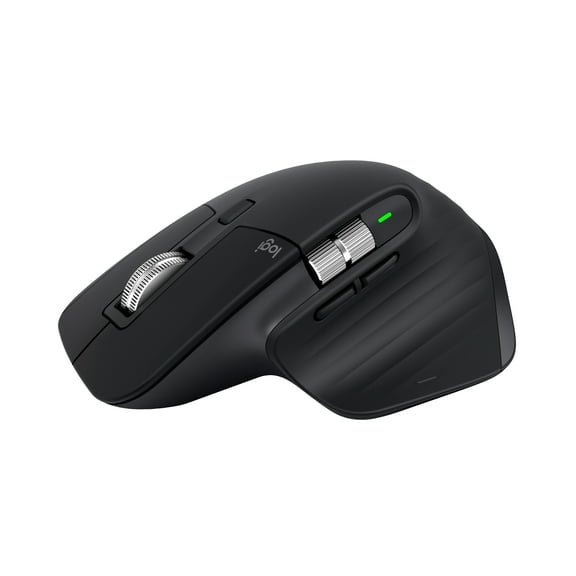
A vertical angle can place your hand in a handshake-like position that feels different from a flat mouse. An adjustable tilt lets you test several positions until your wrist and forearm feel more settled.
If you want a familiar feel, you may prefer a standard contour with a trackball layout. You can still gain the stationary cursor control that makes an ergonomic mouse with ball designs distinct.
You should also look at hand orientation before you narrow your options. You can choose right-handed, left-handed, or ambidextrous shapes to fit your dominant hand and shared workspaces.
Comparing thumb control, finger control, and precision settings
You may compare thumb control and finger control based on which muscles you want to use more often. You can often make a clearer choice after thinking about repetitive tasks, cursor distance, and click frequency.
A thumb-operated layout keeps your fingers closer to the main buttons during office work. A finger-operated layout can give you broad ball control when you move across large screens or detailed timelines.
If you want finer cursor control, you should check whether pointer speed is easy to adjust. You can look for DPI or CPI adjustment levels that help you slow down for detail work.
You may want lower sensitivity for photo edits, spreadsheet cells, or design tools that demand precise placement. You might prefer higher sensitivity when you cover multiple monitors or large documents quickly.
Using an ergonomic mouse for carpal tunnel decision-making
If you're comparing an ergonomic mouse for carpal tunnel concerns, you should focus on shape, tilt, and movement style. You can use those details to find an ergo computer mouse that changes how your hand works.
You may want a design that keeps your wrist steadier because the base stays in place. You can also compare models that reduce broad arm movement and support a more neutral forearm angle.
When you review options for a carpal tunnel computer mouse, you should consider where the ball sits. You can test whether thumb placement, finger reach, or center positioning feels easier during long sessions.
You should treat comfort as a fit decision rather than a one-style answer for everyone. You can narrow choices faster when you match the design to your grip, desk layout, and task mix.
Cleaning and everyday use
You should expect regular cleaning to be part of trackball ownership, especially with daily office use. You can keep movement feeling smooth by checking the ball and socket area for dust and buildup.
Many shoppers want simple maintenance, so you should look for designs with easy ball removal. You can wipe the ball and interior contact points with basic care steps from the product instructions.
If you work between home and office, you may appreciate a trackball that stays usable on tight surfaces. You can use it beside a laptop, on a keyboard tray, or in a workstation with limited mousing space.
An ergonomic trackball mouse also suits creative work, data entry, and multitasking across dense screens. You get steady cursor control, less desk travel, and a setup tailored to your hand and connection needs.
You can choose more confidently when you compare tracking method, connection type, tilt, and hand orientation together. That approach helps you land on an ergonomic trackball mouse that fits your workflow from the first click.